Use Help and content pages
Website can present support information in two ways: signed-in customers can use Help, while project-published content pages can appear in the public Site Map and footer. The exact wording and availability depend on the Website configuration and language.
Help requires an active authenticated Website session. Required profile completion or account verification can appear first, and the account menu can hide the Help entry. Public content pages and footer content have separate publication and visibility settings; they do not require Help to be available.
Open Help
- Sign in to Website.
- Open the account navigation.
- Select Help when it appears.
The Help overview offers three topic choices:
- Help with an order
- Account and Payment Options
- Guide to Ordering
It can also show a returned order under Last order. Use that card only as context while reading Help. Selecting it leaves Help and opens a separate order-details flow.
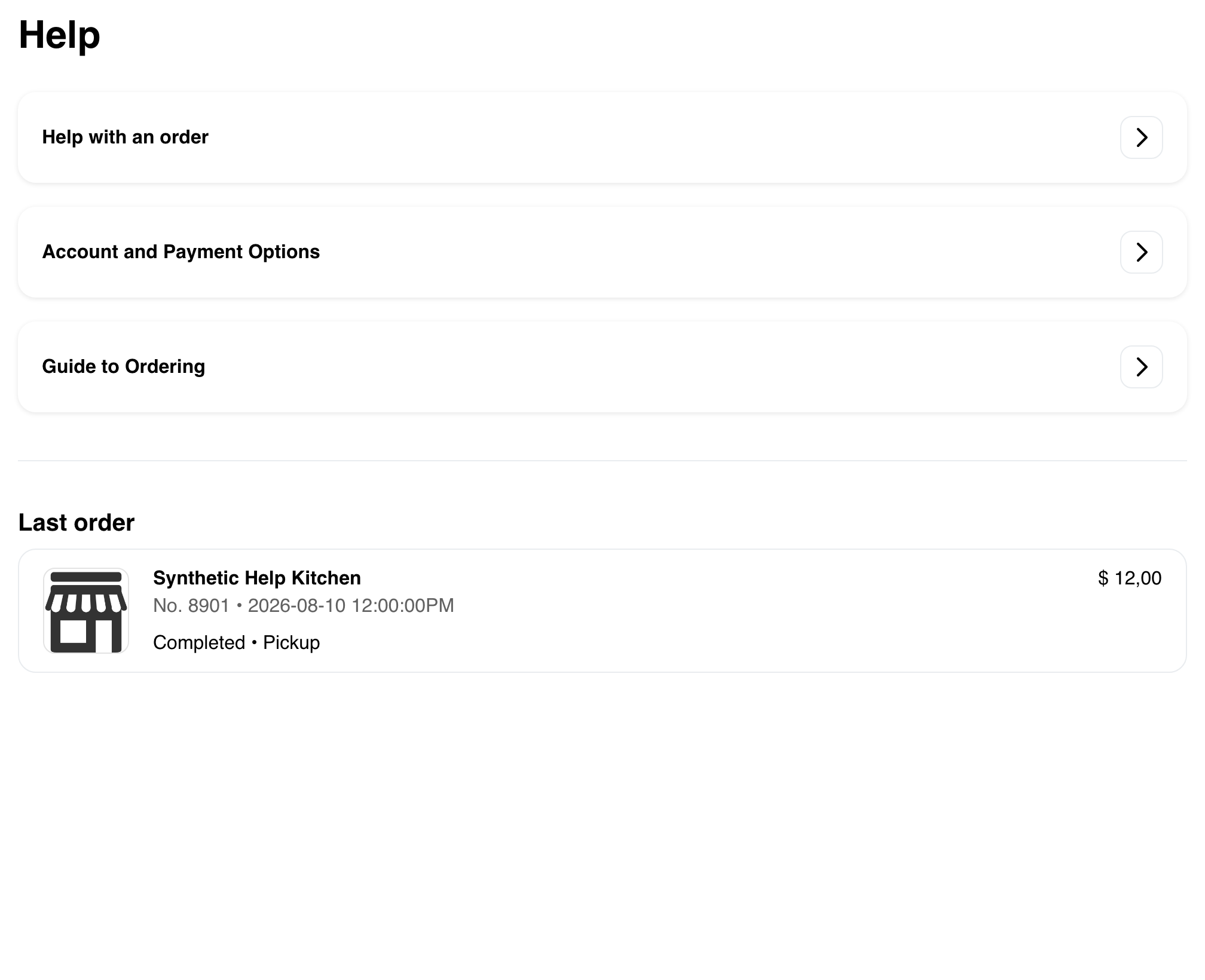
The card label does not guarantee that it is the newest order by every possible date or sorting rule. Rely on the visible order reference, status, and fulfillment information.
Read a Help topic
Select the topic that best matches the question. Website opens project-provided guidance beneath the topic heading. Use the Help breadcrumb to return to the three-topic overview.
Help with an order
This topic can provide project-specific guidance for checking an order and choosing an available support action.
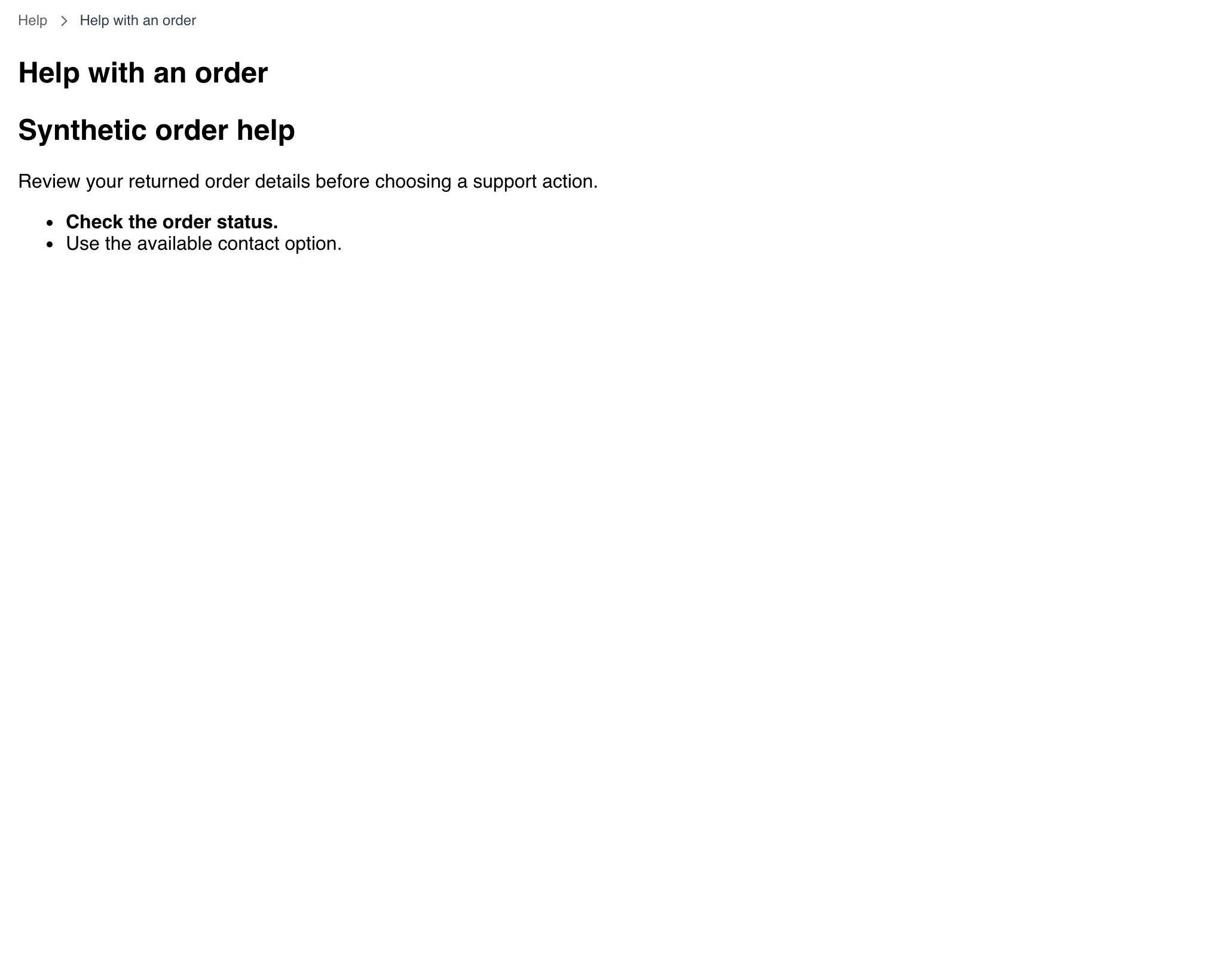
For the current order summary, status, and available actions, use the order itself rather than treating general Help text as a live order update. See Review order details and tracking.
Account and Payment Options
This topic can explain account and payment choices configured for the Website. The choices available during checkout still depend on the business, order, session, device, and amount due.
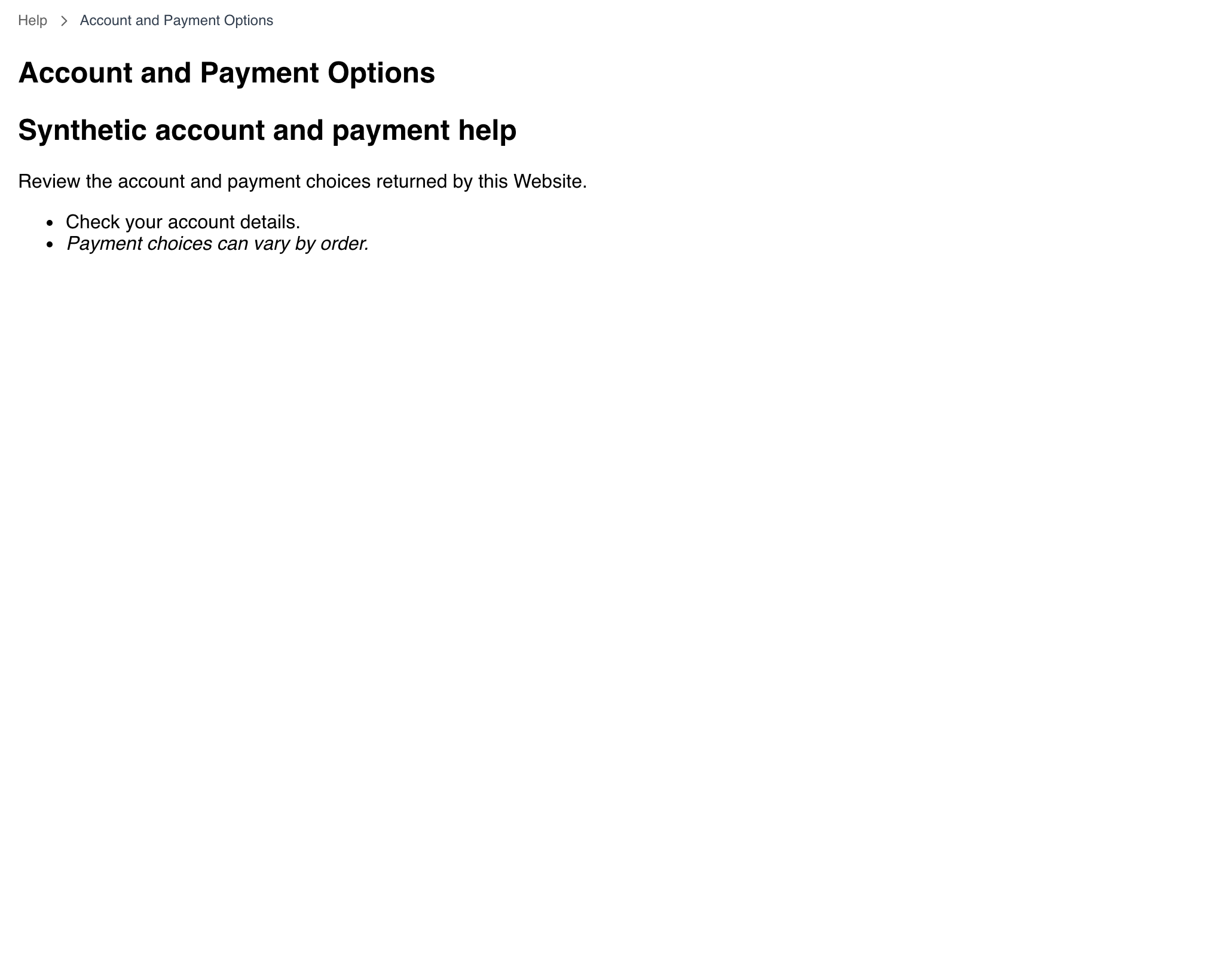
Use the checkout's current Payment Method section as the authority for a specific order. See Choose a payment method.
Guide to Ordering
This topic can outline the project's general ordering journey, such as choosing a location, browsing a business, reviewing a cart, and continuing to checkout.
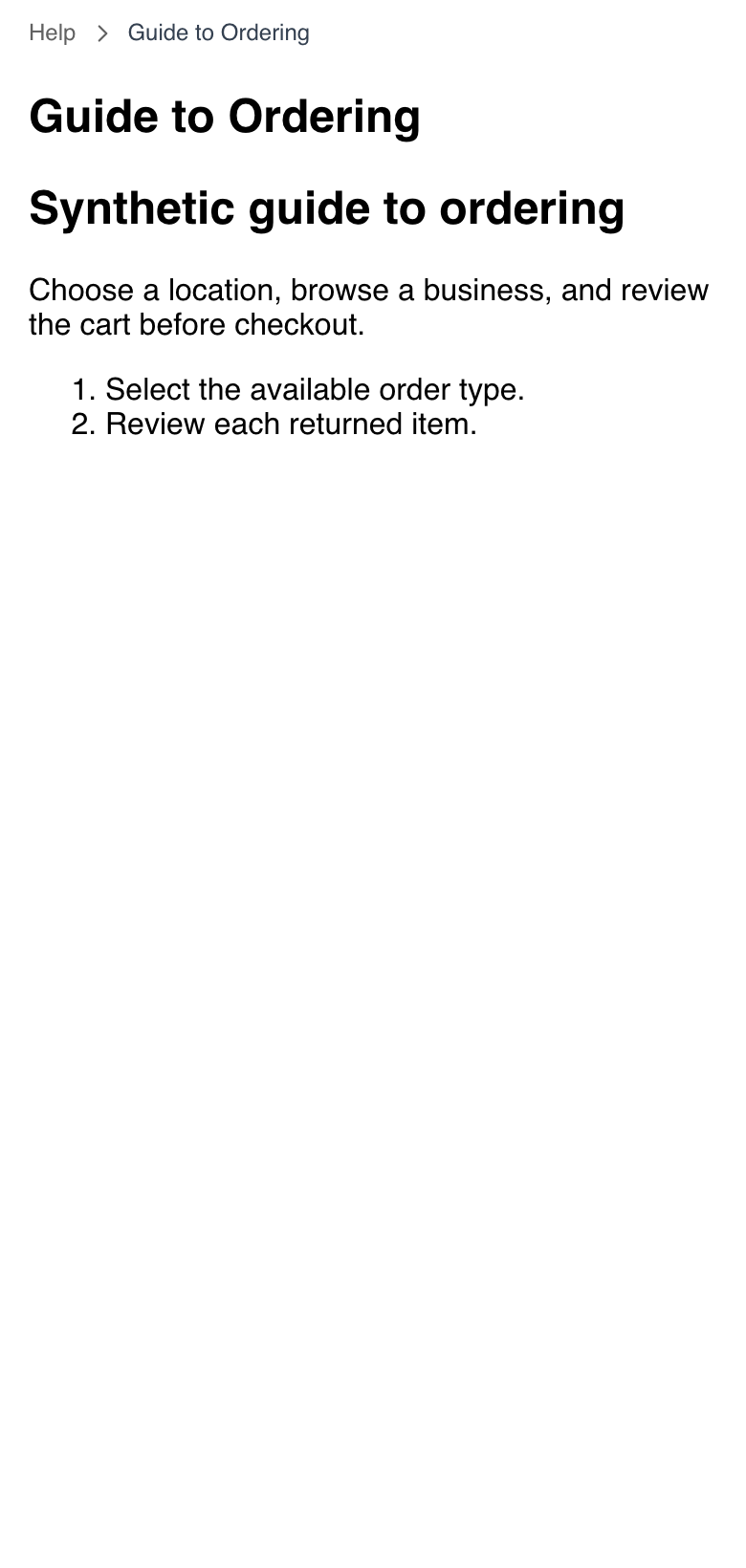
Project guidance can differ from the controls currently visible for a particular business or order type. Follow the current Website screens when they differ.
Use Help on mobile
Mobile presents the same three-topic purpose in a vertical layout. Scroll past the topic choices to review the returned Last order card when one is present.
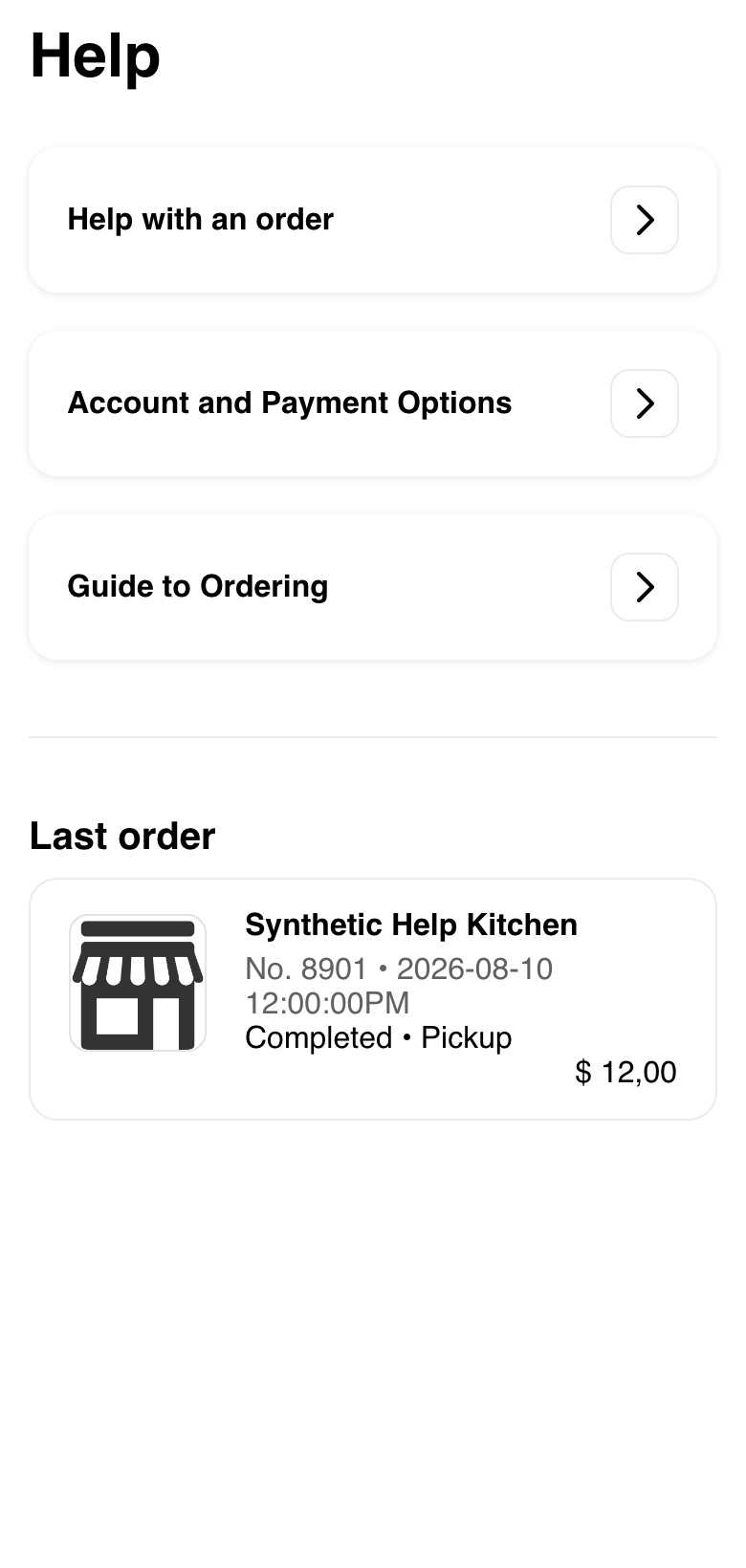
Selecting a topic replaces the overview with its guidance. Use the breadcrumb at the top of the topic to return.
Browse the Site Map
The public Site Map lists standard Website destinations and can append configured public content pages. The standard list can include entries such as Home, account access, Profile, My Orders, Search Businesses, Checkout, and Pages.

Select a configured page name to open its current Website content. A Site Map entry is navigation: it leaves the list and opens the selected destination.
Read a configured public page
A configured page can present project guidance without requiring sign-in when the project publishes it for public access.

Content structure varies by project. A page can contain headings, paragraphs, lists, links, or other configured material. Before following a link that leaves the current Website, check its displayed destination and use the browser's normal safety controls.
If the selected page cannot be loaded, Website can show Sorry, the selected page was not found and Go to pages list.

Select Go to pages list only when the customer wants to leave the missing page and return to the Site Map.
Use public pages on mobile
The mobile Site Map stacks standard destinations and configured public pages in one vertical list.
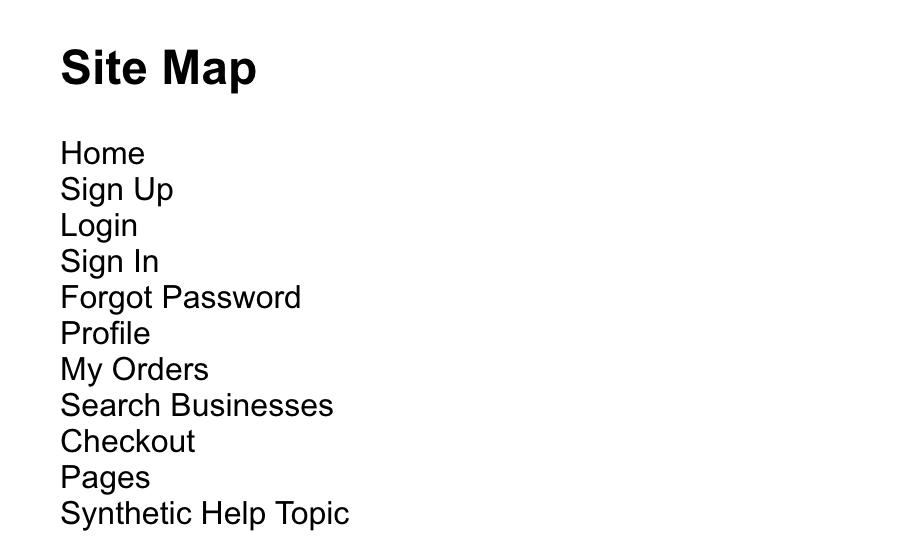
Configured page content also reflows for the narrow viewport.
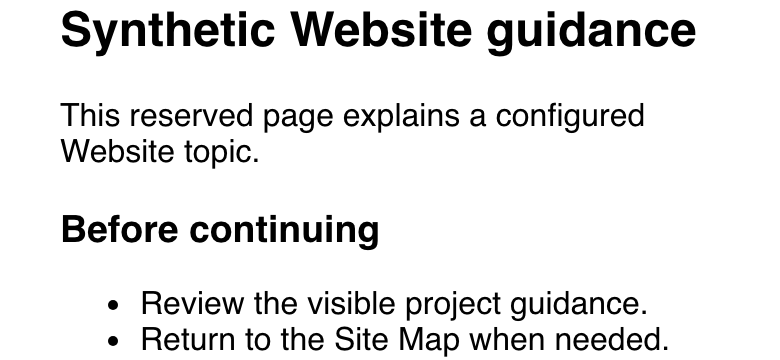
Scroll through the full page before deciding that guidance is missing. Long project content can extend beyond the first mobile screen.
Recognize localized footer guidance
An ordinary Website page can show project-provided footer content beneath the main page. When a localized footer is published, its wording can follow the selected Website language.
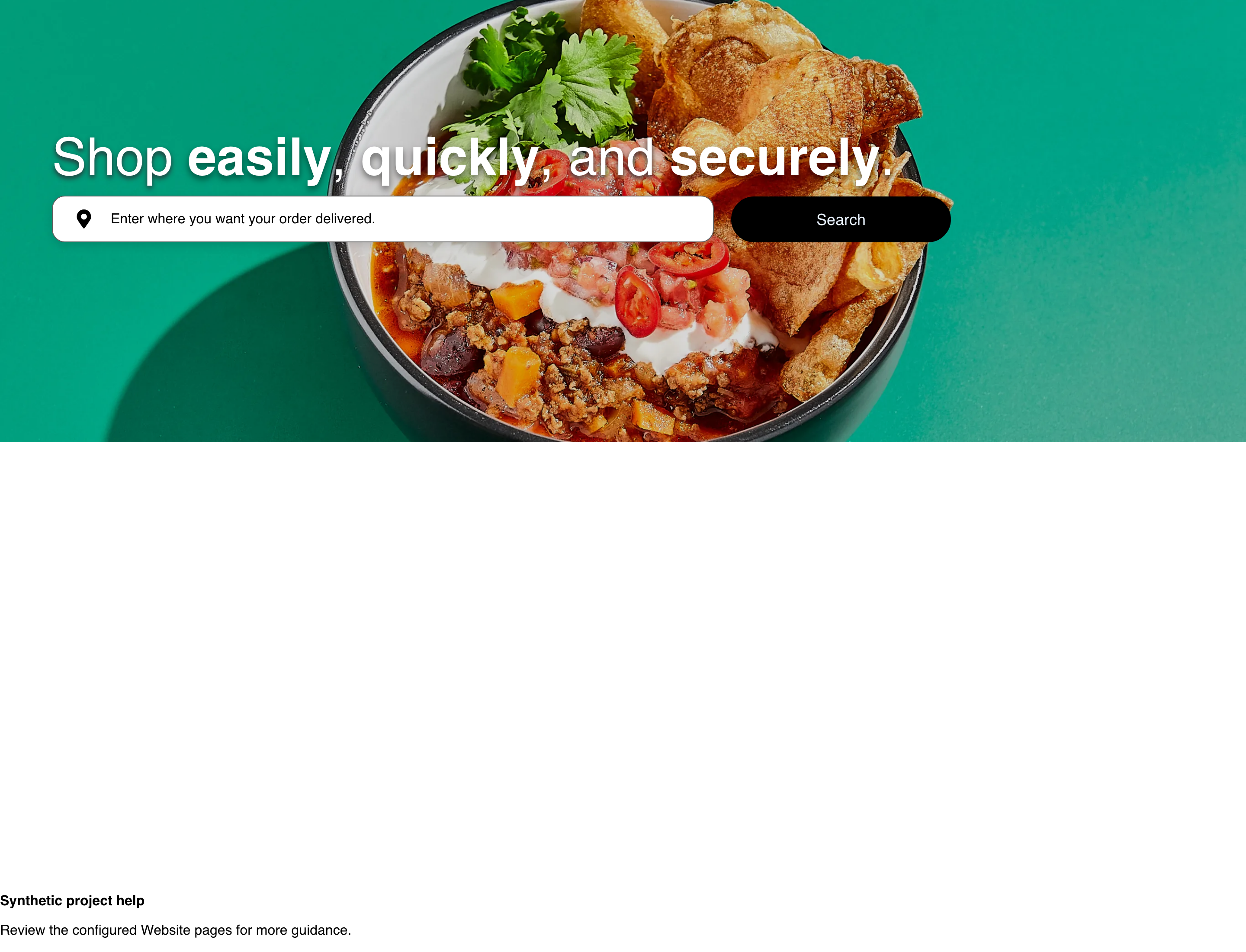
Footer content can be absent on a dedicated footer route, a kiosk experience, or a theme that hides it. A language-specific footer, theme footer, or default footer can also produce different visible content. Do not use footer visibility as proof that the same support text is available on every page.
Troubleshooting
Help is missing from the account menu
Confirm that the customer is signed in and has completed any profile or verification step shown by Website. The theme or Website mode can hide the Help entry even when other account options remain. Use another support channel provided by the business if Help is not exposed.
A Help topic opens without guidance
Return to the Help overview and try the topic once more. If the heading appears but the body remains blank, the project topic may be unavailable. Do not interpret a blank topic as an order-status update or payment result.
A configured page is not listed
The Site Map shows only the standard destinations and configured pages returned for the current Website and visitor. Confirm the selected Website and language, then reload the Site Map once. Contact the business when an expected public page remains unavailable.
A content page shows not found
Use Go to pages list to return to the Site Map and choose an available page. Do not repeatedly edit or guess the page address.
Footer guidance is missing or uses different wording
Check the current Website language and another ordinary page. Footer visibility and content can vary by language, page, theme, and specialized Website mode.
Related guides: Understand Website global states · Sign in or create an account · Review order details and tracking · Choose a payment method · Browse a business and its menu