Understand Website global states
Website can temporarily replace or cover the current journey when it is starting, the browser is offline, a page address is not recognized, a cookie preference is needed, or the entire Website is unavailable. The heading and visible controls identify what the customer can do next.
These presentations depend on the Website configuration, page, mode, browser state, and screen size. A page-specific empty or unavailable state can look different from the Website-wide states in this guide.
Wait for Website to start
Website can show a full-page loading animation while startup information is still settling.

Fast loads might finish before this animation appears. On mobile, the loading state also covers the available viewport.

If loading continues unusually long, wait for the current request to settle and reload once. Avoid repeatedly refreshing during checkout or another transaction because the result might already be in progress.
Respond to an offline notice
When the browser reports that it is offline, Website replaces the routed page with No internet connection, guidance, and Refresh.
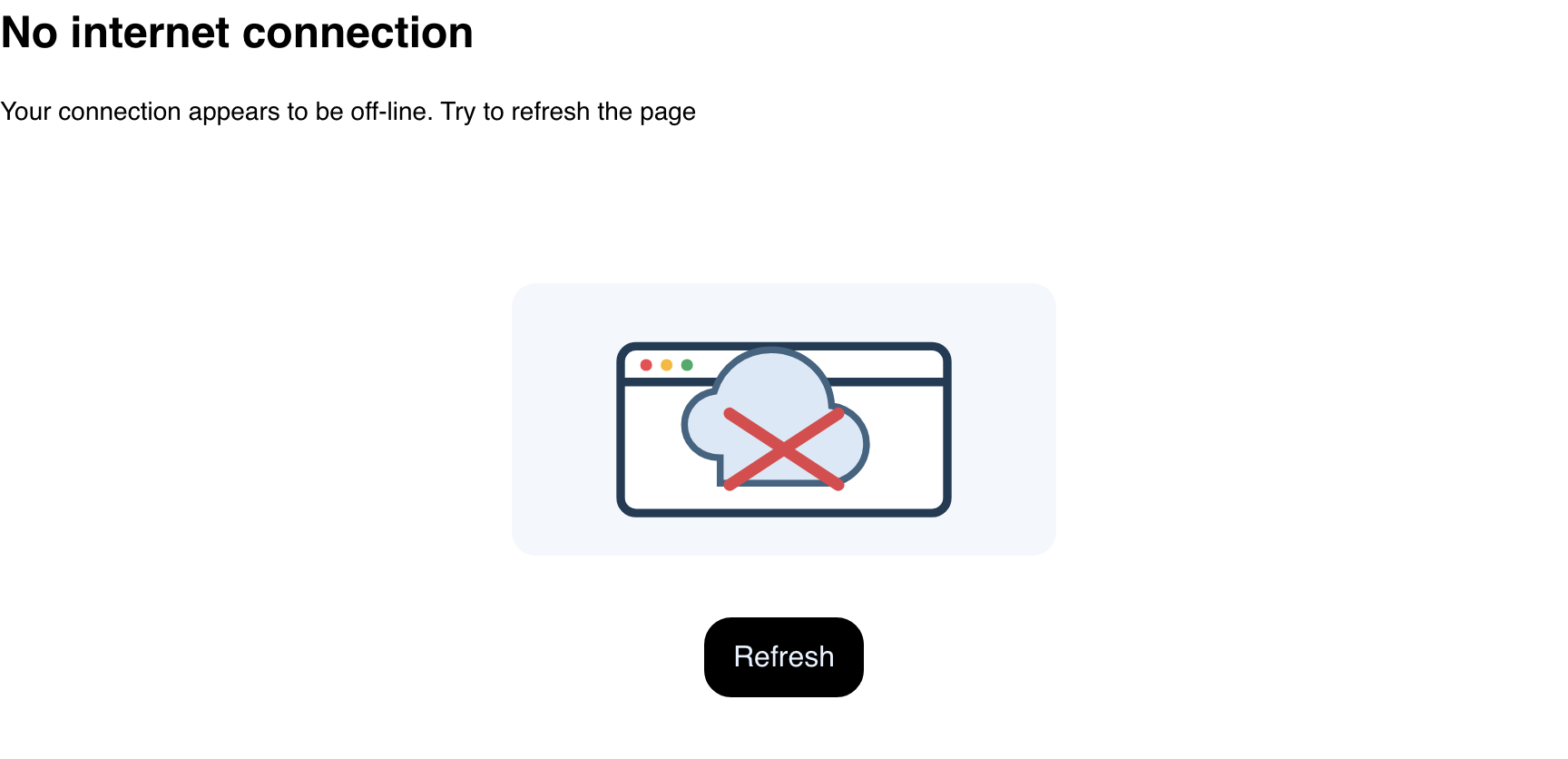
- Restore the device's internet connection.
- Wait until the browser reports that it is online.
- Select Refresh once.
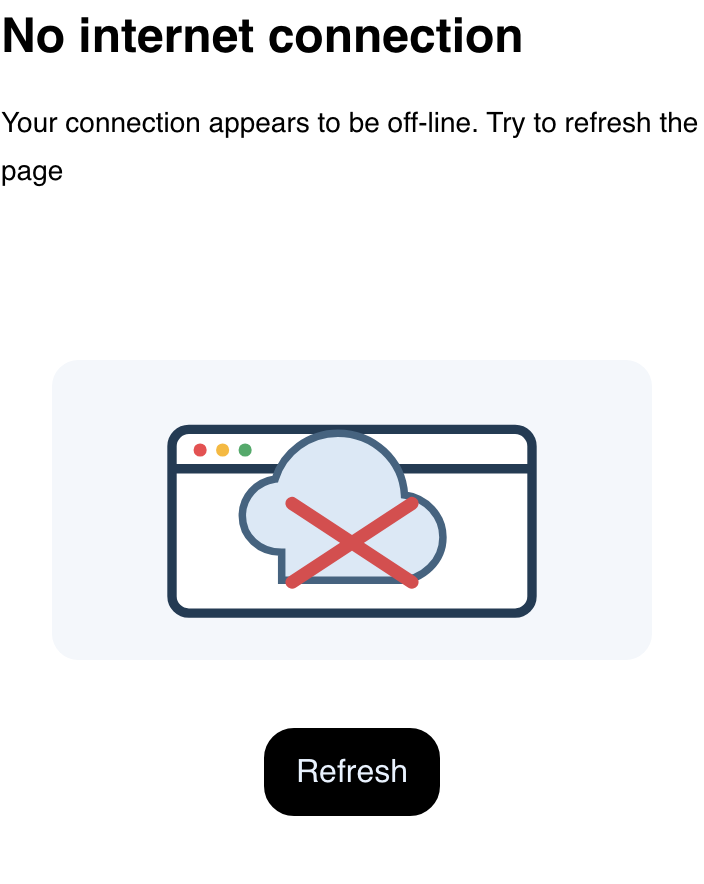
The offline state reflects the browser's connection signal. Reconnecting or refreshing does not guarantee that a business, page, or service is available.
Recognize the global Page Not Found state
PAGE NOT FOUND means the current address reached Website's general route fallback. This presentation has no built-in action.

Return through Website navigation or use a link provided by the business instead of editing or guessing the address.

A missing order, cart, business, product, or configured content page can use a different message and action. PAGE NOT FOUND also describes the visible Website presentation; it does not by itself establish the document's HTTP response status.
Choose a cookie preference
When enabled and not yet resolved, the cookie dialog presents policy links and two choices:
- Got it records acceptance and allows Website-supported consent-gated experiences to initialize.
- Opt Out records the opt-out preference and applies Website's supported cleanup for that choice.
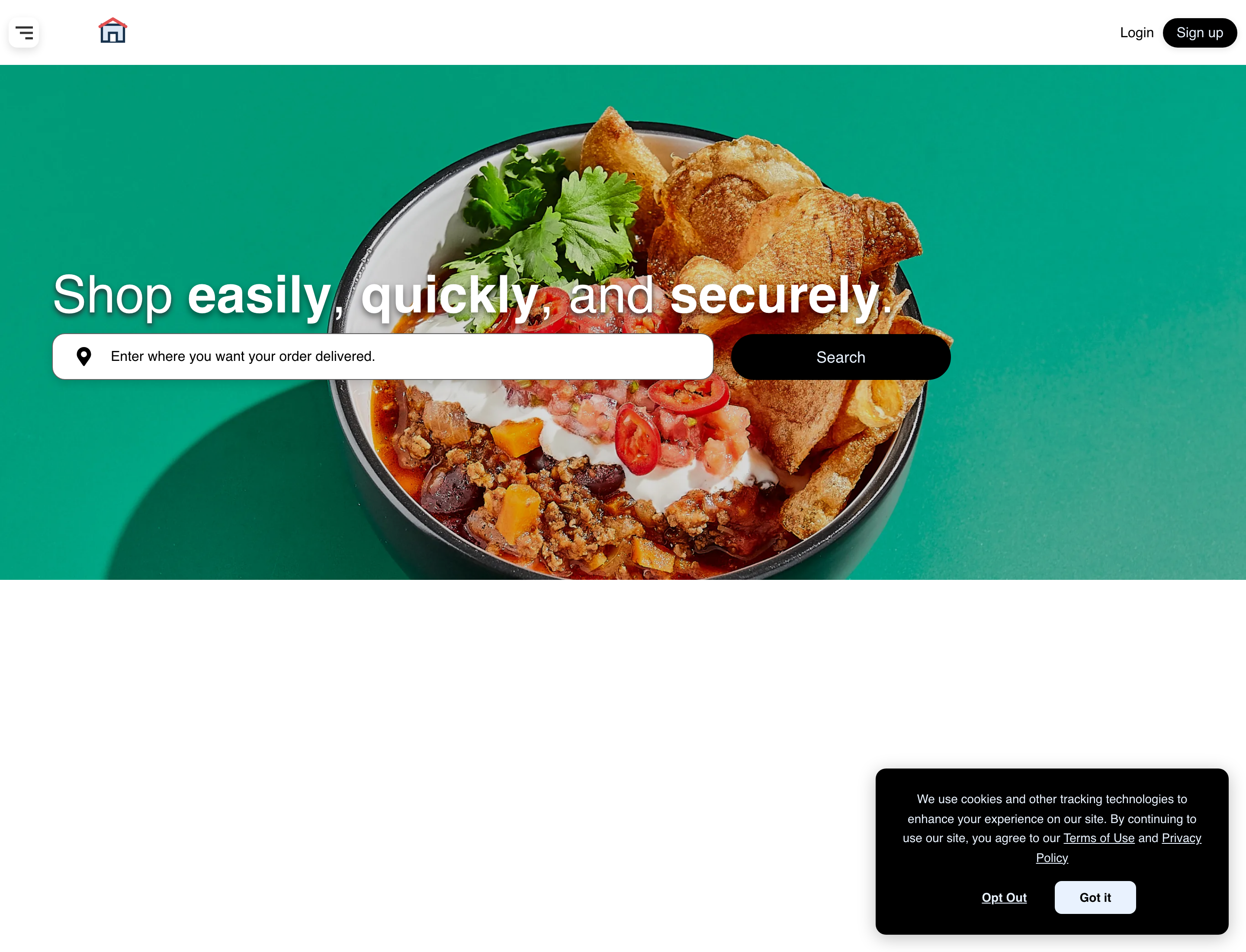
Read Terms of Use and Privacy Policy before choosing when the customer needs more information. On mobile, the dialog appears above the page and navigation.
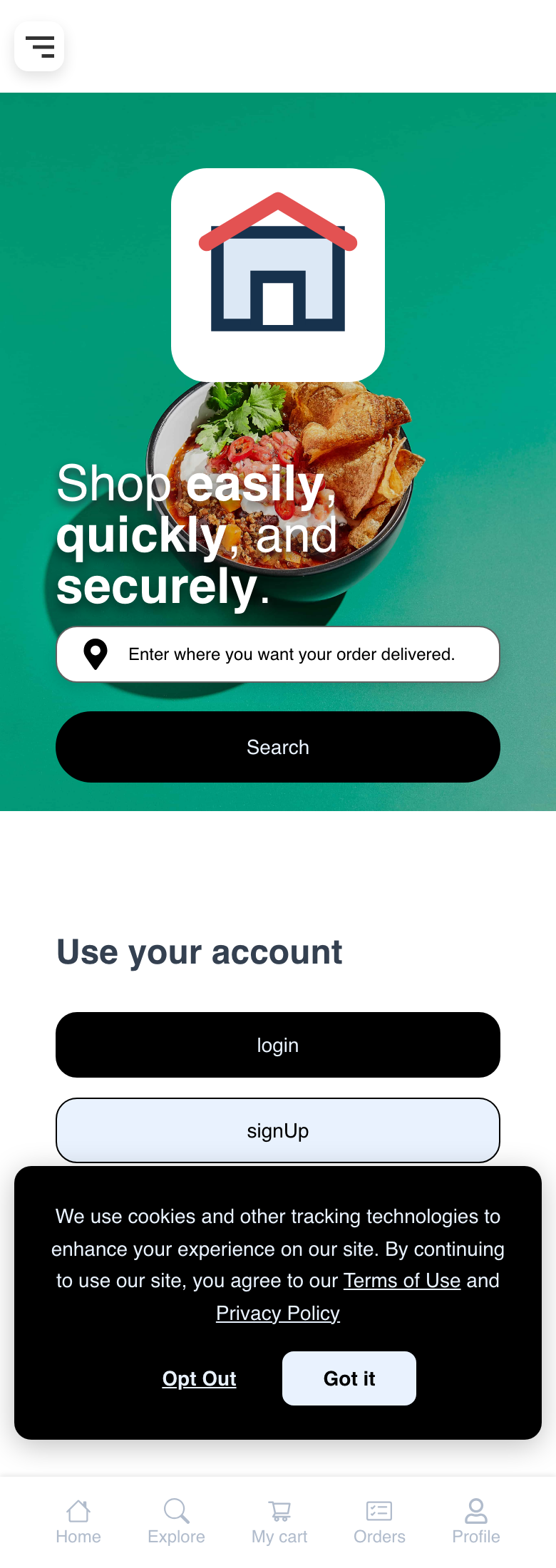
The preference controls integrations supported by this Website mechanism. It is not a promise that every cookie or unrelated external service is controlled or removed, and it does not reverse information already sent before the choice.
Understand SITE OUT OF SERVICE
A Website configured as unavailable can replace every normal ordering route with SITE OUT OF SERVICE and archived or suspended guidance.
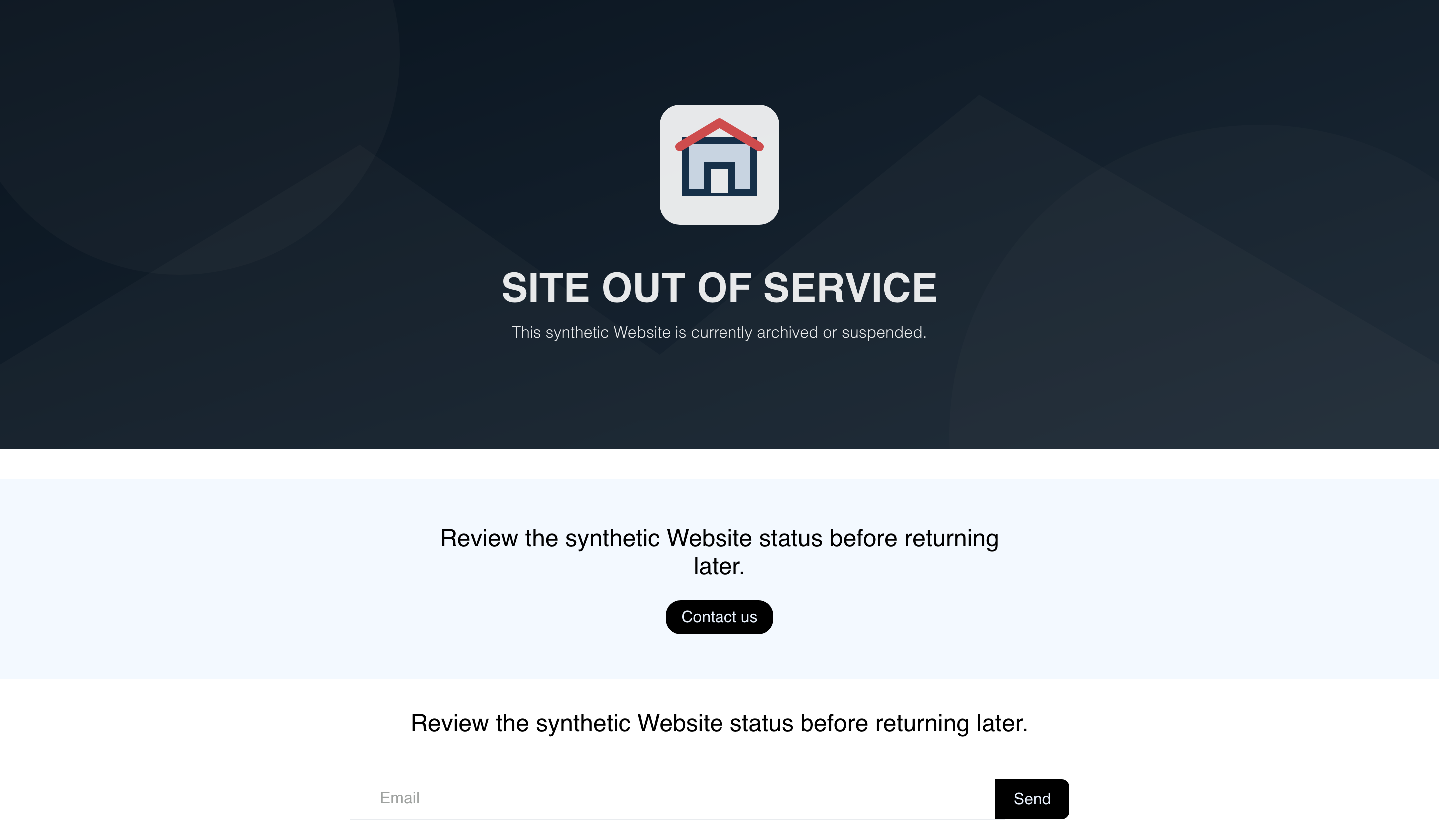
This is a Website-wide availability state. It is not an order-cancellation status and does not mean that an existing order was cancelled.
The presentation can include Contact us, an Email field, and Send. Their presence does not confirm that a support request will be delivered. If the controls provide no confirmation, use a support channel already supplied by the business and preserve the customer-facing order reference when the question concerns an existing order.
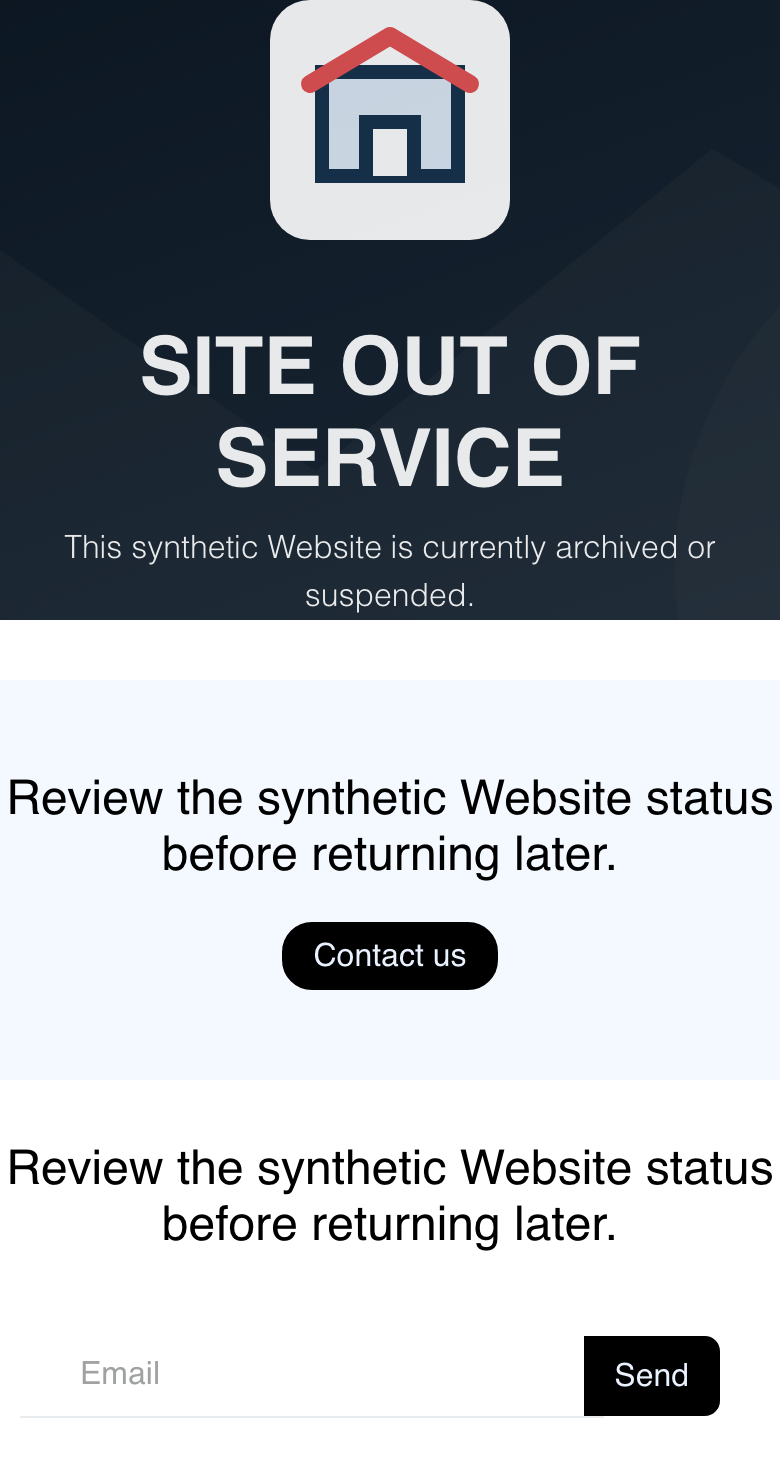
Customers cannot continue the ordinary shopping journey while this replacement is active. Return later or follow confirmed guidance from the business or Website owner.
Distinguish page-owned states
Not every empty, unavailable, error, or missing-resource presentation is global:
- A successful empty state means the current page returned no applicable items for that context.
- An unavailable state can depend on configuration, business availability, order type, schedule, account state, or a failed request.
- A missing resource can provide its own return action even though the global Page Not Found state does not.
Use the exact heading and the guide for the current page. Do not infer the cause from the illustration alone.
Troubleshooting
Loading does not finish
Wait briefly, then reload once outside an active transaction. If the state returns, confirm the Website address and try another network. Preserve the approximate time and visible page when reporting the problem.
Refresh returns to the offline notice
Confirm that the device can load another trusted site. The browser can report an online connection even when the requested Website service remains unreachable. Retry later or use a confirmed business support channel.
A valid-looking link shows PAGE NOT FOUND
Return to Website navigation and open the destination from there. Links can change with Website configuration. Avoid repeatedly modifying the address.
The cookie dialog returns
Confirm that browser storage is allowed for the Website and that the customer is using the same browser profile. Private browsing, cleared site data, or a different device can require another choice.
SITE OUT OF SERVICE remains visible
The state applies to the Website, not to a single page. Wait for confirmed availability guidance from the business or Website owner. For an existing order, use the order reference and another confirmed support channel rather than treating this screen as a cancellation notice.
Related guides: Website overview · Use Help and content pages · Review order details and tracking