Review order history
My Orders organizes the orders returned for a customer into Upcoming, Active, and Past orders sections. Customers can compare visible status, fulfillment, and summary information before opening a separate order-details or action flow.
Order history requires an active authenticated Website session. Required profile completion or account verification can appear first. The Orders entry and the information shown on each card depend on the Website navigation, theme, configuration, and returned order data.
Open My Orders
- Open the account navigation.
- Select Orders when the Website exposes it.
- Review the sections that contain returned orders.
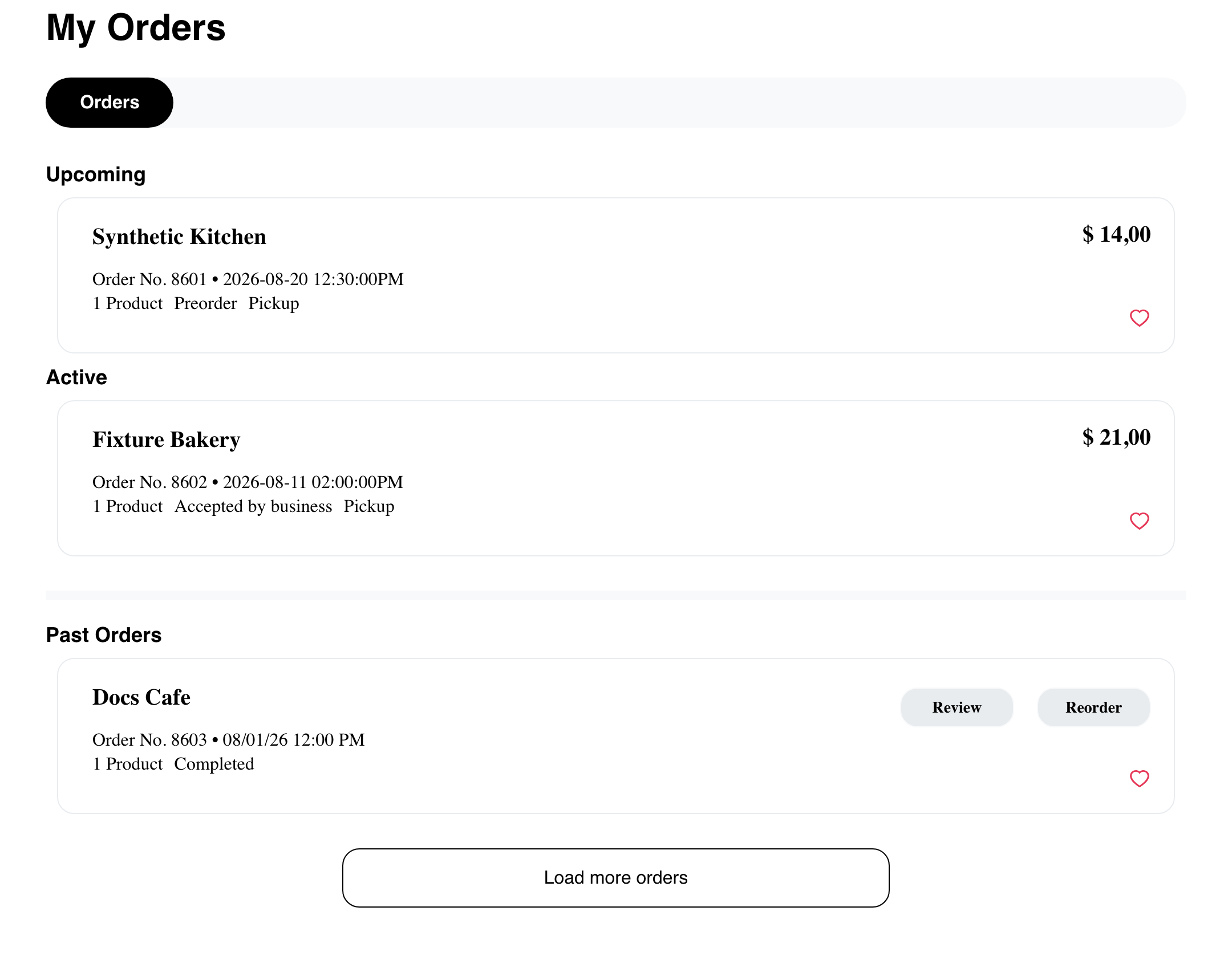
The sections have different purposes:
- Upcoming can contain a scheduled or preorder-style order that has not entered the ordinary active sequence.
- Active shows orders currently moving through their returned fulfillment states.
- Past orders shows finished outcomes, including the status returned for each order.
A section with no returned cards is omitted. The exact labels and section membership can change with Website behavior, so use the headings and status text visible to the customer rather than relying on an internal status number.
Read an order card
Depending on the order and Website theme, a card can show:
- the business name;
- the order number or another configured reference;
- the fulfillment date or estimated time;
- the number of products;
- the current status and fulfillment type; and
- the displayed total.
Date, time, status, and price formatting follow the Website locale and configuration. A card is a summary of returned order data; it does not guarantee that products, options, prices, business availability, or fulfillment requirements are still the same today.
Selecting a card can open a separate order-details experience. That is a navigation action, not part of passively reading this page. See Review order details and tracking for the current detail views.
Treat Past-order controls as separate actions
A Past order can show controls such as Review, Reorder, and a favorite heart. Do not select them when the goal is only to inspect history:
- Review starts a feedback flow.
- Reorder attempts to create a current cart from historical information. It can require cart changes and does not guarantee that the old order can be recreated unchanged.
- The heart changes the order's saved-favorite state.
The presence of a control does not prove that the action will complete successfully. Current products, prices, options, availability, and cart requirements are evaluated by the owning flow.
See Order again and leave reviews before using either action.
Load additional orders
Load more orders can appear below a section when more pages are available. Select it once, wait for the additional cards to appear, and then continue reviewing the list.
Loading more orders adds returned cards to that section. It does not place, update, review, or reorder an order.
Use order history on mobile
Mobile presents the same history purpose in a vertical layout. Scroll through the page to review each available section and any action below the Past-order list.
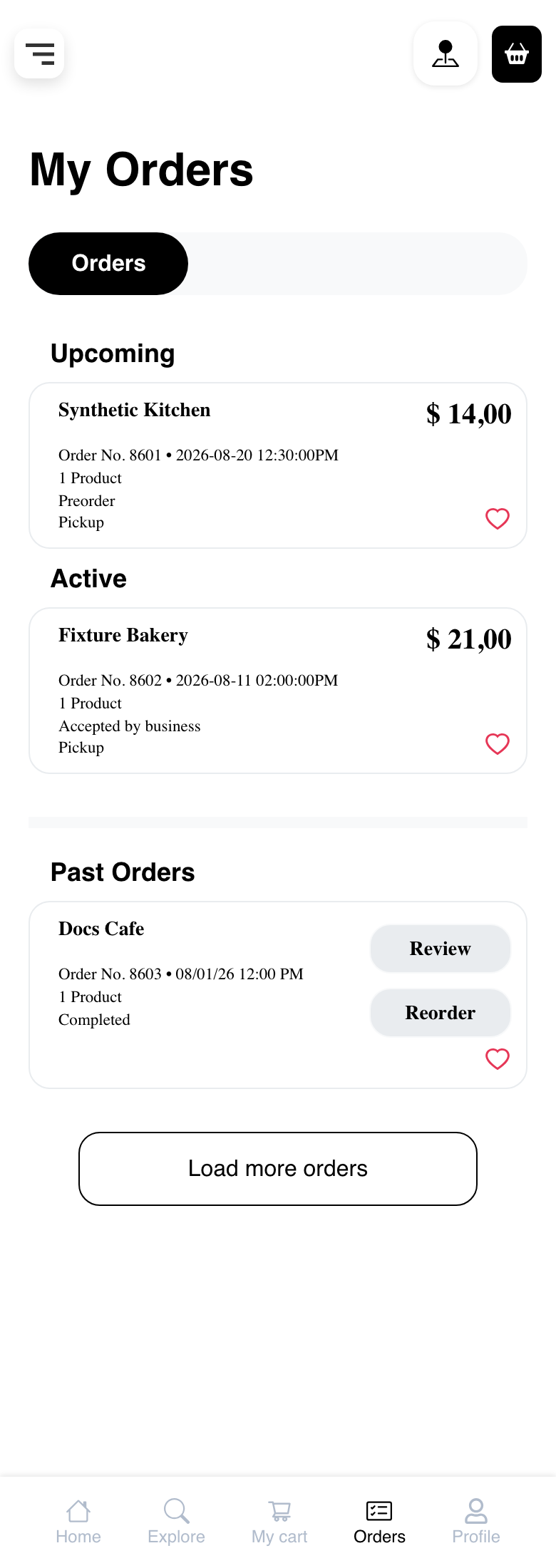
The mobile navigation and card spacing differ from desktop, but the visible headings and returned card information carry the same meaning.
Understand the successful empty state
When all three order searches complete successfully with no returned orders, Website shows You don't have any orders and an Order now action.
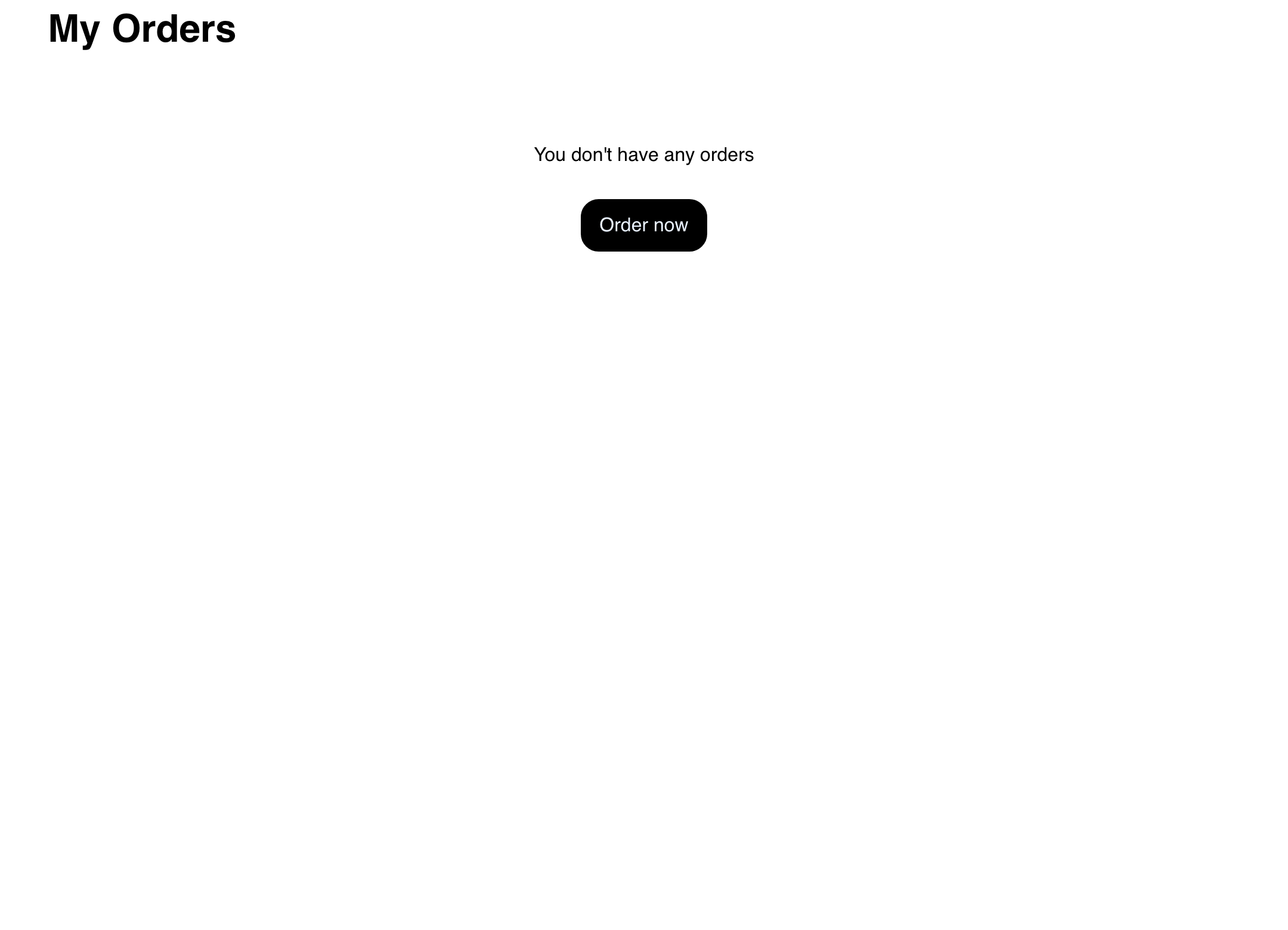
Order now leaves account history and starts a separate browsing journey. Select it only when the customer wants to shop rather than continue troubleshooting history.
Troubleshooting
An expected section is missing
Sections without returned cards are omitted. Check the other headings, then reload the page once. Status changes can move an order between the visible sections.
An expected order is missing
Confirm that the customer is using the same Website account that placed the order. Reload once and compare the visible results. If the order still does not appear, use the Website support option with the customer-facing order reference; do not repeatedly select Reorder or other card actions.
The page remains loading
Check the connection and reload once. If loading does not settle, return through the account navigation and try Orders again. Do not interpret an unresolved loading view as proof that the account has no orders.
Reorder is unavailable or does not complete
Historical visibility and current reorder availability are different. Review the current cart and business menu requirements, or place a new order from the current menu.
Related guides: Review order details and tracking · Order again and leave reviews · Browse saved favorites · Manage a cart