Review order details and tracking
The order-details page shows the latest information Website has returned for an order. Customers can review its status, estimated timing, products, saved totals, and fulfillment information without starting another checkout.
Order details are normally available to customers with an active Website session. Website can also support a complete order-access link in some experiences. The sections shown depend on the order type, status, returned data, and Website configuration.
Review an active order
An active order can show its current status, date, progress, estimated fulfillment time, products, saved amount, and fulfillment address. Delivery and pickup orders can present different labels and sections.
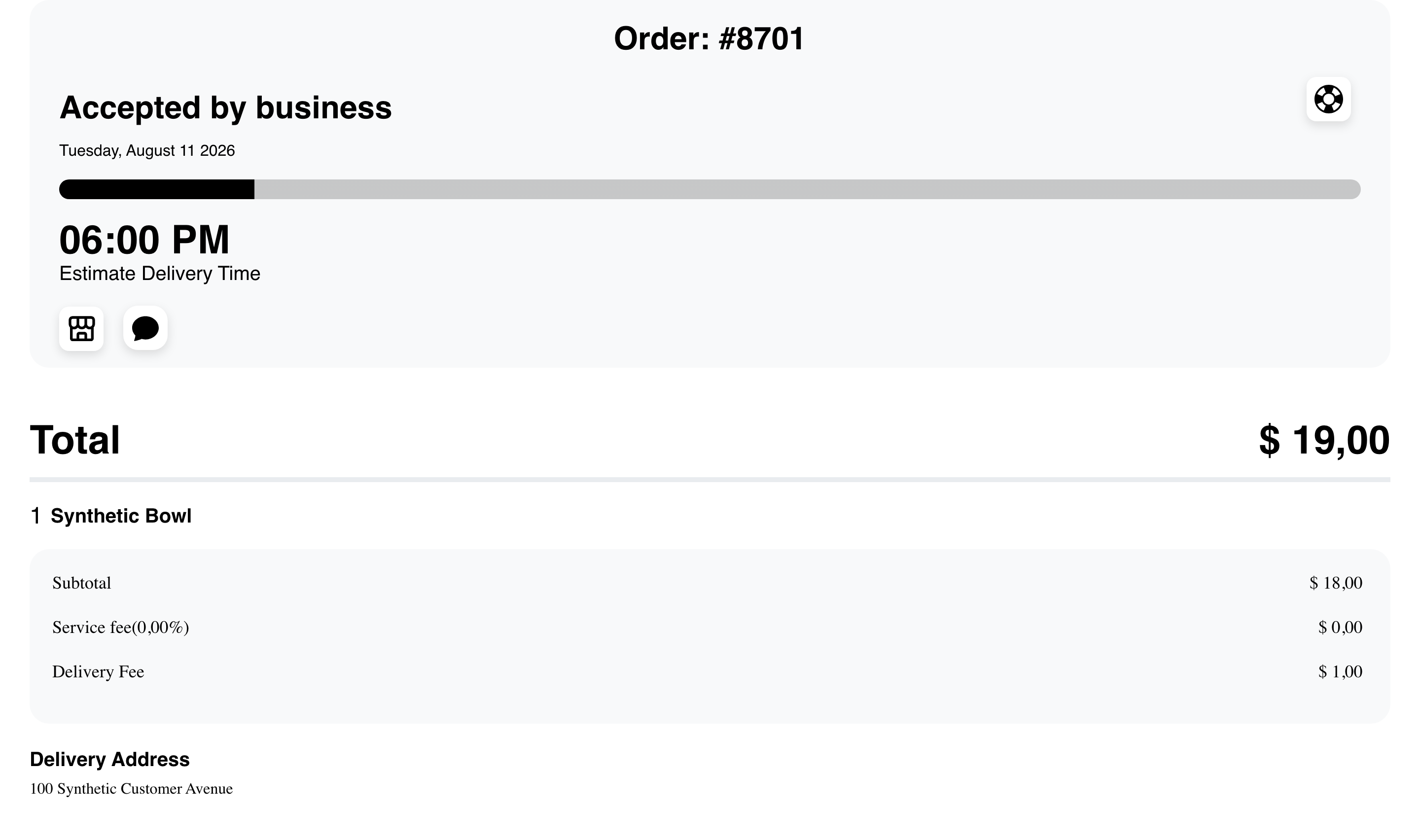
Use the returned status as the current source of truth. The progress bar summarizes the visible stage; it does not guarantee when the next update will occur.
An estimated time is also not a delivery guarantee. Website calculates and refreshes timing from the fulfillment information available for the order. A scheduled or preorder experience can show a scheduled time instead.
Depending on the order and Website setup, the status area can also include business, help, map, or driver information. Driver tracking appears only for supported delivery states when location information is available. It is not present for every order.
Check products, totals, and fulfillment information
The detail view can list product quantities and options followed by the saved order summary. Conditional rows can include discounts, taxes, fees, delivery charges, tips, wallet amounts, or refunds.
Review the rows displayed for the order rather than expecting every order to use the same breakdown. The fulfillment section can show a delivery address or other information appropriate to the order type.
Review a delivered or otherwise finished order
Orders in a finished state use a summary layout with the returned outcome, products, saved totals, and fulfillment information.
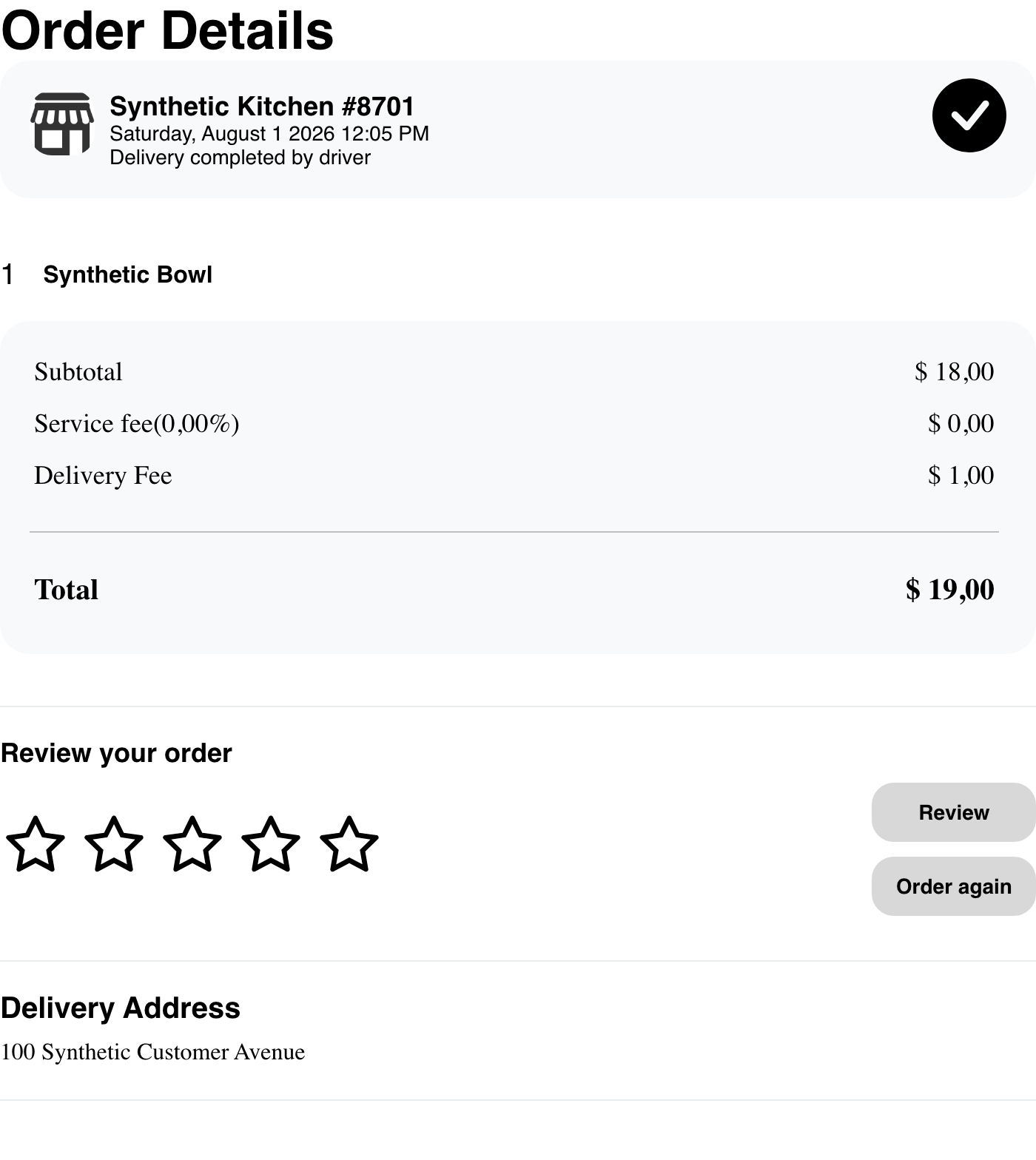
In this example, the returned status is Delivery completed by driver. Other finished outcomes can include rejected, failed, or cancelled states. Read the status text; do not interpret the check-style presentation as proof that every finished order was completed successfully.
Review and Order again can appear when they apply. They start separate actions and are not part of passively reviewing the order:
- Review opens the applicable feedback flow.
- Order again attempts to build a current cart from an earlier order. Current products, options, prices, availability, and fulfillment requirements can differ from the original order.
Use order details on mobile
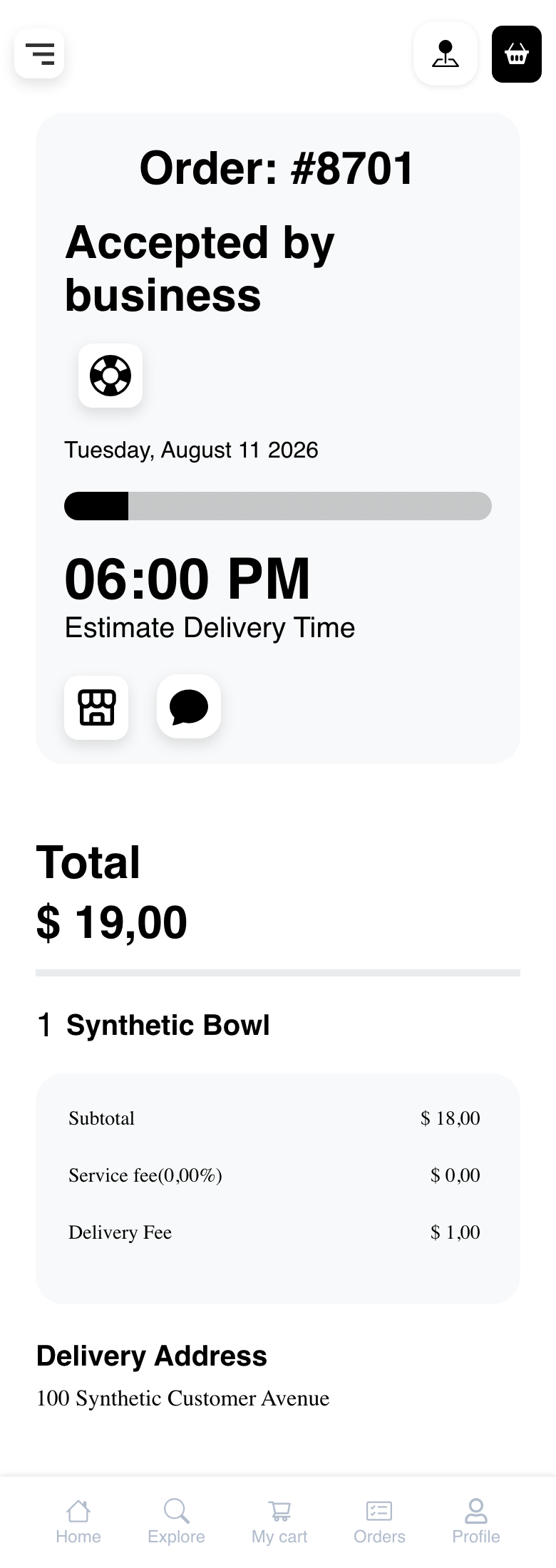
Mobile arranges the same information vertically. The active-order summary comes first, followed by the amount, products, conditional total rows, and fulfillment information.
A finished order uses the same mobile pattern with the saved summary and any applicable actions.
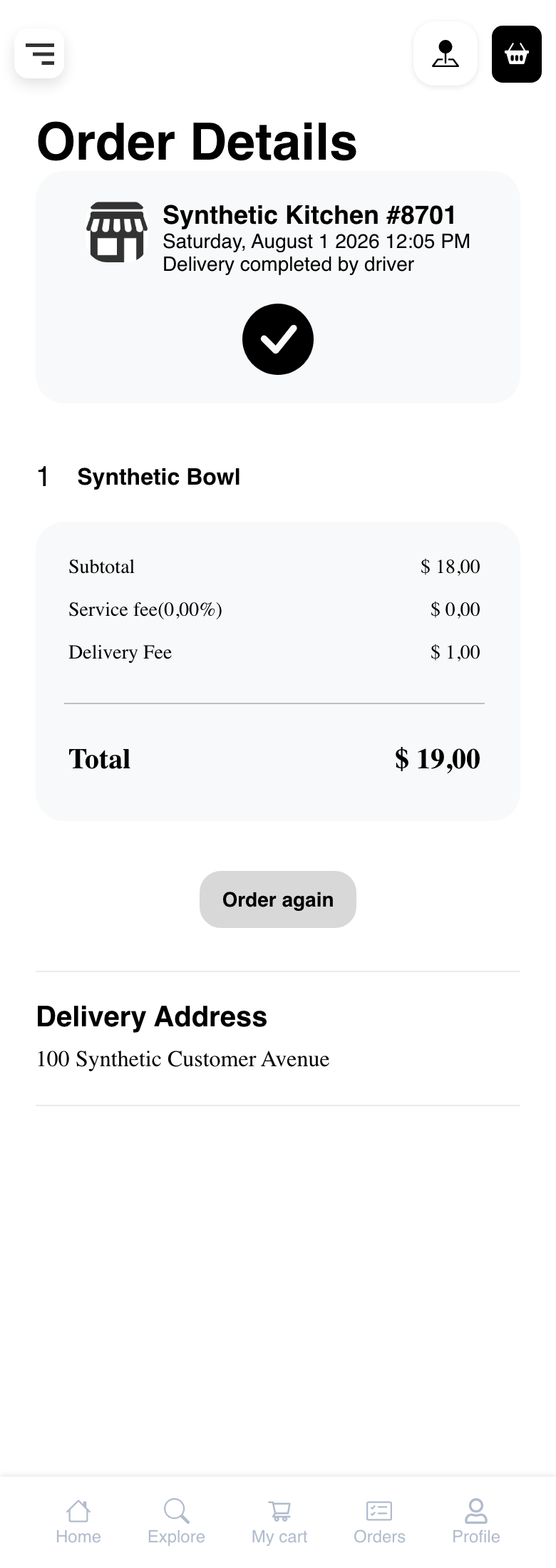
Scroll through the full page before deciding that a product, total row, or fulfillment section is missing.
Review a multi-business order summary
A multi-business order uses a different summary page. It can show shared customer and fulfillment information, a displayed combined amount, and a separate card for each business order.
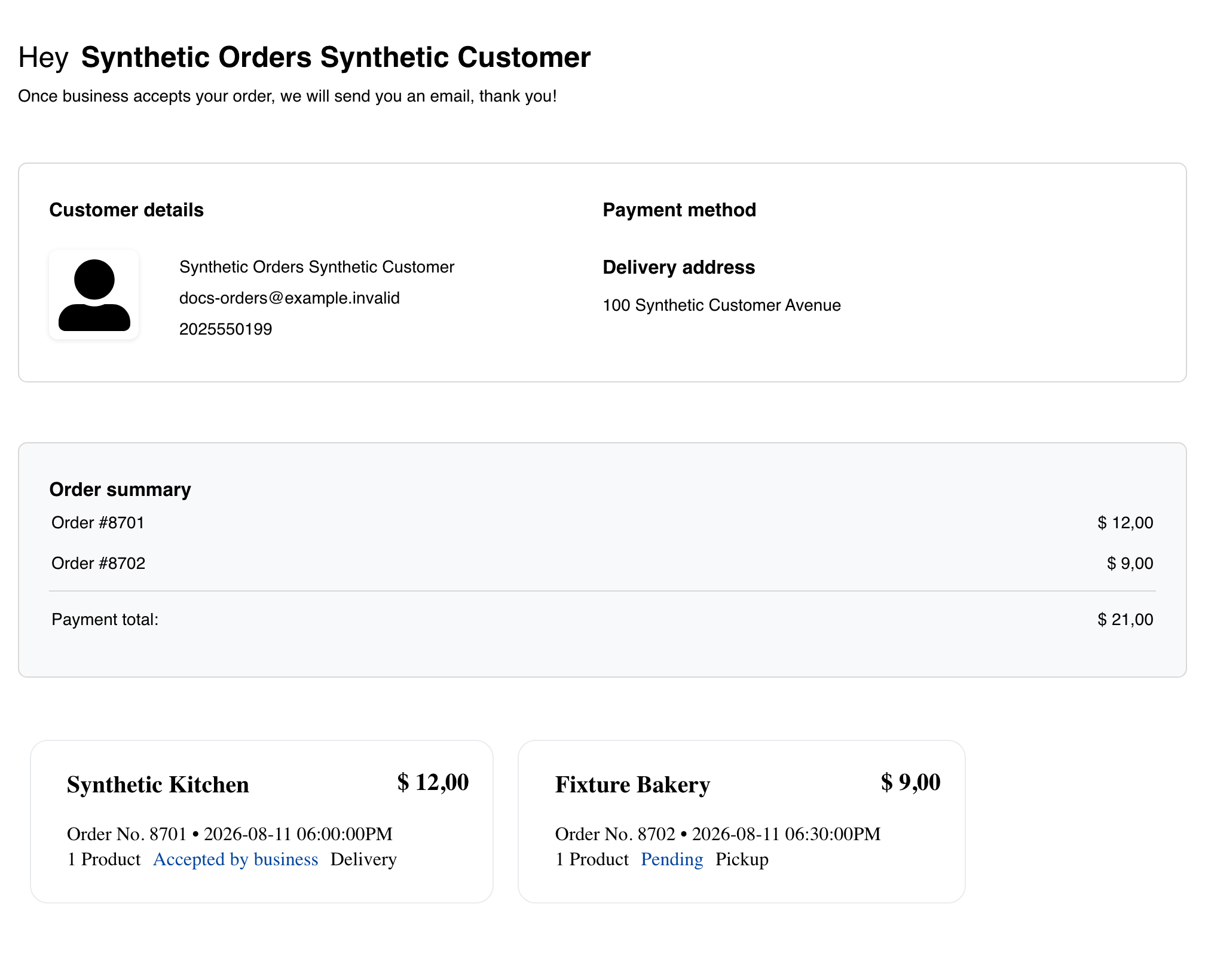
Each business card keeps its own order number, status, fulfillment type, and amount. The group should not be treated as one order with one universal status or fulfillment lifecycle. The displayed payment and total sections also depend on the information returned for the group.
This page is a passive summary. Use the individual order information provided elsewhere in Website when a supported detail handoff is available; do not assume selecting every card will open a detail page.
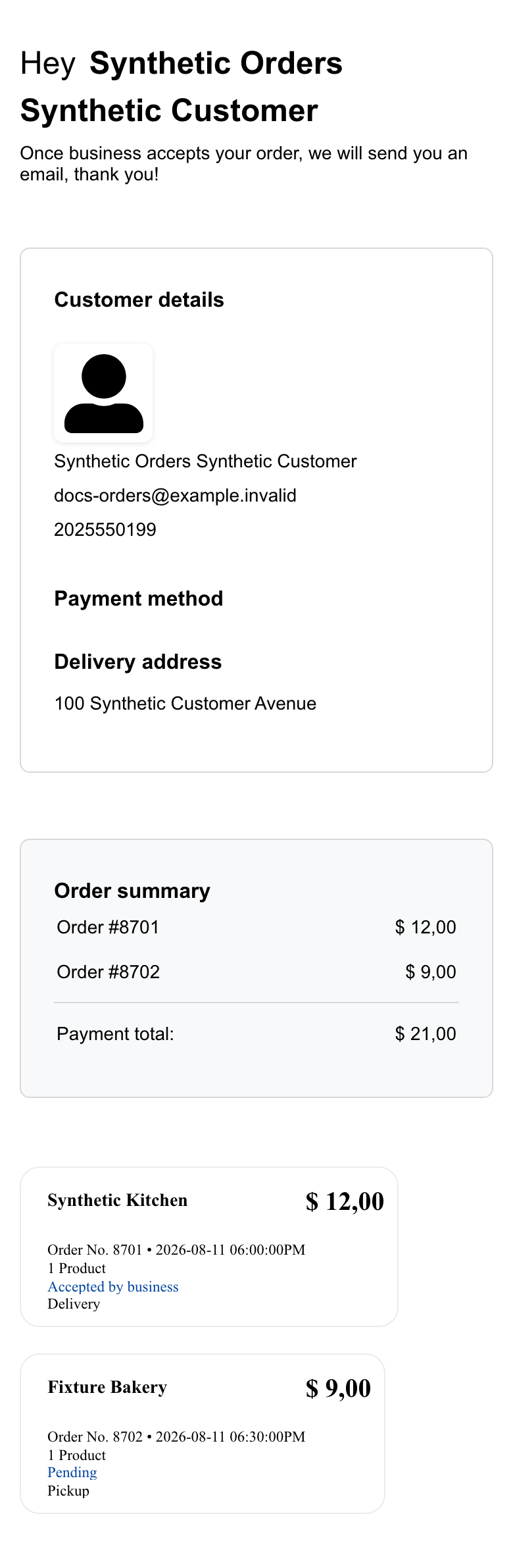
On mobile, shared information and the business cards are stacked in one vertical flow.
Understand updates while the page is open
Website can receive status, message, or driver-tracking updates while an order page remains open. Realtime delivery is not guaranteed, and a status update does not necessarily recalculate every saved financial row.
If information appears stale, reload the page once and compare the returned status and summary. Avoid repeatedly selecting Review, Order again, business, help, map, or message actions while the page is still updating.
When Website exposes a conversation for the order, continue with Message a business or driver before entering or sending any content.
Troubleshooting
The requested order cannot be found
Website shows a bounded not-found state when it cannot load the requested order.

Confirm that the customer opened the intended order from the current Website session. If a complete order-access link was provided, use that link without modifying it. Customers with an active signed-in session can return to order history through the account navigation. Link-only viewers might need to return through the Website that provided the link or contact its support team; do not rely on Go to Orders as a universal handoff.
Driver tracking is missing
Tracking requires a supported delivery state and available driver location information. It can also depend on Website map configuration. An order can continue normally without a tracking map.
A total row is missing
Only rows returned for the order and enabled by the Website presentation appear. Review the displayed total and contact support if it conflicts with the order receipt.
Review or Order again is missing
These actions depend on the order state, returned data, and Website setup. Their absence does not change the saved order summary.
A multi-business order shows different statuses
That is expected when the businesses are processing their orders independently. Read each business card separately instead of treating the displayed group amount as a single shared fulfillment state.
Related guides: Review order history · Message a business or driver · Order again and leave reviews · Manage a cart · Complete checkout · Complete checkout for multiple businesses