View and send order messages
Messages brings available order conversations together in Website. Customers can select an order, review the returned conversation, and use the composer when messaging is available for that order.
Messages requires an active authenticated Website session. Required profile completion or account verification can appear first. The account entry, available orders, participants, history, and composer depend on the Website presentation and returned order data.
Open the Messages inbox
- Open the account navigation.
- Select Messages when the Website exposes it.
- Select an order from the list to review its business conversation.
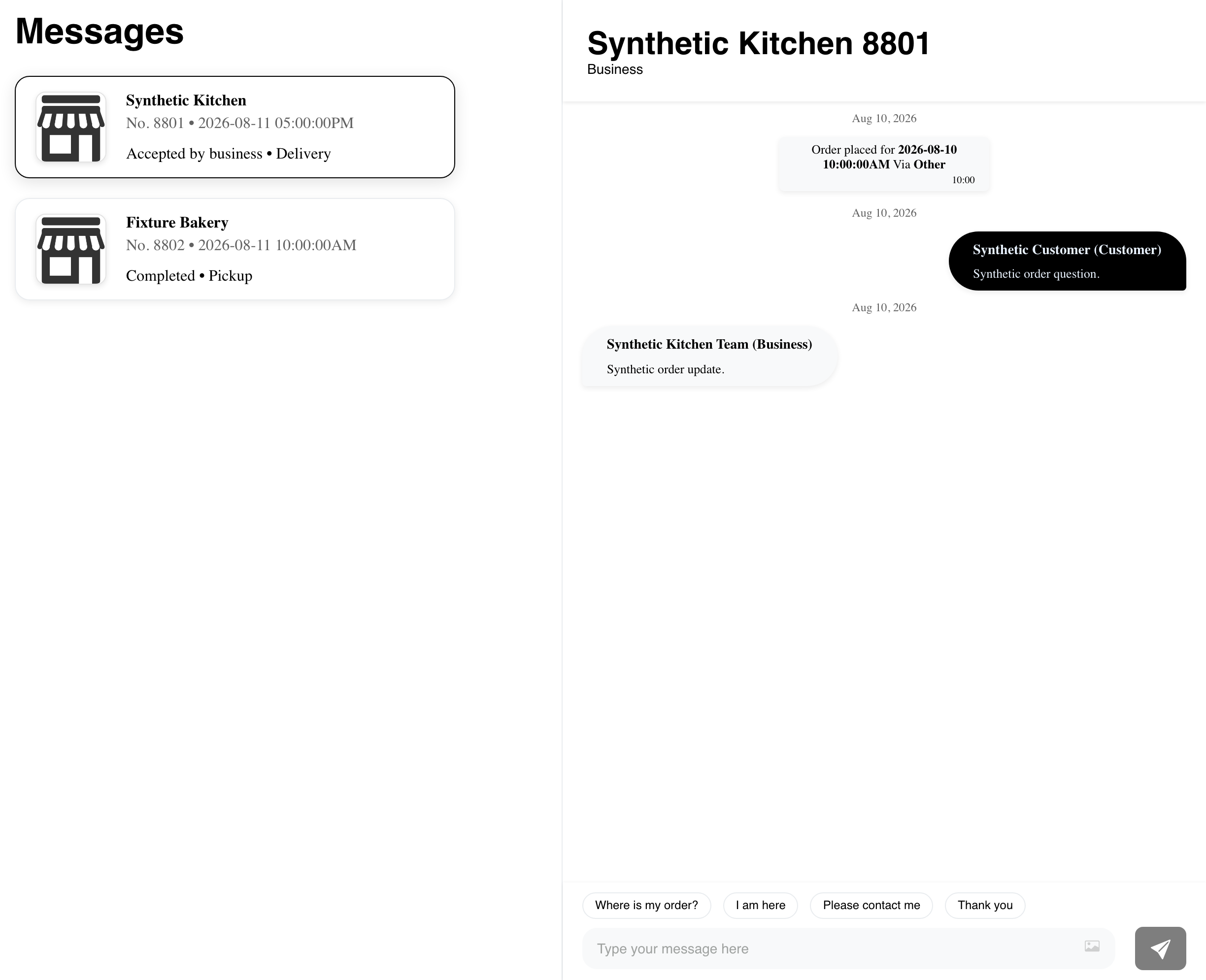
The inbox can show the business, order reference, fulfillment information, status, date, and unread count returned for each row. Website selects a returned order when the inbox loads. Do not assume that the first row is the newest order; use the visible date and order information.
Opening a populated conversation can mark its returned messages as read. A cleared unread indicator does not guarantee that another participant has seen a message or that every device has synchronized immediately.
Read a conversation
A conversation can include order events and text from the customer, business, or another participant available for that order. Review the participant heading before sending a reply.
For an active order, the composer can show:
- suggested quick messages;
- a text field;
- an image choice; and
- the Send control.
Selecting a suggestion prepares a message; sending is a separate action. Review the recipient and content before selecting Send. Message delivery and realtime updates are not guaranteed, so avoid sending the same message repeatedly while the result is unclear.
When the image control is available, follow the file-type and size validation shown by Website. Do not include payment details, passwords, verification codes, or other sensitive information in text or images.
Use Messages on mobile
Mobile arranges the selected conversation and order choices in a vertical layout. Scroll through the page to reach both areas and confirm which order is selected before replying.
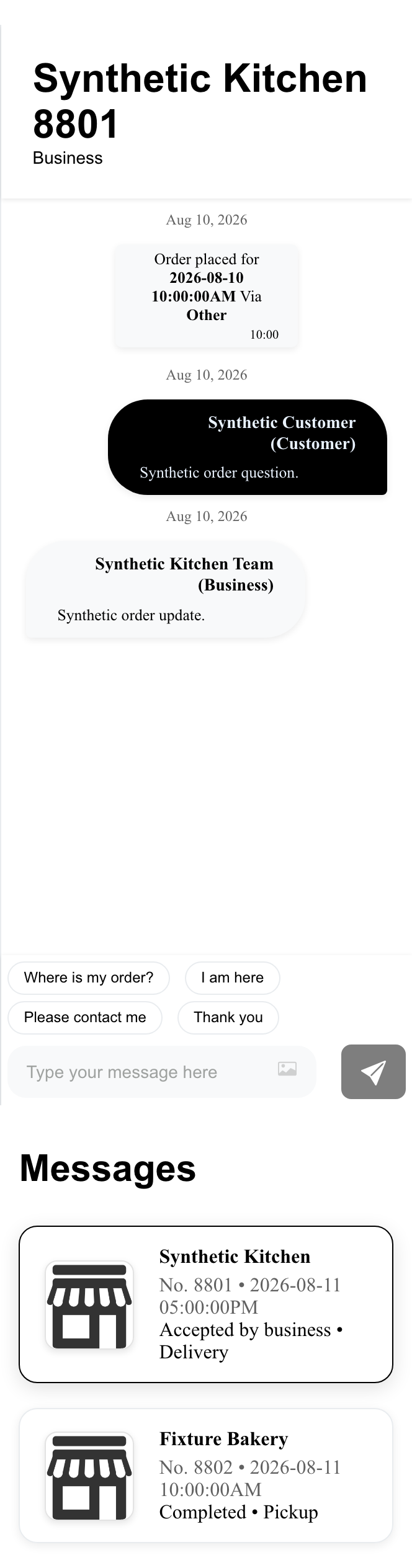
The mobile layout has the same messaging purpose as desktop, but the conversation and order list may not be visible at the same time.
Understand finished-order conversations
Website can keep the returned history visible after an order finishes while replacing the composer with a notice that messages can no longer be sent.
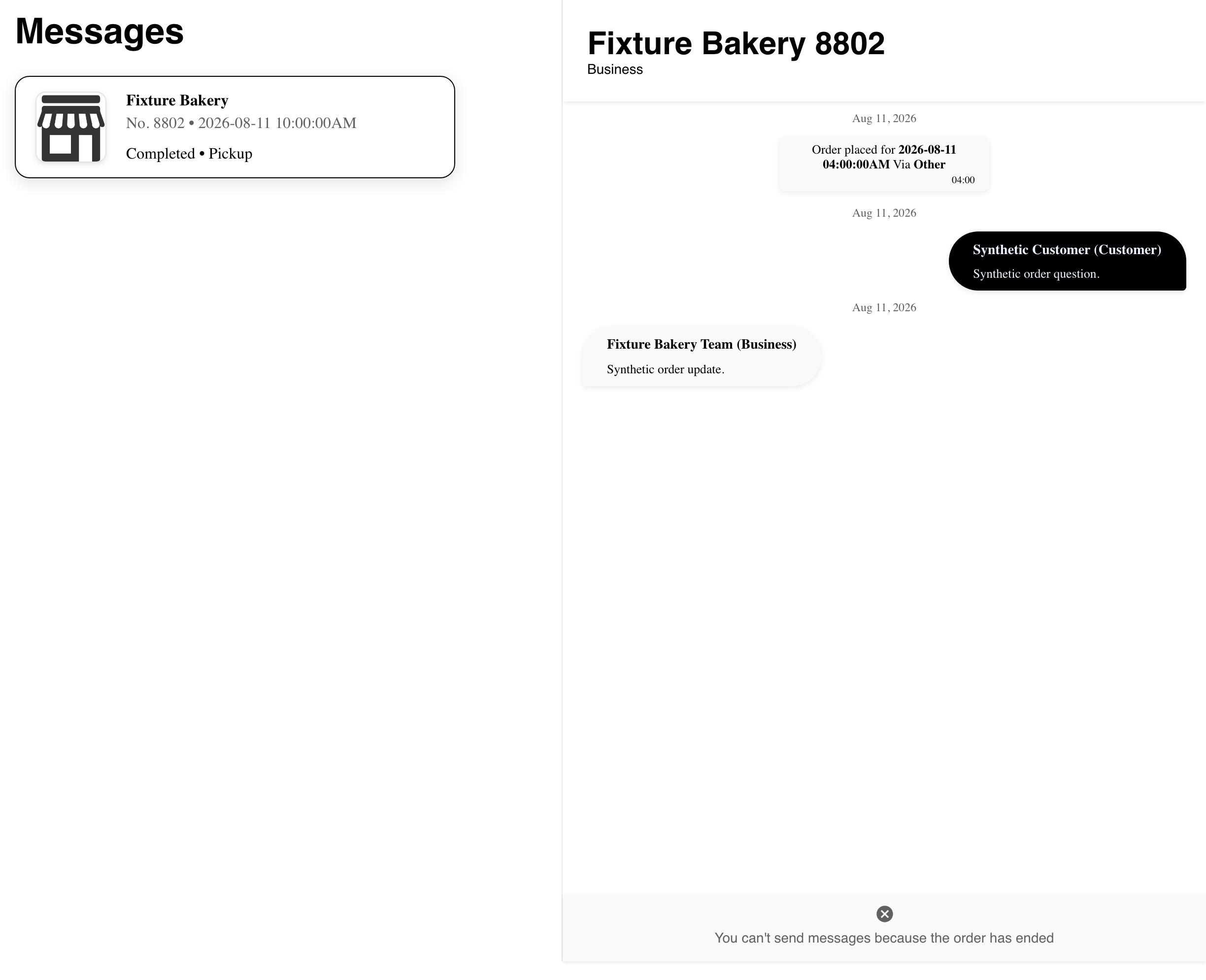
Composer availability depends on the returned order state. A visible history does not guarantee that the conversation still accepts new messages.
Open a conversation from order details
An active order-details page can expose a separate message action for the business.
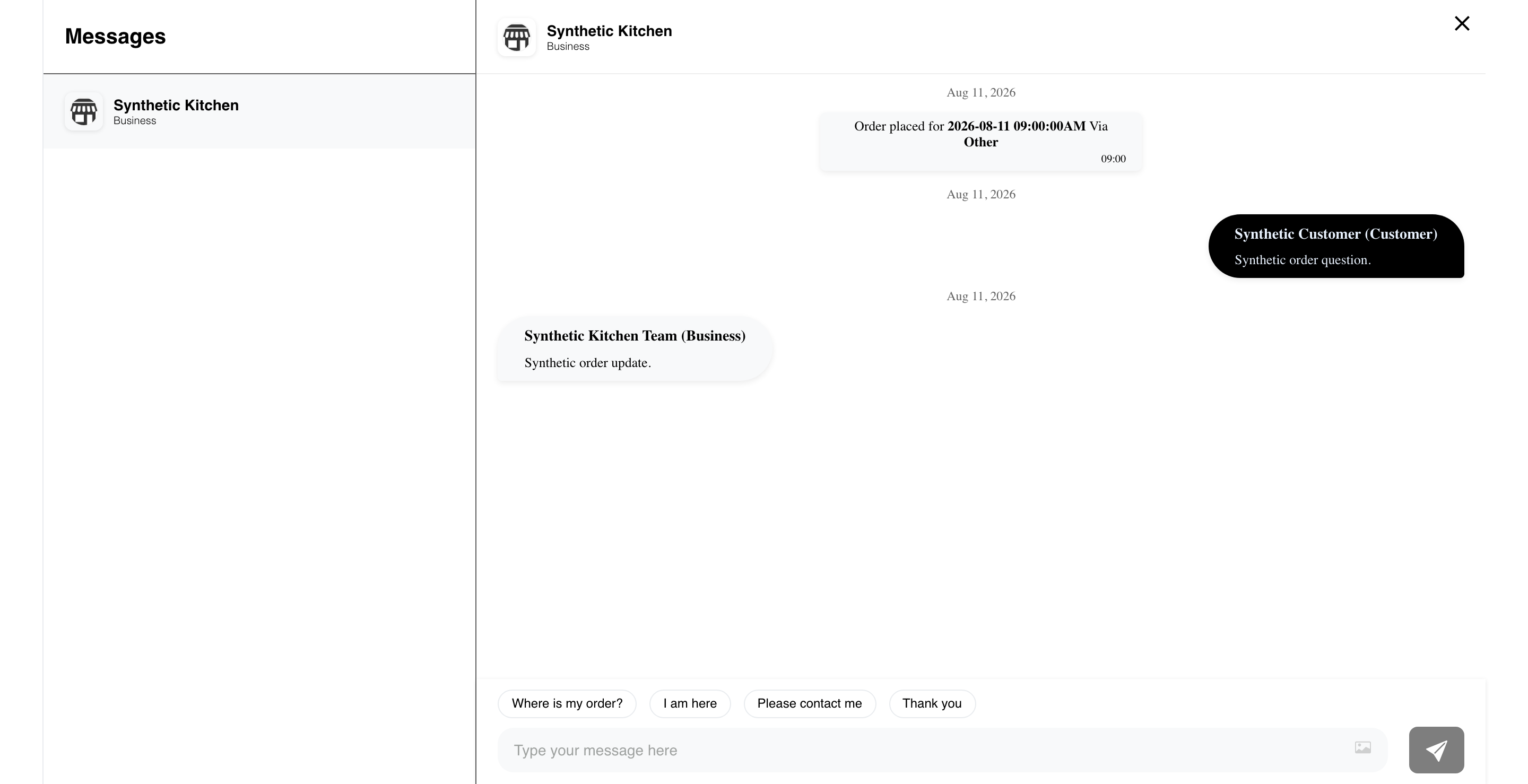
When an eligible internal driver is assigned, order details can also expose a driver conversation.
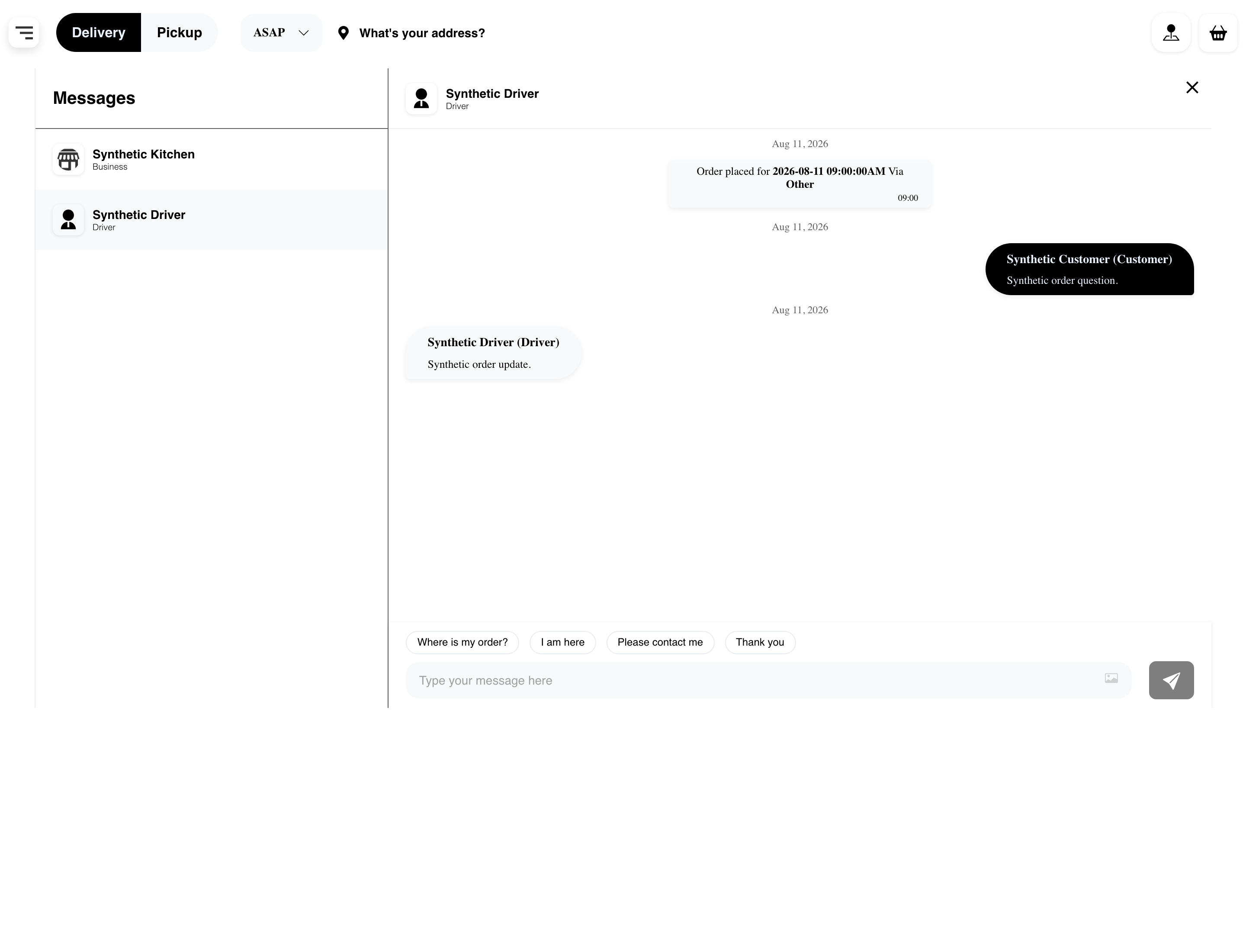
Not every order or driver supports messaging. External-driver information can be presented differently, and the Messages inbox itself does not provide a universal business/driver switch.
Understand the no-orders state
When the inbox loads successfully without returned orders, Website shows You don't have any orders yet and Go to home.
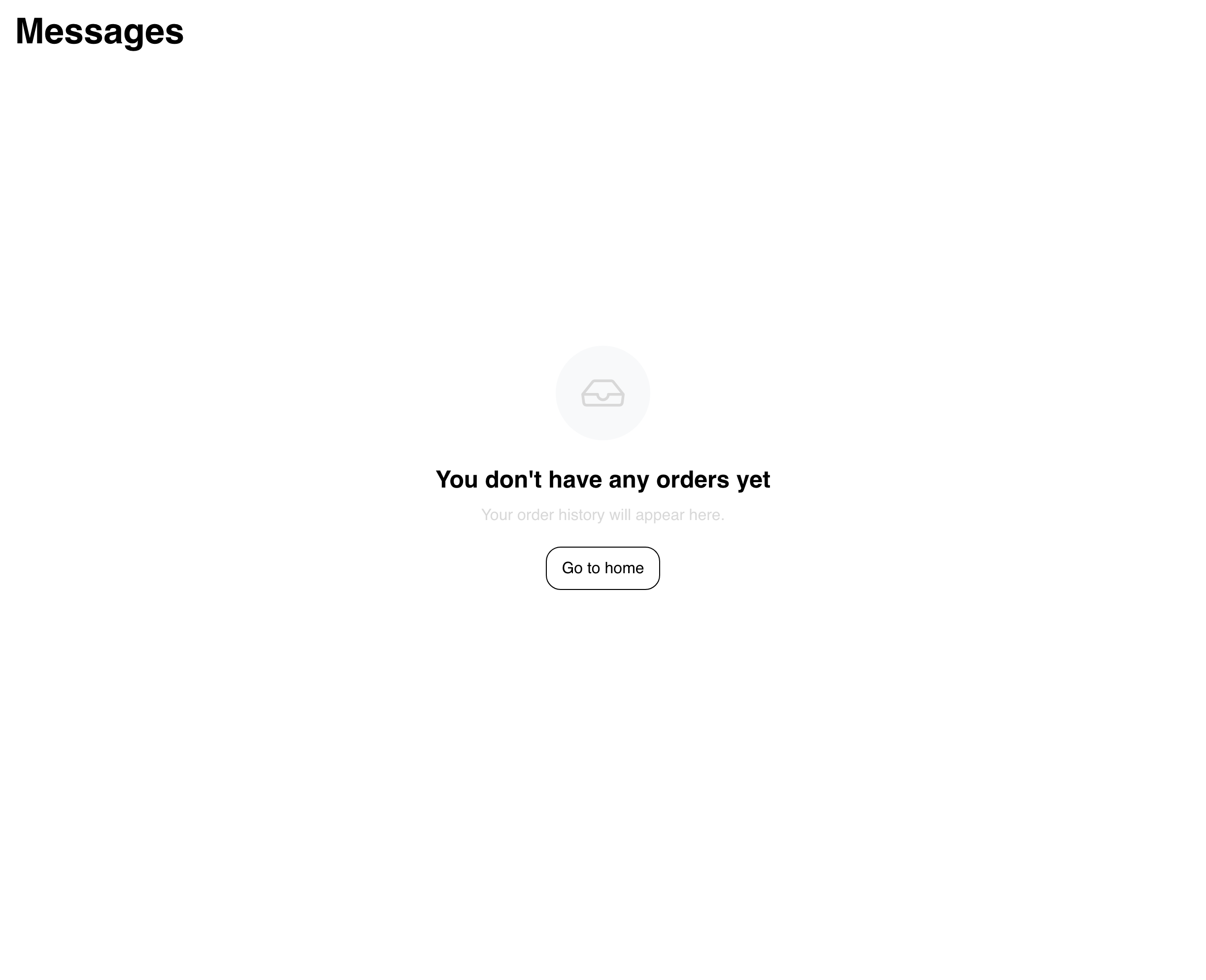
Go to home starts a separate browsing journey. Use it when the customer wants to shop, not when they still need to investigate a missing conversation.
Troubleshooting
Messages is missing from the account navigation
The Website theme or account presentation can hide the entry. Confirm that the customer has an active Website session and has completed any required profile or verification step. Use an available message action from order details when the Website exposes one.
An expected order or conversation is missing
Confirm that the customer is using the same Website account associated with the order. Reload once, then compare the order reference and status in order history or order details. Not every returned order has an available conversation.
The composer is unavailable
Check the order status and participant. Finished orders can keep history visible without accepting new messages, and messaging availability can differ between the business and driver.
A sent message does not appear
Wait for the current request to settle, then reload the conversation once. Do not repeatedly submit the same text or image. If the result remains unclear, preserve the customer-facing order reference and use the Website's support option.
The inbox shows no orders unexpectedly
Reload once and check order history. The successful no-orders state and a failed order-list request do not always have distinct customer-facing presentations, so do not treat the empty view alone as proof that the account has no orders.
Related guides: Review order history · Review order details and tracking · Order again and leave reviews