Browse promotions
The Promotions page helps customers review offers returned for their current location and order type. Customers can search the returned offers, open an offer to review its terms, and continue to a listed business.
The Promotions page requires a resolved order location and is not available in kiosk mode. The Offers navigation item appears only when promotions are enabled and the Website theme does not hide it.
Review available offers
Each returned offer appears as a card. Depending on the offer data, a card can show:
- An expiration date.
- The offer name.
- An image and description.
- A Use coupon action that opens the offer details.
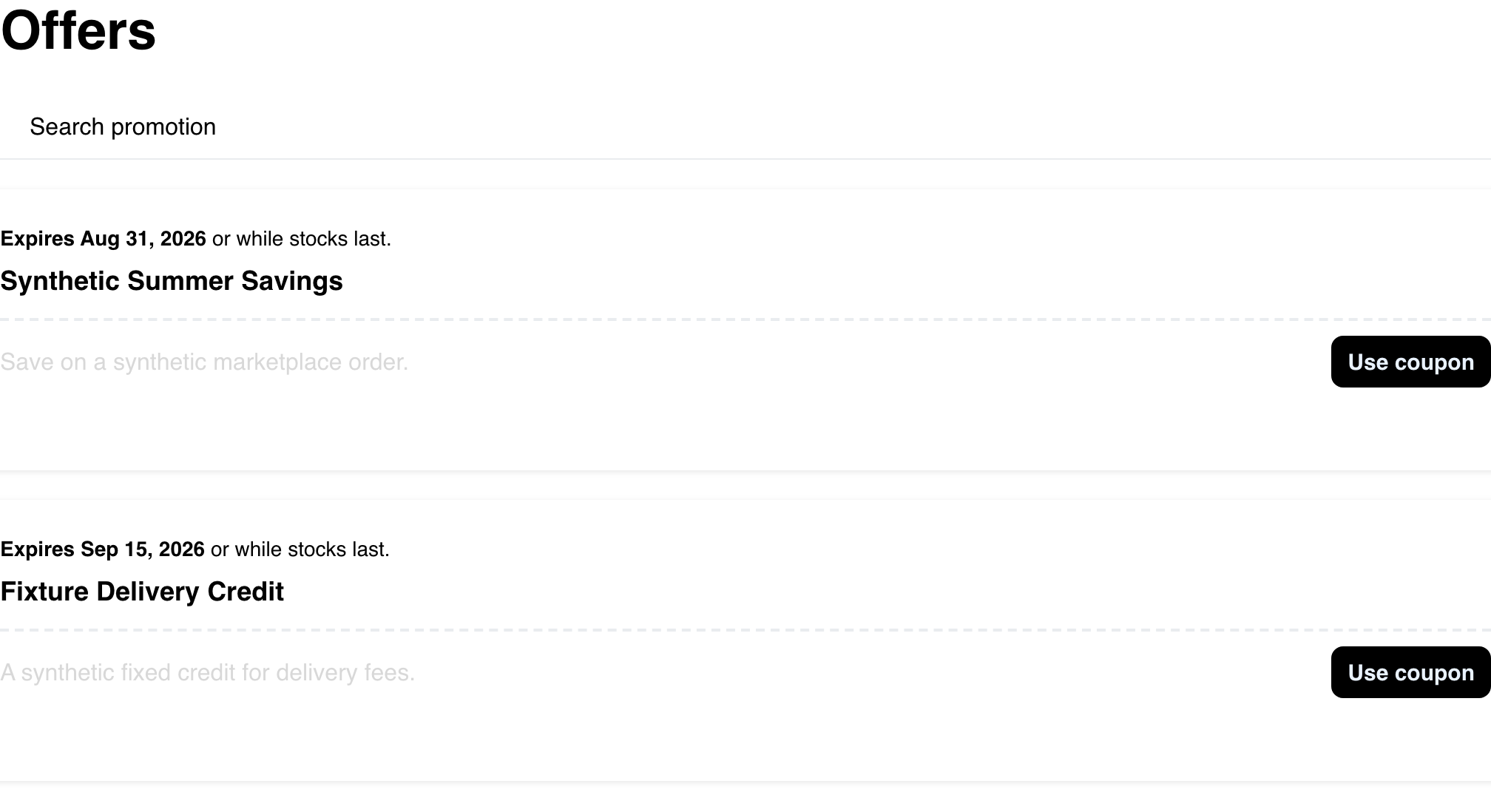
Website requests offers using the customer's current ordering context. Changing the location or order type can therefore change the offers returned. Project and Website configuration can also scope the experience.
The list does not visibly identify the businesses associated with each offer. Customers review those destinations after opening the offer details.
Search the returned offers
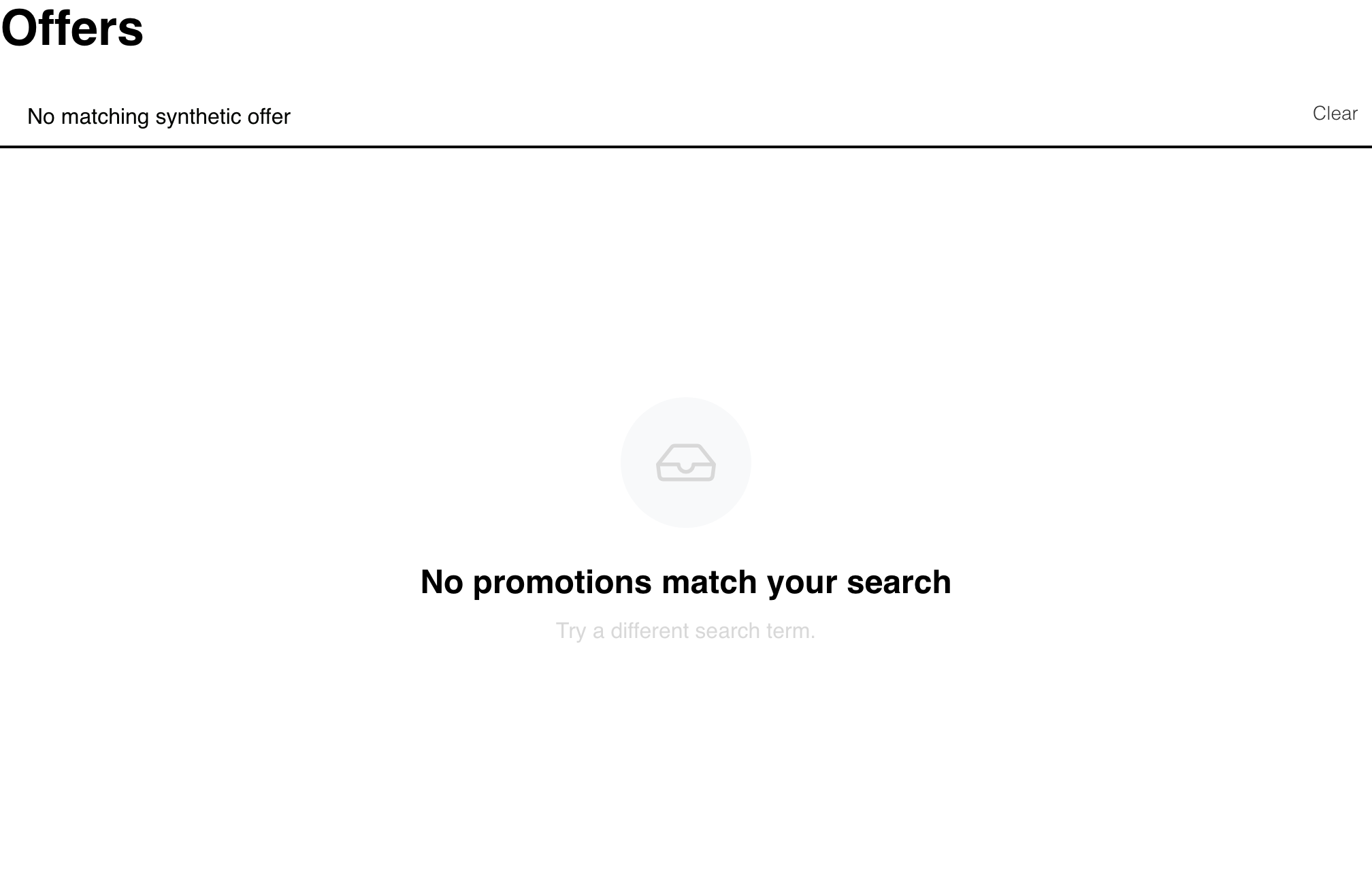
When at least one offer is available, customers can use Search promotion to narrow the list. Search matches the offer name and is not case-sensitive. It does not search the description, coupon code, or business name, and it does not request a new set of offers.
If no offer name matches, Website keeps the search term visible and shows a no-results message. Customers can clear the search or enter a different offer name.
Review offer details and continue to a business
- Select Use coupon on an offer card.
- Review the information available for that offer. Details can include its expiration, description, coupon code, discount value, what the offer applies to, minimum purchase, maximum discount, and whether it is automatic.
- Under Available businesses for this offer, select Use coupon for the business where the customer wants to continue.
- Website takes the customer to that business so they can browse its menu and continue the ordering journey.
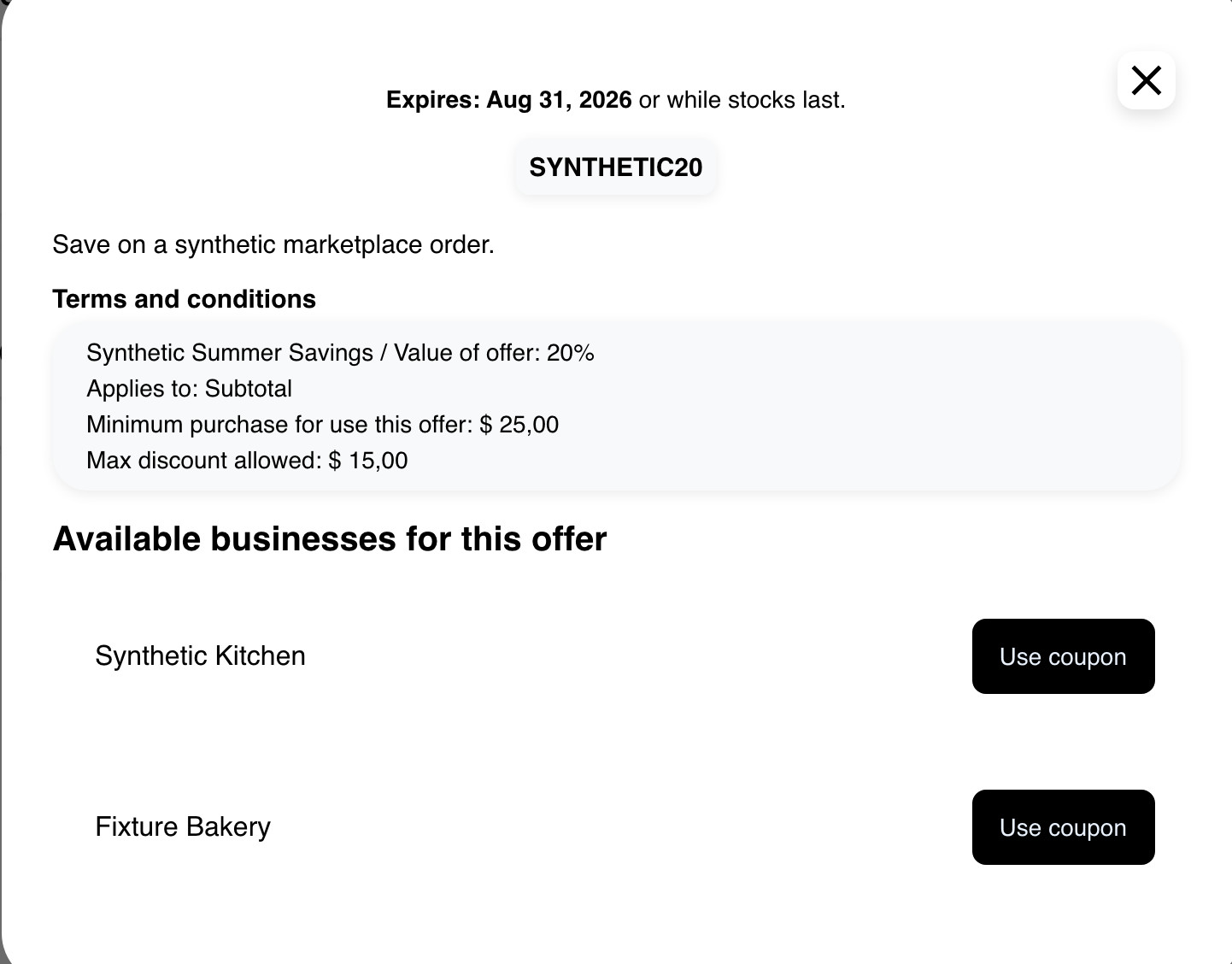
The coupon code appears only for offers that use a coupon code. Offer values can apply to the subtotal, delivery fee, or service fee, depending on the offer terms.
On the offer card, Use coupon opens the details. In the details, Use coupon takes the customer to the selected business. Neither action applies or validates the coupon. Final applicability is checked later in the cart or checkout flow against the active order and offer terms.
The available-business handoff appears only when the returned offer includes a business destination. If no destination is shown, customers should choose another offer or return to business discovery.
Mobile experience
On mobile, the same offers and search behavior use the available screen width. Offer cards stack vertically, descriptions can be shortened to fit the card, and the Use coupon action remains alongside the offer summary.
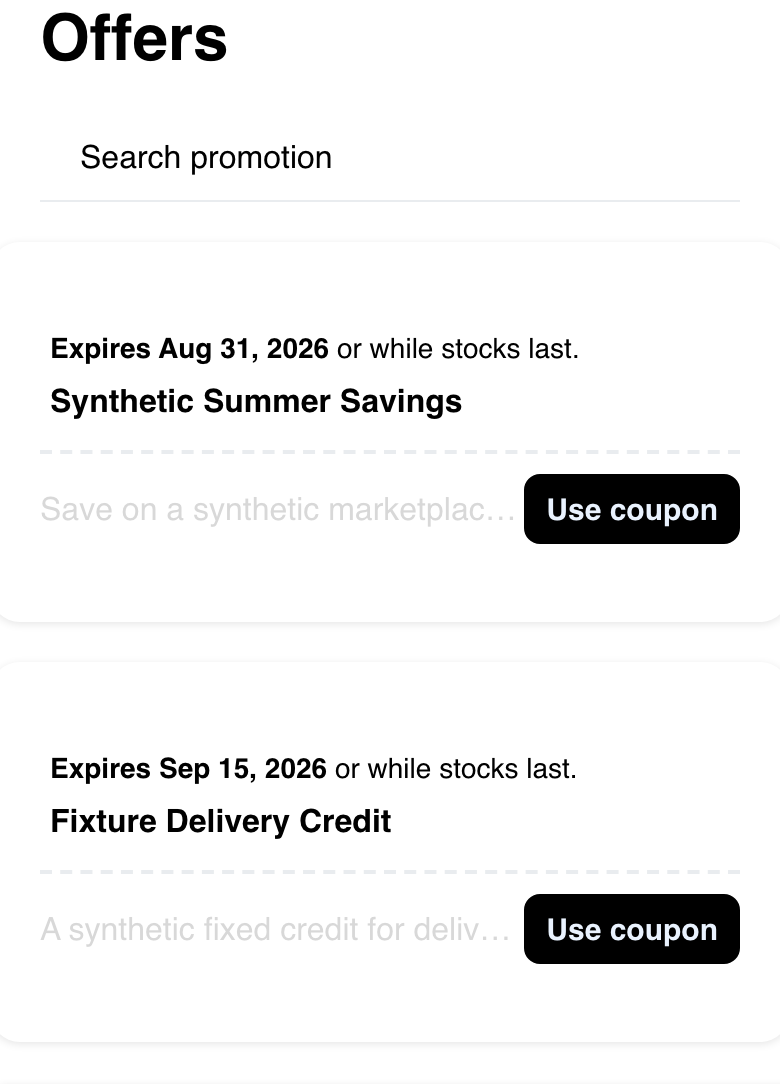
The details view also adapts its offer terms and business rows to the smaller screen. The offer's rules and the later cart or checkout validation do not change between desktop and mobile.
Empty and error states
When Website receives a successful response with no offers, it shows a generic no-promotions state. This means there are no offers to present for the current request; it does not identify which individual eligibility rule produced that result.
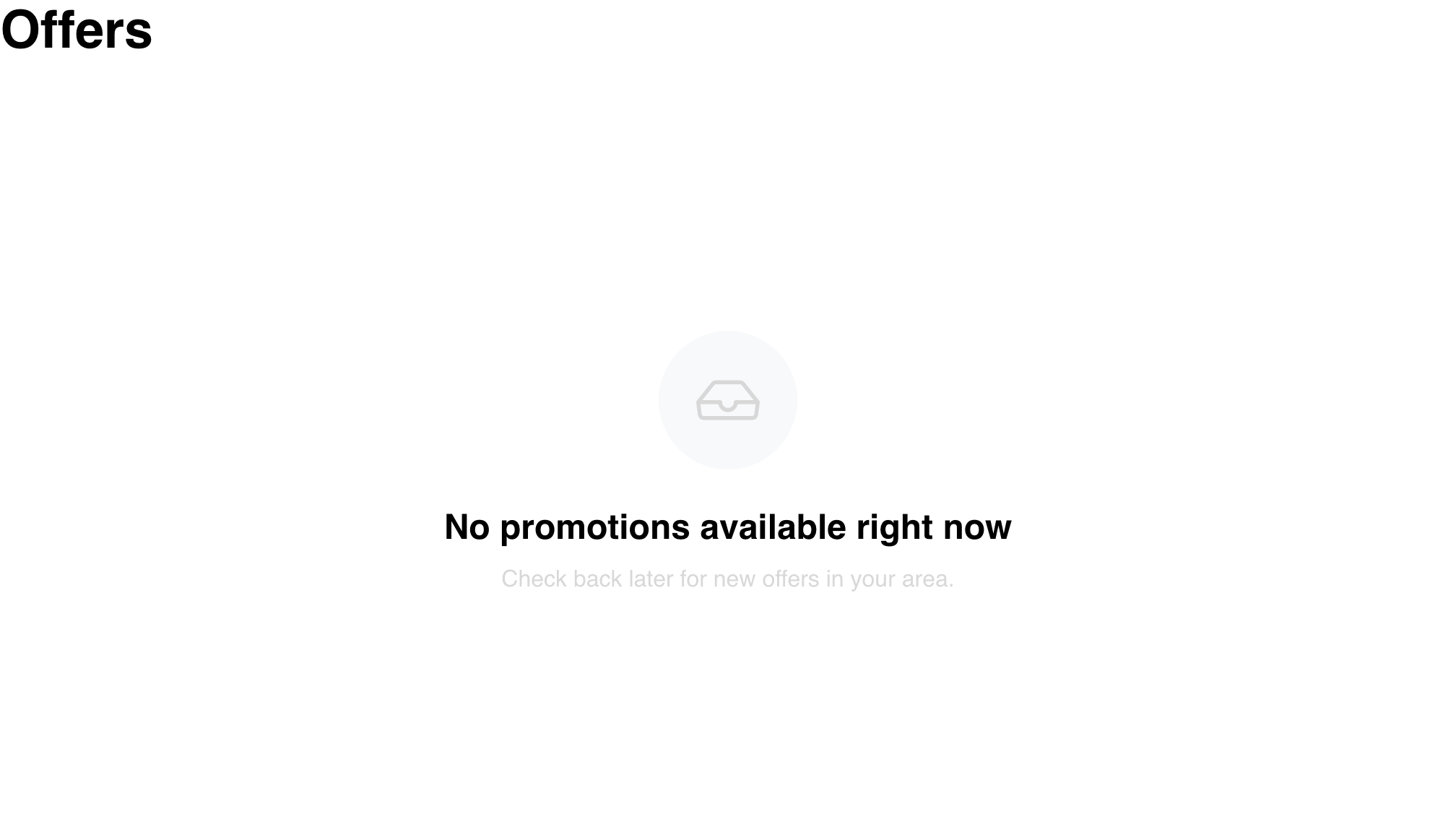
Customers can check again later or change their location or order type before returning to Promotions.
If Website cannot load offers, it shows a generic error state instead of offer cards.

Ask the customer to retry the page after confirming their connection and ordering context. If the error continues, contact support with the Website, approximate time, selected location, and selected order type; do not include payment information or other sensitive customer data.
Frequently asked questions
Why is the Offers navigation item missing?
The promotions capability might not be enabled for the project, or the Website theme might hide the navigation item. The page also is not available in kiosk mode. Confirm the Website configuration and that the customer has selected a valid location.
Why did an offer disappear after the customer changed the address or order type?
Website reloads offers when the ordering location or order type changes. The set returned can therefore differ for the new context. Offer availability is also evaluated when the page loads.
Does selecting Use coupon add the discount to the cart?
No. From the list, it opens the offer details. From the details, it takes the customer to a listed business. The cart or checkout flow later determines whether the offer can be applied to the active order.
Why can't the customer find an offer by its description or business name?
The page's search matches only offer names. Clear the search and enter part of the offer name, or browse the complete returned list.
Why does an offer have no business action?
The details can show a business handoff only when the returned offer includes a destination. This page does not guarantee a destination for every returned offer. Ask the customer to choose another offer or browse available businesses directly.
Related guides: Choose a location and order type · Browse available businesses