Browse saved favorites
My Favorites gives customers a central place to review items they previously saved on Website. Depending on the marketplace experience, the page can include tabs for businesses, products, orders, and professionals.
Favorites requires an active authenticated Website session and is not available in kiosk mode. A customer might need to complete required profile information before the page appears. The account-menu option, available tabs, and saved content depend on the Website configuration and marketplace capabilities.
Review saved businesses
The Businesses tab opens first. Each returned card can show the business name, type, rating, fulfillment information, fee, distance, and current open or closed presentation when that information is available.
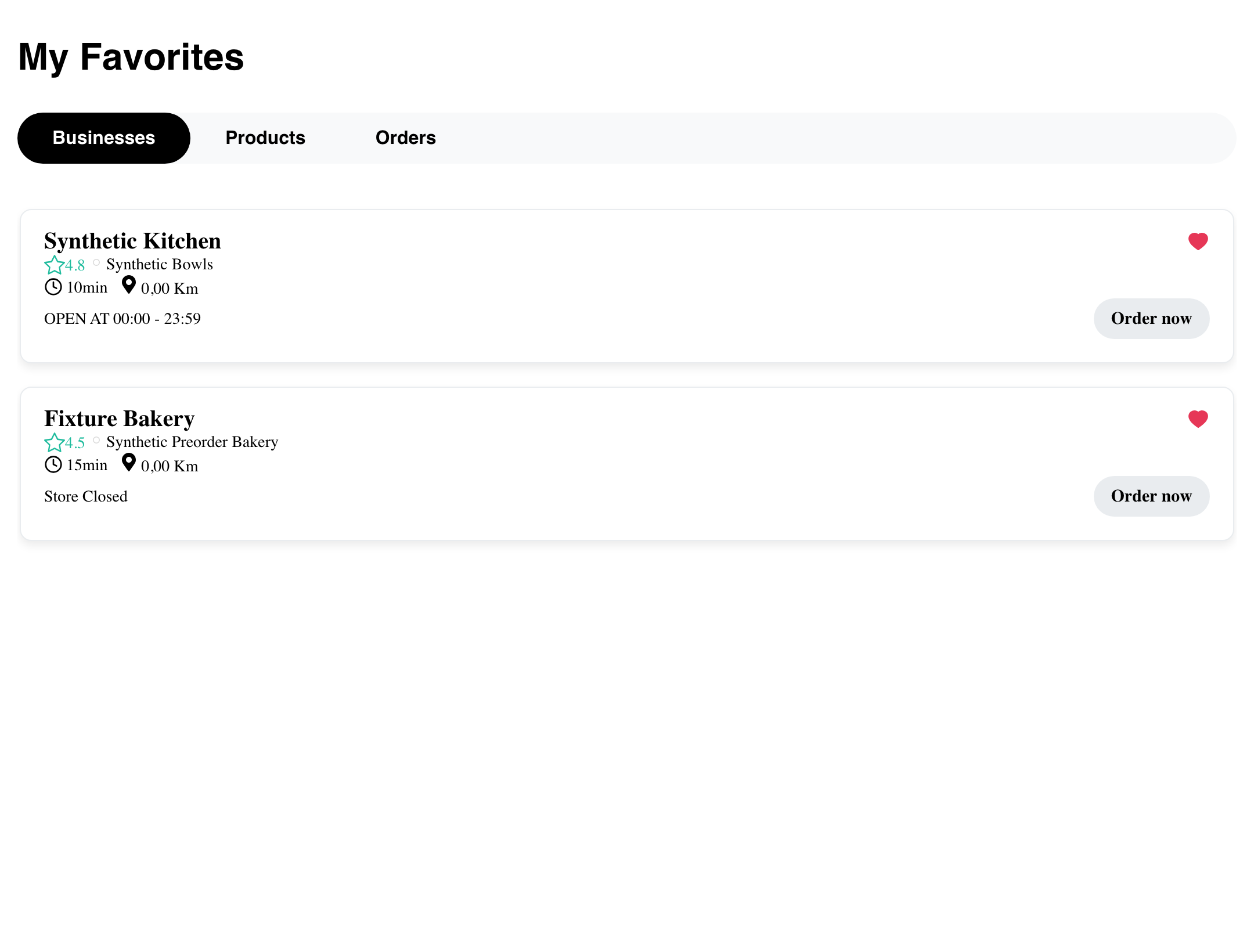
The list reflects the customer's current Website ordering context. A saved business might not appear when it is not returned for that context. Open and closed presentations can also change as business availability changes.
This guide documents the visible list only. Continuing to a business or opening a closed-business flow hands the customer to a separate browsing or preorder experience.
Review saved products
Select Products to review product cards saved by the customer. A card can show product details such as its name, image, description, price, and sold-out treatment.
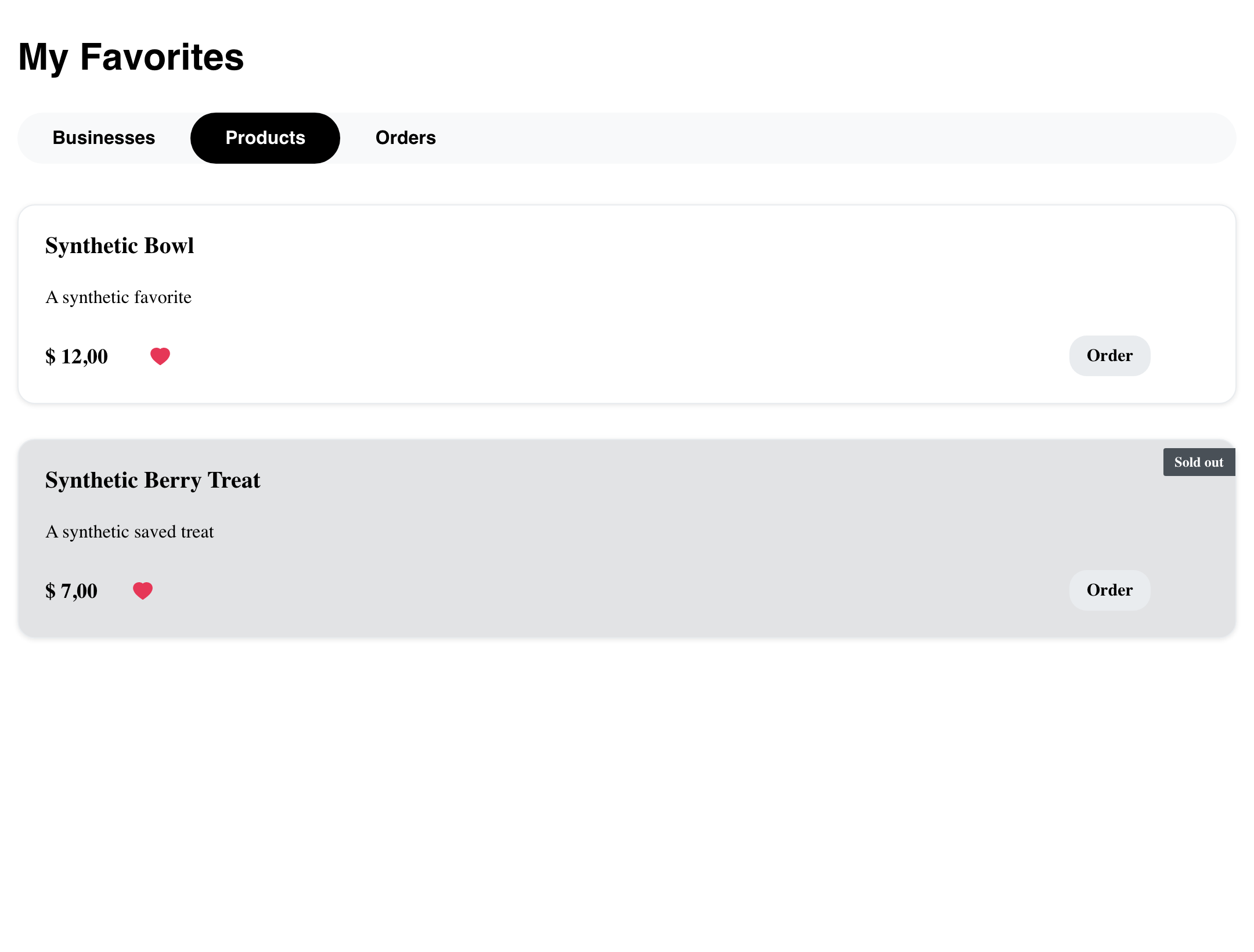
A sold-out label describes the visible product state returned to this page. The passive card does not show how many businesses currently offer the product. Product details and ordering availability are evaluated in the product flow after the customer selects a card.
Review saved orders
The Orders tab can show orders the customer saved for later reference. The card summarizes the returned order information and can expose additional actions depending on its state and the Website theme.
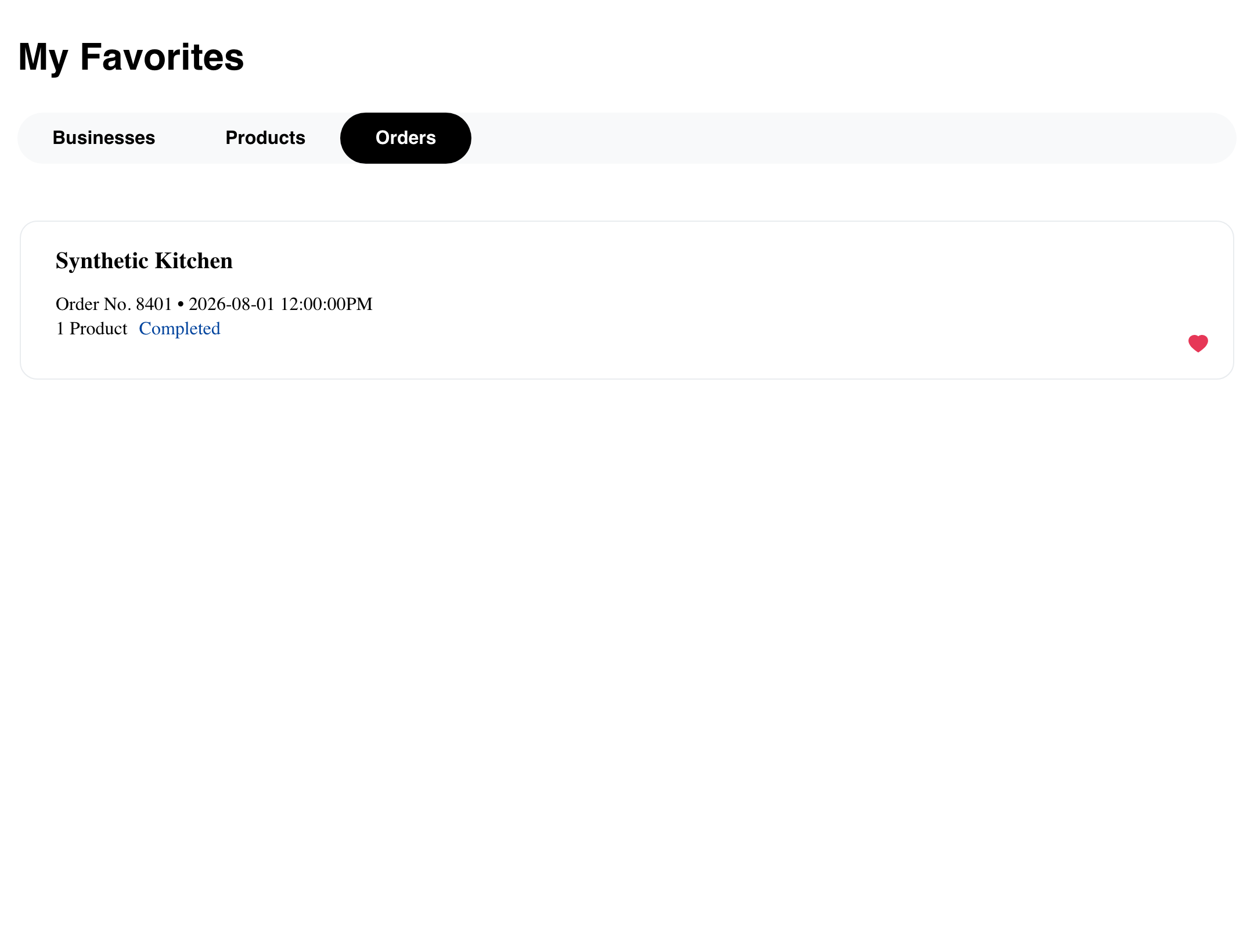
This list does not guarantee that an earlier order can be placed again unchanged. Business availability, menu items, prices, options, fulfillment details, and other requirements can change. Order details, reviews, and reorder behavior are separate flows.
Review saved professionals
For marketplace experiences that support appointments, the Professionals tab can show saved professionals with visible profile summary information such as a name, photo, and occupation.
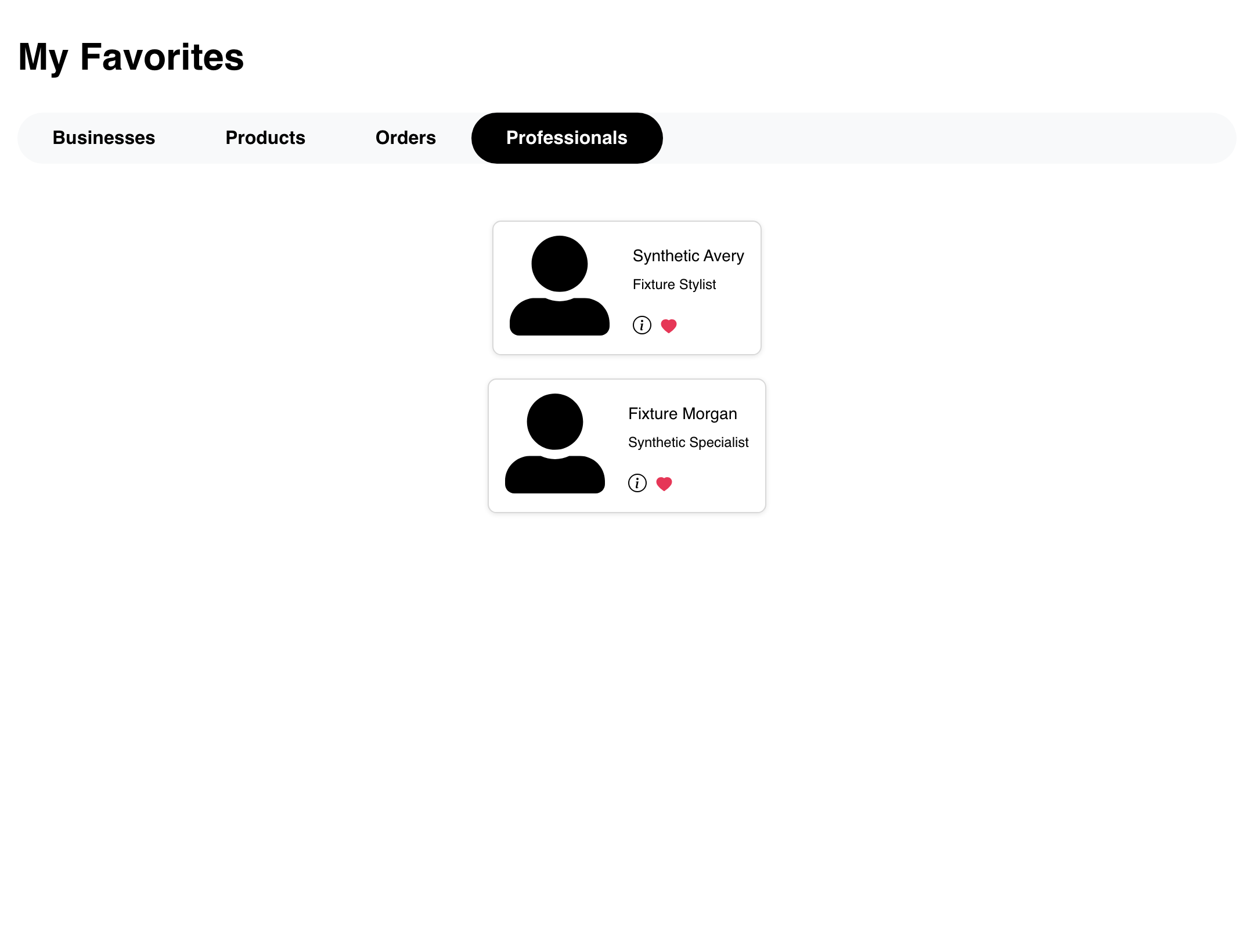
This tab is conditional and might not appear on a standard ordering Website. See Book appointments with professionals for the separate professional-details and scheduling flow.
Understand an empty list
When the selected tab loads successfully but has no saved entries, Website shows an empty state instead of cards.
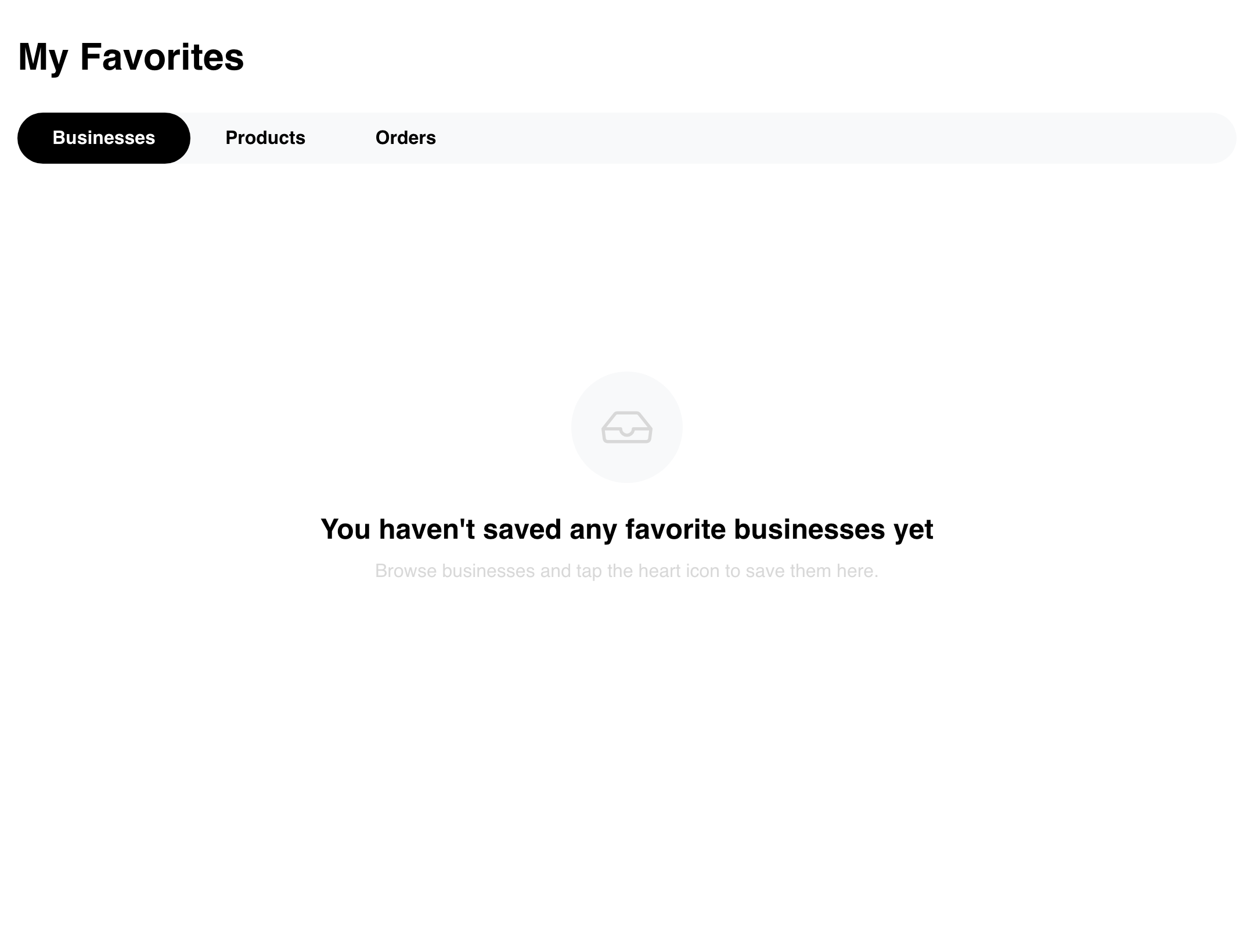
An empty tab applies only to the selected favorite type. For example, an empty Businesses tab does not mean the Products or Orders tabs are also empty.
Use Favorites on mobile
Mobile keeps the same saved-business information in a vertical layout. The tab row can scroll horizontally when all available favorite types do not fit at once.
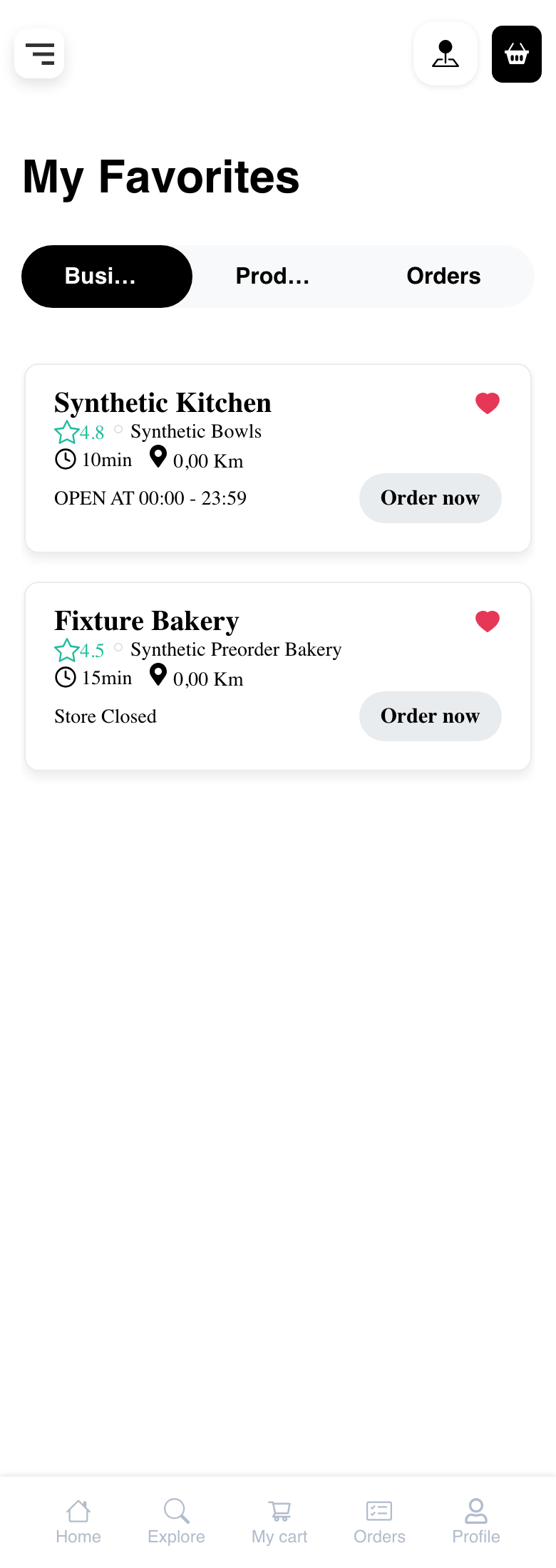
Scroll the tab row to check for additional categories, then select the desired tab. Availability and saved-item states do not change simply because the customer uses a smaller screen.
Troubleshooting
My Favorites is missing
Confirm that the customer has an active signed-in session and has completed any required profile information. The option also depends on the Website configuration and is not available in kiosk mode.
A saved item is missing
Reload the page and confirm the customer's current location and order type. Saved businesses and visible availability can depend on the current ordering context. An item can also have been removed from the available marketplace data since it was saved.
A tab is missing
Not every Website supports every favorite type. The Professionals tab, for example, belongs to an appointments layout. Confirm the marketplace capabilities and theme configuration.
The list is empty unexpectedly
Reload the page and try the tab again. A list-loading problem can appear similar to an ordinary empty state because the page does not always show a separate technical error. If the mismatch continues, contact support with the Website, approximate time, selected tab, location, and order type. Do not include credentials, payment information, or other sensitive customer data.
Related guides: Browse available businesses · Search, filter, and map businesses · Sign in or create an account