Browse available businesses
The business list helps customers choose where to order after Website knows their location and order type. Results reflect the customer's current ordering context, so changing the address, order type, or ordering time can change the businesses and information shown.
The standard marketplace list requires a selected address or valid location coordinates. Supported Franchise One experiences can use a configured default location for allowed unaddressed order types. Single-store, kiosk, and appointment experiences can use a different entry flow or layout.
Review the business list
Each returned business appears as a card. Depending on your Website theme, project configuration, selected order type, and available business data, a card can show:
- The business name, image, category, ribbon, or offer.
- A customer rating and review count.
- Delivery or pickup time.
- Delivery fee and distance.
- An open, closing, closed, or preorder state.
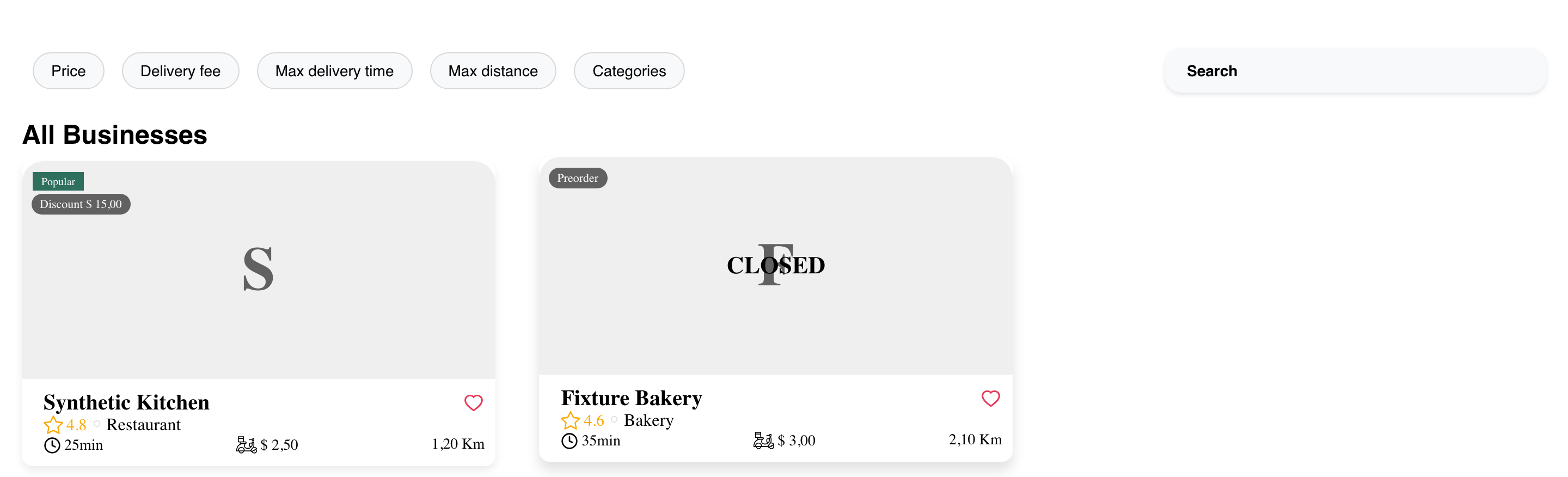
The exact combination varies. For example, delivery fees apply to Delivery, while the displayed time can change between Delivery and Pickup. A missing value is not necessarily an error; the field might be hidden by the theme or unavailable for that business and ordering context.
Selecting an available, open business takes the customer to that business's menu. Website can also record that selection for reporting. The selection itself does not place an order or initiate payment.
Continue to a closed business with preorder
An enabled business can remain visible while closed. Its card shows a closed or preorder state instead of behaving like an immediately available business.
- Select the closed business card.
- Website opens the initial Preorder experience.
- Review the available dates and continue with the scheduling flow.
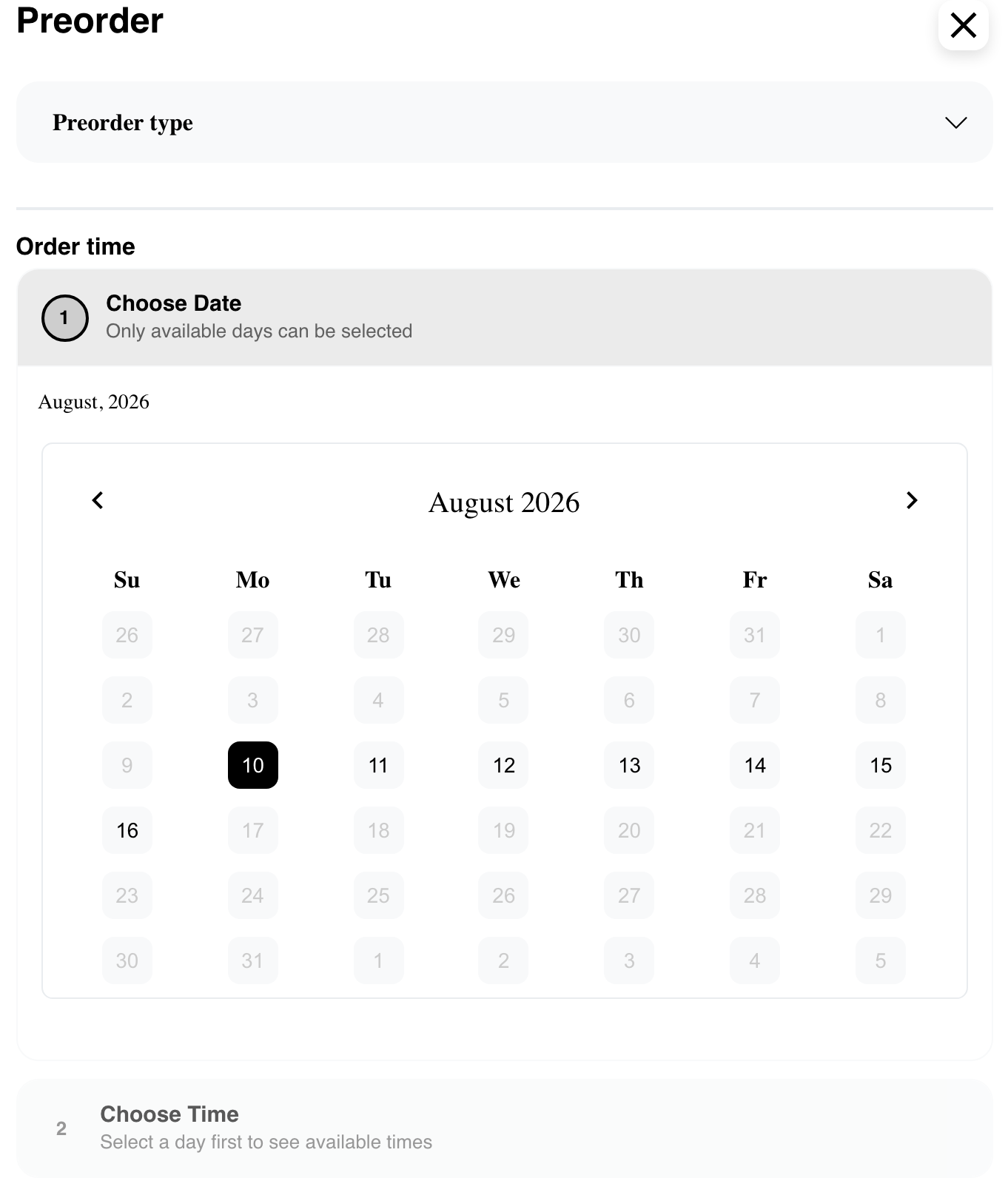
Whether the customer can continue depends on the available dates and times, business schedule, supported order type, and preorder configuration. This page documents only the handoff from the business list; the complete flow is covered in Schedule a preorder.
Search and narrow the results
Website can display a search field and configured filter shortcuts above the business list. Available shortcuts can include price, delivery fee, delivery time, distance, and categories.
- Search can narrow the list using business information such as its name or description.
- A configured filter shortcut opens the dedicated search and filter experience.
- Order-specific shortcuts appear only when they apply to the current order type.
Search and filter availability depends on the Website theme and project configuration. The complete search, filter, and map behavior is documented separately.
When more results exist, Website loads the next group automatically as the customer approaches the bottom of the page. Placeholder cards can appear while the next group loads, and loading stops after the final group.
Mobile experience
On mobile, Website shows the current location, order type, and ordering time above the results. Search uses the available width, filter shortcuts scroll horizontally, and business cards appear in a single column.
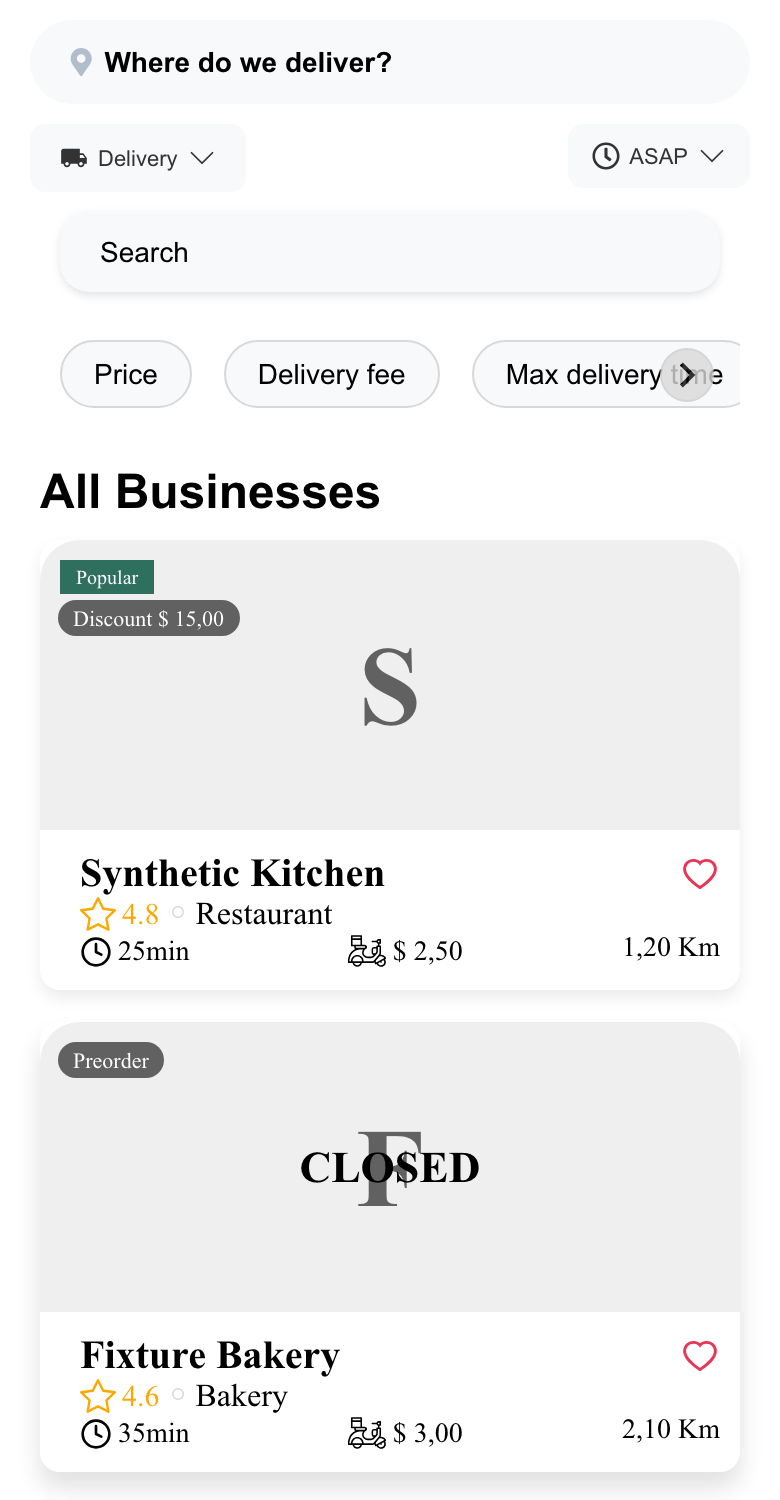
The card content follows the same availability and configuration rules as desktop, but its spacing, header height, and result density adapt to the smaller screen.
Handle an empty business list
When Website does not have an address, the empty state asks the customer to add one before browsing nearby businesses.

Selecting Add address opens the address form for a signed-out customer. A signed-in customer can instead choose from their saved addresses.
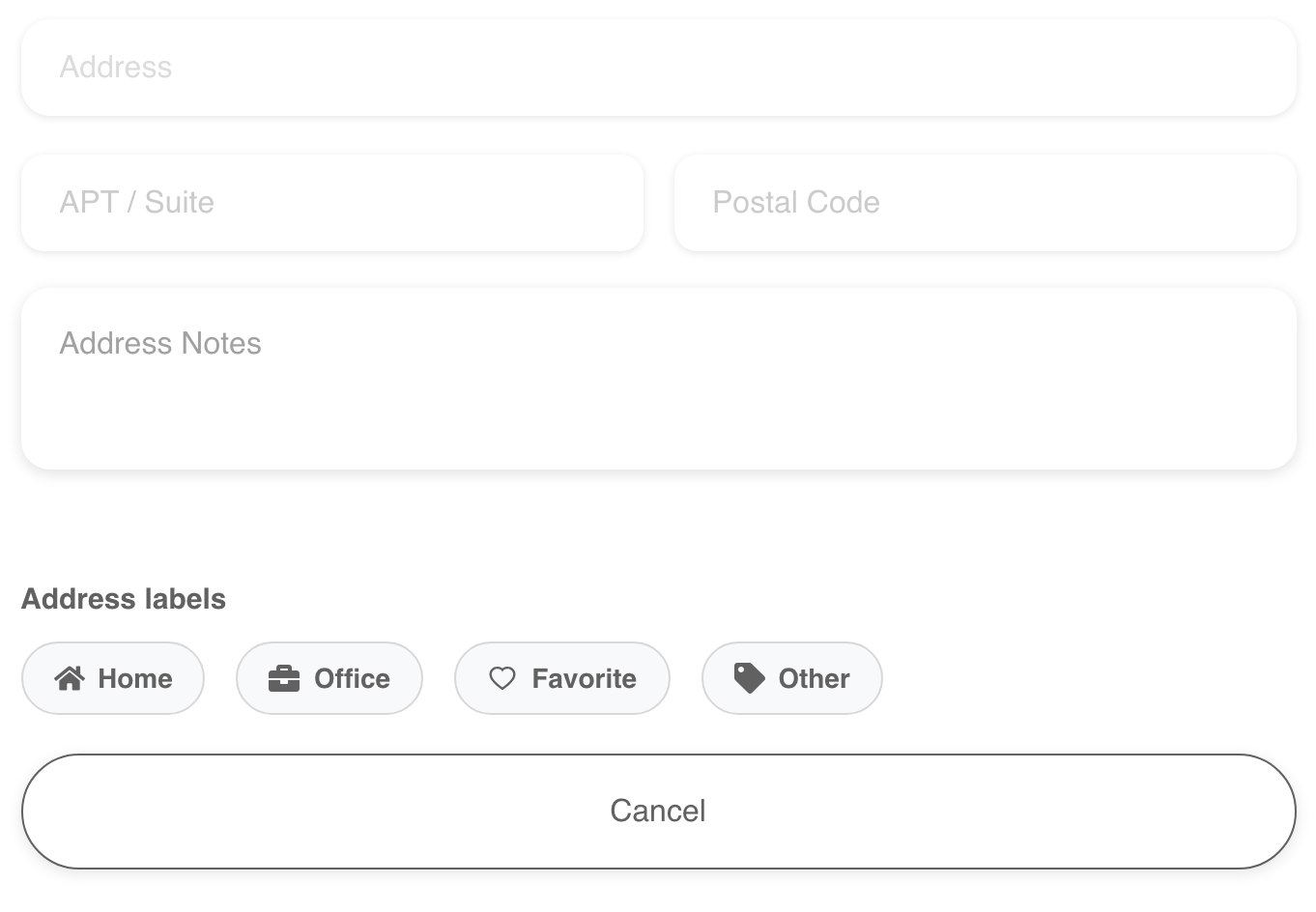
If an address is already selected but no businesses are returned, Website shows No businesses available at this address and a Change address action. The customer can change the address or adjust the current filters and try again.
What can change the destination
- A franchise Website can send the customer directly to the first open business in the returned list, or to the first returned business when none are open.
- A Website configured to activate a single store automatically can skip the list when only one business is returned.
- Appointment-based businesses use a separate listing experience.
These behaviors depend on the active Website configuration. They do not change the customer's cart or place an order by themselves.
Frequently asked questions
Why is a business missing?
Results depend on the selected location, order type, ordering time, filters, and business configuration. Ask the customer to confirm the current context, clear any filters, or try another address. A business that is not returned for the current context does not appear as a selectable card.
Why does a closed business still appear?
Any returned enabled business can appear while closed. Selecting it starts the preorder handoff; whether the customer can continue depends on the dates and times available for that business and its preorder configuration.
Why are some card details missing?
The Website theme can hide card elements, and some values apply only to particular order types or are supplied only when the business has corresponding data. Compare the missing field with your theme, project, and business settings.
Why did Website skip the business list?
A franchise or single-store configuration can route customers directly to a business. This is expected when automatic business selection is enabled for that experience.
Related guides: Manage favorite businesses · Choose a location and order type · Schedule a preorder