Understand Website presentation modes
The Ordering.co Website can start with a choice of businesses, open a specific store, guide customers into a participating franchise location, or present a kiosk-oriented Home. The mode affects the starting page, navigation, and way customers reach a menu; it does not by itself confirm that a business is open or ready to accept an order.
The presentation is selected for the Website. Customers do not switch modes themselves, and the available pages and controls can vary by Website, business, location, order type, and screen size.
Choose from multiple businesses
A multi-business Website can show the businesses available for the current location and order context. Select a business to continue to its page and menu.
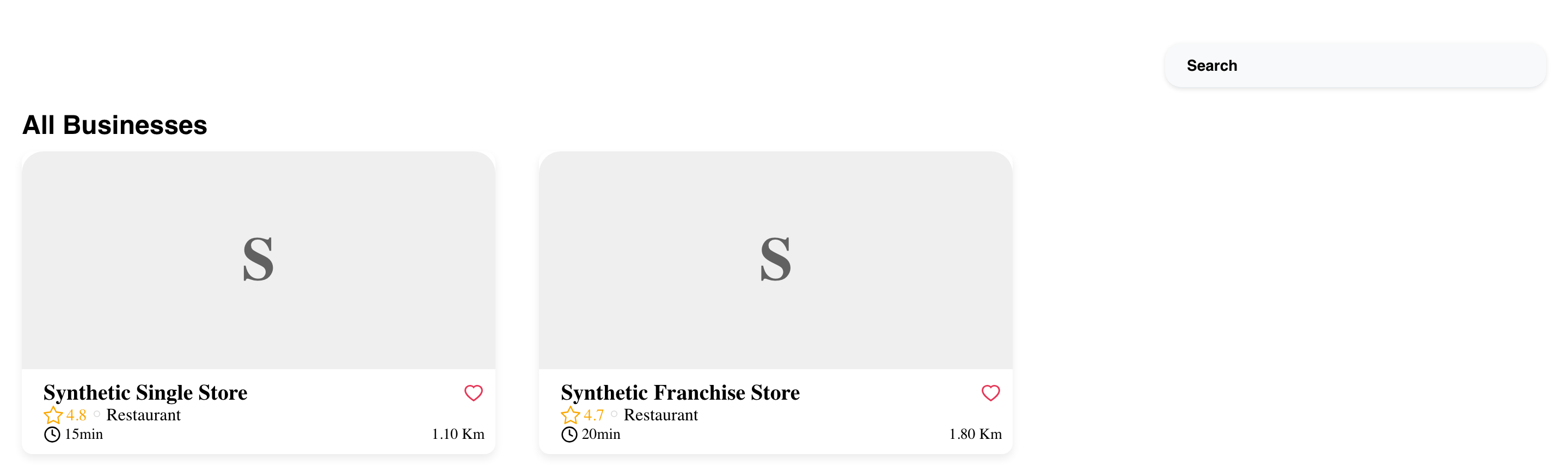
The list is not a complete directory of every business connected to a project. Results can change with the selected address, order type, ordering time, and each business's availability.
On mobile, business choices stack vertically beneath the current ordering context.
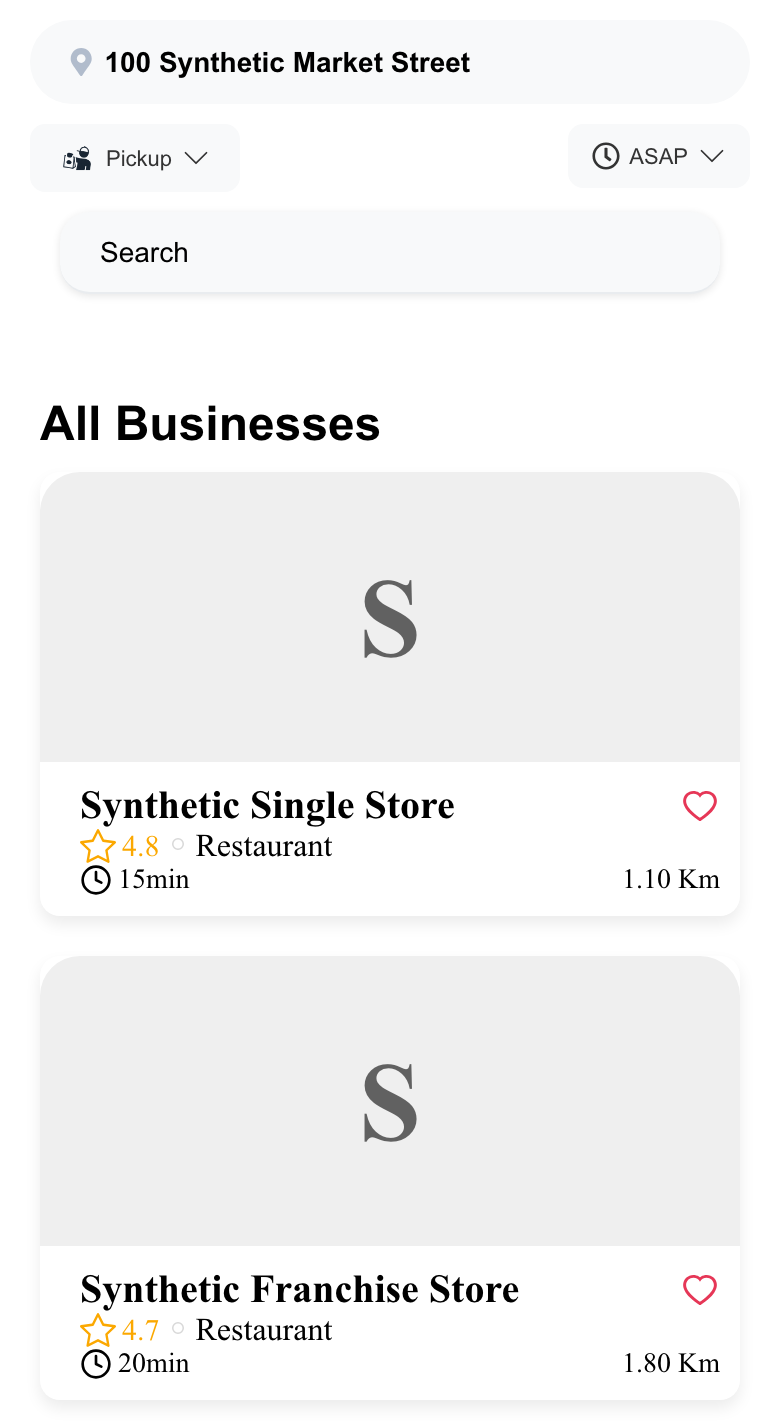
For details about result cards and empty states, see Browse available businesses.
Open a single-store Website
A single-store Website can open directly to one configured business instead of asking the customer to choose from a business list.
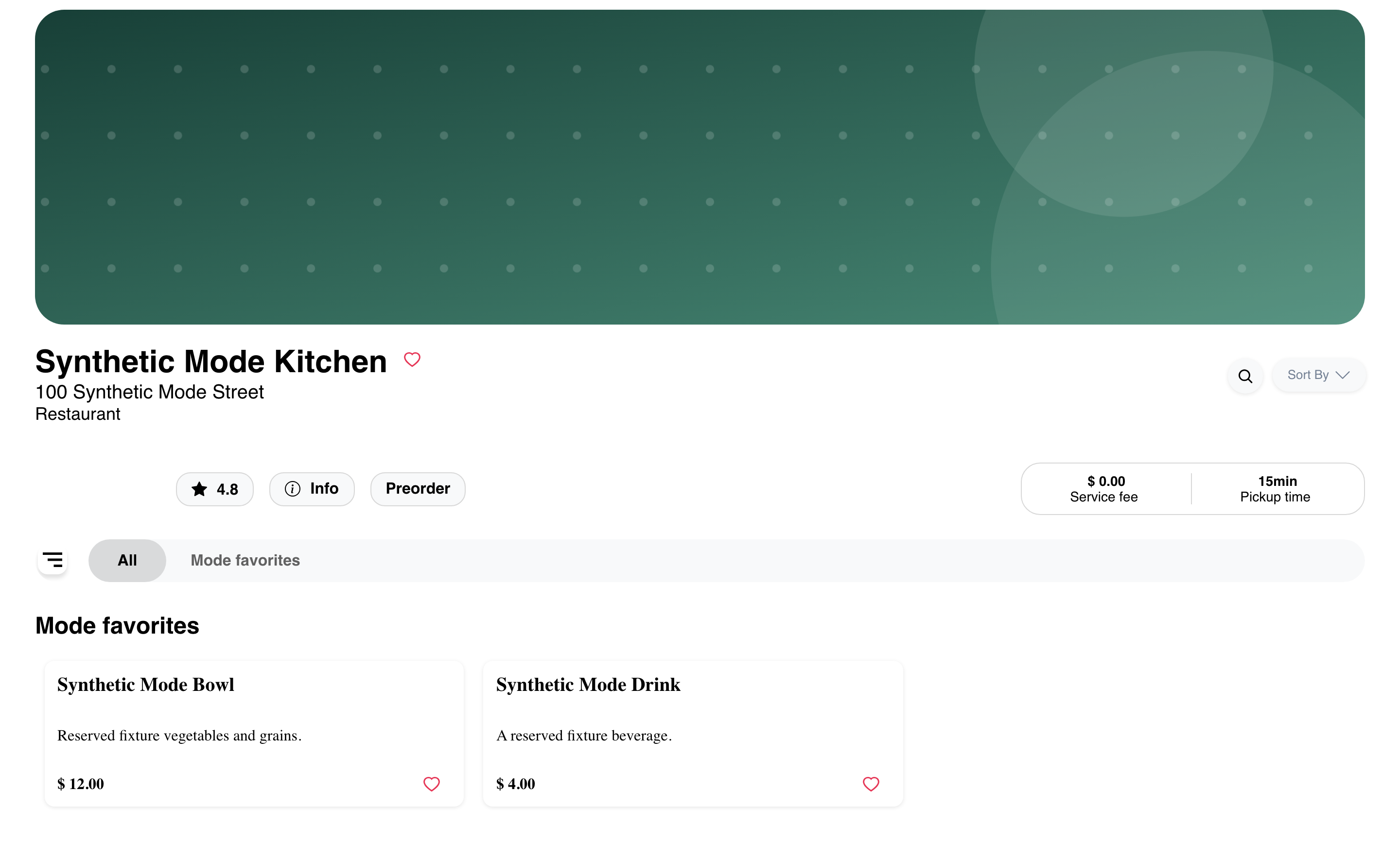
The business page can show order context, business information, category navigation, and menu products. The exact sections depend on the business data and Website presentation.
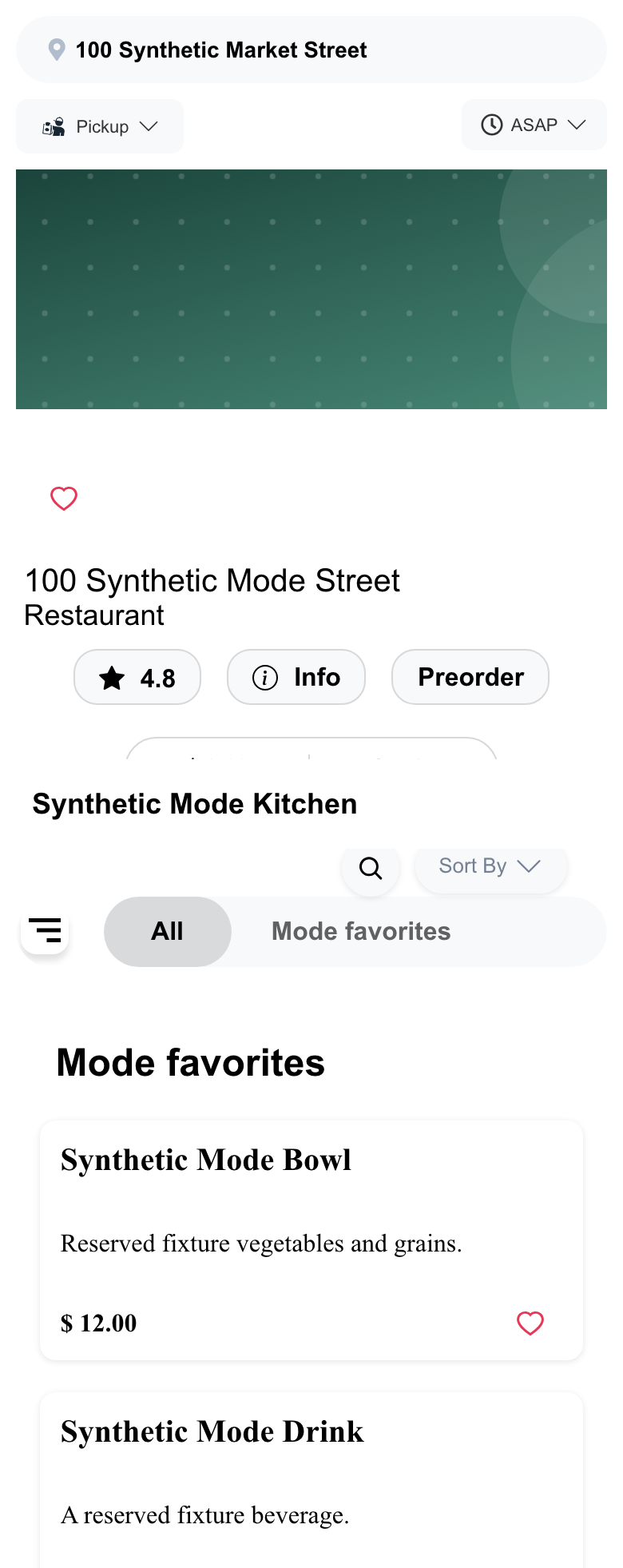
On mobile, the order context and category navigation can appear before or alongside the menu content. Controls can move or stack, so the first mobile screen does not need to match desktop.
Opening the store page does not confirm that its menu is currently orderable. Review the visible availability, selected order type, and ordering time before continuing. See Browse a business and its menu.
Use a franchise Website
A franchise Website can use the customer's ordering context to open a participating location automatically. When a store switcher is available, use Change store to return to the location choice provided by that Website.
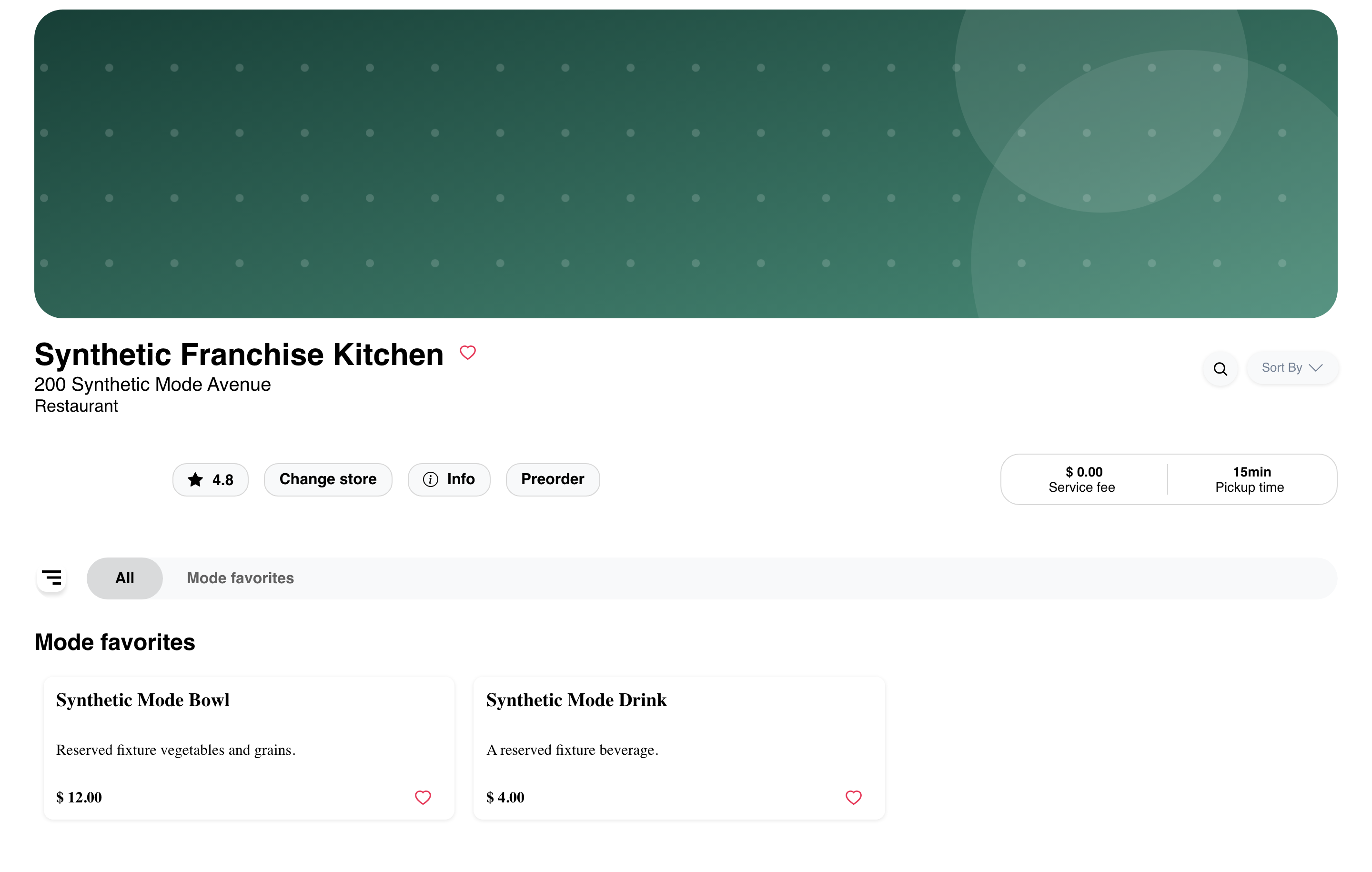
The first location shown is not a promise that every franchise location is available. Participating businesses, menus, fulfillment choices, and schedules can differ by location.
Recognize a kiosk-oriented Home
A kiosk-oriented Website can keep customers on an order-focused Home with a location and search entry instead of opening a store automatically.
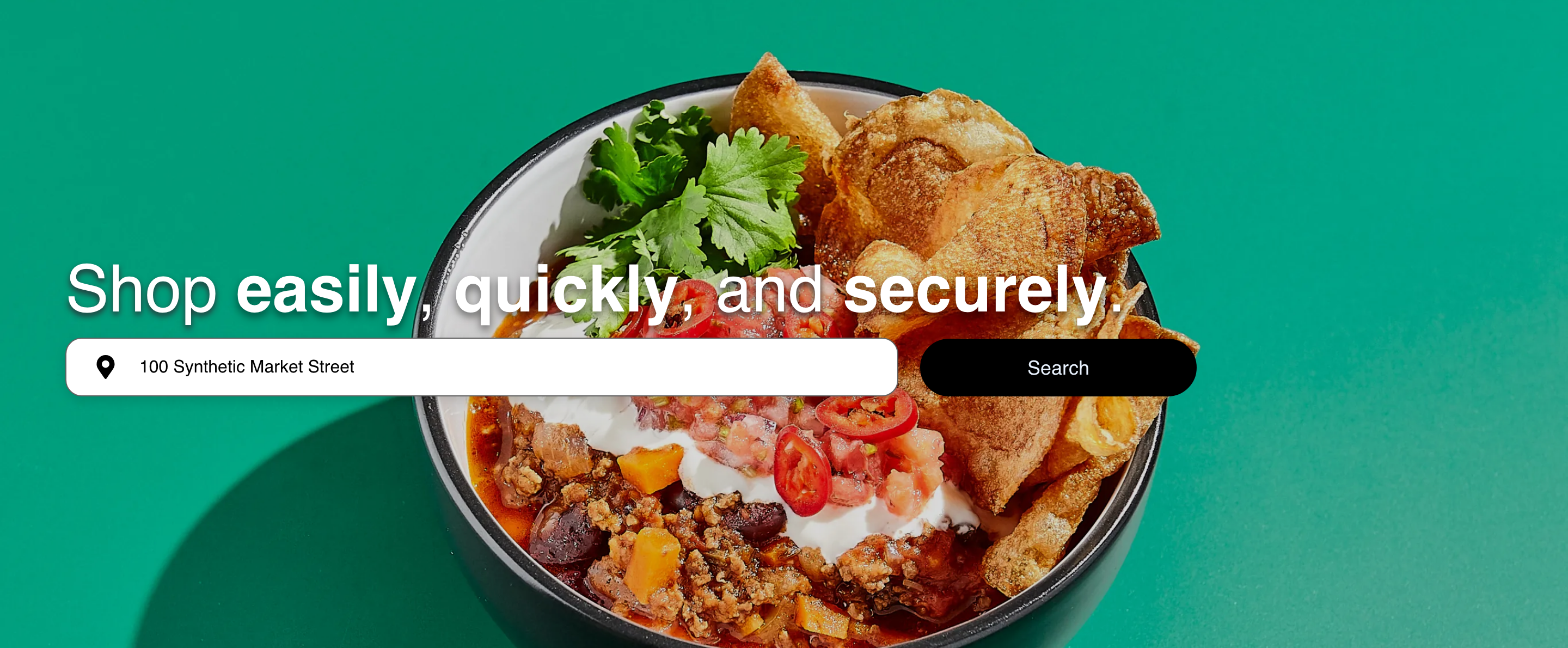
Use the controls visible on that Home to confirm or change the location and begin searching. A business link published by the same Website can open a different store presentation, but customers should not guess or edit the link to find one.
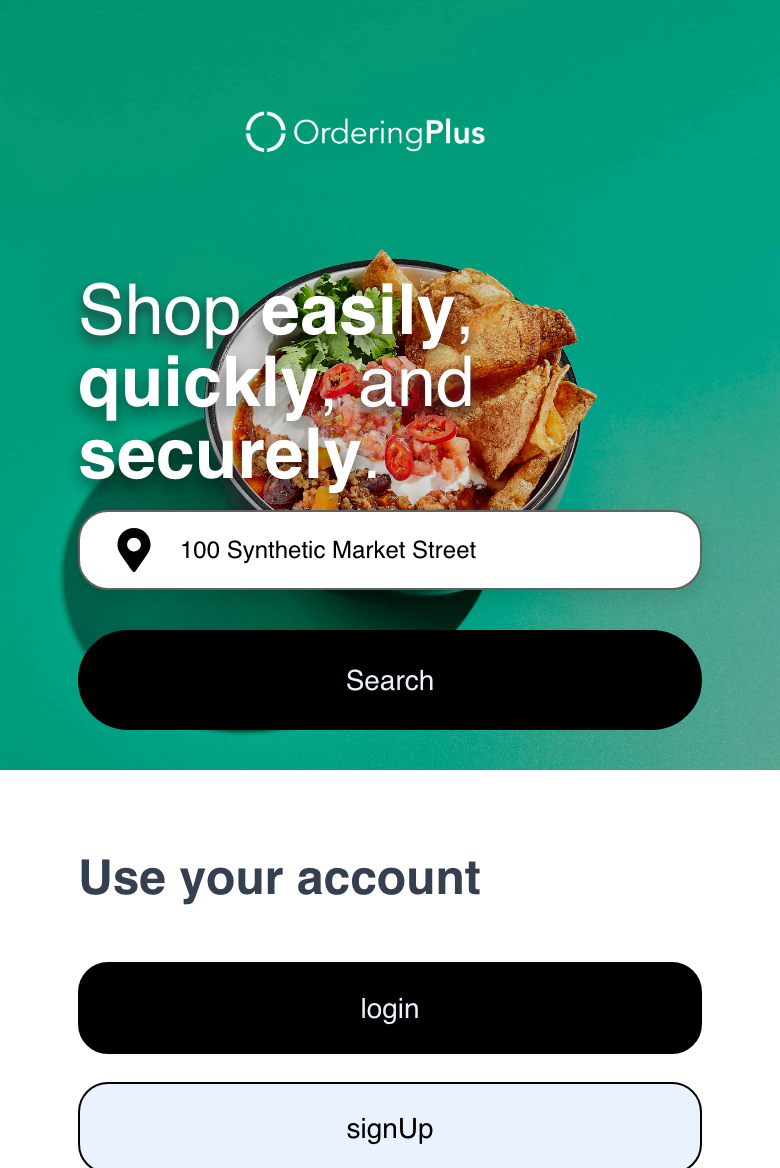
Kiosk-oriented layouts can reduce or rearrange global navigation, but they are not guaranteed to hide every account or navigation control on every page and device.
Keep native mobile ordering separate
The Website presentation modes in this guide do not describe a native mobile application. A mobile customer experience can use similar order concepts, but its screen flow, account state, messaging, payment options, and order updates are separate from Website mode.
Choose a fulfillment type in a mobile experience
When a native customer experience offers an order-type selector, customers choose only from the available cards. The example includes Delivery, Pickup, Eat in, Curbside, and Drive thru; a current project can show fewer or different configured choices.
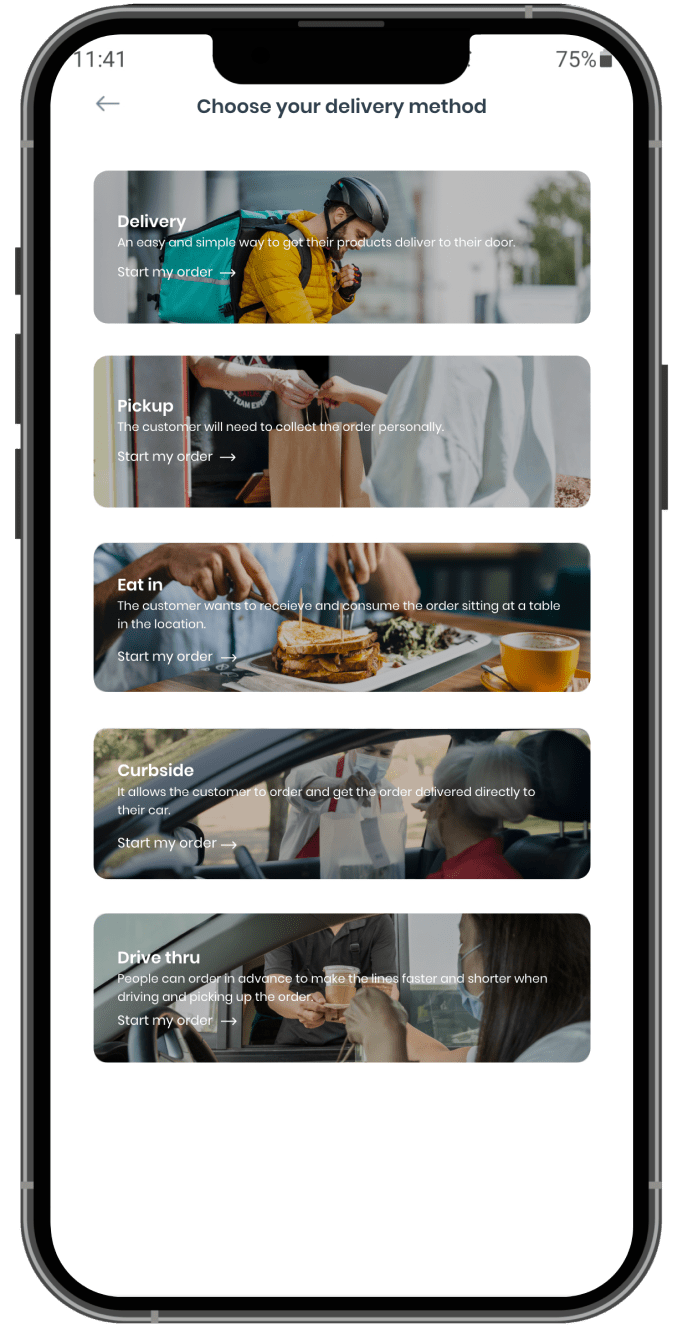
The selection establishes an ordering context. It does not confirm that a specific business, product, payment method, or fulfillment time is available.
Browse a current business menu
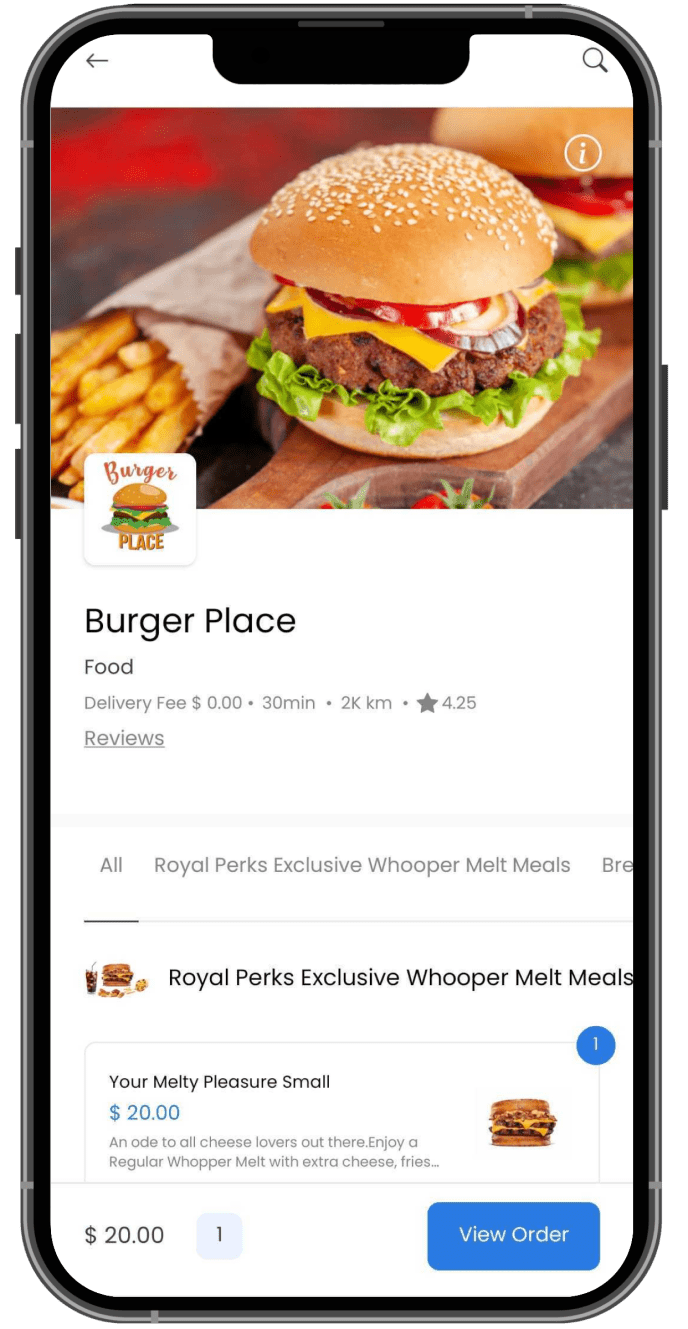
A native mobile experience can show a business page, current menu categories, product cards, product availability, and product options. Customers should open the current product and review its live details before adding it to a cart.
Review the cart and checkout
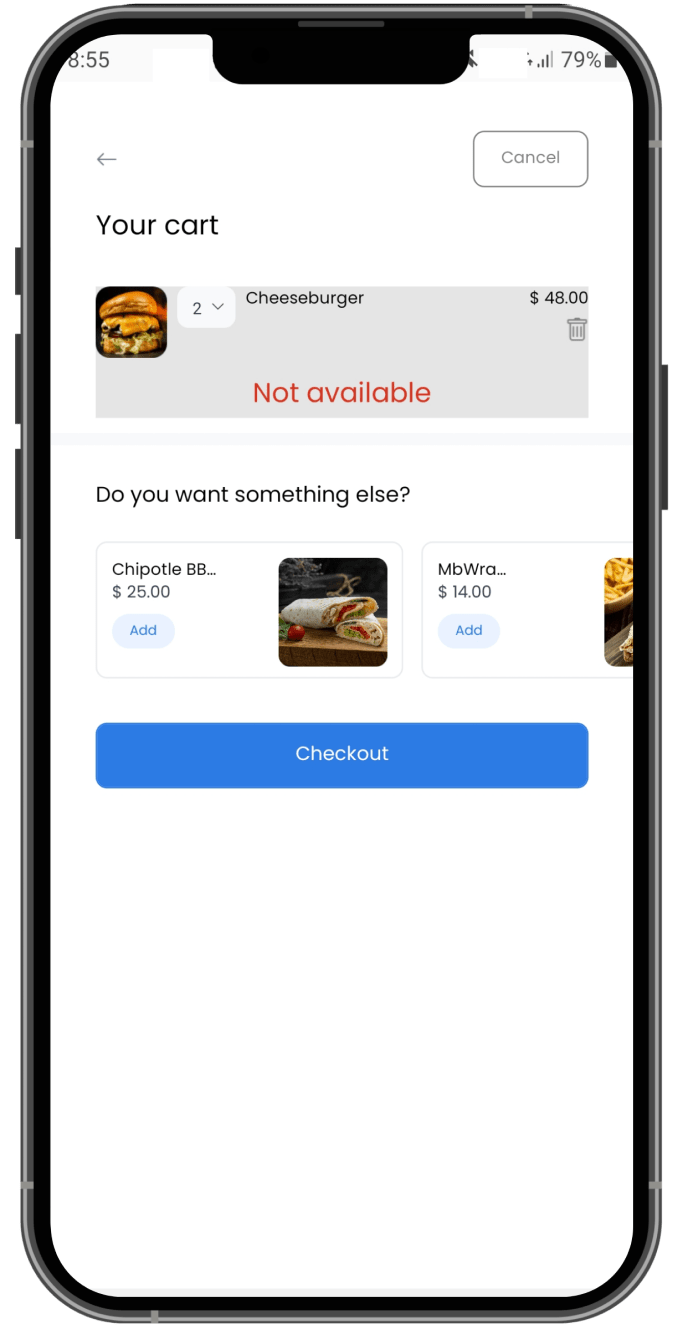
A mobile cart can identify a product as unavailable, show suggested products, or expose Checkout. These controls are conditional. A customer should resolve the current cart state rather than relying on a previous menu view or another device.
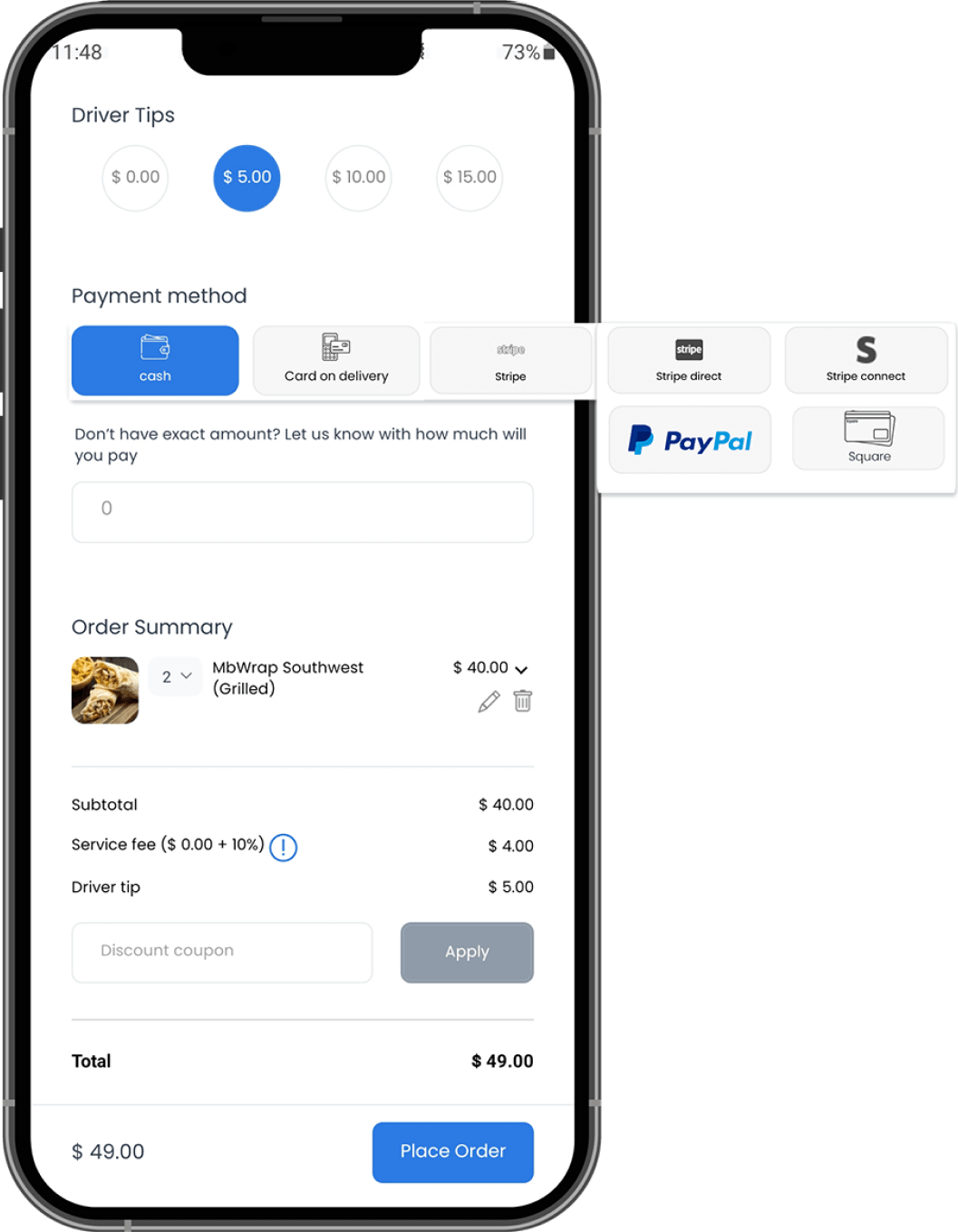
At checkout, the app can show a tip, coupon, cash amount, and payment methods that are available for the current order. Provider choices are not determined by Website mode, and selecting a method or a final action does not prove payment or order settlement.
Review updates, messages, and past orders only when available
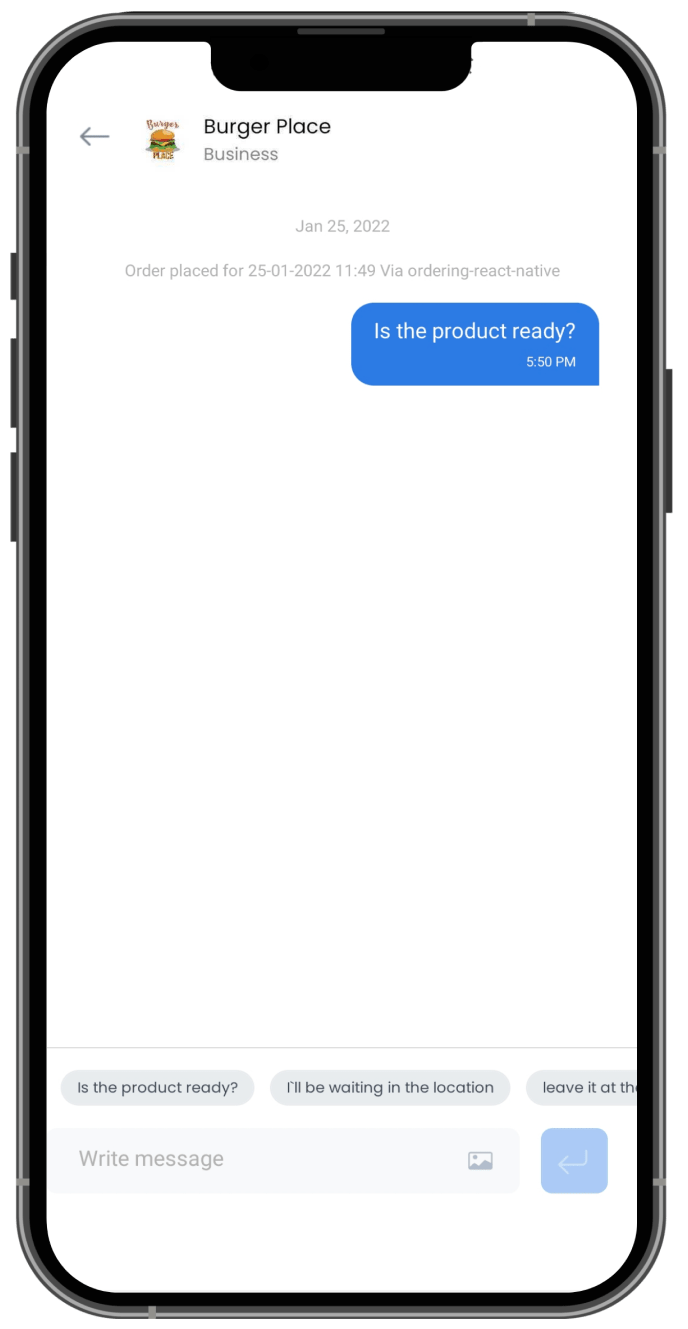
An order page can display returned order details and status while the order progresses. It does not guarantee real-time delivery of every update, a message channel, or a specific fulfillment result.
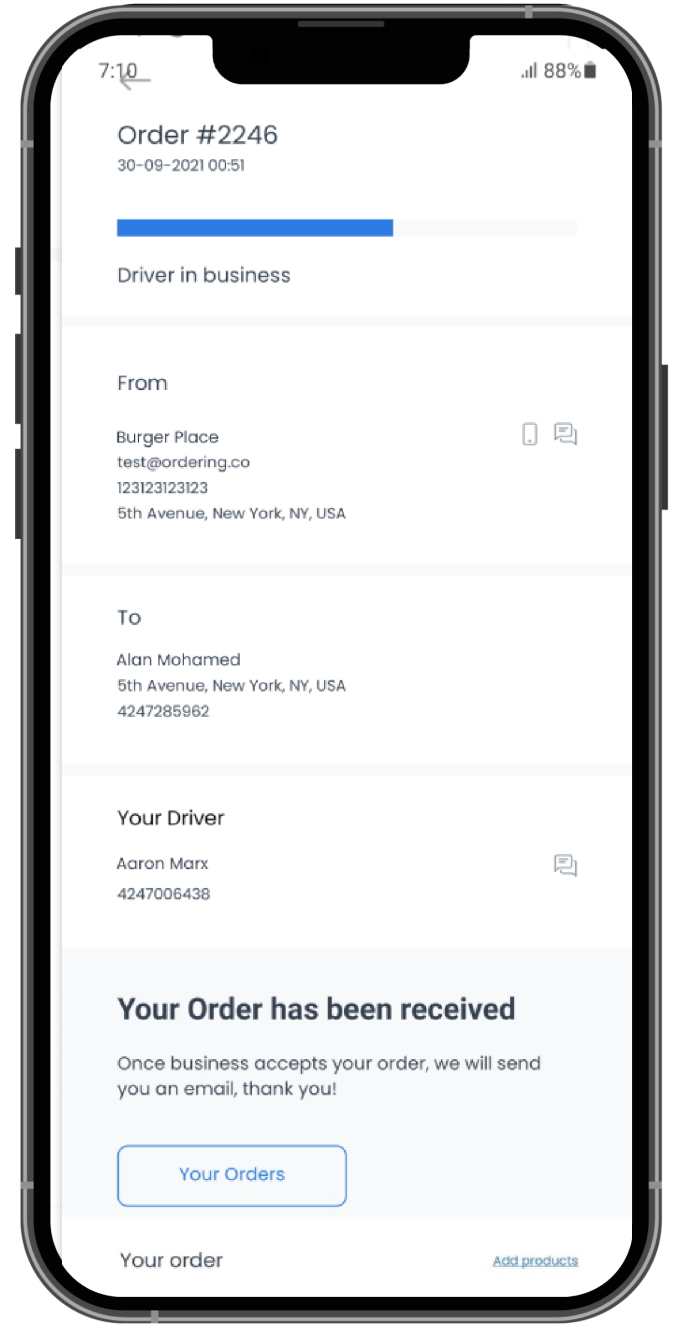
When the active order exposes a conversation, customers can use the visible conversation controls for that order. Do not infer that every business, Website, order type, or mobile account can message a business directly.
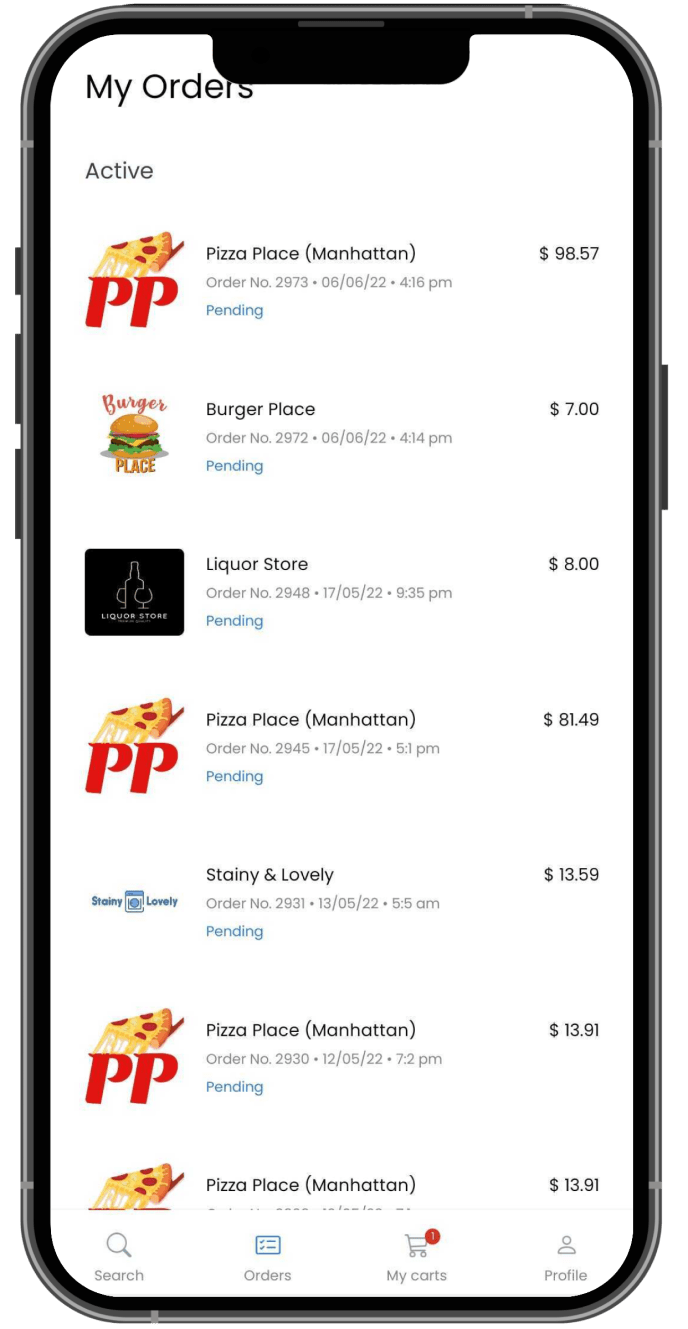
A signed-in mobile customer can also see prior orders when the account and current experience expose them.
For native mobile documentation, see Customer App overview. For Website order types, use Choose a location and order type.
Follow Website-provided links
Published links can open a business through a store path or a shorter business path. The exact format depends on the Website. Use links exposed by the Website, business, or support team rather than constructing a route from a business name.
The root page, Home, business list, and direct business link can lead to different presentations. Returning to Home is therefore not always the same as reopening the original store link.
Troubleshooting
The expected business is not in the list
Confirm the selected location, order type, and ordering time. Reload the business list once after correcting them. If the business remains absent, it might not be returned for the current context; do not infer availability from another Website or a previously saved link.
A franchise Website opened one location immediately
This can be the intended franchise flow. Review the business name and address before ordering. Use Change store when it appears and another location is needed.
A single-store page has no products
Confirm the selected order type and ordering time. A store page can load even when no menu products are available for the current context. Follow Browse a business and its menu for menu-specific guidance.
The kiosk experience looks different on mobile
Use the visible Home, location, and search controls. Kiosk-oriented navigation can differ between desktop, mobile, Home, and direct business pages; do not rely on a control appearing in the same position everywhere.
A saved or manually edited link does not open the expected page
Return to the Website's published Home, business list, or store link. Supported link formats vary, and a guessed path can resolve differently or fail.
Related guides: Choose a location and order type · Browse available businesses · Browse a business and its menu