Manage students for school ordering
When a Website exposes My students as part of its school-ordering experience, a signed-in customer can manage linked students there. The saved details can include the student's school, classroom, grade, allergies, and dietary tags.
School ordering and My students are available only on supported Websites. Profile completion or account verification can appear first, and the available schools, classrooms, grades, and ordering choices depend on the Website.
Open My students
Open your account profile and select My students. The page can show each linked student with the school, classroom, and grade returned by the Website.
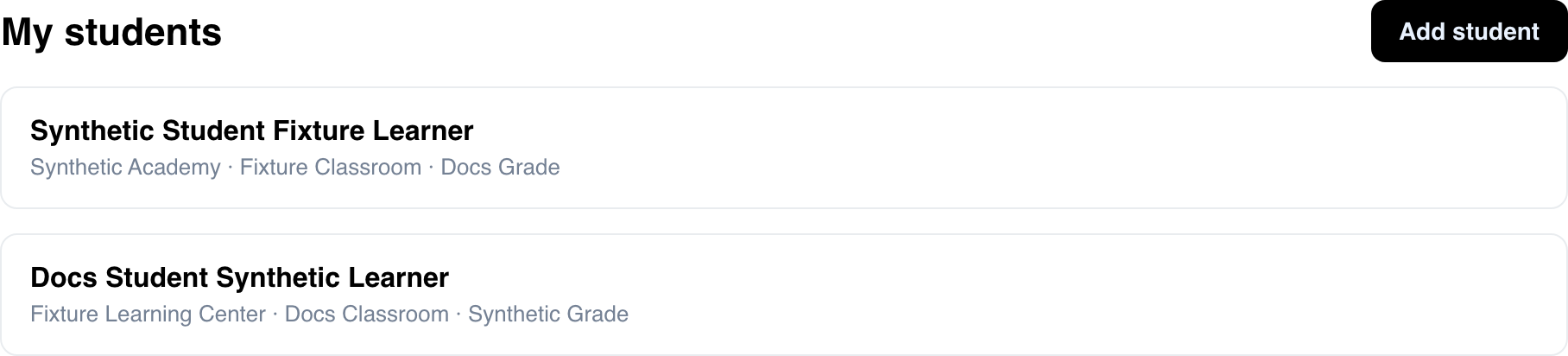
Select Add student to open a blank form. Select an existing student card to review or edit that student's details.
Understand an empty list
When no student records are returned, My students can show a message inviting you to add one.

An empty-looking page does not always prove that no students are linked. If records you expect are missing, reload once and contact Website support if the list remains empty.
Add a student
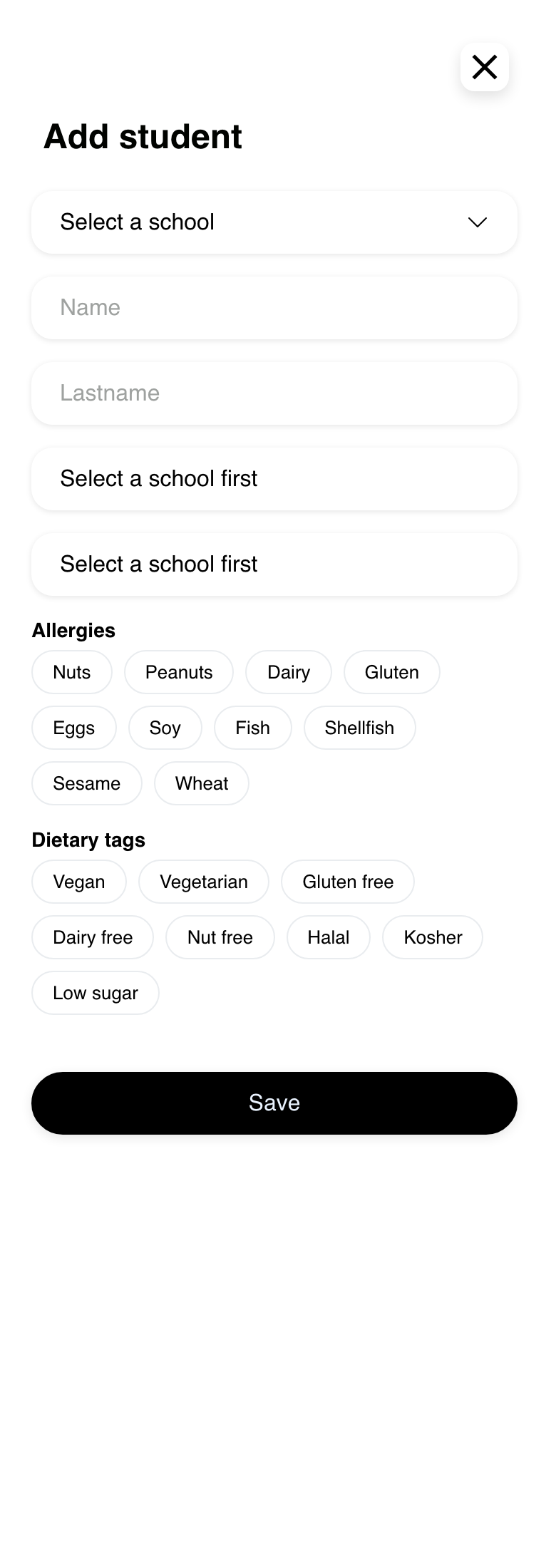
Select Add student. The form can include:
- School
- Name and Lastname
- Classroom
- An optional Grade
- Allergies
- Dietary tags
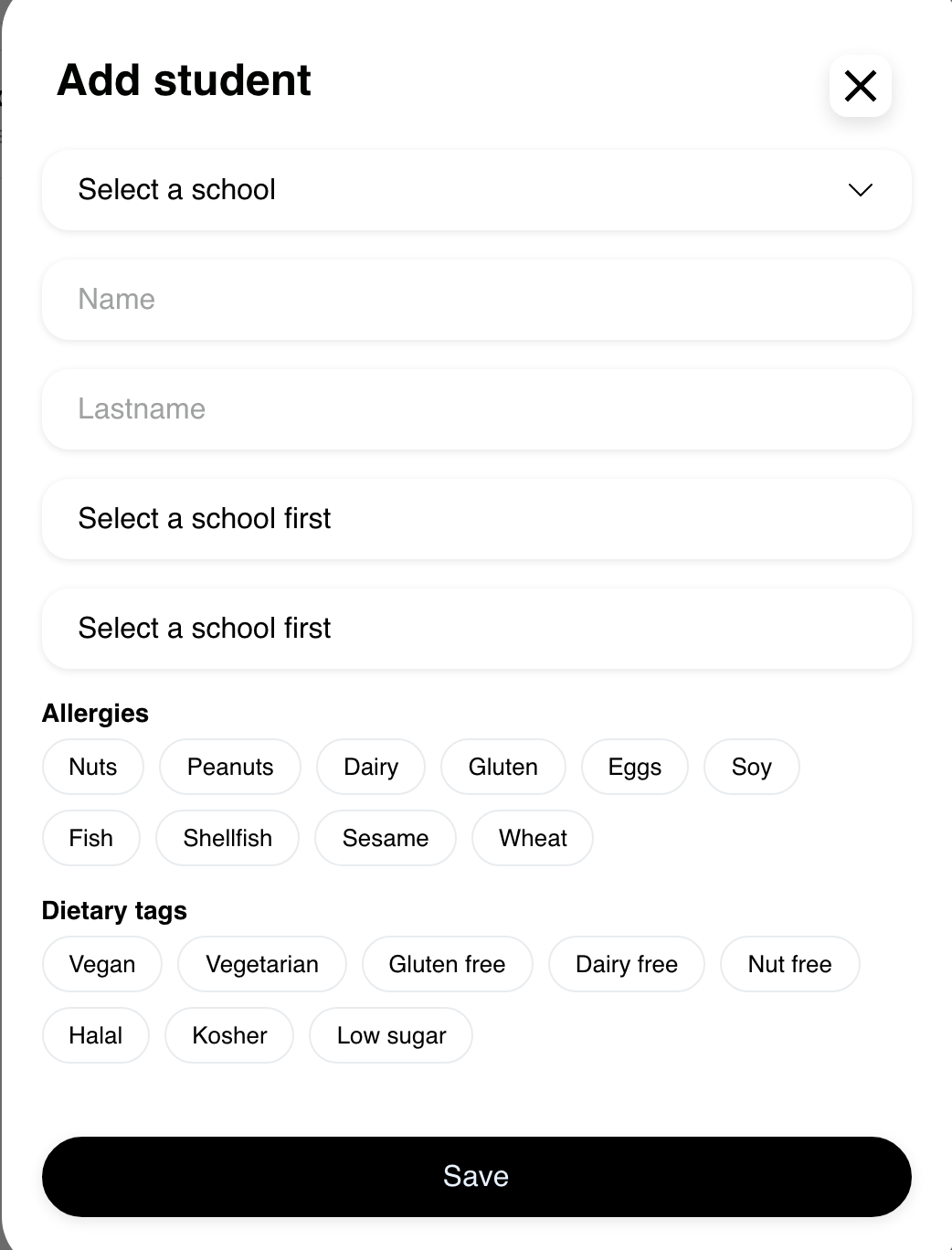
Choose a school first so the Website can present its available classroom and grade choices. Complete the required name and classroom information, then review every selection before using Save.
Allergy and dietary selections are ordering guidance. They are not a medical-safety guarantee, and the available tags might not cover every need. Contact the school or business when a dietary requirement needs confirmation.
Edit a student
Select a student card from My students. The edit form shows the saved student and school details returned by the Website.
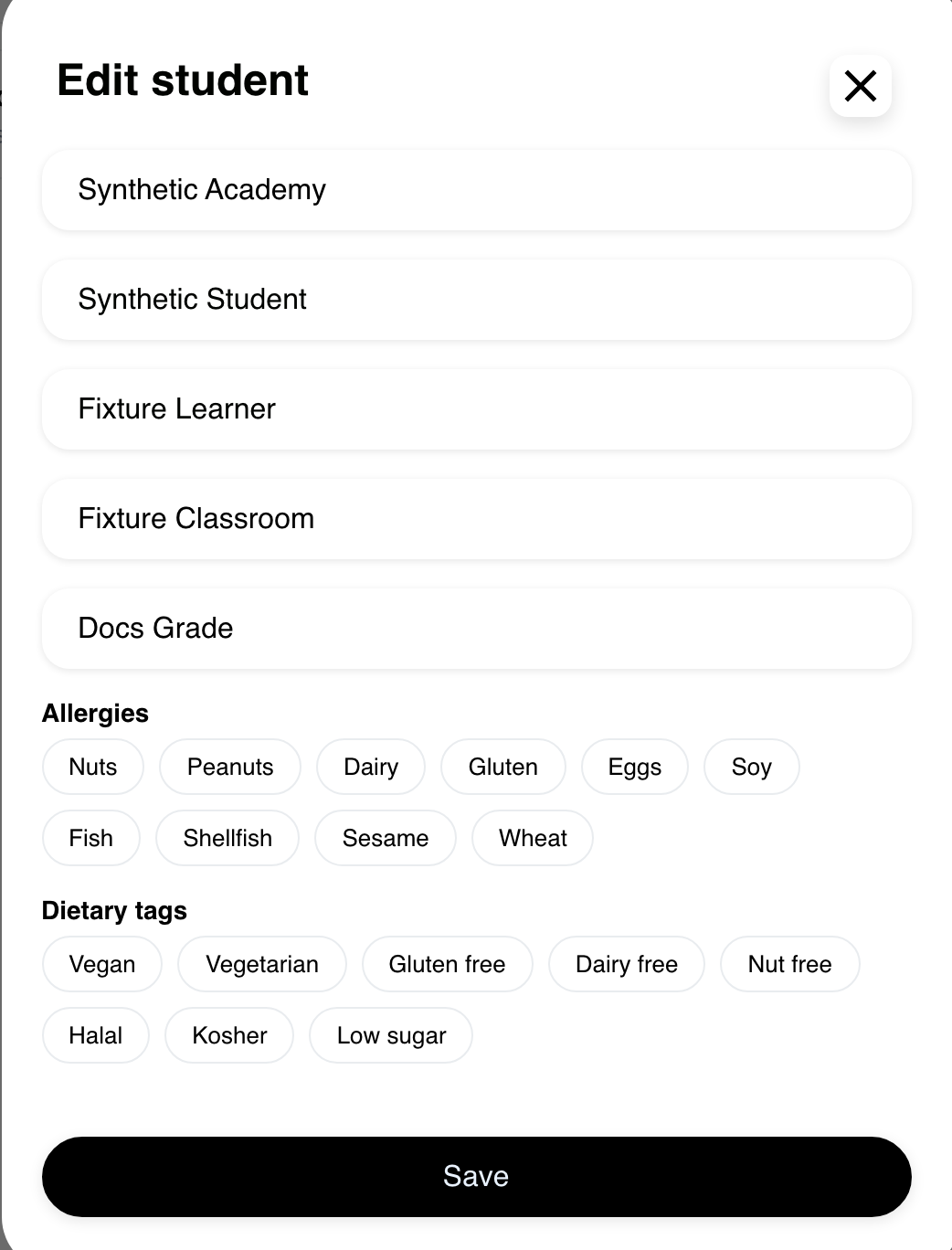
The school can be fixed for an existing student while the remaining available fields can be reviewed. Confirm the name, classroom, optional grade, allergies, and dietary tags before selecting Save. Saving sends a real profile change; a visible Save action does not by itself confirm that the change succeeded.
The current customer profile does not provide a student-delete action. Use the support option supplied by the Website if a linked record needs to be removed.
Use a student during school ordering
On a supported school menu or checkout, Website can ask which linked student the order is for. A prior choice may be restored for that business, or Website may ask you to choose again.
The selected student's saved allergy and dietary information can affect the products shown by a supported menu. Review the menu and any cart warning carefully. A warning can offer choices to keep or remove conflicting items, but it does not replace confirmation with the school or business.
Website checkout can keep its Place action unavailable until a student is visibly selected. This Website check does not guarantee that a later cart, checkout, or order request will succeed.
Use My students on mobile
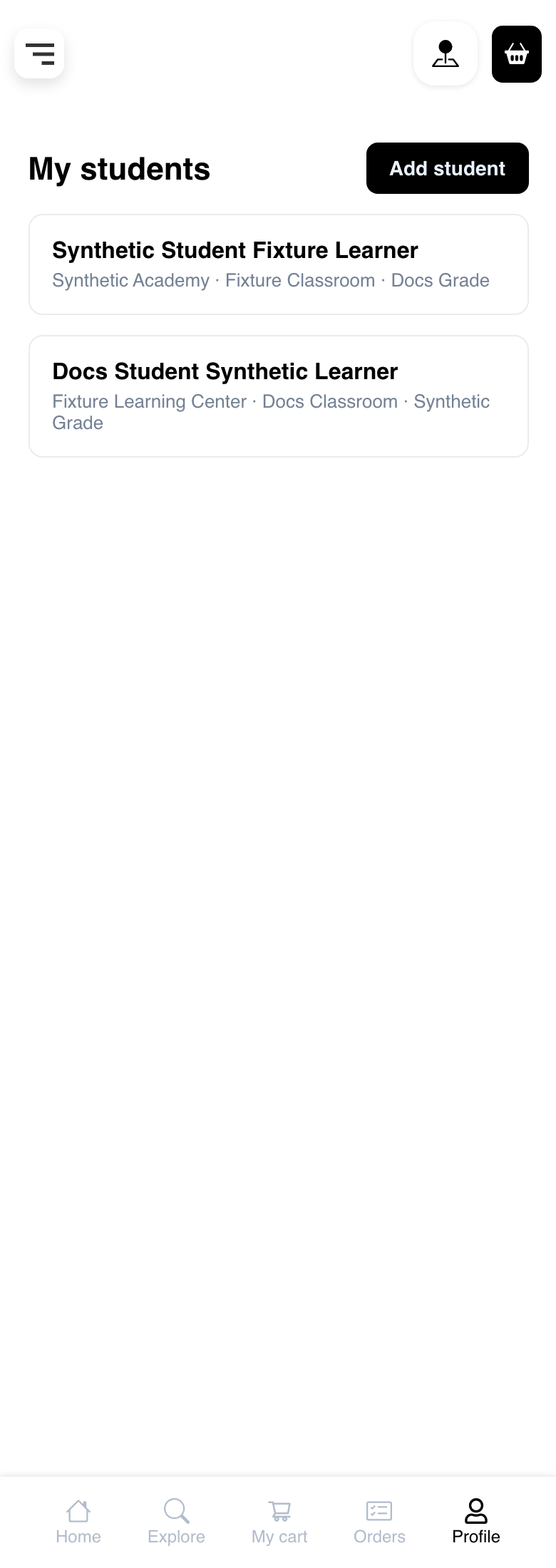
On mobile, My students keeps the list and Add student action in the profile layout.
The Add student form stacks its fields, allergy choices, dietary tags, and Save action vertically. Scroll through the complete form before saving.
Troubleshooting
My students is missing
Confirm that you are signed in and complete any profile or verification step shown by Website. If My students still does not appear, the current Website might not expose it in its current school-ordering setup.
Classroom or grade choices are unavailable
Choose the school first and wait for its choices to load. Grade can be optional, but a classroom is required by the visible form. If expected choices remain missing, contact Website support rather than selecting an unrelated option.
Save shows an error or the student does not appear
Review the required school, name, lastname, and classroom fields. Avoid repeatedly selecting Save. Reload My students once; if the result remains unclear, contact Website support before creating another record.
Checkout still asks for a student
Choose from the students offered for the current school and confirm that the selection is visible before continuing. If a prior choice is missing or invalid, select again from the current list rather than relying on an earlier selection.
Related guides: Manage your profile · Complete your profile and verify contact details · Review and complete checkout · Understand Website presentation modes