Use a supported integration login handoff
A supported integration can provide a link that starts a Website sign-in handoff. Open the complete link exactly as provided. The Website attempts the handoff automatically and shows a generic loading state while it waits.
The link contains sensitive sign-in information. Do not edit, forward, post, bookmark, or reuse it. Open it only on a trusted device and in the Website you expected.
Recognize the loading handoff
The desktop handoff can show Loading Ordering Dashboard... with a loading indicator.
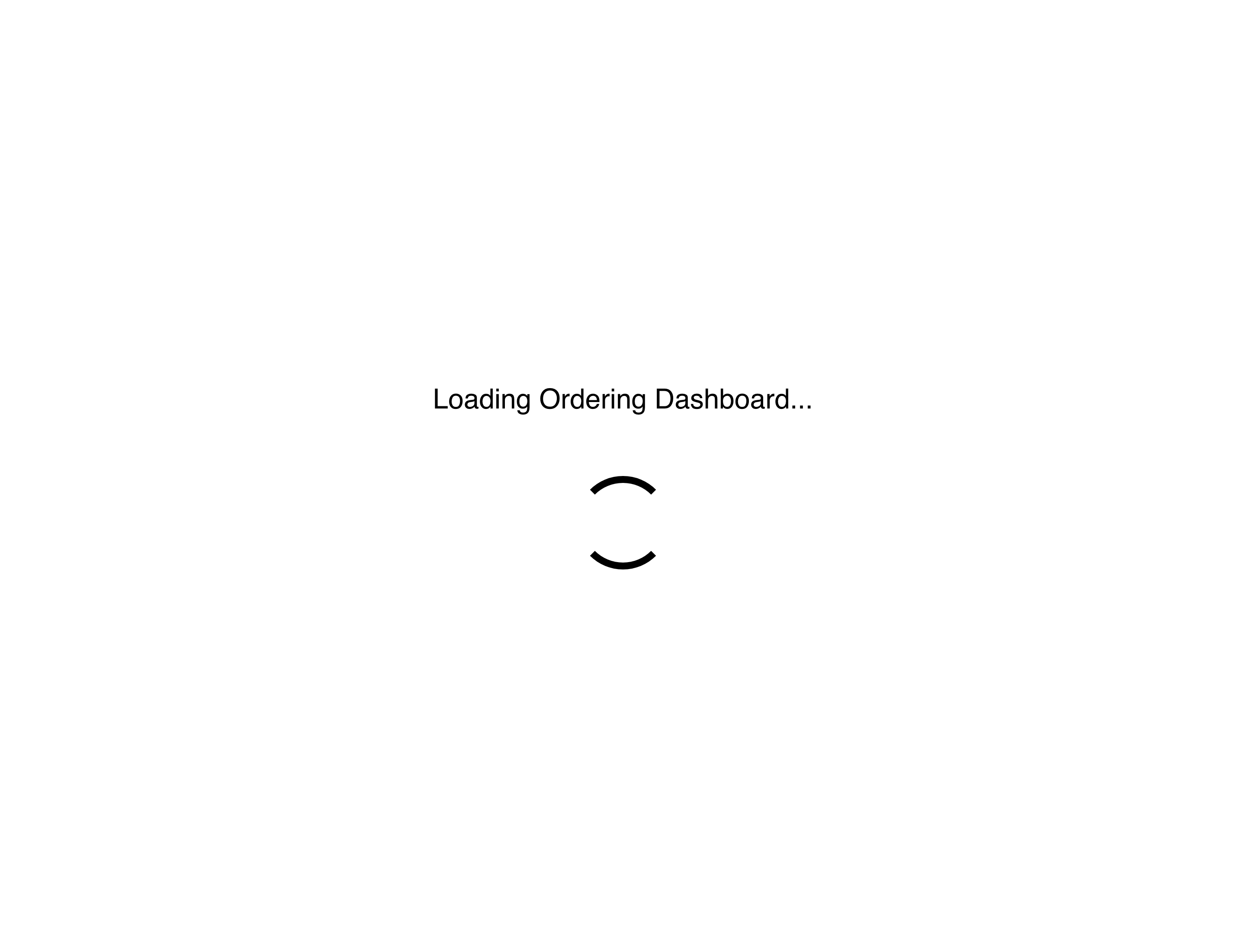
Loading confirms that Website is attempting the handoff. It does not confirm that sign-in succeeded, that an account was created or linked, or that the external service accepted the request.
On mobile, the same generic loading state can appear within the responsive Website navigation.
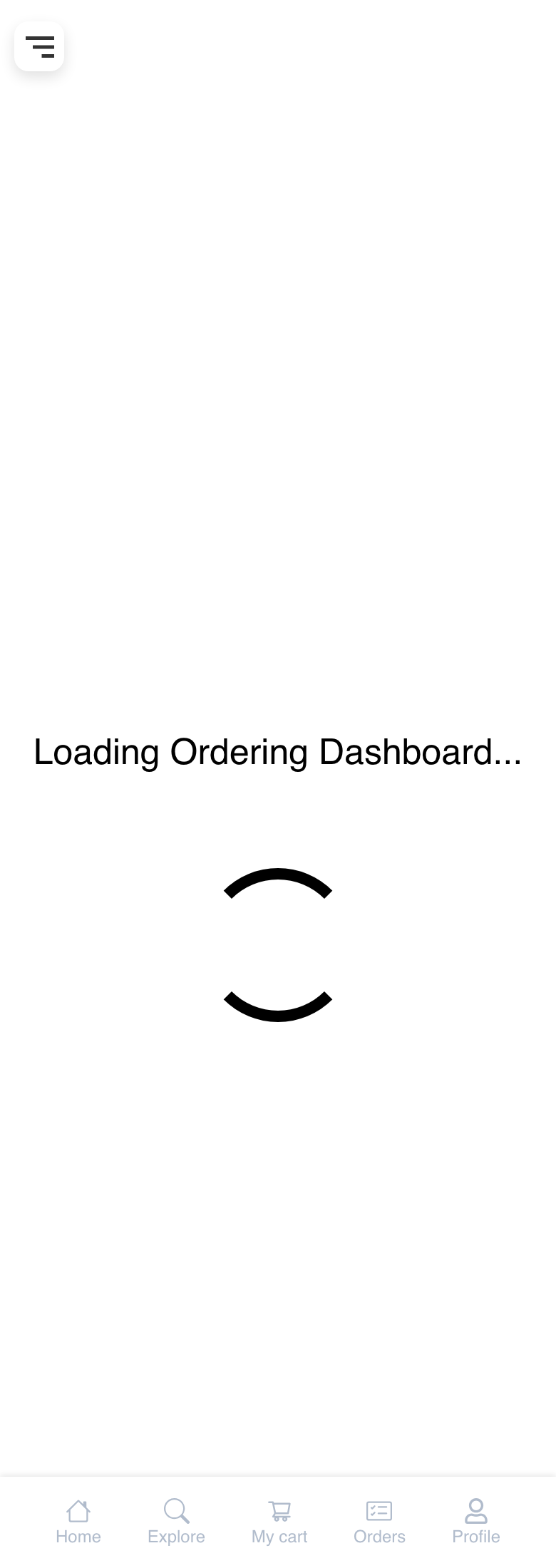
Keep the page open while the handoff is actively loading. Avoid opening the same link in multiple tabs or repeatedly refreshing it.
Continue after the handoff
When the handoff completes, Website can continue to another page. The destination depends on the link, Website presentation, account state, and ordering context. There is no separate integration-success screen, so arriving at a particular page is not by itself proof of how the external service handled the request.
Profile completion or contact verification can appear before or after the handoff. Complete only the Website fields shown on the current page. See Verify and complete a customer profile for those account steps.
If the regular Website sign-in form appears, the integration handoff did not continue through its automatic path. The form might not display a specific reason. Use it only if you normally sign in to this Website with an existing account; otherwise, return to the source that provided the link or contact the Website operator.
Protect the link and session
Treat the original link like sensitive sign-in information:
- Do not share the link or include it in screenshots, support posts, analytics, or copied messages.
- Do not manually change any part of it or add location information.
- Do not assume it becomes harmless after the Website address changes. The original page can remain in browser history.
- Do not use Back to revisit the original handoff after signing in.
- When using a shared device, finish your Website task, sign out, and close the browser window.
The Website can establish a signed-in session after a successful handoff. That does not guarantee that the link is single-use, expired, erased from history, or safe to reopen.
Mobile behavior
The mobile handoff uses the same generic loading state and link-handling precautions as desktop. Website navigation can remain visible around it, but avoid navigating away while the handoff is pending. If it does not continue in your mobile browser, return to the trusted source and use its supported instructions rather than copying the link into unrelated apps.
Troubleshooting
Loading does not finish
Wait briefly for the current attempt. If it remains on the loading screen, close that tab and request a current supported link from the business, integration source, or Website operator. Do not repeatedly reload or test variations of the link.
The regular sign-in form appears
The Website can fall back to its normal sign-in form without showing an integration-specific error. Sign in only if you recognize the Website and already use its account flow. For regular Website account help, see Sign in or create an account.
Profile completion or verification appears
This can be part of the Website account flow. Review the current Website address, then complete only the requested profile or verification step. Do not resend the original handoff link to another person for help.
The handoff returns to Home or another unexpected page
The final page can vary with the supplied link and Website state. Return to the trusted source that issued the link or contact the Website operator. Do not construct a different Website path or reuse the link to force a destination.
The link was shared or exposed
Stop using it. Close the tab, sign out of Website if a session was established, and contact the source that issued the link for replacement or security guidance. Do not include the exposed link in your support message.
Related guides: Sign in or create an account · Verify and complete a customer profile · Understand Website presentation modes