Place a custom order
When a Website offers Custom order, signed-in customers can describe an item to pick up or buy, choose pickup and delivery locations, and review the request before placing it.
Custom order is available only on supported Website presentations. Account completion or contact verification can appear first, and the banner might not be available on every Home, business list, store, franchise, or kiosk experience.
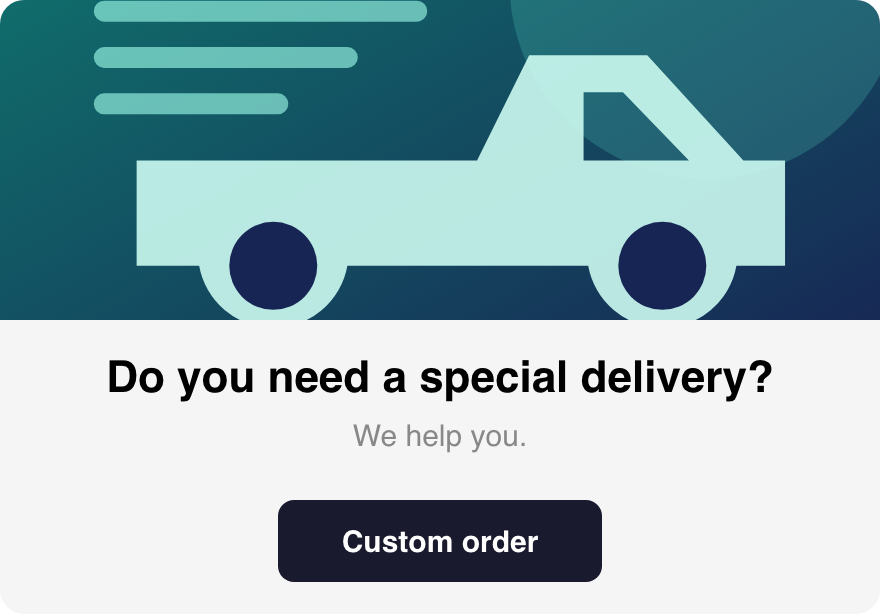
Open Custom order
Find the Do you need a special delivery? banner and select Custom order.
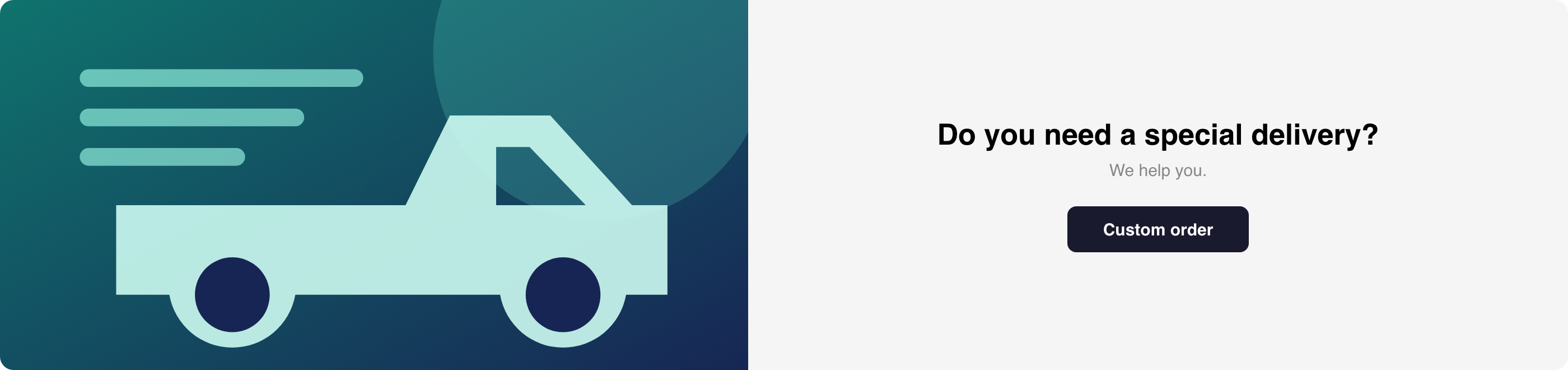
Opening the banner starts the pickup-and-delivery step. If the banner is missing, use only a Custom order entry provided by the Website rather than guessing a link.
Choose pickup and delivery locations
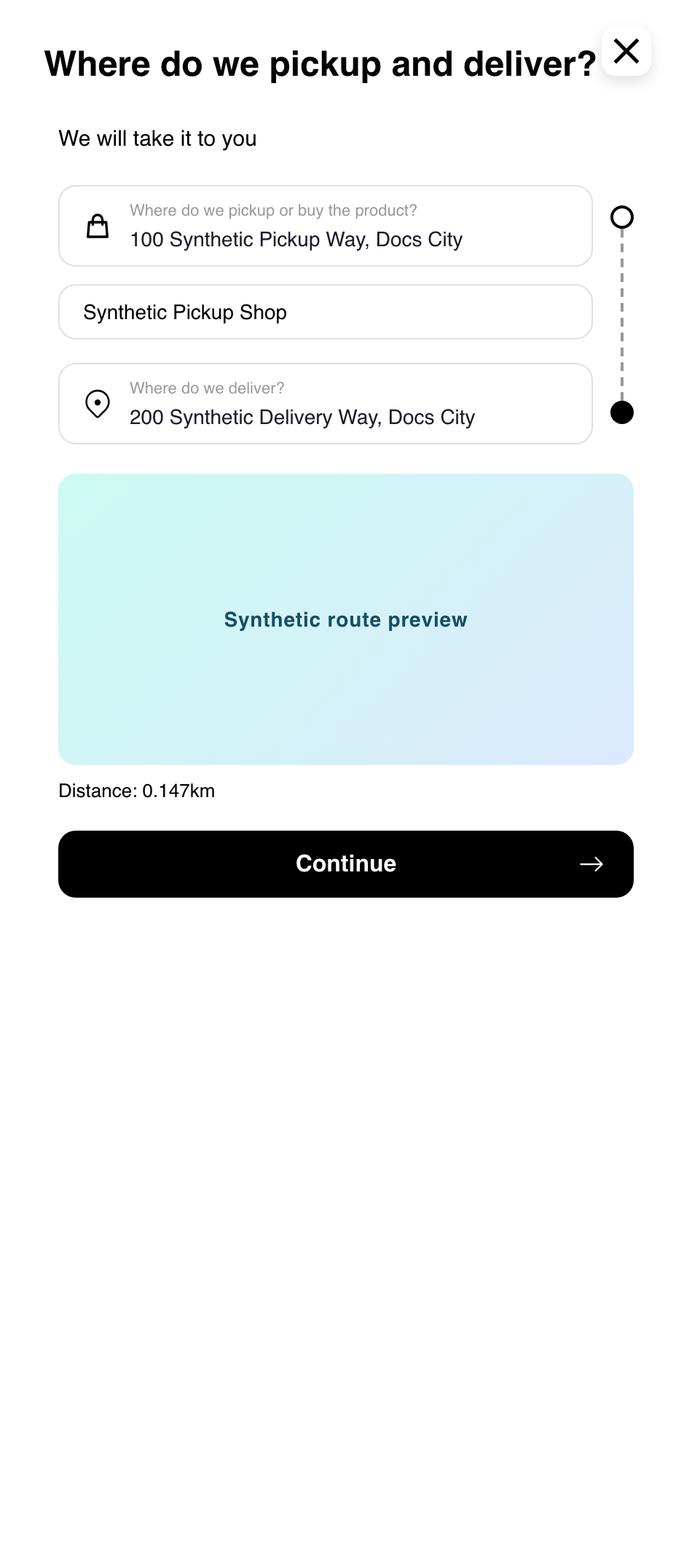
Step 1 can show the current saved delivery address while leaving pickup blank.
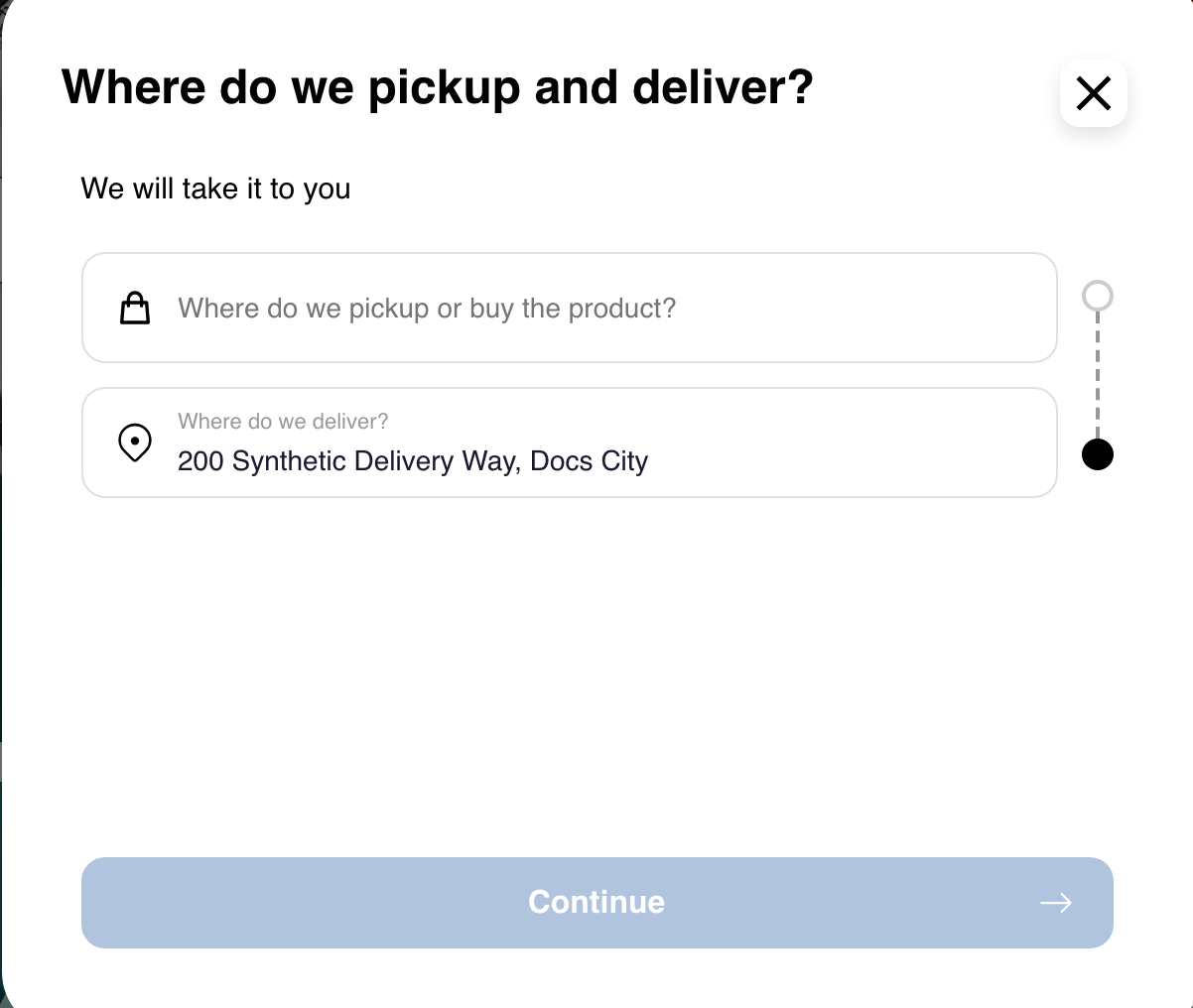
To prepare the request:
- Select the pickup place.
- Add pickup details or a pickup name when the field appears.
- Review or select the delivery location.
- Check the displayed route preview and distance when available.
Continue becomes available after the required pickup details and both locations are present and the displayed distance check passes.
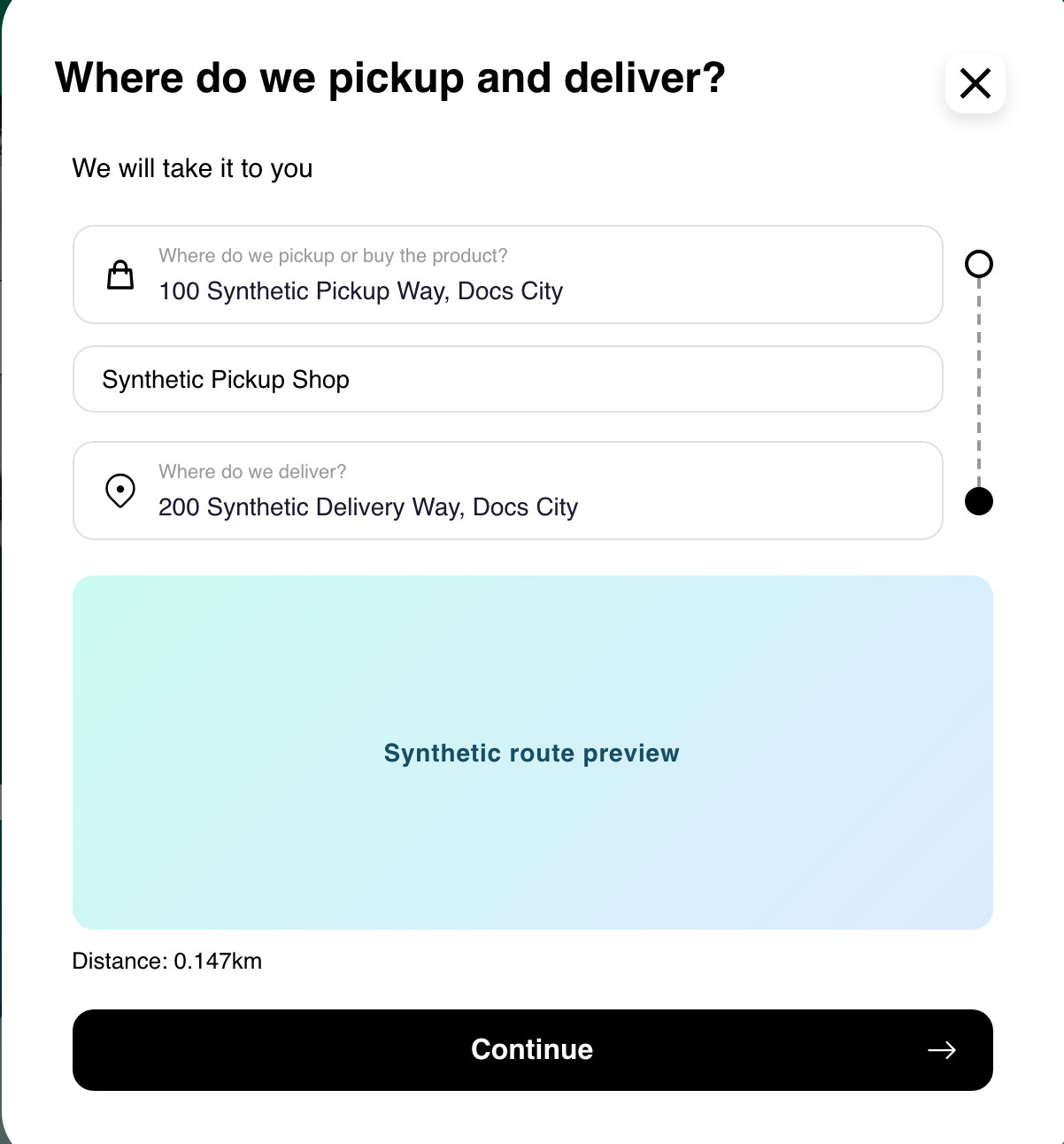
The route preview and distance are guidance for the current request. They do not guarantee that the pickup, delivery, price, or final order will be accepted.
Resolve a distance warning
When the selected locations exceed the configured distance, Website can show Distance exceeded and keep Continue unavailable.
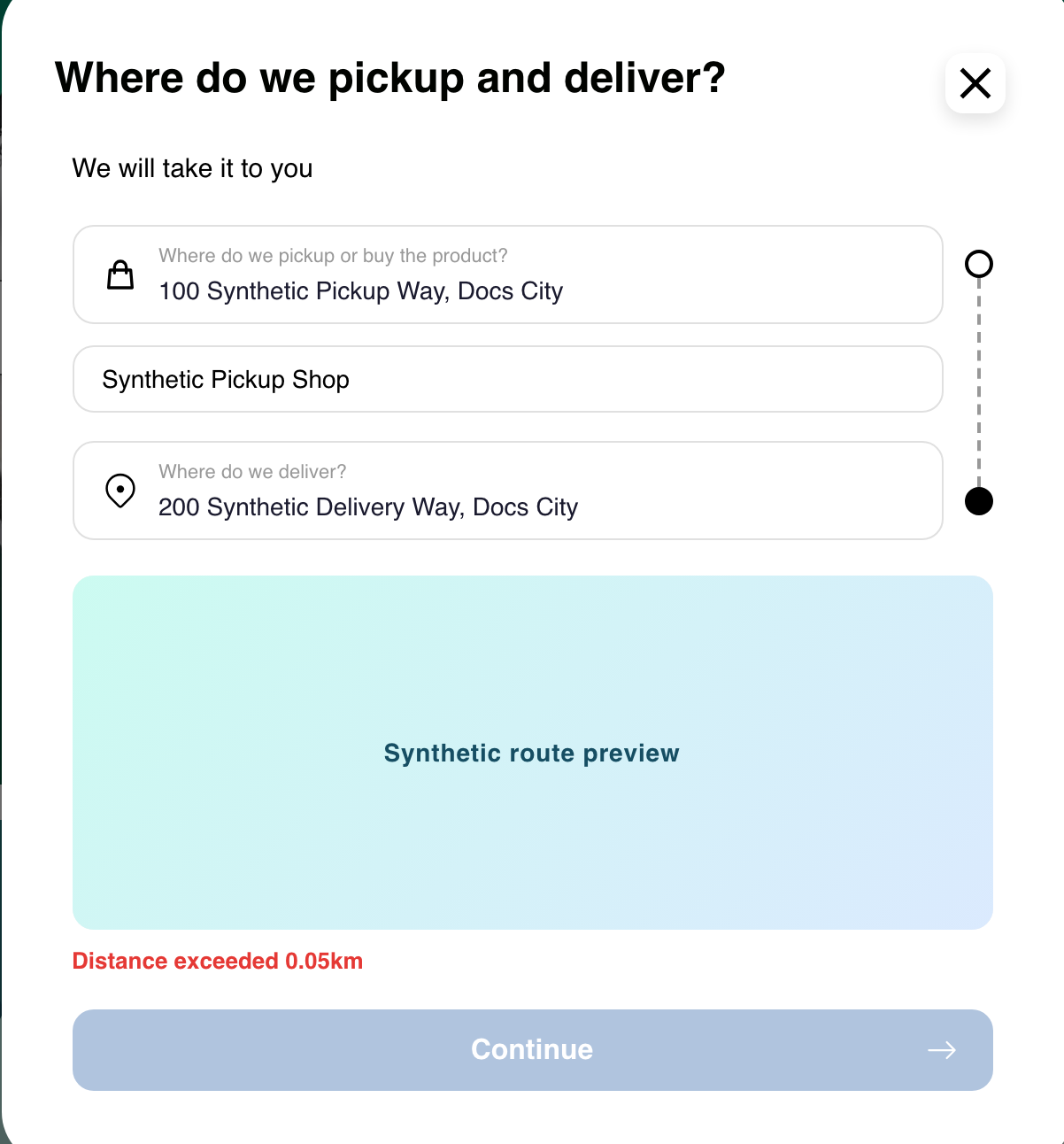
Choose a closer pickup or delivery location, then review the updated distance. If the warning remains, contact the business or Website support for the available custom-order area.
Describe the items
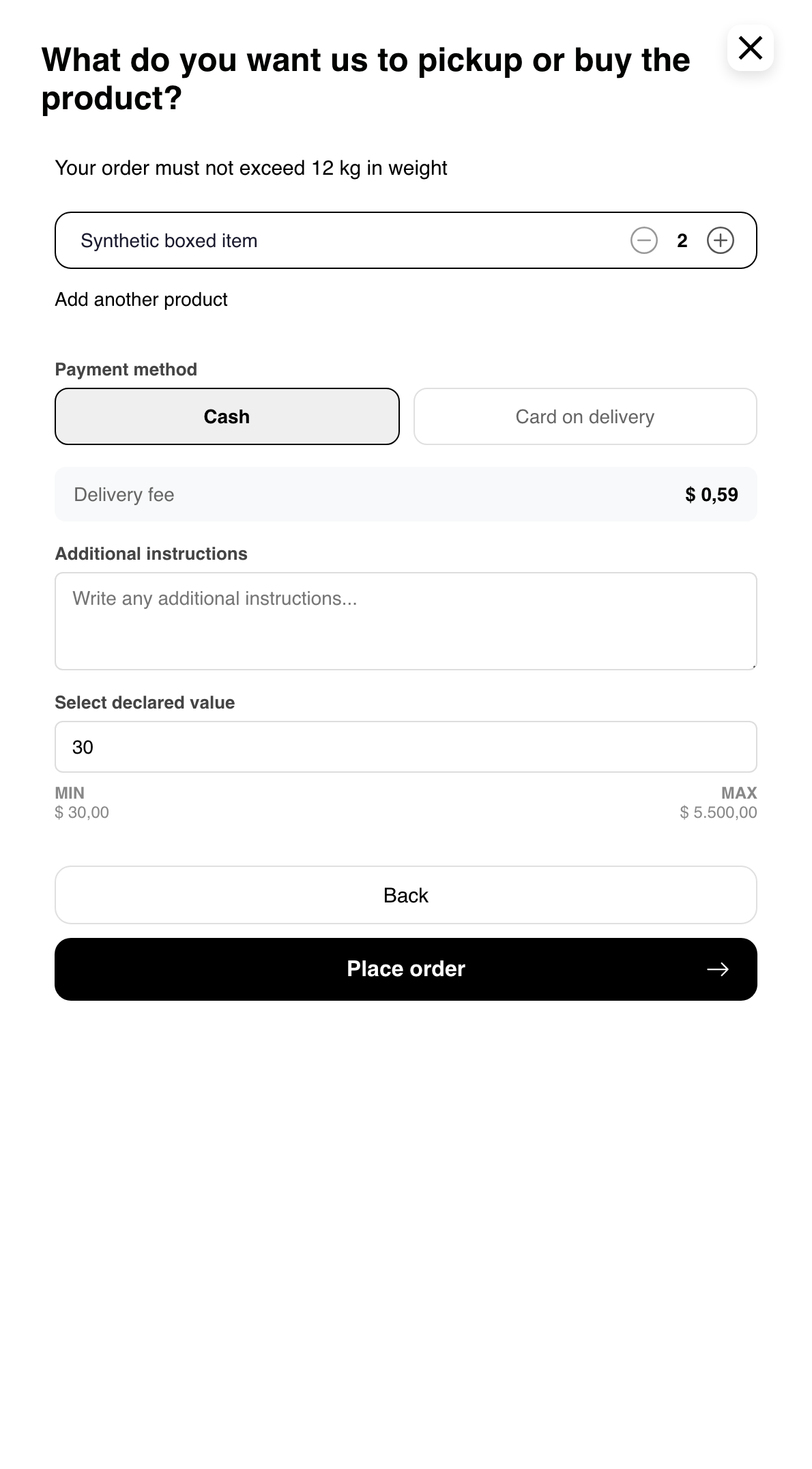
Step 2 starts with one blank product row. Enter a clear product description and adjust its quantity. Use Add another product when the request includes more than one item.
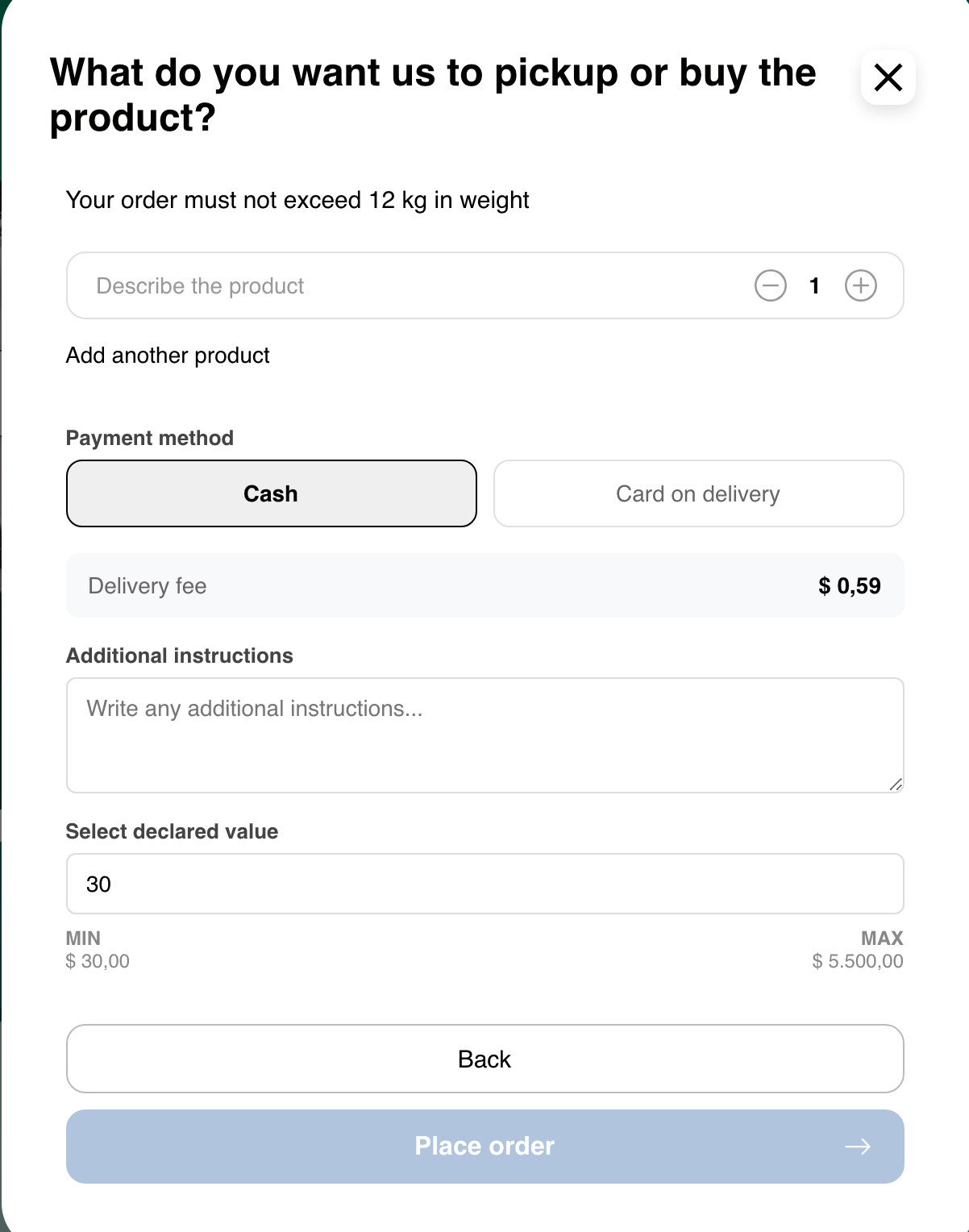
Blank product rows do not make the request ready to place. A displayed maximum weight is guidance for the request; the visible form does not prove that the final items or weight will be accepted.
Review payment, fee, instructions, and value
Depending on the Website, Step 2 can show:
- Cash and Card on delivery choices.
- A calculated delivery-fee display.
- Optional additional instructions.
- A declared-value field and displayed minimum or maximum guidance.
The displayed payment choice, fee, weight, and value guidance are not a guarantee of final price, payment completion, availability, or delivery.
After at least one product is described, Place order can become available.
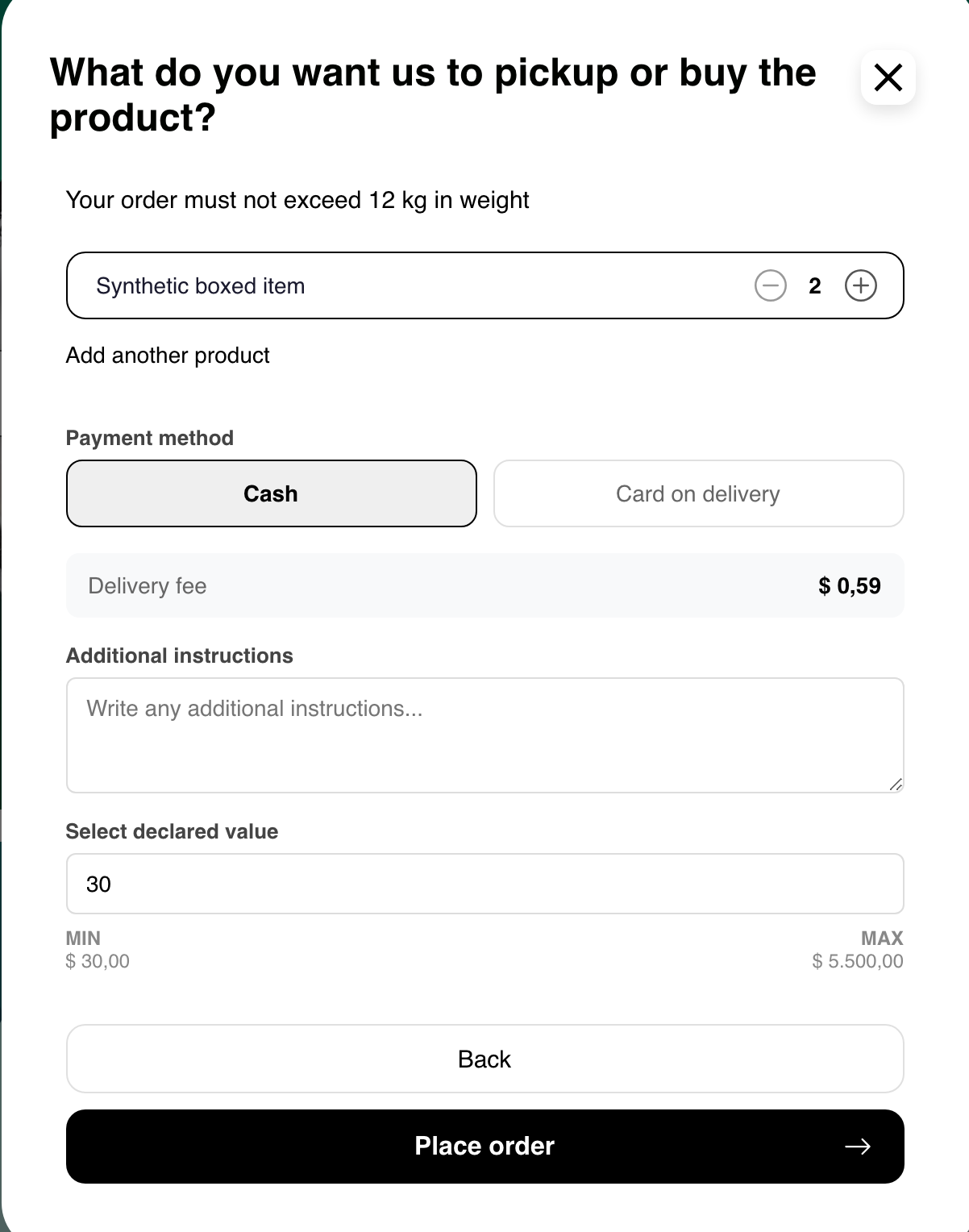
Review every item, quantity, location, instruction, payment choice, and displayed amount before selecting Place order. That action sends a real custom-order request; an enabled button does not by itself confirm acceptance or successful payment.
Go back or close the flow
Use Back to review the pickup and delivery step. Nonempty item details and a nonblank declared value can remain while the modal stays open. An emptied item list returns to one blank product row, and a cleared declared value returns to its default when Step 2 opens again.
Closing Custom order starts the flow over. Review the locations and all Step 2 information again after reopening it.
Use Custom order on mobile
On mobile, the banner stacks its image, message, and action vertically.
The pickup, delivery, route preview, distance, and Continue action appear in one scrollable flow.
Step 2 also stacks the item, payment, fee, instructions, declared value, Back, and Place order controls. Scroll through the complete form before placing the request.
Troubleshooting
Custom order is missing
Confirm that you are signed in and complete any requested account or verification step. Return to the Website-provided Home or multi-business list. Custom order can be unavailable on other presentations or for the current Website.
A location field is unavailable or does not accept a place
Wait for Step 1 to finish loading, then select a location from the choices provided by Website. Reload once if the location control remains unavailable. Do not continue with a location that the form has not recognized.
Continue remains unavailable
Review the pickup address, pickup details, delivery location, and any distance warning. All required information must be present before continuing.
Place order remains unavailable
Enter at least one nonblank product description and review the displayed fields. If the action remains unavailable, return to Step 1 and confirm both locations, then reopen Step 2.
A request shows an error
Keep the modal open and review the message without repeatedly selecting Place order. Confirm the locations, products, quantities, payment choice, instructions, and declared value before trying once more. A failed request does not prove that no downstream action occurred; contact the business or Website support if its status is unclear.
Related guides: Choose a location and order type · Manage saved addresses · Understand payment methods · Review order history