Apply as a business owner or driver
Website can provide separate application pages for prospective business owners and drivers. Each page collects account information for its own application flow; completing a form does not itself create a store, activate a driver, or guarantee access to work.
Use only an application link published by the Website or Ordering operator. Business and driver applications are enabled separately, so one can be available without the other. The pages are intended for signed-out visitors and are not shown in kiosk presentation.
Open the business application
When the Website provides a business application link, open it while signed out. The native form can ask for Name, Last name, Email, and Password.
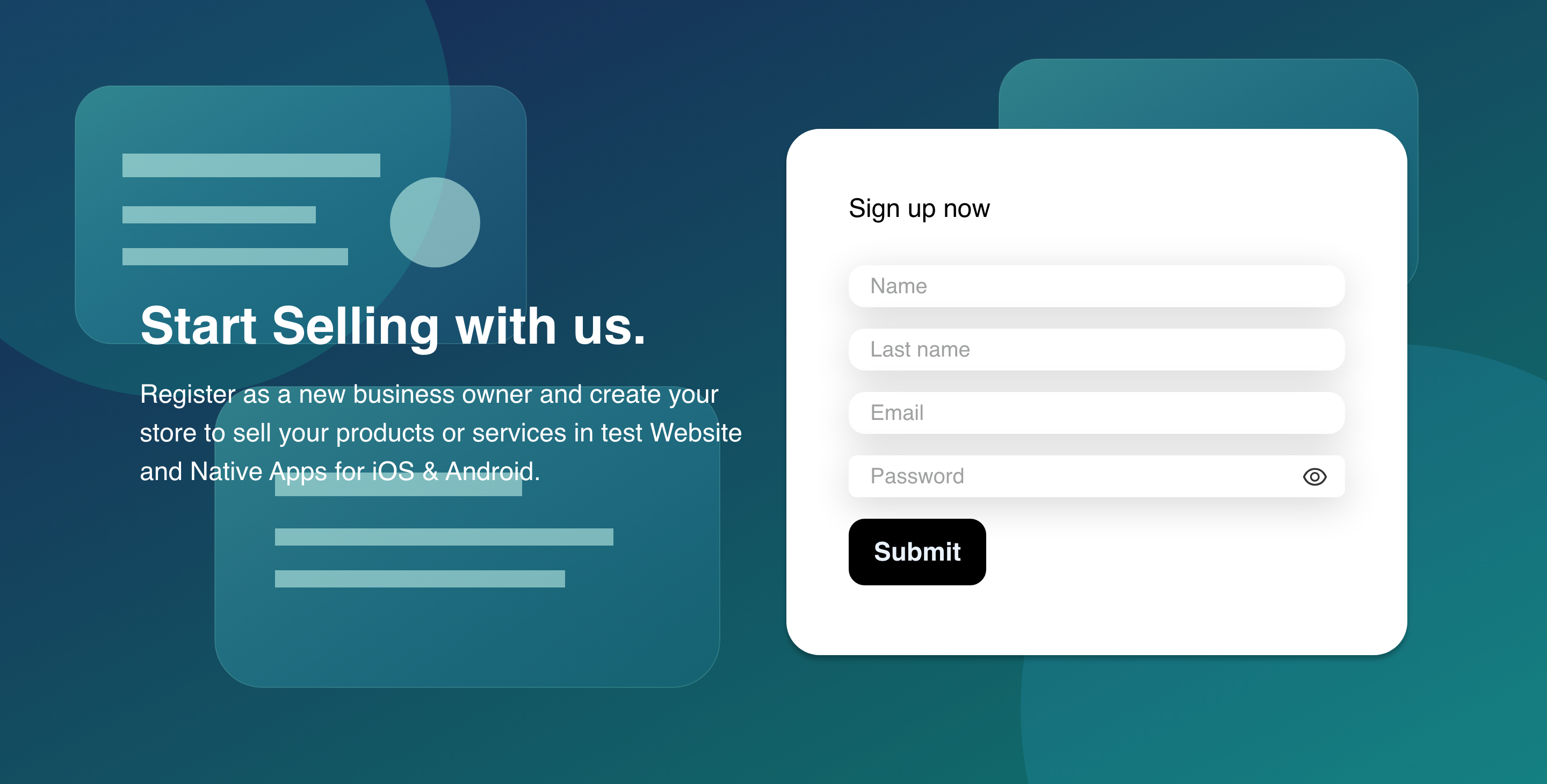
The exact identity fields depend on the Website configuration. A phone field or additional name fields can appear when configured. The native form does not provide a store-address map, delivery-zone editor, schedule editor, or business document upload.
On a smaller screen, the same enabled fields stack in the mobile layout.
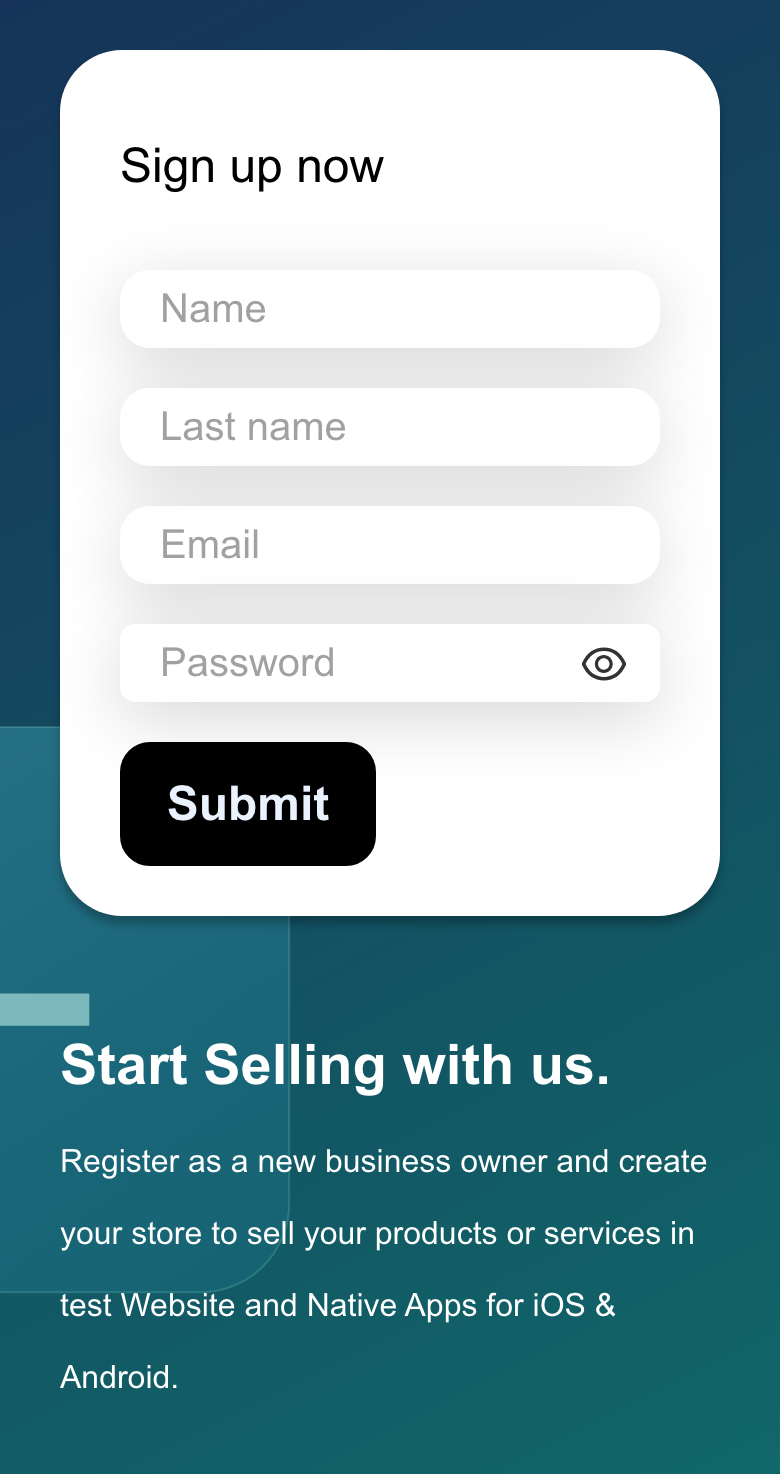
A business application might not be offered on a Website that opens directly to one configured store. Return to the Website's published navigation or contact its operator instead of constructing an application link.
Open the driver application
The driver application is a separate flow. When its published link is available, open it while signed out and complete the fields displayed by that Website.
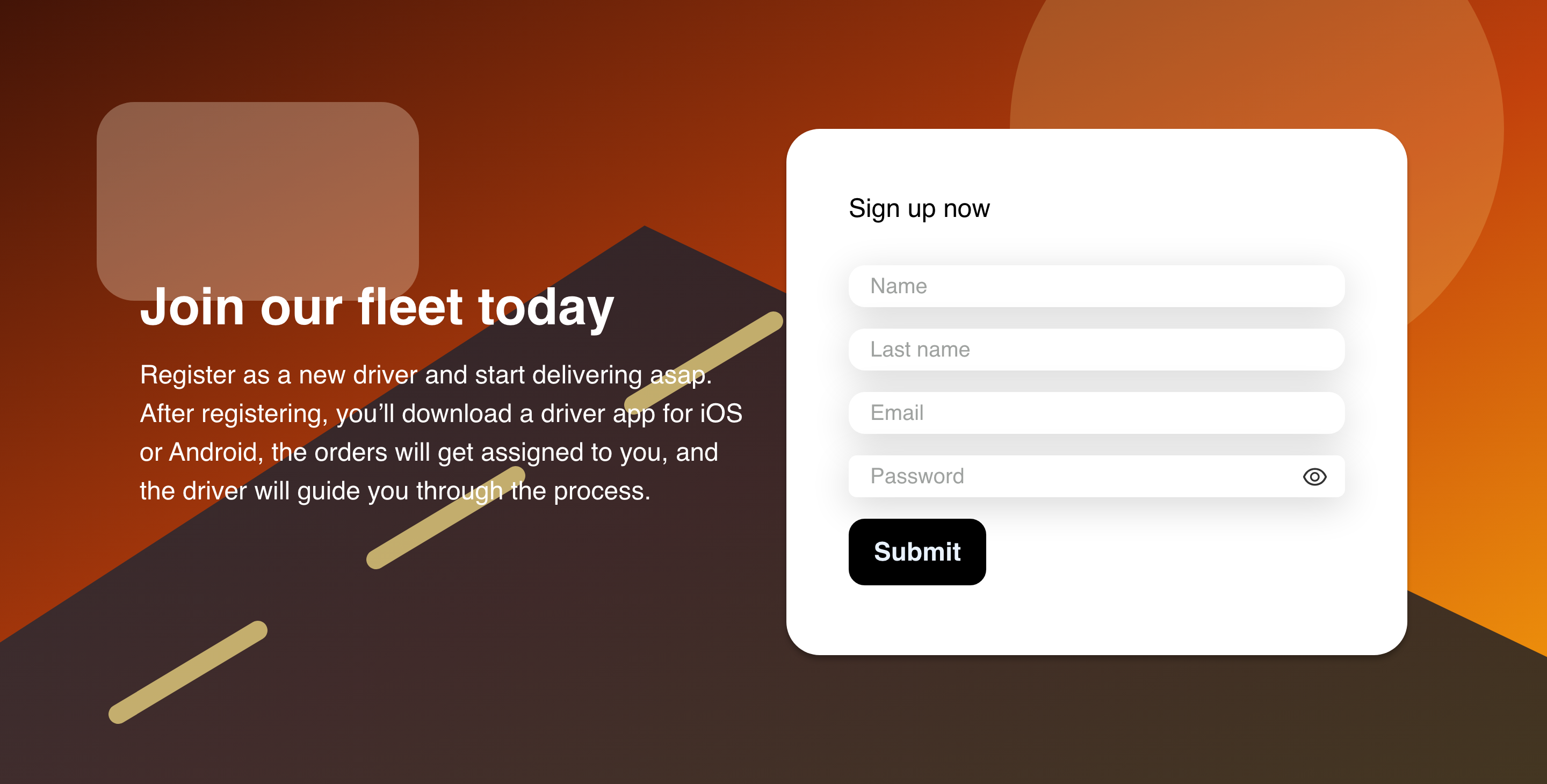
The native driver form can use the same configured identity, email, optional phone, and password fields as the business form. It does not collect a vehicle location, service area, schedule, or driver document in this Website step.
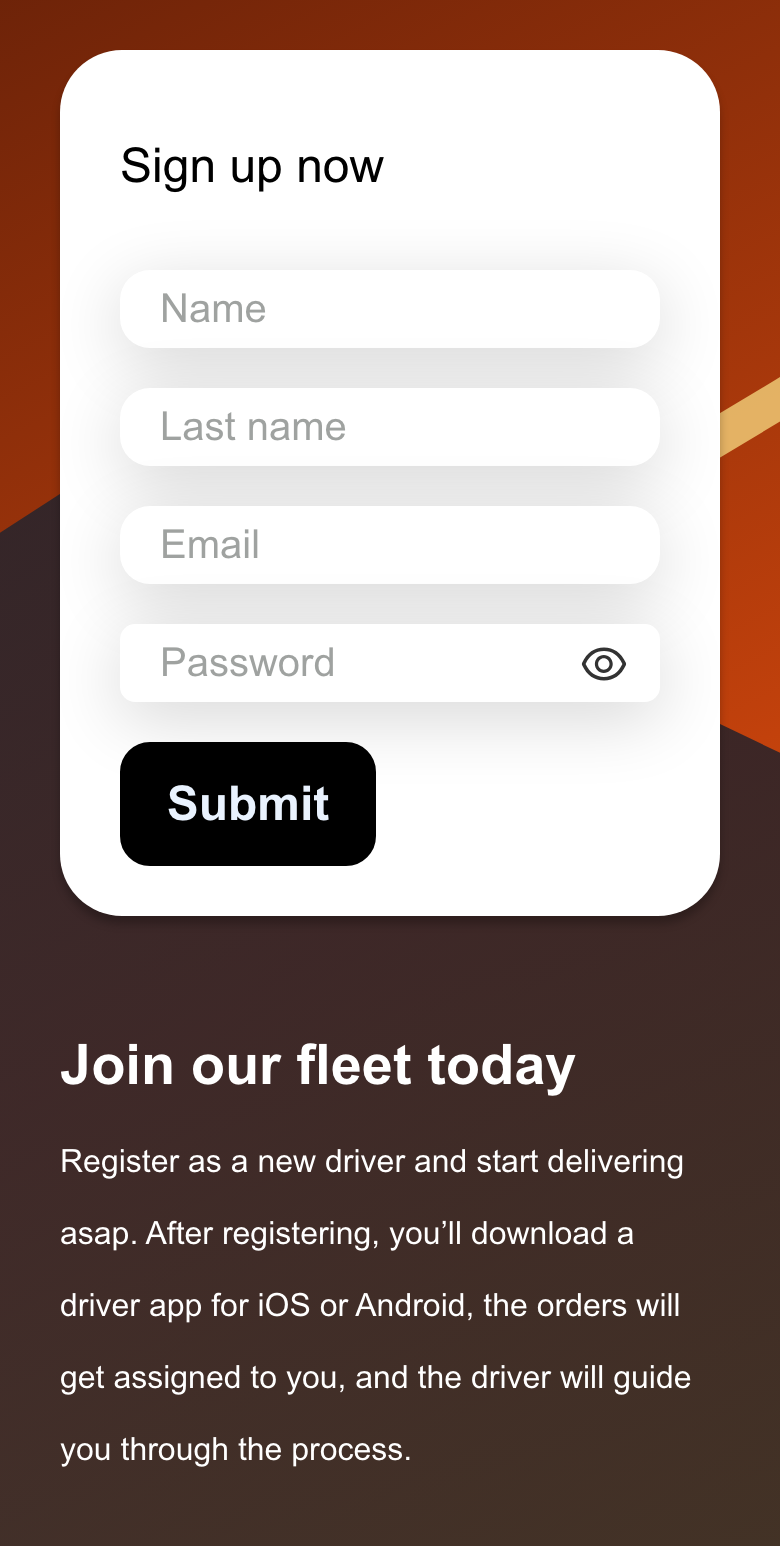
Driver and business availability do not always follow the same Website presentation rules. For example, a direct-store Website can omit the business application while still offering the driver application.
Complete the visible fields
Enter only the information requested on the current page. In the native form:
- Required identity fields are determined by the Website.
- Email is used as an account identifier.
- Phone appears only when enabled or required.
- Password must contain at least eight characters.
- Terms or an additional verification step can appear when configured.
Review the displayed privacy information and terms before continuing. Do not enter application information into a link that was not provided by the Website or its operator.
Submit an application
Submit sends a real account application. It is not a preview or a harmless field check. Confirm the email, phone country code, required fields, and password before selecting it.
What happens next depends on the application and Website setup. The applicant can be asked to wait for approval or follow additional instructions. A submitted application does not guarantee:
- Immediate approval.
- Creation of a business storefront or delivery area.
- Driver activation or assignment of orders.
- Immediate access to another Ordering product.
- Delivery of a particular email or notification.
Follow only the confirmation and support guidance shown by the current Website.
Mobile behavior
The mobile forms keep the same configured field rules but arrange the content vertically. Scroll to review every required field and the Submit action. If the keyboard covers a field or action, dismiss it and continue scrolling rather than submitting an incomplete form.
Troubleshooting
An application link is missing
Business and driver applications are configured separately and might not be available on every Website. Sign out, return to the Website's published navigation, and check again. If the operator has not provided the application, contact them for the supported process.
The application redirects elsewhere
These pages are for signed-out, non-kiosk use. An active Website session, kiosk presentation, or the Website's store setup can lead somewhere else. Sign out only if you intend to apply with a new or separate account, then use the published application link again.
The form shows different fields
Field requirements and page content can vary by Website. Complete every visible required field. Do not expect business-location, schedule, service-area, vehicle-location, or document-upload fields unless the current Website actually shows them.
Submit does not continue
Check for an incorrectly formatted identifier, a missing required field, an invalid phone number, a password shorter than eight characters, an unaccepted displayed term, or an incomplete verification challenge. Avoid repeated submissions while the page is processing. If the issue remains, contact the Website operator without sharing your password.
The application was submitted but access is unavailable
Submission and approval are separate. Follow the status or support guidance displayed by the Website. Do not assume that a submitted form has activated a store, driver account, or work assignment.
Related guides: Understand Website presentation modes · Sign in or create an account · Verify and complete a customer profile