Book services with professionals
Some Websites provide an appointments-oriented experience for finding service businesses and choosing a professional, date, and displayed time. The available controls depend on the Website, business, service, and current schedule.
This experience is conditional. A Website can use an appointments-oriented business list without offering the same professionals or services at every business. Account completion or contact verification can also appear before the requested page.
Find a service business
On an appointments-oriented business list, review the current address, service type, date controls, and available businesses.
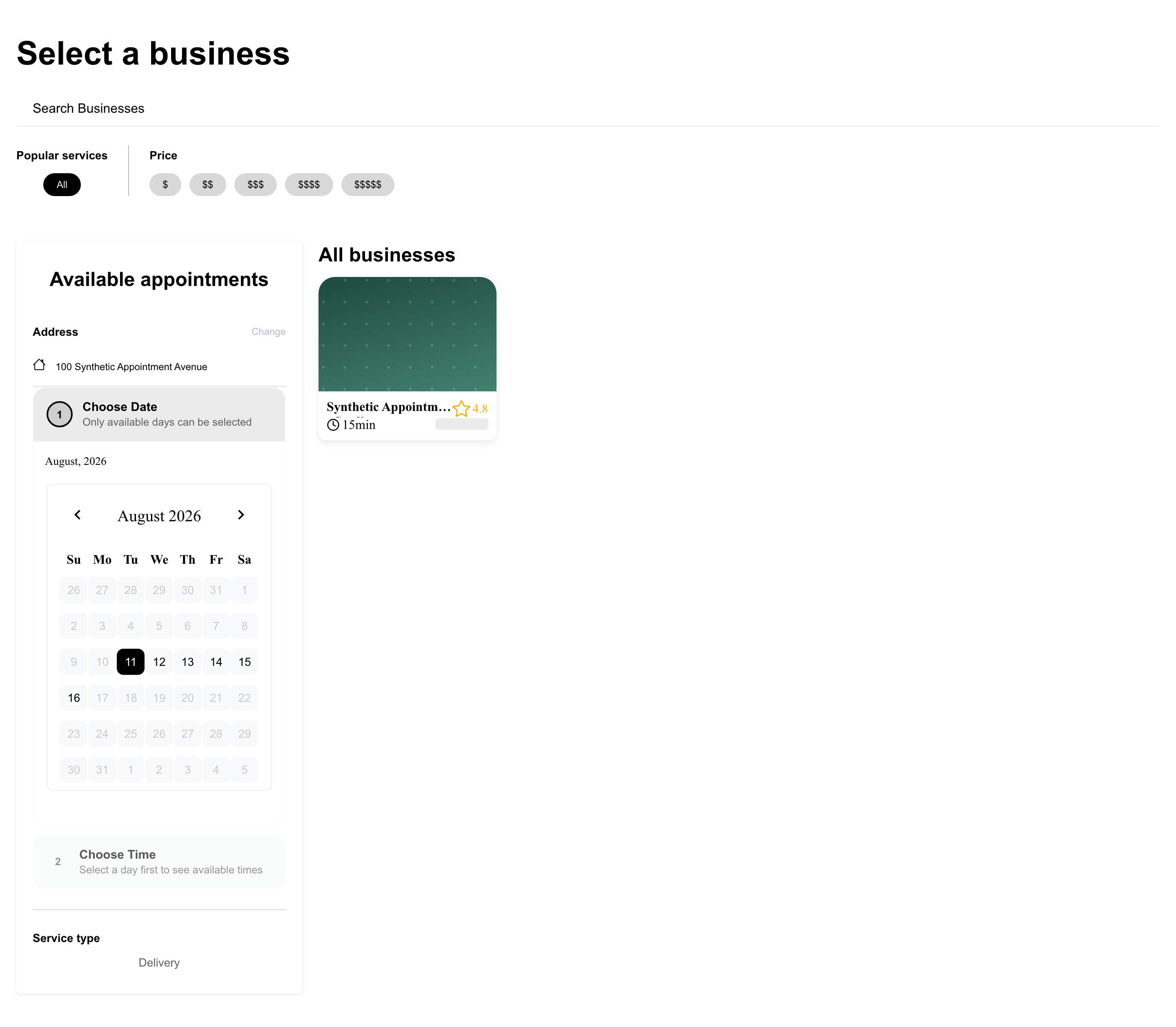
Use the visible controls to narrow the list when needed:
- Search for a business.
- Choose a popular service or price level.
- Confirm the address.
- Review the displayed date and service-type controls.
A business shown in the list is not a guarantee that a particular professional or time remains available. Open the business to review its current services.
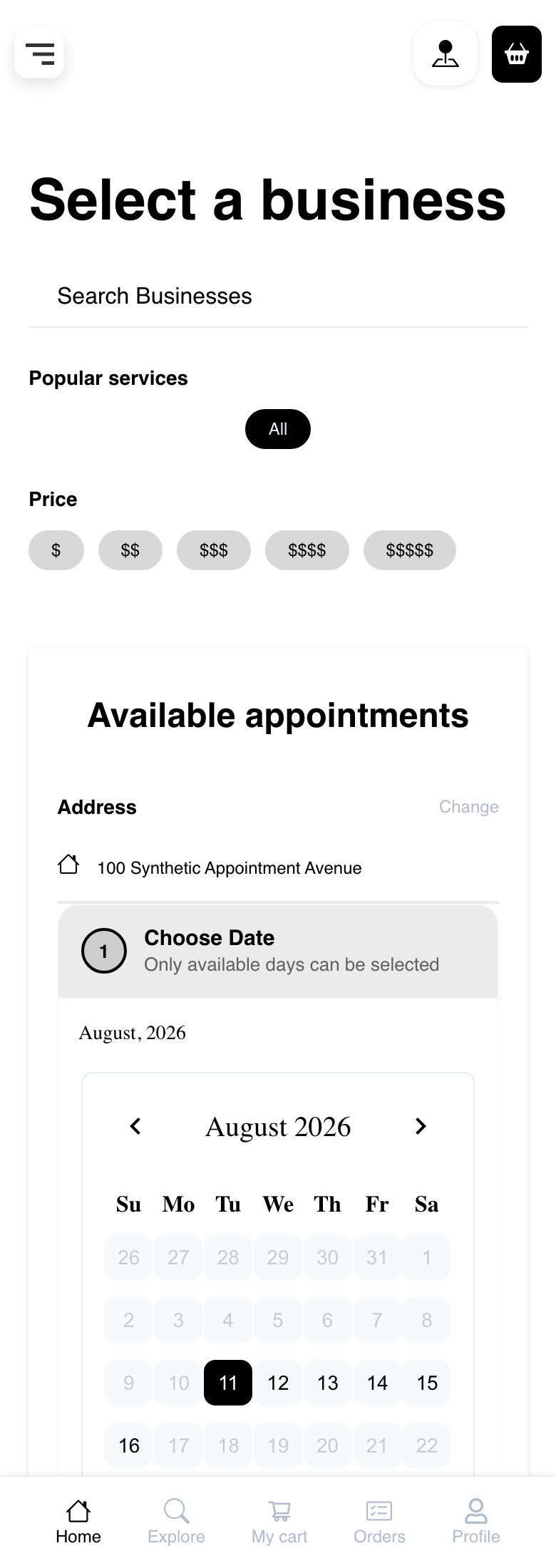
On mobile, the same discovery controls stack vertically. Scroll through the date and service context before opening a business.
Open a service
A supported service form can show its price, duration, description, professional requirement, schedule requirement, and Book action.
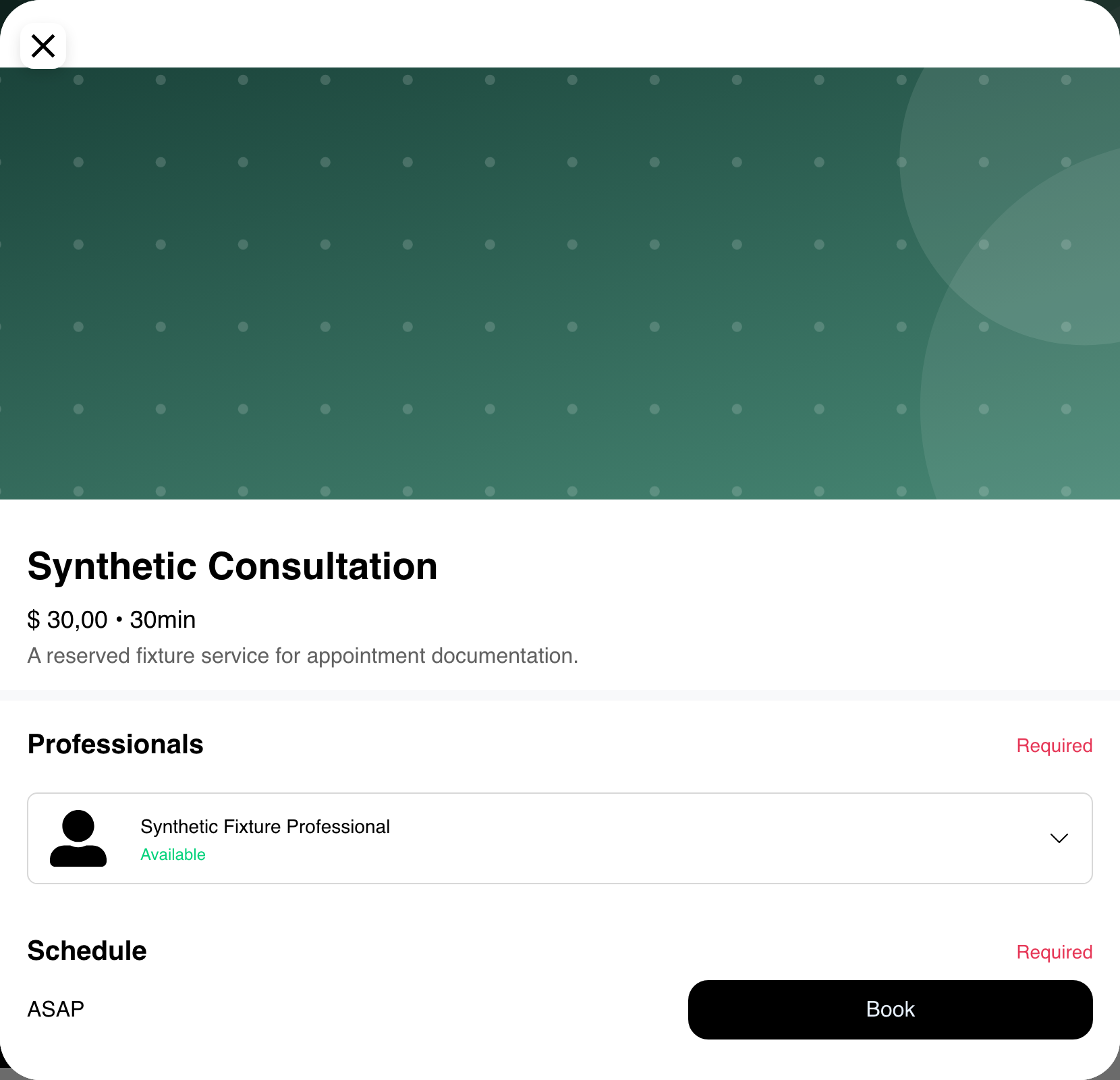
In this state, the professional is selected but a specific time is not. ASAP does not prove that a service time has been accepted. Review the schedule choices provided by the current form before continuing.
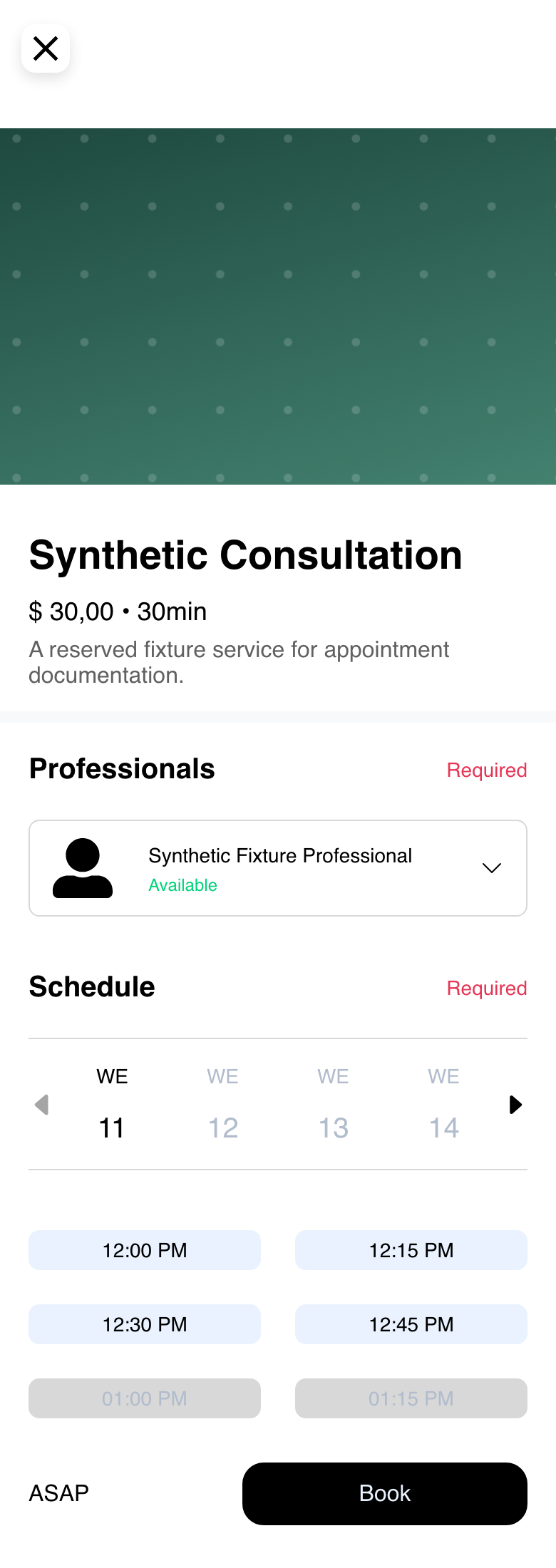
The mobile form can show the upcoming dates and available or unavailable time choices in the same scrollable view.
Review a professional profile
When a professional card provides a profile, open it to review the name and read-only schedule shown by Website.
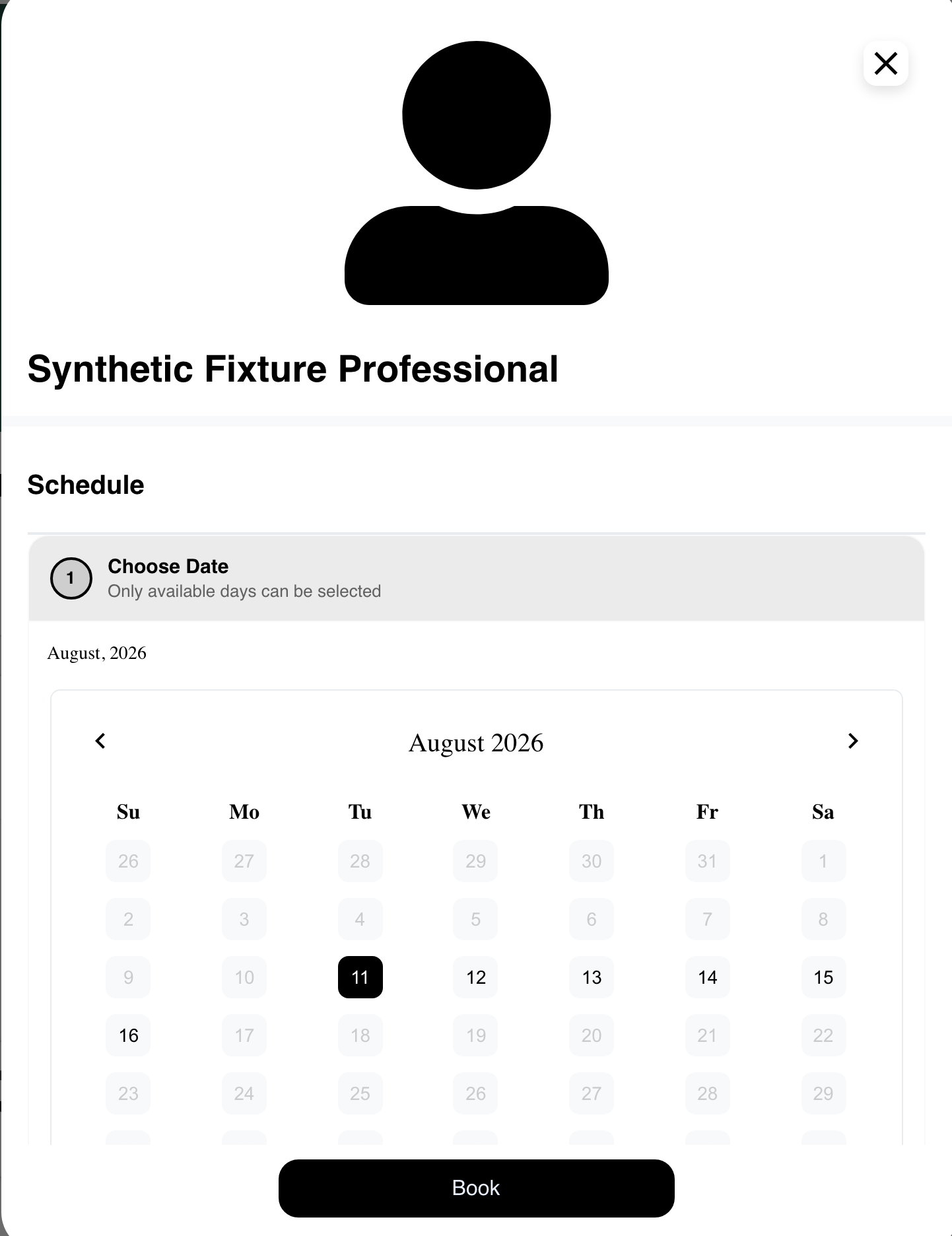
The profile's Book action returns the selected professional to the service flow. It does not place an order or complete an appointment by itself. Close the profile without selecting Book if you only want to compare availability.
Not every professional card exposes additional profile information. Use only the customer-visible profile and schedule provided by the current Website.
Choose a professional, date, and time
To prepare the service:
- Choose a professional from the available list.
- Select an enabled date.
- Select one of the displayed time choices.
- Confirm that the professional status and selected time still look correct.
- Review the service, duration, and price before selecting Book.
Date ranges and time formatting can vary. The displayed schedule also depends on the browser's current date and time zone, the professional's returned schedule, and existing busy periods.
Resolve a busy time
An unavailable choice can show Busy on selected time and keep Book disabled.
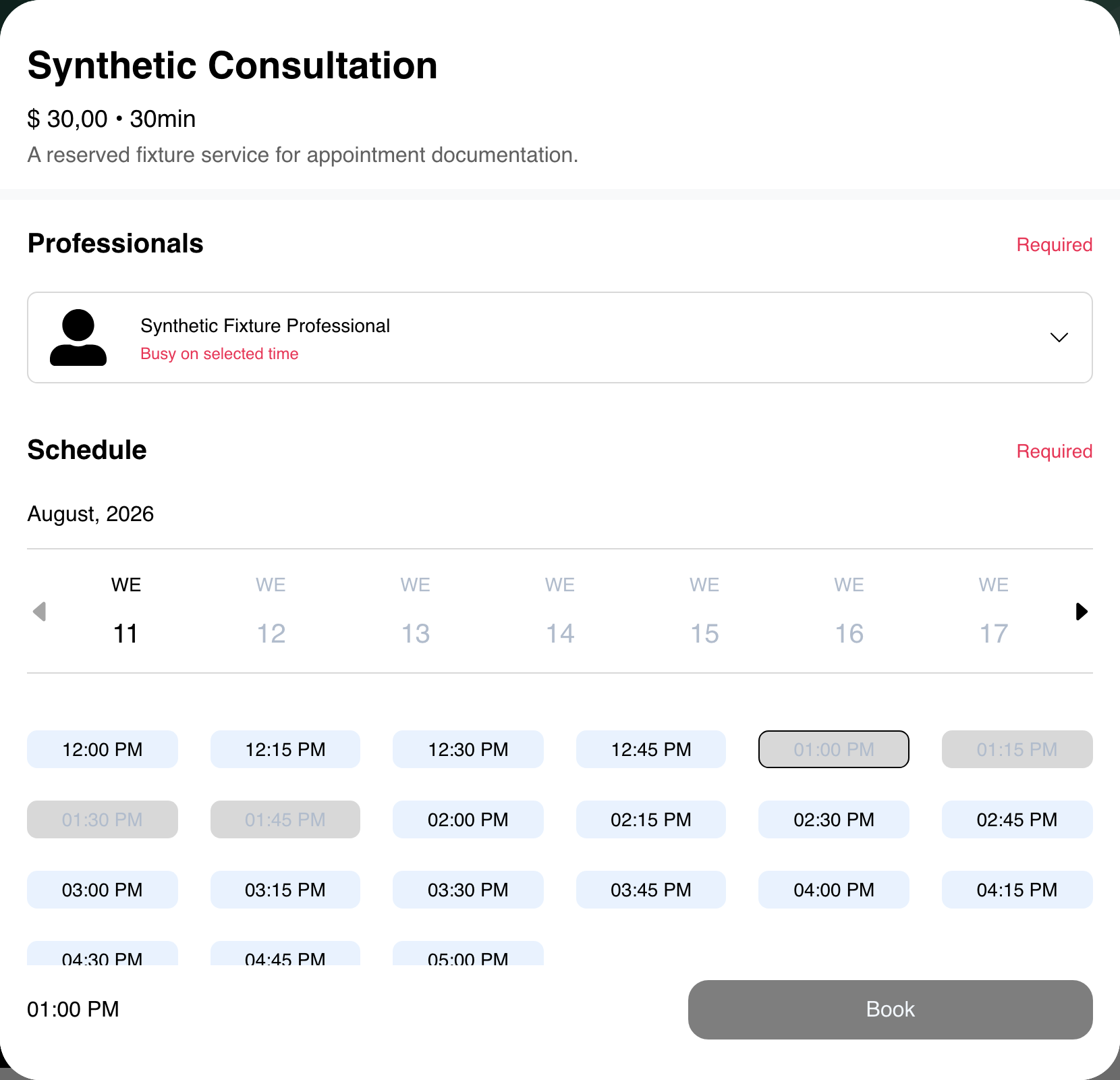
Choose another enabled time or date. If no time is available, try another professional or return later. A time that appears enabled can still be rejected when Website validates the latest schedule, so do not treat the displayed list as a guaranteed reservation.
Continue to the cart and checkout
Selecting Book adds or updates the service selection in the cart flow. Review the cart and complete the Website checkout steps that follow.
Book does not by itself confirm the appointment, place the final order, complete payment, or guarantee that a calendar notification will be delivered. A temporary service selection can also expire or become unavailable before checkout finishes.
Appointments for professional services are different from restaurant or table reservations. Follow the service-specific schedule and checkout shown by the current Website.
Troubleshooting
The appointments-oriented list is missing
The Website might use another business-list presentation or open directly to one business. Return to the Website's published navigation and use only the service or appointments entry it provides.
Professionals do not appear for a service
Professional selection is available only when the business returns professionals for that service experience. Try another supported service or contact the business. Do not assume that every item labeled as a service supports appointments.
No dates or times are available
Confirm that a professional is selected and review another enabled date. The professional may have no schedule or no available times in the displayed window.
Book remains unavailable
Check for a missing professional, date, or time and review any busy or unavailable message. If the button remains unavailable after choosing another displayed time, close and reopen the service once, then contact the business if the issue continues.
A selected time is rejected
Availability can change between display and validation. Choose another current time and try once more. Avoid repeated booking attempts if the result remains unclear; review the cart and contact the business or Website support.
The page shows account or verification steps
Complete the customer-profile or contact-verification step requested by Website, then return through the published business or service link.
Related guides: Review business details · Customize a product · Manage your cart · Complete checkout