Choose a payment method
The Payment Method section shows the choices currently available for a customer's cart. When Website is waiting for a payment choice, the customer selects one of the displayed methods before completing the remaining checkout steps.
Payment choices can vary by business setup, order type, Website mode, active customer session, browser or device support, and the amount still due. Customers should use the choices shown in their current checkout.
Review the available methods
When Website offers multiple choices and is waiting for a selection, Payment Method opens with a Required label. Each available choice appears as a selectable card.
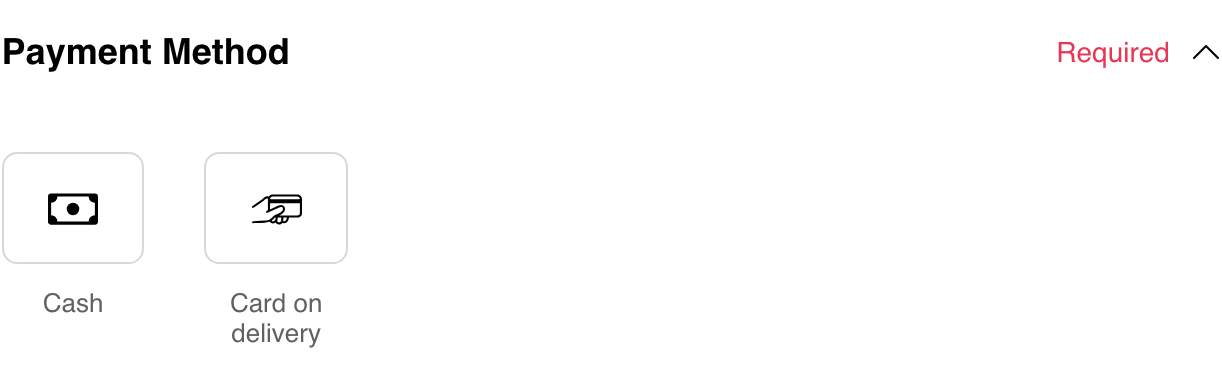
The example shows Cash and Card on delivery. These are representative choices, not a universal list. A customer may see different methods or fewer choices based on the current checkout context.
Select a method
Select one of the displayed method cards. For an ordinary choice such as Cash or Card on delivery, Website saves the choice to the current cart and marks it as selected. Online methods can require additional provider prompts before the selection is complete.
For Cash, checkout can show an optional field for the amount the customer expects to provide when they do not have the exact amount. Leave the field unchanged when this information is not needed.
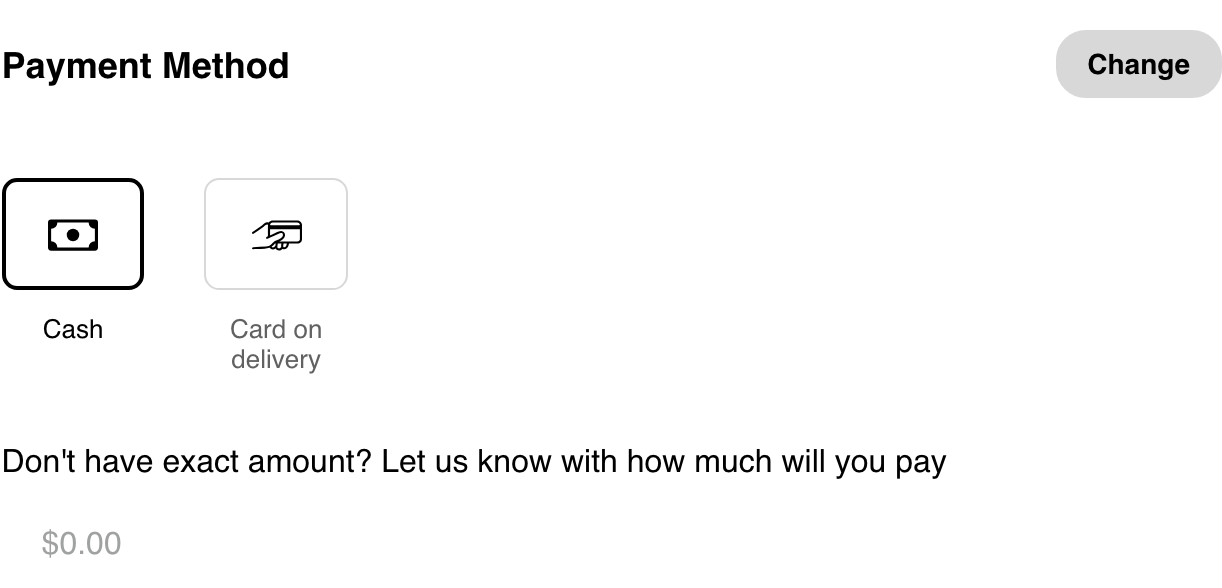
Card on delivery appears only when that choice is available for the current business and checkout. It is separate from entering a card through an online payment provider.
Change the selection
After a method is selected, the section shows Change. Select Change to reopen the available choices, then select another displayed method.
The choices can be refreshed when the customer changes the business, order type, cart, session, or other checkout information. A method shown earlier may not remain available after the checkout context changes.
Understand online payment choices
Some Websites can offer online payment methods. Selecting one can open a provider experience. The exact controls and provider steps depend on the method currently offered; customers should follow the prompts displayed in checkout.
Selecting an online method does not by itself charge the customer, place the order, or confirm payment. Those actions belong to the later checkout submission flow. A forthcoming checkout submission guide will explain that flow.
Understand a zero balance
If the remaining balance is zero, Website can replace the method chooser with No payment needed for this order. The customer must still complete any other checkout steps shown before the order is submitted.
Use payment methods on mobile
On smaller screens, the available method cards use the mobile checkout layout. When the section is waiting for a choice, select a card in the same way as on desktop.
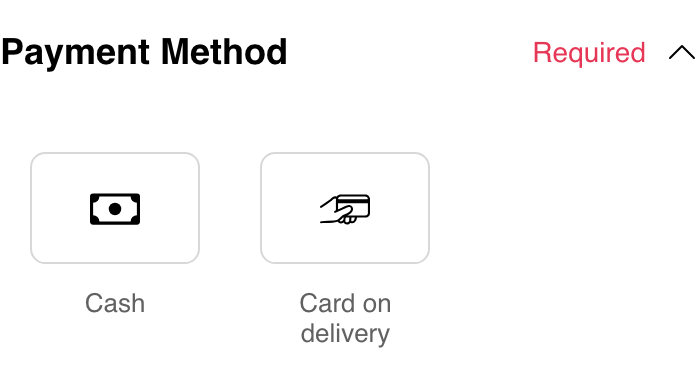
The customer may need to scroll to review the remaining checkout sections after choosing a method.
Frequently asked questions
Why does a customer see different payment methods?
The business setup, order type, Website mode, active session, browser or device support, and remaining balance can affect which choices appear. Customers should use only the methods displayed in their current checkout.
Does selecting a payment method place the order?
No. The selection prepares the current cart for checkout. The customer must still review the remaining information and complete the separate submission step.
Why is Card on delivery missing?
Card on delivery is conditional. It appears only when it is available for the current business and checkout context.
Why does Website say that no payment method is needed?
The cart can have no remaining balance after its current discounts or other applicable adjustments. Website can then show No payment needed for this order instead of asking the customer to select a method.
How does a customer choose a different method?
Select Change, then select another choice currently displayed in the Payment Method section.
Related guides: Complete checkout · Manage a cart · Browse a business and its menu