Complete checkout for multiple businesses
Multi-business checkout brings eligible carts from more than one business into one review experience. Customers can check their shared customer and address details, review each business cart, choose a payment method available for the group, and see the current combined amount before using Place Order.
This experience normally follows the grouped-cart preparation step. It requires an active Website session, at least two eligible business carts, and a Website setup that supports multi-business checkout. Availability can also depend on the current businesses, order context, customer, and cart state.
Review the multi-business checkout
On desktop, the page uses two columns. Shared checkout details and payment choices appear on the left. The business carts, current amounts, and final action appear on the right.
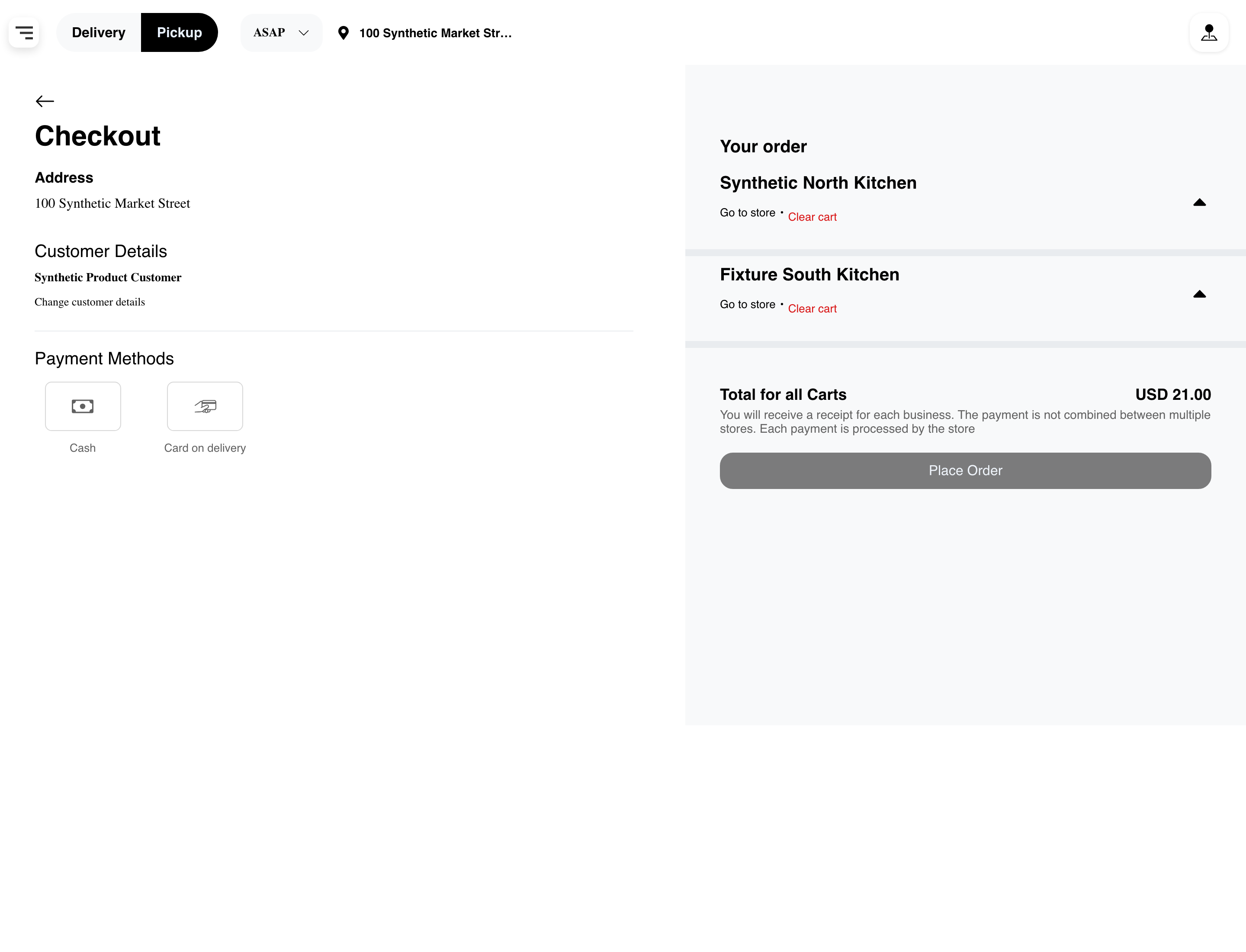
Before continuing, confirm that the Website header shows the intended order type, ordering time, and location when those controls are available. A context change can refresh cart eligibility, payment choices, and amounts.
Check the shared details and payment choices
The checkout details area shows the current customer address and Customer Details used for the group. Select Change customer details when the displayed information needs to be updated.
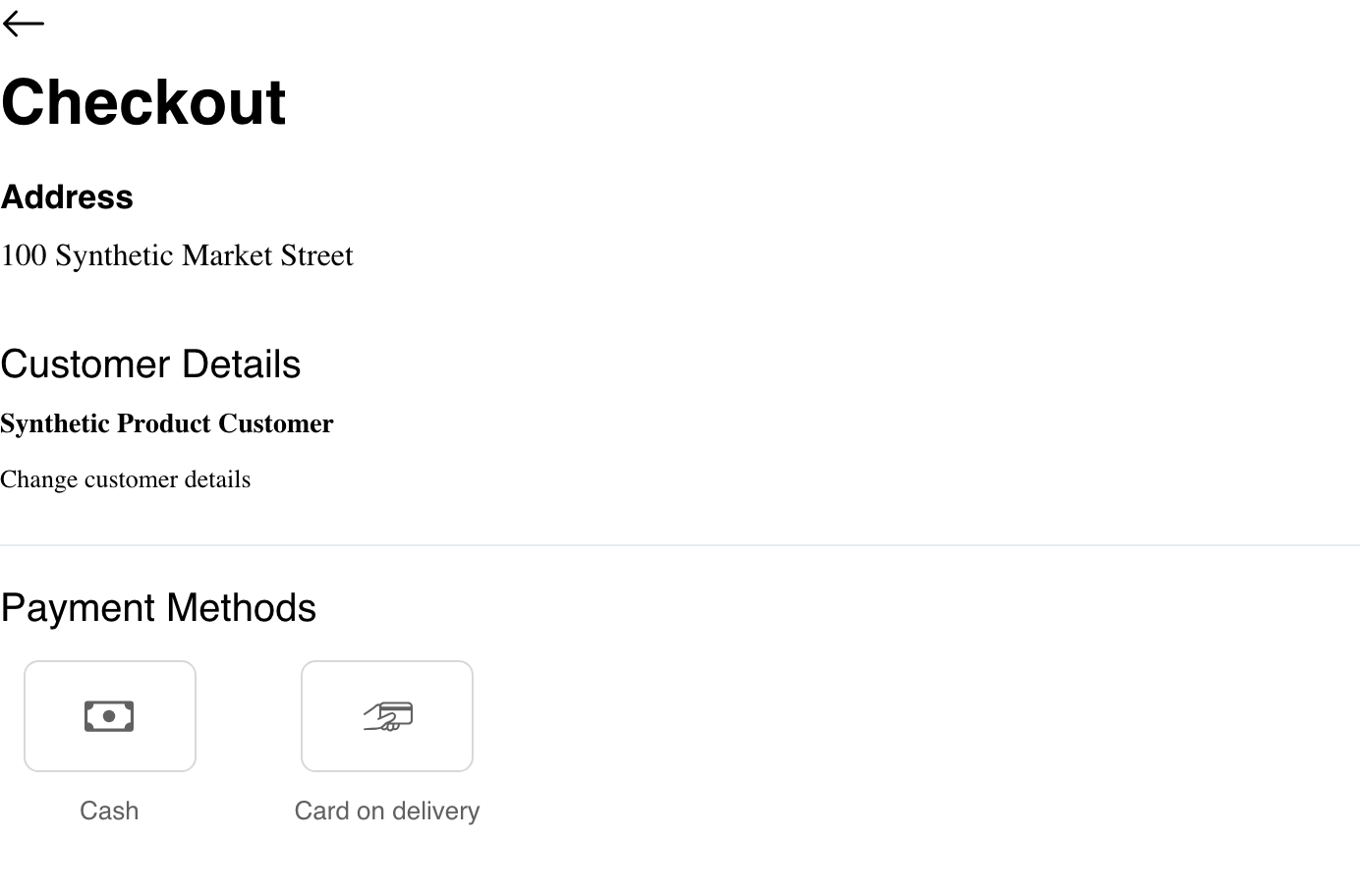
Payment Methods shows choices available for the current group. It is one shared list, not a separate payment selector for each business. The available choices can change when the businesses, customer session, order context, or remaining amount changes.
In the example, Cash and Card on delivery are available. These are synthetic examples, not a universal list. Select the applicable choice when payment is required. Selecting a method prepares the checkout but does not submit the carts or place an order.
See Choose a payment method for the general payment-selection experience. Online choices can include an additional provider step; follow only the instructions shown in the current checkout.
Review every business cart
The Your order area gives each eligible business its own expandable cart section. Expand the businesses to review their products, quantities, subtotals, and current totals.
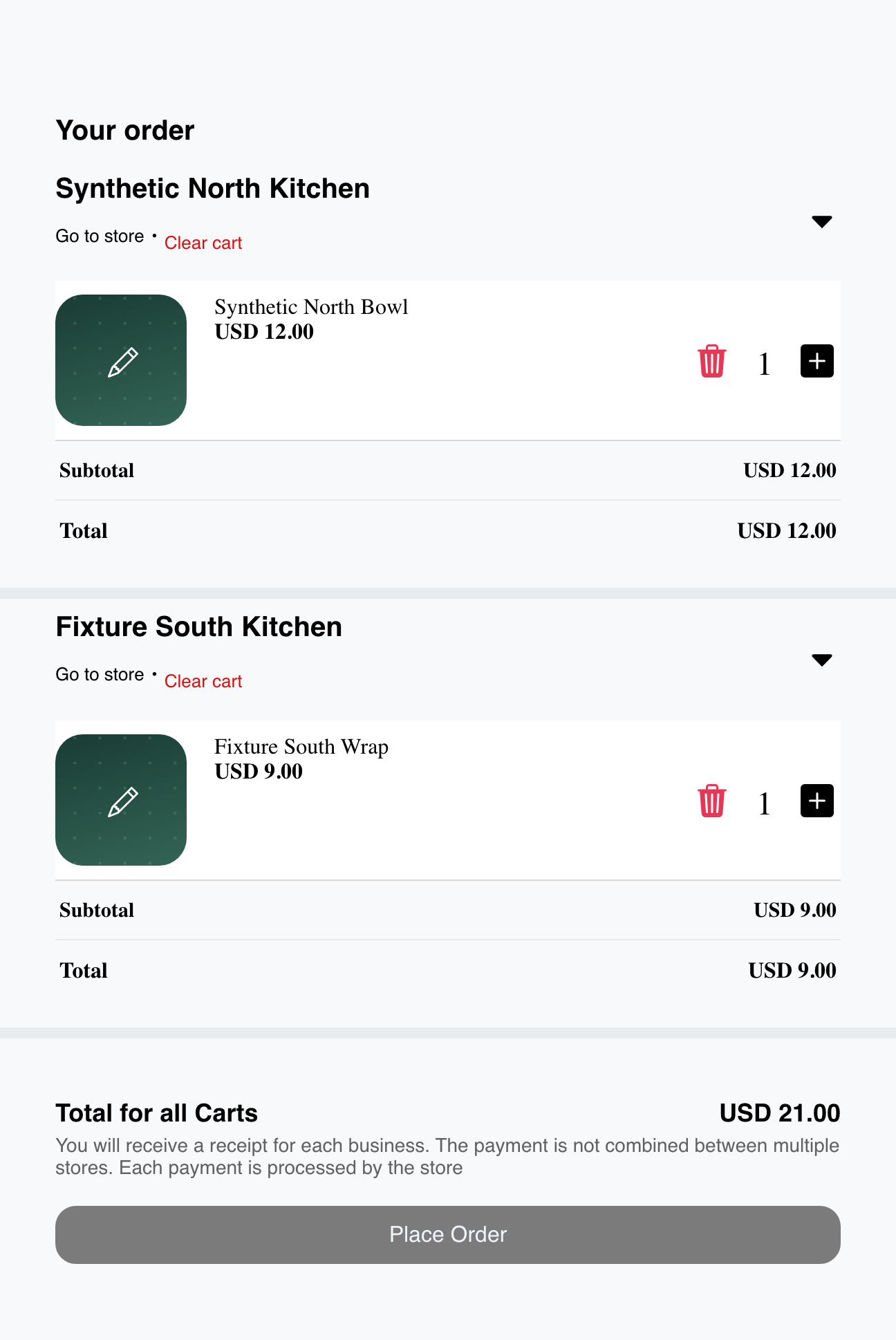
In this example:
- Synthetic North Kitchen contains a USD 12.00 item.
- Fixture South Kitchen contains a USD 9.00 item.
- Total for all Carts displays USD 21.00.
The displayed combined amount reflects the current group balance. Conditional discounts, delivery charges, tips, wallet amounts, or other adjustments can add rows or change the remaining amount. Review the latest value shown rather than treating an earlier cart total as final.
Use Go to store to return to a business when more products are needed. If a product, quantity, or instruction needs to change, return to Manage a cart before submission.
Understand the final action
When a positive amount remains, Place Order stays disabled until a group-compatible payment choice is selected. Other customer or checkout requirements can also require attention when the action is used.
Before selecting Place Order:
- Confirm the shared customer and address details.
- Review every business cart and its current amount.
- Check the displayed combined amount and any conditional adjustments.
- Select an available payment choice when an amount remains due.
- Resolve any warning or requested customer information shown by Website.
Using Place Order submits the current grouped checkout for further processing and validation. It is different from selecting a payment method. Carts, availability, requirements, or amounts can be refreshed, and Website can stop the submission when the current group is no longer ready.
Website keeps the resulting receipts and order information associated with the respective businesses. The exact payment and completion experience can vary by the selected method, so customers should follow the status and instructions displayed after submission.
Use multi-business checkout on mobile
On mobile, the same content is arranged in one vertical flow. Shared details and payment choices appear first, followed by the business cart headers and combined amount.
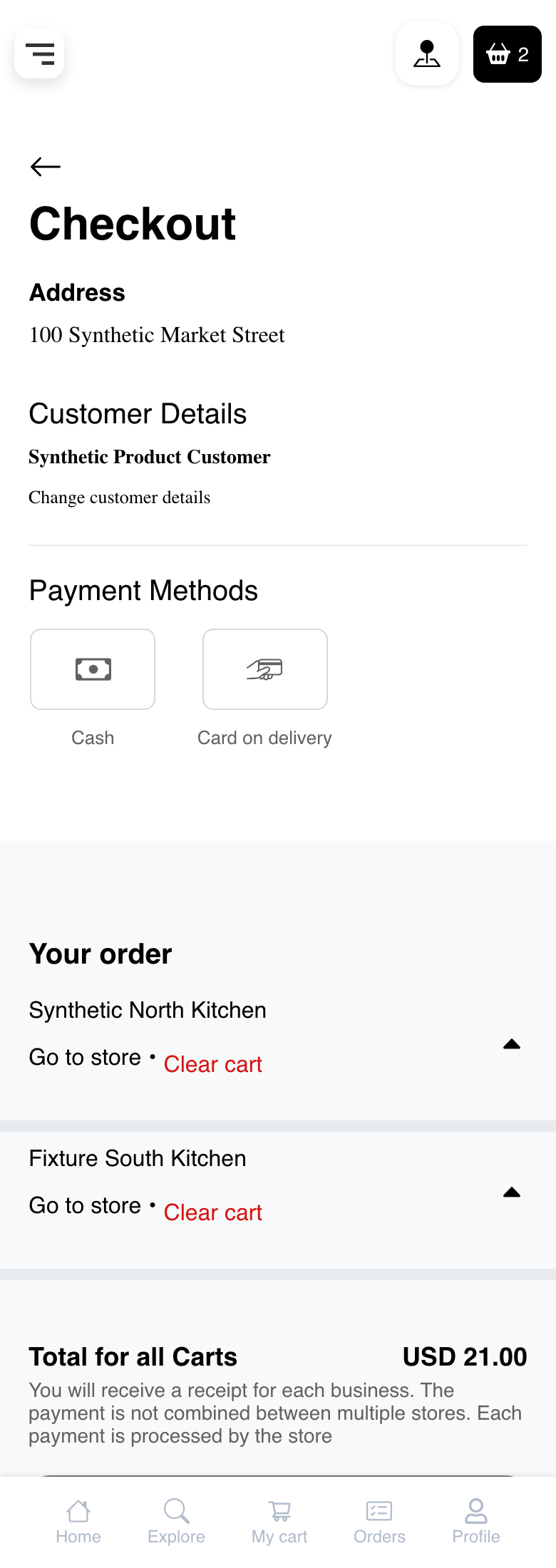
Scroll through the full page before continuing. Expand each business cart when its products and amounts need review. The final action can appear below the area visible in the screenshot.
Conditional checkout information
Depending on the current group, Website can also show coupon, tip, wallet, delivery, reward, or payment-provider information. These sections are not universal. Complete only the controls displayed for the current checkout, then review the combined amount again.
If the group no longer has at least two eligible business carts, Website can continue to the applicable single-business checkout or return the customer to shopping instead of showing this page.
Troubleshooting
Place Order is disabled
If an amount remains due, select one of the payment choices shown for the group. Also review the customer details and any visible warning or conditional section. Wait for recent changes to finish, then check the current combined amount again.
No payment choices are shown
Payment choices must be available for the current group and context. Return to Prepare carts from multiple businesses, confirm the businesses and order context, and retry. Contact support if the group still has an amount due but no applicable choice appears.
A business or product is missing
Only the carts currently eligible for this checkout appear. Return to the grouped cart and review each business. Product availability, schedule, location, order type, and cart requirements can affect which carts continue.
The combined amount changed
The amount can refresh when cart contents, discounts, fulfillment details, tips, wallets, payment context, or other adjustments change. Expand each business, review the latest rows, and use the displayed combined amount as the current checkout value.
Why did Website continue to a different page?
Multi-business checkout requires at least two eligible business carts. When only one remains, Website can continue to ordinary checkout. If none remain eligible, Website can return the customer to shopping.
Does selecting a payment method submit all carts?
No. Payment selection prepares the current checkout. Place Order is the separate submission action.
Related guides: Prepare carts from multiple businesses · Manage a cart · Choose a payment method · Browse a business and its menu