Prepare carts from multiple businesses
When multi-business checkout is available, Website can organize eligible carts from more than one business into a group. Customers can review each business amount, the combined total, and the Checkout options before Website prepares the carts for the applicable checkout.
This experience requires an active signed-in or guest-checkout session and a Website setup that supports checkout across multiple businesses. Availability can also depend on the current order type, businesses, and cart context.
Review the grouped cart
Open the cart from the Website header. A grouped cart shows:
- A cart group, such as Cart #1, with a Checkout action for the group.
- Each business included in the group.
- Add more products and a Checkout action beside each business.
- The current amount for each business.
- Total for Cart #1 and Total for all Carts.
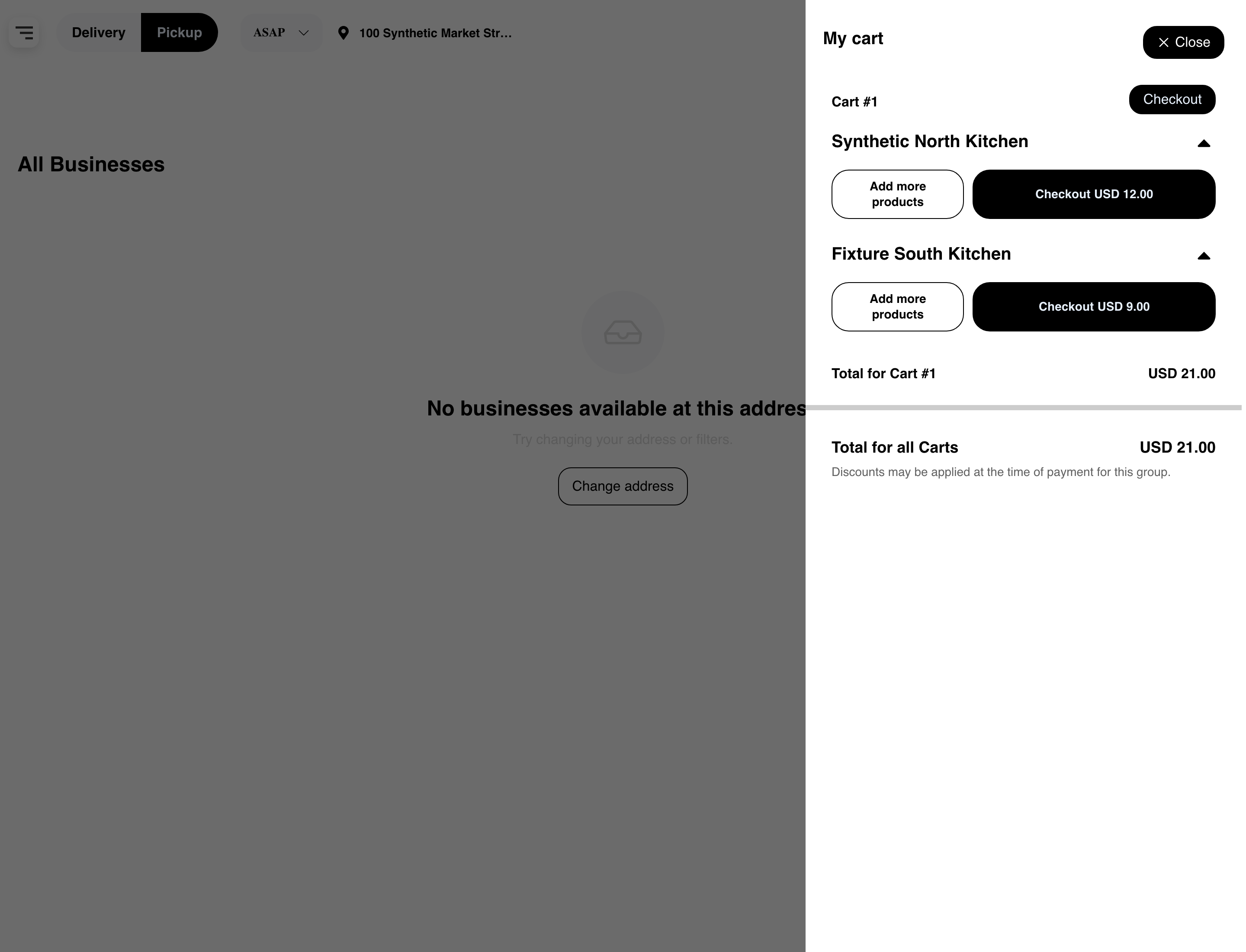
In this example, the business amounts are USD 12.00 and USD 9.00, and the combined total is USD 21.00. Select Add more products beside a business to return to that business and continue shopping. See Browse a business and its menu for the menu experience.
Choose a Checkout action
The cart can show more than one Checkout action:
- The Checkout beside the cart-group heading starts the grouped checkout handoff for the eligible carts.
- A Checkout beside a business starts the handoff from that business section and displays that business's current amount.
Website evaluates the current eligible carts when either type of Checkout action is selected. A per-business Checkout amount does not provide a manual cart-selection step or guarantee that only that business will continue. To continue with different cart contents, update or remove items before selecting Checkout. See Manage a cart.
Understand automatic preparation
After a customer selects Checkout, Website can briefly prepare the eligible carts and then continue to the applicable checkout. There is no intermediate page where the customer manually selects, orders, or edits the carts.
Preparation associates the eligible carts for checkout and refreshes their current state. It does not:
- Place or submit an order.
- Charge a payment method.
- Lock inventory or freeze prices.
- Guarantee that every cart will remain eligible.
The customer must still complete the multi-business checkout before submitting the order. That guide covers the shared details, payment choices, business carts, current total, and readiness checks shown on the later page.
Review totals before continuing
The amount beside each business is that business's current cart amount. Total for all Carts is the current combined amount shown for the group.
These values can change during checkout. Website can recheck product availability, the delivery or pickup context, address coverage, schedules, cart minimums or maximums, discounts, and other applicable adjustments. A message in the grouped cart can also indicate that discounts may be applied at payment time.
Customers should review the updated carts and final amount in the later checkout experience before submitting the order.
Use the grouped cart on mobile
On mobile, the businesses and Checkout actions stack vertically. The group Checkout remains near the cart heading, while each business keeps its own Add more products and Checkout actions. The group and combined totals appear below the business sections.
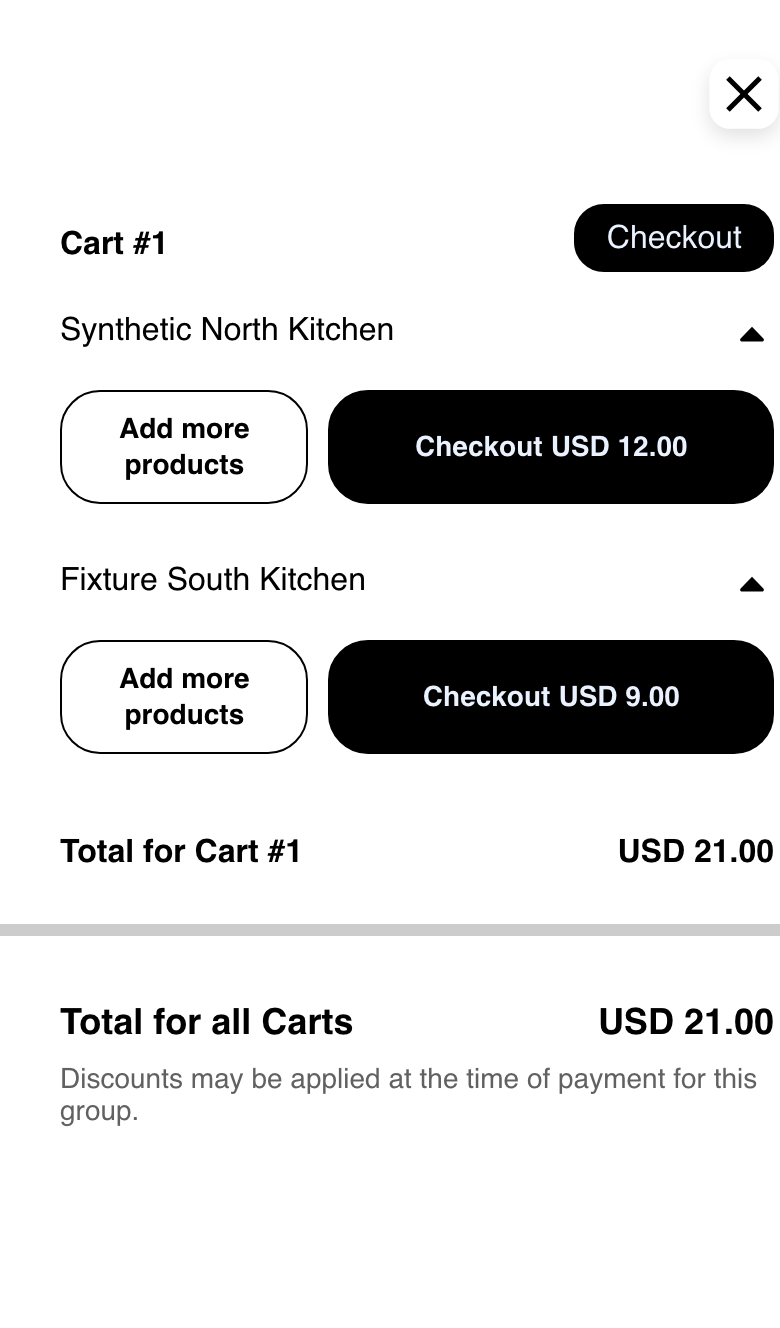
Customers may need to scroll when the grouped cart contains additional businesses, products, or conditional information. Select the close control to return to Website without starting checkout.
Frequently asked questions
Can a customer choose carts on a preparation screen?
No. Website automatically prepares the eligible carts in the current group. Customers should change quantities, remove items, or clear unwanted cart contents before selecting Checkout.
Does a Checkout beside one business mean only that business will continue?
Not necessarily. It shows that business's current amount and starts the handoff from that section. Website evaluates the eligible carts and the applicable grouping before continuing.
Does selecting Checkout place the orders?
No. It only continues toward the applicable checkout. The customer still needs to review the checkout information and submit the order.
Why can the combined total change later?
Availability, schedules, address coverage, order requirements, discounts, fees, tips, taxes, and other adjustments can be evaluated or refreshed during checkout. The grouped cart shows the current amount, not a guaranteed final charge.
Why does a customer not see a grouped cart?
Multi-business checkout is conditional. The Website setup, customer session, order type, businesses, and current cart context determine whether Website can group carts for checkout.
Related guides: Complete a multi-business checkout · Manage a cart · Browse a business and its menu