Manage a cart
The Website cart lets a customer review the products selected from a business before continuing to checkout. Customers can inspect product choices, change permitted quantities, remove items, reopen an editable product, and review the current cart calculation.
The header cart is available after the customer has an active signed-in or guest-checkout session. The actions and information shown can vary with the business, product, order type, cart state, and Website configuration.
Open the cart
Select the cart control in the Website header. On desktop, My cart opens as a panel from the right side of the page. Select Close to return to the business without changing the cart.
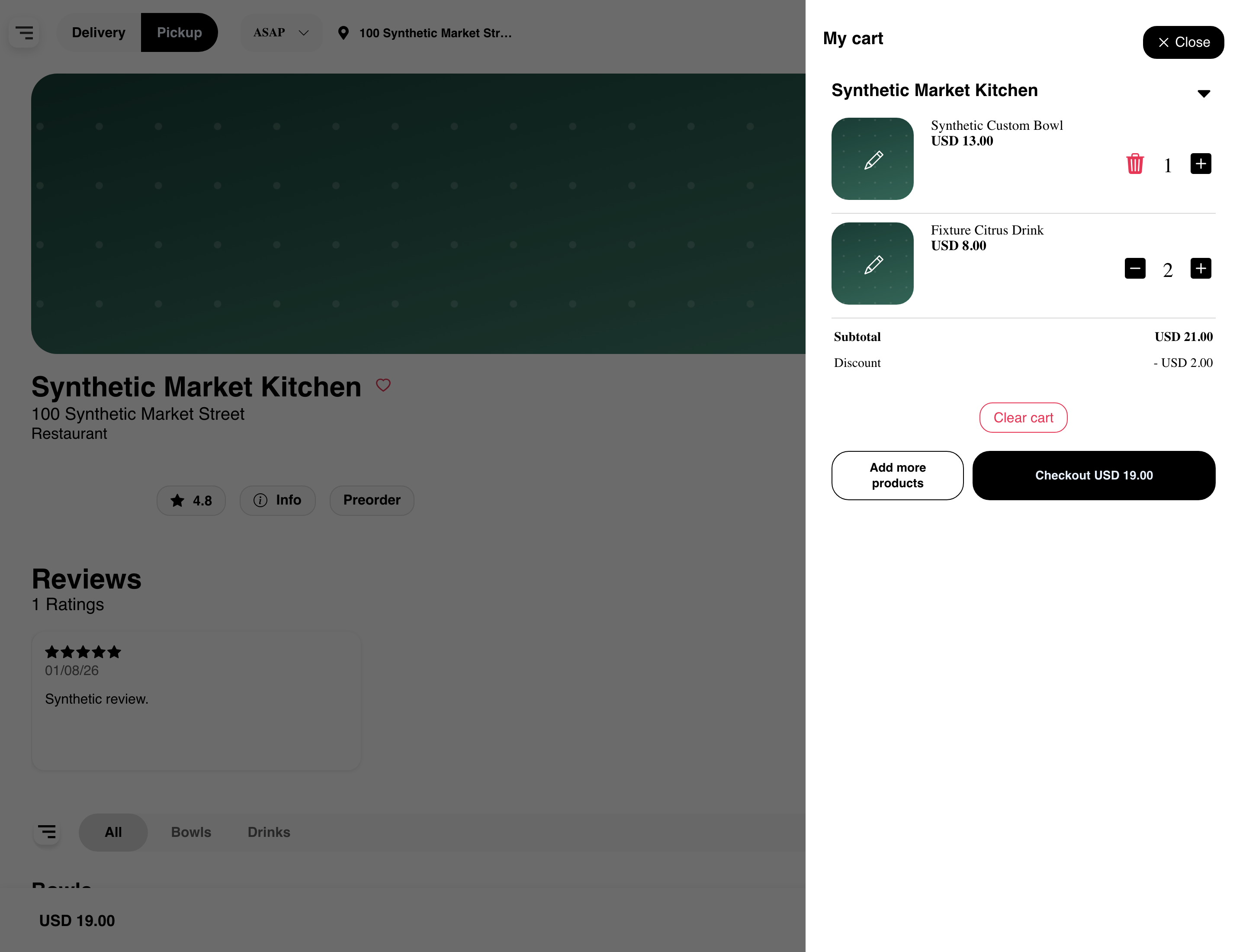
The cart groups the current products under their business. Each line can show the product name, current line price, quantity, image, and the actions available for that product. The example above contains two product lines, a subtotal, an applied discount, and the current total.
Review product choices and instructions
Select a product name to expand the details saved with that cart line. Depending on the product, the expanded view can show:
- Removed ingredients, displayed as No followed by the ingredient name.
- Selected options and their quantities or added prices.
- Special instructions saved for the product.
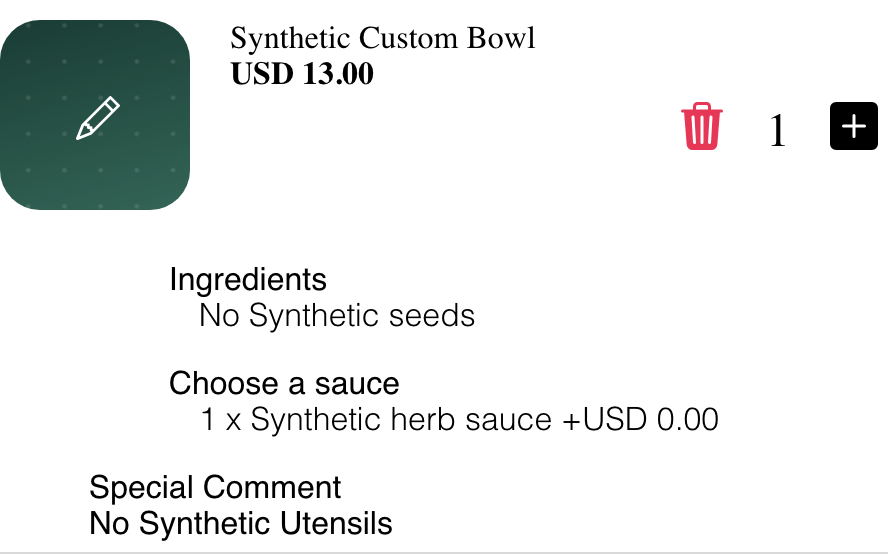
Products without custom choices or instructions have fewer details. Expanding a line does not change the cart.
Change a quantity
Use the plus or minus controls beside an eligible product:
- Select + to request one more.
- Select − to request one fewer when the quantity is greater than one.
- Wait for the cart to refresh before making another decision.
Website refreshes the accepted quantity and current totals after the update. A quantity change can be unavailable or rejected when the product, inventory, menu, or order context no longer permits it. The quantity displayed in the cart does not guarantee that additional inventory is available.
When a line has a quantity of one, the cart shows a trash action instead of reducing the quantity to zero directly.
Edit a product
When an edit entry is available, select the product image or pencil indicator to reopen the product form with its current choices. Review the ingredients, options, instructions, and quantity, then select Update.
The cart refreshes after the update is accepted. Editing can be unavailable for some product types or contexts. For details about the ordinary product form, see Customize and add a product.
Remove an item or clear the cart
To remove one product:
- Select its trash action.
- Review the confirmation.
- Accept the confirmation to remove the line.
Cancel the confirmation to keep the product unchanged.
To remove all contents for the displayed business, select Clear cart and accept the confirmation. Clearing the cart also removes the adjustments associated with those contents. This action is different from closing the cart panel, which leaves the cart unchanged.
Review the current totals
The header cart can show the current subtotal, an applicable discount, and the current total. The values are refreshed after an accepted quantity, edit, removal, or other cart change.
Additional pricing and adjustments depend on the order and Website configuration. The amount shown in the cart is the current calculation, not a guarantee that every adjustment or the final checkout amount will remain unchanged.
Continue shopping or go to checkout
- Select Add more products to return to the business and continue browsing.
- Select Checkout to complete checkout for the current cart.
Selecting Checkout does not place the order. The customer still reviews and completes the checkout steps before submitting it. Checkout can remain unavailable when the displayed cart does not satisfy an applicable minimum, maximum, coverage, or reservation requirement.
When supported carts from multiple businesses are shown together, see Prepare carts from multiple businesses for the grouped checkout handoff.
Use the cart on mobile
On smaller screens, the cart opens as a full-width modal. The product lines, quantity and removal actions, current totals, Clear cart, Add more products, and Checkout remain in the same flow. Customers may need to scroll when the cart contains more products or controls.
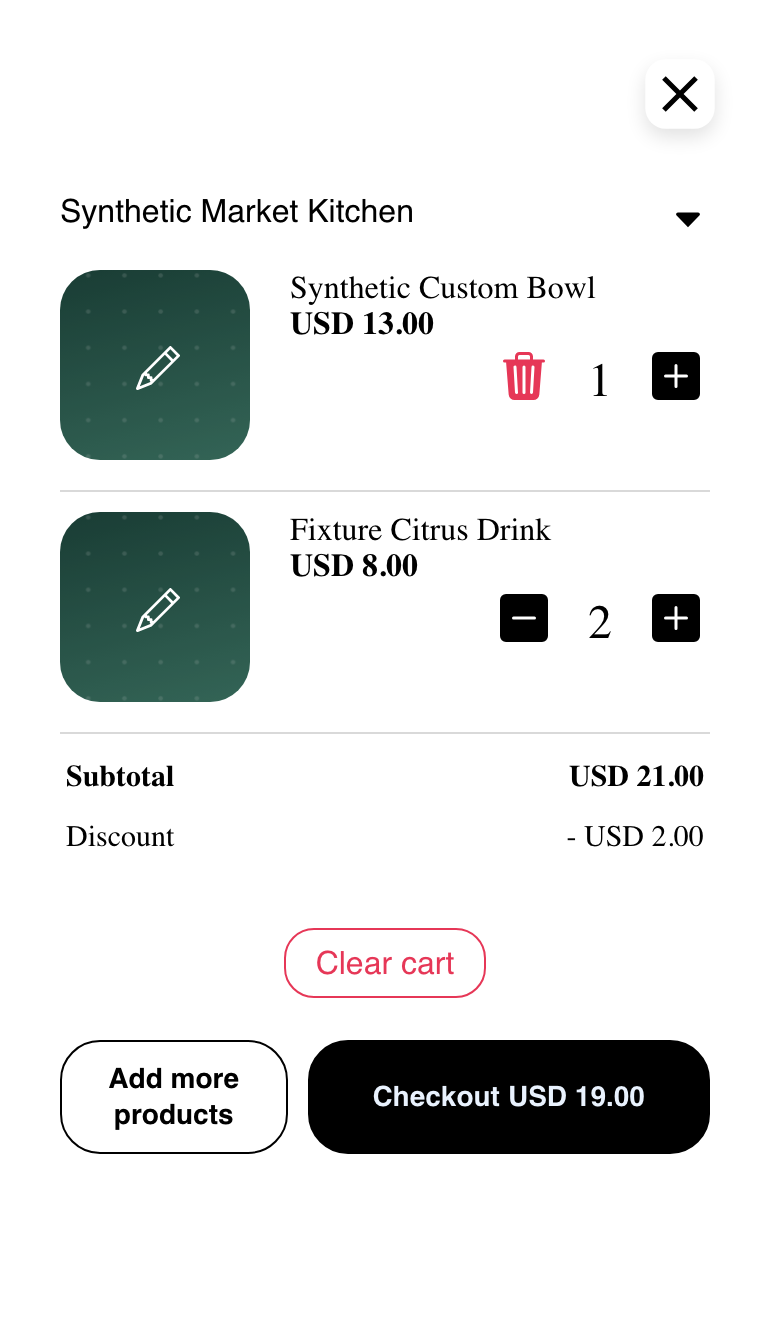
Select the close control at the top of the modal to return to the Website without changing the cart.
Understand an empty cart
When the header cart has no products available to display, it shows You have no products added to the cart.
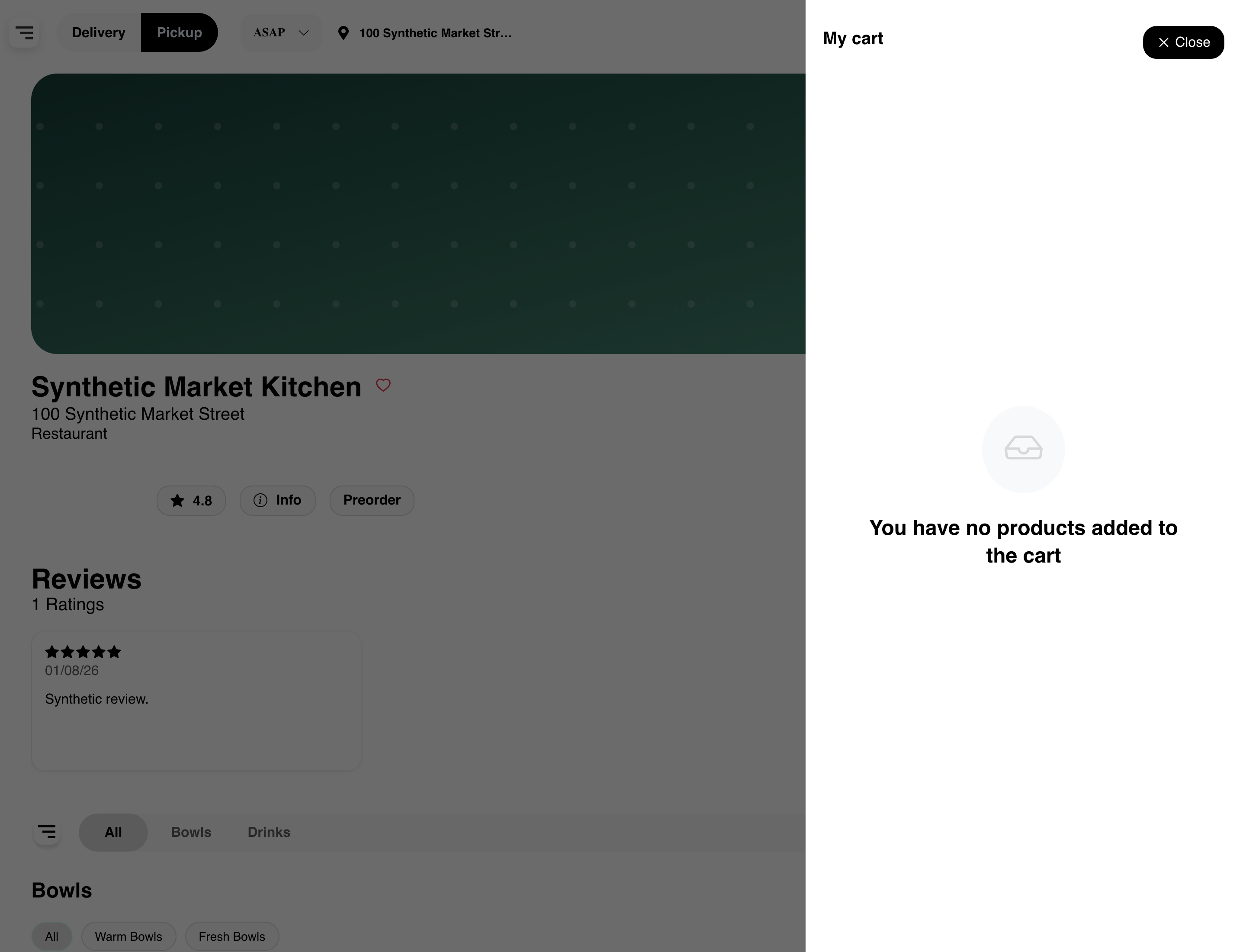
Return to a business menu and select a product to continue shopping. See Browse a business and its menu for the menu experience.
Conditional cart experiences
Some Websites can show additional cart controls or information. These experiences are not available for every order:
- Coupons or offers can appear when the Website and current cart permit them. Acceptance and discount amounts depend on the applicable rules.
- Driver tips can appear for supported order types and configurations.
- Cart comments are separate from instructions saved on an individual product.
- Reward estimates can appear for eligible signed-in customers. An estimate does not guarantee the final reward.
- Scheduling controls can appear for supported catering or scheduled-order contexts.
Customers should use only the controls shown in their current cart. Changing the order type, location, business, or scheduled time can refresh product availability and totals.
Frequently asked questions
Why did the cart total change after an update?
Website recalculates the cart after an accepted quantity, edit, removal, coupon, tip, or order-context change. Product availability and applicable pricing can also change before checkout.
Why can the customer not increase a quantity?
The product or current order context may have reached an applicable product, inventory, menu, or cart limit. Return to the product or menu to review what is currently available.
How does a customer remove the last unit of a product?
When the quantity is one, select the trash action and accept the confirmation. Selecting Clear cart removes all displayed contents for that business after confirmation.
Does selecting Checkout place the order?
No. It continues to the applicable checkout experience. The customer must still complete the required checkout steps and submit the order.
Why are coupon, tip, comment, reward, or schedule controls missing?
Each control has its own availability requirements. The Website setup, business, order type, customer session, and current cart determine which controls appear.
Related guides: Customize and add a product · Choose a payment method · Browse a business and its menu · Find products in a business