Complete checkout
Checkout brings together the current customer and fulfillment details, product summary, payment requirement, and order total before submission. Customers should review every section shown for their order and resolve any warning before using Place Order.
The sections and required information can vary by business, order type, customer session, Website setup, and current cart. Customers should follow the fields, warnings, and choices shown in their checkout.
Review the checkout page
On desktop, checkout uses two columns. Customer and order details appear on the left; payment, totals, and the final action appear on the right.
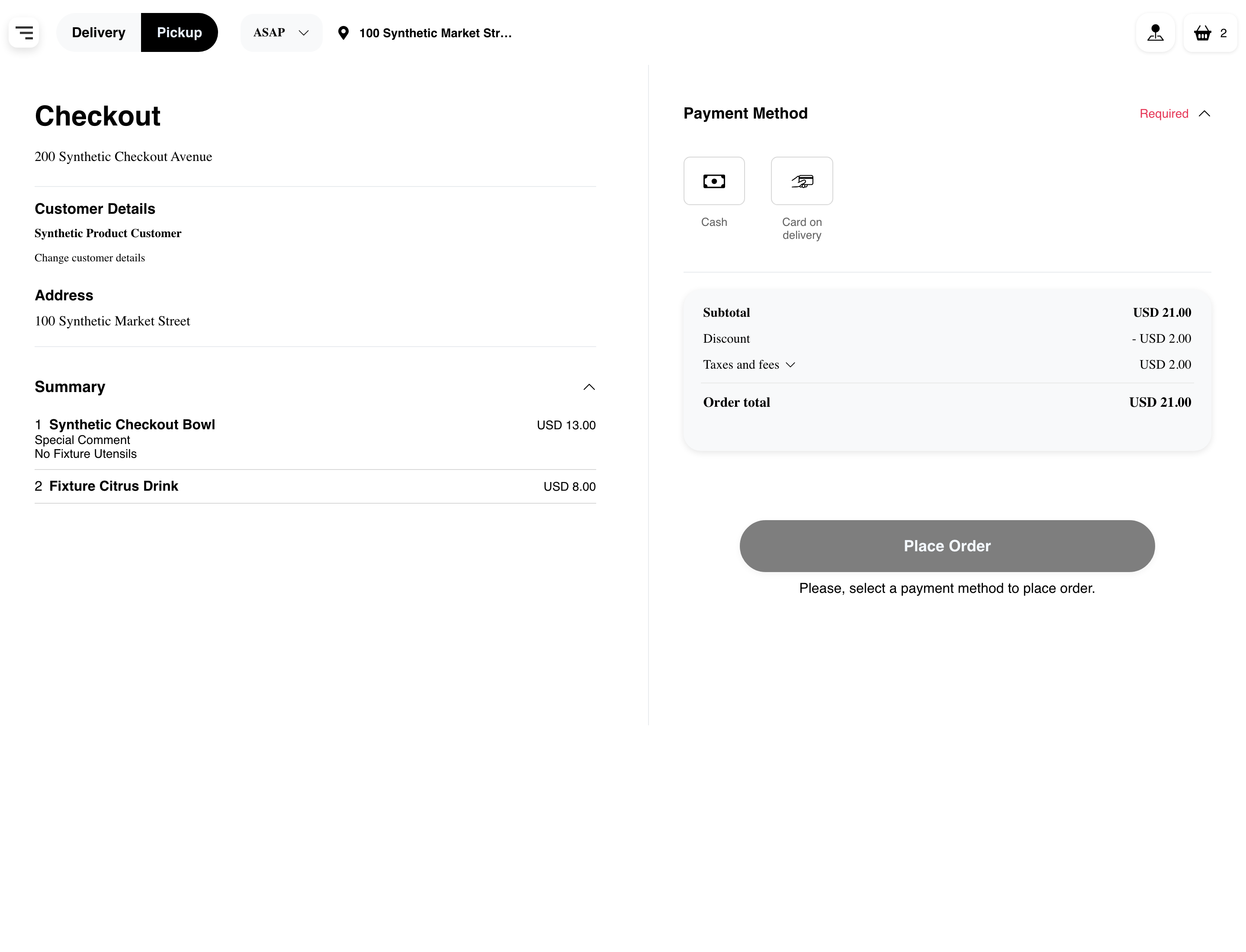
Before continuing, confirm that the page reflects the intended order context shown in the Website header, including the location, order type, and ordering time when available. Changing that context can refresh products, availability, fees, and totals.
Check customer and fulfillment details
The left side can show the business address, Customer Details, the customer's current Address, and an expandable Summary. Select Change customer details when the displayed customer information needs to be updated.
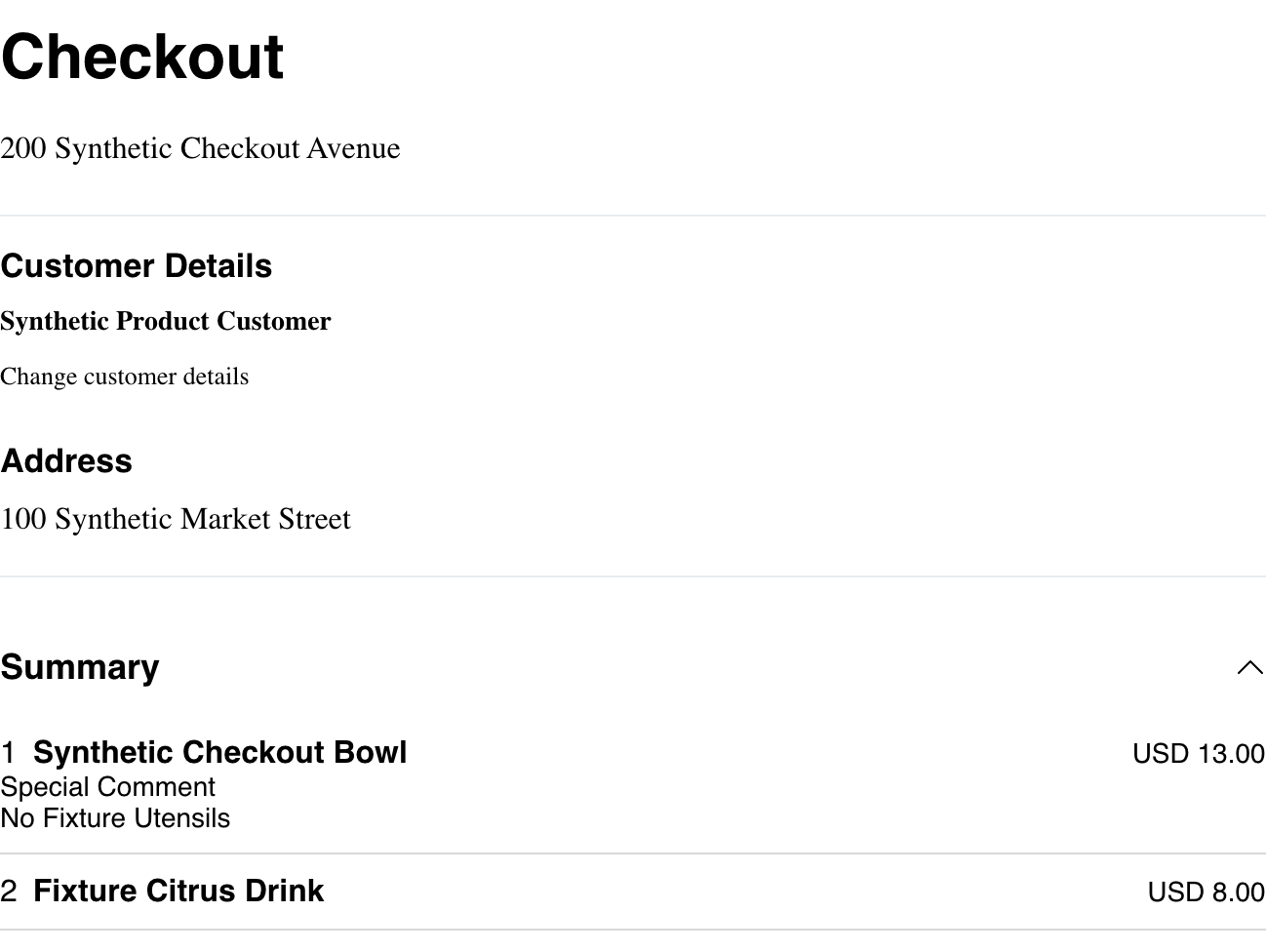
Review the address against the selected order type. Delivery and other addressed orders can require a serviceable customer address; pickup orders can still show the customer's current ordering location. If Website reports that the address is invalid, return to the location control and choose a valid address before retrying checkout.
The summary shows the products currently included in the order. Depending on the cart, a line can also show product instructions or choices. Expand or collapse Summary to review the lines, then return to Manage a cart if an item, quantity, or product instruction needs to change.
Select a payment method when required
When an amount remains due, checkout shows Payment Method as Required until the customer selects an available choice. The available methods depend on the current business and checkout context.
Selecting a method is separate from submitting the order. See Choose a payment method for the selection experience.
If the remaining balance is zero, Website can state that no payment method is needed. The customer must still complete the other checkout requirements and use the final submission action.
Review totals, taxes, and fees
The order bill shows the current calculation. Depending on the order, it can include:
- Subtotal.
- Discounts or offers.
- A Taxes and fees row.
- Delivery charges or driver tip.
- Order total.
Select Taxes and fees when the row is expandable to review the applicable details. Some orders have fewer rows because not every adjustment applies.
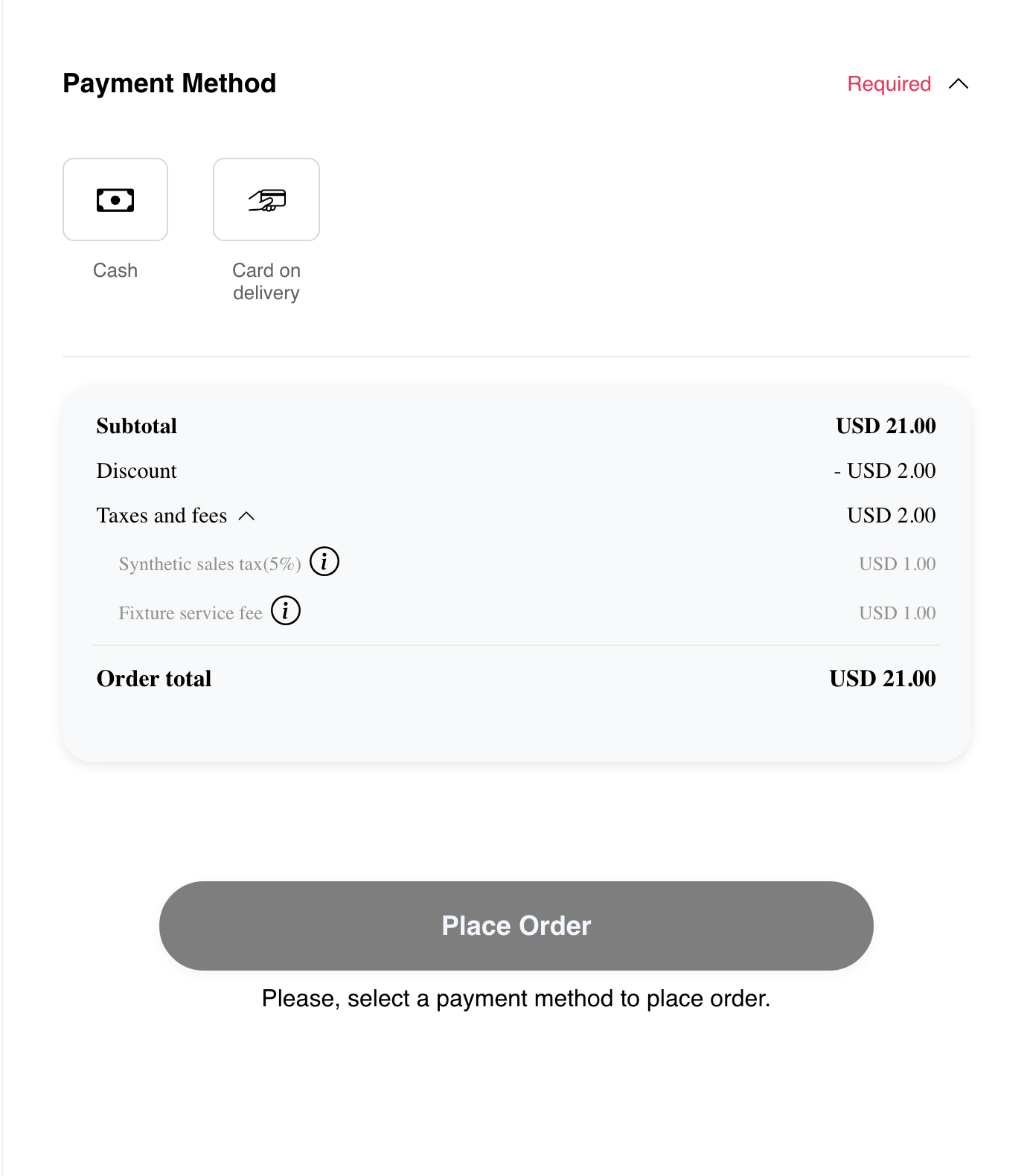
The example shows a subtotal of USD 21.00, a USD 2.00 discount, USD 2.00 in taxes and fees, and an order total of USD 21.00. These values are synthetic examples. Customers should use the amounts shown in their own checkout.
Website rechecks the current cart during submission. Product availability, schedule, address coverage, offers, taxes, fees, and the final amount can therefore change before an order is accepted.
Resolve requirements before placing the order
Place Order remains unavailable while the current checkout is missing required information or the cart is not ready. Website can show a nearby warning that identifies what needs attention, such as:
- A payment method for an amount due.
- A valid customer address or ordering time.
- Valid products and order minimum or maximum.
- Required customer details, comment, coupon, tip, card information, student, table or curbside spot, or reservation.
Only the requirements that apply to the current order appear. Complete the visible item, wait for checkout to refresh, and review the totals again. An available Place Order action means the customer can submit the current checkout for another validation; it does not guarantee that availability or pricing will remain unchanged.
Use checkout on mobile
On smaller screens, the same checkout content is arranged in one vertical flow. Customer details and the product summary appear before payment and totals. The payment warning and final action remain available near the bottom of the screen.
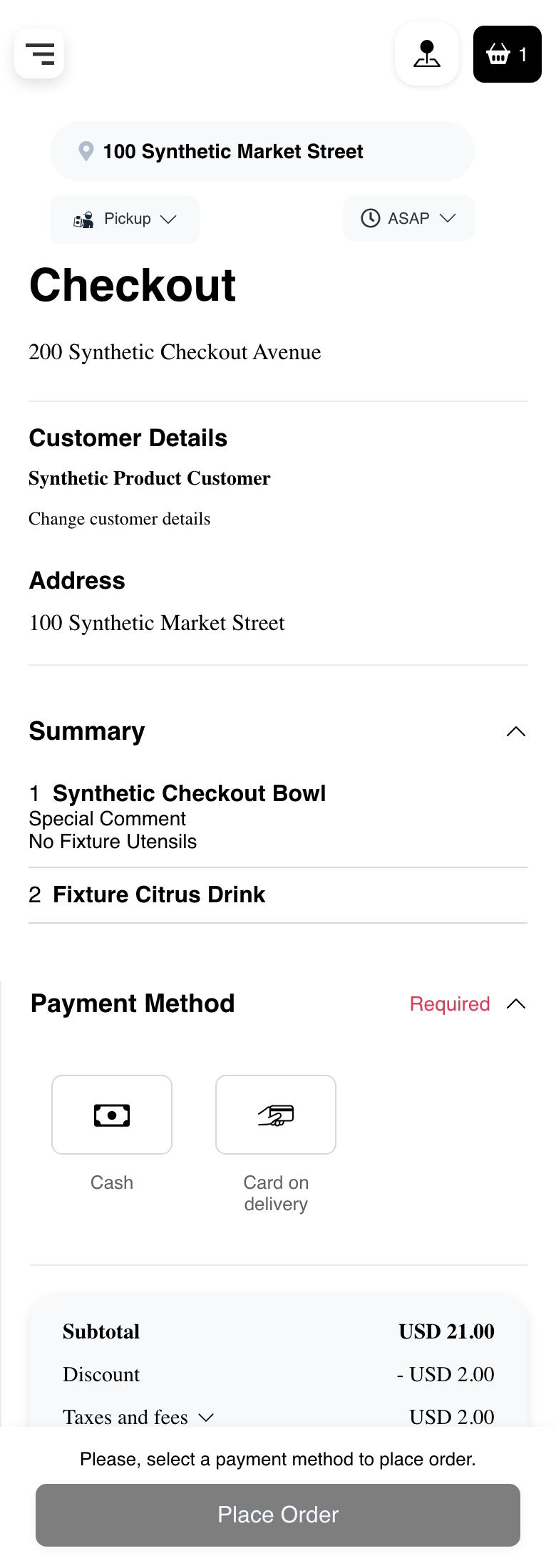
Scroll through the full page before submitting. If payment is required, use the warning beside the disabled final action as a prompt to return to the Payment Method section. Other warnings can require the customer to scroll to the relevant checkout section manually.
Understand conditional checkout experiences
Some orders include additional checkout sections:
- Delivery or supported catering orders can show delivery instructions, address coverage, and driver-tip choices.
- Pickup can show fewer fulfillment fields, although a tip can still appear when enabled.
- Table, curbside, or service orders can request a spot or vehicle detail.
- School ordering can require a student selection. See Use school and student ordering.
- Reservation orders can require reservation details and can organize the product summary differently.
- Gift-card, kiosk, and customer-assisted experiences can use different customer, business, and payment sections.
These controls are not universal. Customers should complete only the sections displayed for their current checkout.
Troubleshooting
Place Order is disabled
Read the warning shown near the action, then review Payment Method, customer/address details, the product summary, and any conditional checkout sections. Wait for recent changes to finish before trying again.
The address is invalid
Confirm the selected order type and choose a valid customer location. The business must be able to serve the current address for the selected fulfillment context. See Choose a location and order type.
The total changed
Checkout can refresh after a cart, fulfillment, schedule, offer, tip, or payment-context change. Review the latest subtotal, adjustments, taxes and fees, and order total before continuing.
A checkout section is missing
Sections depend on the current business, order type, Website setup, session, and cart. A missing optional control does not necessarily indicate an error. Confirm the order context and contact support if a required experience remains unavailable.
Does selecting a payment method place the order?
No. Payment selection prepares the checkout. Place Order is the separate final submission action, and the current order is rechecked when it is used.
Related guides: Review order history · Manage a cart · Choose a payment method · Choose a location and order type · Browse a business and its menu