Schedule a preorder
Preorder lets a customer choose a future fulfillment date and time before continuing to a business menu. The choices shown reflect the current business, order type, schedules, Website configuration, and business timezone.
Customers can complete the standard preorder flow only when it is available for the current Website and business context. A closed business may still open a scheduling dialog, but closed status alone does not mean a future time can be selected. This guide covers the standard Website preorder flow; other scheduled ordering experiences can use different controls and availability rules.
Open the preorder flow
A business listing can identify a closed business for which preorder is available. Select the business card to open the scheduling dialog.
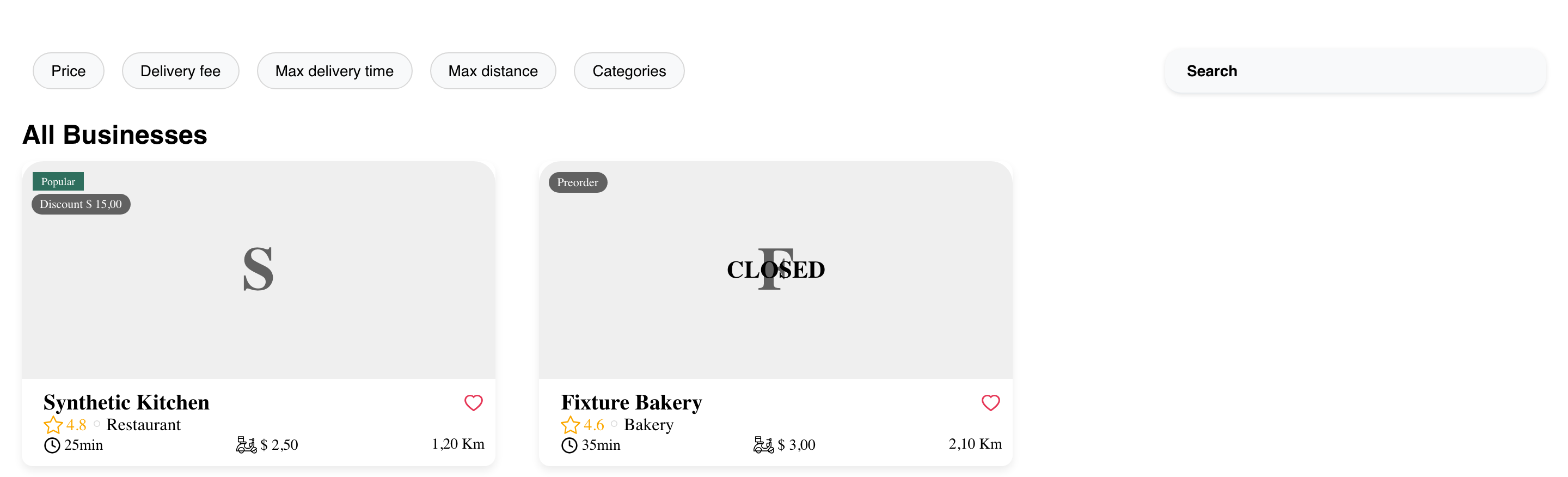
Customers can also encounter a Preorder control on a business page when the capability is enabled. The surrounding page and entry point can vary by Website layout.
Choose the schedule source
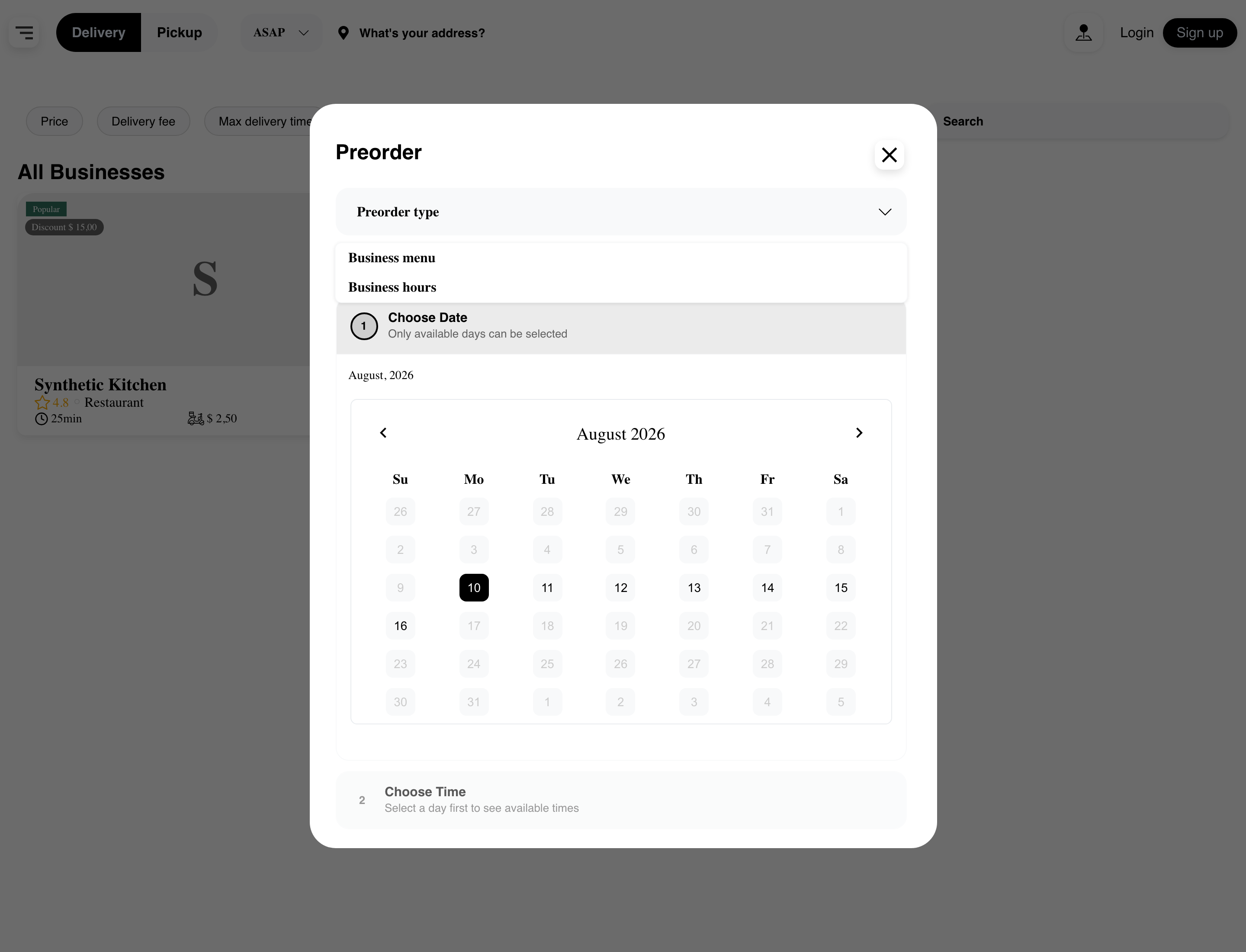
If Preorder type is available, the customer can choose one of the scheduling sources shown by the Website:
- Business hours uses the schedule available for the business.
- Business menu uses a returned menu and its applicable schedule. When more than one menu is available, the customer can select another menu.
Choosing a preorder type is not required in every experience. Customers should use the options visible in their current dialog.
When a business-menu schedule is selected, Website shows the menu currently used to calculate availability.
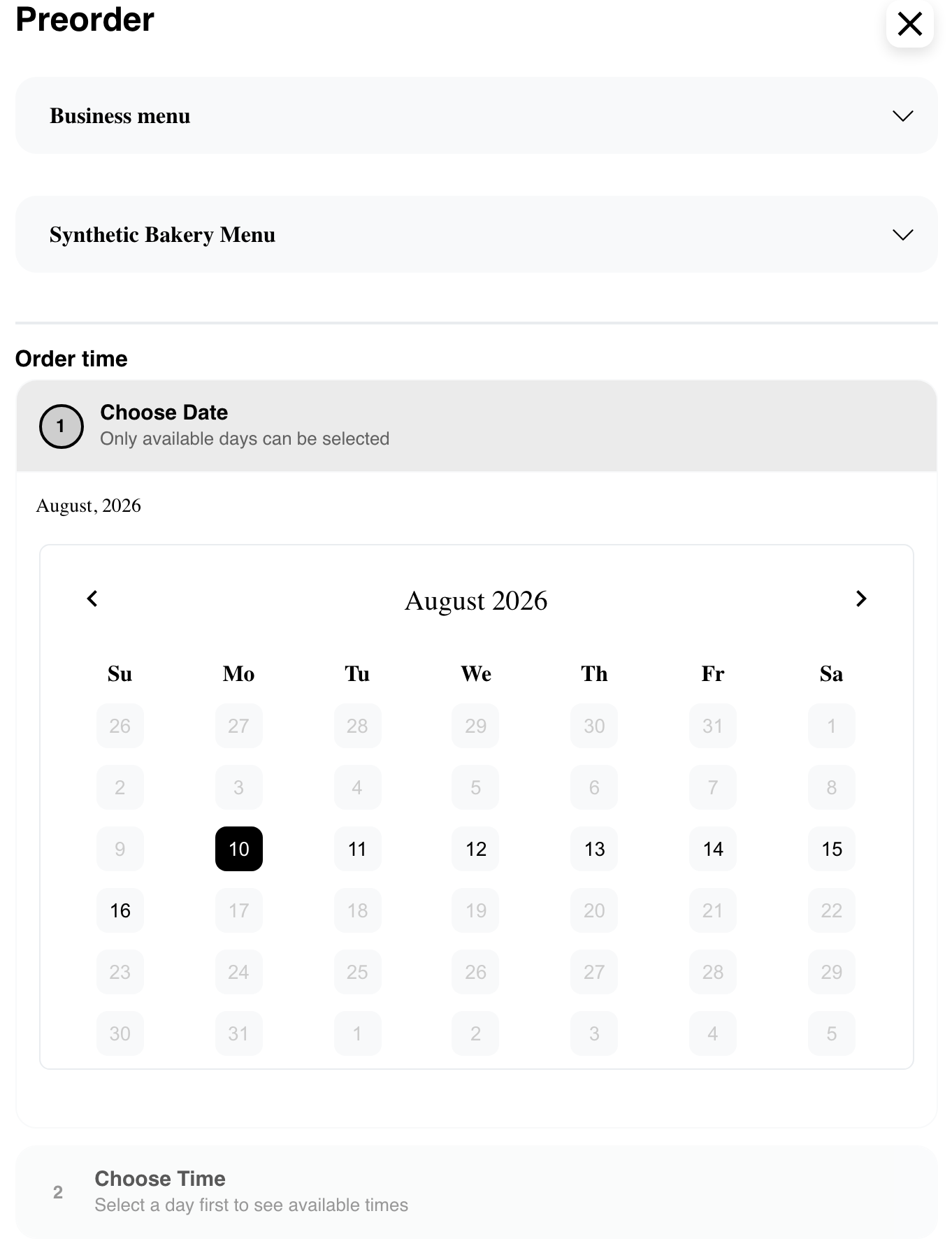
The menus and schedule choices shown depend on business and menu setup. They are not guaranteed to be the same for every business or order context.
Choose a date and time
- In Choose Date, select a future date from the range shown.
- Website opens Choose Time and displays the time slots currently offered for that date.
- Select a time slot. Website collapses the step and displays the selected date and time as a summary.
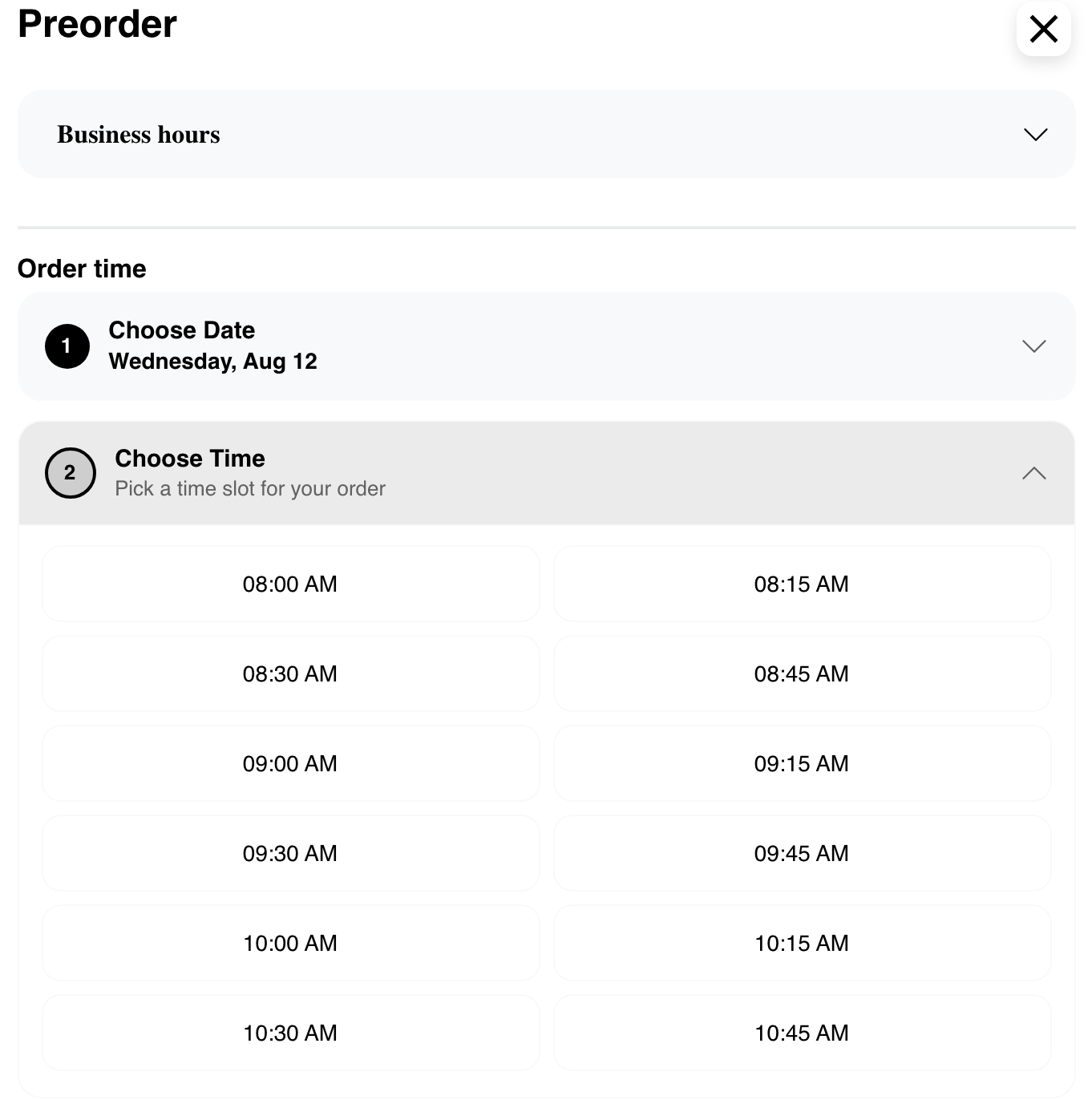
The date range and hour format depend on Website and business configuration. Availability is calculated for the business's configured timezone, so customers should use the date and time displayed in the current session.
Selecting another date clears the time shown in the dialog and asks the customer to choose a new one. The new schedule is applied after a time is selected.
Handle a date with no available times
A date can appear in the date range but have no offered time slots for the selected business or menu schedule. In that state, the time section reports that the business is closed at the moment.
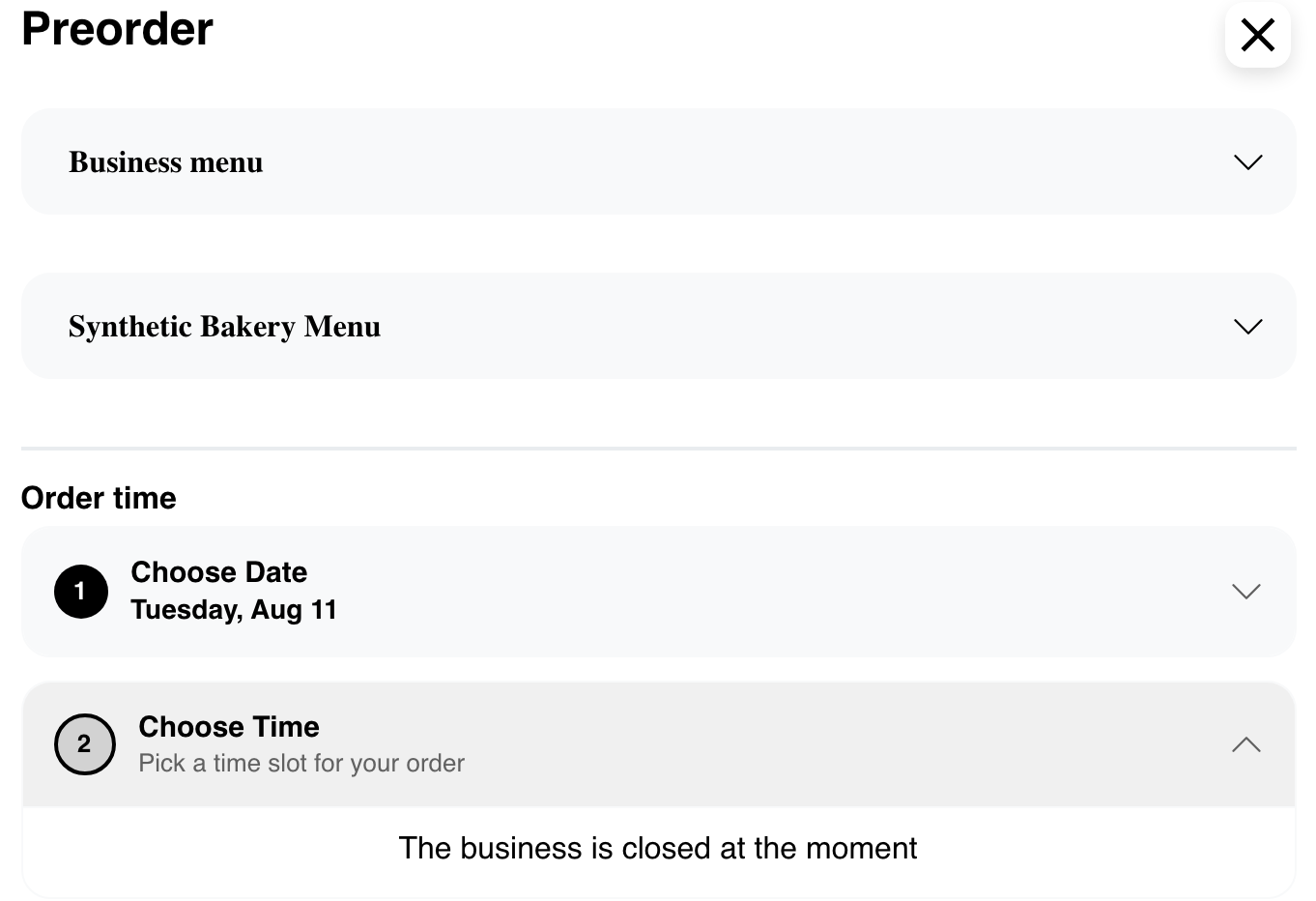
Select another date or, when available, choose a different schedule source or menu. If no date offers a time, preorder is not currently available for that context.
Continue to the menu
After the customer selects both a date and a time, Website applies that schedule to the current ordering context. From a business listing, select Go to menu to continue to the selected business.
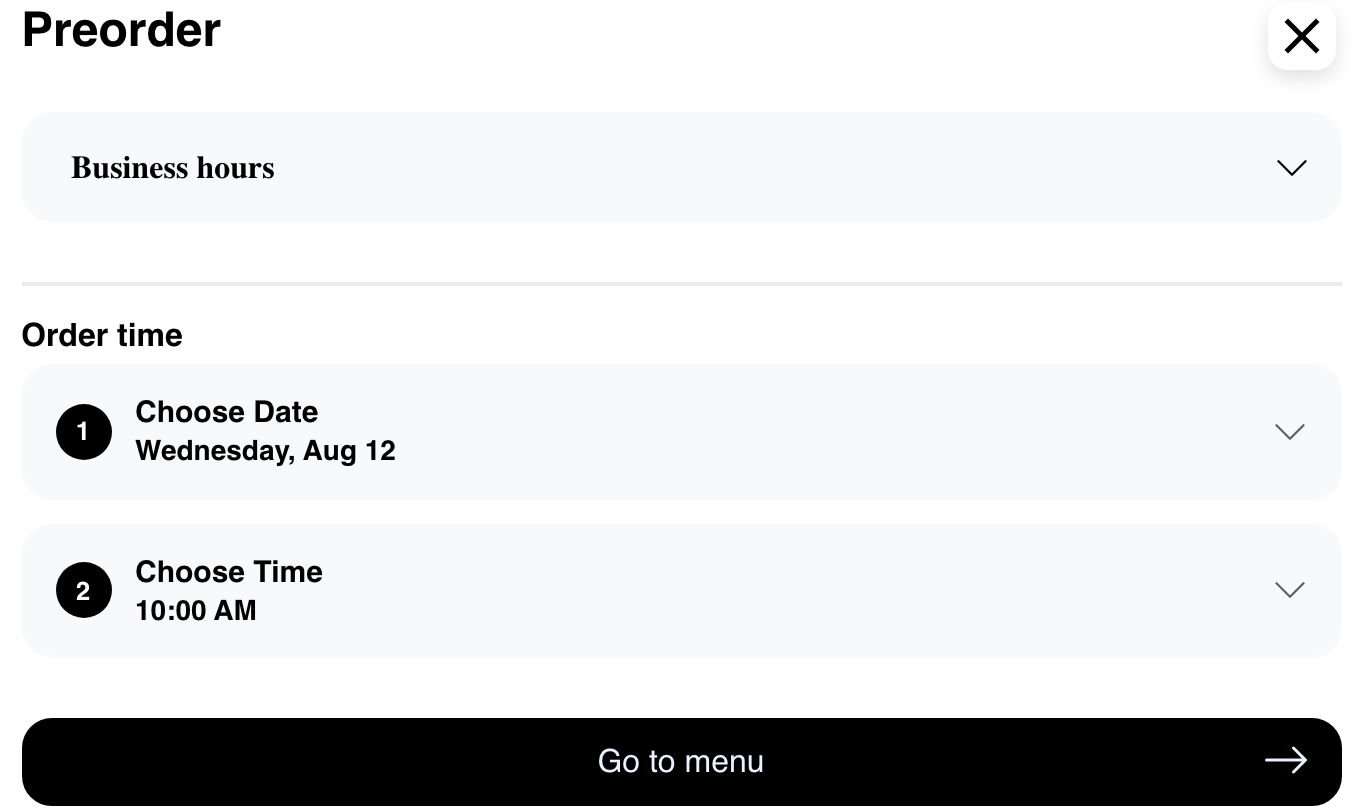
When the scheduling dialog was opened from an existing business page, the customer can close it and remain on that page after choosing a time. For a signed-in customer, applying a new schedule can also refresh related cart information.
Review the selected ordering time before adding products or checking out. Product and cart availability can change when the order context changes.
Use preorder on mobile
On smaller screens, the dialog reduces the visible date area and stacks the controls for the available width. Customers can expand either completed step to review or change the selected date or time.
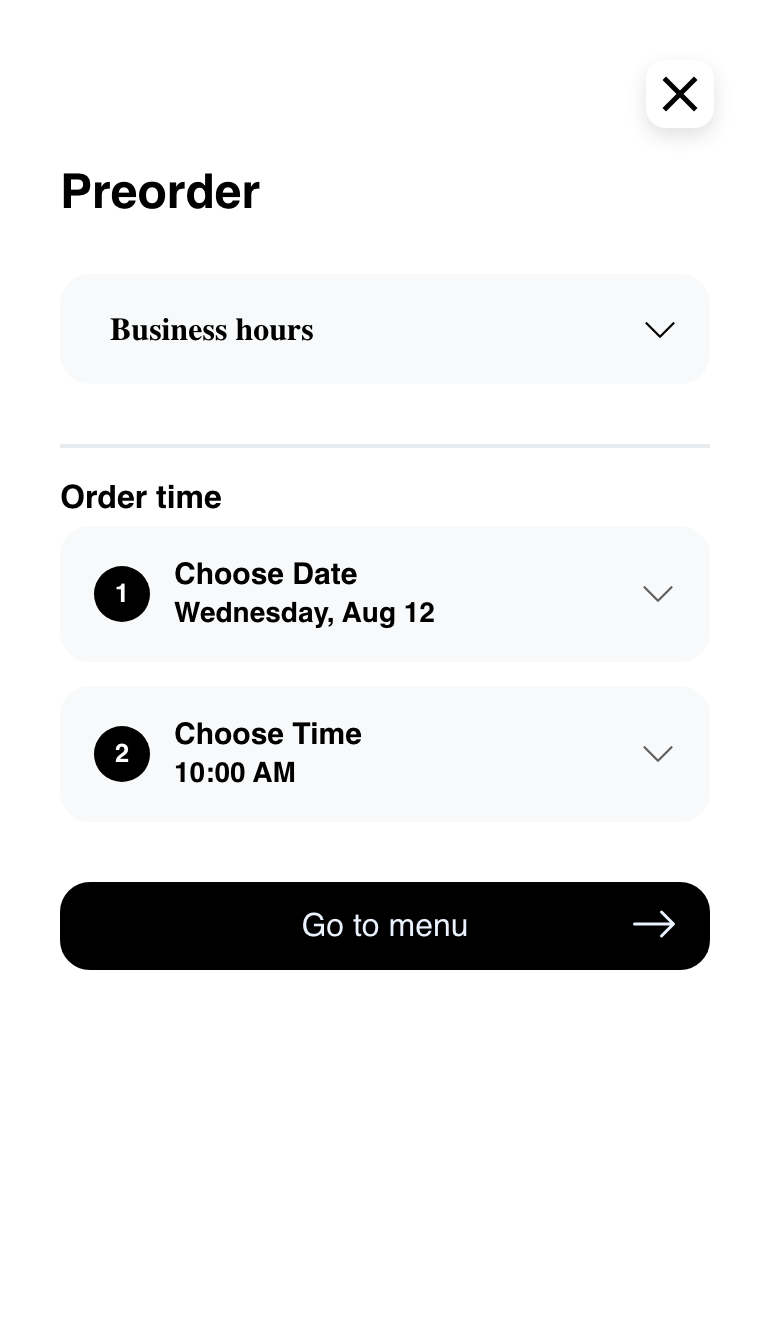
The close control remains available within the mobile dialog. After a date and time are selected, Go to menu is also available. Customers may need to scroll to reach later controls when a date or time list is expanded.
Configuration and experience differences
- Preorder enablement: The Website must make preorder available for the current experience. Closed status alone does not enable it.
- Business and menu schedules: Business hours and returned menu schedules determine which choices can appear.
- Order context: Order type, business selection, and other current ordering details can change availability.
- Timezone and hour format: Dates and times follow the configured business timezone and Website display format.
- Eligible date range: The Website configuration controls how far ahead the standard flow can offer dates.
- Layout: Marketplace, single-store, kiosk, customer, and specialized service experiences can expose scheduling through different controls or omit this standard dialog.
- Responsive presentation: Desktop and mobile show the same selected schedule but can display different amounts of the date picker at once.
Frequently asked questions
Why is Preorder missing for a closed business?
Closed status and future-order availability are separate. Preorder must be enabled and available for the current Website, business, and ordering context.
Why are there no times after a customer selects a date?
The selected business or menu schedule may not offer times on that date. Try another date or another visible schedule source. If no date provides a time, the customer cannot complete the standard preorder flow for that context.
Why do available times differ between businesses or menus?
Each business and menu can have its own schedule. The current order type, eligible date range, Website settings, and business timezone can also affect the choices shown.
Why does the displayed time differ from another session?
Confirm that both sessions use the same business, order type, selected menu, date, and Website. The hour format and availability are based on configuration and the business timezone.
What happens after the customer selects a time?
Website applies the schedule to the current ordering context. From a listing flow, Go to menu continues to the business. From an already-open business page, the customer remains on that page after closing the dialog. Signed-in cart information can refresh when the schedule changes.
Can the customer change the selection?
Yes. Expand Choose Date or Choose Time and select another available value. After changing the date, the customer must choose a time for that date.
Related guides: Browse available businesses · Browse a business and its menu · Review business details and availability