Find products in a business
Customers can use category navigation and product search to find items in the business they are browsing. The categories and products shown reflect the current business, order context, catalog configuration, and availability.
Customers can browse and search a business's catalog while signed out. The available products can change with the selected order type and ordering time, menu and business schedules, inventory, and product or category configuration. Not every Website uses the same menu layout or category hierarchy.
Browse the menu by category
The standard menu can present categories in a horizontal strip and group products into sections below it. All shows the complete available menu initially. Select a category to move to its section; as customers scroll an embedded menu, the highlighted category can update to reflect the section in view.
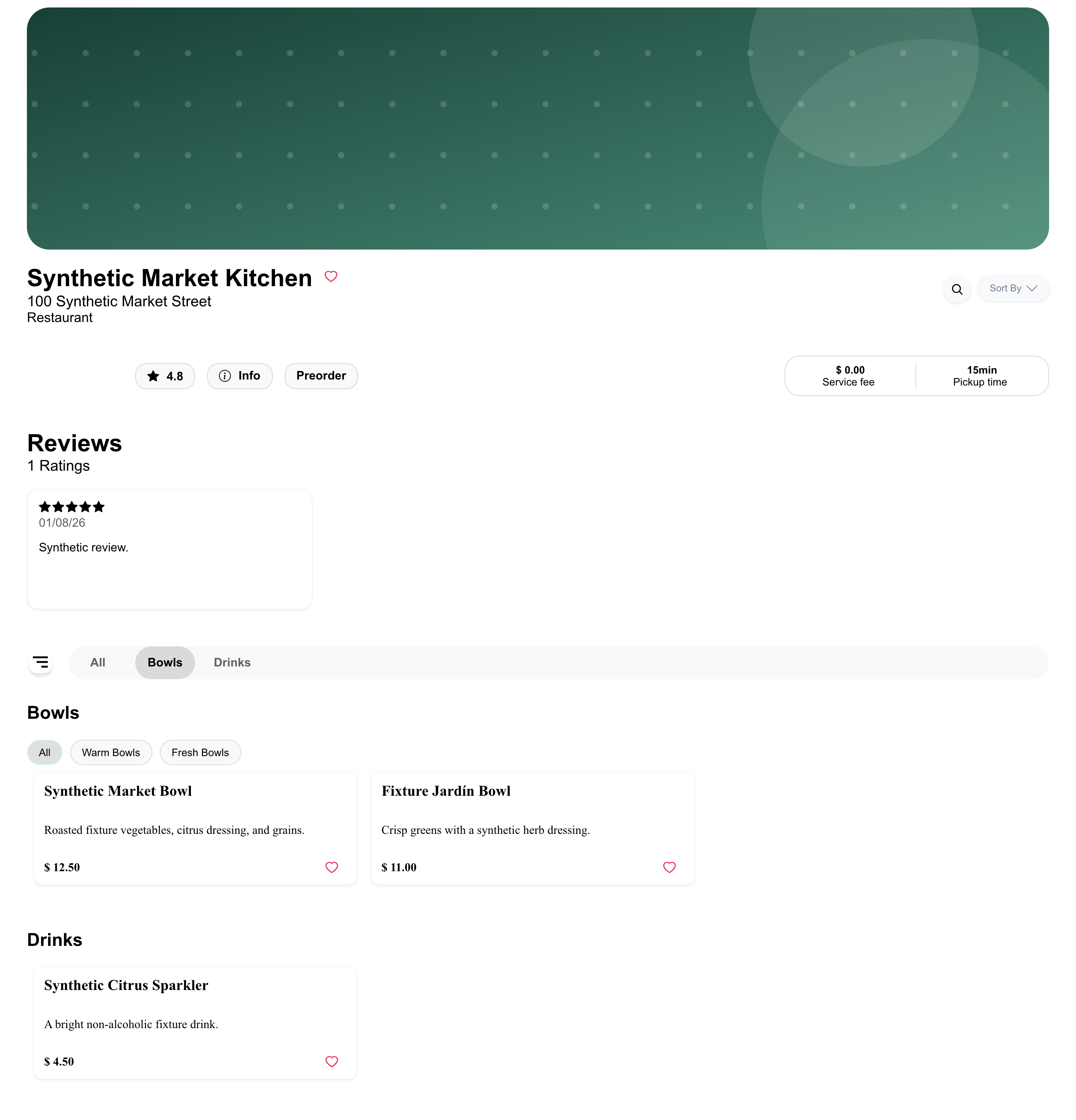
On mobile, the category strip uses the available width and can scroll horizontally. Product sections and cards stack vertically.
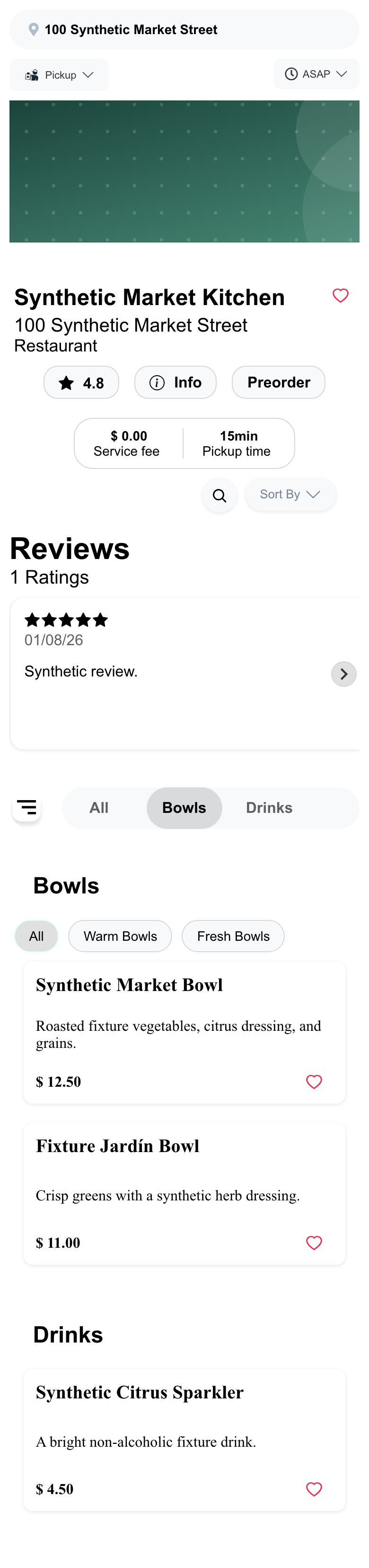
Some larger catalogs load products for the selected category on demand instead of keeping every item on the page. In that experience, selecting a category replaces the current product results, and customers can return to all categories using the action provided by the menu.
Narrow a category with subcategories
A category can include subcategory chips. Select one or more subcategories to show matching products within the parent category. Select All to clear the subcategory selections for that category.

The exact hierarchy comes from the business's catalog. A category without configured subcategories does not show these chips.
Open the category chooser
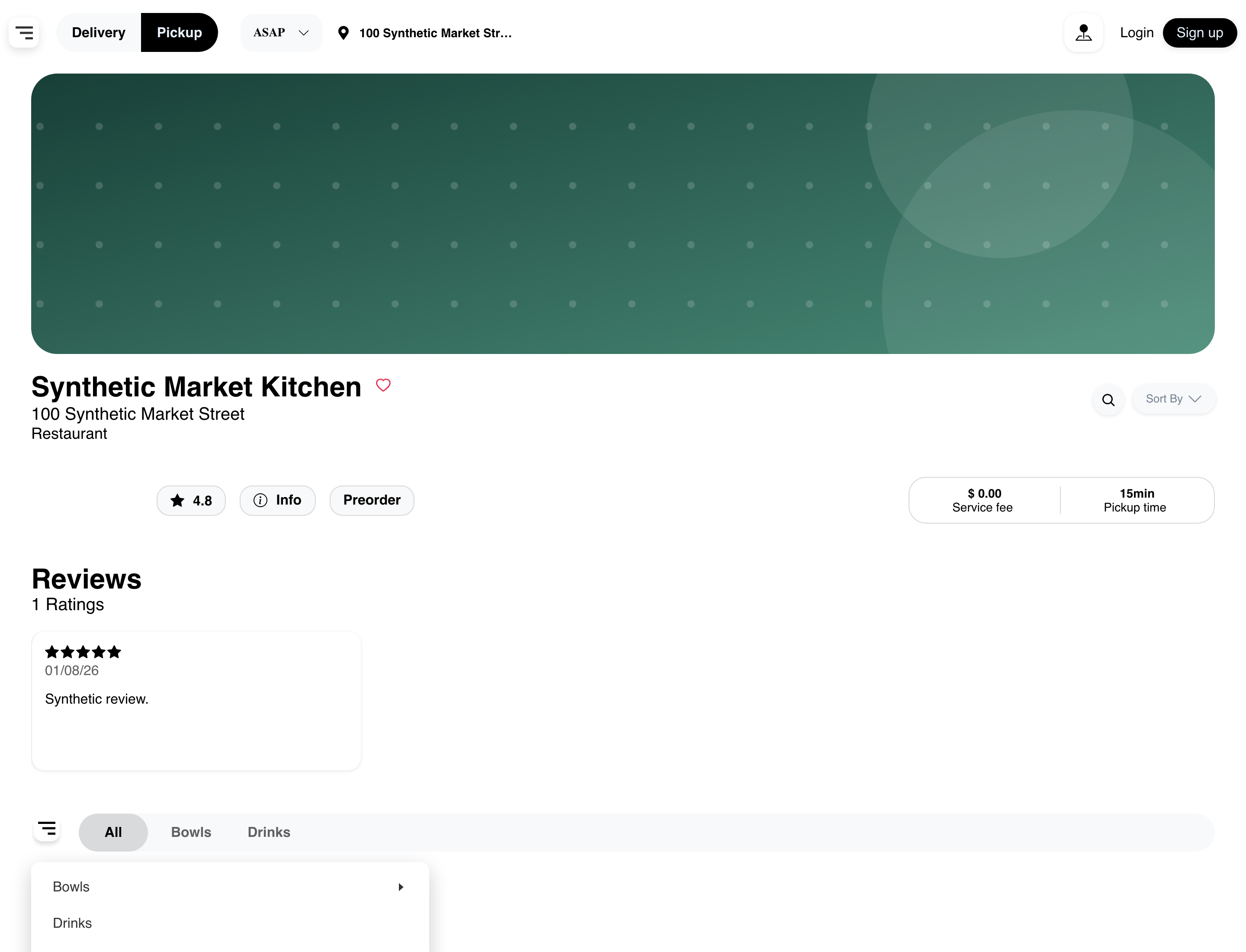
Select the category-list icon beside the category strip to open a hierarchical chooser. On desktop, it appears as an anchored popover. Expand a category when an arrow is available, then select the category or subcategory you want to review.
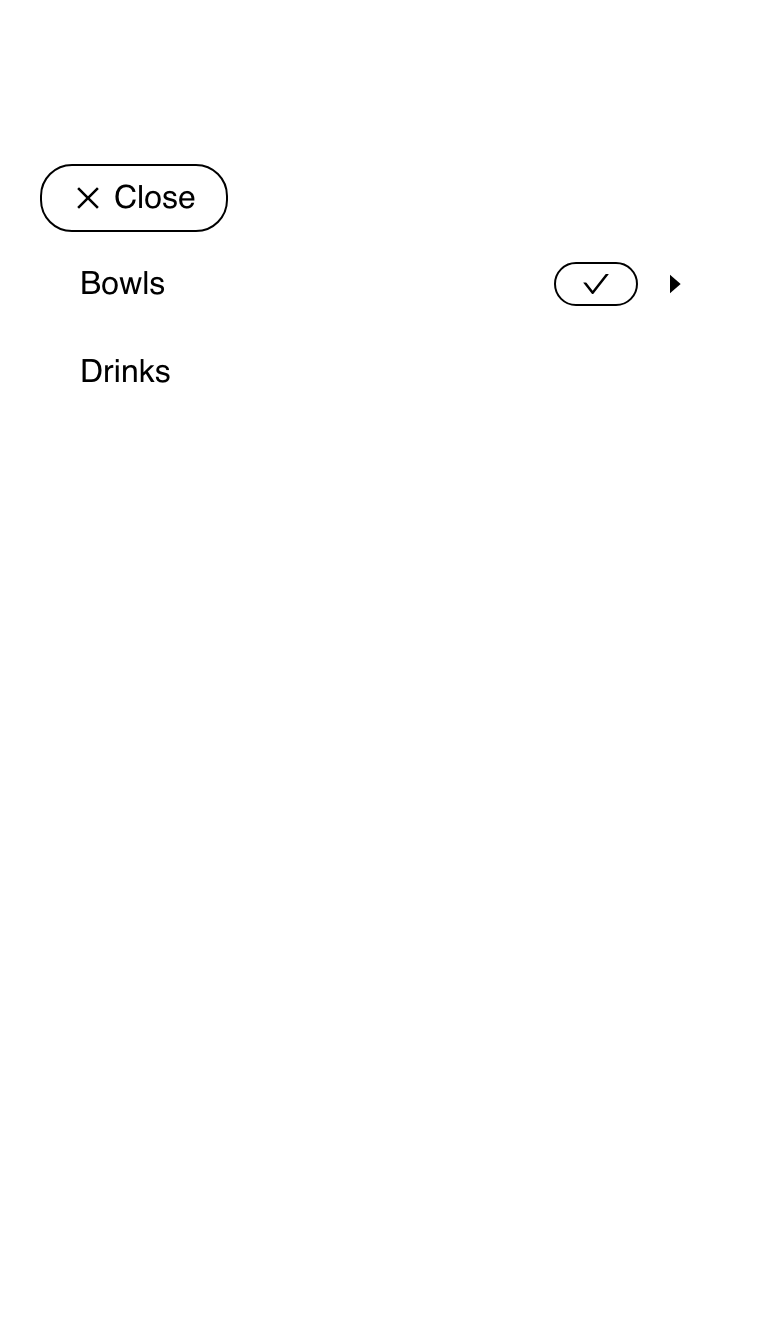
On mobile, the same chooser opens as a slide-bar. Select a category to continue, or select Close to return to the menu without changing the current view.
Search the current business's products
- Select the search icon on the business page.
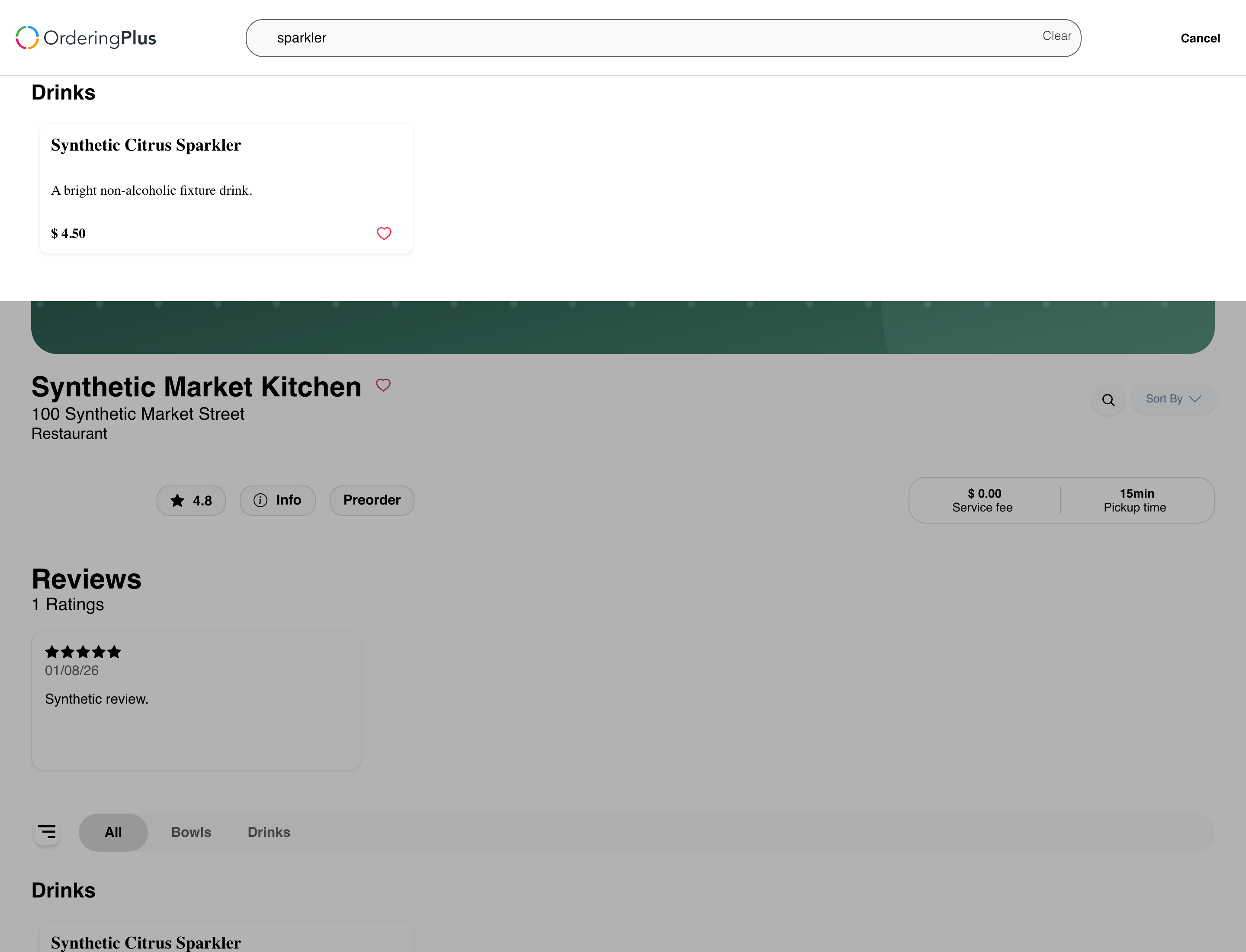
- Enter part of a product name or description in Search Products.
- Review the matching products, which can appear under their category or subcategory headings.
- Select Clear to remove the term, or Cancel to close search and return to the business page.
Search is case-insensitive and accent-tolerant for an embedded catalog. It can match text found in either a product name or its description. Results update immediately in an embedded menu; a larger catalog that loads results on demand can update after a brief delay.
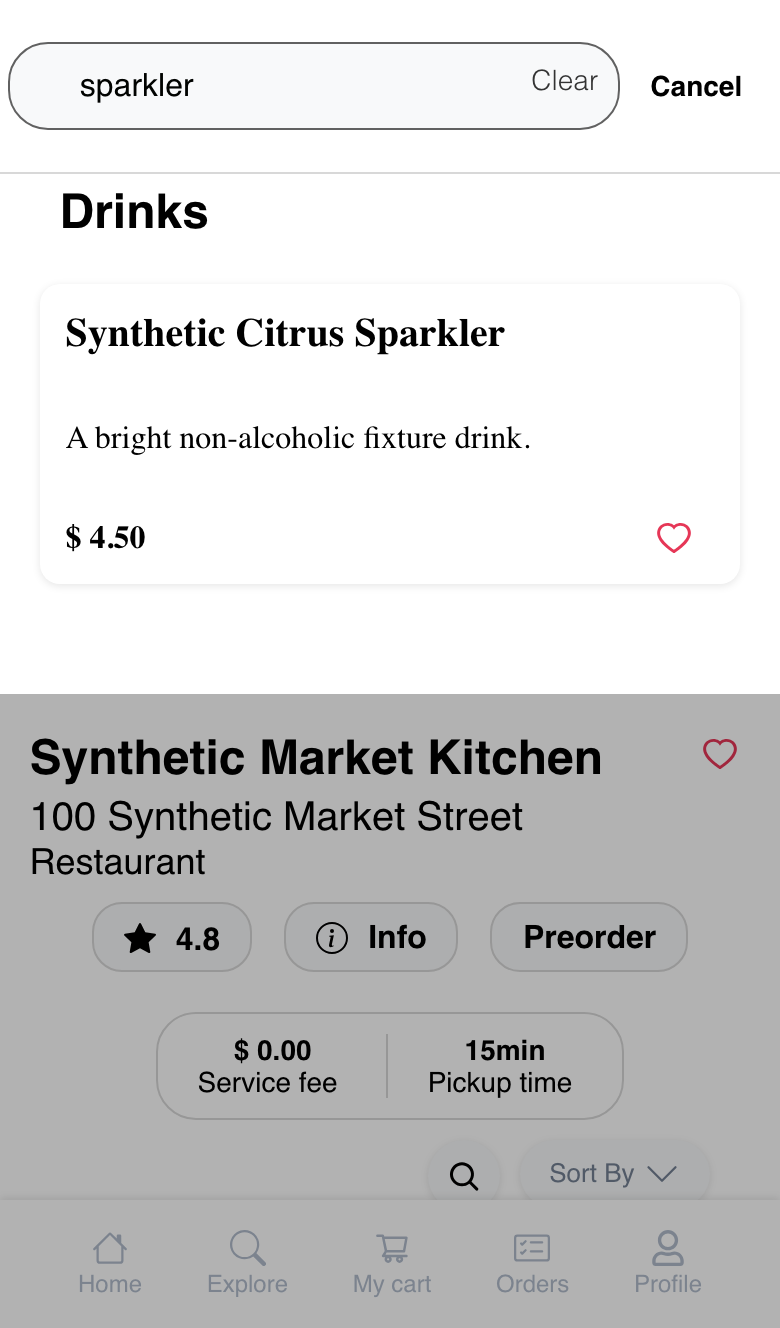
The focused search experience uses the same core behavior on mobile, with controls and result cards arranged for the narrower screen.
Selecting a product continues to the product experience configured for that Website and item. Product details and choices are covered in Customize and add a product. Finding a product does not, by itself, confirm that it was added to a cart.
Handle a search with no matches
When the current term returns no available products, Website shows No products match your filters. Select Clear filters to remove the search term, then try a broader name or description.
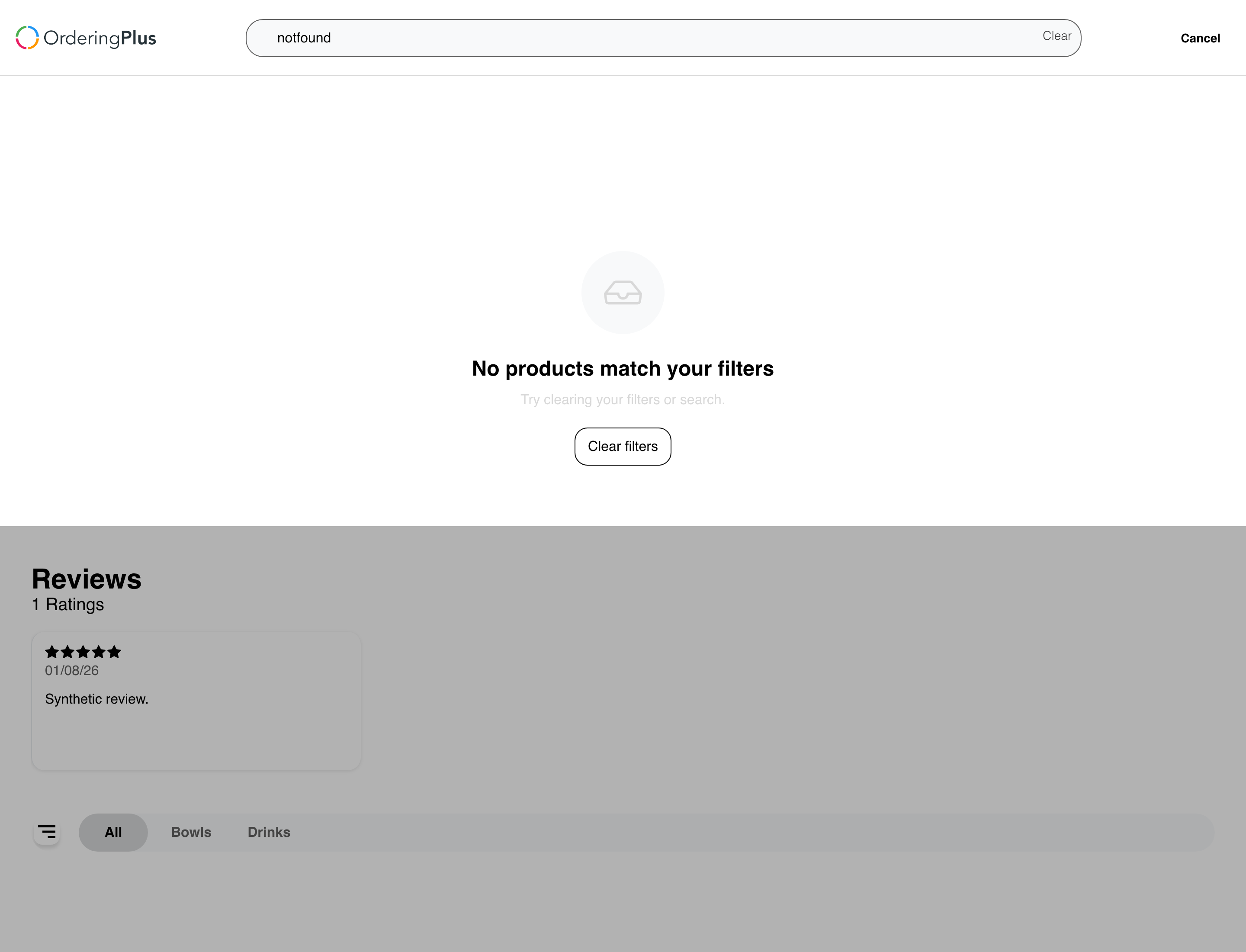
If an expected product remains missing:
- Clear the search and review the complete available menu.
- Confirm the selected order type and ordering time.
- Check whether the product and its category are enabled and available for the current menu and schedule.
- Retry after checking the customer's connection.
- Contact support if the mismatch continues, including the Website, business, approximate time, and non-sensitive order context.
Do not include payment information, credentials, or other sensitive customer data in a support request.
Configuration and layout differences
- Catalog size: An embedded catalog can navigate and search items already on the page. A larger catalog can load a category or search result on demand.
- Category structure: Businesses control their categories and subcategories. Some menus show only top-level categories, while others provide a deeper hierarchy.
- Grocery-style menus: A grocery layout can begin with a hierarchical category browser and then show the selected category's products, especially on smaller screens.
- Marketplace, single store, and kiosk: The business header and surrounding navigation can differ, but customers use the menu's available category and search controls to find products.
- Theme and viewport: Category placement, chooser presentation, product cards, images, and control placement can vary between Website themes and screen sizes.
Category and search selections apply to the current page experience. Customers should use links generated by Website or an explicitly supported deep link; selecting a category does not create a shareable category selection.
Frequently asked questions
Why is a category or product missing?
The menu reflects the current business, order type and ordering time, menu and business schedules, inventory, and category or product availability. Confirm that context and configuration before treating the missing item as a page problem.
Why do search results take a moment to update?
An embedded menu can filter its current products immediately. A larger catalog can request matching products after a brief delay so it does not load the complete catalog up front.
Does product search include every business in the marketplace?
No. This search covers the business currently open. To search across available businesses and returned product matches, use the marketplace business search experience.
Does selecting a product add it to the cart?
The next action depends on the product, customer context, and Website configuration. Selecting a product can continue to product details or another configured product flow; do not use the selection alone as confirmation that the cart changed.
Why does the category chooser look different on mobile?
Desktop uses an anchored popover, while smaller screens use a slide-bar with a Close action. Both provide access to the menu's configured category hierarchy.
Related guides: Browse a business and its menu · Browse available businesses · Search, filter, and map businesses