Customize and add a product
Customers can open a product from a business menu, review its available details, and make the choices required before adding it to their cart. The exact fields and controls depend on the product, the Website configuration, and the customer's current order context.
Products, choices, prices, and availability can vary with the selected order type and ordering time, the business and menu schedule, inventory, and catalog configuration. Adding a product can also require a customer session or an address for the selected fulfillment type.
Open and review a product
Select a product from the business menu to open its details over the business page. Depending on the available catalog data and Website theme, the dialog can show a product image or gallery, name, description, base or offer price, tags, calories, SKU, estimated servings, ingredients, options, and share or favorite controls.
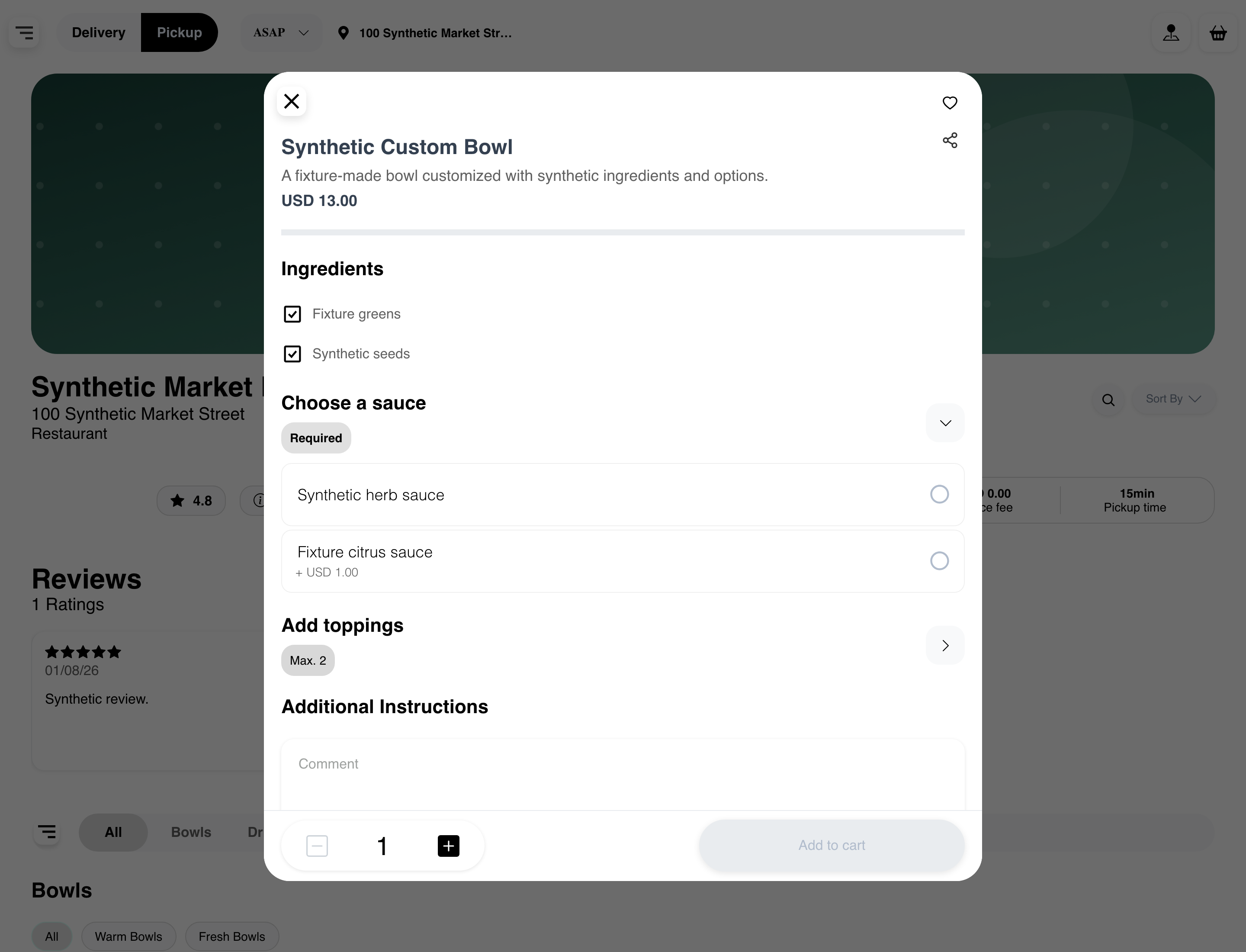
Not every product includes every field. Closing the dialog returns the customer to the business experience.
A product link generated by Website can open the same product dialog directly when the product remains available. URL formats vary by Website configuration, so customers should use a link generated by the Website instead of constructing one manually. A direct link remains subject to the same account, integration, business, menu, and order-context requirements as normal navigation.
Review the included ingredients
When a product provides an ingredient list, the available ingredients begin included. Clear an ingredient to remove it, or select it again to restore it before adding the product.

Some products do not expose an ingredient list. Ingredient controls are unavailable when the product cannot currently be ordered.
Complete required and optional choices
Option groups show the selection rule that applies to them. For example:
- Required means a choice must be completed.
- Choose N indicates the exact number of choices to select.
- Min. N, Max. N, or a minimum–maximum range indicates the permitted selection range.
Required groups normally begin expanded, while optional groups can begin collapsed. Expand a group to review its enabled choices. A price shown with a plus sign is the additional amount for that choice.
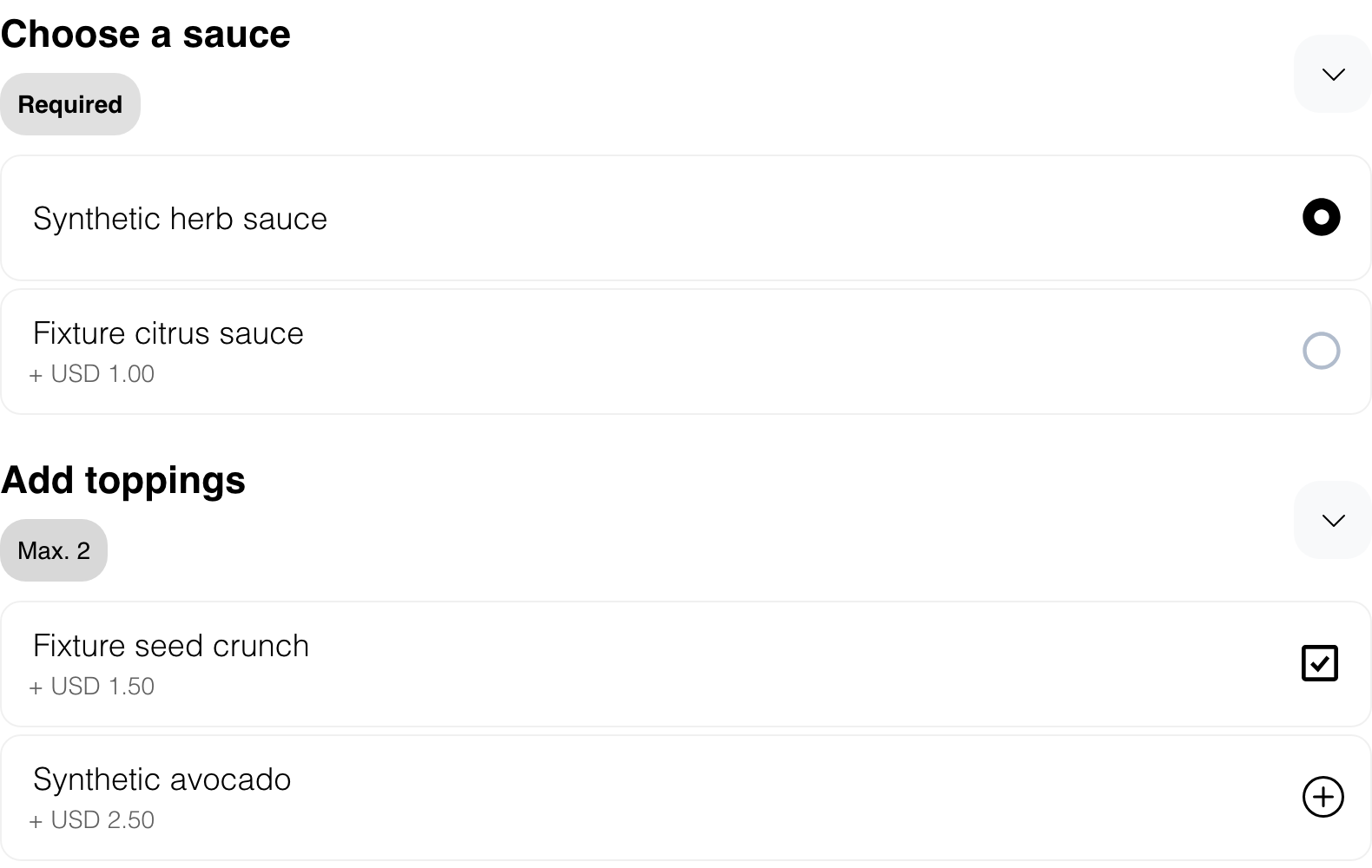
Some option groups appear only after a related choice is selected. If the parent choice is removed, its dependent selections are also cleared.
Website prevents its Add to cart action when an active option group does not satisfy the displayed rule. If adding does not proceed, return to the first highlighted group, complete its required choices, and try again. Reaching the maximum for a multi-choice group does not automatically replace an existing selection.
The product header shows the product's available price, and priced choices show their added amounts where applicable. The dialog does not promise a live tax-, fee-, or discount-inclusive total. Cart totals are recalculated after the product is added.
Add instructions and choose a quantity
If the product accepts special instructions, enter the request in Additional Instructions. Some products hide this field.
Use the minus and plus controls, or the available quantity field, to set the amount. The starting quantity and permitted range can reflect product limits, Website limits, current inventory, and quantities already in the customer's carts. Controls become unavailable when a limit is reached.
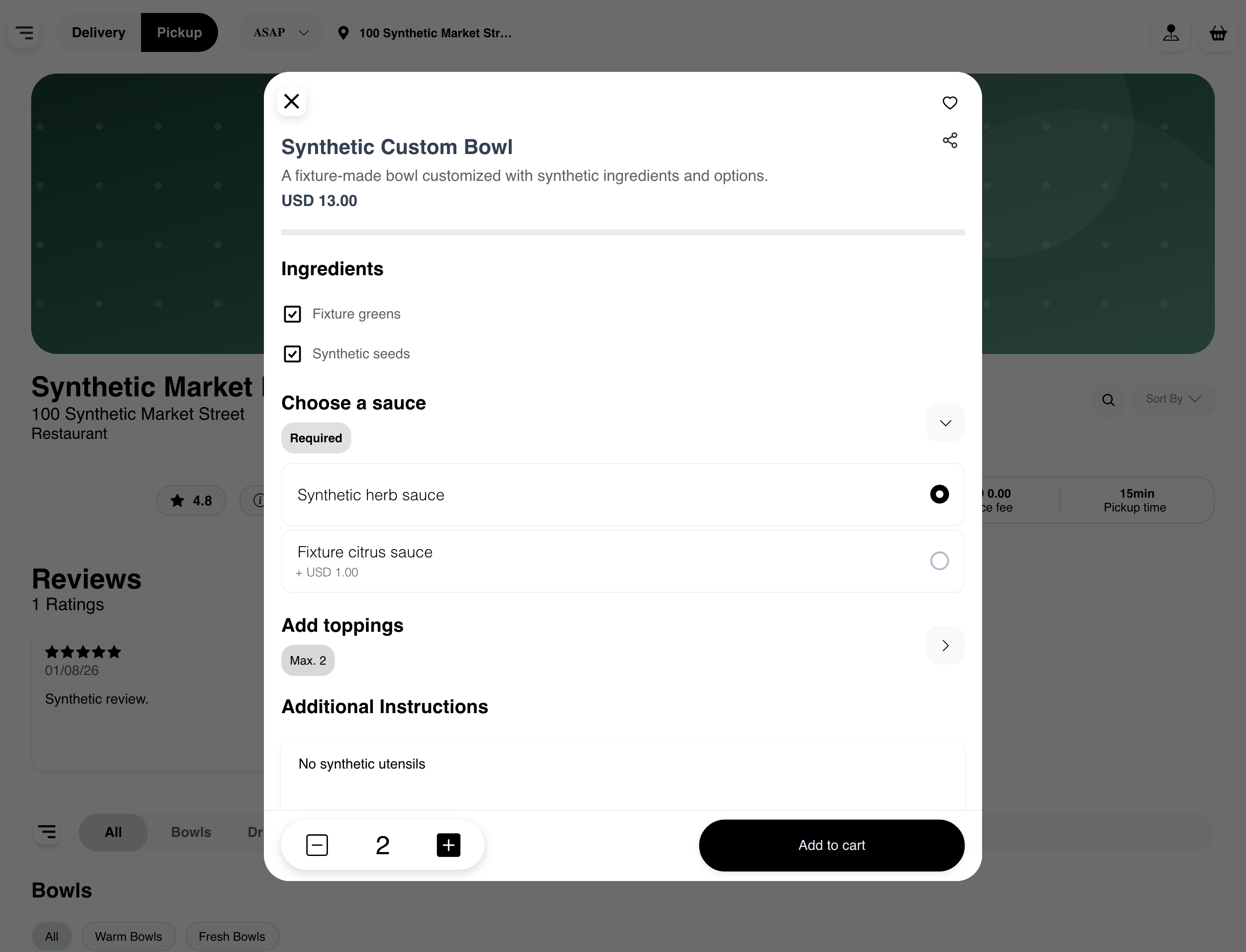
To finish:
- Complete every required option group.
- Review optional choices and included ingredients.
- Add instructions when the field is available.
- Confirm the quantity.
- Select Add to cart.
Website rechecks product and inventory availability when the item is added. A successful add updates the cart with the current selections and recalculated totals. If the action asks the customer to log in, sign up, continue as a guest, or add an address, complete the available prompt before returning to the product flow.
After the cart updates, see Manage a cart to review quantities, choices, and the checkout handoff.
Understand a sold-out product
A sold-out product can remain visible so customers can review its name, description, and available pricing information.

Its ingredient, option, instruction, and ordering controls are disabled, and the final action reads Sold out.

Viewing a sold-out product does not reserve inventory or add it to the cart. Availability can change as inventory and the current order context change.
Use the product dialog on mobile
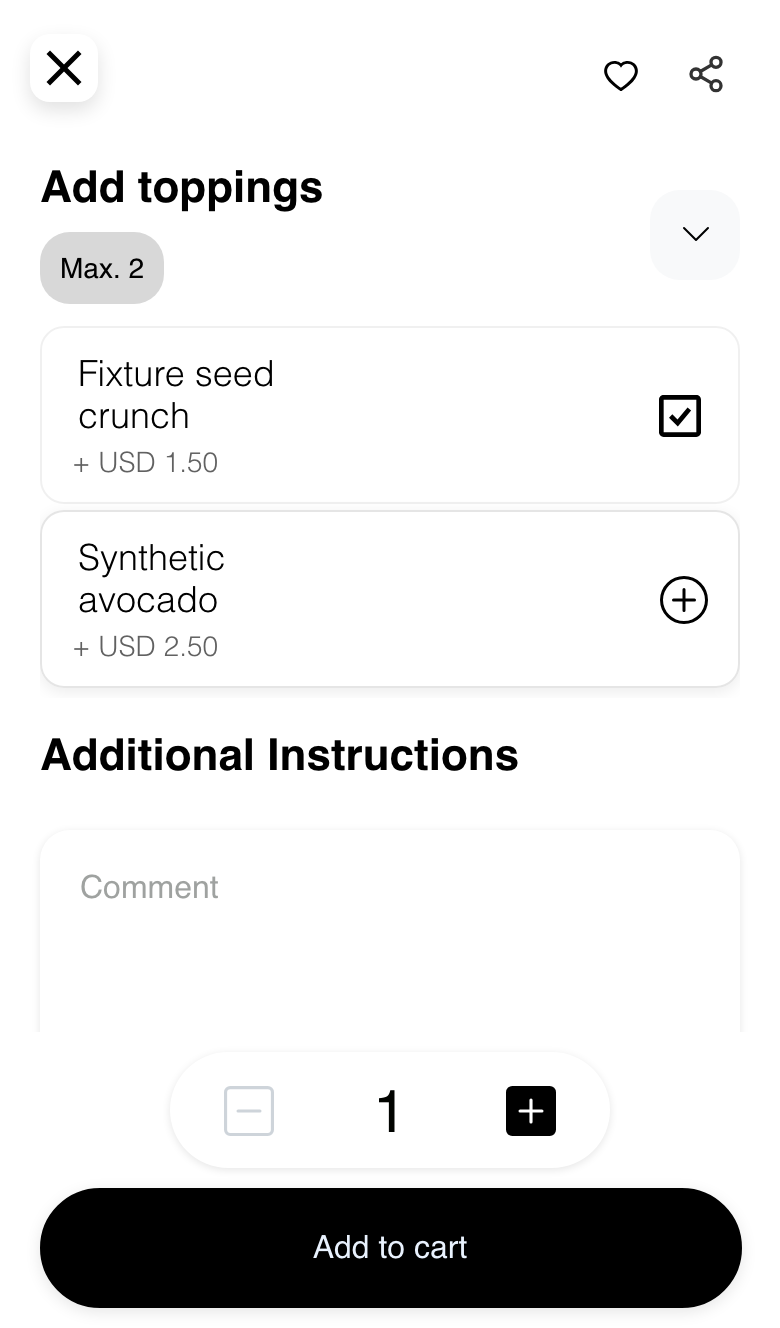
On smaller screens, the product experience fills the available viewport. Customers use the same ingredient, option, instruction, quantity, and final-action controls in a single scrollable flow. The close, favorite, and share controls can move to fit the narrower layout.
Understand direct add from the menu
Some Websites can add a simple eligible product directly from its menu card. This behavior is limited by the Website setup and the customer's current context. Products that require choices, inventory review, authentication, or address setup open or retain the appropriate flow instead.
Customers should confirm that the cart changed before assuming a menu-card selection added the product. Direct add does not bypass availability or cart checks.
Configuration and experience differences
- Product content: Images, descriptions, tags, ingredients, options, instructions, and merchandising details appear only when supplied and enabled.
- Choices: Only enabled choices are shown. Required, optional, priced, quantity-based, dependent, and placement choices vary by product.
- Favorites and sharing: When enabled, customers can save a product or use the displayed sharing controls. Account requirements and available share destinations can vary.
- Marketplace, single store, and kiosk: The surrounding navigation and some product controls can differ. Kiosk experiences can omit customer-facing favorite and share controls.
- Specialized products: Services, appointments, school ordering, weighted products, and promotional products can use additional or different steps from the ordinary product form described here.
Frequently asked questions
Why is Add to cart unavailable?
Check every required option group, the quantity, current product availability, and whether the flow requires a customer session, address, or other order setup. A sold-out product remains viewable but cannot be added.
Why did another option appear after I made a choice?
Some choices control dependent option groups. The related group appears only while its parent choice is selected, and removing the parent can clear the dependent selection.
Does the price in the product dialog include the final order total?
Not necessarily. The dialog can show the product price and added amounts for priced choices. The cart recalculates totals after the product is added, including the pricing rules that apply to the order.
Why does a shared product link not open the expected item?
The product must still resolve under the Website's configured URL format and current business, menu, authentication, integration, and order context. Return to the business menu and find the product again if the shared link is no longer valid.
Why was a simple product added without opening this dialog?
Some Websites support direct add for eligible simple products. Products that need customization or additional setup continue through the applicable product flow.
Related guides: Browse a business and its menu · Find products in a business · Choose a location and order type