Browse a business and its menu
A business page helps customers understand where they are ordering from and review the menu before choosing a product. Depending on the available data and your Website configuration, it can show the business identity, current availability, fulfillment summary, categories, products, and supporting details.
Customers can browse a business while signed out. Some actions, such as saving a favorite or starting a reservation, can require customers to sign in or create an account, or can start an account session. A signed-in customer might also need to complete required account verification or profile information before continuing.
Review the business overview
At the top of the page, customers can review the business name, address, type, and current open or closed indication when those details are available. The page can also summarize information for the active order type, such as a service fee and estimated pickup or delivery time.
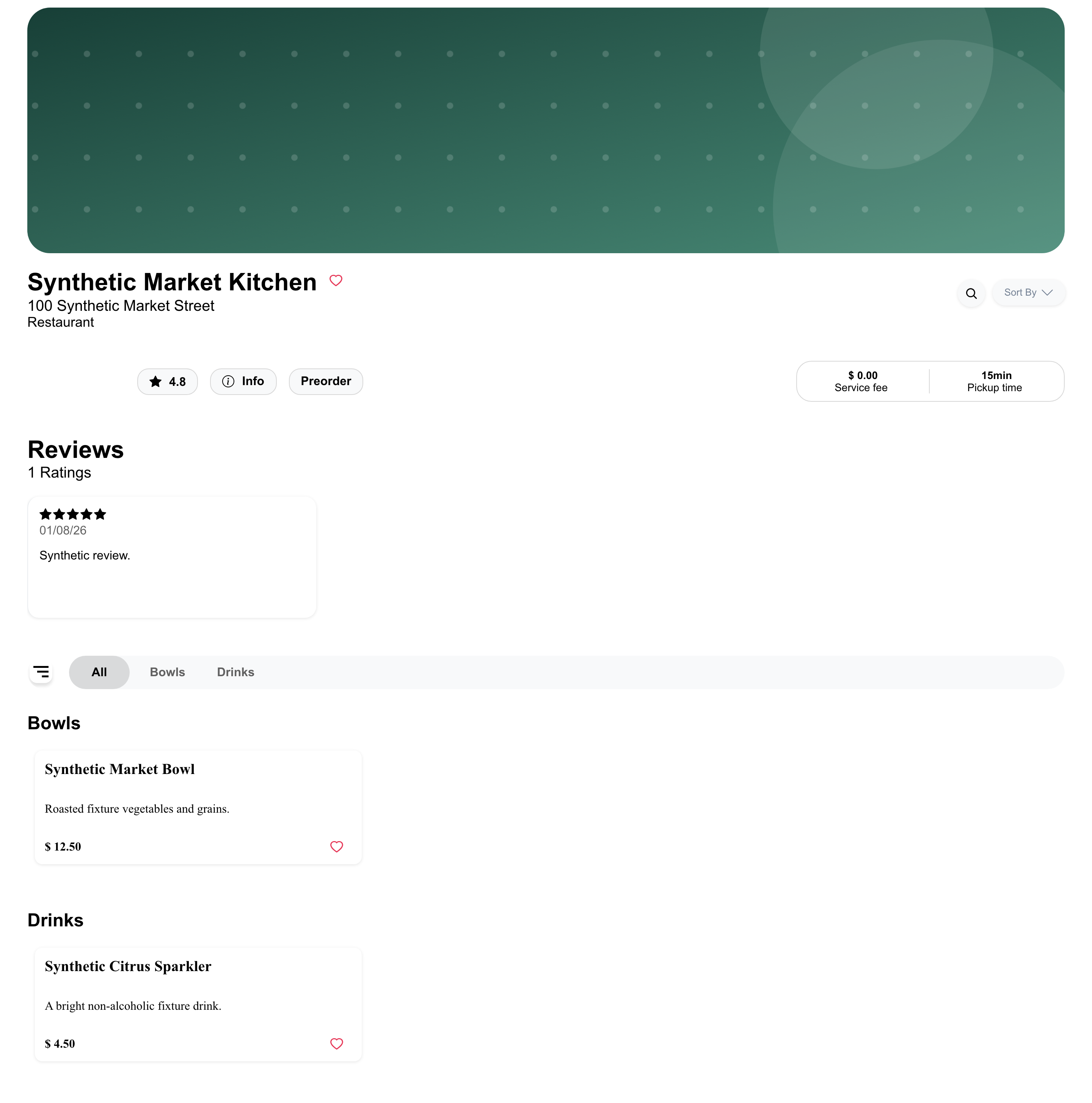
The menu and fulfillment summary reflect the customer's current order context. The selected order type, location and ordering time when available, business and menu schedules, inventory, and configuration can change what Website shows. A customer can still be allowed to view a menu without first selecting a location in some Website experiences.
Visible controls vary. For example, the page can provide:
- Info for additional business details.
- A rating or an inline review section when reviews are available and not hidden.
- Preorder when future ordering is enabled.
- A reservation entry point when reservations are enabled and supported by the business.
- Favorite controls that can ask a signed-out customer to log in or sign up.
Detailed reviews, reservations, schedules, and other business information are covered in Review business details and availability. The complete preorder flow is covered in Schedule a preorder.
Browse categories and products
Products are grouped under their menu categories. Category navigation helps customers move through the groups returned for the business. Depending on the product data and layout, a product can show its name, description, image, price or offer, and sold-out status.
The products shown are the products available for the current business and order context. A missing category or product can reflect menu scheduling, inventory, order-type eligibility, or business configuration rather than a page problem.
Product actions can vary by product and configuration. Product details, options, ingredients, and customization are covered in Customize and add a product. Menu search and category controls are covered in Find products in a business.
Mobile experience
On mobile, the current location, order type, and ordering time can appear above the business content. The business summary, reviews, category navigation, and product cards then use the available screen width.
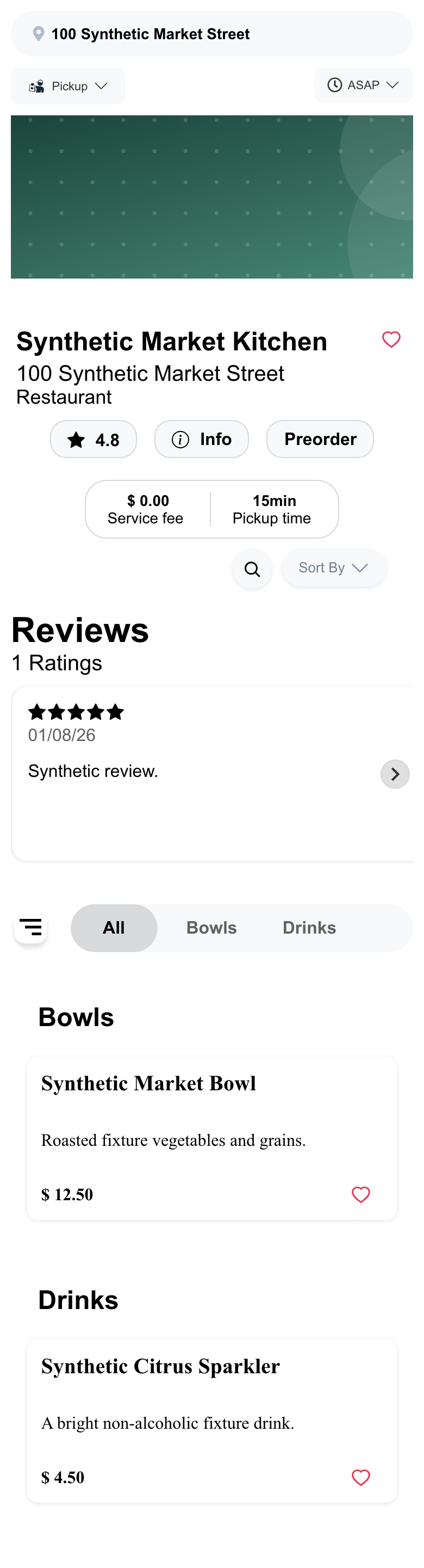
The information follows the same availability rules as desktop, but controls can move, stack, or use a horizontally scrollable layout. Business logos and other decorative details can also differ between desktop and mobile.
Understand a closed business
When the business data and Website layout support it, the header can show that the business is currently Closed.
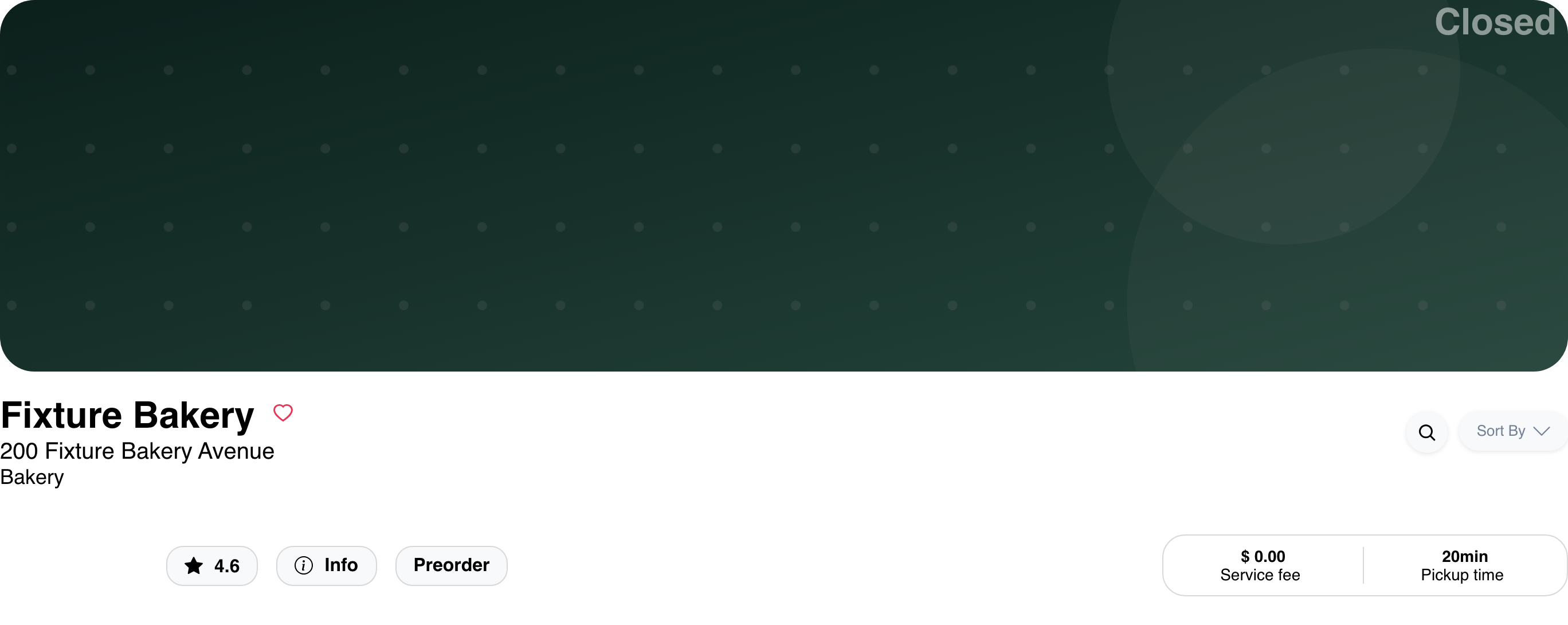
A closed indication does not guarantee that future ordering is available. When preorder is enabled, customers can choose Preorder to review the dates and times available for that business and order context. Website does not automatically open scheduling merely because a customer visits a closed business.
Products can still appear on a closed business page when they are returned for the current context. Business open status, menu availability, and future ordering are evaluated separately.
Open business information
Select Info to review the additional details supplied for the business. Depending on the business data and configuration, the dialog can include a description, weekly schedule, and estimated delivery or pickup times.
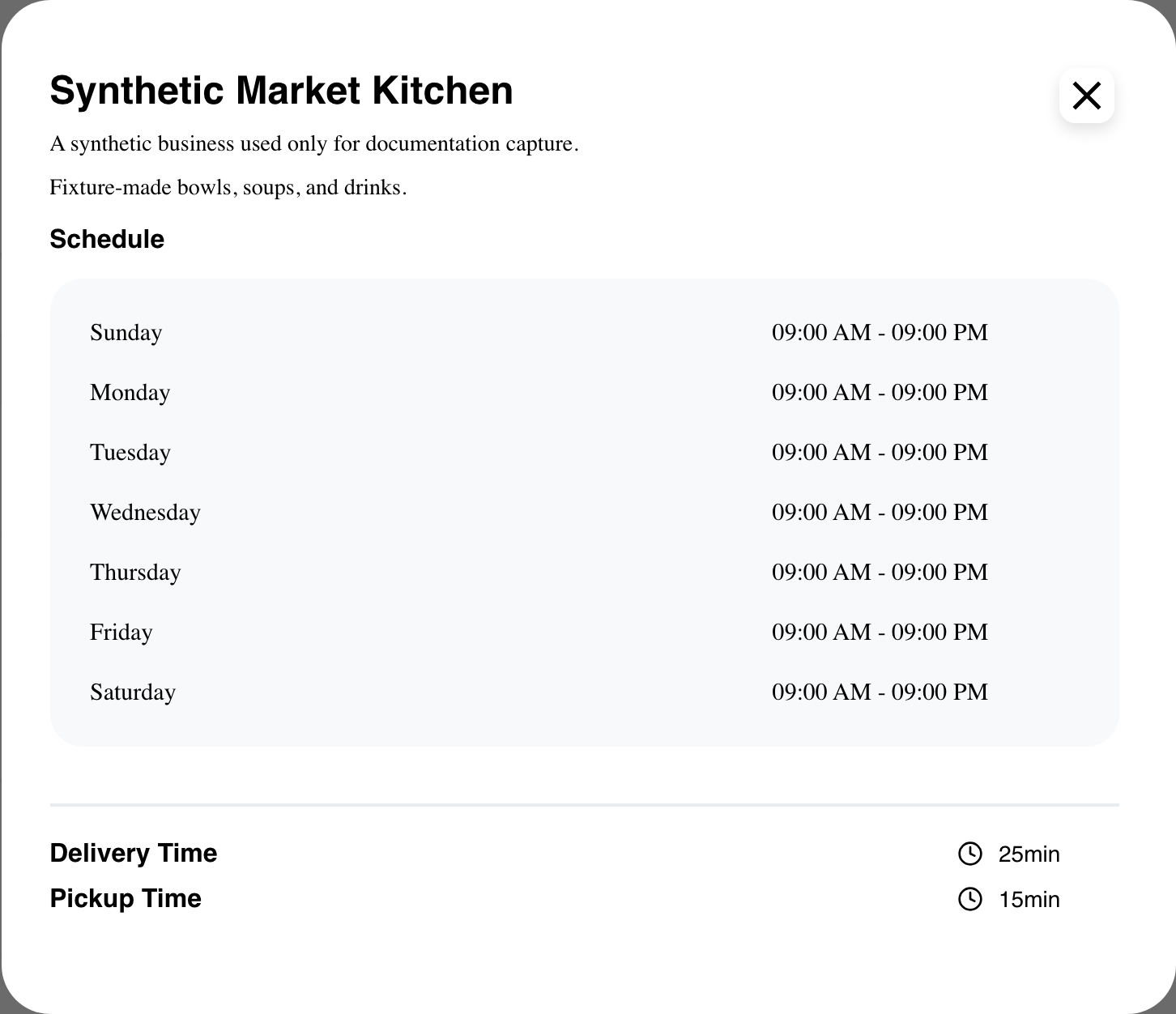
Not every detail is present for every business. The Website theme, business vertical, available business data, and enabled capabilities determine which sections appear.
Handle an empty menu
If the business loads successfully but no categories or products are available, Website shows No products available right now.
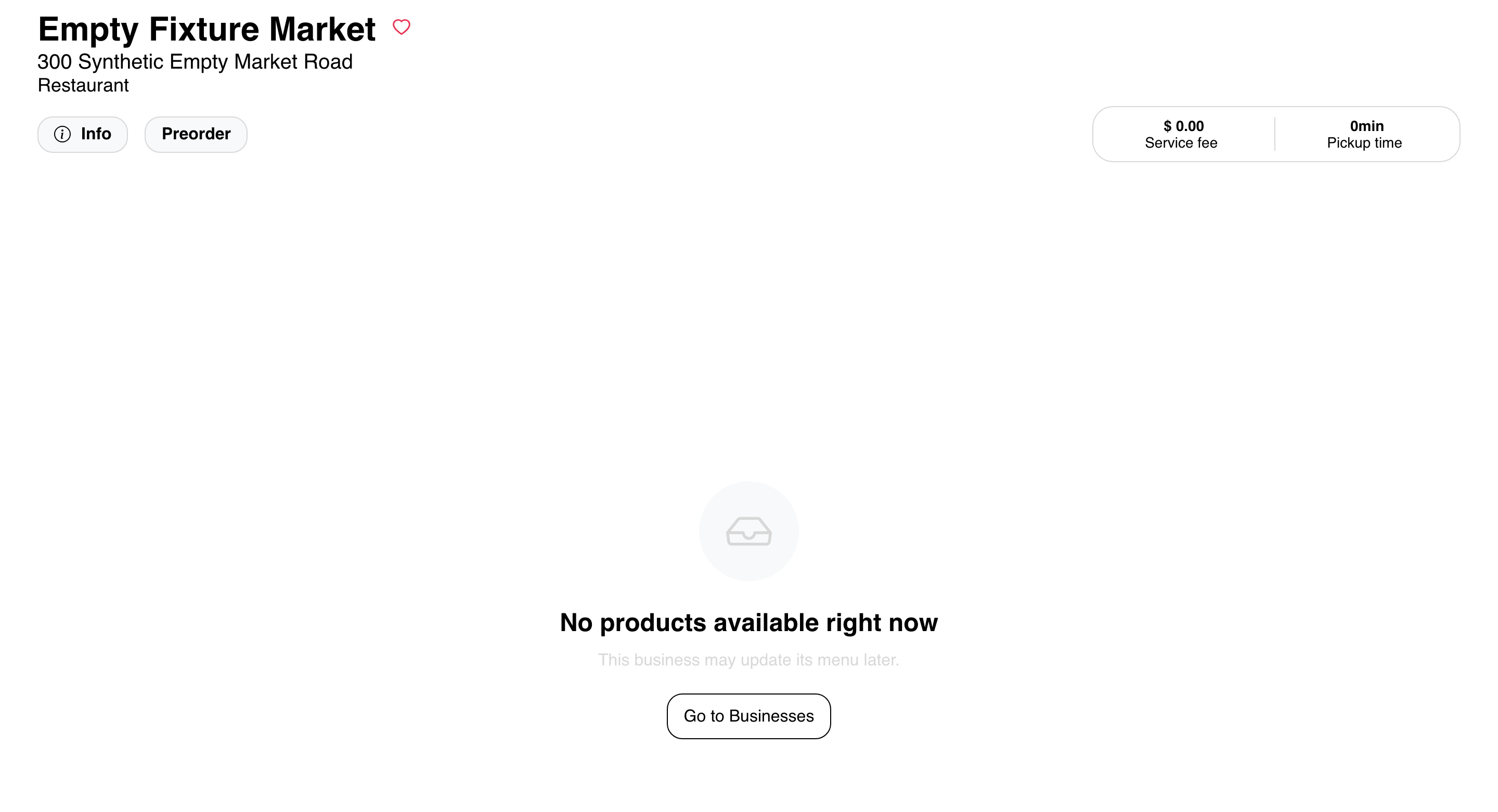
In a marketplace experience, the page can provide Go to Businesses so the customer can choose another business. A single-store experience can omit that action.
Ask the customer to confirm the selected order type and ordering time, then try again when the menu is expected to be available. If products remain missing, check the business schedule, menu schedule, inventory, and order-type configuration.
Configuration and layout differences
- Marketplace: Customers usually arrive after selecting a business from discovery results. Supported customer links can also open a specific business directly.
- Single store: Website can resolve the configured business without presenting the marketplace business list, and some navigation or recovery actions can be omitted.
- Kiosk: The page can use an in-person order context and omit account or storefront controls that are not needed on a kiosk.
- Theme and vertical: Header imagery, logos, reviews, product cards, category navigation, business details, and control placement can differ.
Business links follow the URL patterns configured for the Website. Customers should use links generated by Website or an explicitly supported deep link; do not assume every Website uses the same public URL format.
Frequently asked questions
Why can a customer browse without signing in but not use an action?
Viewing the business and menu is available to signed-out customers. Actions tied to an account or session, such as favorites or some reservation flows, can require login or signup, or start a session as part of the flow. Signed-in customers can also be asked to complete required verification or profile information.
Why is a category or product missing?
The menu reflects the current order type, location and ordering time when available, menu and business schedules, inventory, and configuration. Confirm that context and the product's menu eligibility before treating the missing item as an error.
Why is Preorder missing from a closed business?
Closed status and preorder availability are separate. The button appears only when preorder is enabled, and the available dates and times depend on the business and menu configuration.
Why are business details or reviews missing?
The Website theme can hide sections, and the business must have the corresponding data. Reviews, reservation controls, schedule details, and media are conditional rather than guaranteed.
What should a customer do if the business does not load as expected?
Confirm the intended business link, order type, and ordering context, then retry the page after checking the connection. If the issue continues, contact support with the Website, approximate time, business name, and non-sensitive order context. Do not include payment information, credentials, or other sensitive customer data.
Related guides: Browse available businesses · Search, filter, and map businesses · Browse promotions