Complete your profile and verify contact information
After authentication, Website can require a customer to complete missing profile information or verify the email address or phone number on the account before continuing. The fields and verification steps shown depend on the Website configuration and the customer's current account information.
These screens appear only when the current Website requires additional profile information or contact verification. Checkout, order, kiosk, and other specialized experiences can handle the timing differently.
Complete required profile information
When profile information is missing, Complete your profile can replace the page the customer was trying to open. Complete every field displayed, then select Continue.
The representative screen asks for Name and Last name. Another Website can ask for different or additional configured fields, such as contact information or birthdate.
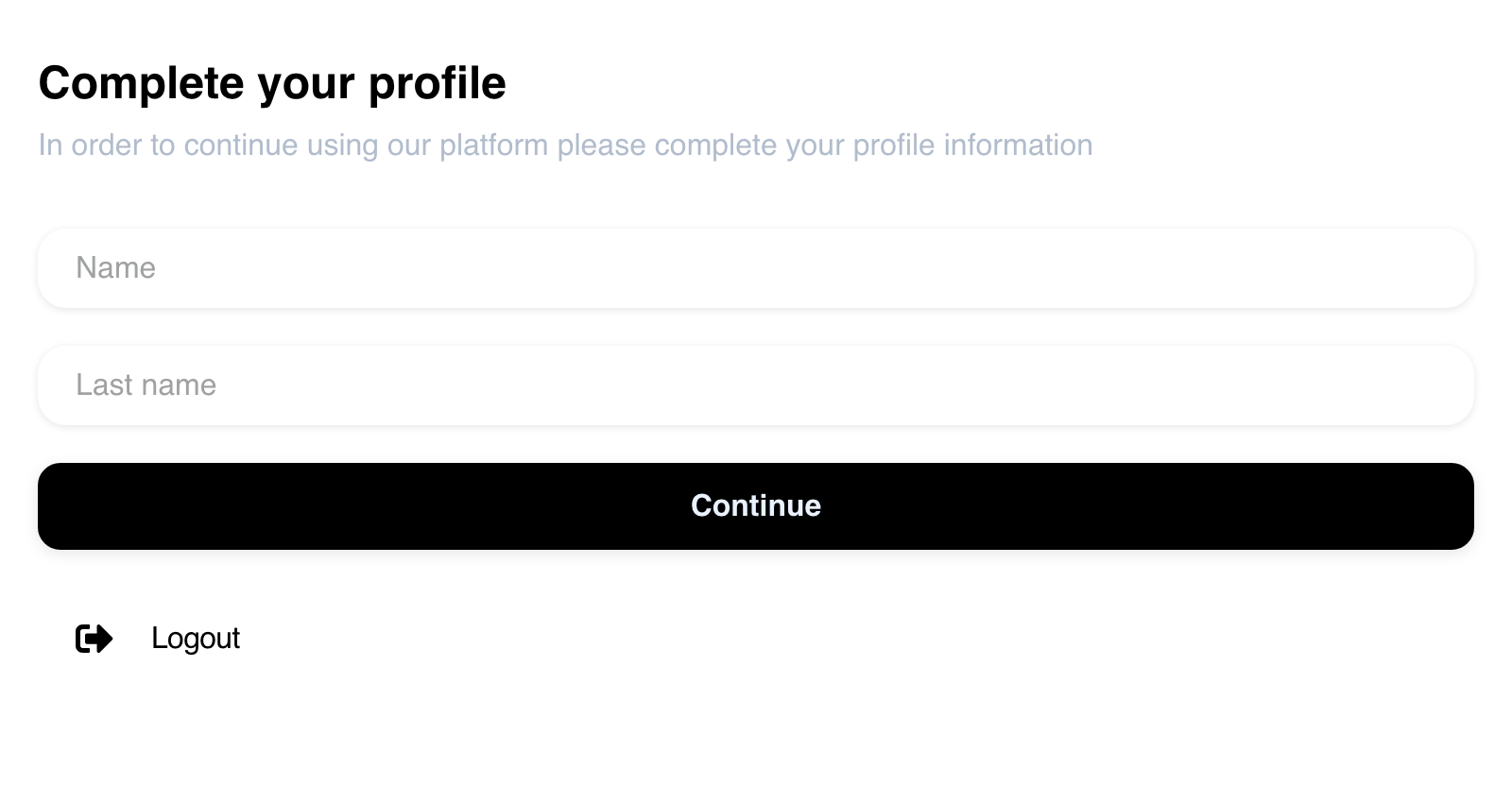
Continue submits the displayed changes. If another requirement remains, Website can present that next step instead of returning directly to the page the customer originally opened.
Select Logout when the customer does not want to continue in the current account session.
Verify an email address
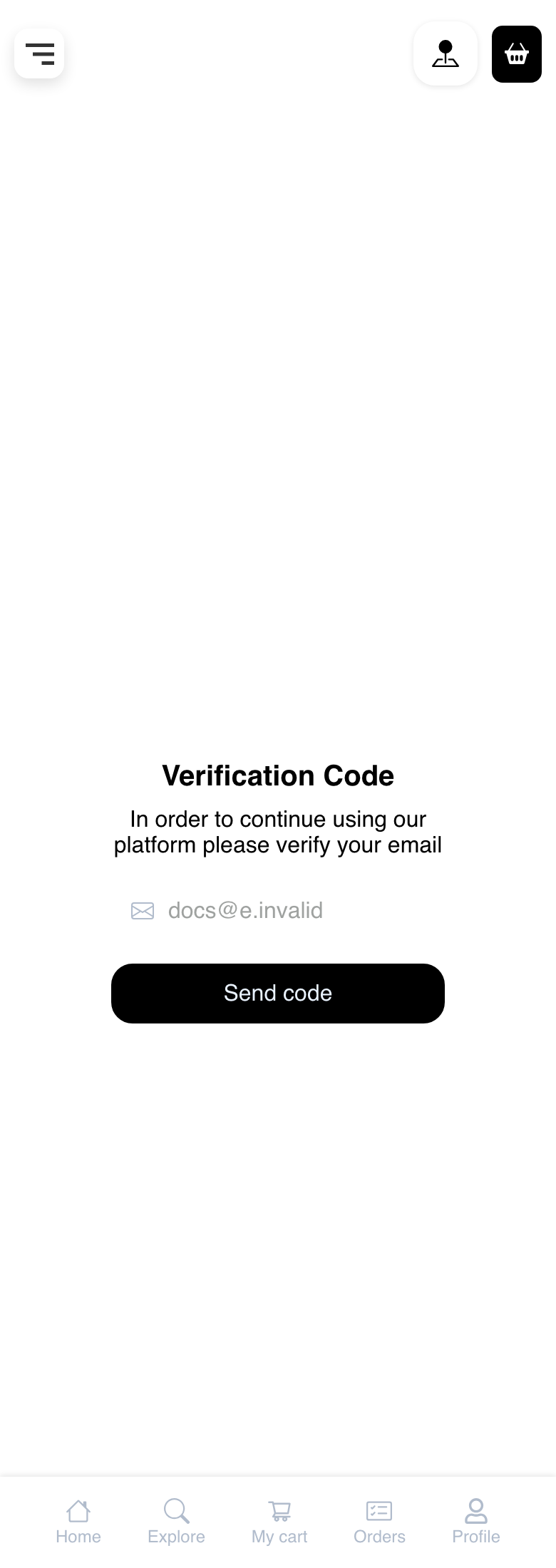
When email verification is required, the pre-send screen displays the account email as read-only and provides Send code.

Confirm that the displayed email belongs to the customer before selecting Send code. Sending the request does not by itself complete verification. After a message is received, follow the instructions shown on Website and enter the current code when prompted.
Delivery and resend choices can vary. Never share a verification code with another person.
Verify a phone number
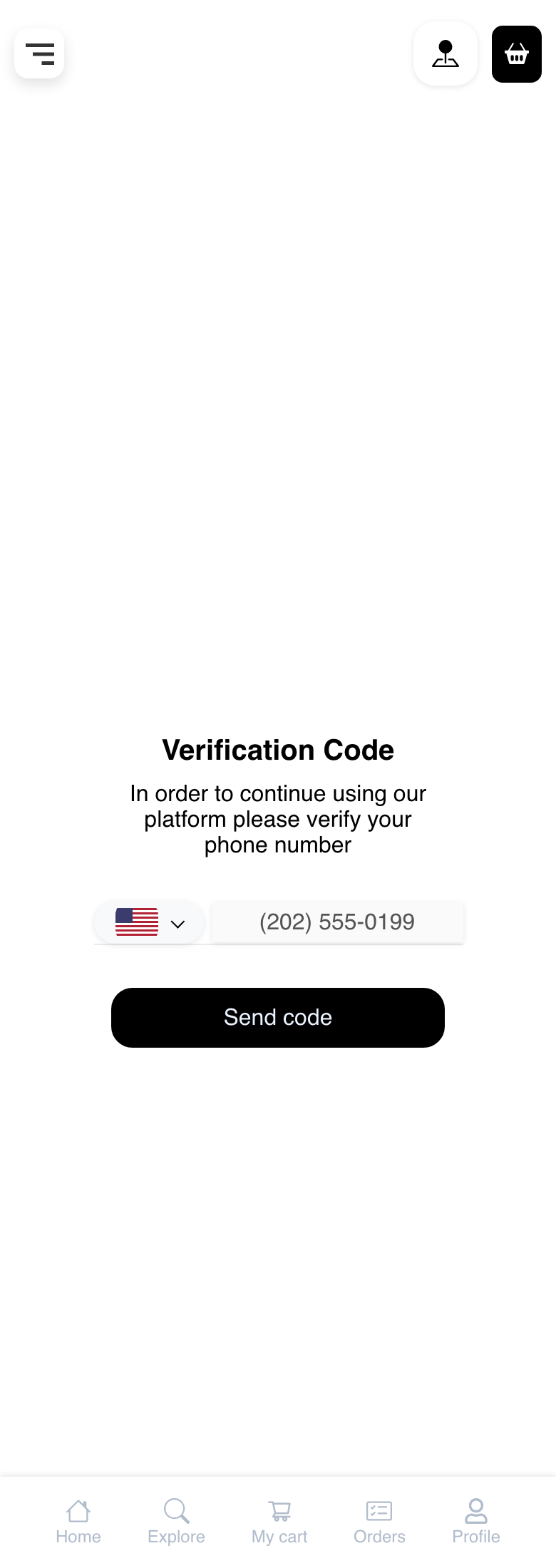
When phone verification is required, Website displays the account phone number and a configured send action. The representative screen provides Send code.

Confirm the displayed country and phone number before requesting a code. Depending on configuration, Website can offer a general send action or identify an available delivery choice. After the message arrives, follow the current on-screen instructions.
If both email and phone verification are required, Website presents email first. Phone verification follows after the email requirement is complete.
Understand the order of the steps
In the ordinary Website flow, missing required profile information is handled before the contact-verification page. For example, a missing email address or phone number can first appear as a required profile field. After the profile requirement is completed, Website can continue to the applicable verification step.
The timing of profile completion can differ while a customer is already in checkout, reviewing an order, or using a specialized Website mode. Complete the screen currently shown rather than navigating away to look for another verification page.
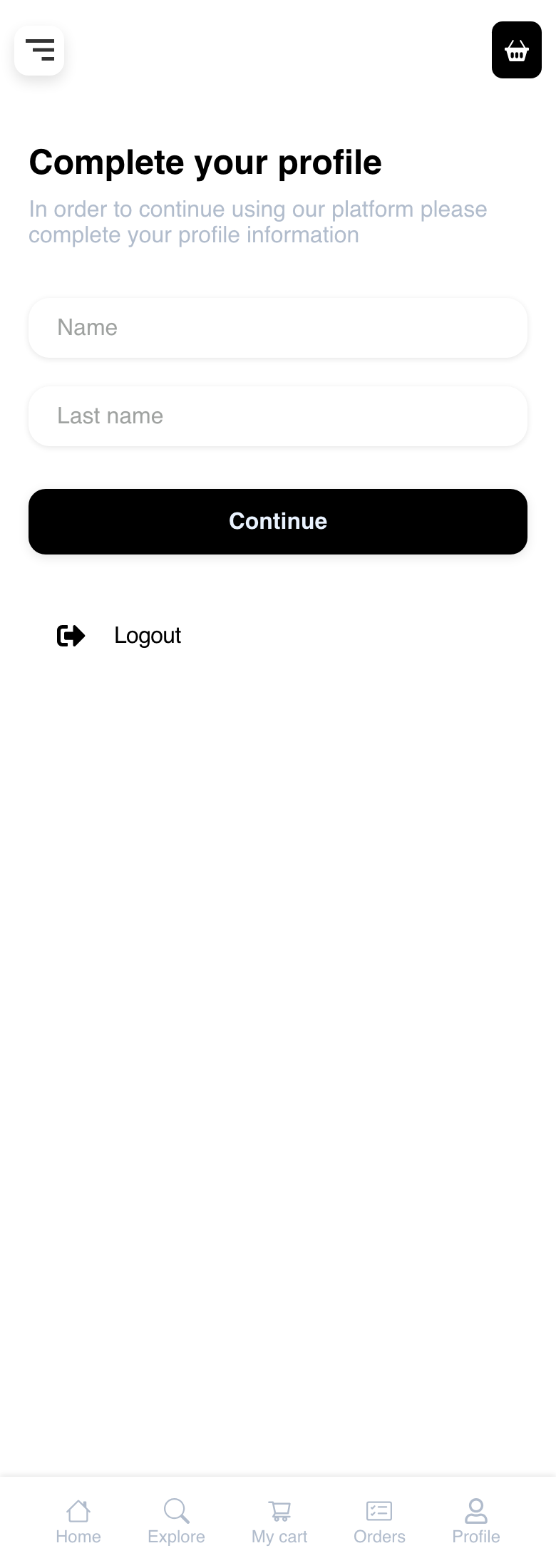
Use profile completion on mobile
Mobile displays the same required profile fields and actions in a vertical layout. Scroll when the configured form contains more fields than the representative example.
Use contact verification on mobile
Email and phone verification keep the contact and Send code action together in the mobile layout.
Troubleshooting
Different profile fields appear
Profile requirements depend on the Website setup and information already stored on the account. Complete every field displayed on the current screen. If a required field cannot be completed, contact the business.
Continue does not move forward
Review each displayed field and correct any validation message. If Website presents another profile or verification requirement, complete that next step. The destination after completion can depend on where the customer entered the flow.
The displayed email or phone number is not current
Do not request a code for contact information the customer cannot access. Contact the business for help updating the account information. Contact editing is separate from verifying the value currently displayed.
A verification message does not arrive
Check that the displayed contact is correct, then review the inbox, spam or junk folder, or the phone's message service as applicable. Follow any wait or resend guidance shown by Website. Delivery time can vary, so avoid repeated rapid requests.
A code is rejected
Use the most recent code received for the displayed contact and enter it exactly as shown. Follow any error or wait message on Website. Request a new code when the current screen offers that option, but do not rely on a fixed validity period.
Email verification appears before phone verification
This is the current sequence when both are required. Complete email verification first; Website can then present the phone step.
Related guides: Sign in or create an account · Reset a password