Sign in or create an account
Customers can sign in to access account-dependent Website experiences or open the account-creation form when they are new to Ordering. The choices and fields shown depend on the Website configuration.
The ordinary Website experience can offer email and password, phone and password, one-time-code, or social sign-in choices. A customer should use only the methods displayed on the current Website. Customer-assisted and kiosk experiences can use different entry points or a reduced form.
Open the Login dialog
On desktop, select Login in the Website header. On mobile, open the menu and select Sign in. The dialog opens over the current Website page.
The representative email form contains Email and Password, an option to reveal the password, and links to reset a password or create an account.
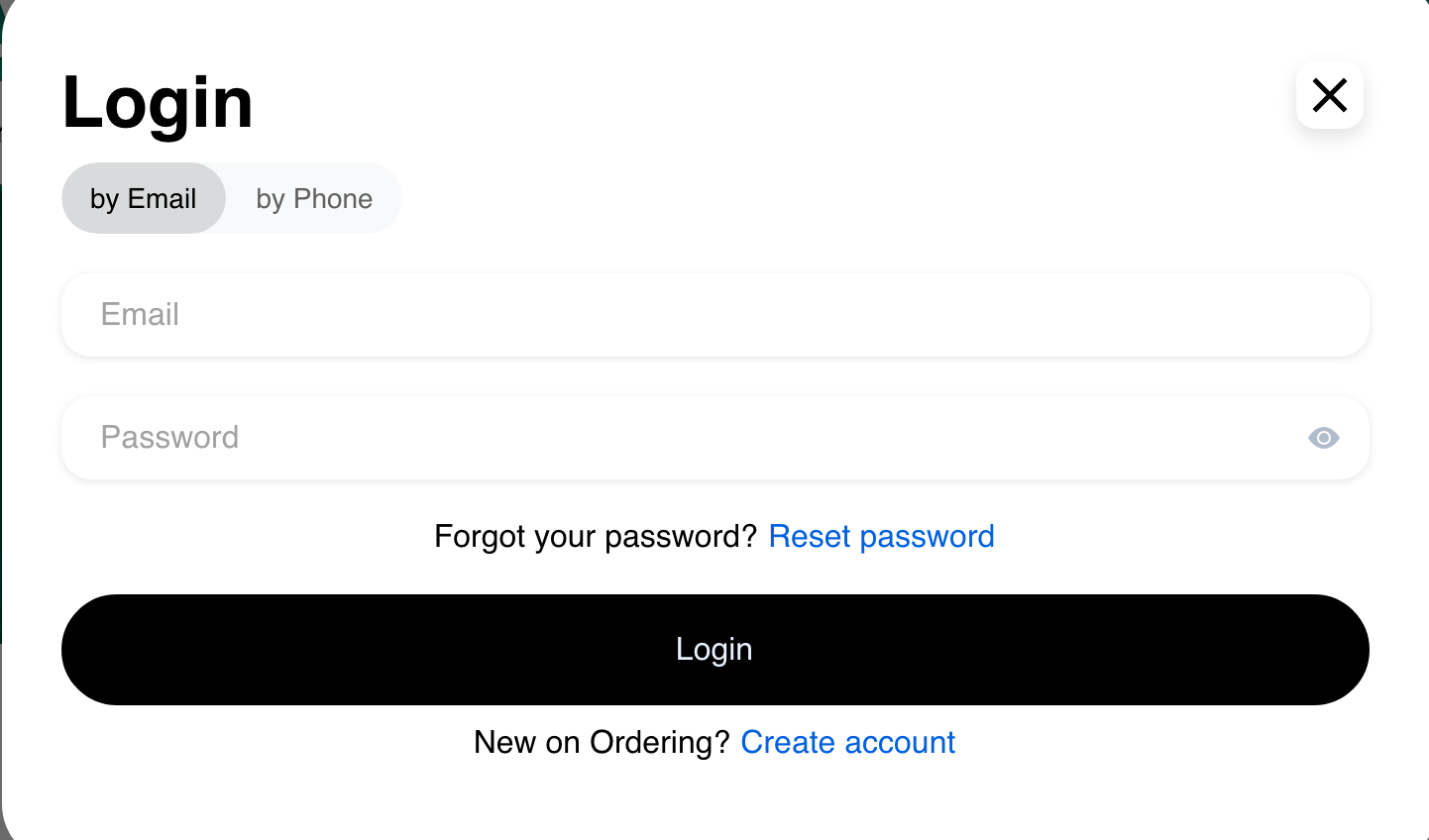
Enter the information requested by the selected method. Login is the form's submission action. If authentication succeeds, the Website can ask for additional profile information or contact verification before the customer continues.
Choose email or phone sign-in
When both password methods are available, use by Email or by Phone to choose the identifier associated with the account. The phone form also includes a country selector.
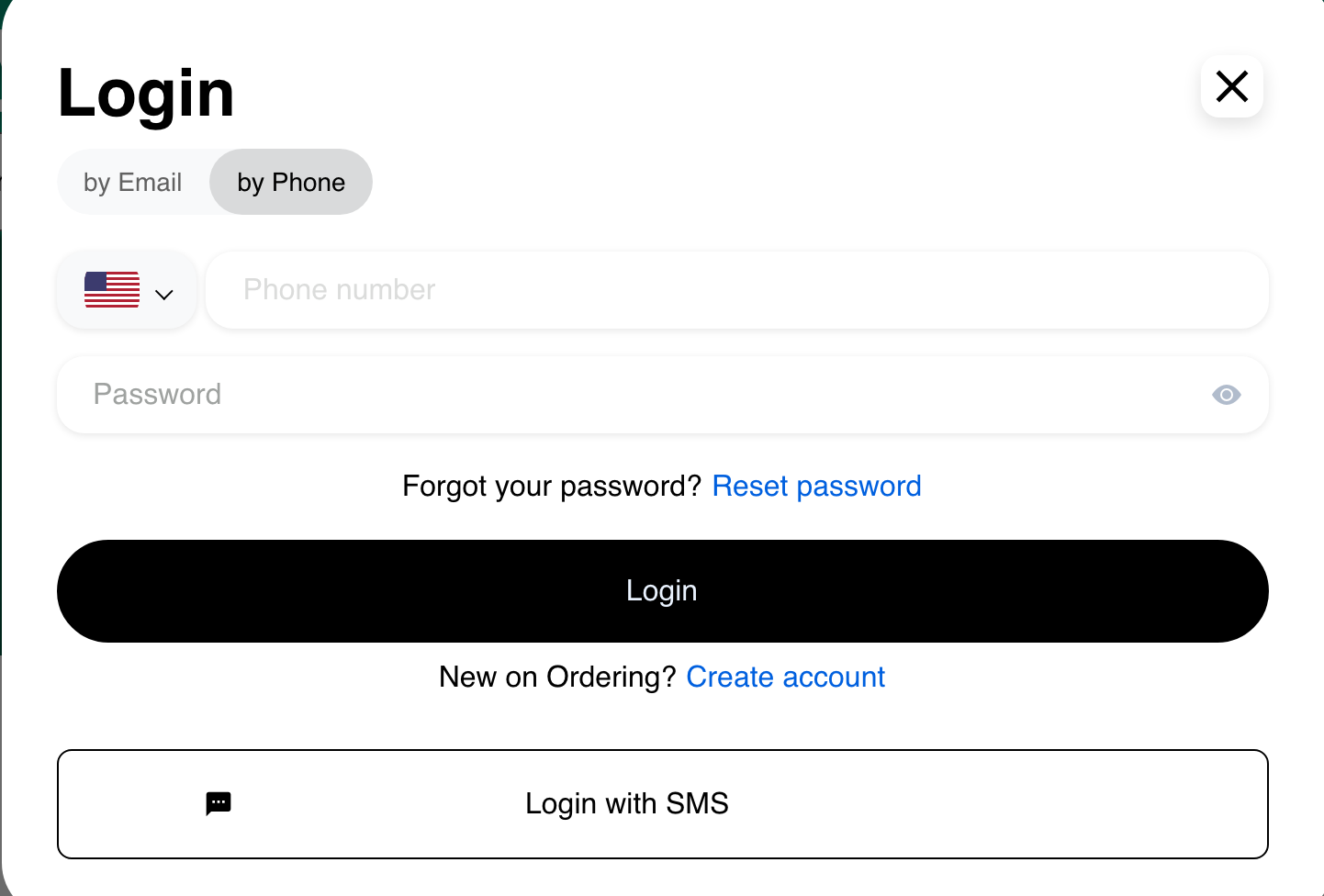
The available tabs are configuration-dependent. A Website can show only one password method or offer other configured choices instead.
Start SMS sign-in when available
If Login with SMS appears on the phone tab, select it to open the phone verification form. The pre-send screen asks for the country code and account phone number and provides a Get verify code action.
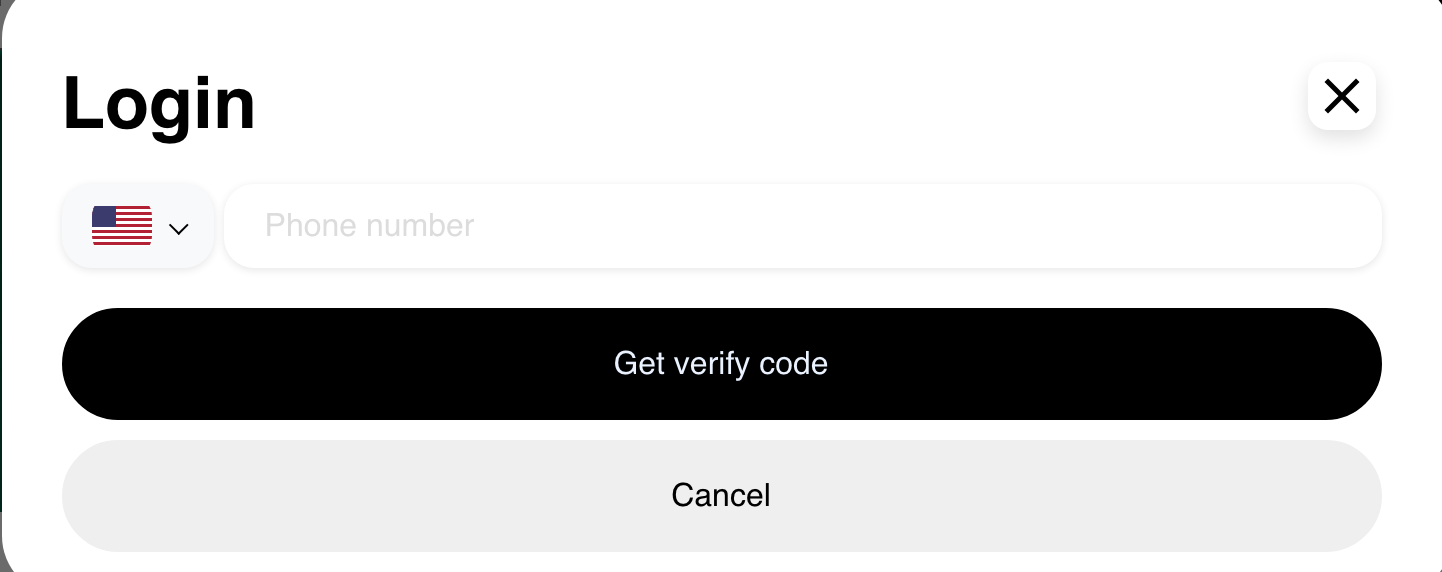
This guide stops before a code is requested. Code delivery, resend timing, and the next verification controls depend on the configured service. Follow the instructions shown by the current Website, and never share a verification code with another person.
Create an account
From Login, select Create account. Some Websites also show a separate Sign up action in the header or mobile menu.
The representative form asks for:
- Name.
- Last name.
- Email.
- Password.
The password must contain at least eight characters. Other Websites can request different or additional fields, and configured terms can add an acceptance control.
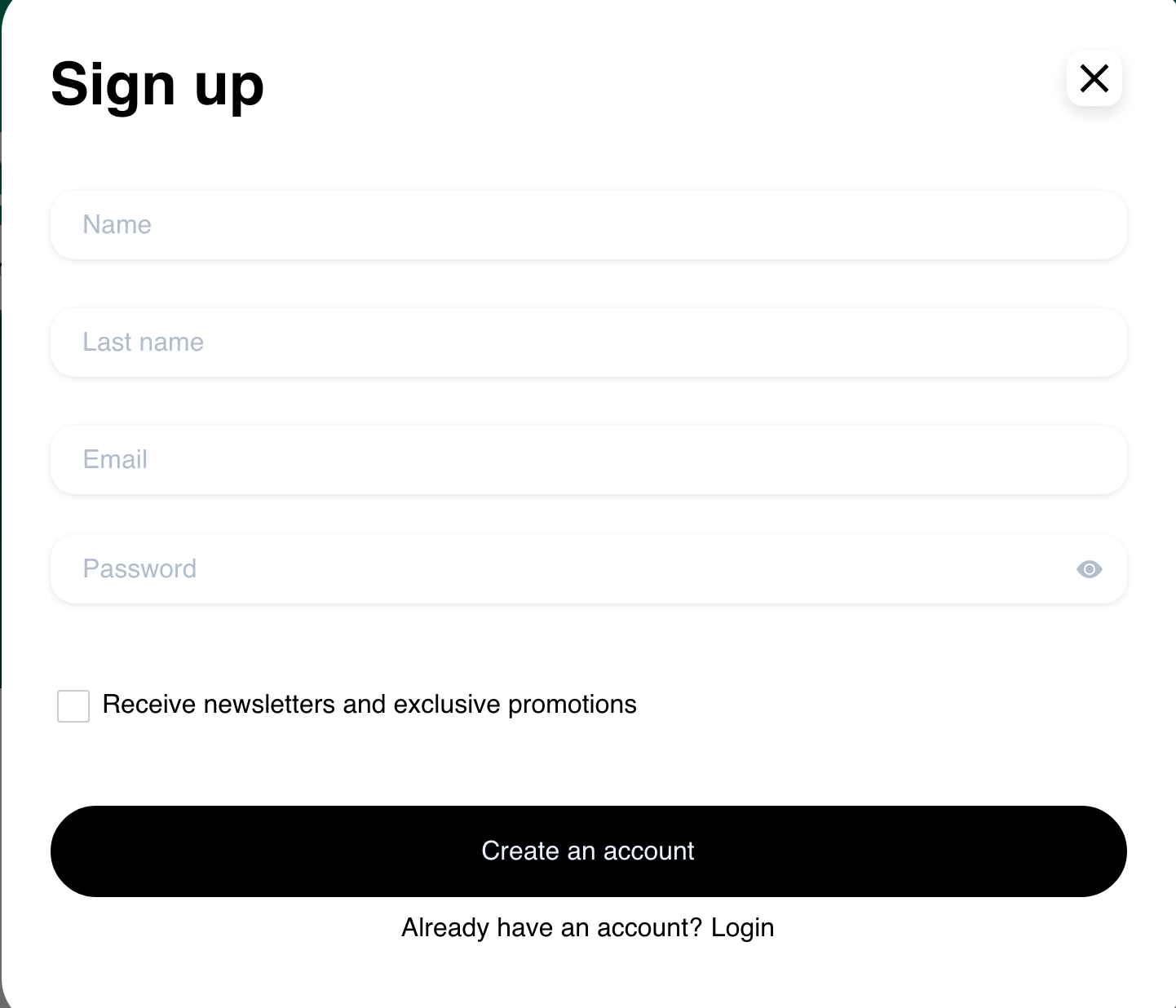
The example also displays Receive newsletters and exclusive promotions as an unchecked preference. This control is conditional; customers should review the business's displayed terms and privacy information when choosing a preference. The unchecked example documents only the visible initial state, not how a specific business records marketing preferences.
Complete the visible required fields. Create an account is the form's submission action. If account creation succeeds, Website can request required profile information or contact verification before continuing.
Use Login on mobile
On smaller screens, the Login dialog uses the mobile layout. The same enabled tabs, fields, and links are arranged vertically.
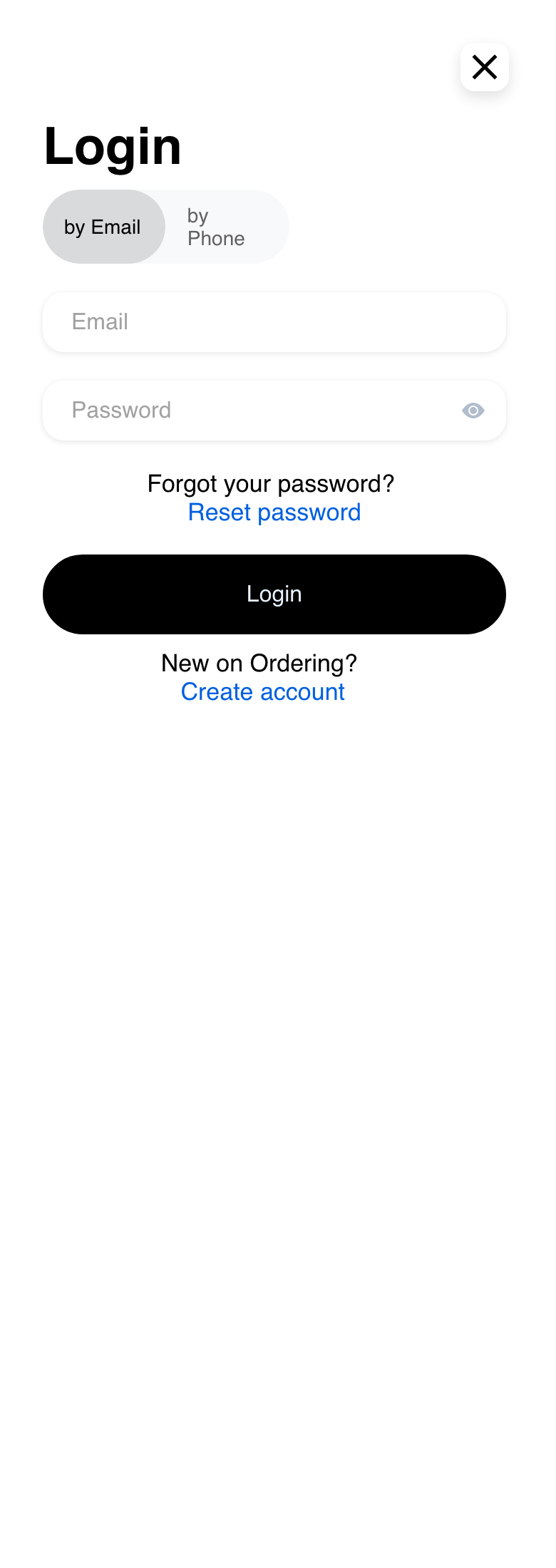
Scroll within the page when more fields or choices appear. Close the dialog to return to the current Website page without continuing.
Troubleshooting
A sign-in method is missing
Methods vary by Website configuration and context. Use one of the choices currently displayed. If an expected method remains unavailable, contact the business for help.
Login does not continue
Check the email or phone number, country code, and password, then try again. Follow any validation, verification, or wait message shown in the dialog. Repeated attempts can require a waiting period.
The password was forgotten
Select Reset password when the link is offered in the email form, then follow Reset a password.
Create account shows different fields
Account fields and requirements depend on the Website setup. Complete every field marked as required in the current form. If the form cannot be completed, contact the business.
Website asks for more information after Login
The account can require profile completion or email or phone verification. Follow Verify and complete a customer profile to understand the requested steps.
Related guides: Use a supported integration sign-in link · Manage an account profile · Browse a business and its menu · Complete checkout