Manage saved cards
Authenticated customers can use My cards to review card references saved for their Website account. Availability depends on the payment configuration used by the Website or store.
My cards appears in the signed-in account menu only when the current saved-card capability is available. A customer might also need to complete required profile information or contact verification first.
Review saved cards
- Sign in to Website.
- Open the customer menu.
- Select My cards when it is available.
Each saved-card row shows its brand and masked last four digits. It does not display the full card number, security code, expiration date, or cardholder name.
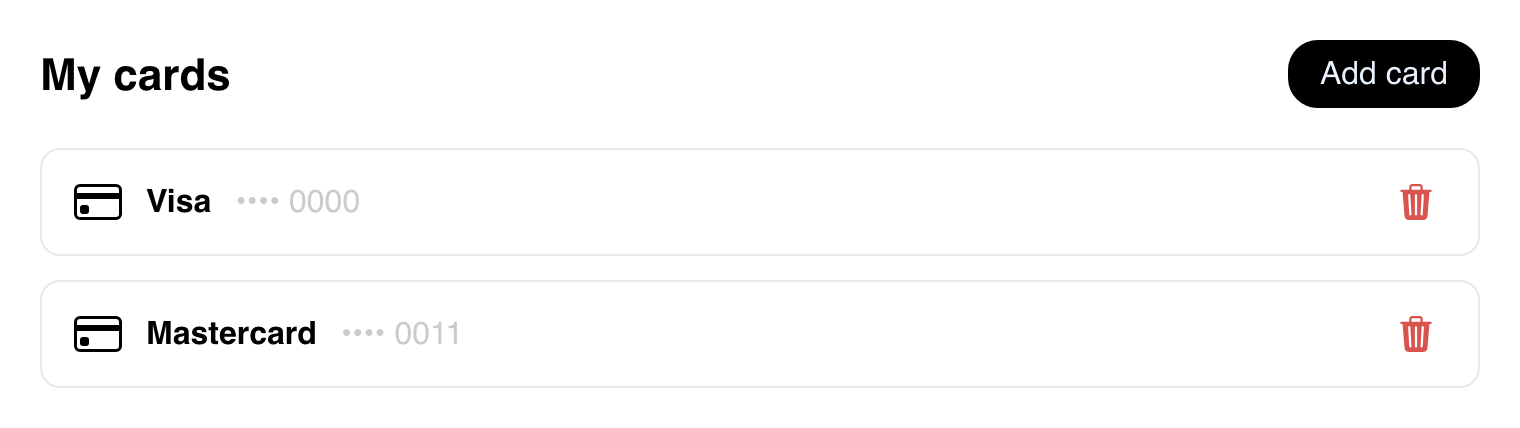
The representative page shows Add card, but the card-entry experience is handled by the configured payment provider. Provider-specific entry steps are not covered in this guide.
Remove a saved card
- Select the trash icon beside the card reference you want to remove.
- Review the confirmation question.
- Select Accept to continue, or Cancel to keep the card.

No card is removed before Accept. After a successful removal, that reference disappears from the Website saved-card list. This does not establish how the payment provider manages the same instrument outside Website, and it does not choose a replacement or default card.
Understand empty and unavailable states
An available My cards page with no saved records shows You have no saved cards yet. Add card can still be visible.
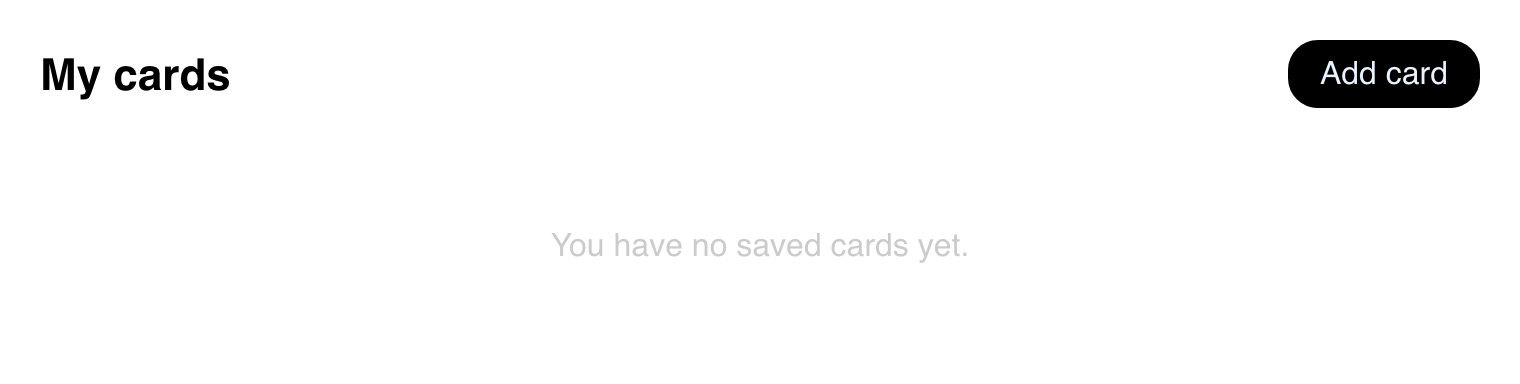
If the current saved-card capability is not available, the page instead shows Saved cards are not available for this store and does not show Add card.

These states are different: an empty page has the capability but no saved records, while an unavailable page does not offer the current saved-card experience.
Use My cards on mobile
Mobile presents the same card brands, masked last four digits, and removal controls in a vertical layout. Open the signed-in menu and select My cards, then use the trash icon for the intended row.
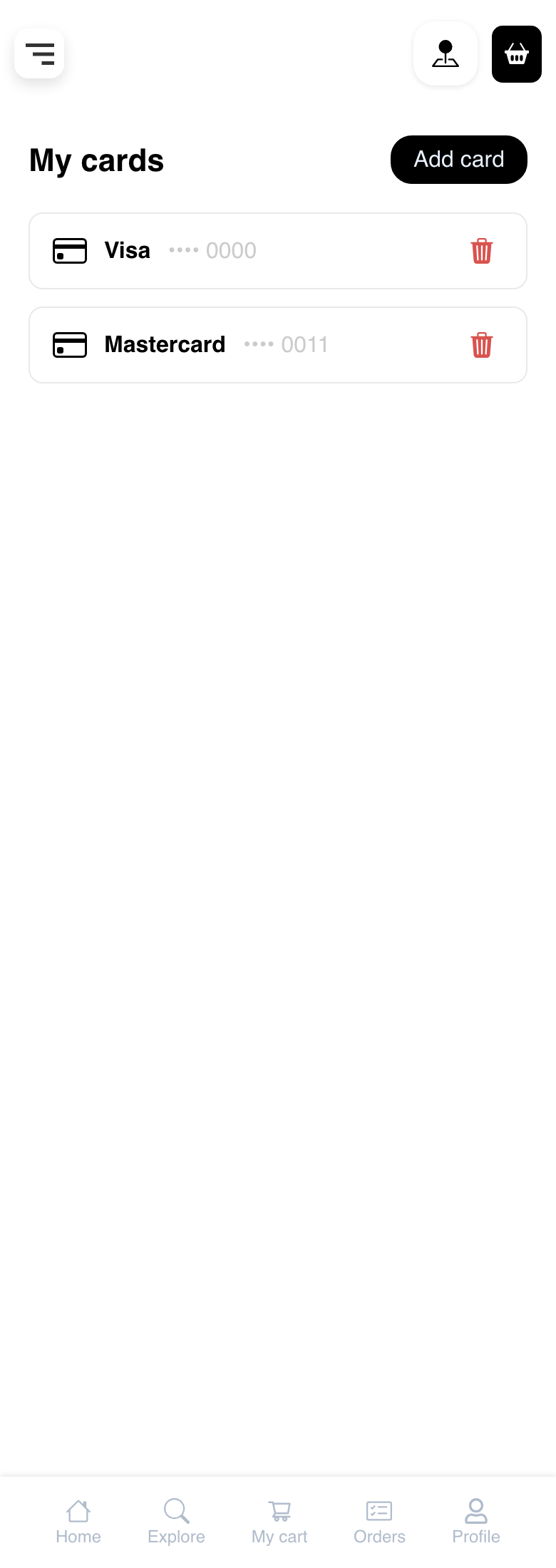
Check the brand and final four digits carefully before opening the removal confirmation.
Troubleshooting
My cards is missing
Confirm that the customer is signed in and has completed any requested profile or contact-verification step. The account-menu option also depends on the Website payment configuration. Contact the business if the option remains unavailable.
Saved cards are unavailable for this store
The current Website or store does not expose the supported saved-card experience. Use the payment choices offered during checkout. The choices offered at checkout can vary by business.
Website cannot load the card list
Wait for the page to finish loading, then reload and try again. If the problem continues, use an available checkout payment choice or contact the business. Do not repeatedly enter card information into an unresponsive page.
A card remains after removal
Follow the current on-screen message and retry after the page finishes loading. Confirm that the same brand and final four digits still appear. A failed removal does not guarantee a change at the payment provider.
Add card does not continue
Card entry depends on the configured payment provider. Close the card-entry experience if it does not load correctly, avoid repeated submissions, and use another payment choice or contact the business.
Related guides: Manage an account profile · Choose a payment method · Complete checkout