Reset a password
Website password recovery starts from Login and uses the email associated with the customer's account. A customer can request a recovery message, open its complete reset link, and choose a new password without being signed in.
Use Reset password when it appears in the ordinary Website Login dialog. The recovery entry can be unavailable for some sign-in methods, customer-assisted experiences, or kiosk layouts.
Open password recovery
On desktop, select Login in the Website header, then select Reset password. On mobile, open the Website menu, select Sign in, and use the same Reset password link when offered.
The recovery dialog asks for Email. This form uses email even when the Login dialog also offers phone sign-in.
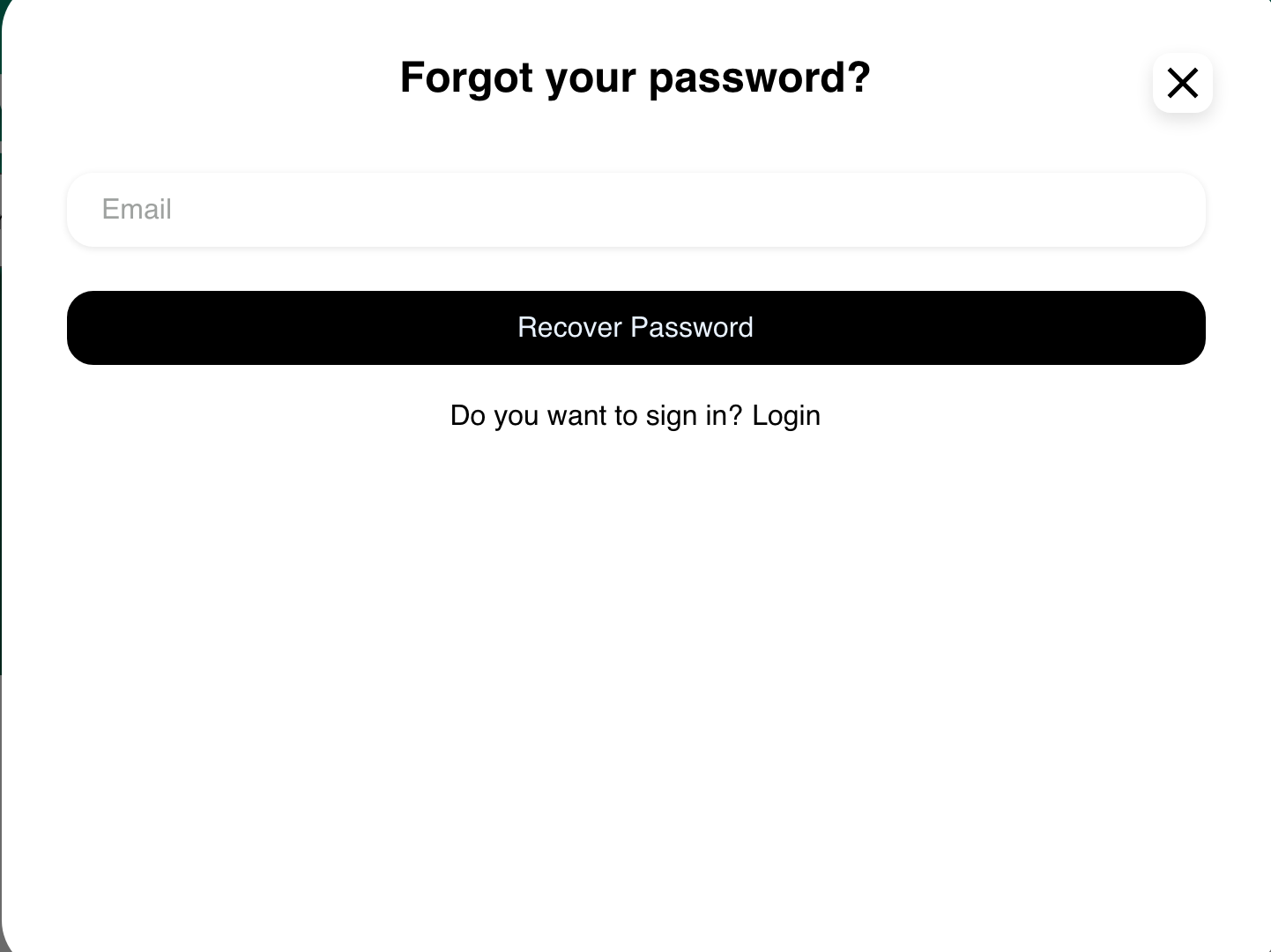
Enter the email associated with the account. Recover Password is the request action. Use Login below the form to return without requesting recovery.
Check for the recovery message
After Website accepts a request, it can show an acknowledgement while the recovery message is prepared. An on-screen acknowledgement does not guarantee that the message has been delivered.
Check the inbox and spam or junk folder for the account email. Delivery time can vary. If no message arrives, confirm that the email was entered correctly, wait before trying again, and contact the business when recovery remains unavailable.
Website sends recovery instructions rather than the account's existing password. Never share a recovery link or password with another person.
Open the complete reset link
Open the complete link from the recovery message. Do not edit the link, construct a replacement, or copy only part of it.
When Website accepts the link format, the Reset password page shows:
- New password.
- Confirm Password.
- Change password.
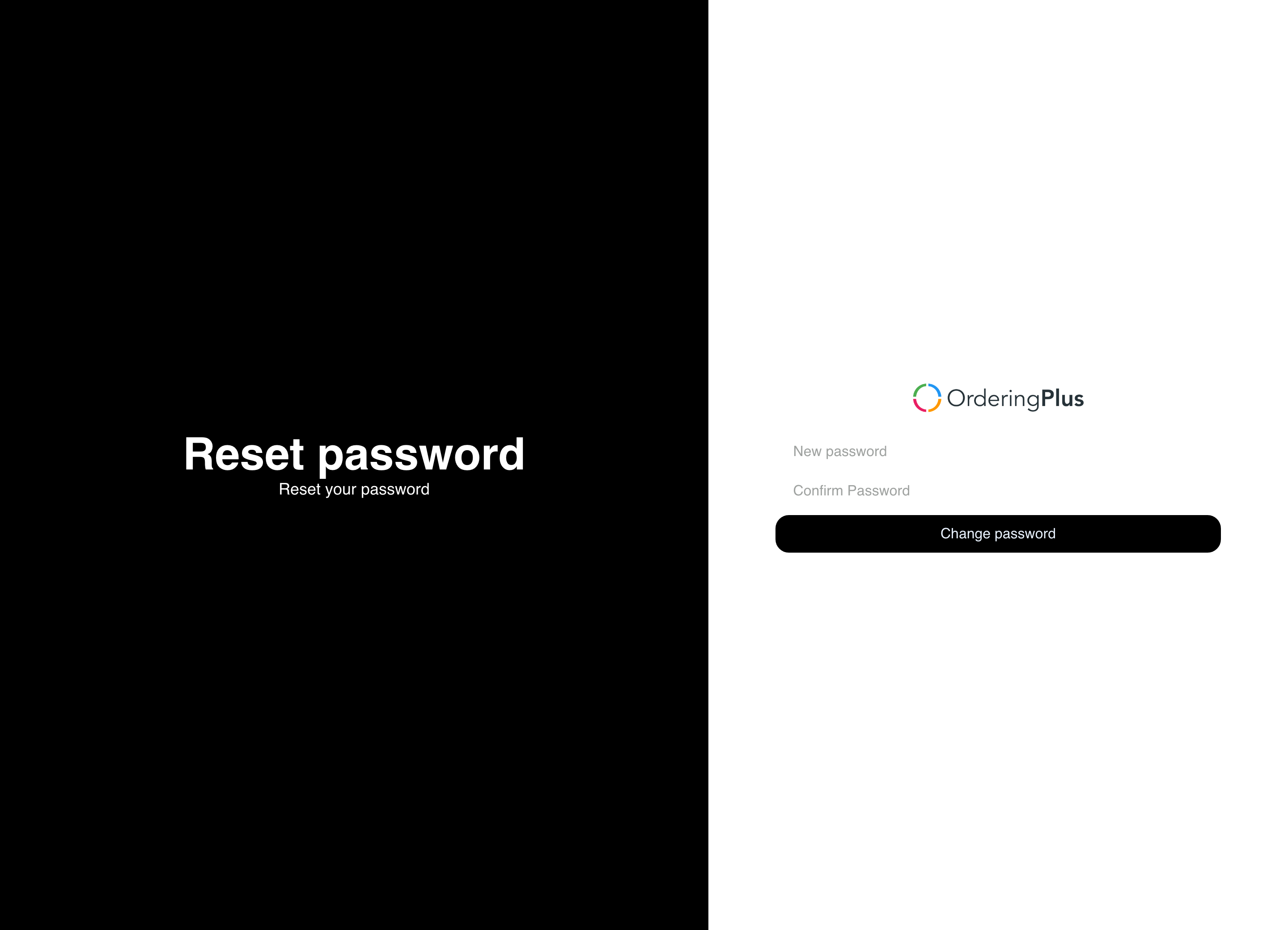
Enter a new password containing at least eight characters, then enter the same value in Confirm Password. Both fields are required and must match. Change password is the form's submission action.
If the change is accepted, Website can show a success message and open Login. The reset does not automatically sign the customer in; use the new password in Login when prompted.
Use password recovery on mobile
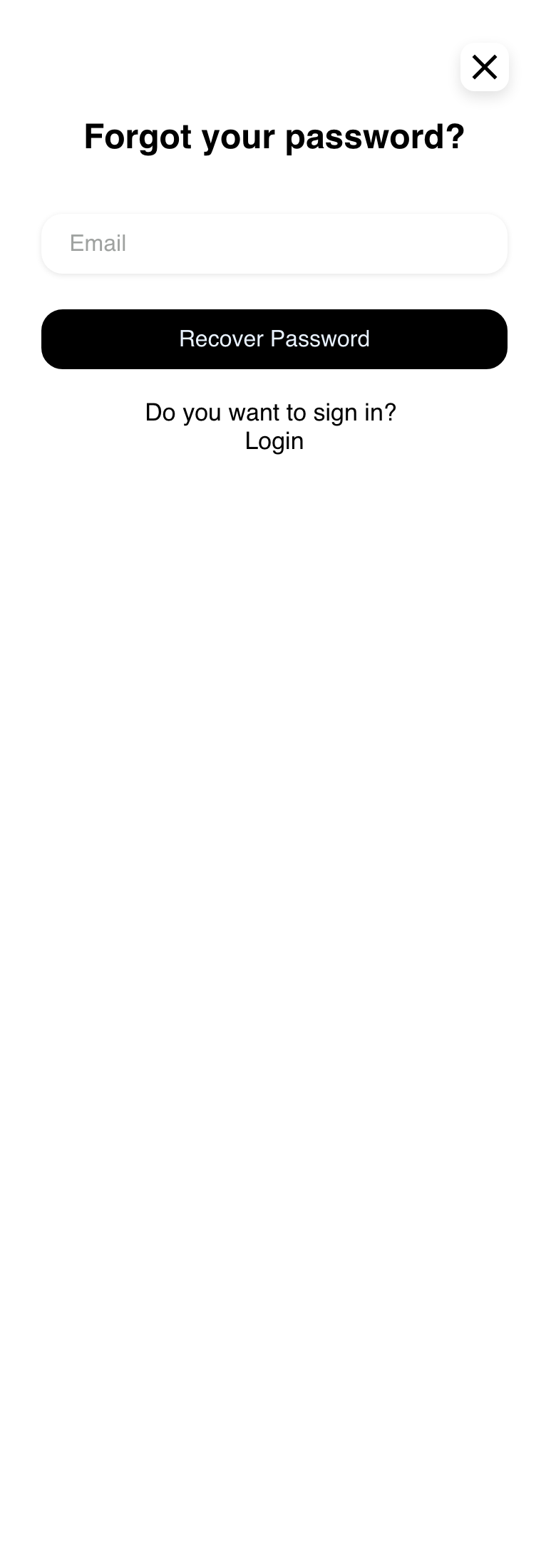
The recovery request uses the mobile Login dialog. It has the same email-only request field and return-to-Login option.
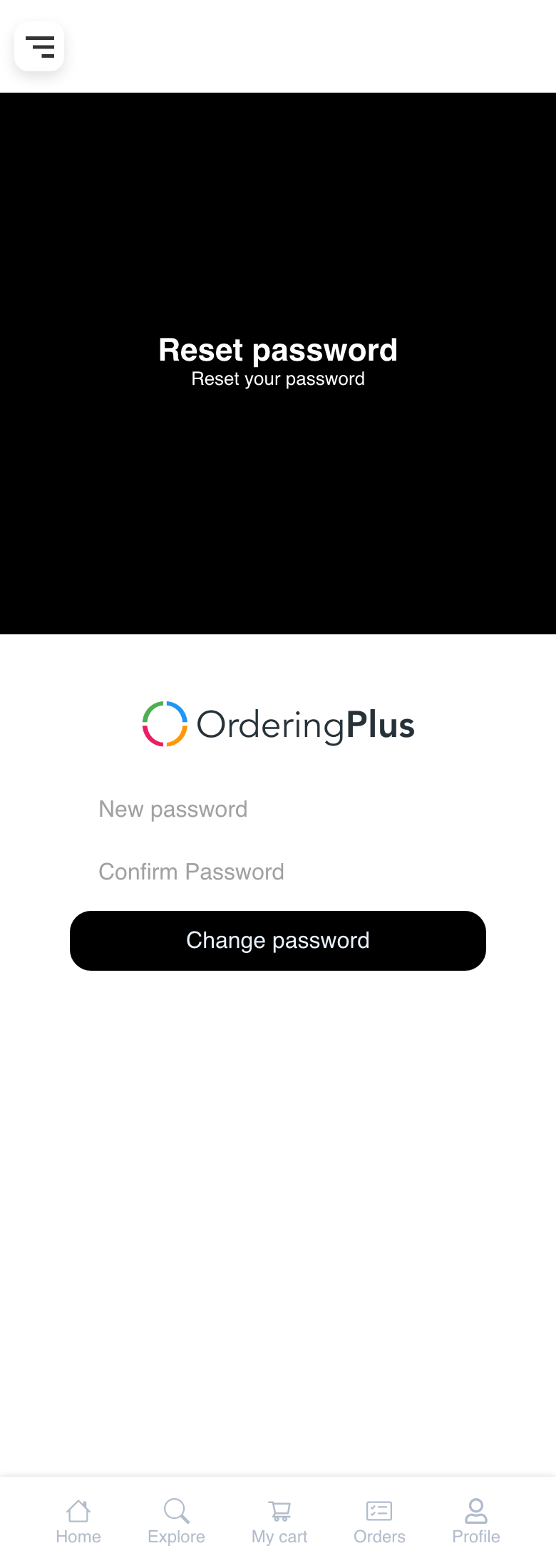
The mobile reset page stacks its title and password form vertically. Scroll until the new-password fields and Change password action are visible.
Troubleshooting
Reset password is missing from Login
The recovery entry depends on the current Website mode and sign-in form. Return to the ordinary Website Login dialog and use Reset password when offered. If it remains unavailable, contact the business.
No recovery message arrived
An accepted request is not a delivery confirmation. Check the email spelling, inbox, and spam or junk folder, then allow time for delivery. Avoid repeated rapid requests. Contact the business if recovery still cannot be completed.
The reset link is invalid or no longer works
Return to Login and request a new recovery message. Use the newest complete link without editing it. A link that was already used or is no longer accepted can fail; do not rely on a specific validity period.
The page asks for information other than a new password
Return to the original recovery message and open its complete link. Do not enter, share, or manually assemble pieces of a recovery link. Request a new message if the complete link still does not open the new-password form.
The passwords do not match
Enter at least eight characters in New password, then enter exactly the same value in Confirm Password. Correct any validation message before continuing.
Login opens after the password changes
This is the next sign-in step, not proof that the customer is already authenticated. Enter the account identifier and new password using a method currently offered by Website. See Sign in or create an account.
Related guides: Sign in or create an account · Browse a business and its menu