Manage an account profile
Authenticated customers can use My Account to review and update the profile information associated with their Website account. The fields shown depend on the Website configuration.
The ordinary entry is View account in the signed-in customer menu. A Website can hide that menu entry or require profile completion or contact verification before My Account becomes available. Customer-assisted, kiosk, and other specialized layouts can present account access differently.
Open My Account
- Sign in to Website.
- Open the customer menu.
- Select View account.
My Account opens with its available fields ready to edit. The representative profile includes first name, last name, email, password, phone, and birthdate controls, plus a profile-picture area.
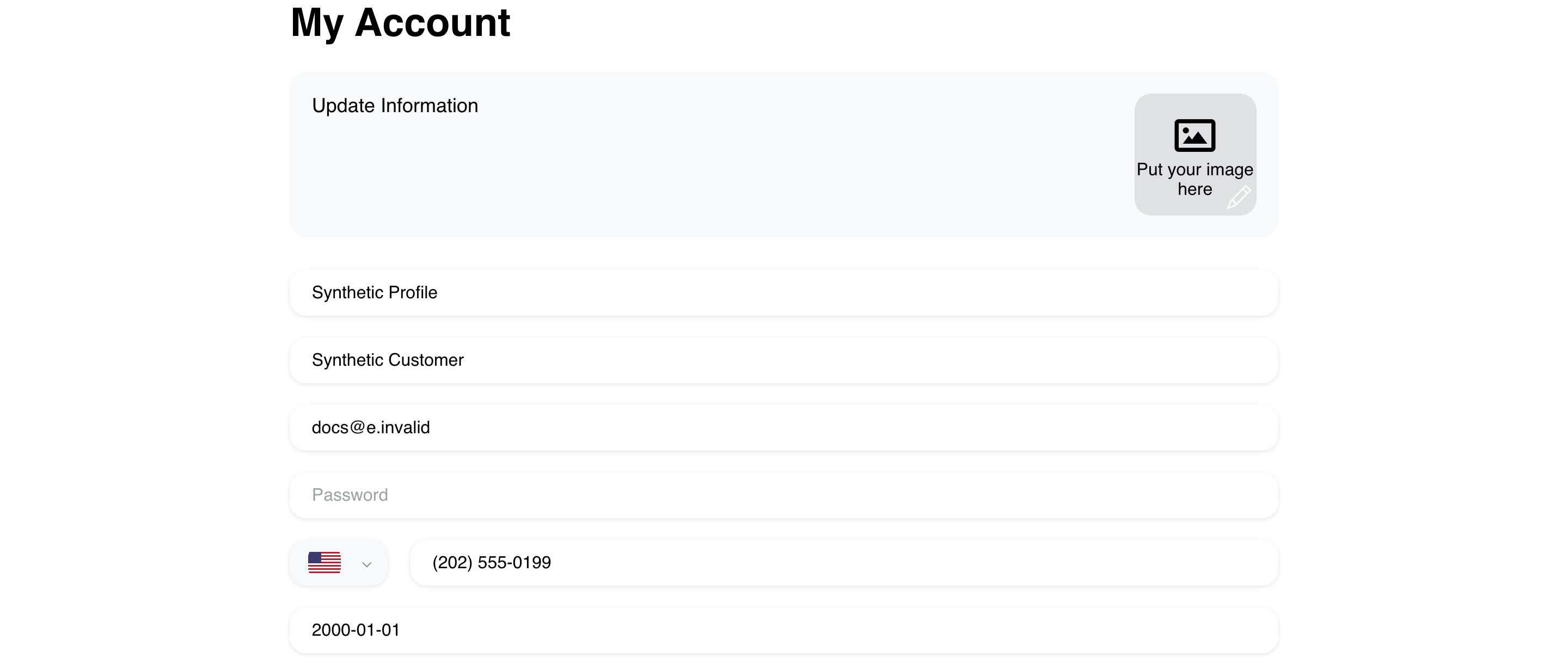
Another Website can show fewer fields or additional configured name fields. Not every field used elsewhere on Website necessarily appears in My Account.
Update ordinary profile information
- Change an available field, such as Name or Last name.
- Review the value you entered.
- Select Save when it appears.
Save is not shown before a field changes. After a successful update, the saved value remains in the form and the action disappears until another change is made.
If Website displays validation or error guidance, correct the affected field and try again. Do not navigate away while an unsaved change is still visible.
Understand sensitive changes
Some controls have effects beyond an ordinary name edit:
- Email or Phone changes can require contact verification before the customer continues.
- Password is blank in My Account and never displays the current password. When available, a new password must contain at least eight characters. The customer may need to sign in again on other devices after changing it.
- Selecting a profile picture starts an immediate update instead of waiting for the ordinary Save action. The visible client accepts one JPG or PNG image up to 2 MB.
Confirm that the new contact information is accessible before changing it. Never enter a verification code into any field other than the Website verification step that requested it.
Use My Account on mobile
Mobile presents the same My Account purpose in a vertical layout. Open the signed-in menu, select View account, and scroll to review every available field.
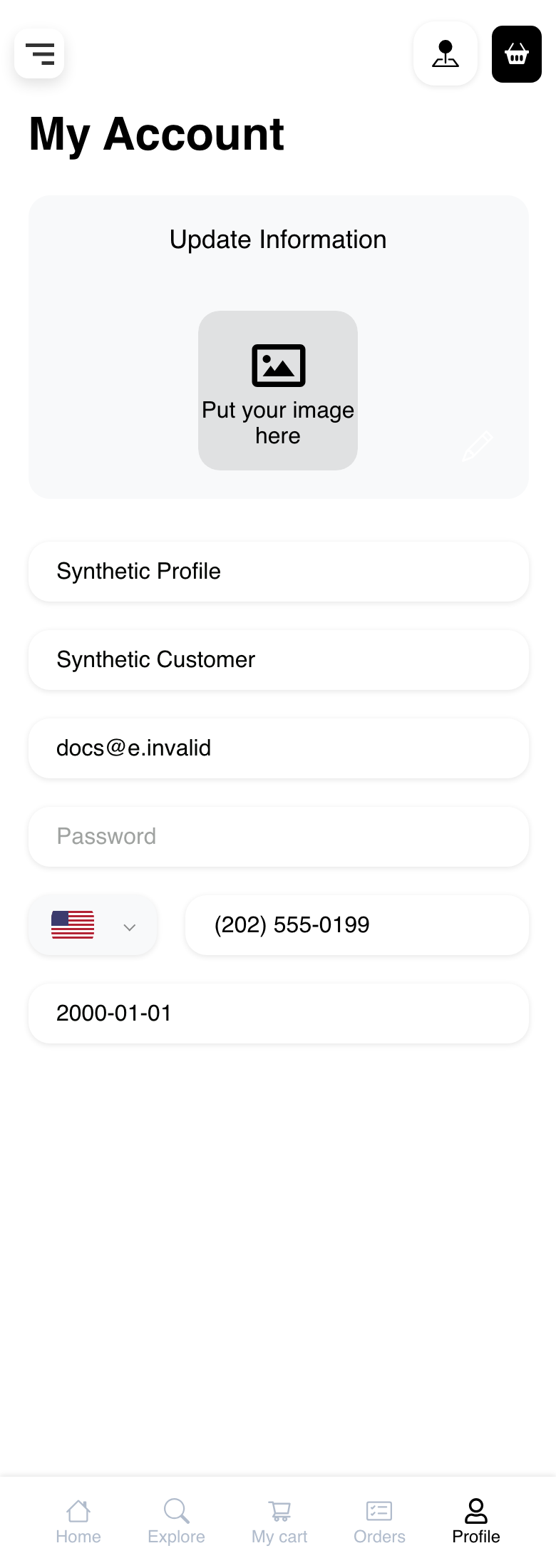
The mobile example is also in the pre-save state: the fields are editable, the Password field is blank, and Save has not appeared because no value was changed.
Troubleshooting
View account is missing
Account-menu choices vary by Website layout and customer context. Confirm that the customer is signed in. If Website requests missing profile information or contact verification, complete that step first. Contact the business if account access remains unavailable.
Different fields appear
Profile fields are configuration-dependent. Update only the controls shown in the current My Account form. A field used during checkout or account creation might not be editable here.
Save does not appear
Save appears after an editable profile value changes. If the form still shows no action, confirm that the value is different from the currently stored value.
A change is rejected
Review the displayed validation or error message. Check the format of email, phone, birthdate, or password values as applicable, then try again. Preserve the intended value until the update completes.
Website requests verification after a contact change
Follow the email or phone verification screen shown by Website. The destination after verification can depend on the account requirements and where the customer entered the flow.
Related guides: Manage saved addresses · Manage saved cards · Manage active sessions · Review wallet balances and activity · Sign in or create an account · Complete your profile and verify contact information · Reset a password