Manage saved addresses
Authenticated customers can use Saved places to review delivery addresses associated with their Website account. The location of this option, the fields shown, and the address-search experience depend on the Website configuration.
A customer might need to complete required profile information or verify contact information before Saved places becomes available. Some Website layouts place saved addresses in the account menu, while others present them elsewhere in the profile experience.
Review saved addresses
Open the signed-in customer menu and select the available saved-address option. A representative list separates the address labeled Current location from the other saved addresses.
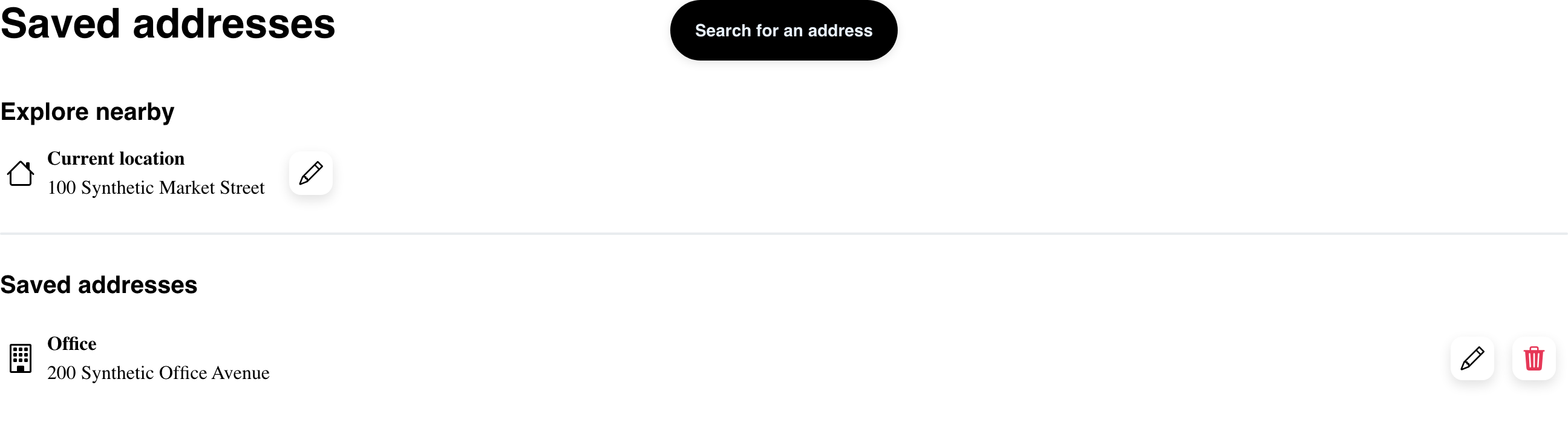
The controls can include:
- Search for an address to start a new address.
- A pencil to edit an existing address.
- A trash action for removable saved addresses.
- A saved-address row that can be selected for the current delivery context.
The address displayed as Current location and the address currently used by a cart can differ in some states. Review the selected delivery address again before checkout.
Add an address
When Search for an address is available:
- Select Search for an address.
- Enter the address and choose a suggested location if Website requires one.
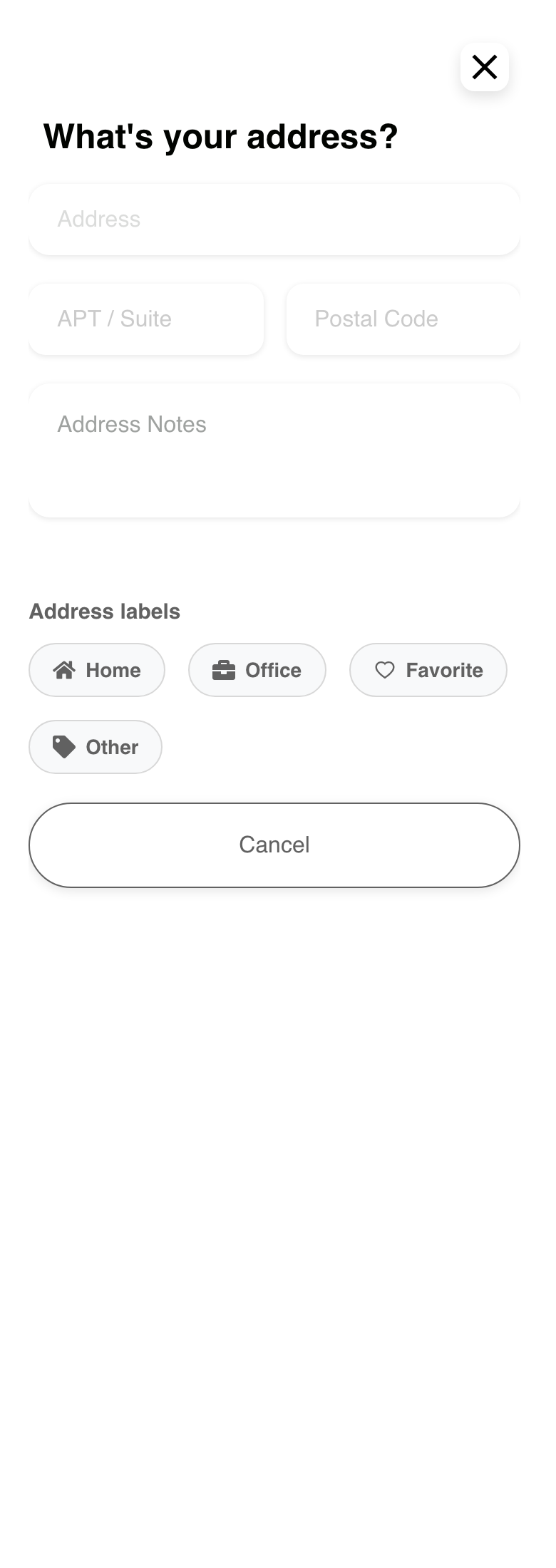
- Complete the fields shown, such as APT / Suite, Postal Code, or Address Notes.
- Choose an address label, such as Home, Office, Favorite, or Other, when labels are available.
- Review the location and save the address when the save action appears.
The desktop example below shows the blank add state before address search or submission. No address has been saved.
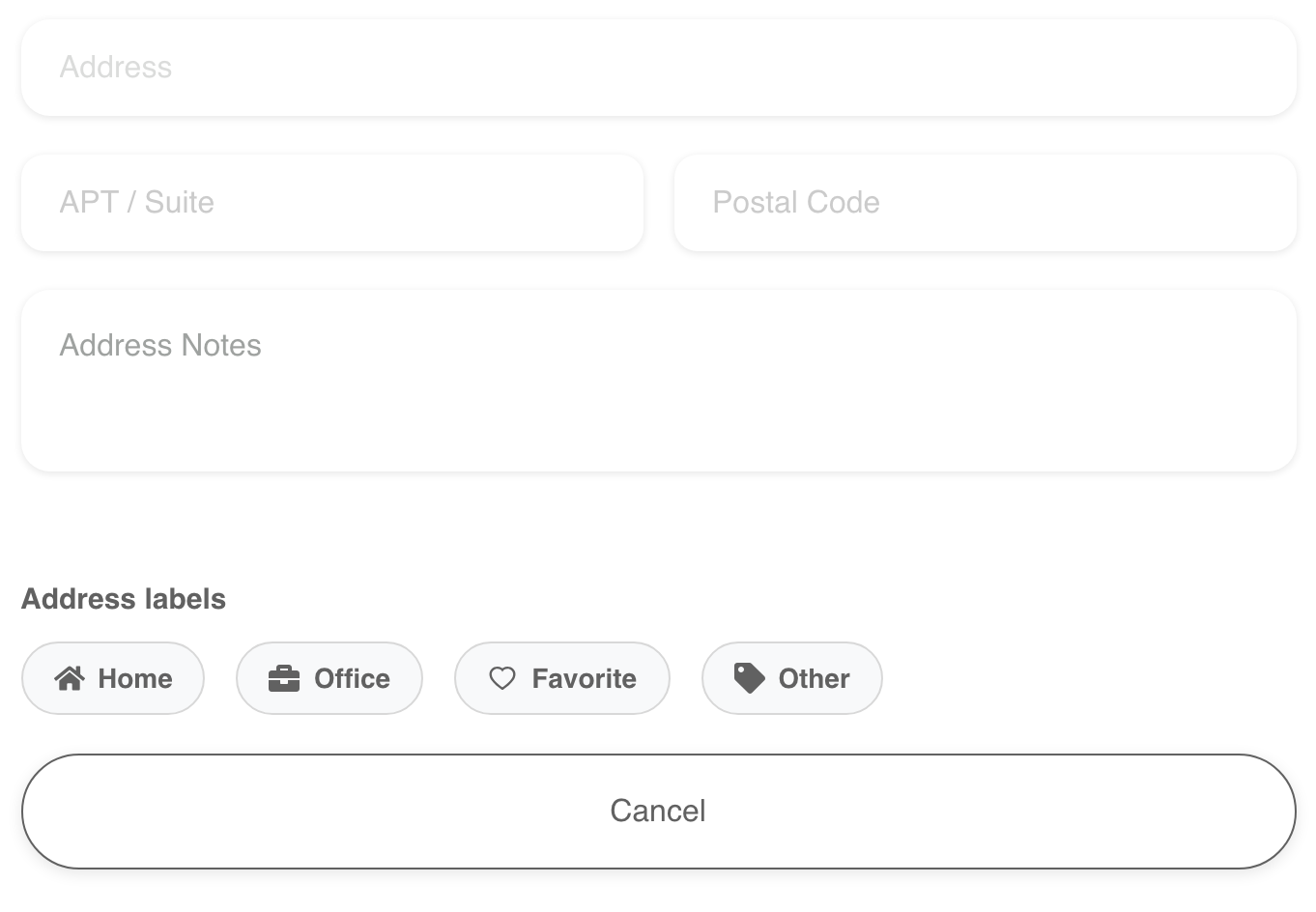
Fields and required markers vary by Website. An address suggestion or formatted address does not by itself guarantee that delivery is available there.
Edit a saved address
- Select the pencil for the address you want to change.
- Update the available address, unit, postal-code, notes, or label fields.
- Review the edited location.
- Select Update when it appears.
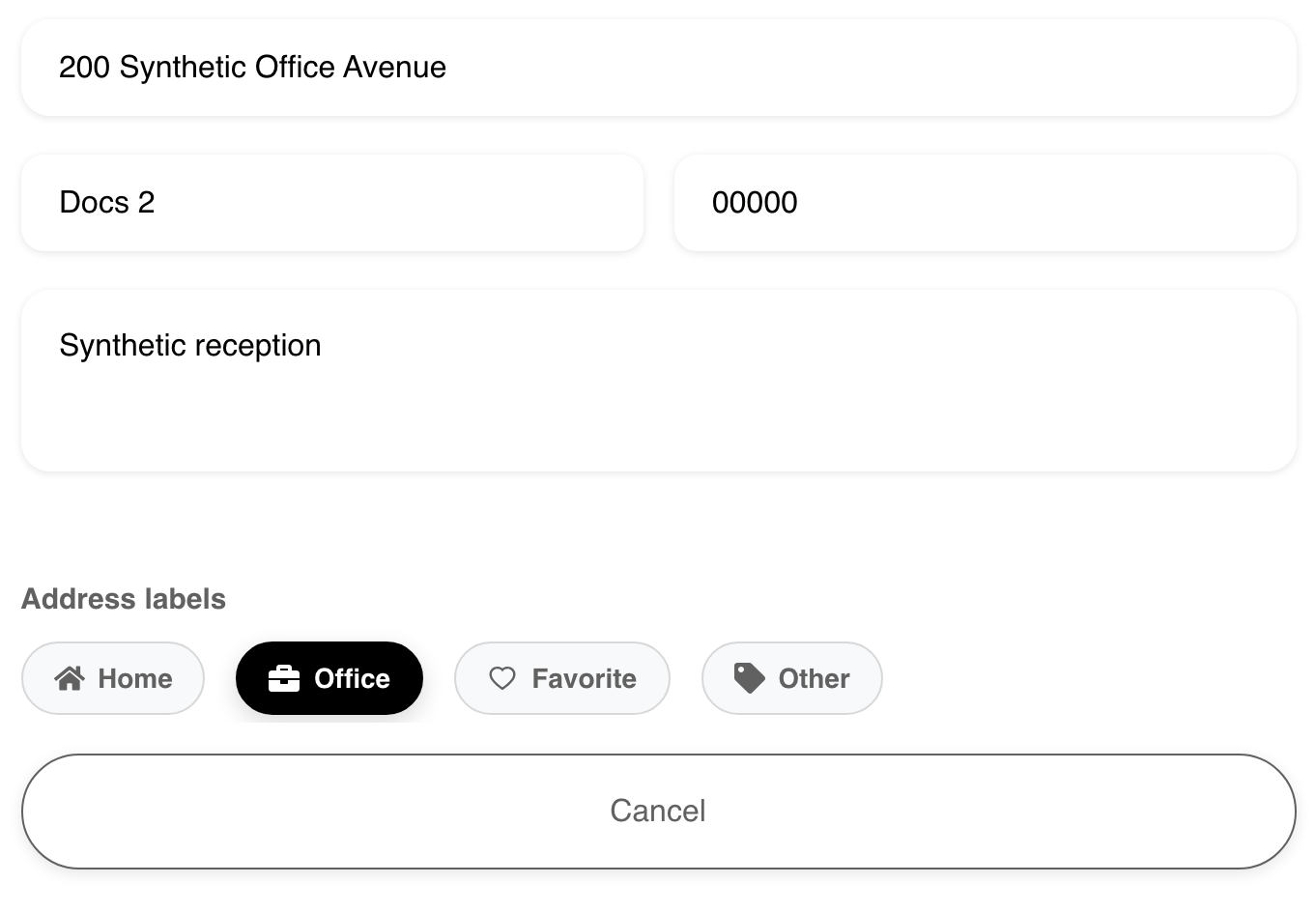
This is a pre-submit editor state. Editing an address can also change which saved address is treated as the default or current delivery context. Review the address and cart after saving.
Select an address for delivery
Select an available saved-address row to use it as the current delivery address. This can update delivery availability and cart information, so check the current address, items, fees, and totals before continuing to checkout.
If selection does not complete, follow the message shown by Website. The address might require additional details or might not be available for the current delivery area.
Remove a saved address
The representative list offers a trash action for a non-default saved address. Select it, review the confirmation question, then choose Accept to continue or Cancel to keep the address.

The address labeled Current location does not show a removal action in the representative list. After removing another address, confirm that the intended delivery address is still selected; Website does not guarantee that it will automatically choose a replacement.
Understand the empty state
When the customer has no saved addresses, Saved places can show an empty message without an add or search control.

If the empty page does not offer an address action, return to the Website location or delivery-address prompt and add an address from the available ordering flow. Contact the business if no address-entry option is available.
Use saved addresses on mobile
Mobile presents the same saved-address purpose in a vertical layout. Use the edit and removal icons beside the relevant row, and scroll through the address form before saving.
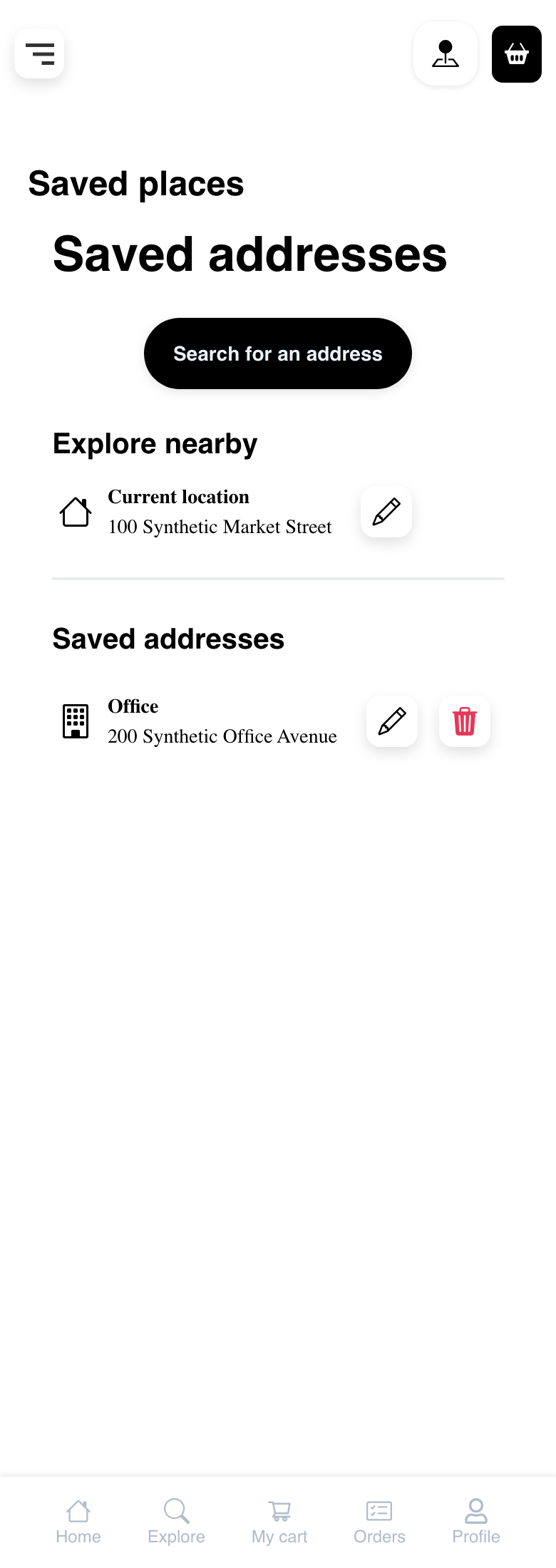
The mobile add state places the configured fields, labels, and actions in one vertical flow.
Troubleshooting
Saved places is missing
Confirm that the customer is signed in. Complete any requested profile or contact-verification step first. Account-menu choices can also vary by Website layout and configuration.
Search or location selection does not continue
Choose one of the suggestions shown by Website when selection is required. Review required fields and any location guidance, then try again. Browser location permission is not required for every address-search experience.
Website says the address already exists
Review the existing saved addresses before trying again. Edit the existing entry when it represents the same place, or change the relevant address details.
An address cannot be edited, selected, or removed
Follow the current on-screen message and retry after the page finishes loading. Then review the selected delivery address and cart. Contact the business if the action remains unavailable.
Related guides: Manage an account profile · Complete your profile and verify contact information · Complete checkout