Website overview
The Ordering Website is your customer-facing storefront. Customers can discover available businesses, choose products, complete checkout, and return to manage their account and orders.
The pages and controls customers see depend on your Website mode, project configuration, enabled capabilities, business availability, and whether the customer is signed in. Your site can therefore differ from the examples in this guide.
Customer journey
A typical customer journey follows these stages:
- Enter a delivery location or choose another available order type.
- Discover a business through listings, search, filters, promotions, or favorites.
- Browse the menu, customize products, and add them to a cart.
- Review fulfillment details, customer information, discounts, tips, taxes, and payment at checkout.
- Submit the order and use order details to follow its progress or contact the business when those options are available.
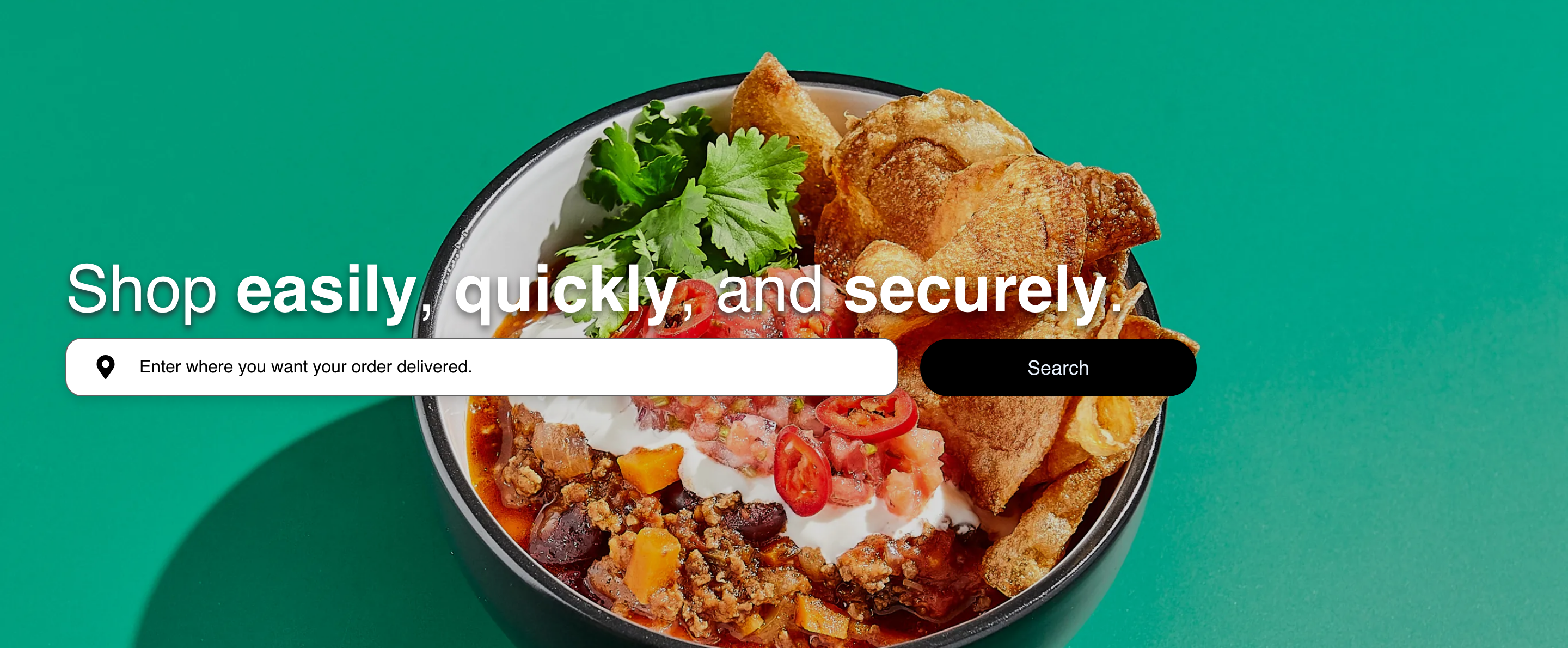
The example uses a synthetic project. Your branding, text, available order types, and account controls can be different.
Responsive experience
Website adapts its navigation and content to the customer's screen. Desktop layouts can show more information side by side, while mobile layouts prioritize the controls needed for the current step.
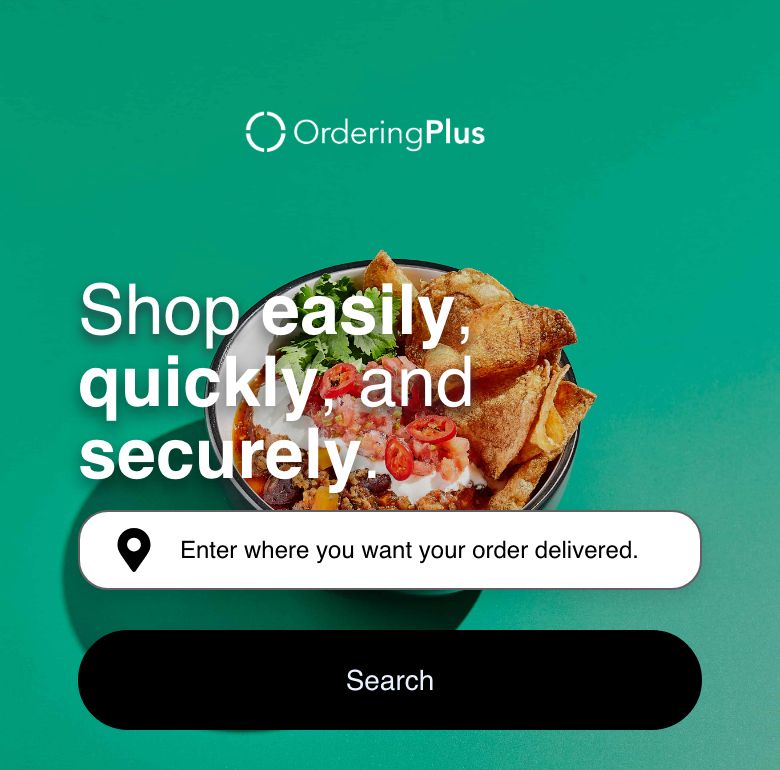
Customers can continue the same shopping journey on either layout, but the position of navigation, filters, carts, and supporting details can change.
Website modes
Website supports different customer experiences:
- Marketplace — Customers select from multiple available businesses.
- Single store — Customers enter a storefront focused on one configured business.
- Franchise — Customers can be guided into a participating franchise location.
- Kiosk — The experience is optimized for an in-person ordering context and can limit controls that are unnecessary on a kiosk.
The mode affects entry routes, business selection, navigation, and some account or fulfillment controls. It does not guarantee that every optional capability is enabled.
See Website presentation modes for representative desktop and mobile journeys.
What controls the experience
Customer-visible behavior can be influenced at several levels:
- Project — Website-wide branding, navigation, languages, authentication, checkout, and enabled capabilities.
- Business — Menu content, schedules, order types, service area, prices, taxes, fees, and payment availability.
- Customer session — Saved addresses, favorites, carts, account details, and authentication state.
- Order context — Selected location, order type, schedule, business, and cart contents.
- External provider — Payment, mapping, messaging, loyalty, or other integrated handoffs.
Before testing your Website
- Test the journey in a private browser window so saved customer state does not affect the result.
- Check both desktop and mobile layouts.
- Test each order type and business schedule that your project supports.
- Use a test project or approved sandbox payment method when you need to verify checkout.
- Never place, cancel, or modify a production order only to test documentation or configuration.
When a customer sees a different result
First confirm the customer's location, selected order type, authentication state, business schedule, and active cart. If the difference remains, review the relevant project and business configuration in Dashboard.
For customer-visible support topics, configured informational pages, the Site Map, and localized footer content, see Use Help and project content pages.
Some Websites also expose public onboarding for prospective operators. See Apply as a business or driver when those application links are available.
Developer reference: Website URLs and deep links · Experience and configuration