Accept or reject a delivery request
Use an available Driver App request to decide whether to seek acceptance or rejection. An alert, visible card, or button is not the same as a delivery offer, driver eligibility, assignment, payment result, customer notification, or completed physical delivery. Review the current request before you select a final action, and verify the outcome after the App finishes loading.
Why deliberate delivery decisions help
Reviewing an offered delivery before accepting or rejecting it helps a driver manage workload, capacity, location, and time commitments. An estimated time can support operational coordination, and a clear decision can reduce the risk of overlooked or delayed work when the request is actually eligible.
Those are workflow benefits, not guarantees. A local alert, a visible request, an estimated time, a contact option, or a status screen does not prove that the business, customer, assignment system, or delivery provider completed a follow-up action.
Before you choose
- Open Orders in the intended signed-in Driver account and wait for the current list or detail to finish loading.
- Confirm the order reference, visible status, business, pickup context, and delivery context before selecting an action. Treat customer, address, custom, and payment data as private operational information.
- A request can become unavailable when it changes, expires, is locked, is taken by another driver, no longer has an eligible status, the account is busy or at an assignment limit, or offline status changes are disabled.
- If Request permissions appears, resolve the visible device requirement before returning to the request. A returned screen does not prove that the permission, location, or request eligibility is now valid.
- Do not use Accept or Reject to test visibility, map behavior, notifications, location access, or connectivity.
Keep each operational boundary separate
| Area | What it means | What it does not prove |
|---|---|---|
| New-delivery alert | A local alert can present a new or updated order event. | That a delivery was offered to you, is still current, or was assigned to you. |
| Offered delivery | A card or detail is available for review in the current Driver App result. | That the server will still accept a decision, or that another driver cannot act first. |
| Driver eligibility | The App and service can apply account, role, ownership, status, time-window, connection, and configuration checks. | That a visible Accept or Reject control is authorization. |
| Restaurant or business action | A business can accept or reject its own order through the Business App workflow. | That the Driver App delivery request is accepted, rejected, or assigned. |
| Driver acceptance or rejection | A final Driver App control sends a request that can affect order and assignment state. | That every primary or follow-up request settled successfully. |
| Assignment | A plain delivery and a logistics assignment use different decision paths; a group can involve multiple member orders. | That one result applies atomically to every member. |
| Customer notification | A status change can start configured customer-facing follow-ups. | That a notification was sent, delivered, read, or understood. |
| Payment | Order detail can display payment methods, cash fields, or payment events. | Collection, authorization, capture, refund, payout, or settlement. |
| Map and location | A request can contain pickup and delivery locations, and Driver App can request device location. | Fresh location, navigation readiness, tracking, location sharing, or physical presence. |
| Pickup and delivery | An accepted request can lead to later fulfillment work. | That an item was physically picked up, handed to the customer, or completed. |
For the business-side configuration that can automate its own order decision, see Configure automatic order acceptance.
Review an available request
- Open Orders and check the selected tab, filters, connection state, and any Load more orders control before concluding that a request is present or absent.
- If a new-order alert appears, read only its visible reference, dismiss it if needed, then find the matching request in Orders. Closing an alert is a local presentation action, not an assignment or acceptance receipt.
Select the image to enlarge it.
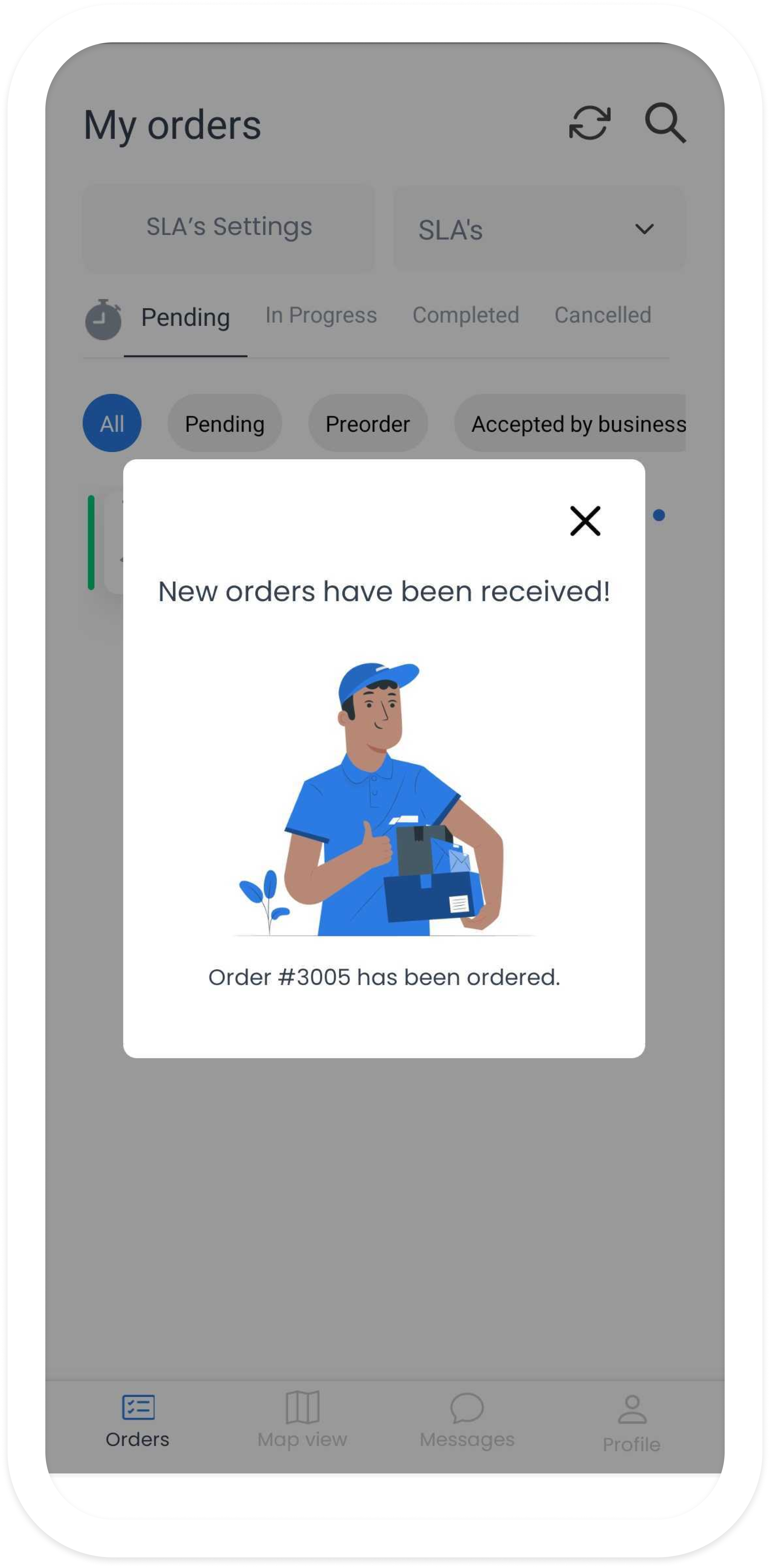
- Open the intended request and review the visible pickup and delivery information. The detail can show conditional customer, business, product, bill, payment, map, message, and status controls; view only the information needed for the delivery decision.
- Distinguish an ordinary delivery request from a logistics assignment. If the request represents a group, verify members separately because their status, eligibility, and outcome can differ.
- Choose one decision path once you have confirmed that the request is still the intended work: accept, reject, or return without changing it.
Accept a delivery request
An ordinary order and a logistics assignment do not use the same acceptance path. On an ordinary order, the App can ask for delivery priority or an estimated delivery time before the final submission. A logistics decision can also start an assignment request and separate per-member follow-ups.
- In the intended available request, select Accept once.
- If In which order will you deliver this order? appears, use the plus and minus controls to choose the delivery position, then select Continue.
- If Delivery time appears, enter the estimated hours and minutes for this delivery. The visible field is an estimate, not a receipt of preparation, pickup, or delivery.
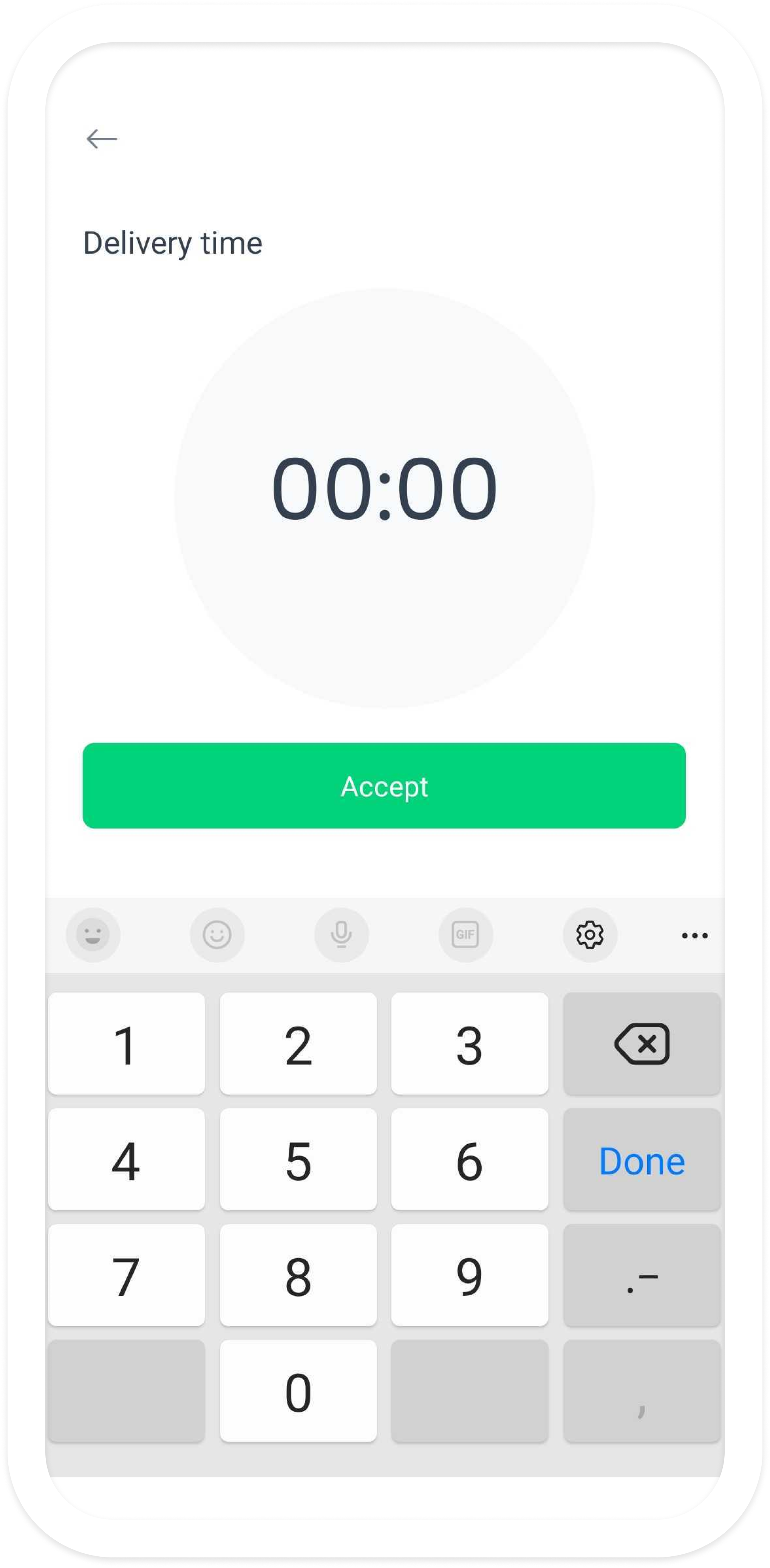
- If Upload status image appears, capture only the proof requested for this delivery, review the preview, and use Remove image to replace an incorrect image before submission. Do not reuse or disclose unrelated media.
- Select the final Accept once. When the App does not show priority or a time step, the first Accept selection can be the submission boundary.
- Wait for loading to finish. Reopen or refresh the request and ask the dispatcher to verify current assignment when the result is unclear. Do not accept again merely because the screen changed or returned to a list.
Reject a delivery request
Reject only when the intended request cannot be fulfilled. The visible rejection path can differ for a plain order, a logistics assignment, and a grouped request.
- From the intended plain order, select Reject once. If the App reports that the driver is not allowed to reject, stop and contact the dispatcher; do not try a different route to bypass that gate.
- Review the visible rejection form. A reason selection can be available, and a meaningful comment is required in the plain-order flow. A contact control, if shown, is a separate phone or communication handoff.
- If a location, image, loading, or other required state keeps the final button unavailable, resolve only the visible approved requirement or stop and report it. Do not use unrelated media or enter coordinates manually.
- Select the final Reject once and wait for the current request to settle.
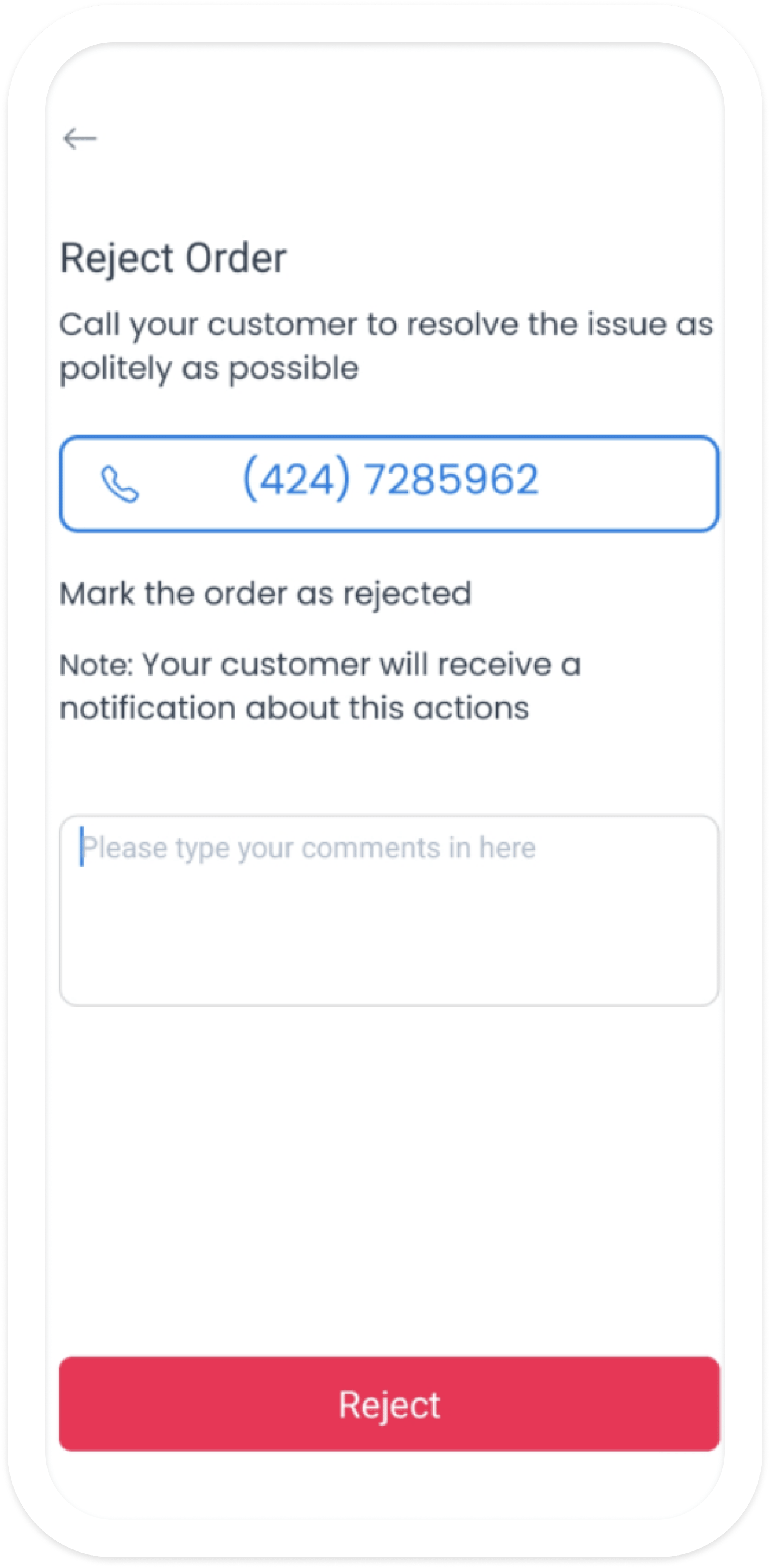
- Treat a customer-contact control, notification note, toast, modal close, or returned list as a separate event. Verify the order and assignment state before taking another action.
For the current plain-order, logistics, and grouped boundaries, see Reject a delivery request and Logistics assignment requests.
Verify the outcome before fulfillment
The action button proves only that Driver App attempted to send a request. Use the current order and assignment state to determine what happened next.
| What you observe | Safe interpretation | Next step |
|---|---|---|
| The request remains actionable | Acceptance or rejection is not confirmed in the App. | Refresh once and ask the dispatcher to verify assignment before retrying. |
| A request disappears or returns to a list | The local list or navigation changed. | Do not infer assignment, rejection, or completion; recheck the current list and detail. |
| A logistics group changes | An assignment request and per-member updates can settle separately. | Verify each visible member with the assignment owner. |
| A customer notification note or alert appears | The App presented notification intent or a local alert. | Verify the saved order status separately; do not repeat an action solely to send a notification. |
| Payment fields are visible | Returned display data is available. | Do not collect, refund, settle, or infer a balance from this decision screen. |
| A map opens or a location prompt returns | Navigation or a local permission step occurred. | Do not infer a fresh position, navigation readiness, tracking, or physical presence. |
| The order looks accepted | The client or a later read changed its presentation. | Verify driver assignment and the current order state before beginning pickup work. |
Continue pickup and delivery as separate tasks
Acceptance does not mean that the restaurant or business has prepared the order, the driver has arrived, the order has been picked up, or the customer has received it. Use the next status action only after the real-world event has happened and the App shows an eligible current state.
- Use Complete pickup only when you are physically handling the intended authorized order at the business.
- Use Complete a delivery only after the handoff to the customer and every visible requirement is satisfied.
- Use Delivery map and Understand location permissions to keep navigation, permission, and location-sharing boundaries separate from the acceptance request.
- Use Understand cash orders and payment events for payment-display boundaries. Delivery acceptance is not a financial settlement event.
Troubleshooting
| What you observe | Safe next action |
|---|---|
| Accept or Reject is unavailable | Confirm the current request, account scope, connection, and visible requirements. Do not press repeatedly or force a different status. |
| The request disappeared before submission | Refresh the relevant list. Another driver, expiry, a lock, or a later update may have changed it. |
| Request permissions appears | Review the device permission state, then return to the request. Do not treat the return as permission or location success. |
| A required image cannot be captured | Leave the request unsubmitted and report the capture problem. Do not substitute an unrelated image. |
| Connectivity changes during submission | Do not assume the request failed or succeeded. Refresh and verify ownership before another attempt. |
| A logistics group is partly updated | Stop and ask the assignment owner to reconcile each member. Do not re-accept or re-reject the group. |
| Map, location, payment, or notification information looks unexpected | Keep that concern separate from the delivery decision and use the corresponding approved operational workflow. |