View and edit a customer
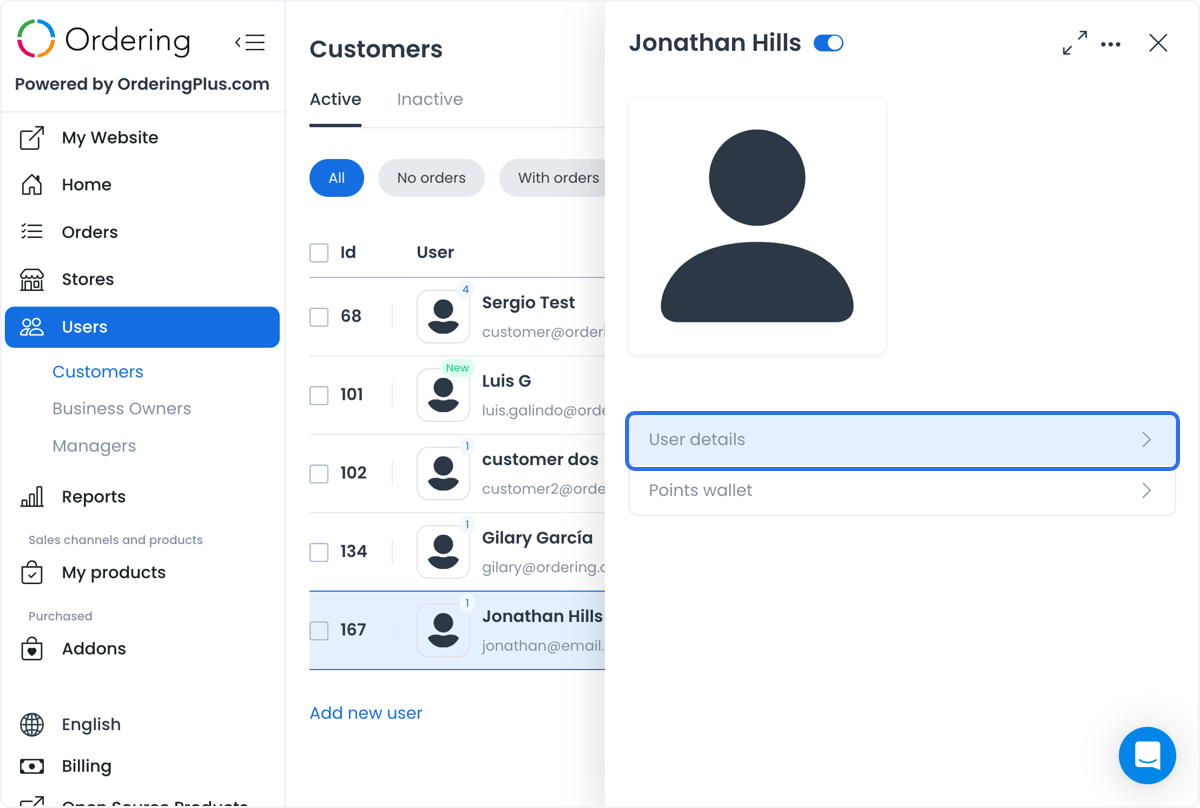
Open a customer from Users > Customers in the Ordering.co Dashboard when the list does not provide enough context. The detail area groups customer profile information and related views such as Saved places, Orders, Custom fields, and, when configured, wallet information. The available tabs and fields can vary by role and project configuration.
Seeing a customer row, detail panel, tab, field, or save control does not independently establish the customer's identity, your permission to use the data, or a successful downstream effect. Handle personal, financial-adjacent, and credential-related information through your approved privacy and access process.
Open the right customer record
- Go to Users > Customers.
- Use the list filters or phone search to find the intended account.
- Select the customer record to open its detail view.
- Confirm the account context before opening related tabs or making changes.
The list and the detail view are different data surfaces. A detail view can include contact data, verification state, addresses, saved places, order relationships, custom fields, wallet information, and other configured account data. Opening a tab can request additional information, so use the minimum data required for the task.
Update profile and contact data
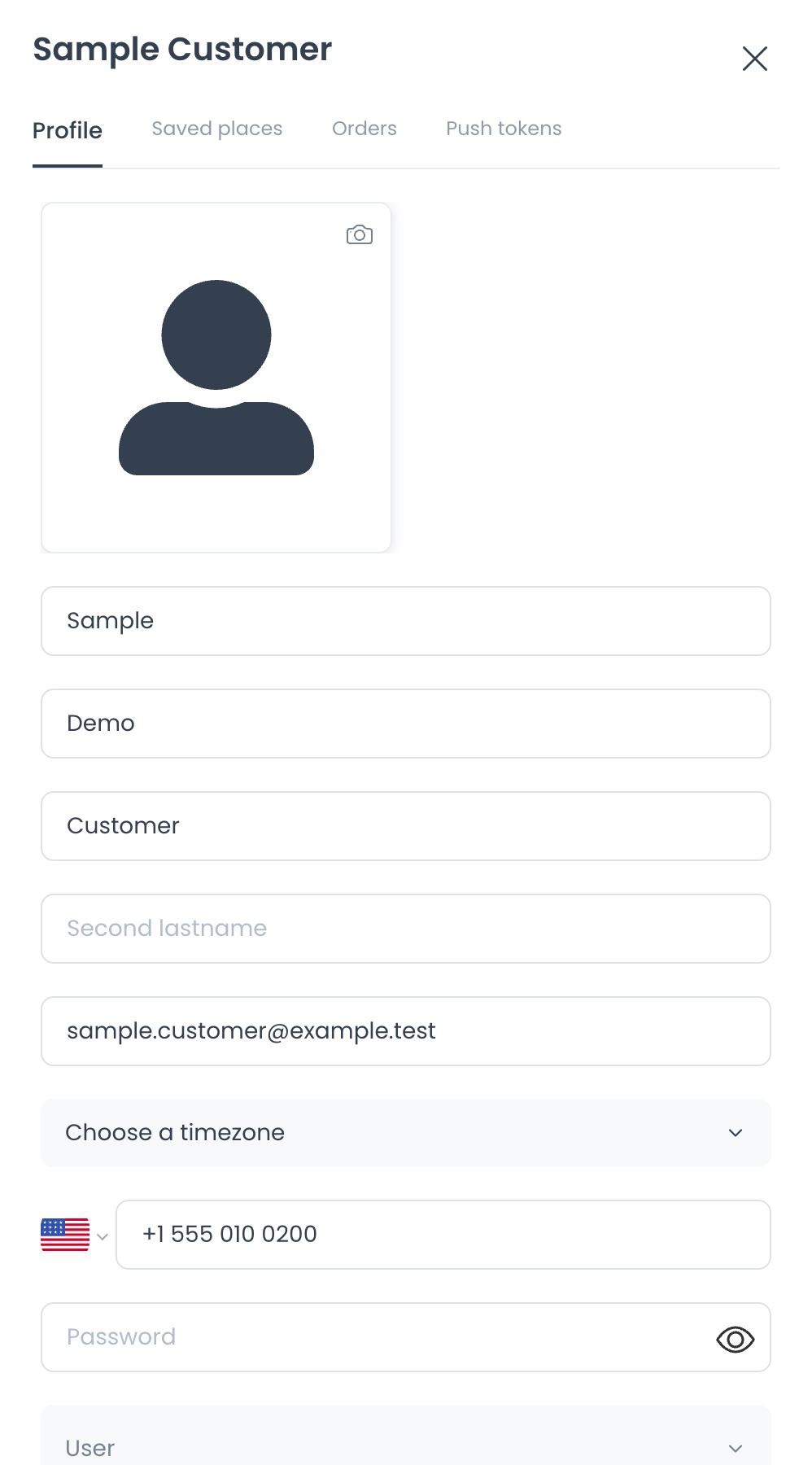
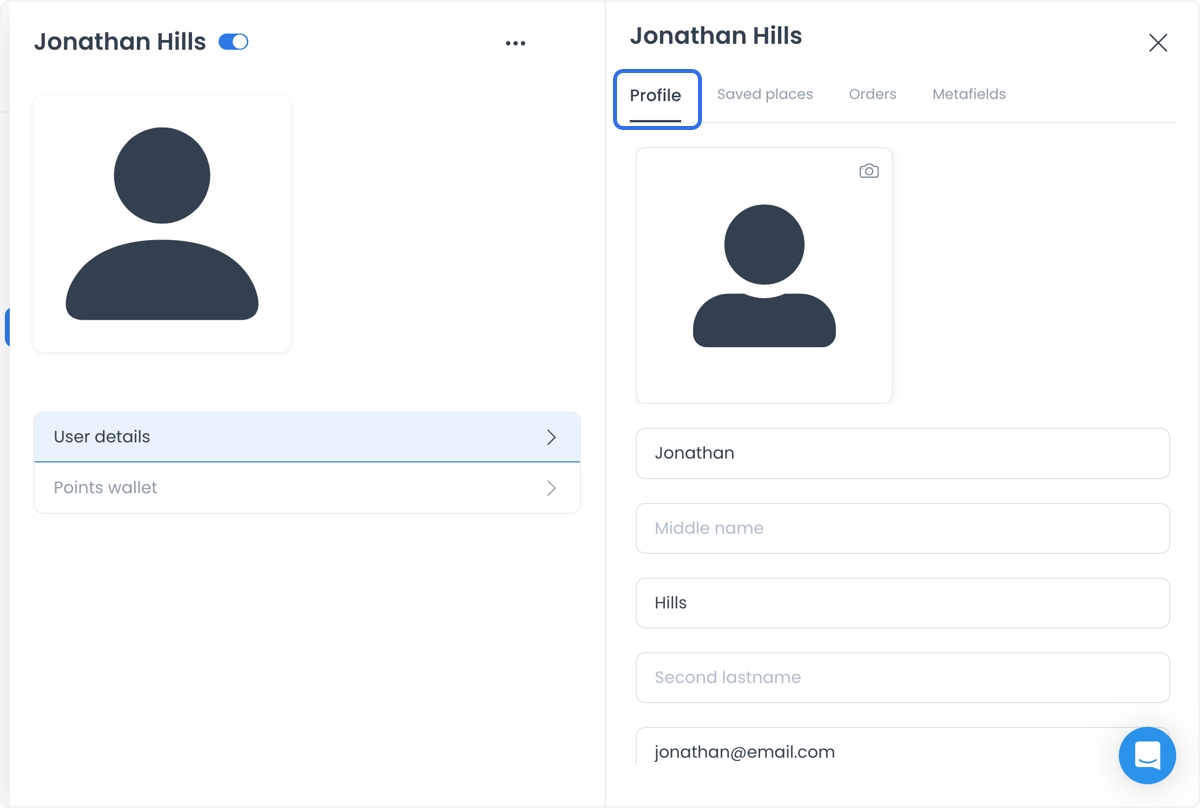
The Profile section can include configured fields such as first name, last name, email, phone number and country calling code, time zone, profile image, password, and user type. The exact form is configuration-dependent.
Before you save:
- Confirm that the record belongs to the intended customer.
- Collect only the data you are authorized to handle.
- Review the changed fields, especially email, phone, password, image, and user type.
- Confirm the consequences with the appropriate account owner when a contact method, credential, or role could change access.
Email and cellphone fields can have uniqueness and validation rules. A changed phone number can require a country calling code and, where configured, a verification step. Changing a verified email address or phone number can clear its verified state. A verification indicator reflects account data; it does not prove that a person controls the contact method or that a notification was received.
Save, role, and session boundaries
Update submits the profile changes currently in the form. The account-state switch is a separate immediate action. A role change is an access change: an administrator can make it, but an account cannot change its own level. A visible role selector is not authorization by itself.
If a password change is available, treat it as a credential and session-affecting action. It can change how active sessions are handled. Never copy a password, verification code, token, or session information into a ticket, screenshot, or message. A save acknowledgement does not prove that the new contact method was verified, that a session changed, or that an external notification was delivered.
Manage saved places
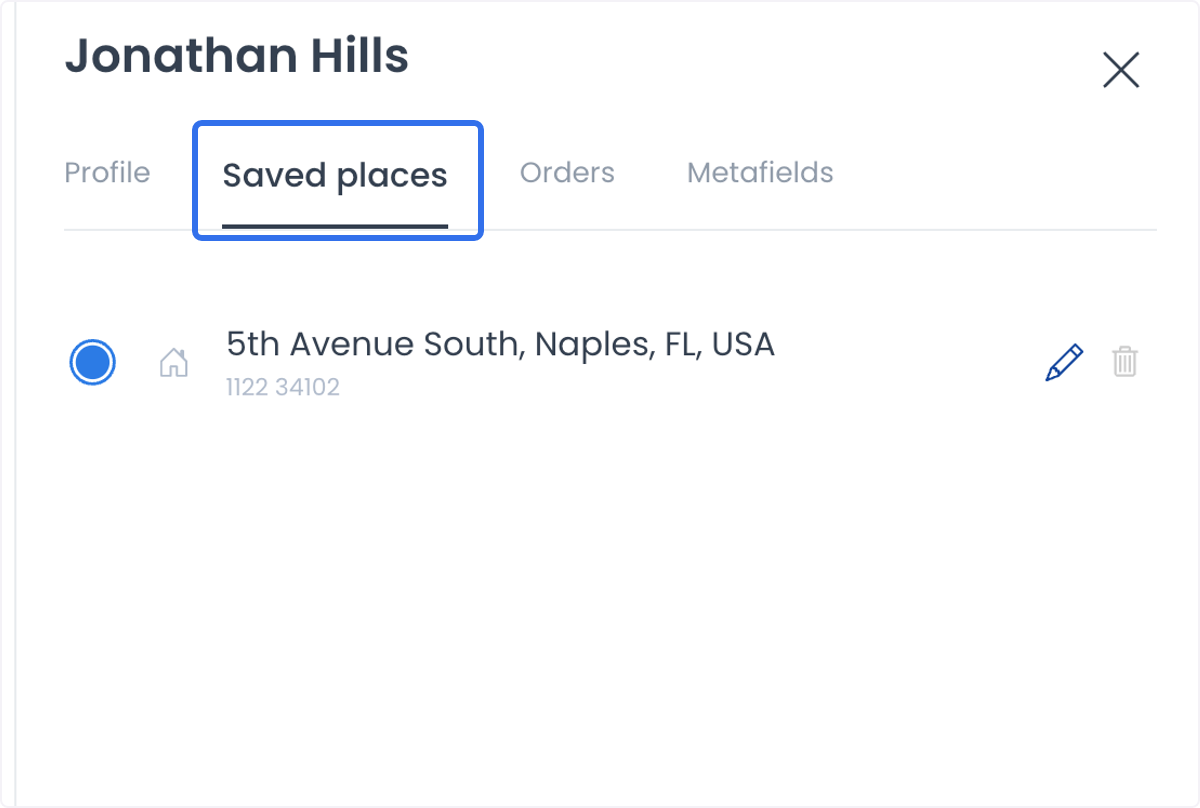
The Saved places tab can show the locations a customer has saved and can expose edit or delete controls. Review the customer and location carefully before changing a saved place. A displayed address or map location is account data, not independent proof that the person is at that location or that it applies to a specific order.
Customer-profile changes and saved places are separate from the customer contact data stored with an individual order. To correct the contact details or delivery location for one order, use Edit customer contact information on an order.
Review customer orders
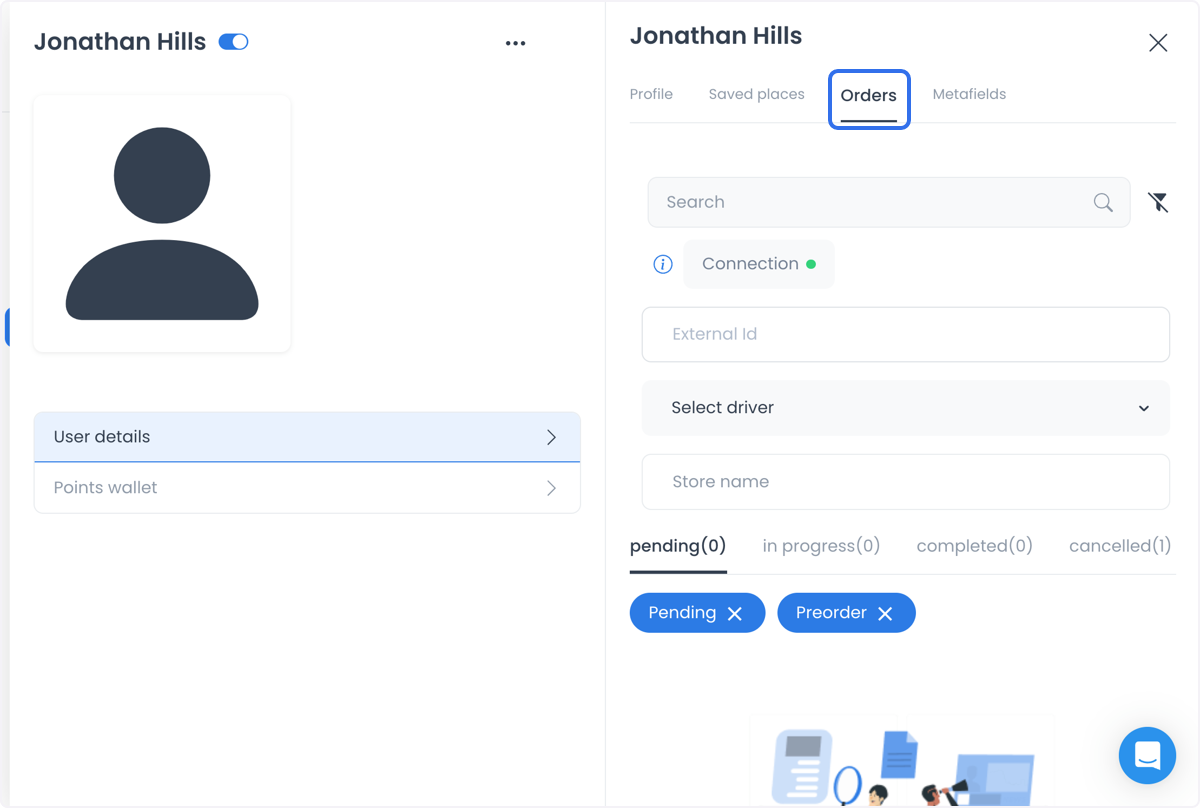
The Orders tab can group a customer's records by labels such as Pending, In progress, Completed, and Canceled. Use the list to decide which order needs review, then inspect that order in its own detail workflow.
An order label, count, or displayed history is not proof that payment settled, a delivery occurred, a cancellation reason is final, or a customer received a notification. Treat payment, fulfillment, delivery, and communication outcomes as separate evidence streams. See View and manage an order for the order workflow.
Use custom fields and wallet information carefully
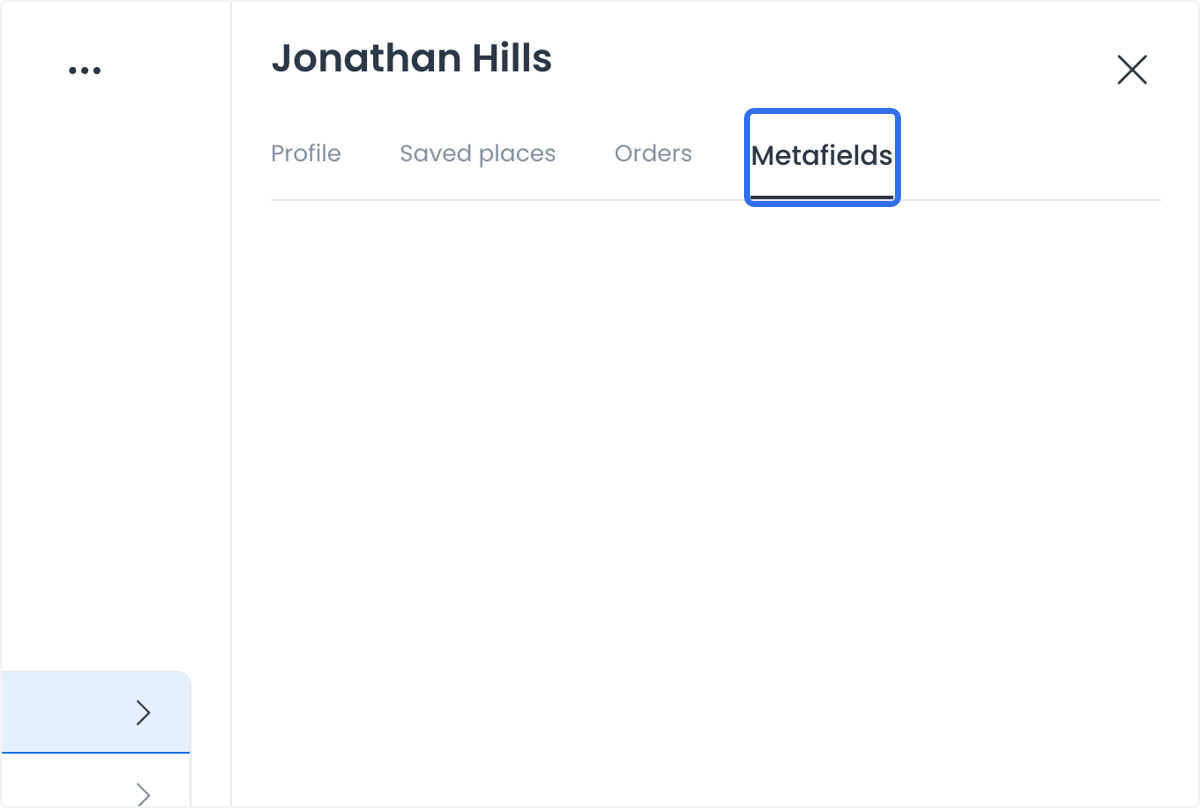
Custom fields can provide configuration-specific information for a customer account. Field availability, required state, and permissions can differ by project. Treat creating, editing, or removing custom-field data as an account change, and do not assume a visible field has been saved until it is confirmed through your approved account-review process.
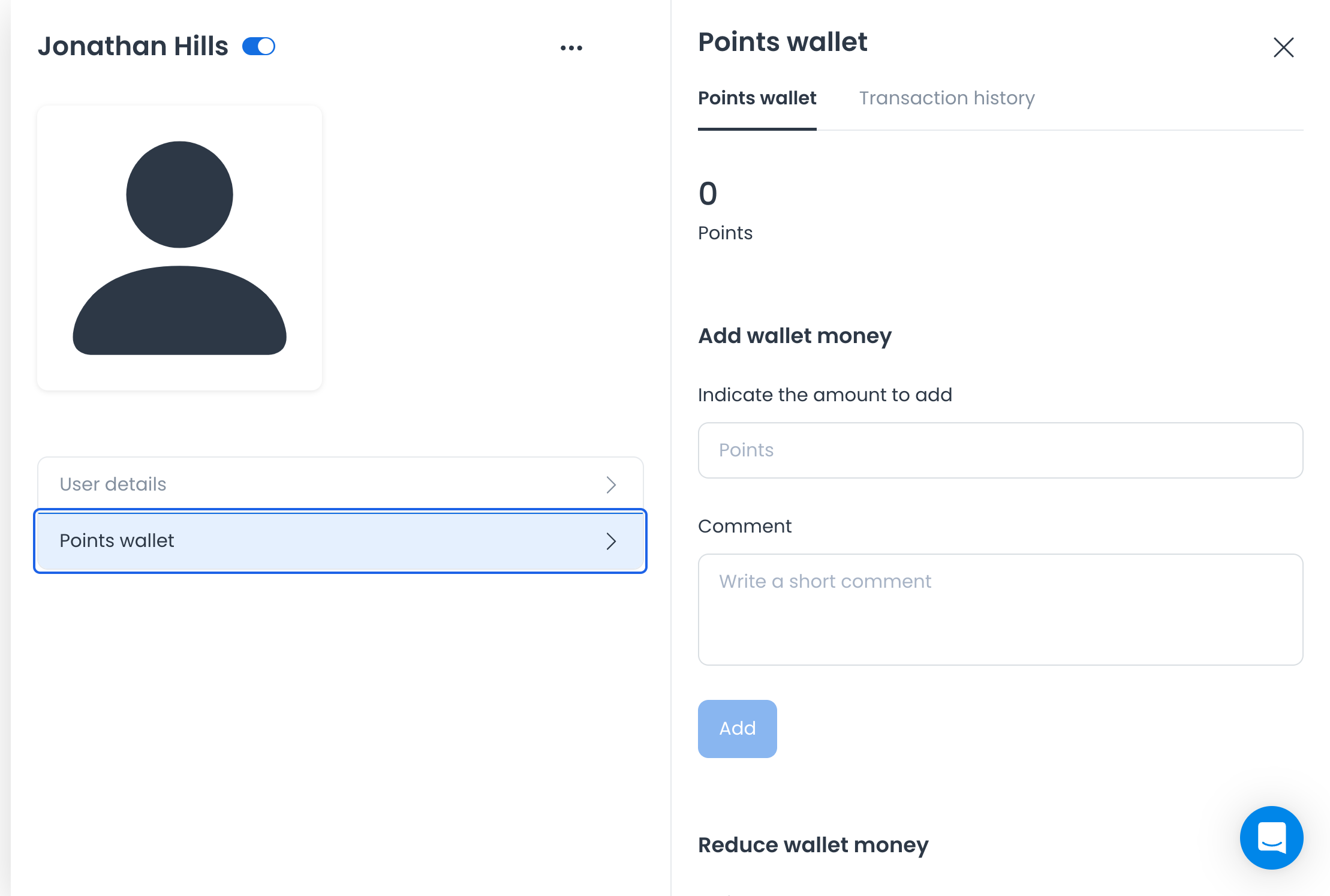
The Points Wallet area can show a customer points balance and transaction history and can expose value-changing controls. A visible balance, transaction, or confirmation does not prove that points were earned, redeemed, settled, or used to pay for an order. Do not use a live customer wallet to test a change. For the configuration workflow, see Points wallet and levels.
Enable, delete, and verify changes
The detail area can also expose account-state, deletion, image-upload, metadata, and wallet actions. Use a deliberate change-control process for each action:
- Confirm the intended customer and the exact change before submitting it.
- Check that the action is allowed for your role and the record's protection state.
- Do not treat a client confirmation as proof that every connected system, notification, payment, or session outcome completed.
- Verify the resulting account state with the approved audit trail and only the data you are authorized to view.
For route and role context, see Dashboard roles and route access.