Create or edit a business owner
Use this workflow in the Ordering.co Dashboard to create a Business owner account or update an existing business owner's profile and business relationships. The workflow is intended for authorized administrators. A visible route, form, role choice, business row, or successful response does not independently prove identity, permission, account access, notification delivery, payment, or a business outcome.
Business-owner forms can handle names, contact details, credentials, profile images, roles, account state, and business relationships. Follow your organization's authorization, privacy, and change-control process before submitting a form or changing an assignment.
Create a business-owner account
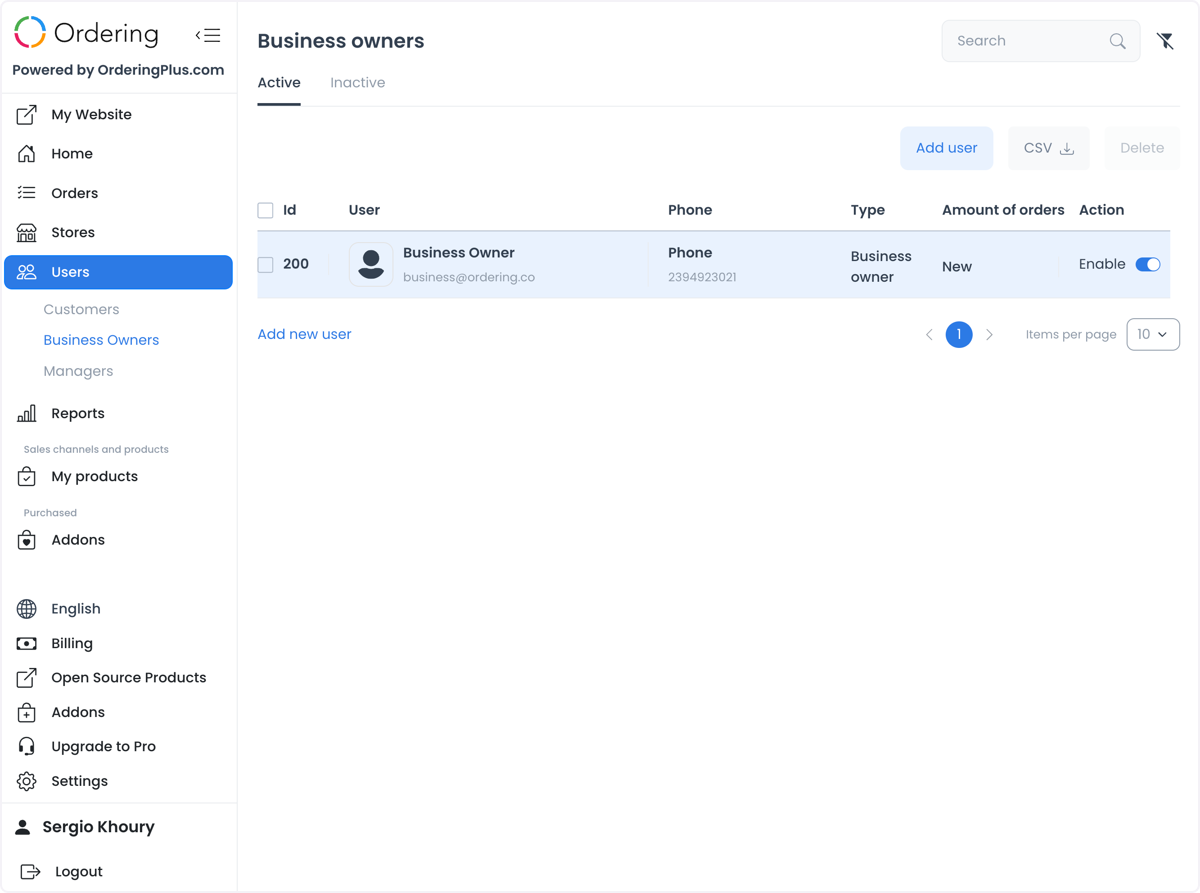
- Go to Users > Business owners.
- Select Add user or Add new user.
- Choose Business owner as the account type when that choice is available.
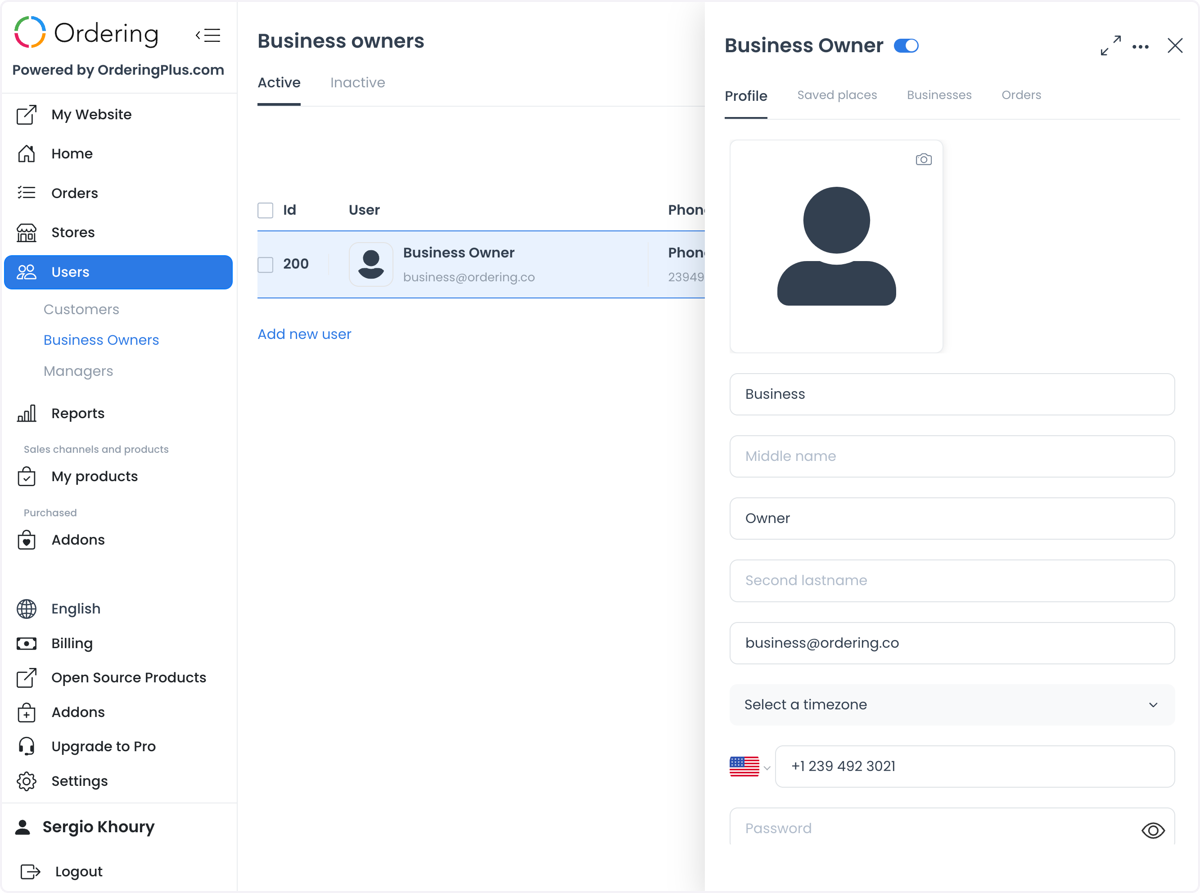
- Complete only the configured fields you are authorized to collect, such as name, last name, email, phone number and country code, time zone, profile image, and password.
- Review the account type and every entered field before selecting Add.
The form can validate identity and contact fields, including uniqueness checks. If a password is required, use a password that meets the configured requirements; do not copy a password, verification code, token, or session information into notes, screenshots, or messages. A phone number can require its country calling code and a verification step when configured.
Submitting Add is a persistent account-creation request. A confirmation only shows that the interface received a response; it does not prove that the person controls the contact method, that identity or contact information was verified, that credentials were delivered, that a notification was received, or that the account can access a business.
Edit a profile and role
Open the business owner from Users > Business owners to review the profile. The profile can include name, email, time zone, phone, saved places, image, password, account state, and role fields. The available fields can vary by project configuration.
Before selecting Update:
- confirm that the record belongs to the intended person;
- review the exact contact, image, password, and role fields that will change;
- confirm that the user is not protected from the intended action; and
- obtain the required approval for any role or access change.
An administrator can make a role change, but an account cannot change its own level. Changing a verified email address or phone number can clear its verified state. A password change can affect active sessions. The Enable switch is separate from the profile save and can submit an account-state change immediately. A displayed selector, enabled state, or save acknowledgement is not proof that the account has the intended permission or that every session, notification, or downstream system has changed.
Assign businesses to the owner
Business assignment is a separate relationship change from account creation and profile editing. You can manage it from the business owner's Businesses panel or, when available, from a store's owner area.
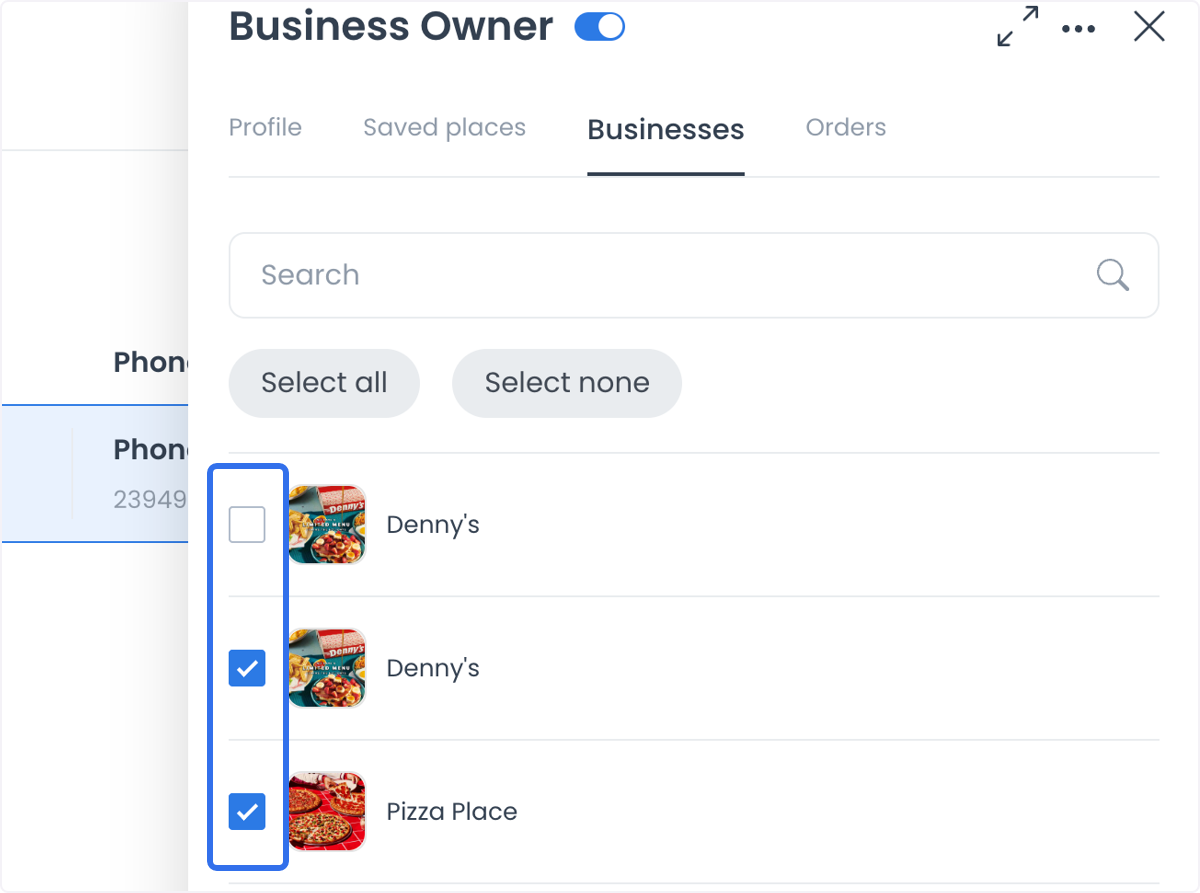
- Open the intended business-owner record and select Businesses.
- Search for the intended business if needed.
- Review the existing selections and select only the businesses that should be related to this account.
- Save the complete intended relationship set.
- Verify the saved relationship through your approved account and business-review process.
The business list can be paginated. Select all and Select none can act on the currently returned page, while saving can replace the complete relationship set. Do not use a page-scoped selection as a shortcut when existing relationships on other pages must remain intact.
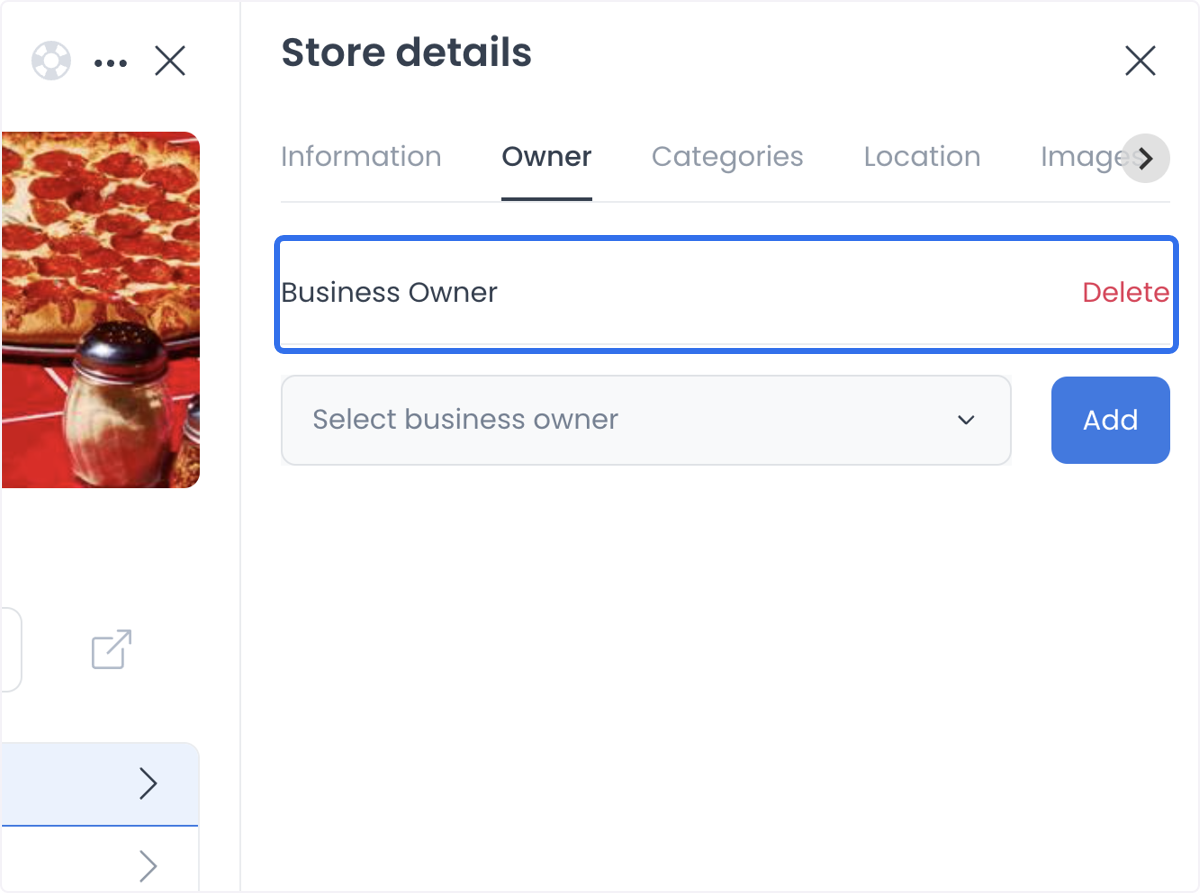
An assignment associates an account with business records. It does not establish legal ownership, create or update a customer account, change customer contact data, prove that a business owner can sign in, or prove that an order, payment, delivery, or report outcome occurred.
Understand business-owner access
Business-owner views can present information, orders, and reports related to assigned businesses. What an account can actually read or do remains subject to its role, route conditions, record scope, configuration, and API authorization. Do not infer a complete entitlement from a visible dashboard section or a business relationship.
If you need to inspect customer records, use Customers. For route and role context, see Dashboard roles and route access.
Verify changes responsibly
Treat profile saves, role changes, account-state changes, and business assignments as separate effects. Verify each one with the approved audit trail and only the data you are authorized to access. Do not retry a change just because an error or confirmation appears: the interface response alone does not establish that no part of the requested change occurred.