Users
Users provides account-management pages for reviewing and changing user records. Available fields and actions depend on the account’s permissions and project configuration.
Loading user lists and details retrieves personal and operational data. Use only the records needed for an authorized task. Do not share personal information, session details, or export data outside approved channels.
Route and sidebar boundaries
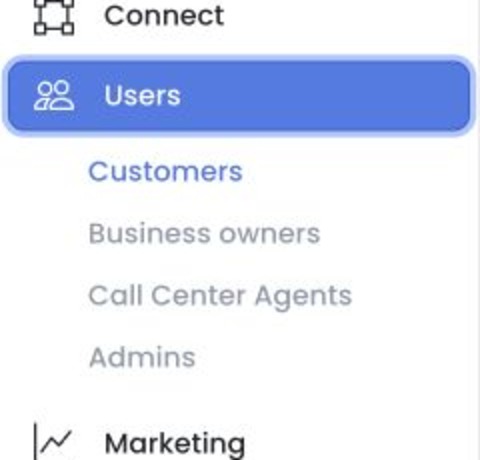
The Customers, Business Owners, Call Center Agents, and Admins routes are restricted to level-0 administrators. The Users sidebar parent also requires level 0 and excludes read-only state. Call Center Agents adds a separate condition in the sidebar; its direct route does not repeat that condition.
User groups
| User group | What it shows | Availability |
|---|---|---|
| Customers | User level 3 | Users menu; level-0 route |
| Business owners | User level 2 | Users menu; level-0 route |
| Call Center Agents | User level 9 | Users menu when its sidebar condition is met; level-0 route |
| Admins | User level 0 | Users menu; level-0 route |
Each of these pages opens as a filtered view of the shared user list. The role used by a page does not, by itself, determine every action that the API will allow.
Professionals is a separate sidebar item rather than a Users submenu. Its item expression names levels 0 or 2 plus the appointments feature condition, but the enclosing parent requires level 0, its own condition, and no read-only state. Effective sidebar reachability is therefore level 0 only when those parent and item gates are met, while the direct route permits levels 0, 2, and 5. A direct-route guard does not prove feature availability or API authorization.
Authenticated reads and private fields
The shared controller performs a paginated user request on mount and repeats it when user type, active state, search, verification, occupation, order-count, or advanced filters change. Returned fields can include names, email addresses, phone numbers, addresses, birth dates, locations, verification states, order counts, wallets, push tokens, business relationships, and other role-specific data.
Opening a user detail can retrieve additional private information, including addresses, orders, assigned businesses, metadata, and wallet data. Open only the records and tabs needed for your authorized task.
Persistent and outbound effect surfaces
Common actions on these pages include:
- the row or detail Enable switch immediately submits an account update;
- profile save can change identity, contact, password, image, role, schedule, or other configured fields;
- Add user creates an account;
- CSV requests can queue a private-data export job;
- single delete can change account identifiers, deactivate the record, create an audit entry, and invoke configured
users_deleteplugin actions; - bulk delete can remove eligible records before reporting an error for a protected user;
- Custom fields can read, create, or delete user metadata;
- business-assignment controls can replace relationship sets.
The API blocks disabling or deleting protected users and prevents an administrator from deleting itself. An error message does not guarantee that a failed request had no effect; check the account state before retrying. Password updates can also revoke other sessions.
Authorization boundary
Dashboard route access and sidebar visibility do not guarantee permission to use an API. Access depends on the operation, account role, and affected record; a visible button or route alone does not confirm that a request is permitted.
Project and account differences
Available fields and actions vary by role and project. A confirmation or error message does not establish that a multi-record change completed atomically. Password updates can also revoke other sessions; check the current account state before retrying an action.
Add a user
The steps below describe the Dashboard's Add User form flow for the roles covered on this page.
| User type | Menu path | Add button |
|---|---|---|
| Customer | Users → Customers | Add user |
| Business owner | Users → Business owners | Add user (also shown as Add new user) |
| Admin | Users → Admins | Add user (also shown as Add new user) |
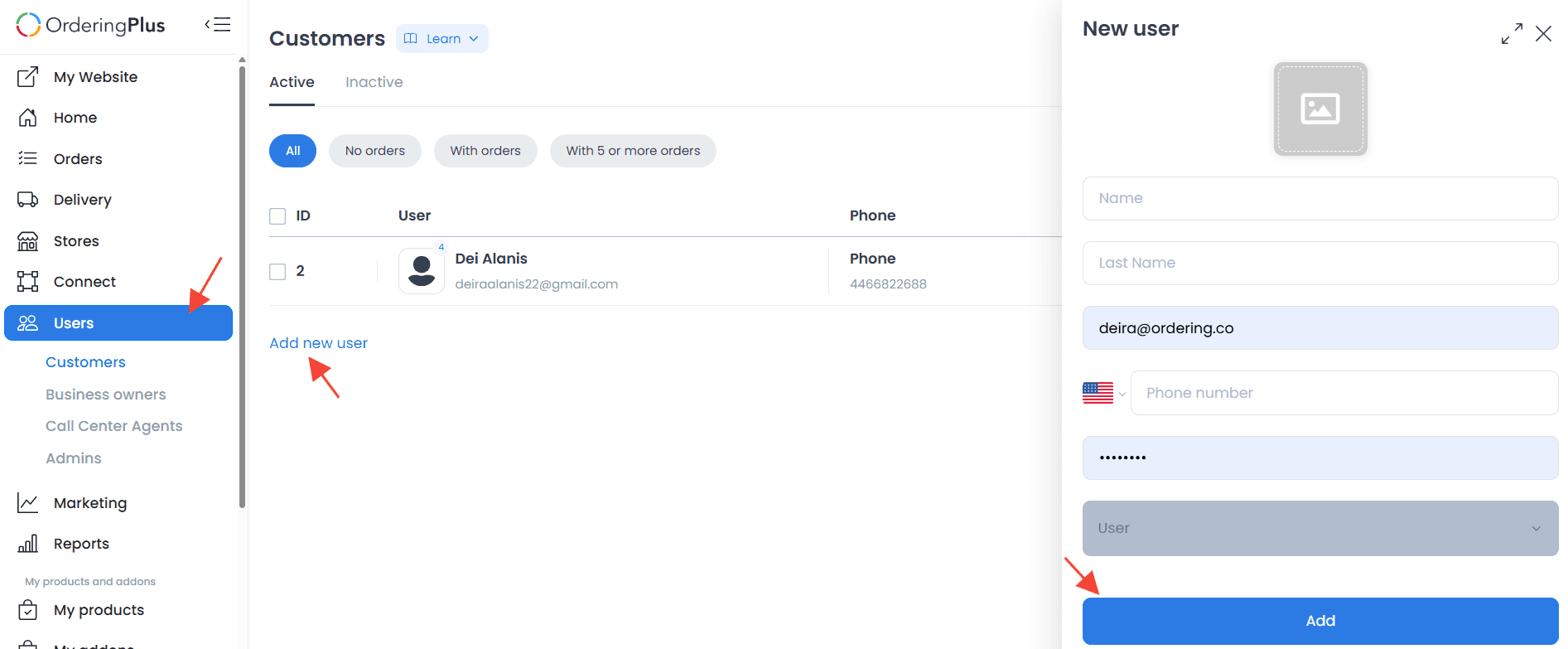
- Go to Users in the Dashboard sidebar.
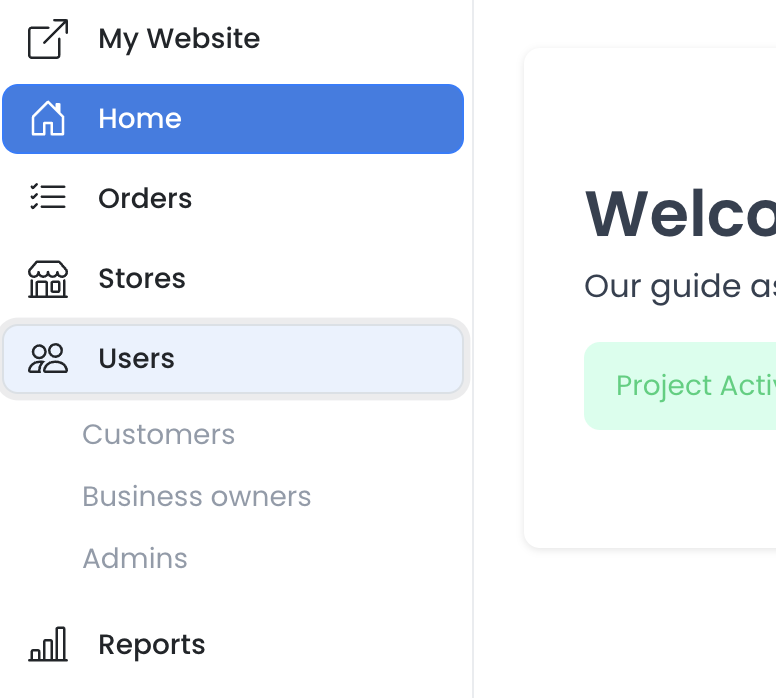
- Select the target category: Customers, Business owners, or Admins. (Call Center Agents follows the same Add user flow but is only reachable from the sidebar when its sidebar condition is met, as noted above.)
- Click Add user.
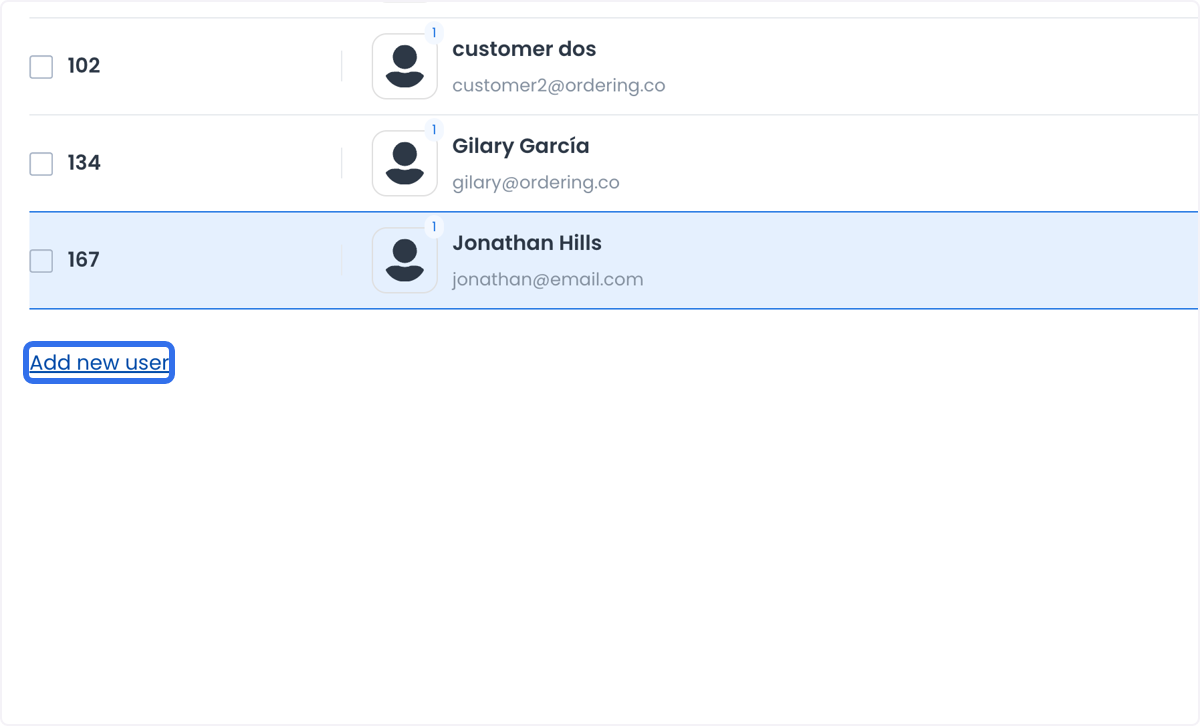
- Fill in the user's details:
- First name
- Last name
- Phone number (double-check the country/area code — an incorrect code can cause notification delivery to fail)
- Password (should meet standard password-security requirements)
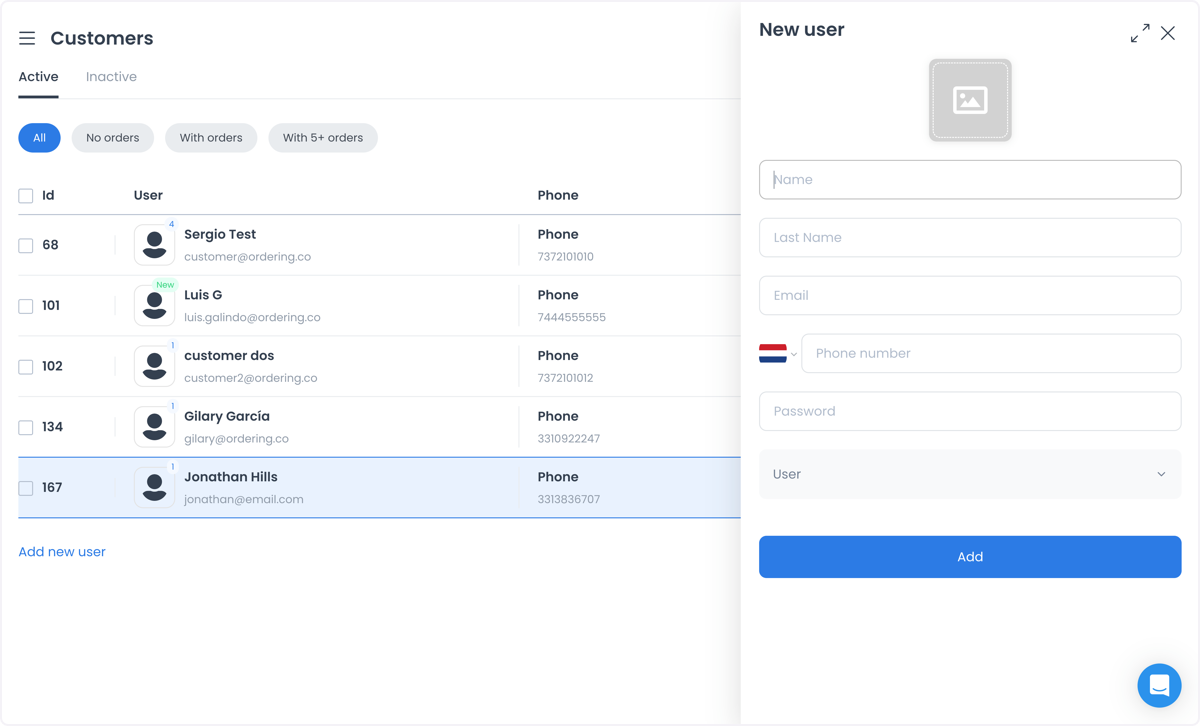
- Click Add (also labeled Save) to create the account.
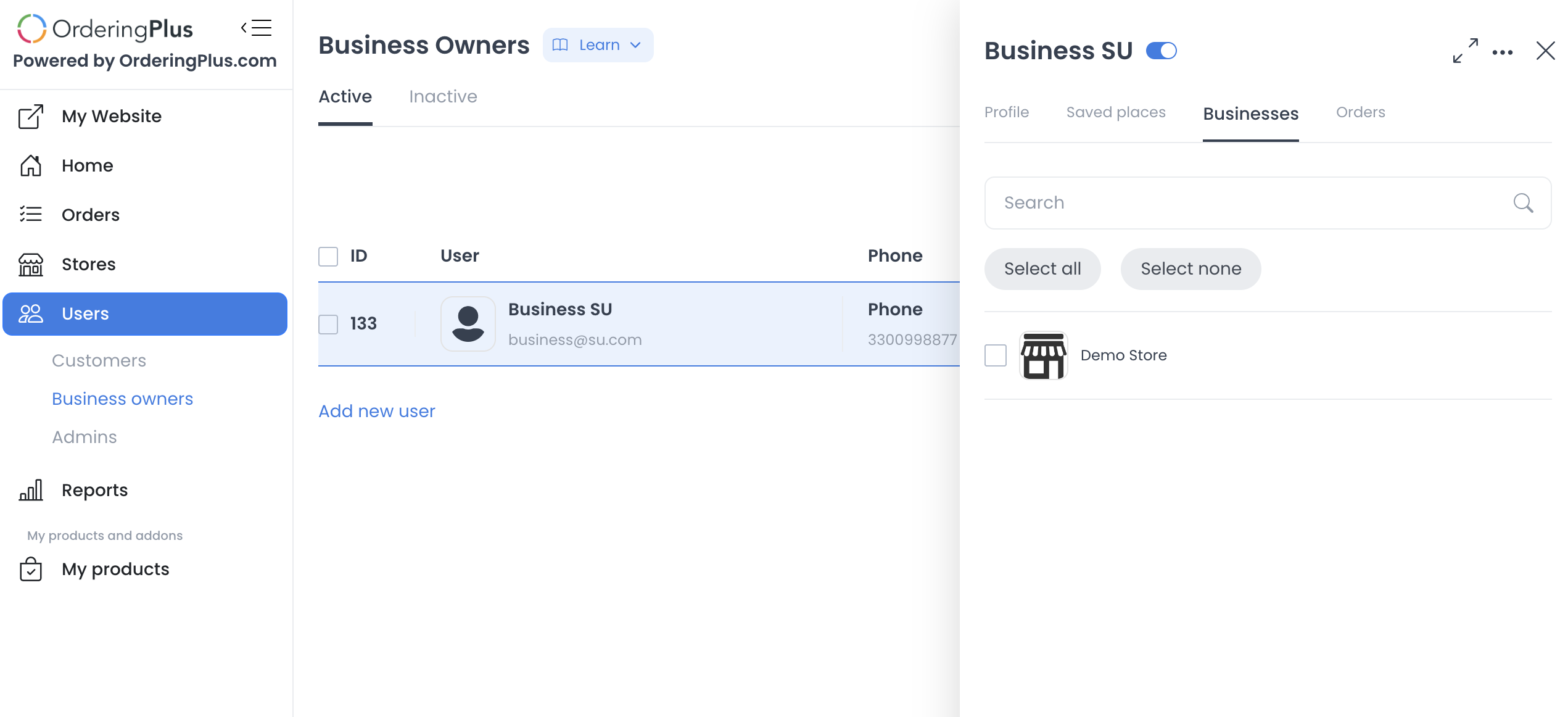
- For a business owner, after the account is created, reopen its profile and go to the Business section to assign the store or stores that owner will manage.
Add a driver or driver manager
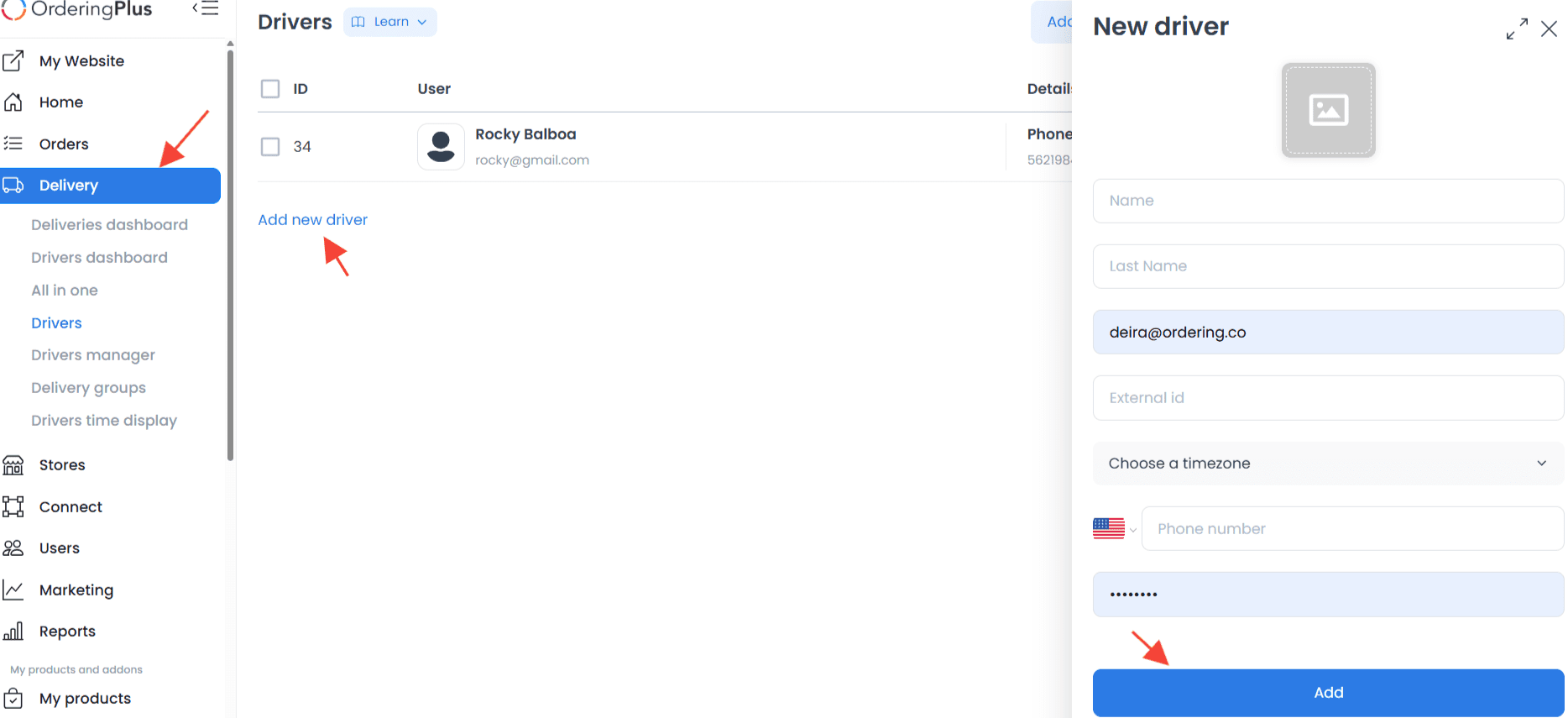
Driver and driver manager accounts are created from Delivery, not from Users.
Driver
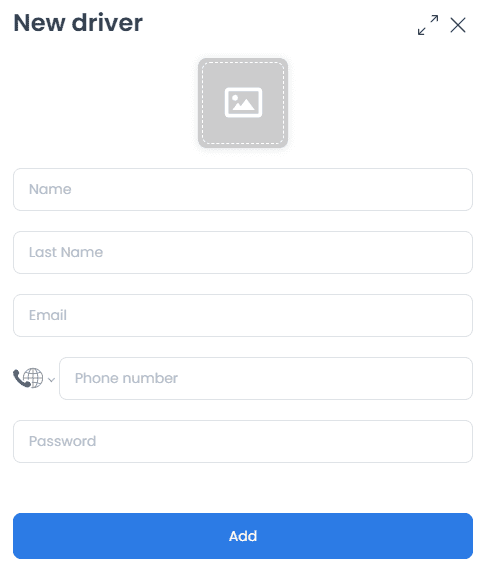
- Go to Delivery, then select Drivers.
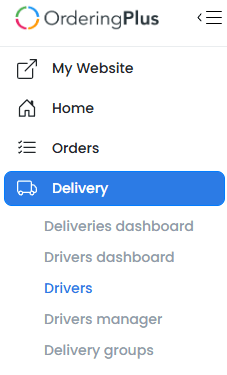
- Click Add new driver.
- Fill in the driver's personal data (name, email, phone number, and password). The External ID field is used specifically for third-party integrations and can be left blank otherwise.
- Click Save (also labeled Add) to create the account.
Driver manager
- Go to Delivery, then select Drivers Manager.
- Click Add new driver manager.
- Fill in the first name, last name, email, phone number, and password fields.
- Click Add to create the account.