Configure taxes and customer fees
Tax & fees contains tax, service-fee, and delivery-tax settings for a store. Within the same tab, Customer fees adds finer control over extra charges — fixed or percentage-based — that can be limited to a specific delivery type, payment method, or platform, and scheduled to run only within a date range.
Set tax and service fees
-
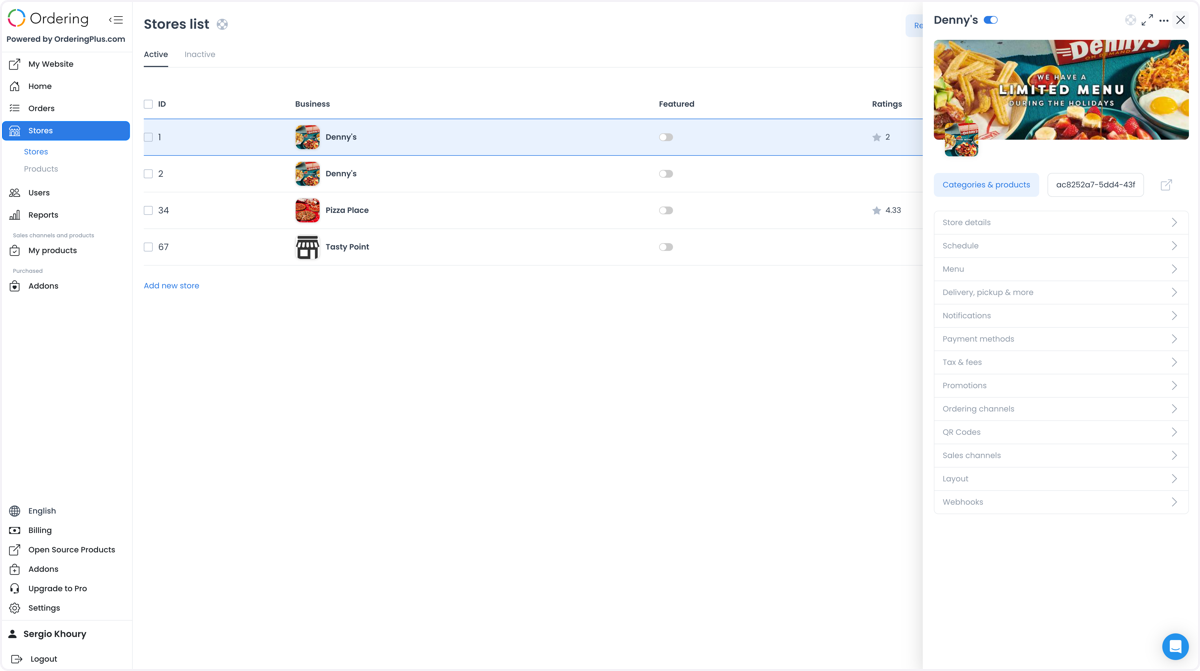
Select the store to configure. Its settings open in a new panel.
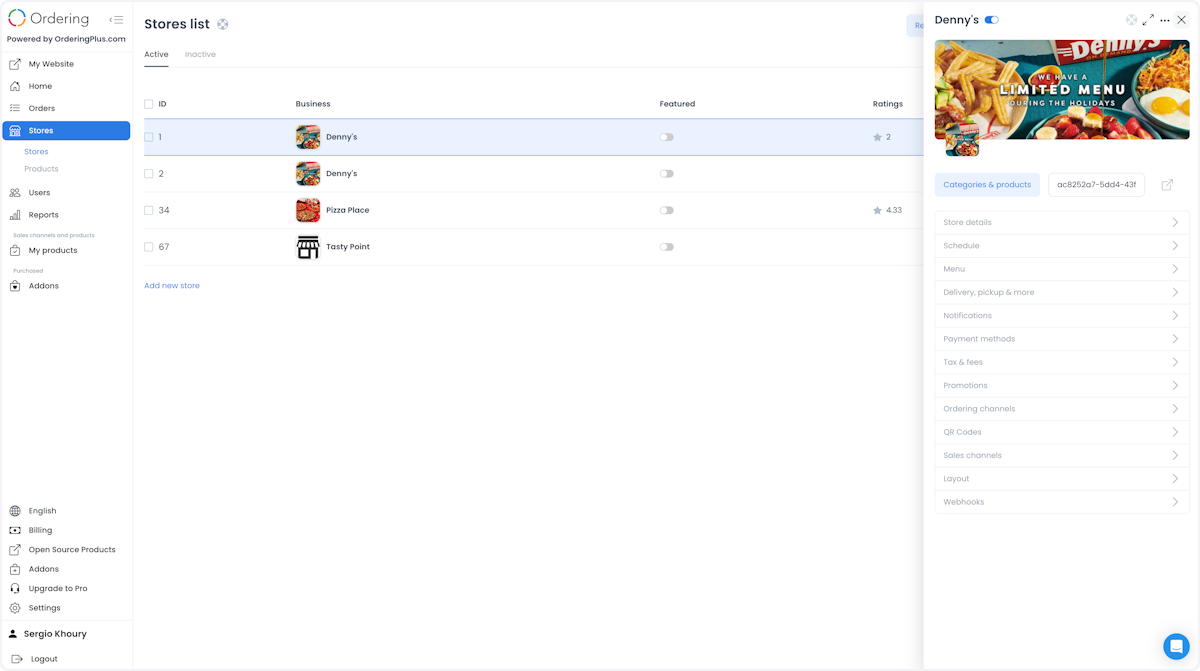
-
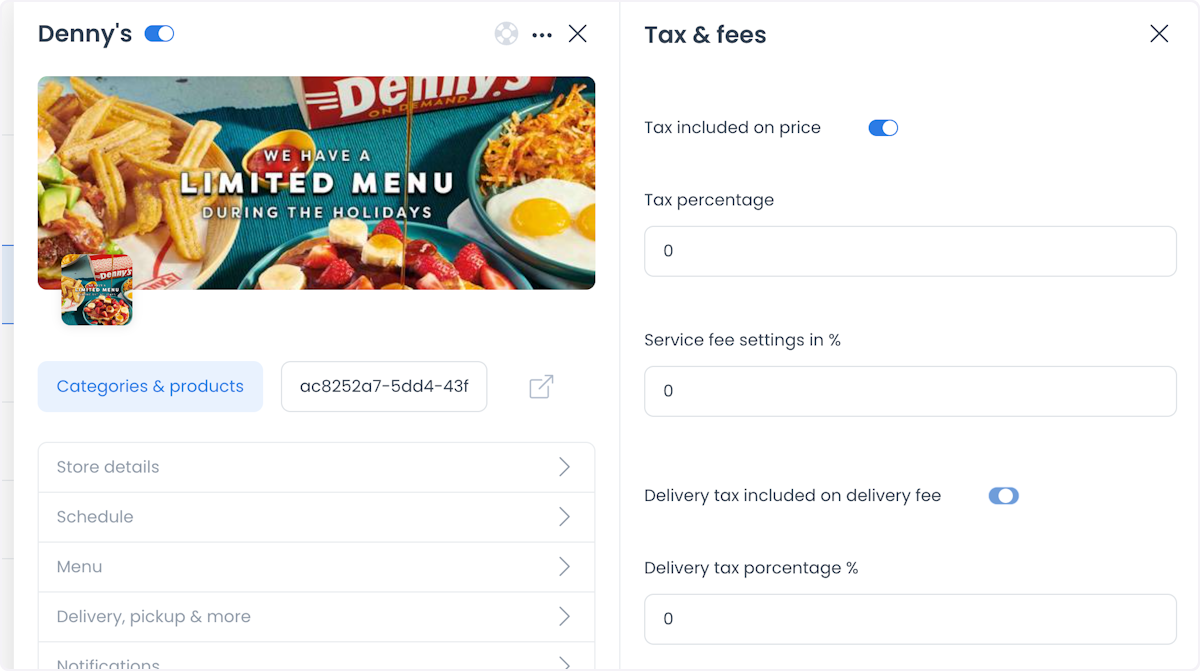
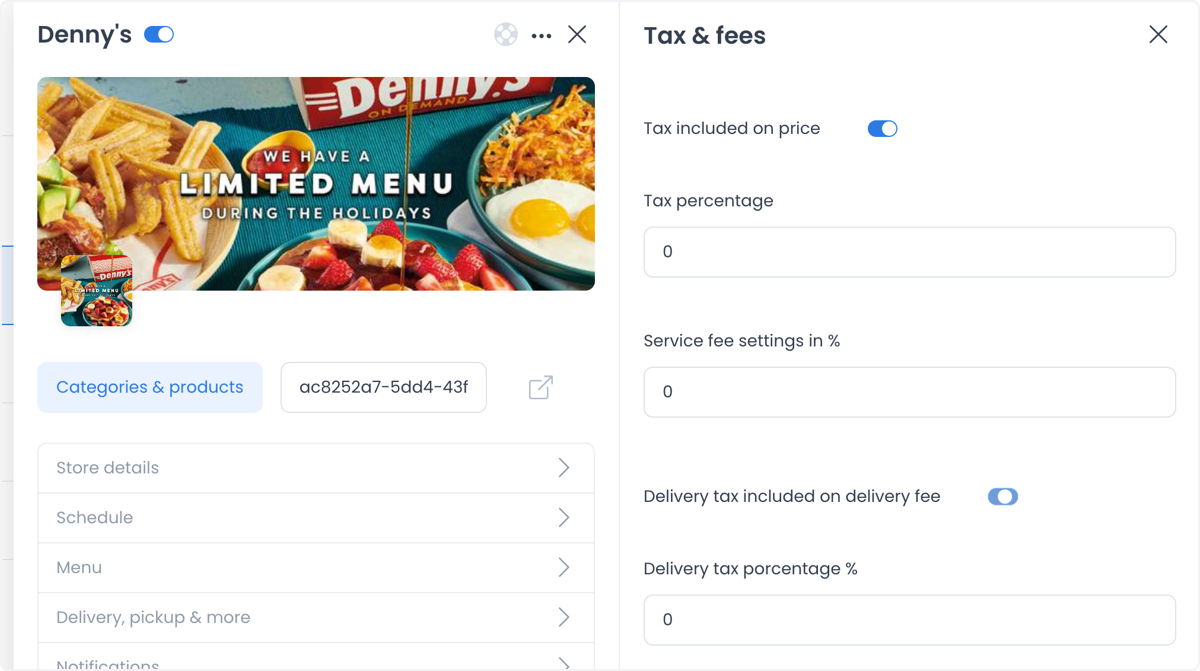
Select Tax and Fees. The captured panel shows Tax percentage, Service fee settings in %, Delivery tax included on delivery fee, and Delivery tax percentage %.
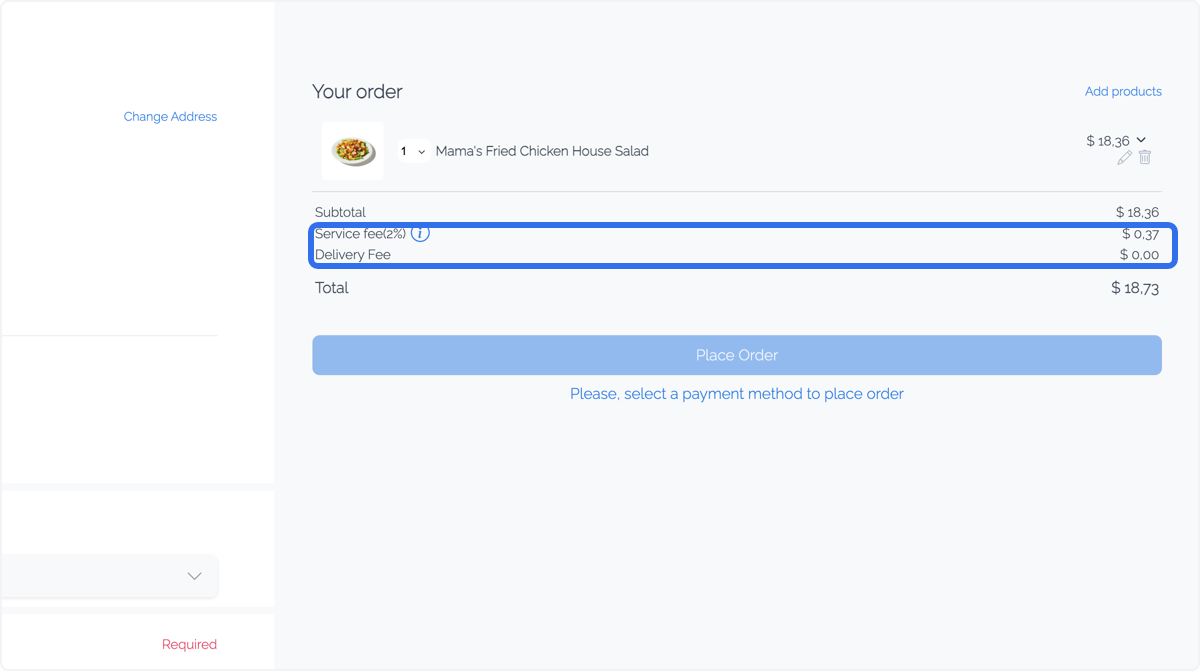
Captured checkout breakdown
The following capture shows a checkout breakdown with Service fee(2%) and Delivery Fee. It does not verify a Tax & fees configuration or show how a saved setting affects checkout.
Customer fees
Customer fees give a marketplace granular control over how and when extra costs pass on to the customer — covering higher operational costs for cash transactions, or applying seasonal surcharges, without a flat, always-on charge.
Why marketplaces use customer fees
- Operational offsetting: a small fee on Cash on Delivery orders to cover manual handling and logistics risk.
- Platform convenience: a small flat fee per order that goes toward maintaining the marketplace infrastructure.
- Service-specific surcharges: a fee applied only to Delivery orders, while Pickup stays fee-free to encourage certain customer behavior.
- Peak demand management: a date-limited fee during holidays or high-traffic events to manage delivery capacity.
Define the fee
From the same Tax & Fees tab used above, select Add New to open the Add Customer Fee configuration:
- Name: a clear label the customer sees at checkout (for example, "Service Convenience Fee"). A clear name reduces cart abandonment by explaining the charge.
- Fixed vs. percentage: choose a flat amount (for example, $3.00) or a percentage of the order total.
- Fixed minimum: when using a percentage, set a minimum floor so low-value orders still cover basic processing costs.
Target the fee
A customer fee doesn't have to apply globally — trigger it based on specific customer choices:
- Delivery type: limit the fee to Delivery or Pickup.
- Payment method: apply the fee only for a specific method, such as Cash.
- Site (platform): limit the fee to a specific platform, such as the marketplace website, app, or kiosk.
Schedule the fee
Use Limit by date range to set a start and end date. The fee then appears and disappears from checkout automatically, without a manual update.
Tips
- Use the Name field to clearly explain the fee's purpose at checkout — transparency reduces cart abandonment.
- Start with a small fixed fee on a specific payment method (such as Cash) to gauge its effect on conversion before rolling it out more broadly.
- When setting a percentage fee, always set a Fixed minimum so small orders stay profitable.
Use cases
- Local restaurants and cafes: set different tax and service fees for dine-in, takeout, and delivery to reflect each service's actual cost.
- E-commerce websites: apply tax rates that comply with local regulations and set service fees for shipping and handling.
- Delivery services: adjust delivery fees by distance or order size for a fair pricing structure.
- Multi-location businesses: set different tax and fee percentages per store location to match local tax rules and market conditions.