Configure a store schedule
Schedule manages a store's operating hours, so customers always see accurate availability and orders align with when the store can actually fulfill them.
Set store hours
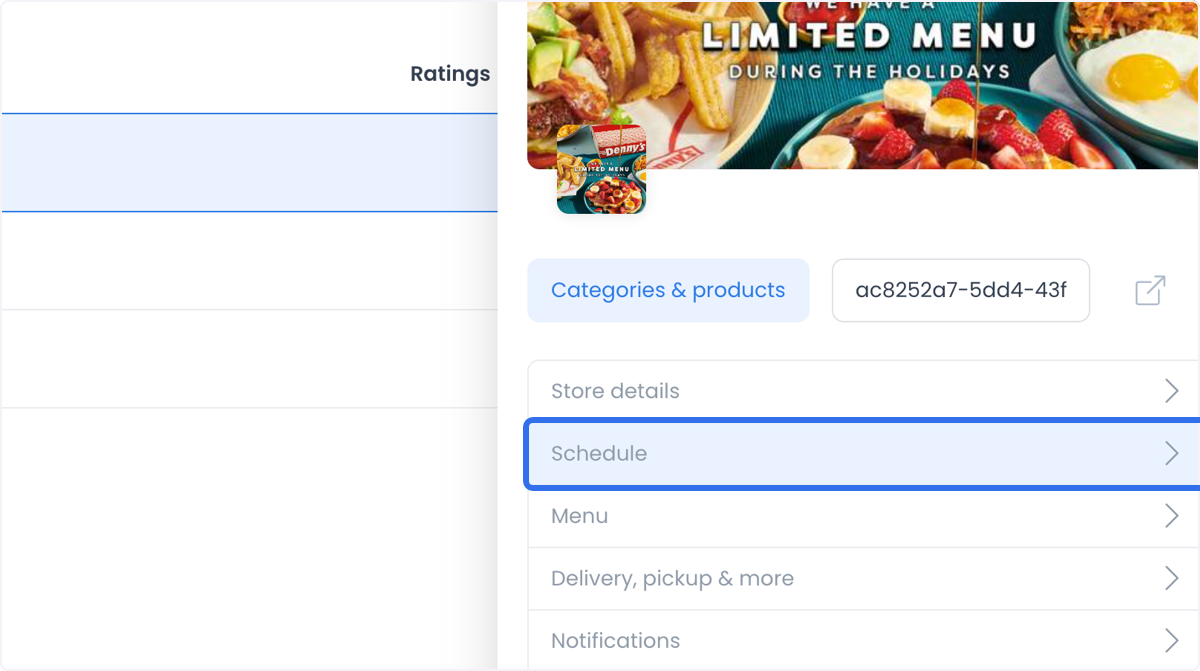
Open Schedule in the store details navigation to define the store's operating hours.
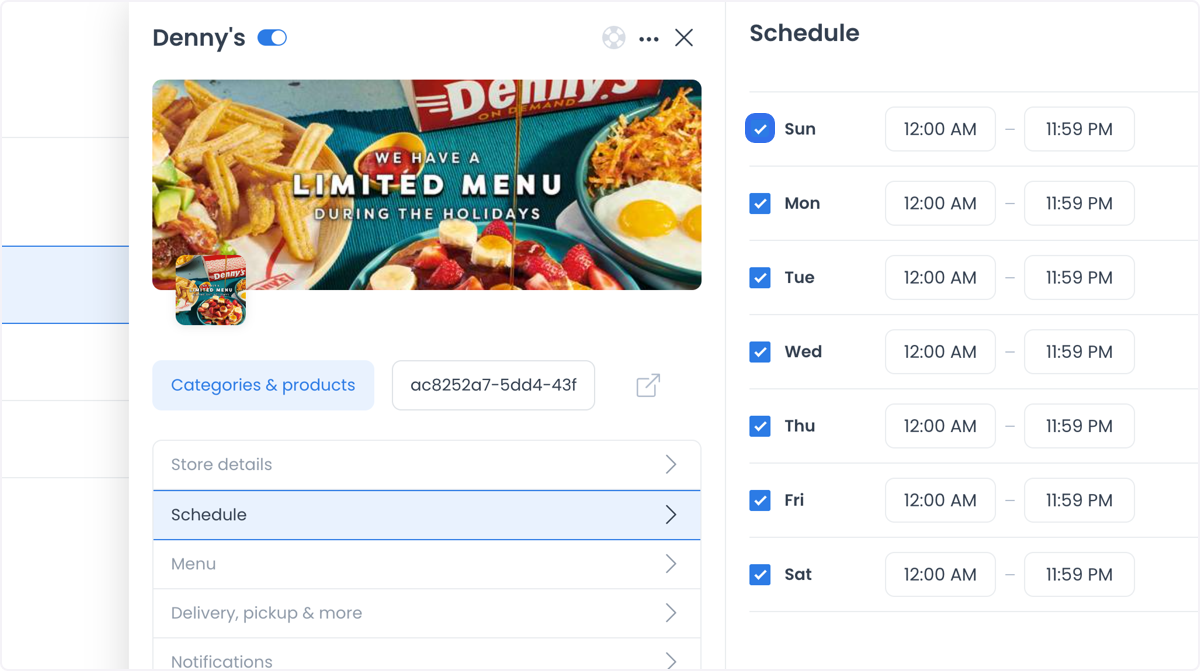
Enter the opening and closing times for each day of the week.
Set and copy times
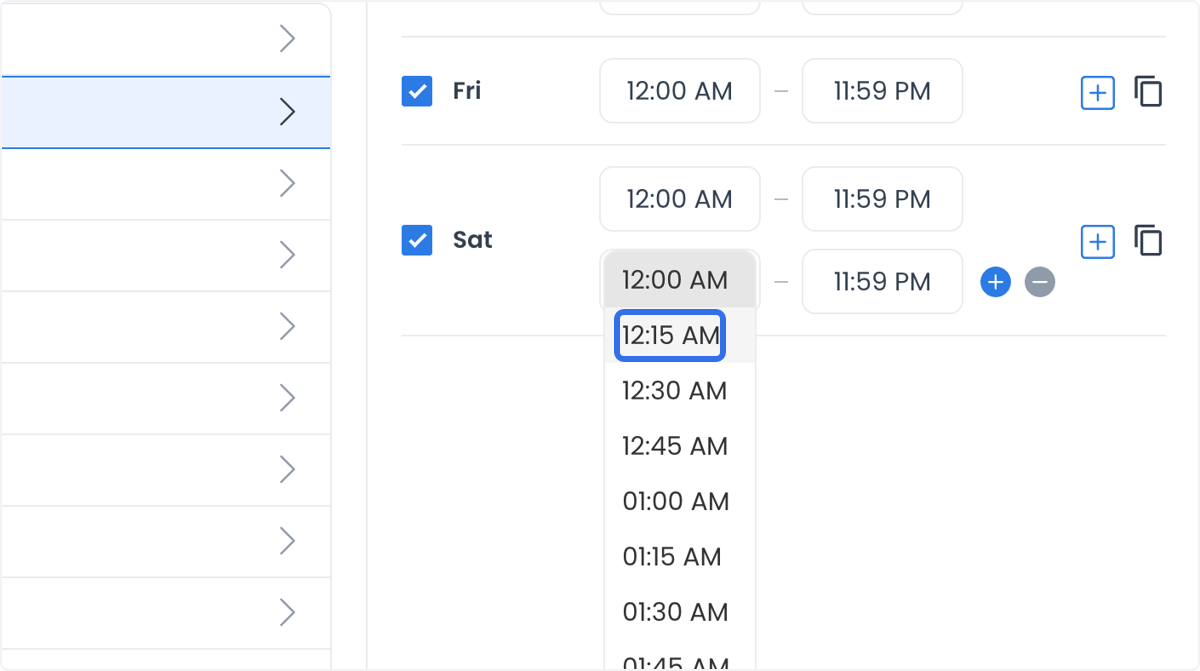
Select a time field to change an opening or closing time. Use the plus control to add another time range for that day.
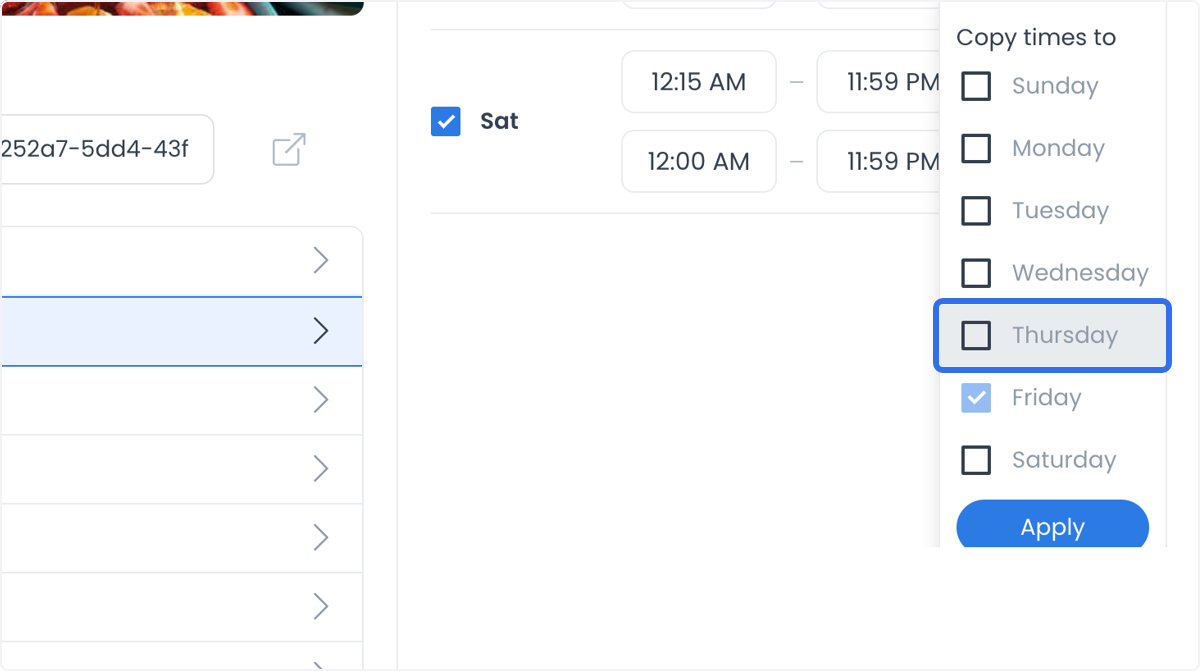
Use the copy control next to a day's hours to open Copy times to, choose the days to receive the times, and select Apply.
Use cases
- Consistent availability: keep the store available during peak hours to match customer demand.
- Holiday or special-event hours: adjust the schedule to reflect closures or modified hours, so customers stay informed.
- Flexible scheduling: adapt hours to seasonal or business changes without losing accuracy.