Create store QR codes
QR Codes generates customized QR codes for a store's delivery types, giving customers a contactless way to reach the ordering menu for pickup, eat-in, curbside, or drive-thru.
Open QR Codes
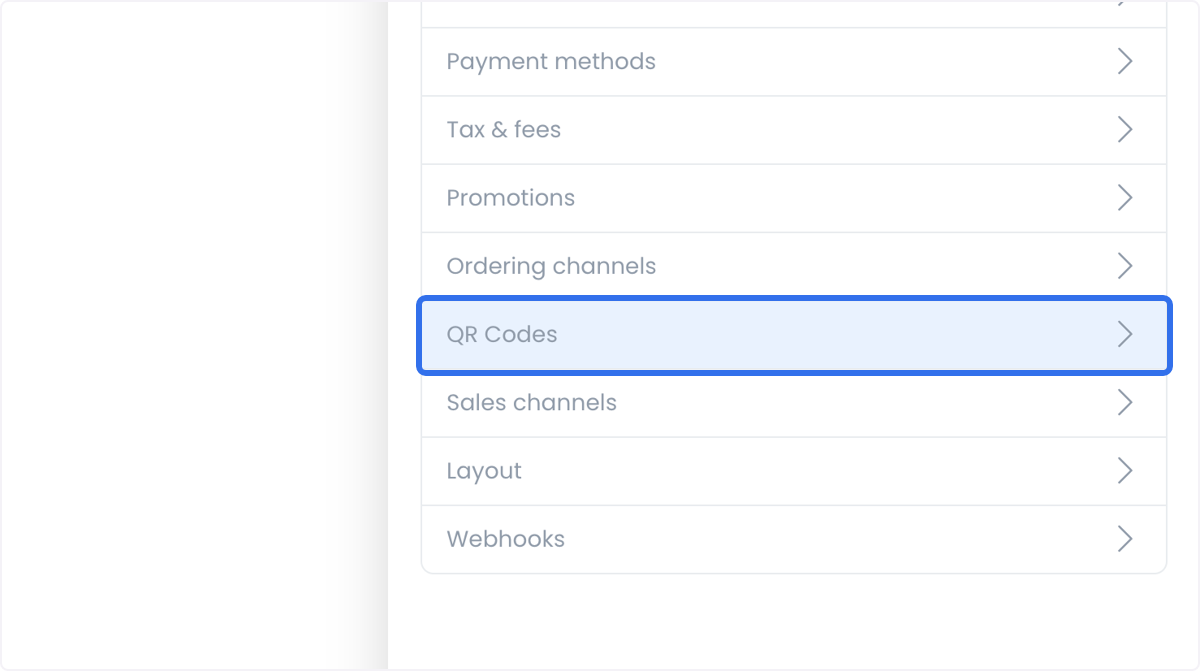
Select QR Codes in the store settings navigation. The capture below shows that selection; the QR Codes panel contains settings for each delivery type.
Generate a code by delivery type
Pickup
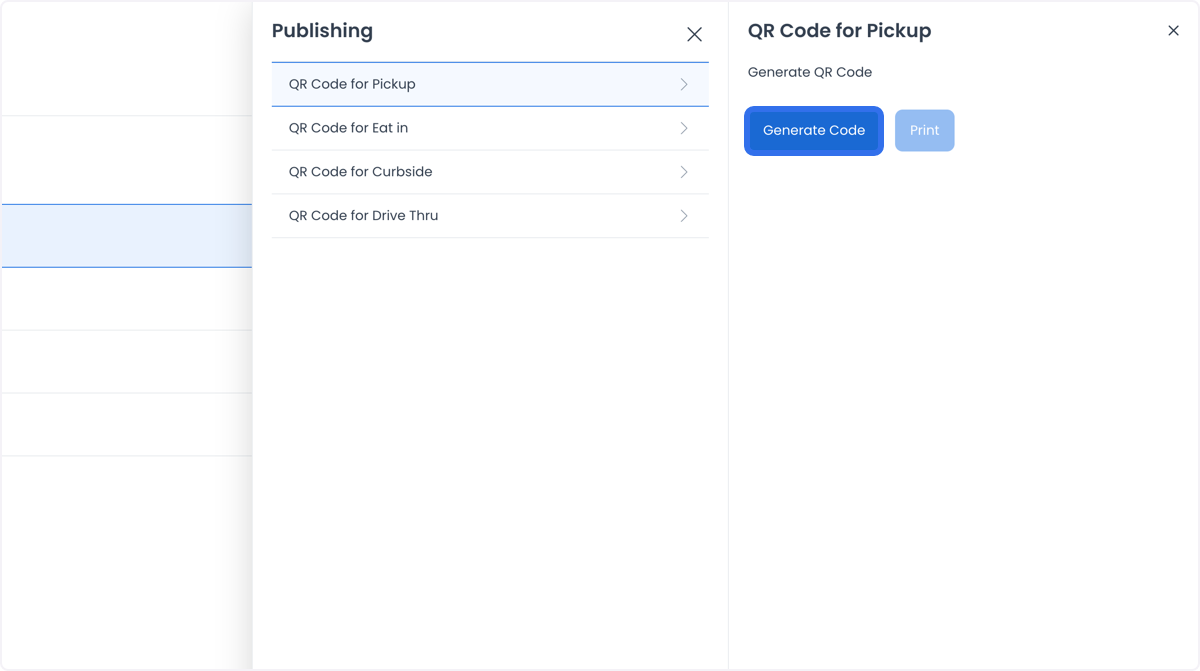
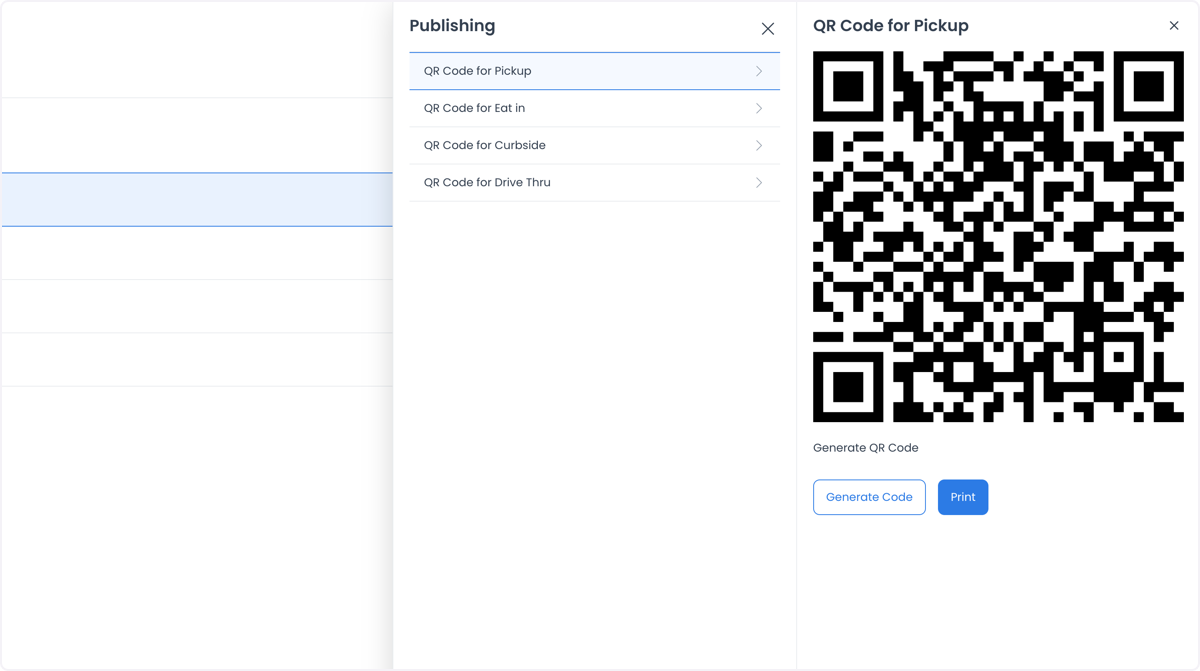
Select Generate Code. The QR code for the Pickup delivery type appears immediately.
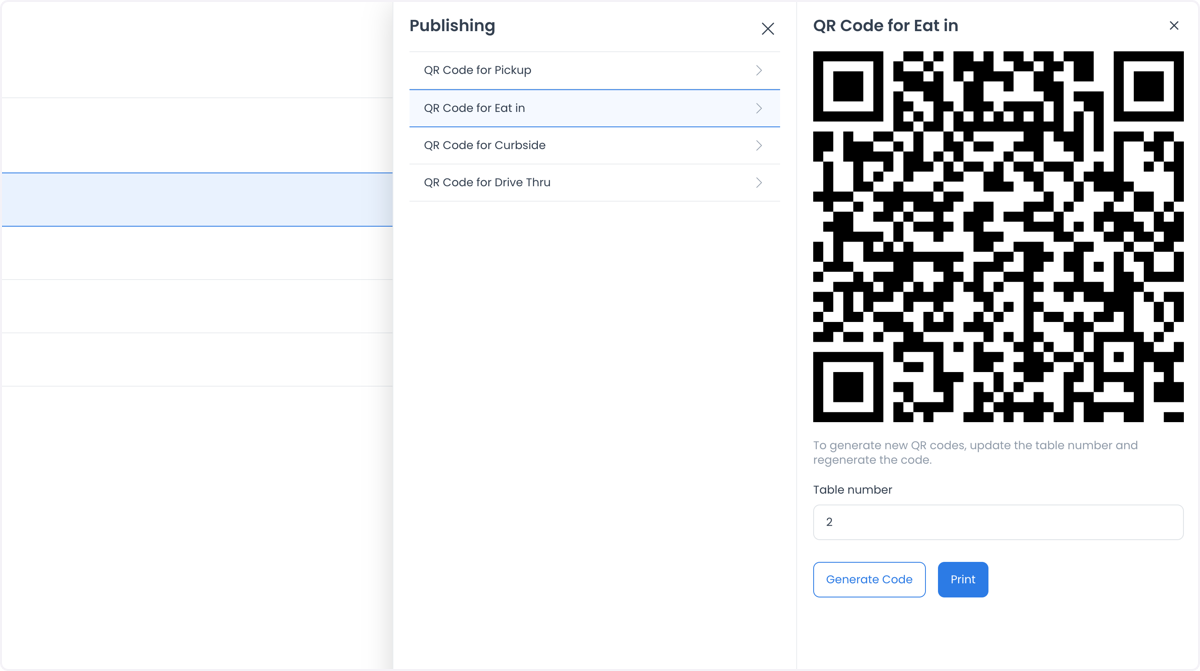
Eat in
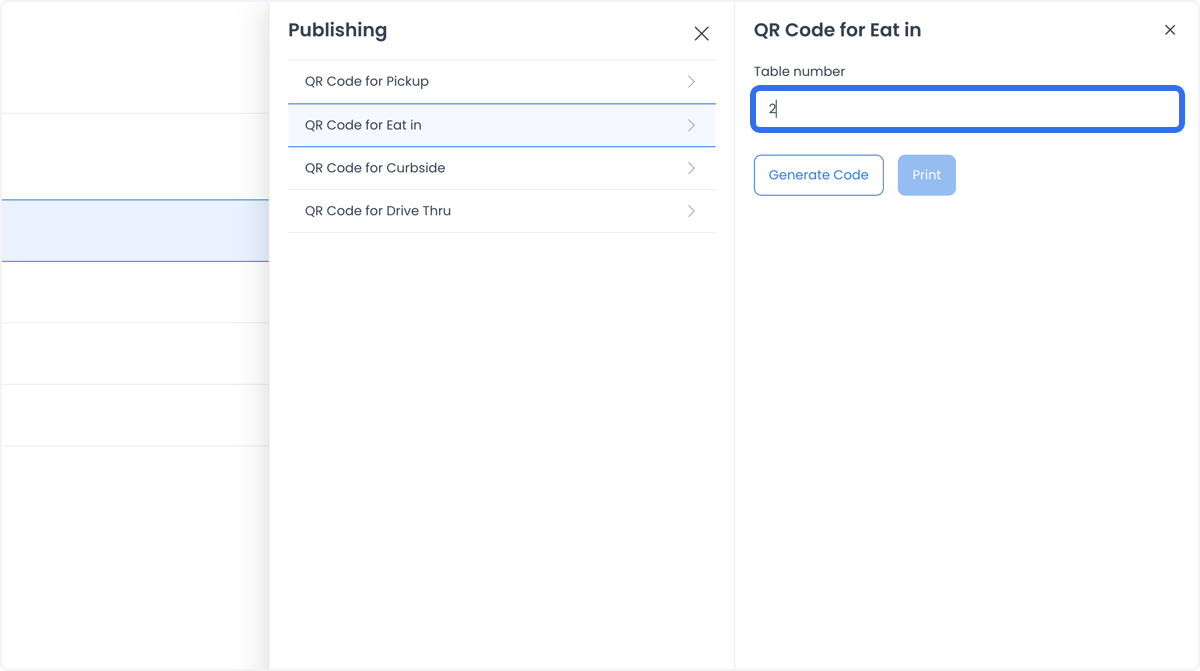
Enter the table number, then select Generate Code. The QR code for that table is generated; change the table number and generate again to create as many codes as needed.
Curbside
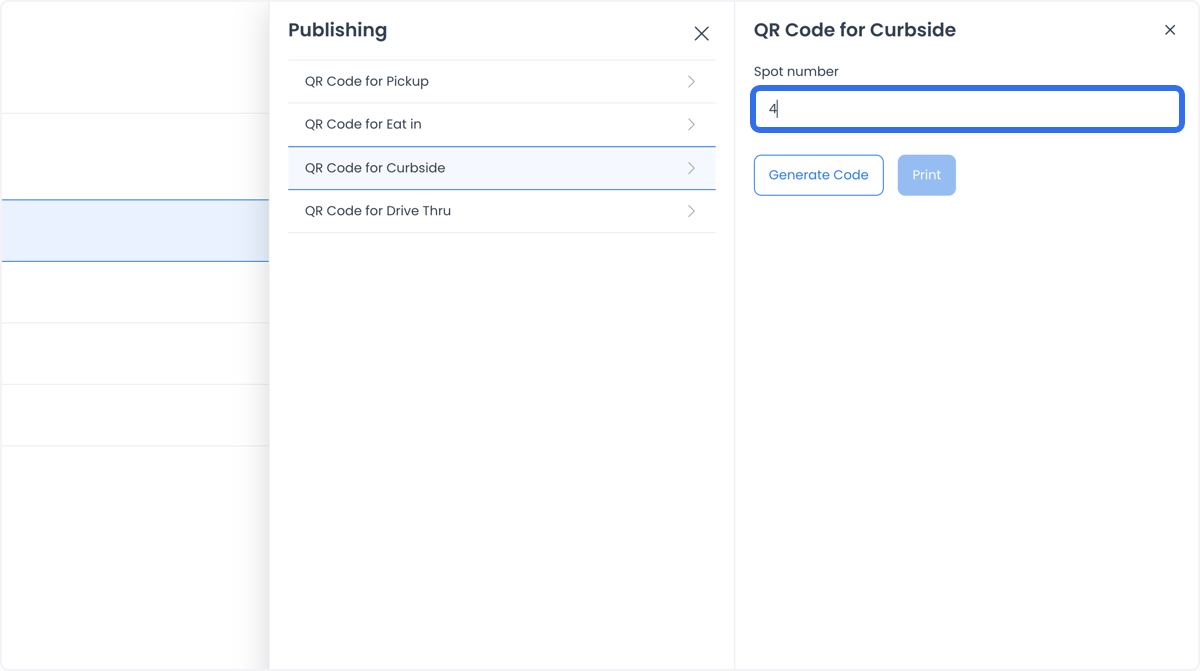
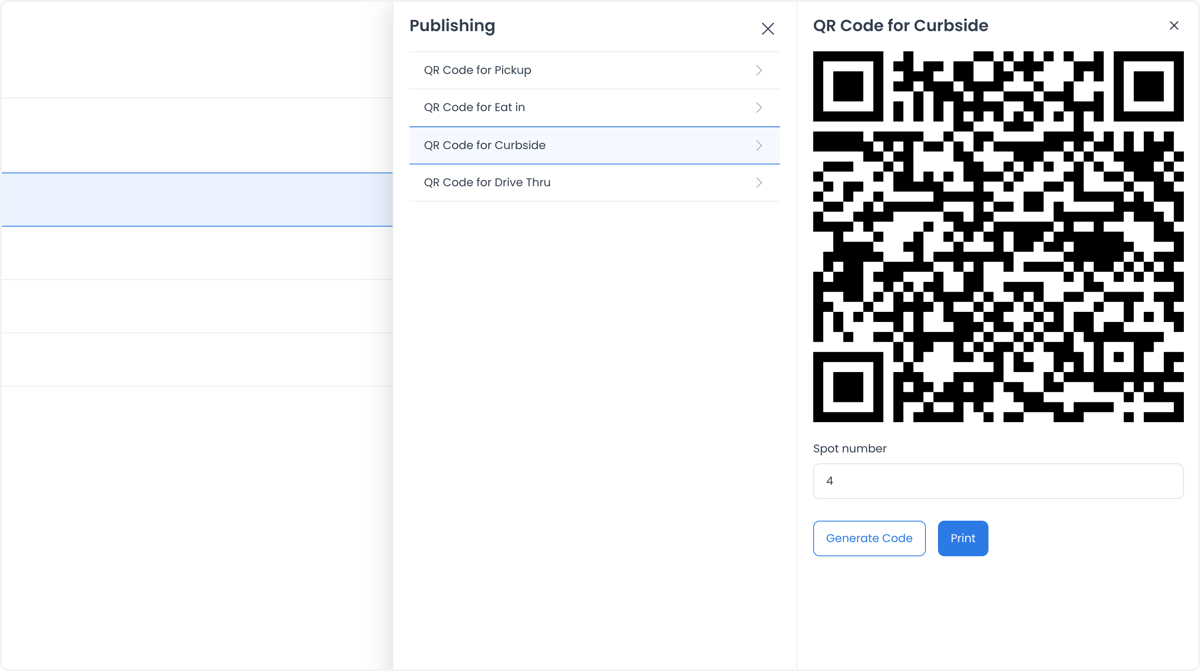
Enter the parking spot number, then select Generate Code. Change the spot number and generate again to create multiple codes.
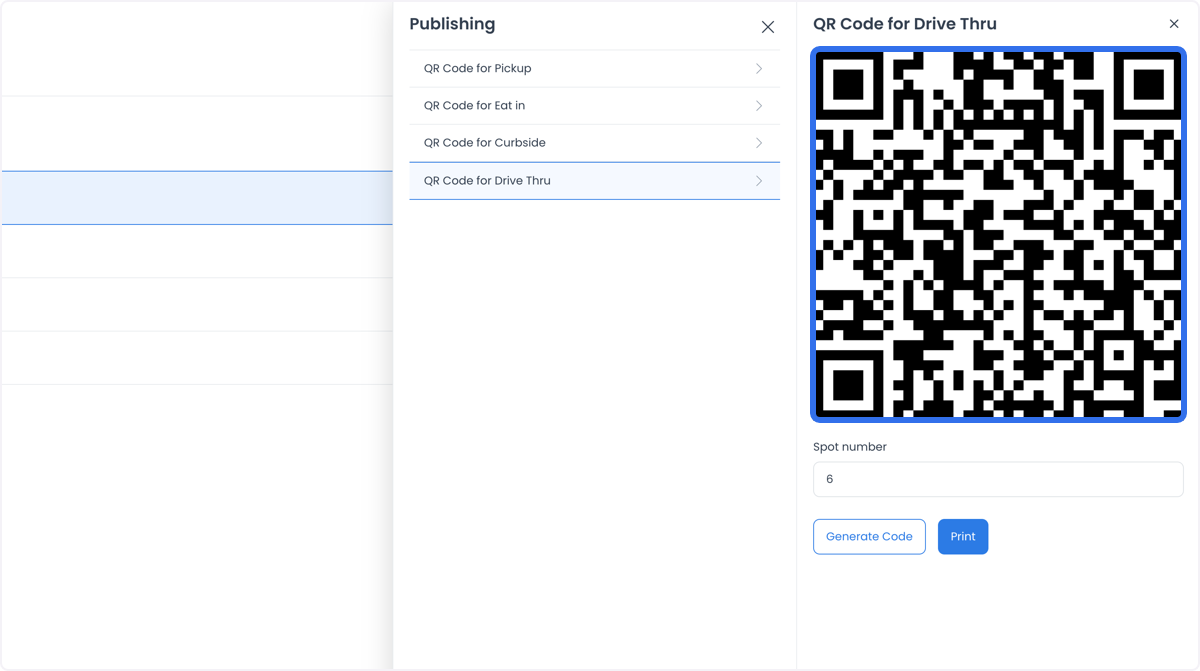
Drive thru
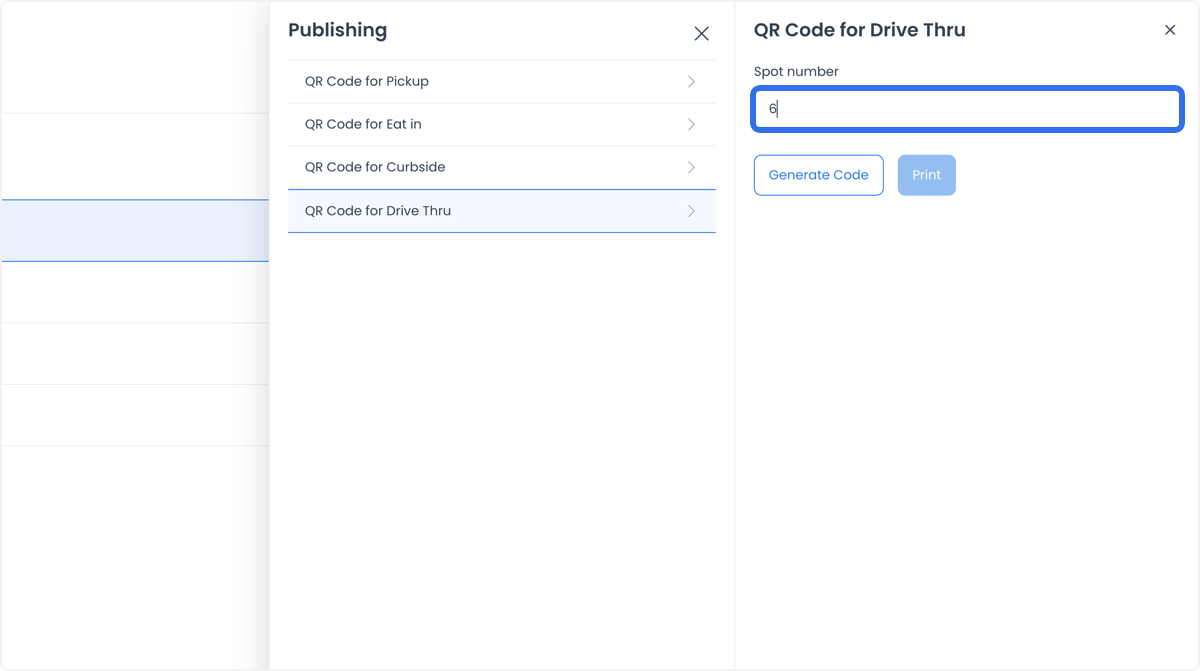
Enter the place number, then select Generate Code to create the QR code — the same process as Curbside.
Use cases
- Restaurants and cafes: use Eat in QR codes so customers order directly from their table, without waitstaff taking the order manually.
- Quick service restaurants: use Drive thru and Curbside codes to streamline pickup without an extra ordering step.
- Retail stores: use Pickup codes so customers can quickly retrieve online orders in-store.
- Event venues: place codes at seating areas so attendees can order food and drinks from their seats.