Manage promotions for a store
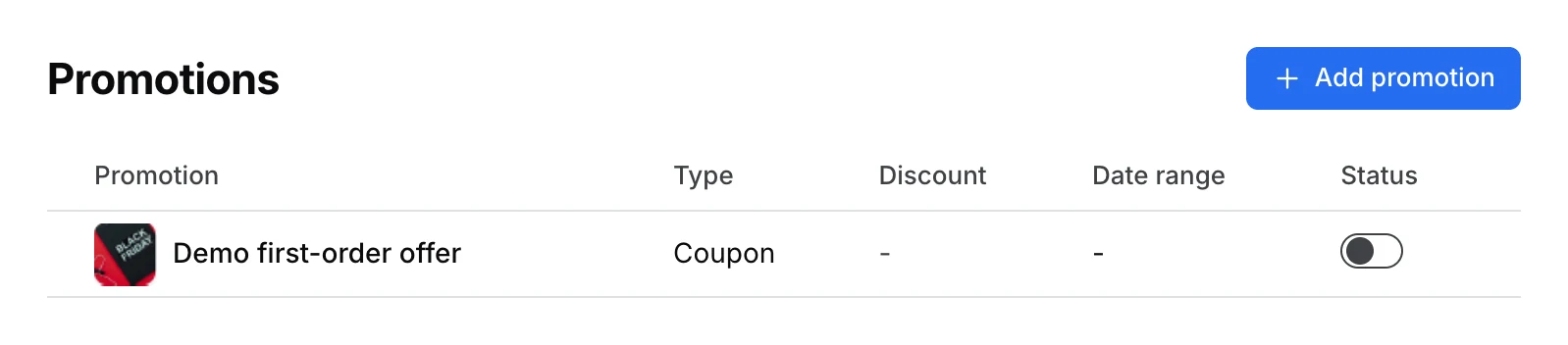
Open Stores, select the store, and go to Payments & fees → Promotions. This list is scoped to the selected store. Use Marketing → Promotions for the project-level promotion workspace.
Create a coupon or discount
- Select Add promotion. In General, choose Coupon for a code the customer enters at checkout, or Discount for an offer that applies without a code.
- Set the value and what it applies to, such as the order subtotal, delivery fee, or service fee. Set dates and any limits or conditions the form offers.
- Select Create promotion. Review the saved details and use Enabled when you are ready to offer it. Test a matching order and one that should not qualify.
Review or change an existing promotion
Select a promotion to open its detail panel. Update the available fields and select Save changes. If the project offers Custom fields, manage those in their own tab. The Enabled control changes whether the promotion is active. Deleting the promotion removes it from customer use.
Reopen the promotion to confirm the saved value, conditions, and status. Checkout determines whether a particular order qualifies.