Configure store preorders and reservations
Open the store editor and use Orders & delivery to manage the options for that store. For project-wide availability and defaults, use Settings → Orders & checkout. See Settings overview and Scheduled orders.
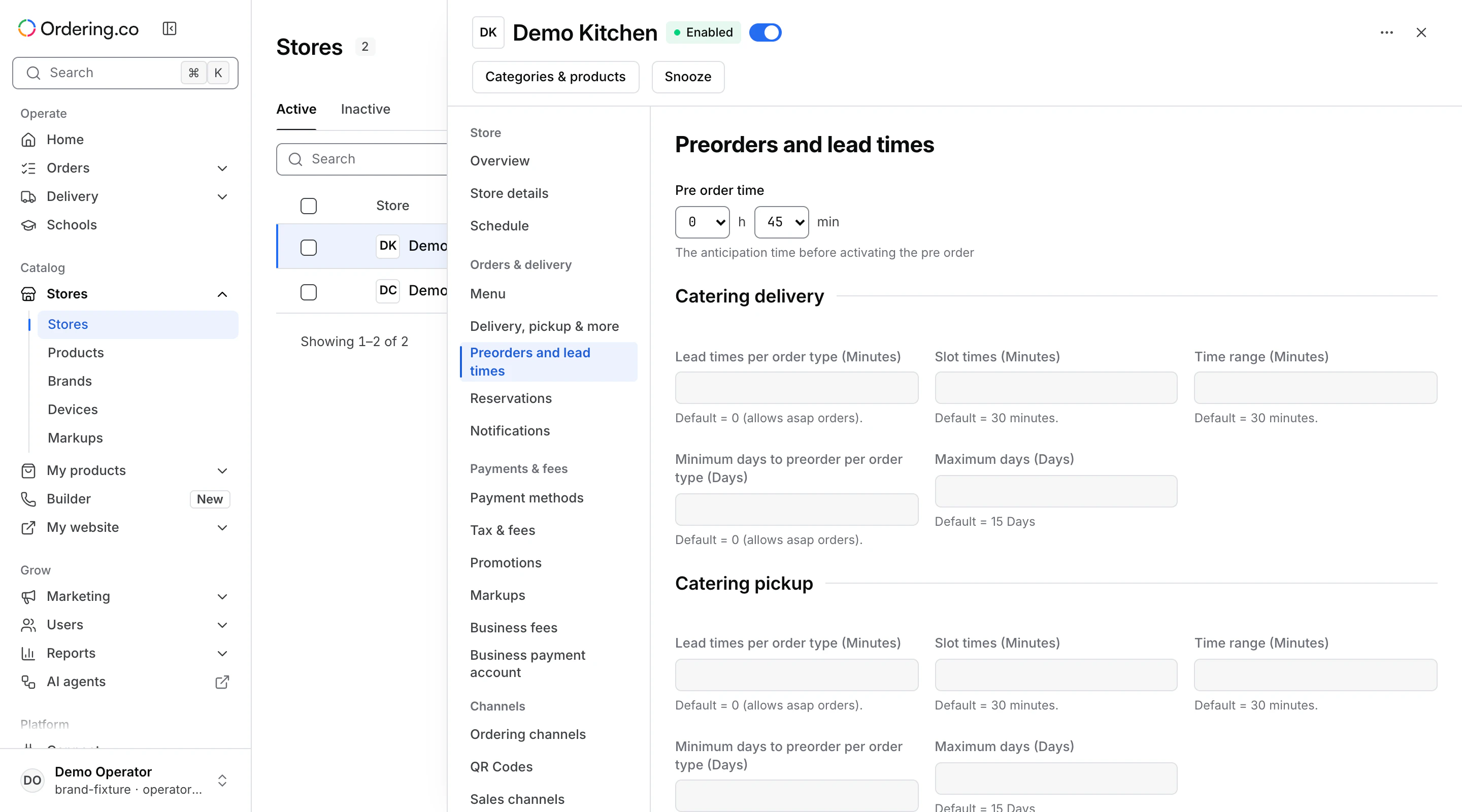
Set the preorder lead time
Open Preorders and lead times. Set the hours and minutes that determine how far in advance a preorder activates for this store. If the project offers catering and the store has catering options, review the separate limits for catering delivery and pickup. Select Save and check that the new values appear.
Set table reservation limits
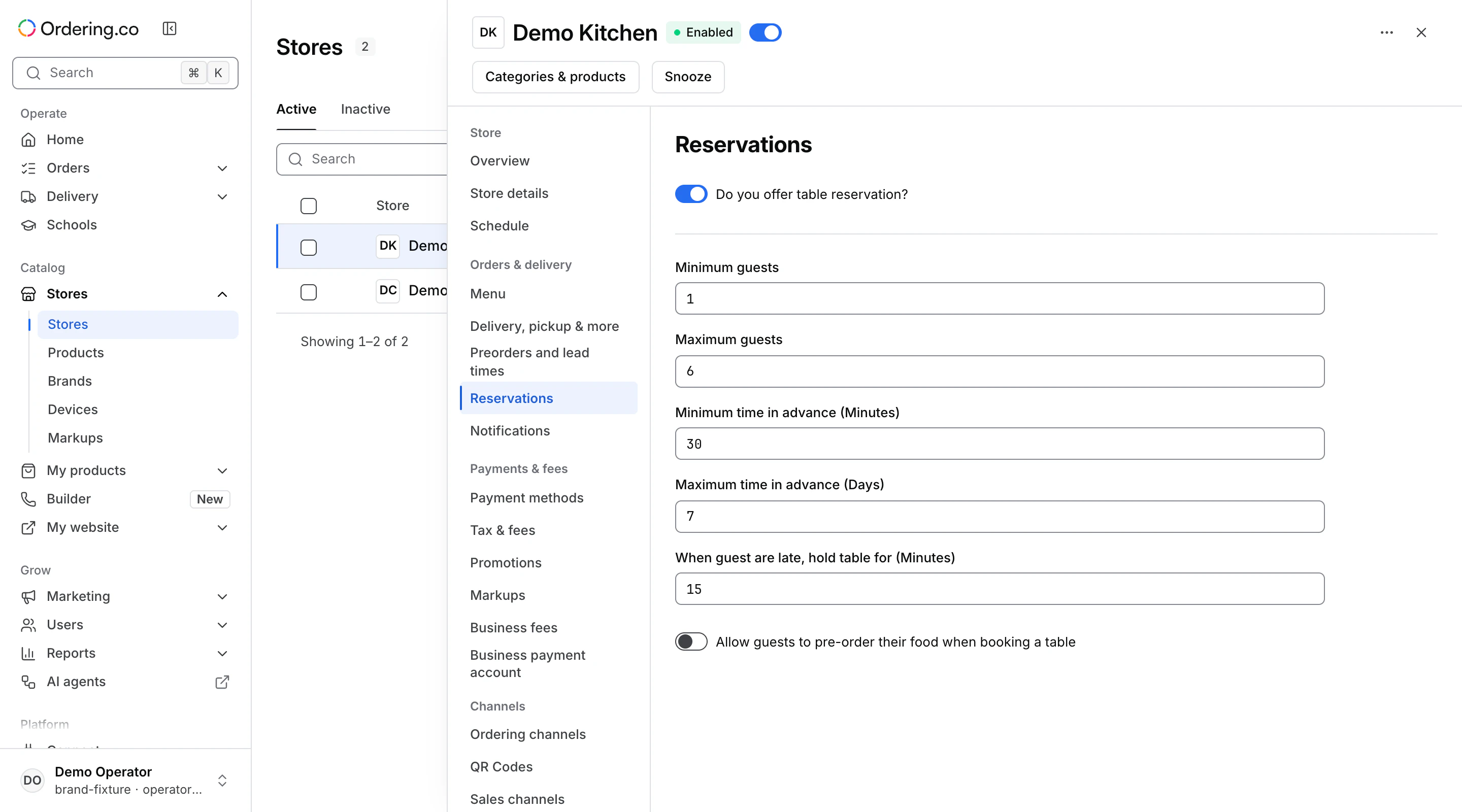
Open Reservations when your project has reservations and the supported Ordering website enabled. Check that the store is the one you intend to configure.
- Use the table reservation switch to set whether this store offers reservations. That switch applies its change separately.
- Review the minimum and maximum number of guests, minimum advance time in minutes, maximum advance time in days, and the time to hold a table after a late arrival.
- Choose whether guests can preorder food when booking, if the option appears.
- Select Save for the pending fields. If the Dashboard reports a validation error, check the guest range and advance-time limits.
Test the intended store, date, and channel from the customer experience after saving. Use Appointments to review the separate appointments calendar.