Configure the store layout
Layout organizes how a store's product catalog is presented to customers. Grouping products into categories makes a catalog easier to browse and increases the chance that customers find what they're looking for.
Set the layout
-
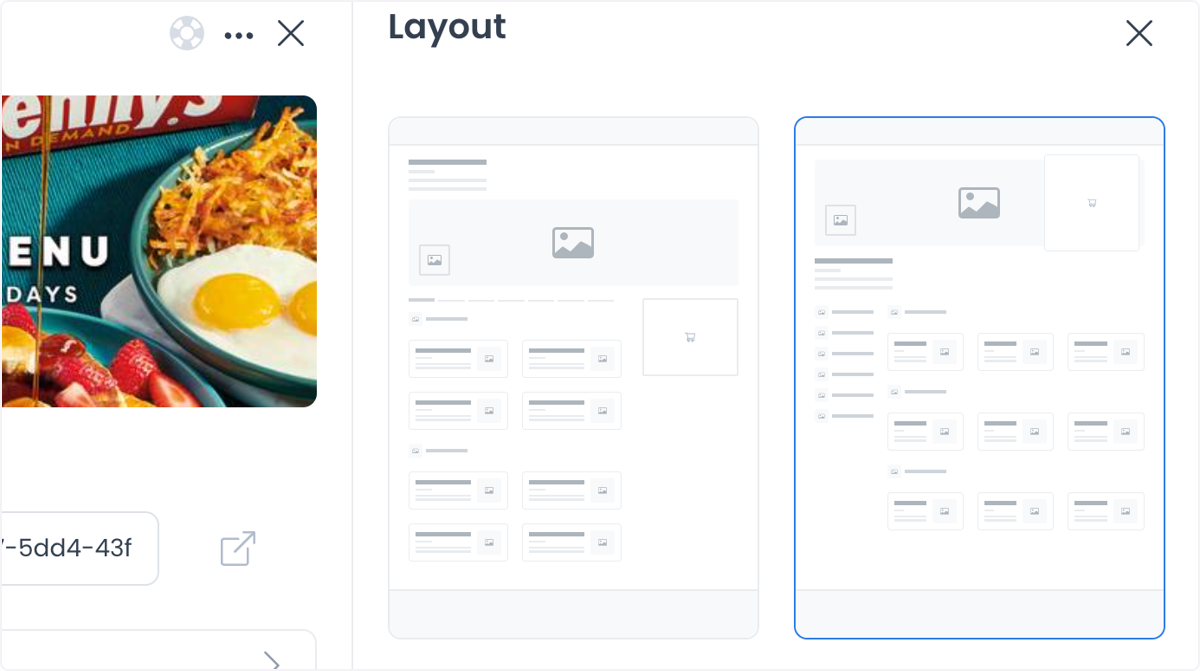
Within the selected store's settings, select Layout.
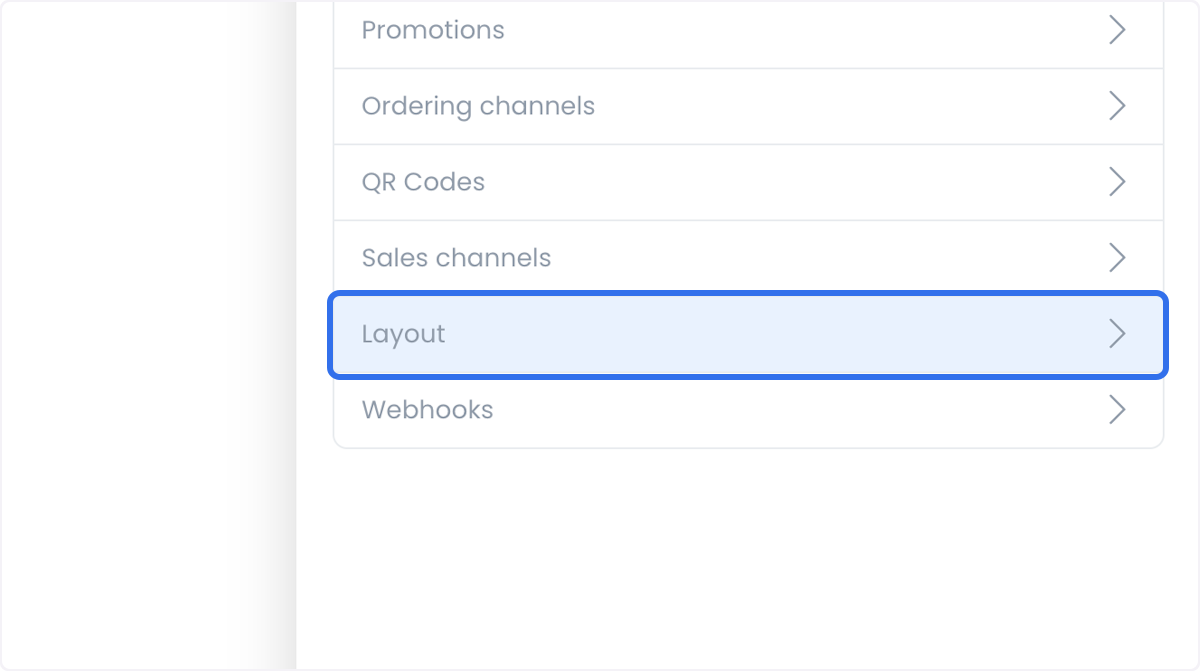
-
Select the Groceries layout to organize products into parent categories. This layout is not limited to grocery businesses — it works for any catalog that benefits from grouped categories.
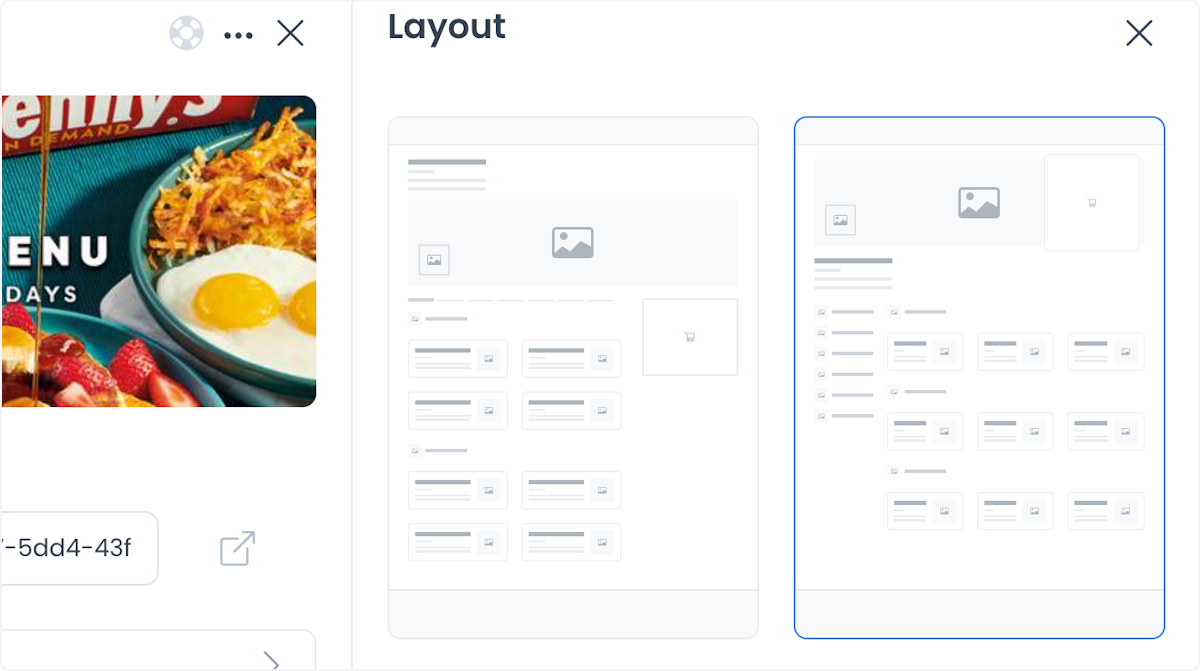
-
Save, then open the store to see the change applied to the live catalog.
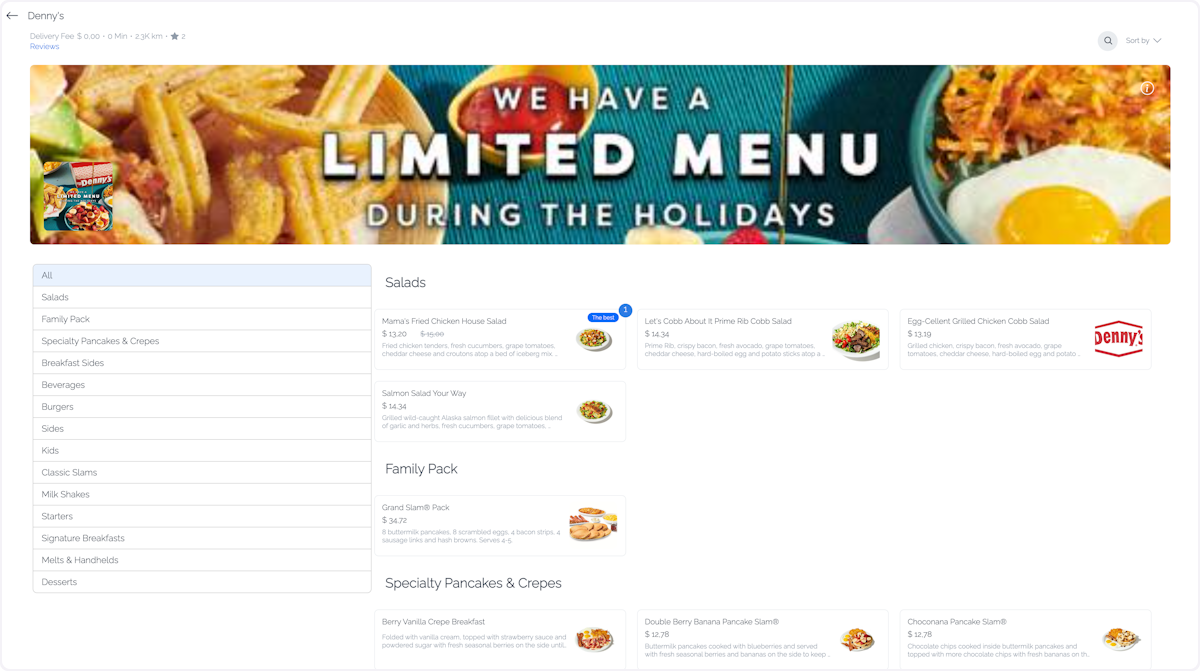
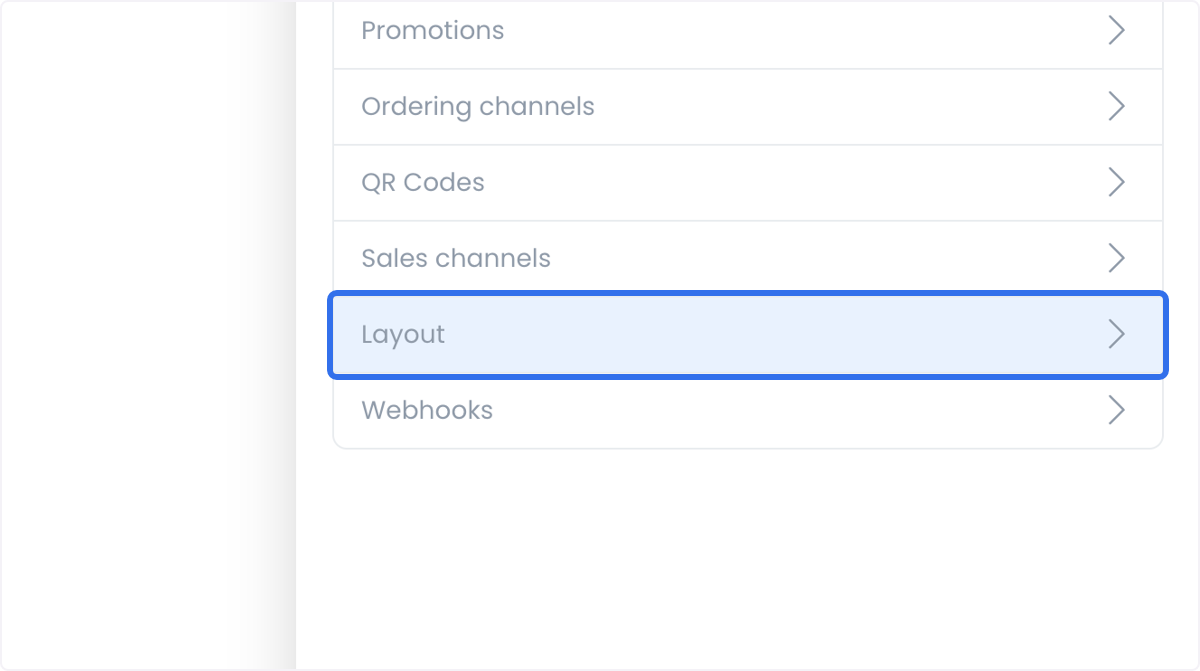
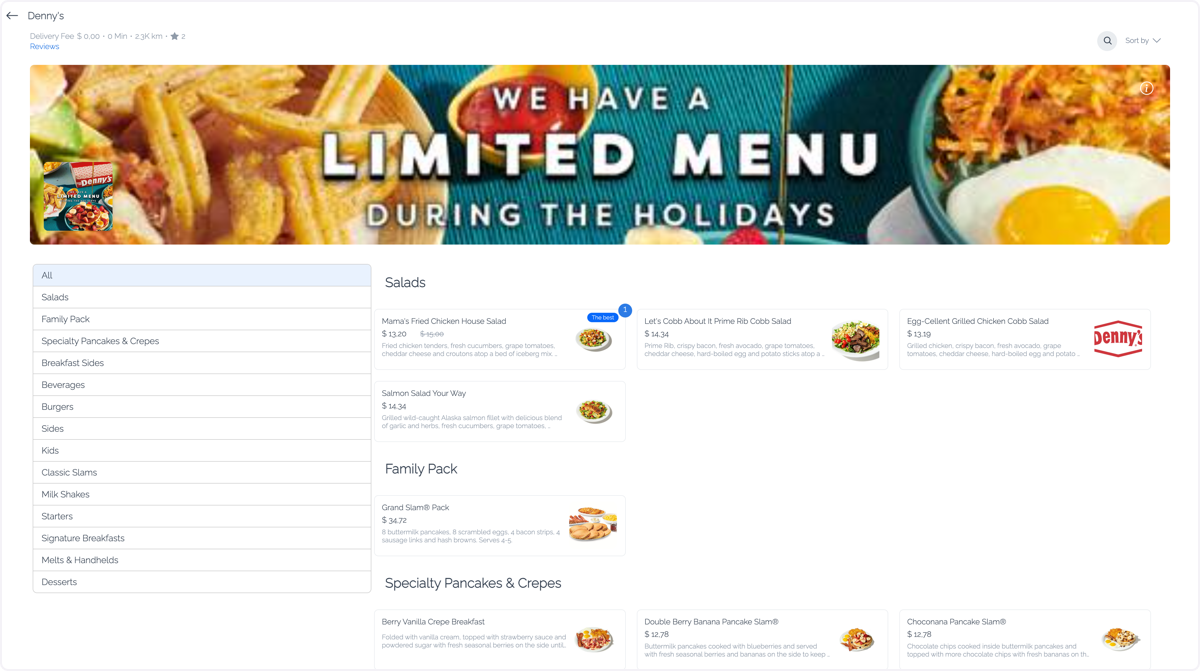
You can add as many parent categories as the catalog needs, which lets you showcase a wider range of products and draw attention to specific categories or items.
Use cases
- Grocery stores: group products by type (fruits, vegetables, dairy, bakery) so customers find items quickly.
- Retail shops: organize items by department (electronics, clothing, home goods).
- Restaurants: separate menu items by meal type (appetizers, main courses, desserts) for a clearer presentation.
- Pharmacies: arrange products by category (over-the-counter medicines, supplements, personal care) to improve accessibility.