View and edit a store
Select a store from Stores to open the store-detail workspace. The workspace includes a summary panel and a second panel for the configuration area you choose.
Store access can be available to administrator and business-owner accounts. The Stores sidebar group can be hidden for read-only administrator, delivery-manager, and business-owner access modes. Route access, visible navigation, selected-access restrictions, and API authorization can have separate requirements.
Open a store
- In the Dashboard sidebar, select Stores.
- Select Stores.
- Find the intended store and select its row.
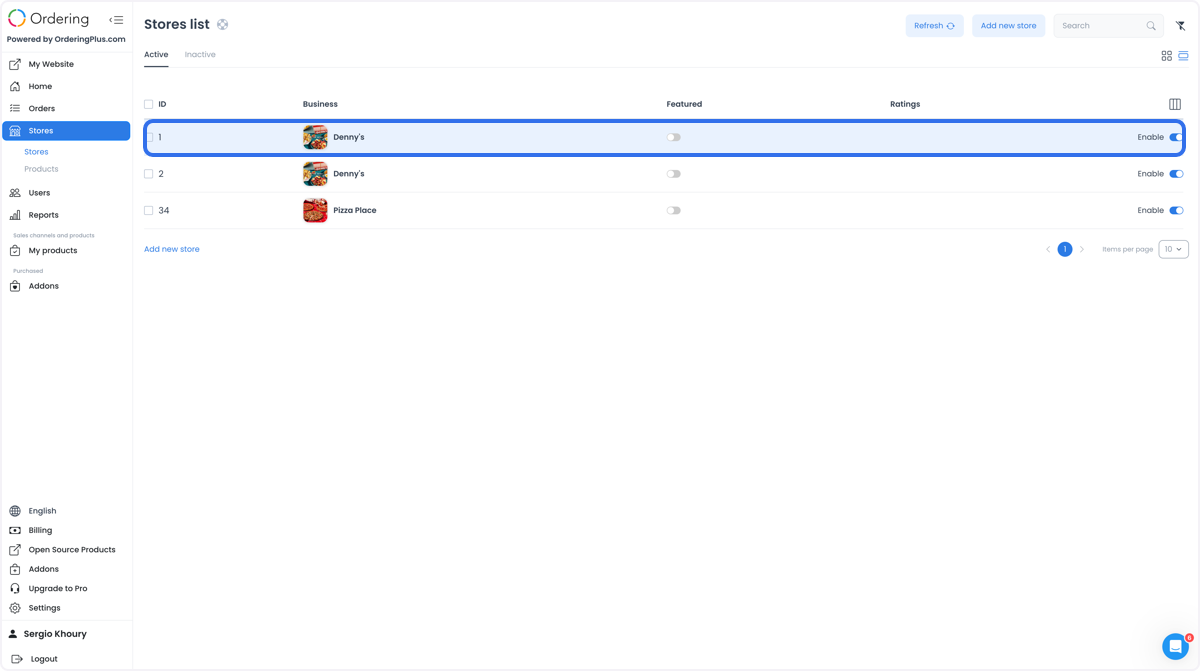
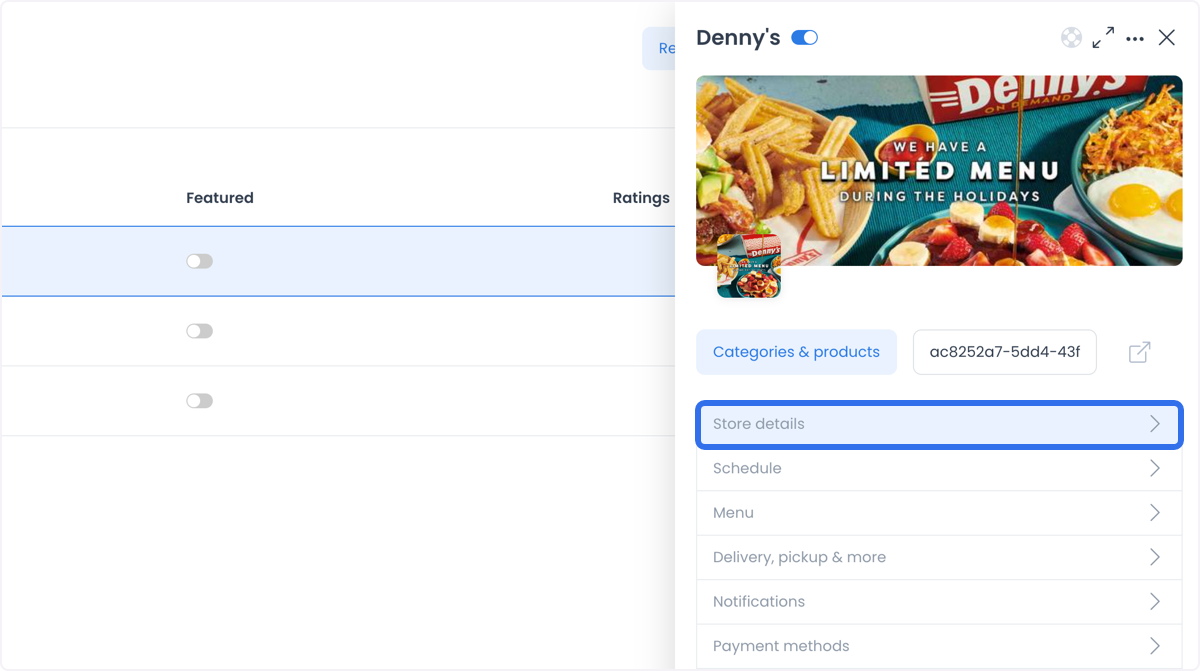
Selecting a row opens the store-detail workspace for that business. The URL can include id, section, and section-specific values; treat them as navigation state, not as confirmation that a change was saved.
Use the store panel
The summary panel can show the store name, enabled switch, logo or header, description, slug, preview controls, and a link into the store catalog. Where permitted, duplicate and delete actions are separate write surfaces and are outside this guide.
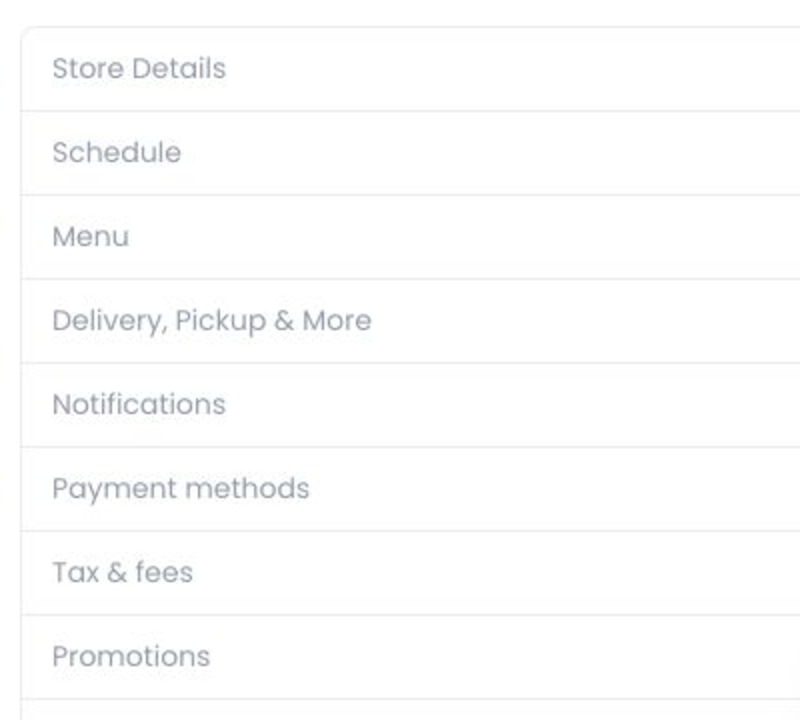
The panel can show these management areas:
| Area | Use it for |
|---|---|
| Store details | General information, ownership, business types, location, agents, media, and SEO controls. |
| Schedule | Operating-hour controls. |
| Menu | Store-menu controls. |
| Delivery, pickup & more | Fulfilment configuration surfaces. |
| Notifications | Store notification settings. |
| Payment methods | Store payment-method configuration. |
| Tax & fees, Promotions, Ordering channels, QR Codes, Sales channels, Layout, and Webhooks | Specialised configuration surfaces when their independent gates allow them. |
Some entries are conditional. Preorders and lead times can depend on a Catering-specific condition; Custom fields depends on its configuration; Spoonity key and Logs each have a separate gate; Reservations depends on both reservation and Website 2.6 configuration; Markups and Business Fees are administrator-only; and White Label requires administrator access plus its store-site setting.
Do not use the absence of an area to conclude that a store is incomplete. Role restrictions, selected-access mode, feature conditions, configuration, and project-specific exclusions can each change the menu.
Review Store Details
Select Store details to open these tabs:
| Tab | What you can review or update |
|---|---|
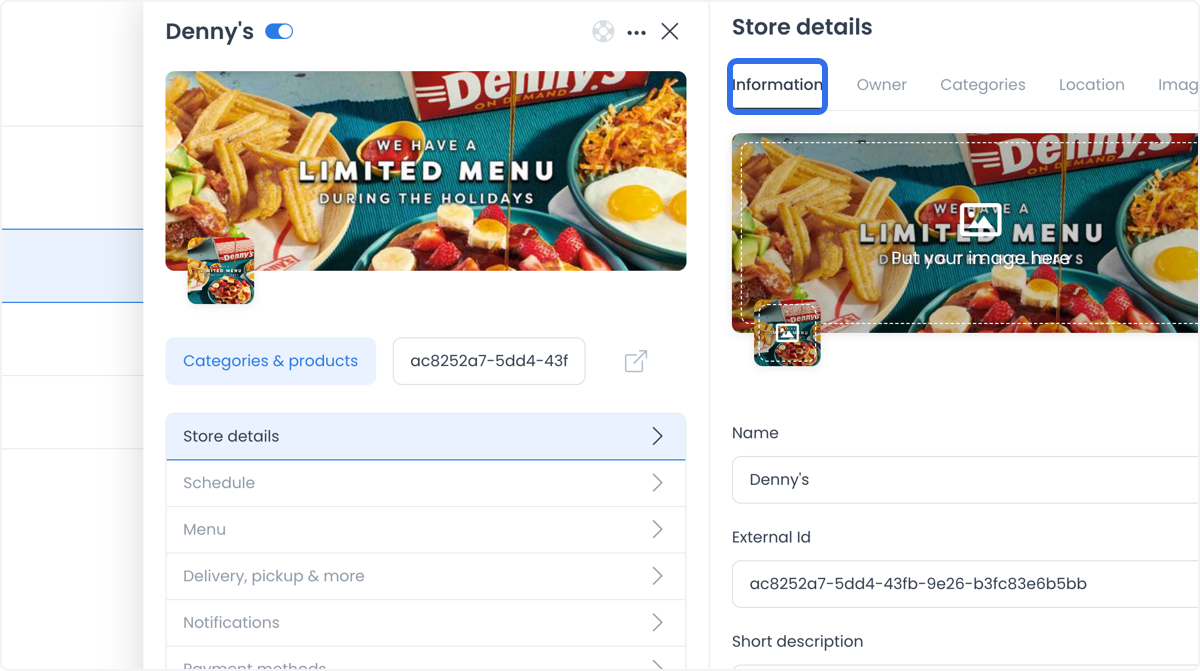
| Information | General profile information, display options, and social profiles. |
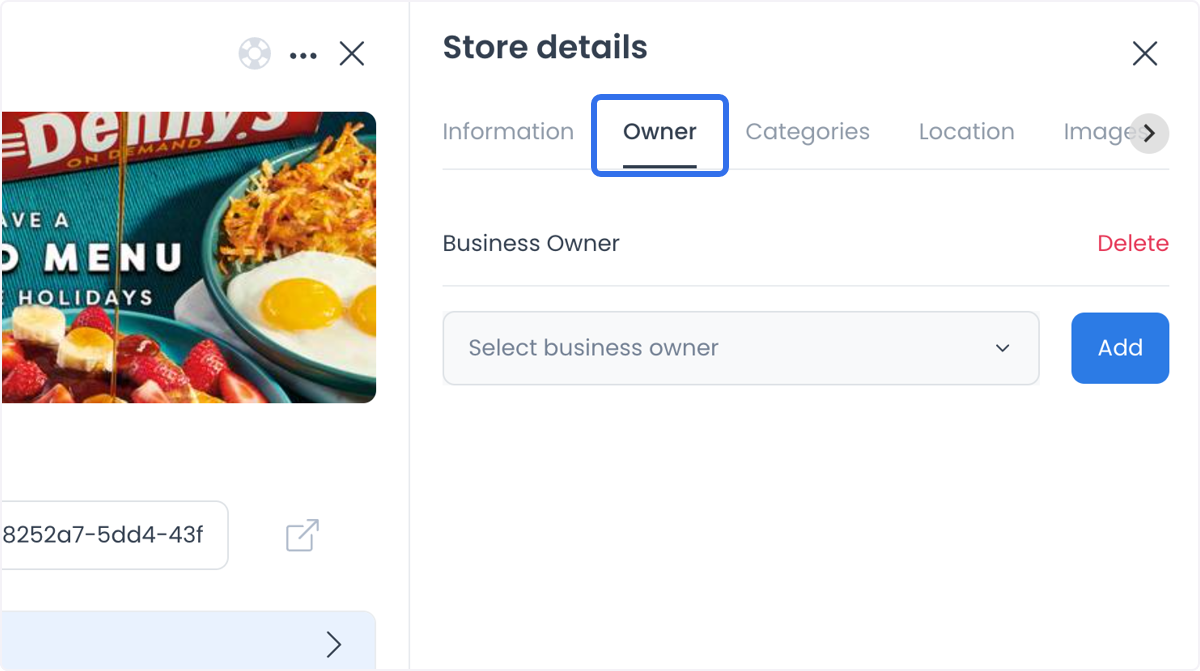
| Owner | Store-owner assignments, when the role gate exposes them. |
| Categories | Business-type assignments. |
| Location | Address, map, coordinates, ZIP code, timezone, and conditional city fields. |
| Agents | Store-agent assignments when the role gate exposes them. |
| Images and Videos | Store gallery media. |
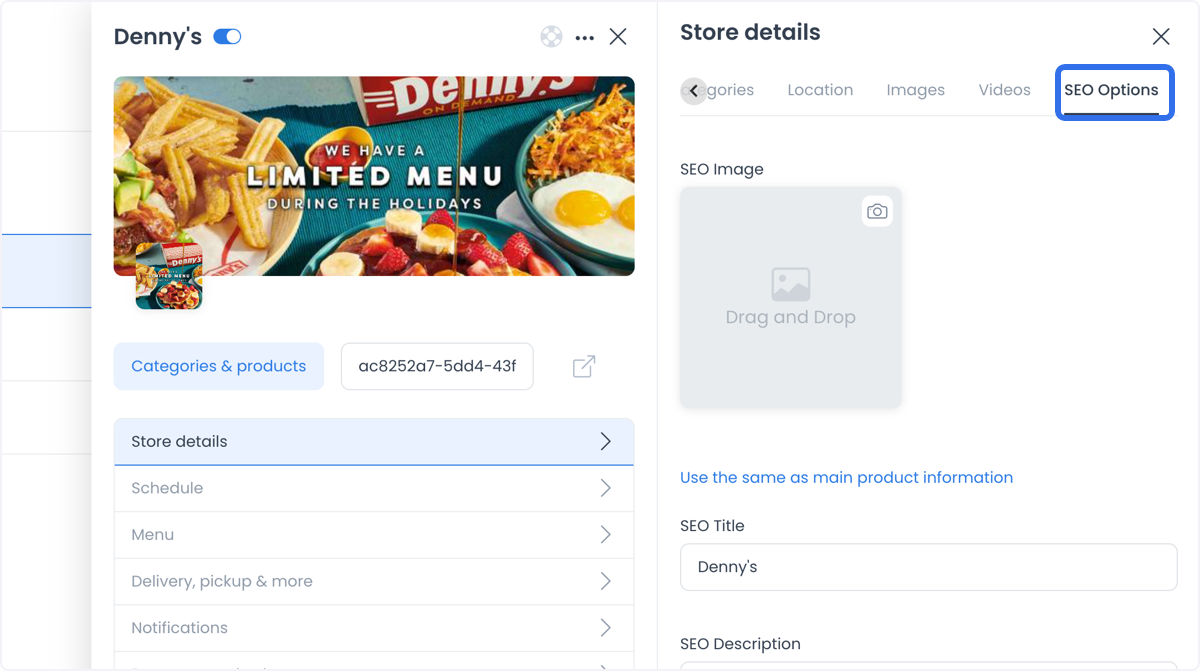
| SEO Options | SEO image, title, description, and slug. |
The Owner tab may be unavailable for business-owner accounts. Other role and selected-access combinations can hide or limit phone, agent, address, map, and slug controls.
The screenshots below illustrate representative tabs. They do not show your store's actual field values.
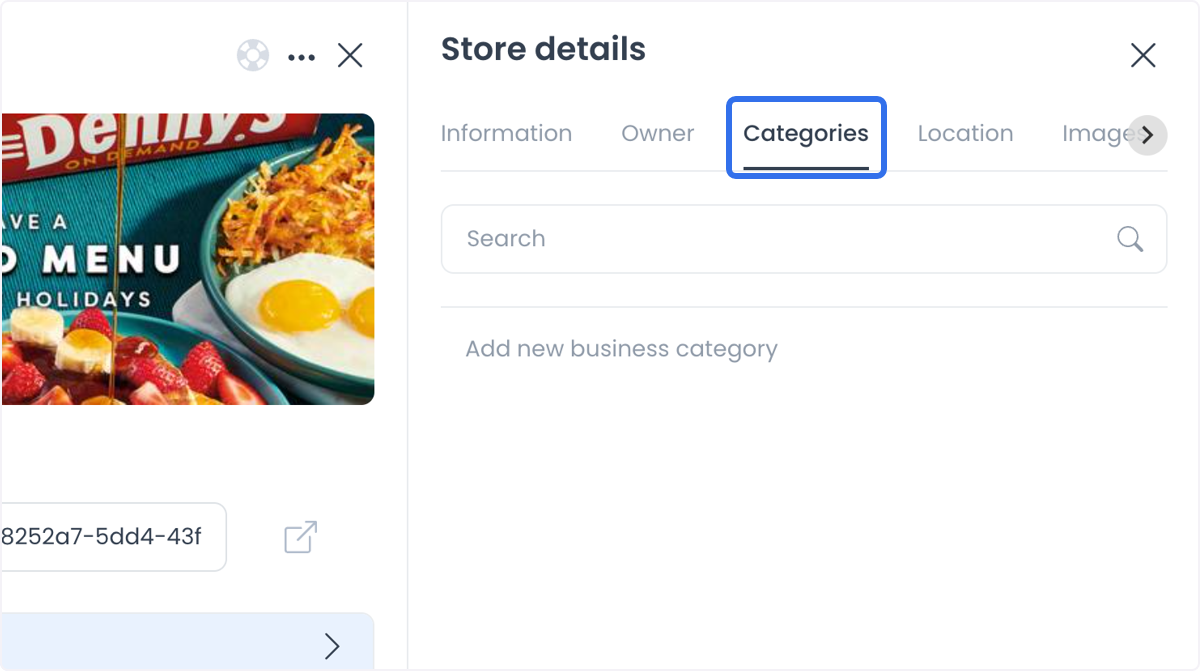
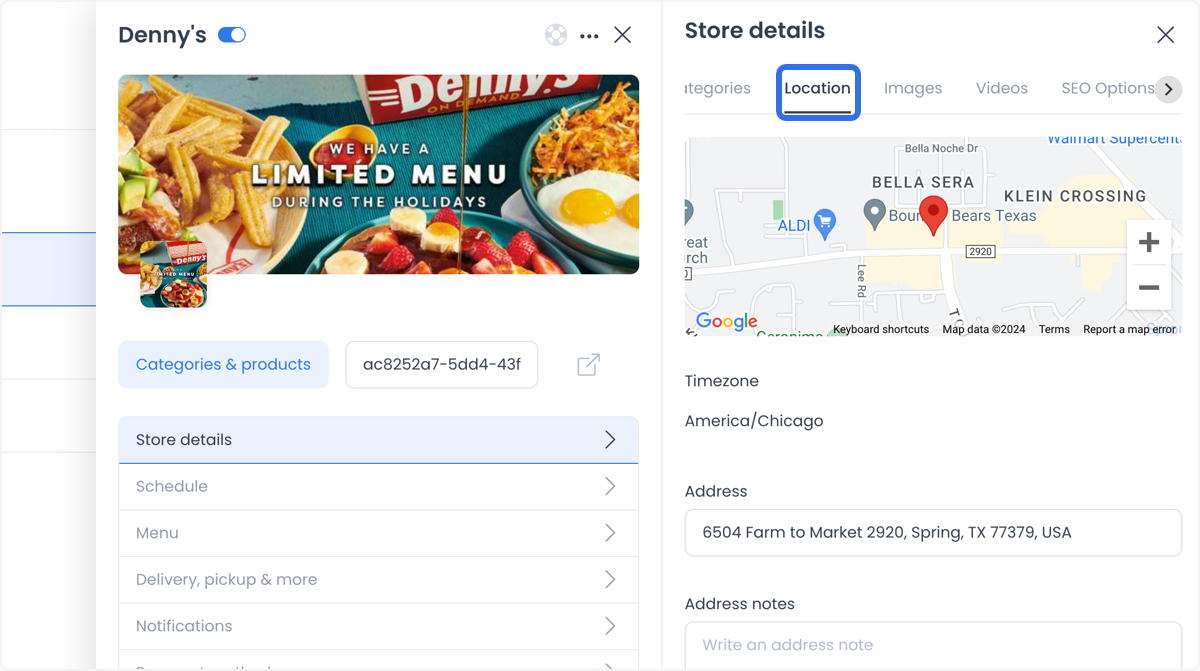
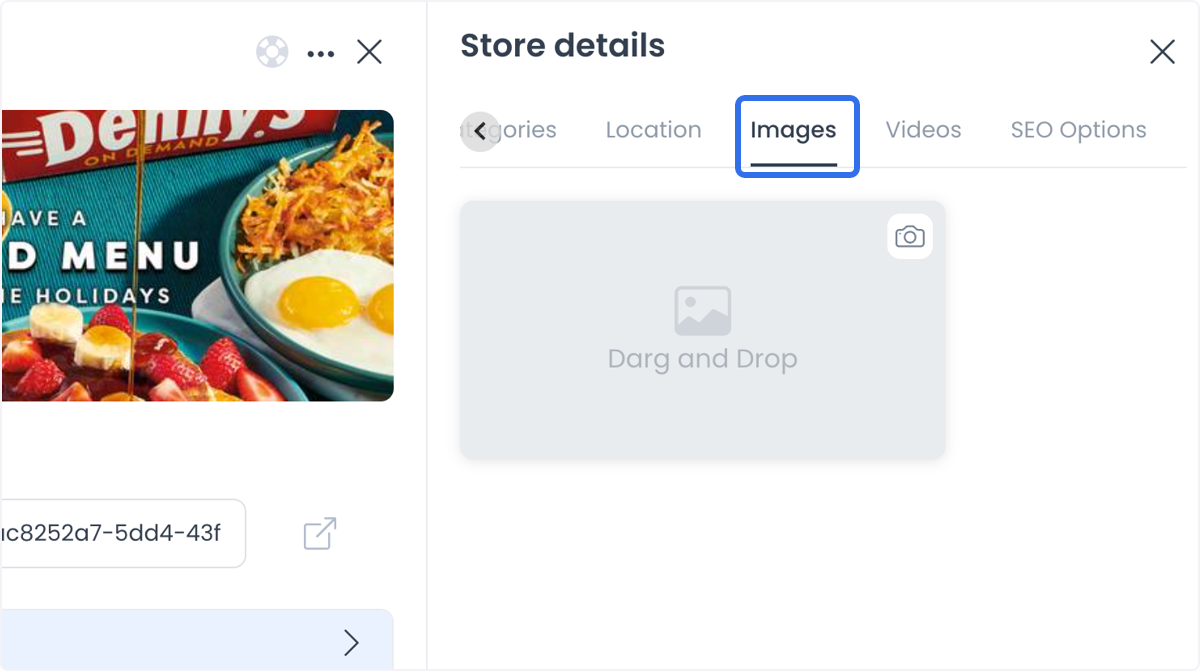
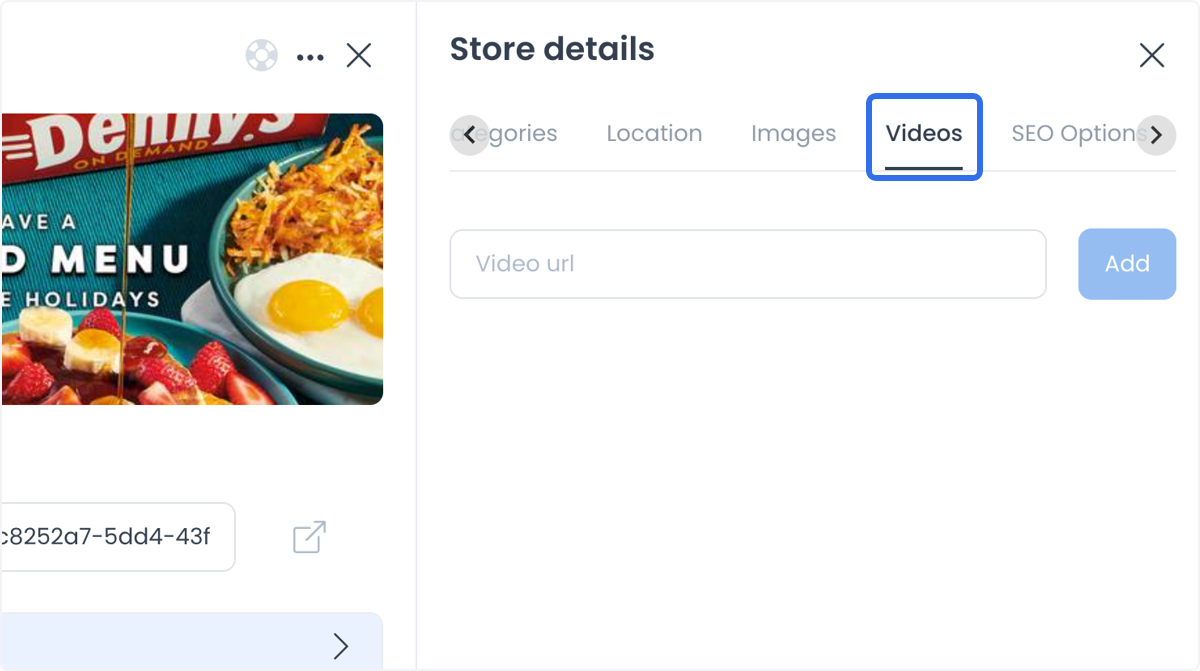
Information fields
The Information tab can include:
- Header and logo image upload
- Name and Vertical
- External Id when its field condition is met
- Short description, Phone number, and optional Mobile number
- Featured, Ribbon, disabled reason, and price-filter controls
- Facebook, Instagram, TikTok, Pinterest, WhatsApp, and Snapchat profiles
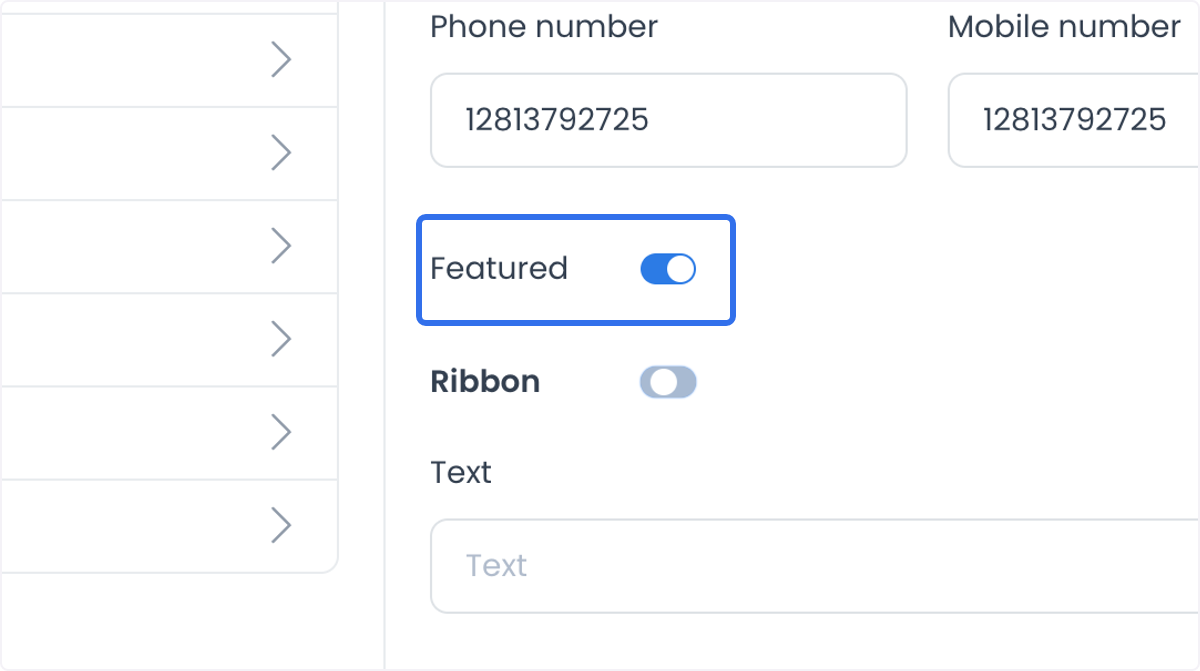
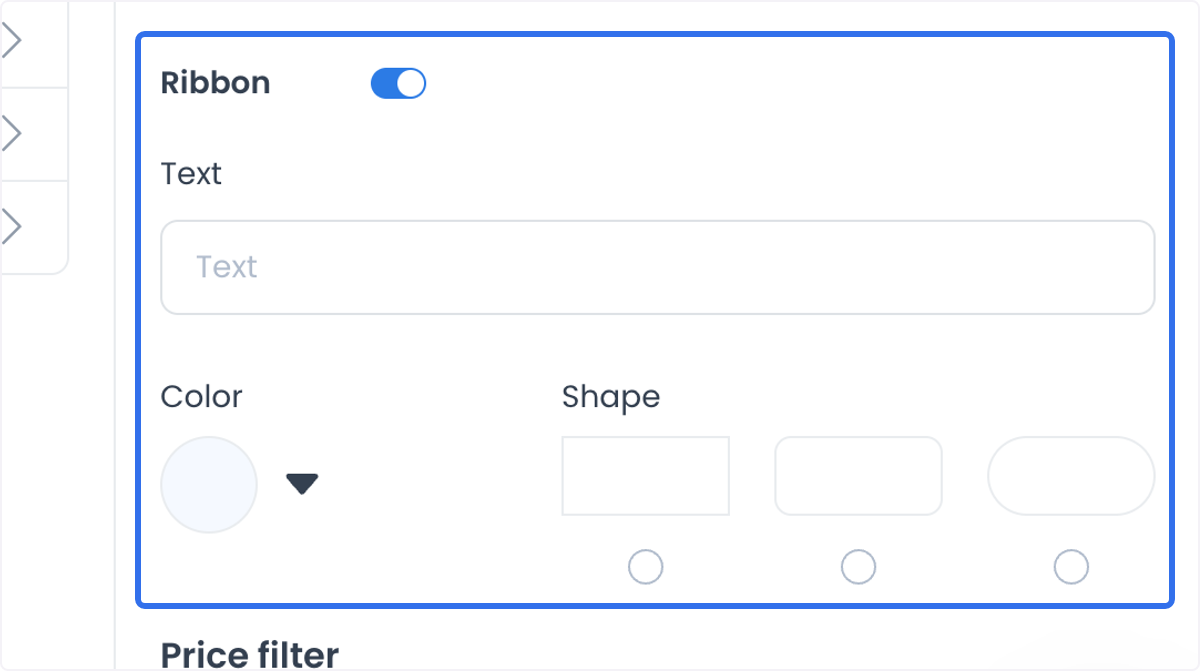
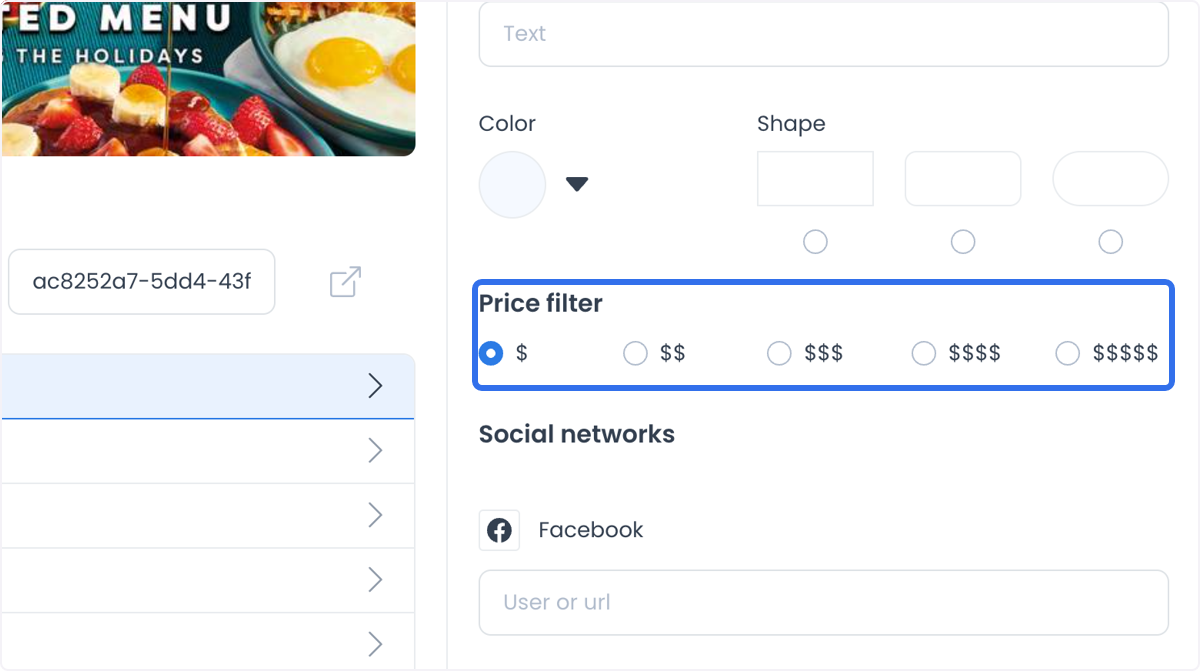
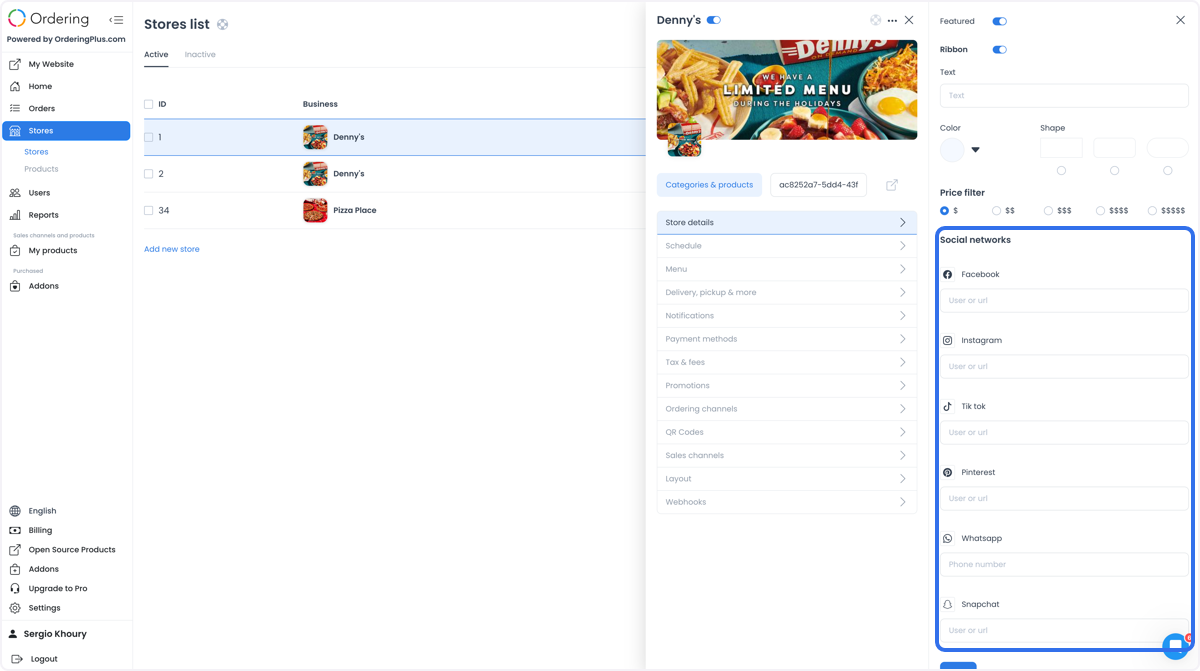
Fields can vary by role, feature conditions, configuration, and form state. For example, Ribbon can reveal text, color, and shape inputs, while a disabled-state form can expose a reason selector. Confirm which conditions apply to the store before making a change.
Phone numbers, addresses, coordinates, social profiles, owner assignments, and media can be sensitive business or personal data. Use only approved synthetic or redacted data for training and screenshots.
Understand the write boundaries
Many Information, Location, and SEO Options inputs collect changes in the section until you select Save.
Some controls use separate actions:
- The summary Enabled switch and the Stores-list Featured switch are separate from a tab's Save action.
- Treat the summary slug as a separate change path from the current tab's Save action.
Enabled, Featured, slug, owner/agent assignment, duplicate, delete, integration, and section-level Save controls can change store data. Confirm the correct store and intended change before using them. If an action fails or the outcome is uncertain, do not repeat it; follow the relevant support or operational process.
Selecting a location can update address, coordinates, ZIP code, and timezone together. Map, provider, and storefront behavior can have additional conditions, so confirm the expected result in the approved workflow.
Access, provider, and data boundaries
Opening the detail panel can retrieve store data. Some specialised sections can also work with site, tax, fee, plugin, stream-status, business-type, integration, or provider data.
Treat store access as an operational data action. Do not assume that a read-like action, provider URL, or visible control is harmless, or that a displayed response confirms a completed change. Never copy or share store, customer, owner, address, coordinate, token, secret, provider-response, or production-configuration data outside the approved workflow.
Keep specialised changes in their own workflow
The store panel contains dedicated editors and mutation surfaces. Do not use this overview as a procedure for deleting or duplicating a store, changing owner or agent assignments, altering gallery media, or changing schedules, payments, tax/fees, delivery rules, integrations, or webhooks.
Use the focused guides for related tasks:
- Search, filter, and organize stores to find a store and manage the list.
- Add a store to create a new store and its initial resources.
- Products overview to open and manage the selected store’s catalog.
Troubleshooting
Why can’t I find or open a store?
Clear list criteria and confirm the intended project and access mode. A missing row can reflect role, read-only status, authorization, configuration, or query conditions; ask a project administrator to confirm access when needed.
Why is a management area or field missing?
Controls can vary by account role, selected access, feature conditions, project configuration, and store state. Check the intended store and account before requesting access or changing configuration.
Why is Save unavailable?
Save can remain unavailable until the section has a supported change or finishes loading. Do not add unnecessary changes simply to make it active.
Why is a control separate from the current tab's Save button?
Those controls use a separate operation flow rather than the current tab's Save path. A visible control or response still needs confirmation through the relevant workflow; do not assume a customer-facing result or rollback.