View and edit a store
Select a store from Stores to open the store-detail workspace. Current Dashboard source composes this workspace from a summary panel and a second panel for the selected configuration area.
The /stores/list route source allows administrator and business-owner levels. The Stores sidebar group is hidden for read-only administrator, delivery-manager, and business-owner access modes. Route authorization, visible navigation, selected-access restrictions, and API authorization remain separate gates.
Open a store
- In the Dashboard sidebar, select Stores.
- Select Stores.
- Find the intended store and select its row.
The list source opens BusinessDetails for the selected business ID. The detail source can also place id, section, and section-specific values in the URL. Treat those values as navigation state, not evidence that a deployed store was loaded or changed.
Use the store panel
The summary source can render the store name, enabled switch, logo or header, description, slug, preview controls, and a link into the store catalog. It also exposes duplicate and delete actions for eligible source states; those are separate write surfaces and are outside this guide.
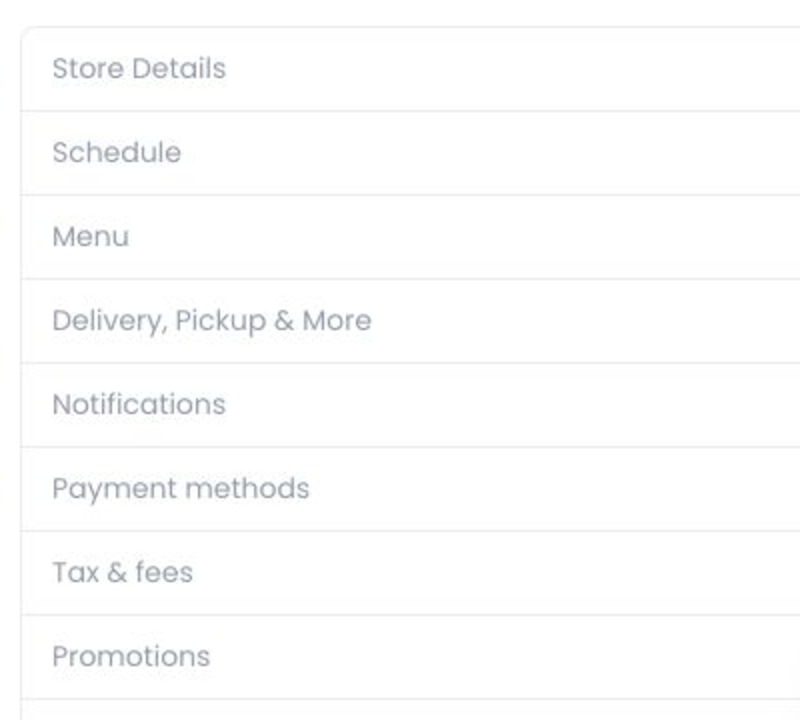
The panel can show these management areas:
| Area | Use it for |
|---|---|
| Store details | General information, ownership, business types, location, agents, media, and SEO controls. |
| Schedule | Operating-hour controls. |
| Menu | Store-menu controls. |
| Delivery, pickup & more | Fulfilment configuration surfaces. |
| Notifications | Store notification settings. |
| Payment methods | Store payment-method configuration. |
| Tax & fees, Promotions, Ordering channels, QR Codes, Sales channels, Layout, and Webhooks | Specialised configuration surfaces when their independent gates allow them. |
Current source also defines conditional entries. Preorders and lead times depends on the Catering add-on; Custom fields depends on its configuration; Spoonity key and Logs have Enterprise-related gates; Reservations depends on both reservation and Website 2.6 configuration; Markups and Business Fees are administrator-only; and White Label requires administrator access plus its store-site gate.
Do not use the absence of an area to conclude that a store is incomplete. Role restrictions, selected-access mode, plan, add-ons, configuration, and project-specific exclusions can each change the menu.
Review Store Details
Select Store details to open its source-defined tabs:
| Tab | What you can review or update |
|---|---|
| Information | General profile information, display options, and social profiles. |
| Owner | Store-owner assignments, when the role gate exposes them. |
| Categories | Business-type assignments. |
| Location | Address, map, coordinates, ZIP code, timezone, and conditional city fields. |
| Agents | Store-agent assignments when the role gate exposes them. |
| Images and Videos | Store gallery media. |
| SEO Options | SEO image, title, description, and slug. |
The inspected source hides Owner for business-owner level accounts. Other role and selected-access combinations can hide or limit phone, agent, address, map, and slug controls.
Information fields
The Information tab can include:
- Header and logo image upload
- Name and Vertical
- External Id for eligible Pro or Enterprise projects
- Short description, Phone number, and optional Mobile number
- Featured, Ribbon, disabled reason, and price-filter controls
- Facebook, Instagram, TikTok, Pinterest, WhatsApp, and Snapchat profiles
The source conditionally renders fields from role, plan, configuration, and current form state. For example, Ribbon can reveal text, color, and shape inputs, while a disabled-state form can expose a reason selector. This source review did not retrieve a store record or validate which conditions are active in a deployed project.
Phone numbers, addresses, coordinates, social profiles, owner assignments, and media can be sensitive business or personal data. Use only approved synthetic or redacted fixtures for training and screenshots.
Understand the write boundaries
The current controllers define authenticated business reads and several business-update calls. Most Information, Location, and SEO Options inputs accumulate local form changes before a section-level Save handler can submit them.
Other controls have different source paths:
- The summary Enabled switch calls the active-business update handler.
- The Stores-list Featured switch uses a separate update handler.
- The summary slug input stages a change after a 750 ms delay; a source effect then calls the business-update handler when the summary is not in its extra panel.
Enabled, Featured, slug, owner/agent assignment, duplicate, delete, integration, and section-level Save controls are write-capable source surfaces. Do not activate them for documentation research. An empty summary slug is rejected locally, but no deployed validation or downstream effect was tested.
Selecting a location can stage address, coordinates, ZIP code, and timezone together. Map/provider behavior, authenticated reads, writes, storefront propagation, and success notifications were not exercised.
Request, provider, and data boundaries
Opening the detail panel is wired to an authenticated businesses(id).asDashboard() read. The controller also contains supporting site, tax, fee, plugin, stream-status, and business-type reads, plus business/config/tax/owner/agent and other writes. Some specialised sections can hand data to external integrations or open provider URLs.
This article is therefore source-api-only. It does not establish that GET or HEAD requests are safe, that a configured provider is reachable, that a deployed response matches the inspected source, or that any write completed. No store, customer, owner, address, coordinate, token, secret, provider response, or production configuration was accessed.
Keep specialised changes in their own workflow
The store panel contains dedicated editors and mutation surfaces. Do not use this overview as a procedure for deleting or duplicating a store, changing owner or agent assignments, altering gallery media, or changing schedules, payments, tax/fees, delivery rules, integrations, or webhooks.
Use the focused guides for related tasks:
- Search, filter, and organize stores to find a store and manage the list.
- Add a store to create a new store and its initial resources.
- Products overview to open and manage the selected store’s catalog.
Troubleshooting
Why can’t I find or open a store?
Clear list criteria and confirm the intended project and access mode. The source route and sidebar use separate role and read-only gates; a missing row can also reflect API authorization or query state that this review did not execute.
Why is a management area or field missing?
Current source conditions controls on account role, selected access, project plan, add-ons, project configuration, and store state. Check the intended store and account before requesting access or changing configuration.
Why is Save unavailable?
Current source can keep the button unavailable when there is no supported local change or while the form is loading. Do not create a live change merely to test this condition.
Why is a control separate from the current tab's Save button?
Those controls are connected to separate update handlers instead of the current tab's Save path. This source-only guide does not verify a deployed request, response, customer-facing result, or rollback.