Create a product category
Categories organize a store’s products so customers can find them more easily. Use a category when it gives the catalog a clearer structure, and use a subcategory when a parent group needs a more detailed breakdown.
Confirm the selected store and parent category before saving. A category name, description, image, ribbon, hierarchy, and activation state can affect how customers browse the catalog. Test the setup in a non-production store before applying it to production.
Create the category
-
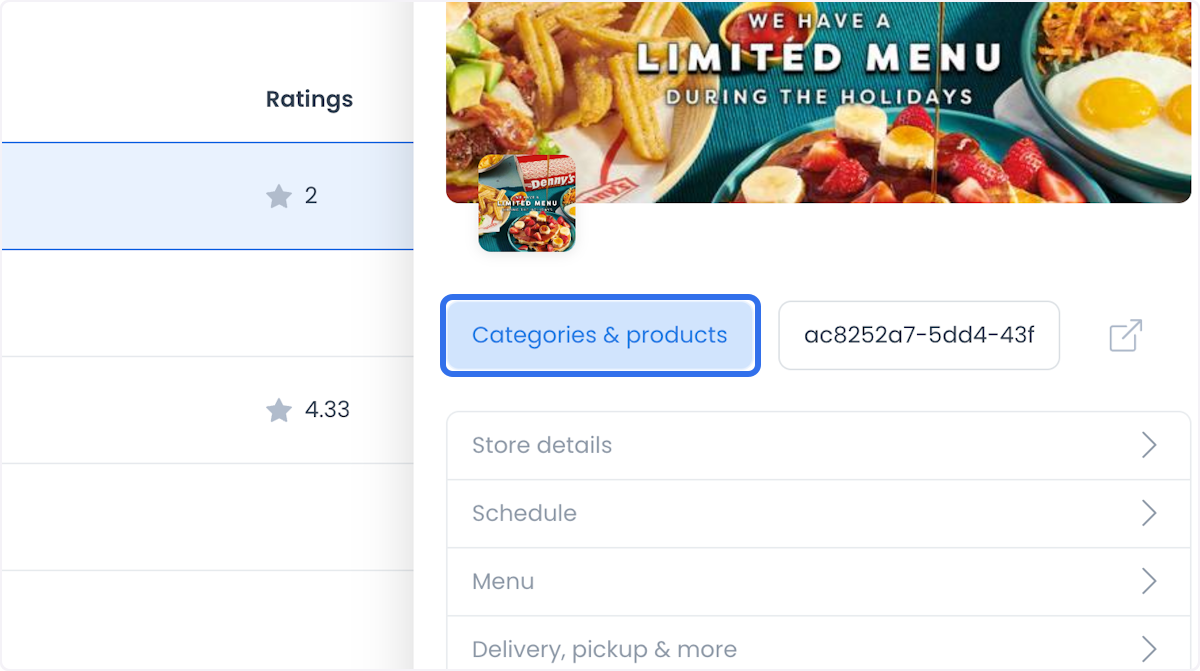
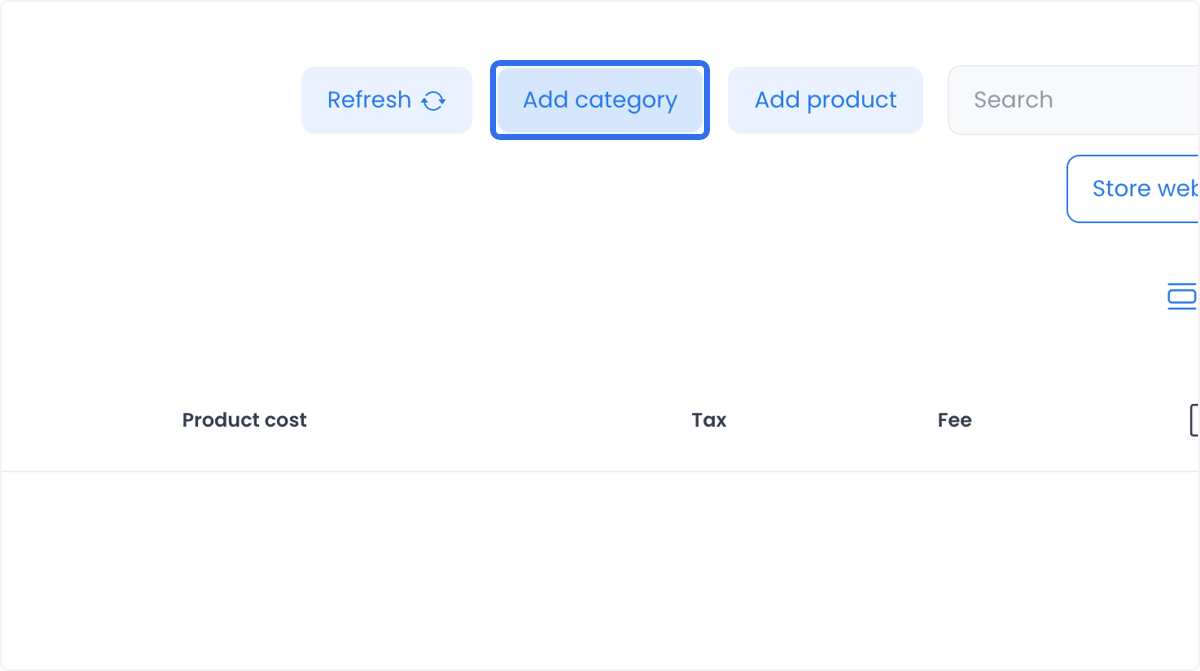
In the Dashboard, open Stores → Products (also shown as Products & Categories in some captured layouts).
-
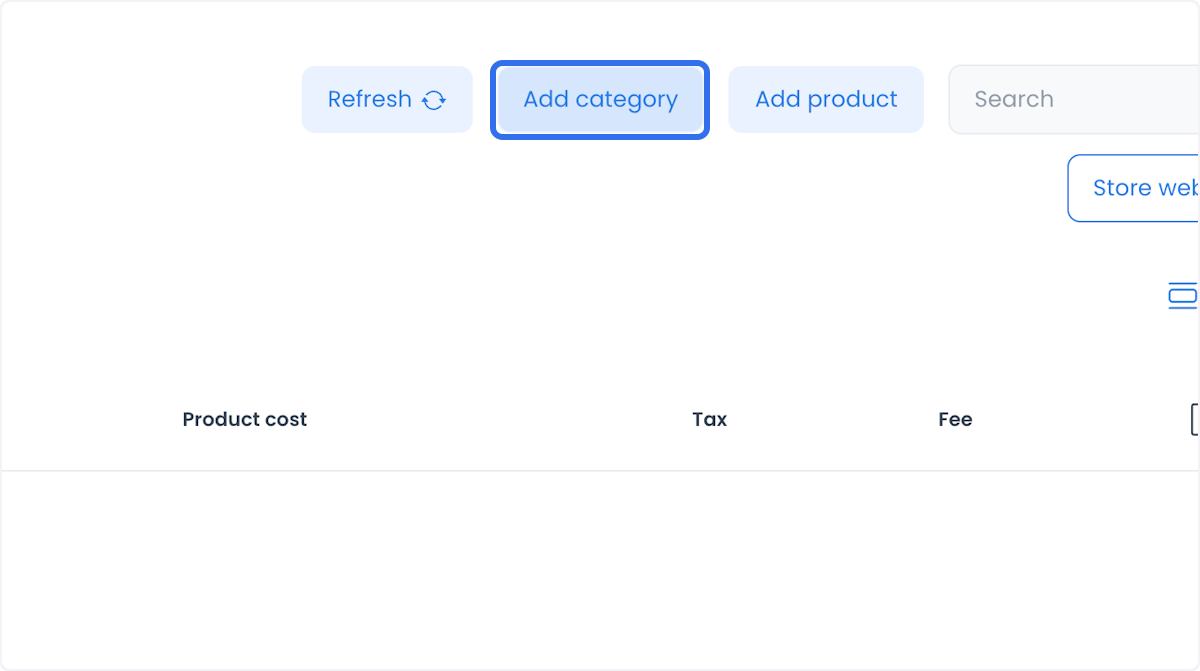
Select Add Category to open the category form.
-
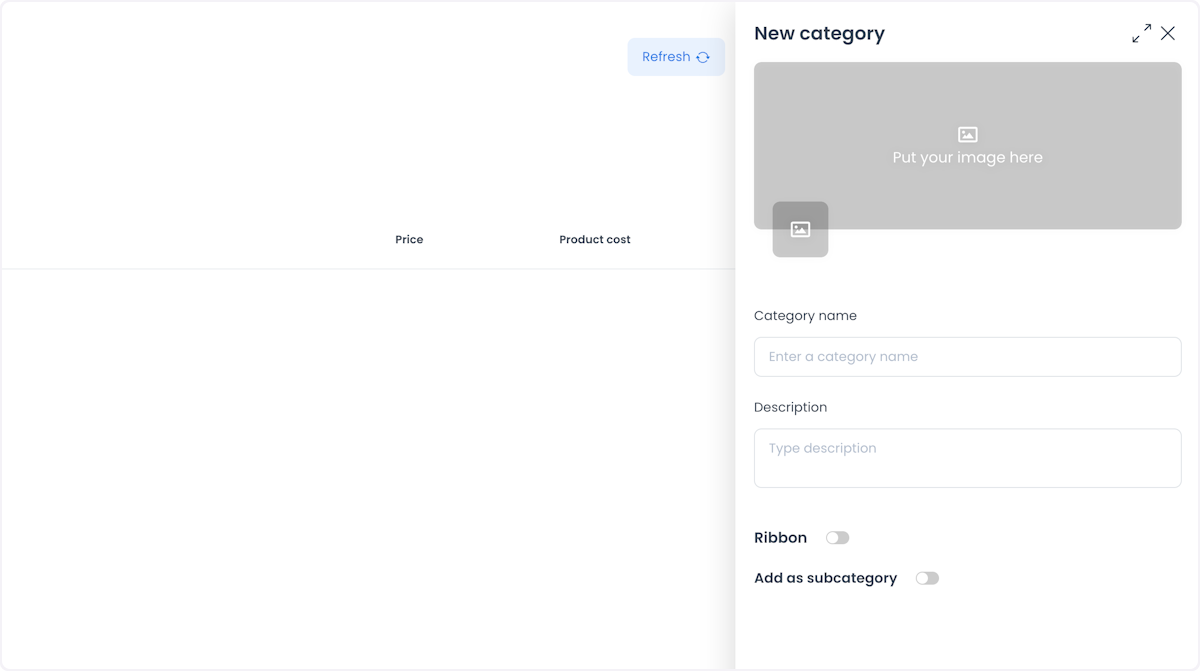
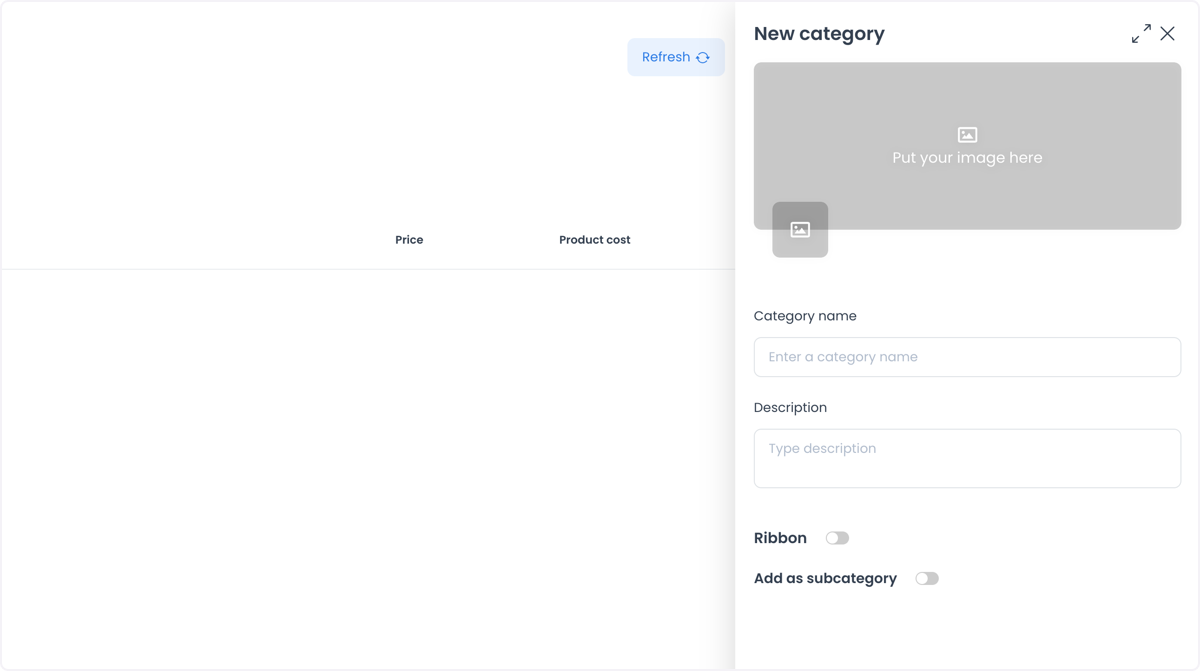
Enter the information the selected form exposes:
- Image: select or upload a representative category image when needed.
- Category Name: name the group customers will use to browse.
- Description: explain the products in the category when the catalog needs that context.
- Ribbon: add a distinctive label only when it helps customers understand the group.
- Add as Subcategory: enable this when the category belongs under an existing parent.
-
Review the store, name, parent relationship, and visible content, then choose Save through the approved workflow.
Add a subcategory
Use a subcategory to make a broad group easier to scan. For example, a Drinks category might contain Sodas and Juices.
- Choose Add New Category.
- Enter the category name and description.
- Upload an image if it helps customers distinguish the group.
- Enable Add as Subcategory and confirm the intended parent.
- Save, then review the resulting catalog hierarchy.

Use a meaningful structure
- A clothing store can group Men, Women, and Kids, then use subcategories such as T-Shirts, Pants, and Accessories.
- A supermarket can group Fruits & Vegetables, Meat, Dairy, and Bakery.
- An electronics store can group Mobile Phones, Computers, Accessories, and Home Appliances.
Clear category names, descriptions, and images can help customers browse a large catalog. They do not replace accurate product information, availability, pricing, or a review of the customer-facing result.
Check before finishing
- The selected store and parent category are correct.
- The category name and description match the products it contains.
- The image and ribbon, if used, provide useful context.
- The category appears in the intended position and state after the approved save.
Related guides: Products overview · Manage and share menus