Bulk import products
Use a structured spreadsheet import when a store needs to add or update categories, products, or product modifiers at scale. An importer can process rows against stable external identifiers, but it is a catalog-write operation: confirm the target store, file structure, mappings, and approval path before uploading anything.
An upload can change categories, products, modifiers, descriptions, prices, tax, fees, images, and availability. Test the import with an approved small dataset in a non-production store, then inspect the result before importing a full catalog.
What an importer can represent
The documented multi-importer workflow can organize:
- Categories
- Products
- Product modifiers, including extras, options, and sub-options
Each row represents an element to create or modify. The importer associates that row with the intended business, category, product, or modifier through external IDs. This is useful when migrating a catalog, uploading a large menu, applying repeatable bulk updates, or managing a complex modifier structure.
Prepare the file and mappings
The source workflow describes this sequence:
Prepare importer structure
        ↓
Prepare the importer file
        ↓
Match the Business External ID
        ↓
Upload the file
        ↓
Review the resulting categories, products, and modifiers
Before uploading:
- Use a CSV or spreadsheet format supported by the approved importer.
- Set a unique external ID for every business and for each mapped catalog element.
- Confirm that the Business External ID in the file matches the intended store.
- Keep decimal price values in dot format, for example
5.5, when the selected importer expects that format. - Decide which mappings the importer needs: Category, Product, Extra Product, Extras, Extra Options, and Extra Option Sub-options.
- Validate a small sample before using the full file.
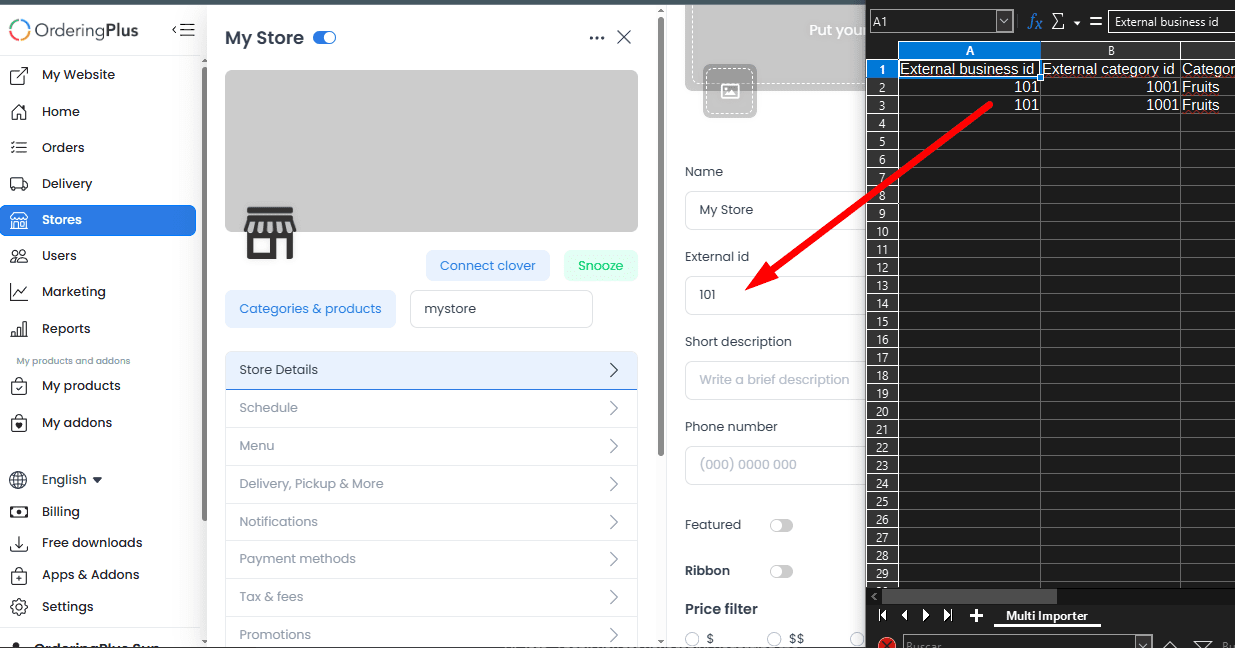
Configure the importer
If the approved setup does not already expose a multi-importer, an implementation owner can configure the required mappings, give the importer a name and slug, and save it through the applicable controlled workflow. The historical material includes API and template examples, but their endpoint, payload, external shortlinks, and media have not been verified for current use. Do not reuse those historical URLs or a Postman request as a production instruction.
For the current conceptual model, see Importer Model. It explains importer jobs, status, progress, result, and error context; it does not by itself authorize a request or document a current upload endpoint.
Upload and review the result
- Select the approved importer for the intended store.
- Upload the validated file through the approved interface.
- Wait for the returned importer status or job result; do not equate a client message with all rows completing successfully.
- Inspect categories, products, modifiers, prices, and images in the target store before treating the catalog as ready.
- Record errors or unexpected changes through the approved support process without sharing customer, catalog, token, or credential data.
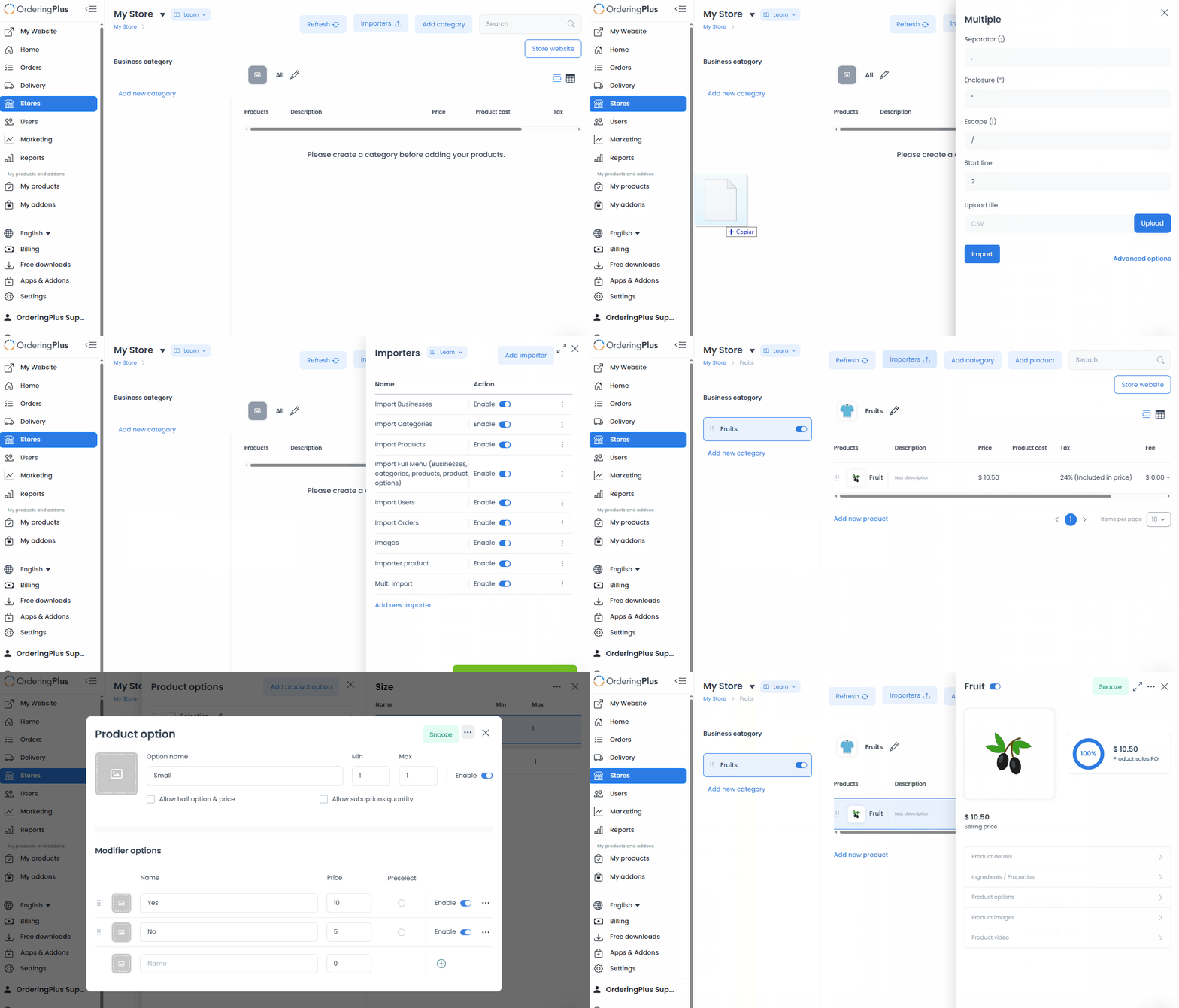
Common import patterns
- Categories and products only: leave unnecessary modifier fields empty when the approved schema permits it.
- Update existing products: keep the existing product external IDs so the intended records can be matched; verify the result because a row mapping does not prove only the desired fields changed.
- Multiple modifiers: use the modifier mappings deliberately when one product needs extras, options, or sub-options.
Final checklist
- Every external ID is unique where the importer expects uniqueness.
- The business external ID matches the target store.
- Price values use the expected decimal format.
- A small, approved test dataset has been reviewed first.
- The selected importer, uploaded file, target store, and returned status all match the intended operation.
Related guides: Products overview · Create a product category · Importers