Products overview
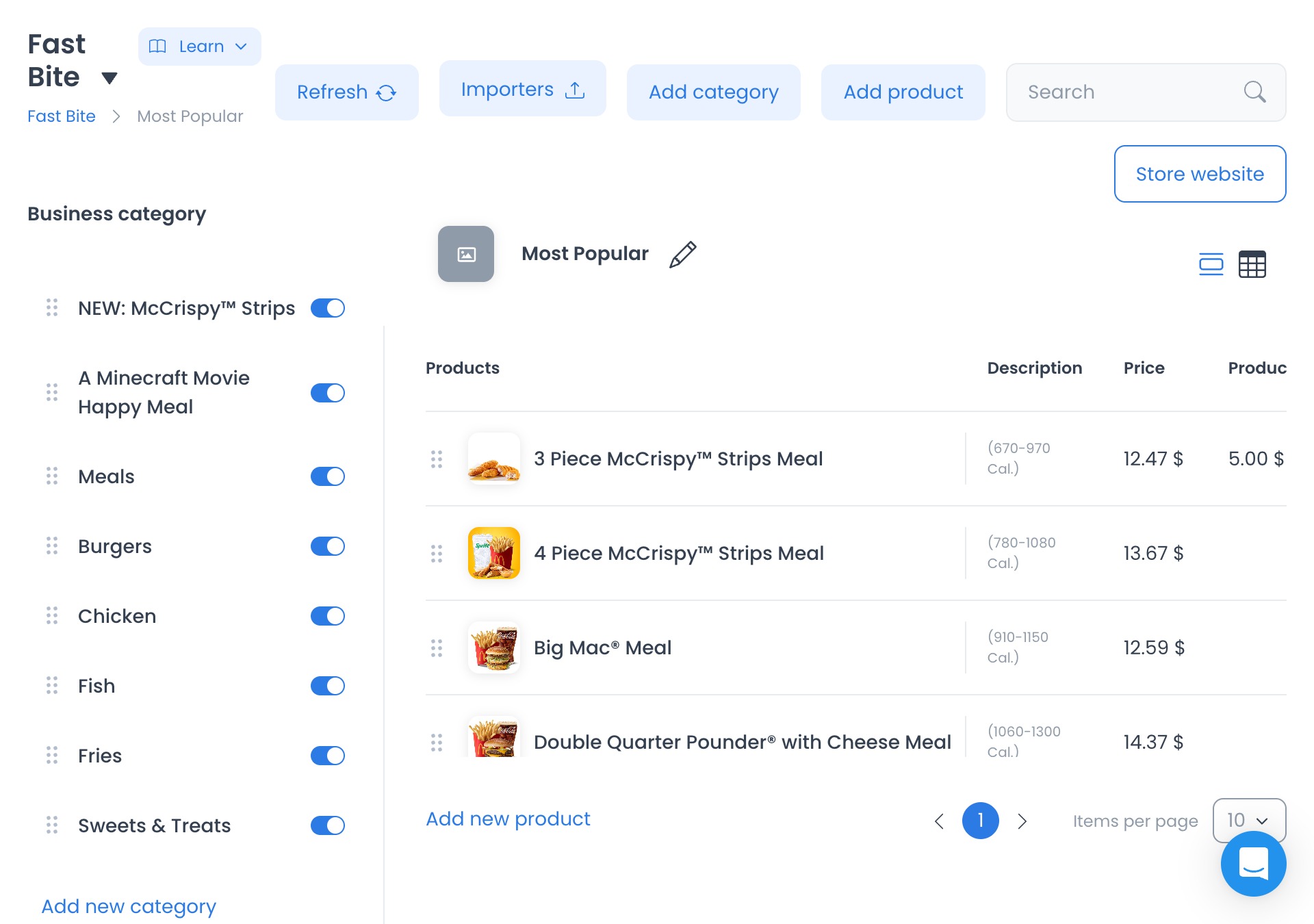
Use Products to navigate the catalog workspace for one store. It brings together a store selector, category tree, product list, optional spreadsheet presentation, and entry points for catalog work. A clear category structure and accurate product information help customers browse the offerings that the selected store is prepared to show.
Product names, descriptions, prices, costs, inventory, tax, fee, image, and activation data can affect a customer-facing catalog. Confirm the intended store and category before approaching a write-capable control, and use a non-production project or redacted data when practicing this workflow.
Availability and access boundaries
The workspace is at /stores/products/:store? and can be available to administrator and business-owner levels. The Stores sidebar group is hidden for read-only administrator, delivery-manager, and business-owner access modes. Import controls, the school template, visible data columns, public-site link construction, role, configuration, viewport, and returned data state are separate conditions.
The selected store slug can occupy the optional route parameter. Category and product IDs can be added as URL query state, and the breadcrumb’s store name can open the store-detail panel. URL state alone does not confirm that a record has loaded.
Open a store catalog
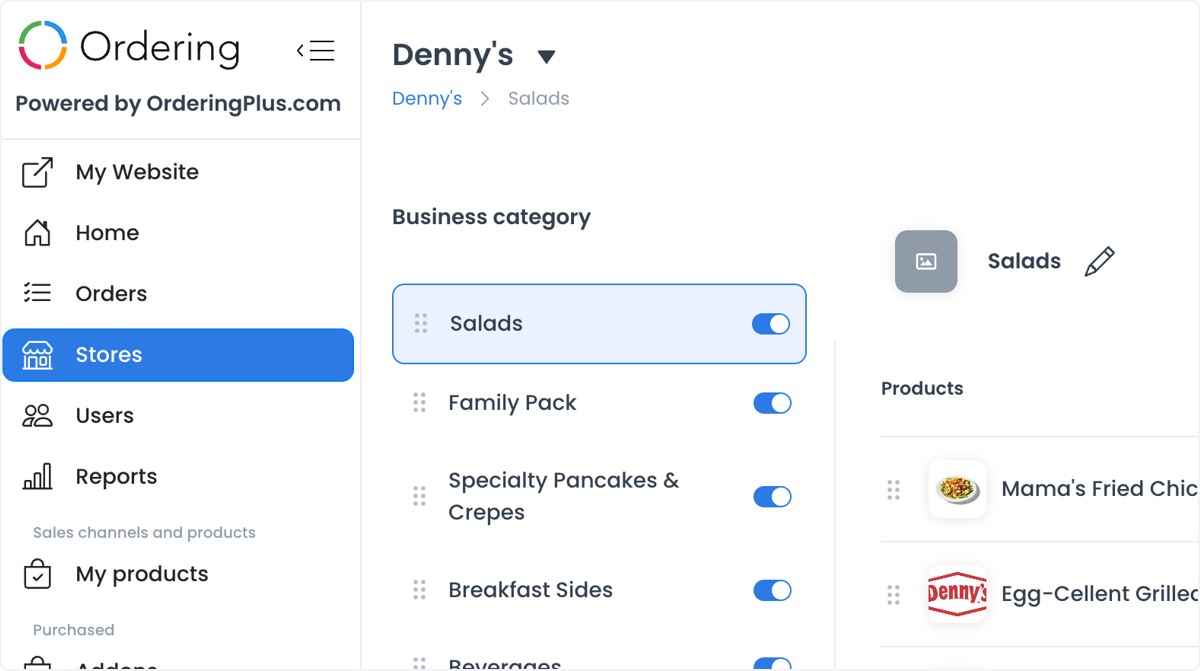
- In the Dashboard sidebar, select Stores.
- Select Products.
- Select the store name at the top of the page, then choose the intended store.
- Select a category or subcategory in the left panel.
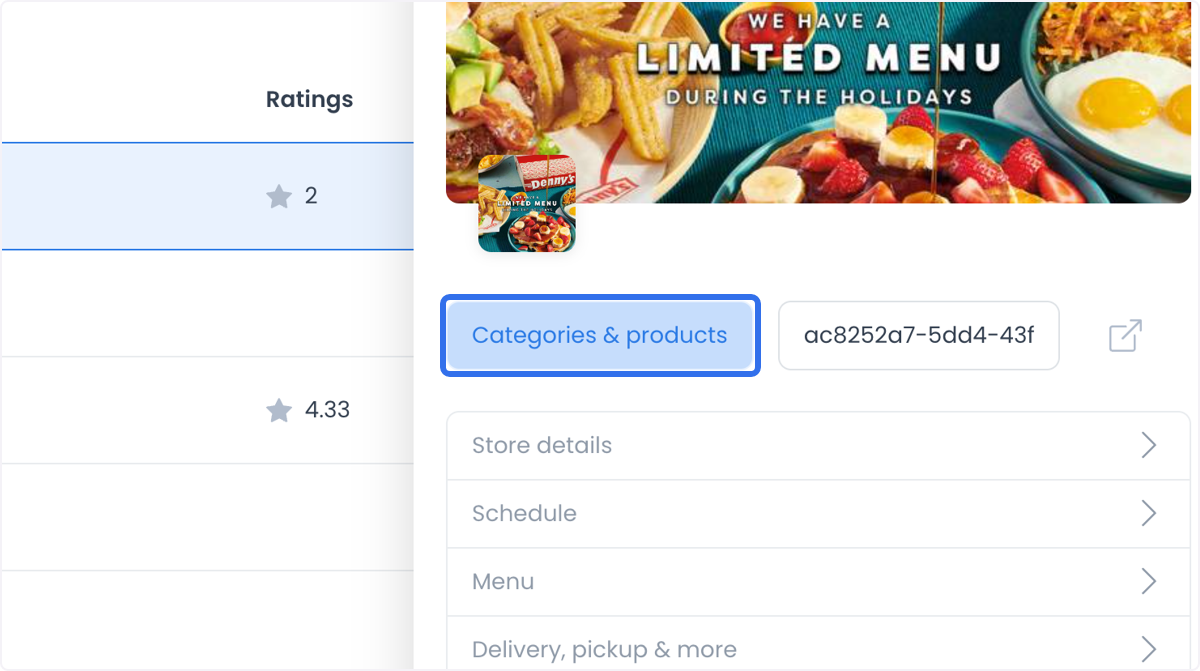
The catalog workflow also shows the Products & Categories entry point.
What you can organize
Products
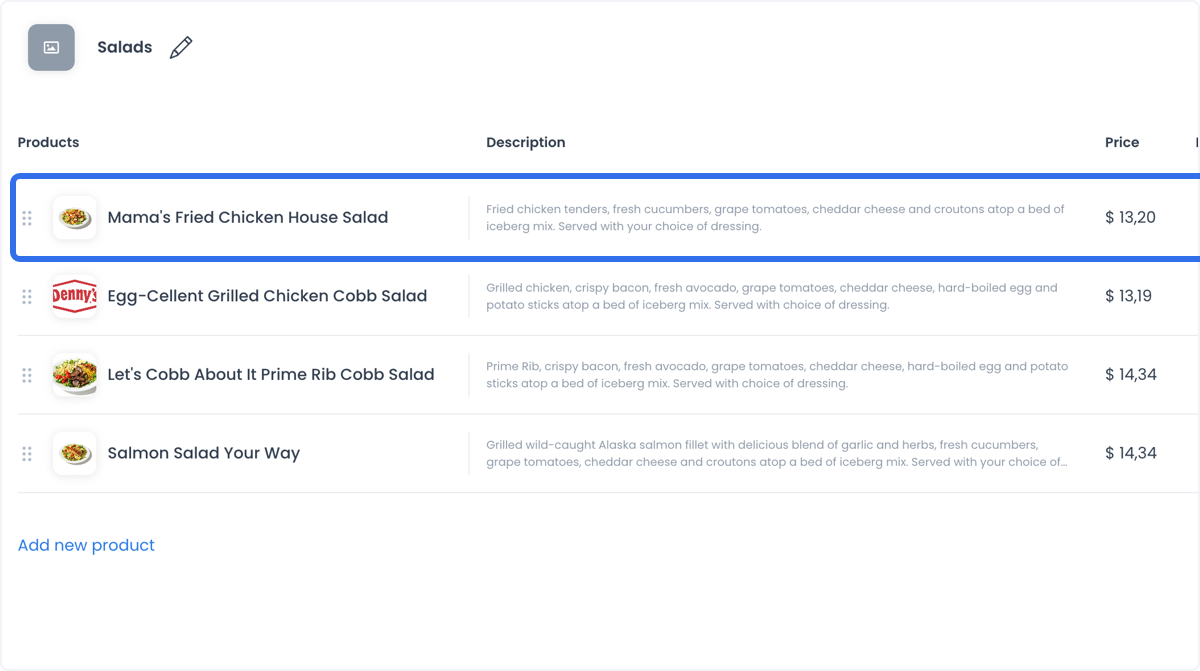
Each product can include a description, price, tax, fee, activation status, and other fields exposed by the selected catalog. Select a category, then select the product only when an approved workflow requires its detail panel.
Categories and subcategories
Categories keep the catalog navigable. Create the category structure that fits the store, use subcategories where they make product discovery clearer, and review activation status before customers rely on the result.
Find and review products
- Select a category or subcategory.
- Enter a product name or description in Search.
- Review the matching rows.
- Select a product row only when the intended work requires its detail panel.
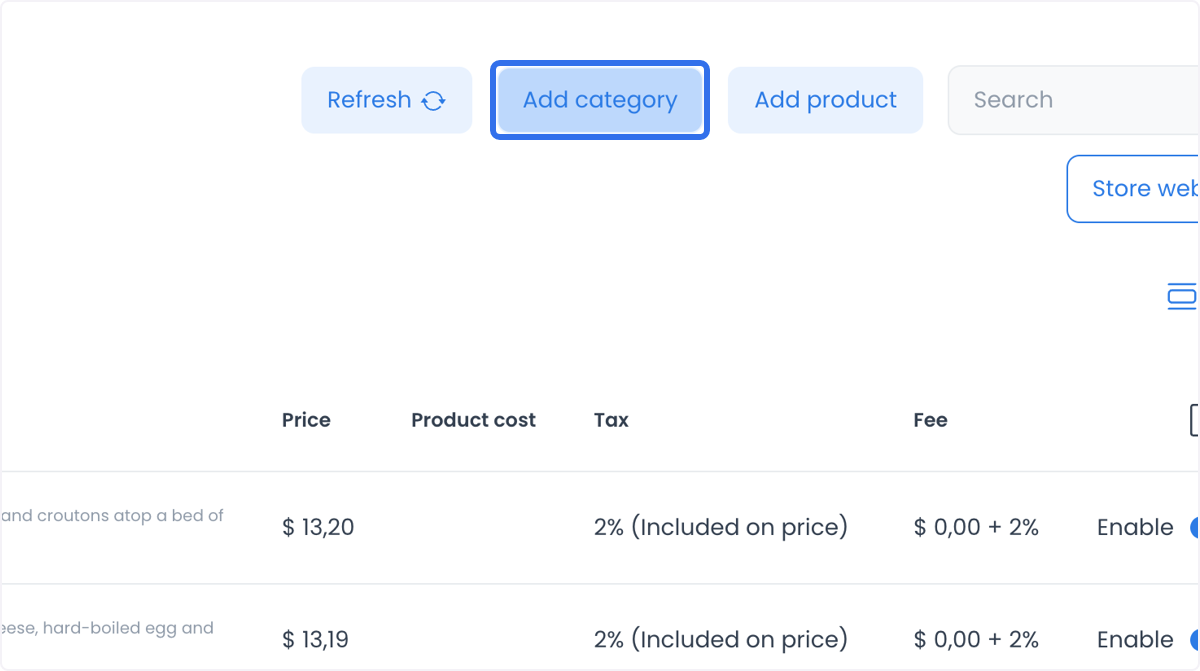
The product list can show Products, Description, Price, Product cost, Tax, and Fee columns. It uses paginated product data with version=v2; Search matches name and description. Opening or searching the catalog can access business data, so confirm completeness, authorization, and the expected result in an approved environment before relying on it.
Use catalog views
- List view contains product-detail and add-product entry points.
- Spreadsheet renders an editing surface and can expose product cost, inventory, and quantity columns.
- In Spreadsheet, Upload images in batch appears as a text button above 767 px and as an icon at smaller widths.
- Refresh invokes the store-fetch path.
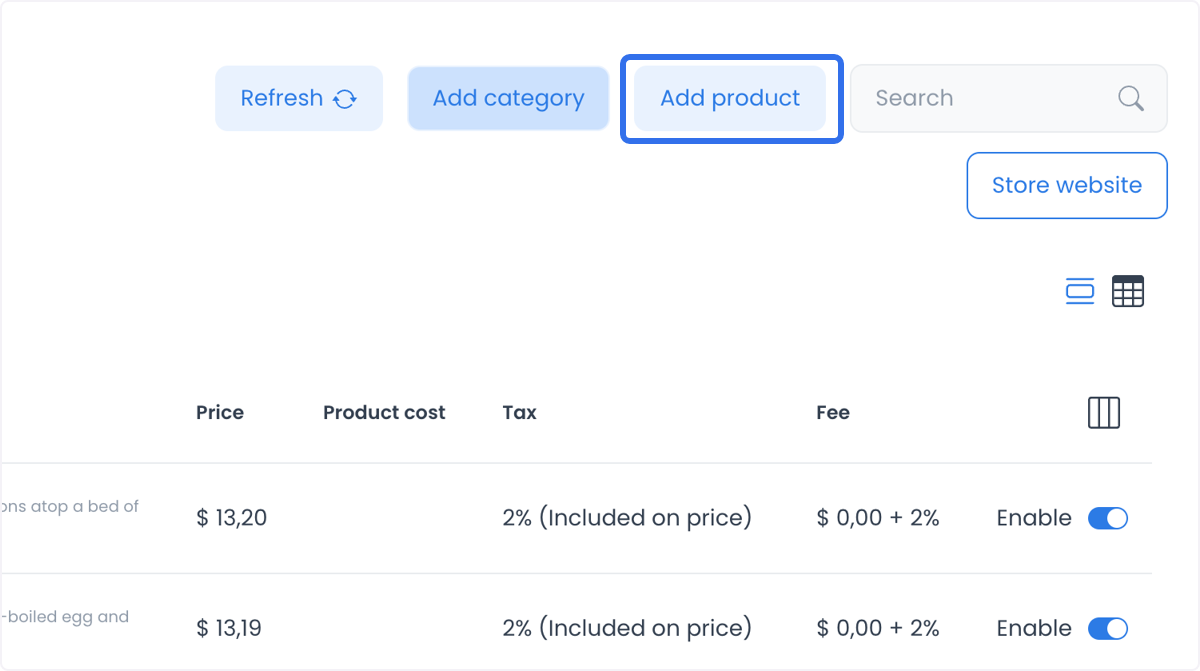
If the selected business has no categories, Products can show an empty-catalog prompt. Add product requires a selected category and can be unavailable when the category list is empty.
Write and outbound boundaries
- Add category can be available after a store is selected.
- Add product requires a selected category and list view.
- Importers appears only when the selected project configuration permits it.
- A school-vertical store with no categories can show Use weekly template to set up categories for Monday through Friday.
- Store website can open an address built from site and configuration data. Confirm the address before sharing it.
Batch image upload, spreadsheet edits, imports, weekly-template creation, adding a category or product, product detail, store detail, and public-site controls cross separate data-access, write, upload, or outbound boundaries. Make changes only through the approved workflow, and check the result before relying on it.
Practical catalog patterns
- An ecommerce store can group electronics, clothing, and home goods, then keep descriptions and prices current as inventory changes.
- A restaurant or café can group appetizers, main courses, and desserts, then review menu items and prices when seasonal availability changes.
- A retail store can group product lines such as clothing, accessories, or home goods so customers can find them more easily.
- A service business can group consultations, treatments, or packages and maintain the descriptions, duration, price, and requirements that customers need to understand the offering.
Well-organized categories, clear product details, and accurately maintained availability can make browsing easier. They do not guarantee a customer-facing change until the selected store, active catalog state, and saved result have been verified through the approved workflow.
Verify your result
- The top selector and breadcrumb name the intended store.
- The selected category is highlighted in the left panel.
- Search targets product name or description.
- The selected view and visible columns suit the catalog task.
- No product is opened for editing unless you intend to change it.
Troubleshooting
Why can’t I find a product?
Check the selected store and category, then clear Search and try part of the product name or description. Product results are scoped to the selected store and, when selected, its category.
Why can’t I add a product?
Add product requires a selected category and is available in list view. Select a category and return to list view before trying again.
Why is a product, action, or view missing?
Role, API authorization, store ownership, enabled features, configuration, and returned data can each limit the available controls and results.
Why does Store website open a different address than expected?
Store website can choose among a loaded website domain, configured site_url, and a project or subdomain fallback. Confirm the destination, certificate status, and selected store before sharing the address.
Related guides: Stores — Overview · Search, filter, and organize stores · Add a store · Bulk import products · Create a product category · Manage and share menus