Products overview
Use Products to navigate the source-defined catalog workspace for one store. Current Dashboard source mounts the workspace at /stores/products/:store?, with a store selector, category tree, product list, and optional spreadsheet presentation.
The route source allows administrator and business-owner levels. The Stores sidebar group is hidden for read-only administrator, delivery-manager, and business-owner access modes. Import controls, the school template, data columns, and public-site link construction have independent plan, configuration, viewport, and data-state gates.
Before you start
- Confirm that you are working in the intended store.
- Confirm the intended store and category before approaching a write-capable control.
- Treat product names, descriptions, prices, costs, inventory, tax, and fee data as live catalog data unless an approved synthetic fixture is in use.
Open a store catalog
- In the Dashboard sidebar, select Stores.
- Select Products.
- Select the store name at the top of the page, then choose a store.
- Select a category or subcategory in the left panel.
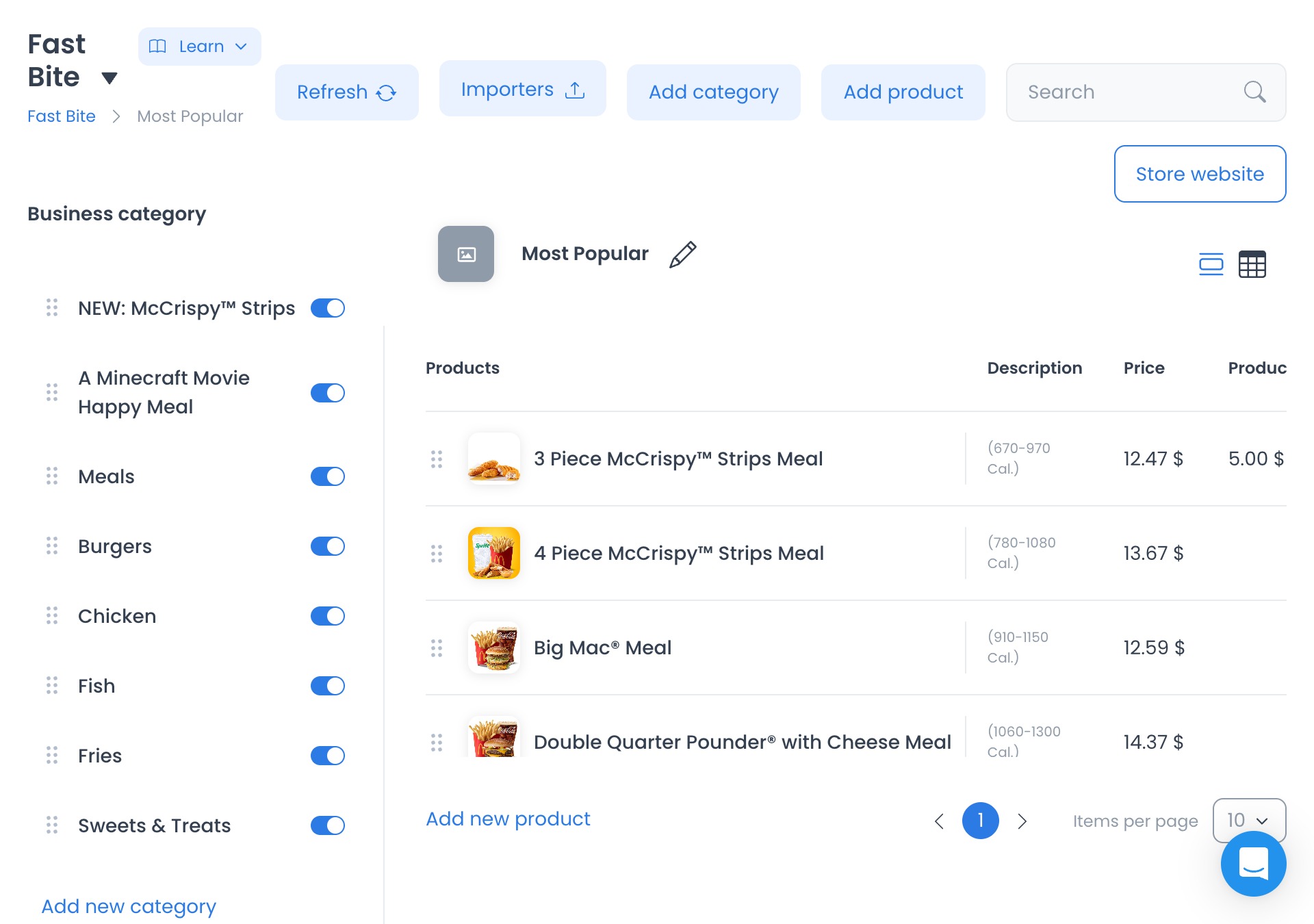
The selected store slug occupies the optional route parameter. Category and product IDs can be added as URL query state, and the breadcrumb's store name opens the store-detail panel in current source. URL state does not prove that a deployed record was retrieved.
Find and review products
- Select a category or subcategory.
- Enter a product name or description in Search.
- Review the matching source-visible rows.
- Select a product row only when an approved workflow requires its detail panel.
The list source defines Products, Description, Price, Product cost, Tax, and Fee columns. It requests paginated product data with version=v2; Search builds ilike conditions for name and description. An authenticated GET was not run, so result completeness, authorization, latency, and side-effect freedom are not established here.
Use catalog views
- List view is the initial local view state and contains product-detail and add-product entry points.
- Spreadsheet renders an editing surface and can expose product cost, inventory, and quantity columns.
- In Spreadsheet, Upload images in batch appears as a text button above 767 px and as an icon at smaller widths.
- Refresh invokes the store fetch path.
Current source opens an empty-catalog prompt when the loaded business has no categories. Add product is rendered only with a selected category and is disabled when the category list is empty. No category or product was created to verify these states.
Plan and role conditions
- Add category is rendered after a store slug is selected.
- Add product is gated by a selected category and list view; its controller defines a product-create request.
- Importers is rendered for Pro or Enterprise plan state.
- A school-vertical store with no categories can show Use weekly template; its handler defines up to five category-create requests, one for each weekday from Monday through Friday.
- Store website constructs a URL from site/configuration data and calls
window.open; no domain or provider handoff was tested.
Batch image upload, spreadsheet edits, importers, weekly-template creation, add-category, add-product, product detail, store detail, and public-site controls cross separate read, write, upload, or outbound boundaries. Do not activate them for documentation research.
Request and data boundaries
The workspace source defines authenticated store, category, product, tax, fee, and site reads. It may also request public business-type data and expose category/product/media/import writes. GET and HEAD are not presumed safe, and the presence of a controller is not evidence that a deployed backend serves the same contract.
No live store, catalog, price, cost, inventory, customer, tax, fee, site, image, provider response, token, or production configuration was accessed for this article. Existing screenshots were retained and audited by reference only.
Verify your result
- The top selector and breadcrumb name the intended store.
- The selected category is highlighted in the left panel.
- Source-defined Search targets product name or description.
- The selected view and visible columns suit the catalog task.
- No product is opened for editing unless you intend to change it.
Troubleshooting
Why can't I find a product?
Check the selected store and category, then clear Search and try part of the product name or description. Current source scopes the product request to the selected store and, when selected, its category; deployed results were not tested.
Why can't I add a product?
Current source renders Add product only after a category is selected and makes the handler a no-op outside list view. No deployed catalog state was tested.
Why is a product, action, or view missing?
Role, API authorization, store ownership, plan, enabled features, and configuration can each limit the source-visible or returned surface. This review did not test an account or store.
Why does the Store website open a different address than expected?
Current source chooses among a loaded website domain, configured site_url, and a project/subdomain fallback, then opens the result. The destination, TLS state, provider behavior, and selected slug were not tested.
Related guides: Stores — Overview · Search, filter, and organize stores · Add a store