Manage markups
Use Markups to configure an additional amount for product prices and, when selected, suboption prices. A rule can apply across the platform or be limited to a business, site, or delivery type. Review scope and values carefully: a configured rule can affect the price presented in a customer experience, but a visible setting or save action does not prove a deployed price or order-total result.
The Markups surface can be restricted to Dashboard administrators and requires access to the Stores area. Its menu placement can differ by Dashboard configuration; in some layouts, open Stores, select the business to manage, and then select Markups.
Watch the configuration overview
The video is an illustrative walkthrough. Confirm the fields and results available in the project you operate before changing a price rule.
Open Markups
- In the Dashboard sidebar, select Stores.
- Select Markups, or open the applicable store and then select Markups where that layout is available.
- Search the list to narrow existing rules, or select a row to review it.
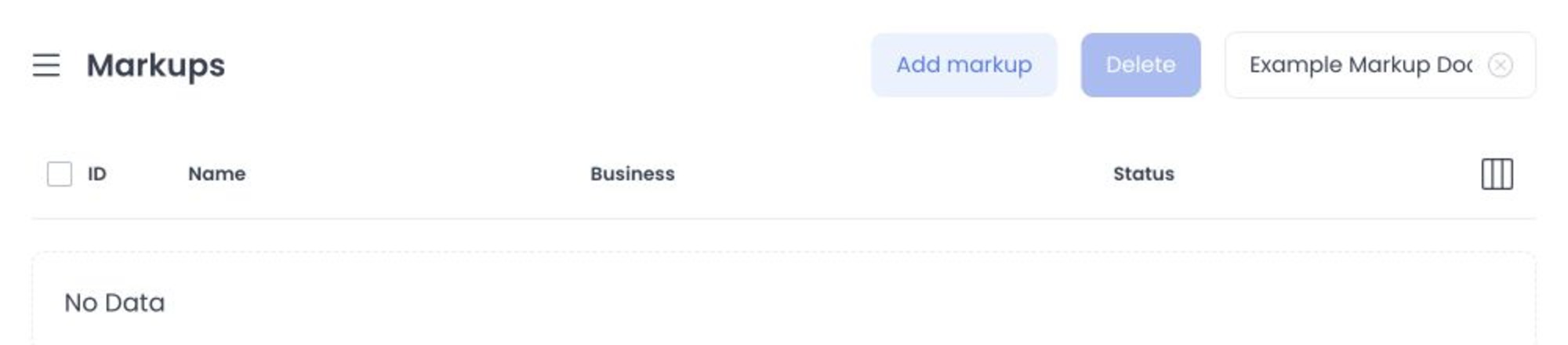
Understand a rule's scope
A markup uses three scope fields. Leaving a field at its All option makes the rule broader.
| Field | What it controls |
|---|---|
| Business | All businesses defines a platform-level scope; selecting a business narrows the rule to it. |
| Site | All sites applies across sites in the selected scope; selecting a site narrows it. |
| Delivery type | All delivery types applies regardless of fulfillment type; selecting one limits it. |
The documented selection behavior favors the most-specific matching enabled rule. For example, a business-specific rule can take precedence over a platform-level rule, and a matching site and delivery type can be more specific than all-sites or all-delivery-types. Treat this as configuration logic, not proof that a hosted checkout applied a rule.
Each exact Business, Site, and Delivery type combination can have one current, non-deleted markup. A disabled rule can still occupy that scope. If a new rule is rejected as a duplicate, find and review the existing scope rather than creating another rule.
When editing, Business, Site, and Delivery type are locked. To use a different scope, create a separate rule after confirming that it does not duplicate an existing combination.
Create a markup
- Select Add markup.
- Enter a descriptive Name, such as a rule that distinguishes a site or pickup order type.
- Choose the intended Business, Site, and Delivery type. Leave an option at All only when the broader scope is intended.
- Under Rules, select the Products markup type:
- Percentage adds a percentage of the base product price.
- Fixed adds a fixed amount.
- Enter the Products markup value.
- To include suboptions, select Apply to suboptions. Keep Apply same value selected to use the product rule, or clear it to configure a separate type and value when that control is available.
- Optionally choose Rounding values. The documented behavior rounds a price with markup upward to the next selected decimal ending.
- Review the scope and rule, then select Save only through an approved pricing-change workflow.
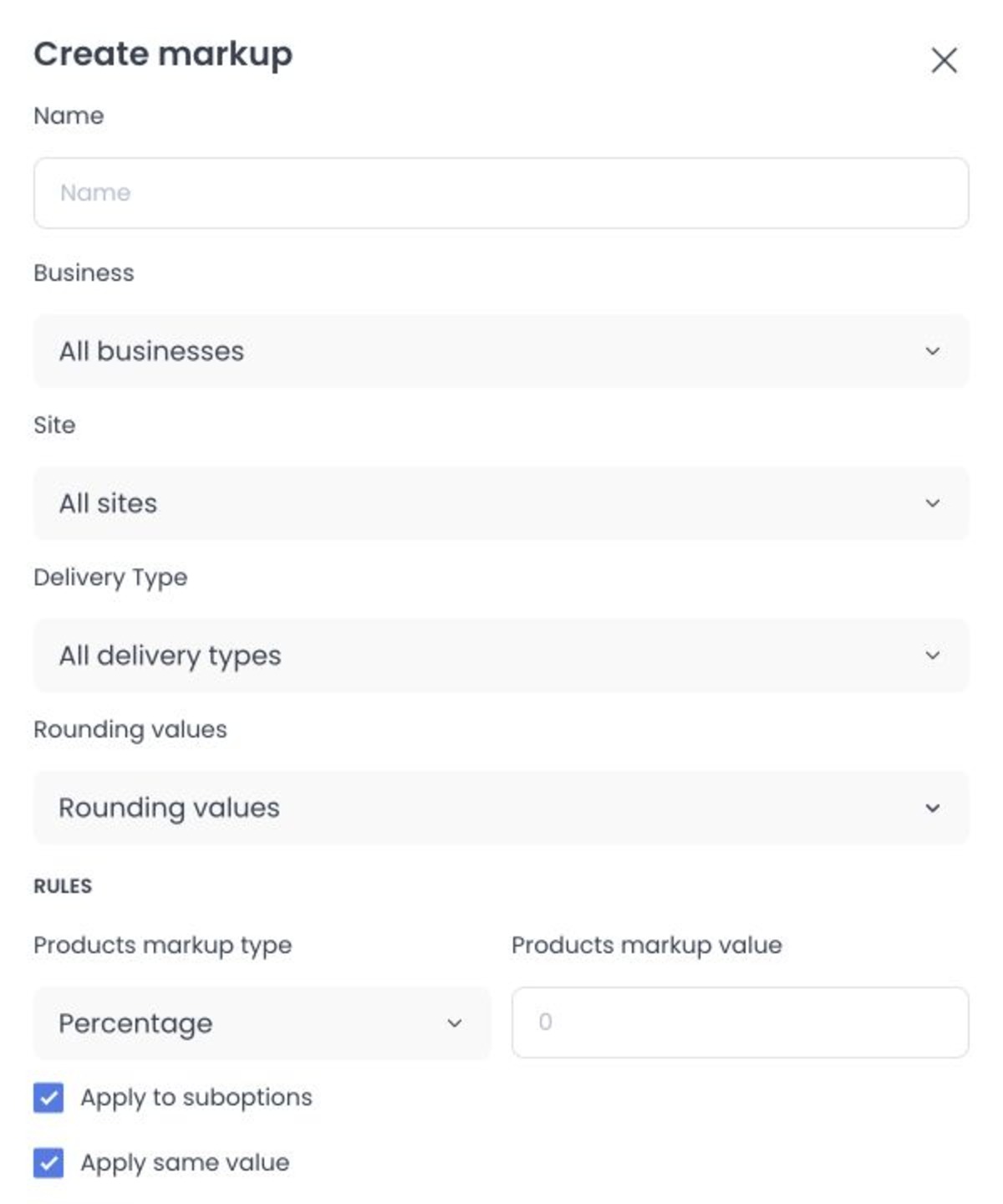
The product rule is saved in the documented form. If Apply to suboptions is not selected, suboptions do not receive an additional markup from that rule.
The configured percentage, fixed amount, suboption setting, and rounding choice describe how the rule is intended to calculate. They do not establish that a particular customer, site, fulfillment choice, product, suboption, cart, or order receives a price result. Validate price effects only through a separately approved procedure.
Where a markup may be presented
The documented model keeps the product's base price in the Dashboard product settings. When an enabled rule's site and delivery type match, its adjusted price can be presented in a customer-facing website or app. Treat that as the intended behavior, not proof of a particular published price, customer experience, or order result.
Use rounding and differentiated rules deliberately
Where Rounding values includes endings such as .50 or .99, use them when they match the intended price presentation. Review the final intended rule rather than assuming an input amount will be the final displayed amount after rounding.
You can create separate rules for direct and third-party sites or for different delivery types when the corresponding sites and fulfillment choices exist in the project. This is a pricing-policy choice; it does not guarantee cost recovery, margin, visibility, or customer behavior.
When a markup applies to suboptions, review how the additional amount combines with the product rule. This helps an operator recognize the intended customer-price presentation before requesting a change.
Review markup rules periodically against the intended pricing policy, operating costs, and customer-price presentation. The review supports an informed change; it does not make a price, margin, or customer response guaranteed.
Edit, enable, disable, or delete a rule
Select a row to update its name, rules, or rounding values, then select Save. Saving submits the configured update; it does not prove that any external price consumer has applied it.
Use the Status switch to request an enabled-state change. Disabling a rule can be preferable to deleting it when you may need to return to the same scope later. A status change in the list or panel does not prove that a cart began or stopped applying the rule.
To remove rules, select one or more rows, select Delete, and confirm the message. The Dashboard can submit a separate delete operation for each selected rule. Confirm the rule names and scopes first, especially for platform-level rules.
Review before an approved verification
Before a separately approved check of a customer-facing price, record the intended business, site, delivery type, markup type, value, suboption choice, rounding values, and rule status. Then compare the result using only the approved procedure. Do not infer a result from the form, a video, a response message, or a base product price in Dashboard settings.
Troubleshooting
Why is Markups missing from Stores?
Use the intended Dashboard administrator account and confirm that the Stores menu is available for the project. A direct route does not replace the access checks.
Why can't I change Business, Site, or Delivery type?
Those fields identify the saved scope and are immutable after creation. Create a new rule with the intended scope, then review the existing rule before disabling or deleting it.
Why did the price change by more than the rule value?
The documented rule calculation applies the markup and can then apply the selected upward rounding. Review the active rule's type, value, rounding values, and scope. A more-specific enabled rule can also be the intended match. Use the approved verification procedure before concluding what a customer-facing result did.
Why can't I create this markup?
Check whether an existing current rule already uses the same Business, Site, and Delivery type combination. Review the name, numeric value, delivery type, and validation shown by the form before trying again.
Related guides: Stores overview · View and edit a store