Manage markups
Use Markups to define an additional amount on product prices and, when selected, suboption prices. A rule can apply across the platform or be limited to a business, site, or delivery type. Because an enabled rule can change customer-facing prices and order totals, review its scope and values before saving it.
The /stores/markups route is administrator-only. Its Markups menu item also requires the non-read-only Stores parent menu; route eligibility and sidebar visibility are separate checks.
Open Markups
- In the Dashboard sidebar, select Stores.
- Select Markups.
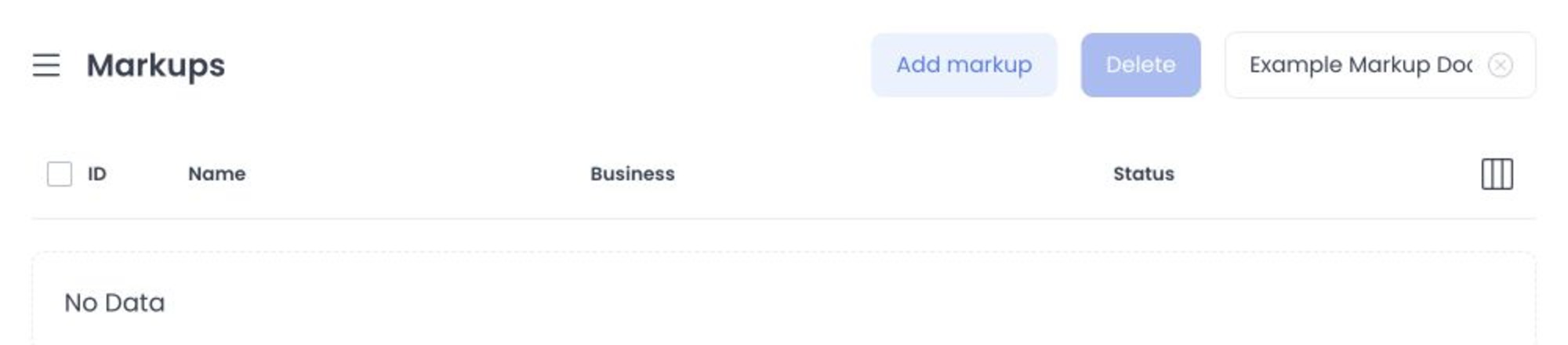
The list shows existing rules. Use the search field to narrow the list, or select a row to open it for review.
Understand a rule's scope
A markup has three scope fields. Leaving a field set to its All option makes the rule broader.
| Field | What it controls |
|---|---|
| Business | All businesses creates a platform-level rule; selecting a business restricts the rule to it. |
| Site | All sites applies across sites in the selected scope; selecting a site narrows the rule. |
| Delivery type | All delivery types applies regardless of fulfillment type; selecting one limits it to that type. |
When more than one enabled rule could apply, the most specific matching rule takes precedence. A business-specific rule takes precedence over a platform-level rule; a matching site and delivery type make a rule more specific than an all-sites or all-delivery-types rule.
Each exact Business, Site, and Delivery type combination can have only one current, non-deleted markup. A disabled rule still occupies that scope. If a new rule is rejected as a duplicate, review the existing rule for that combination instead of creating another one.
When editing, Business, Site, and Delivery type are locked. To use a different scope, create a separate rule after confirming it does not overlap an existing combination.
Create a markup
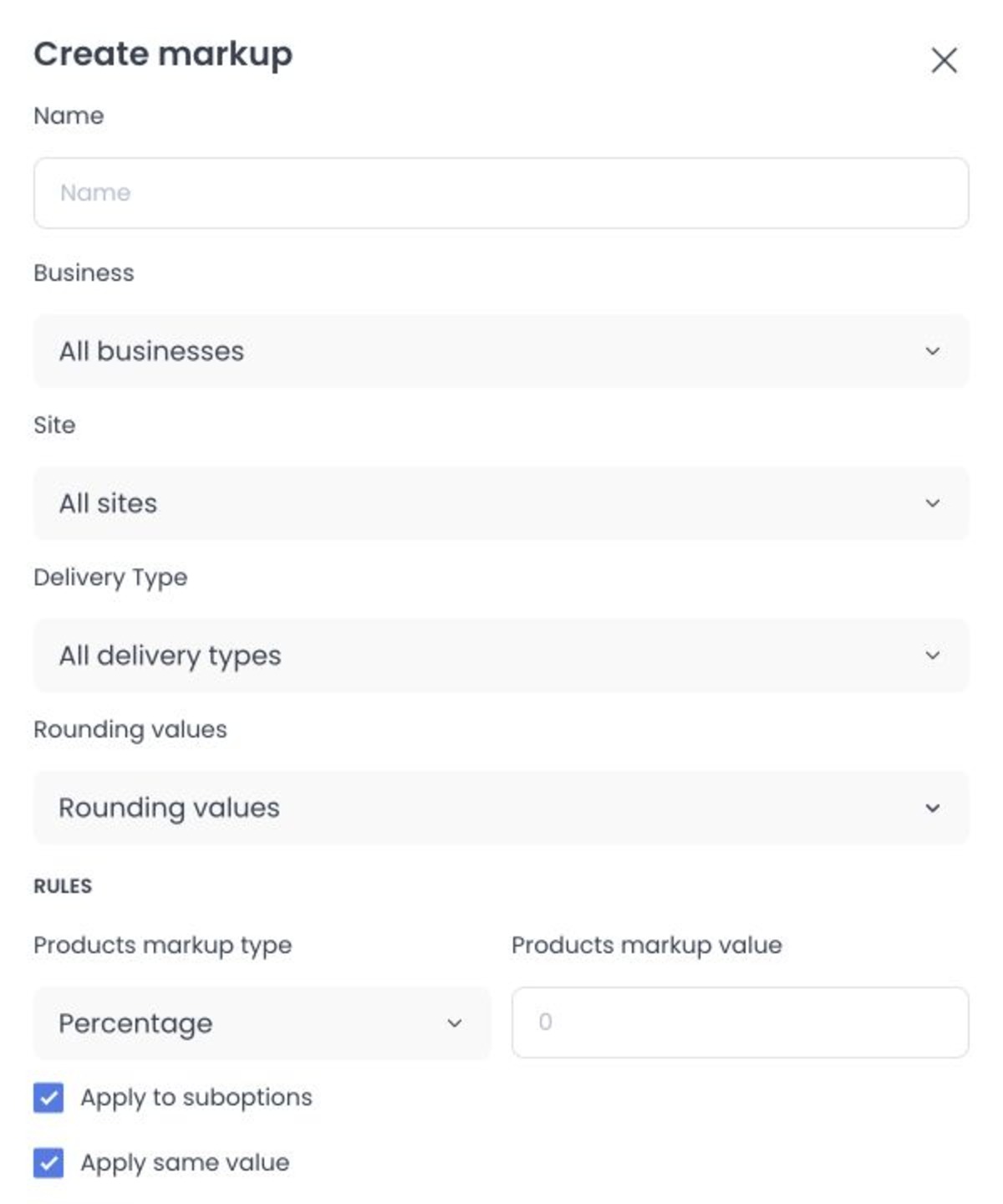
- Select Add markup.
- Enter a descriptive Name.
- Choose the intended Business, Site, and Delivery type. Leave an option at All only when the broader scope is intended.
- Under Rules, select Products markup type:
- % adds a percentage of the base product price.
- Fixed adds a fixed amount.
- Enter the Products markup value.
- To include suboptions, select Apply to suboptions. Keep Apply same value selected to use the product rule, or clear it to set a separate type and value.
- Optionally choose Rounding values. The Dashboard rounds the price with markup upward to the next selected decimal ending.
- Review the scope and rule, then select Save.
This guide reflects fixed Dashboard and API source. It does not prove which revisions a hosted project serves, and list/detail reads are not presumed safe based on their request method. Do not inspect live prices, stores, sites, catalogs, or customer orders to validate these rules.
The product rule is always saved. If Apply to suboptions is not selected, suboptions receive no additional markup from this rule.
The fixed source defines percentage, fixed, suboption, and rounding calculations that can affect customer-facing prices. Treat those as potential effect classes, not proof of a deployed price or order-total result. Any later validation requires separately approved synthetic evidence with writes and customer/order data excluded.
Edit, enable, or delete a rule
Select a row to update its name, rules, or rounding values, then select Save. The Save action writes those changes to the rule.
The Status switch is different: changing it in the list or the rule panel sends an immediate enabled-state update. Fixed API source selects enabled rules for matching scopes, but source alone does not prove that a hosted cart applied or stopped applying a rule.
To remove rules, select one or more rows, select Delete, and confirm the message. The Dashboard sends a separate delete request for every selected rule. Confirm the rule names and scope first, especially for platform-level rules.
Troubleshooting
Why is Markups missing from Stores?
Only administrator accounts can access Markups. Sign in with the intended administrator account or ask a project administrator for access.
Why can’t I change Business, Site, or Delivery type?
Those fields identify the rule's saved scope and are immutable after creation. Create a new rule with the intended scope, then carefully review the existing rule before disabling or deleting it.
Why did the price change by more than the rule value?
The rule is calculated first, then the configured rounding can raise the final price to the next allowed decimal ending. Check the active rule's type, value, and selected rounding values, as well as whether a more-specific rule applies.
Why can’t I create this markup?
There is already a current, non-deleted rule for the same Business, Site, and Delivery type combination, or one of the supplied values is invalid. Search for the existing scope and review the name, numeric value, and delivery type before trying again.
Related guides: Stores overview · View and edit a store