Import a menu from Ordering Network
Use Import Menu when the current Dashboard shows that option during store setup. The flow starts a menu-import request from an Ordering Network result so you can review a starting catalog instead of entering every item manually.
The option, a returned business result, and a completed screen are different signals. They do not guarantee that a Network catalog is available, current, authorized for your business, importable, or continuously synchronized.
Before you start
- Confirm that you are working in the intended project and store setup workflow.
- Use business information that you are authorized to search and select.
- Be ready to compare the returned business name and address with the intended store before you start an import.
- Treat the import as a request that can affect store catalog data. Do not use live business data merely to inspect the flow.
The screenshots show example names, addresses, provider marks, labels, availability statements, and catalog data. They are not a promise that the same choices, regions, catalog size, or results are available in your account.
Start with the intended store
- From Stores, select Add new store when that action is available.
- In the store form, enter the restaurant or store name.
- Select the address result that matches the intended business before continuing.
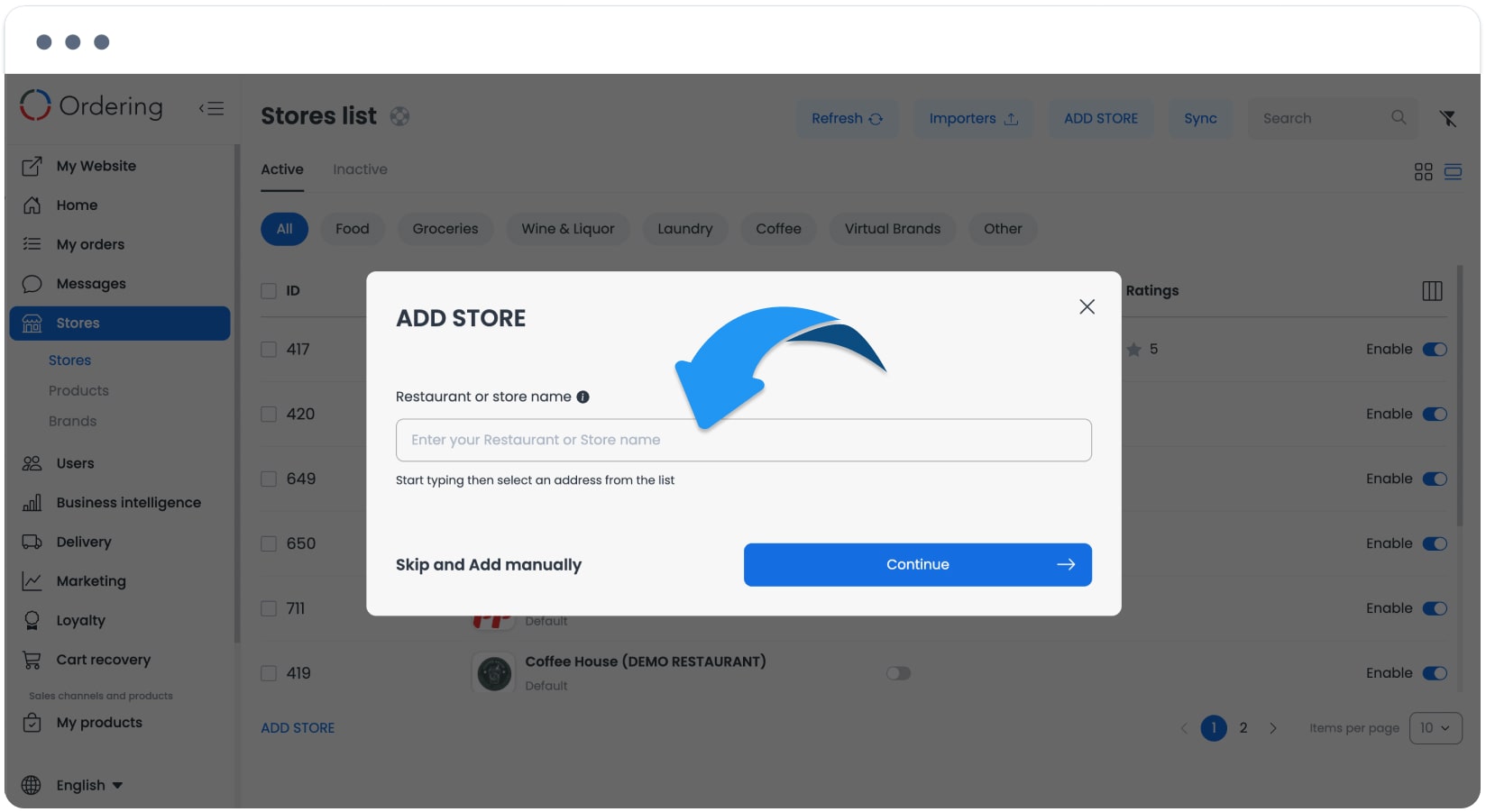
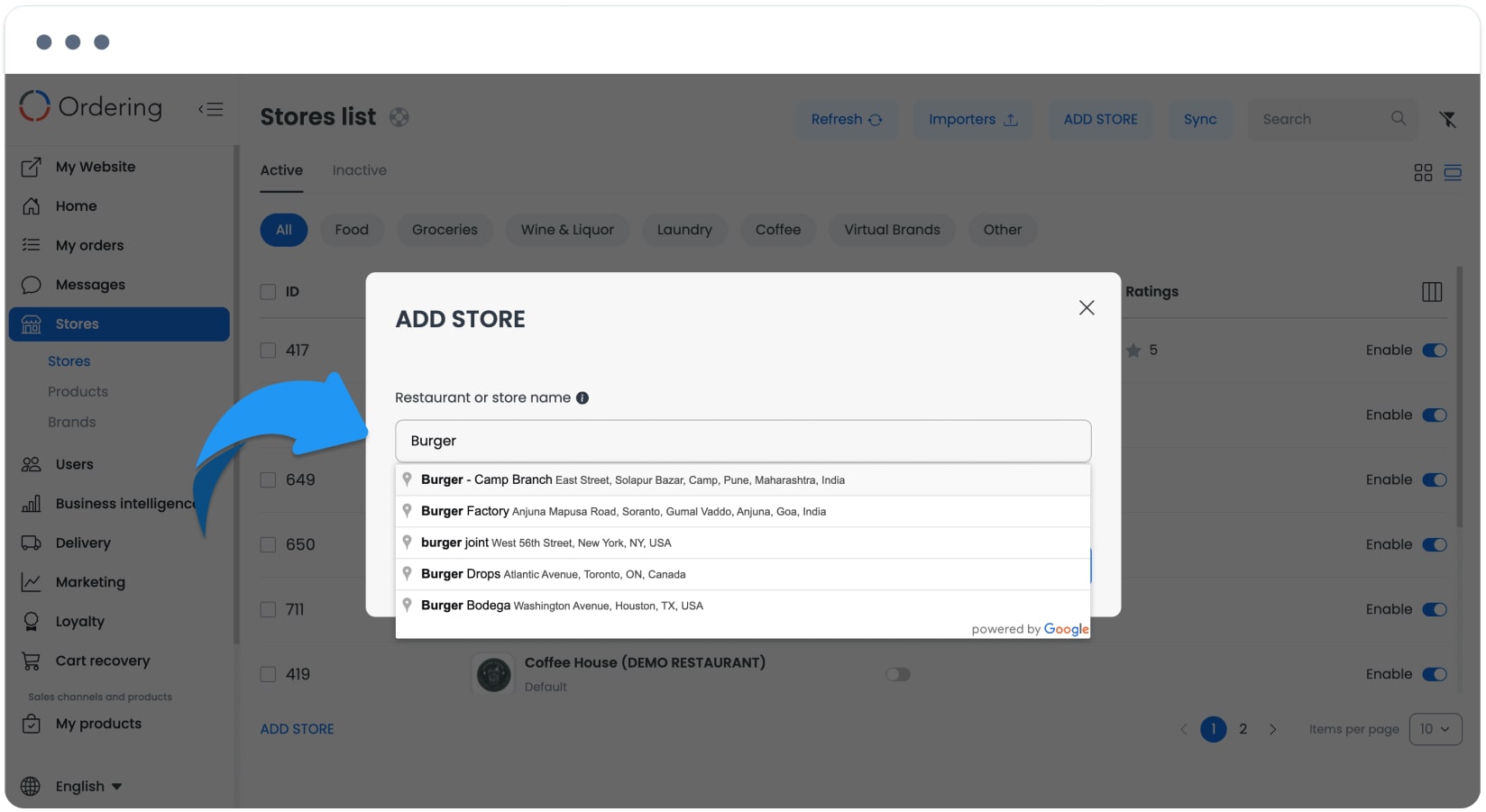
A matching name alone is not enough. Confirm the returned address and business identity before selecting a result. A search result does not establish ownership, provider availability, catalog freshness, delivery coverage, or customer-facing service.
Choose the menu import option
After you have selected or created the intended store, open the menu-start choices. Select Import Menu only when the current Dashboard offers it for that workflow.
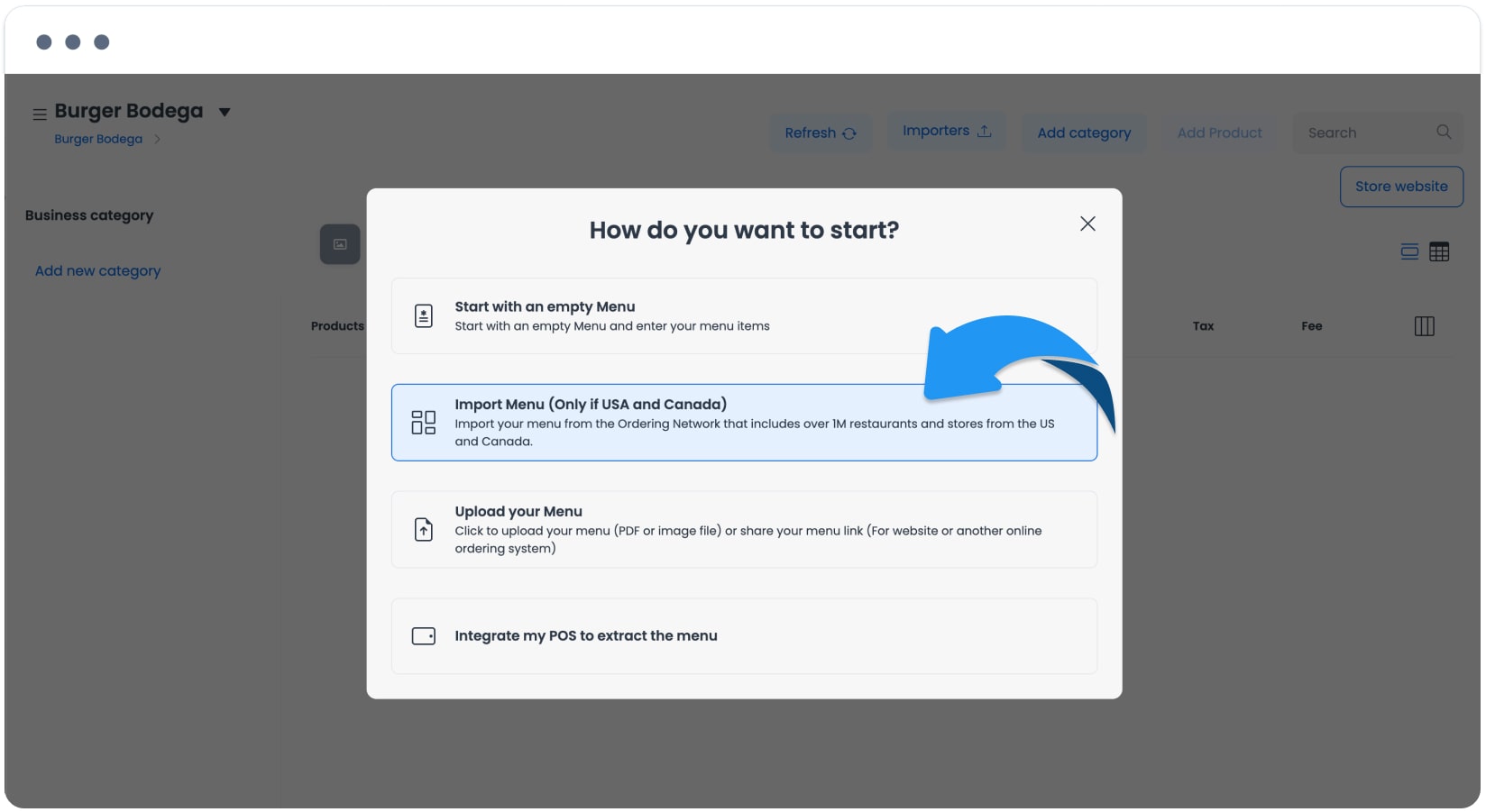
Other menu-start options can be available. If Import Menu is absent, do not infer the reason from a screenshot or attempt to work around the current configuration; use the available setup path or confirm the intended workflow with the responsible operator.
Select a Network result
- Review the returned Network records.
- Choose the record whose business identity and address match the intended store.
- Continue only after confirming that selection.
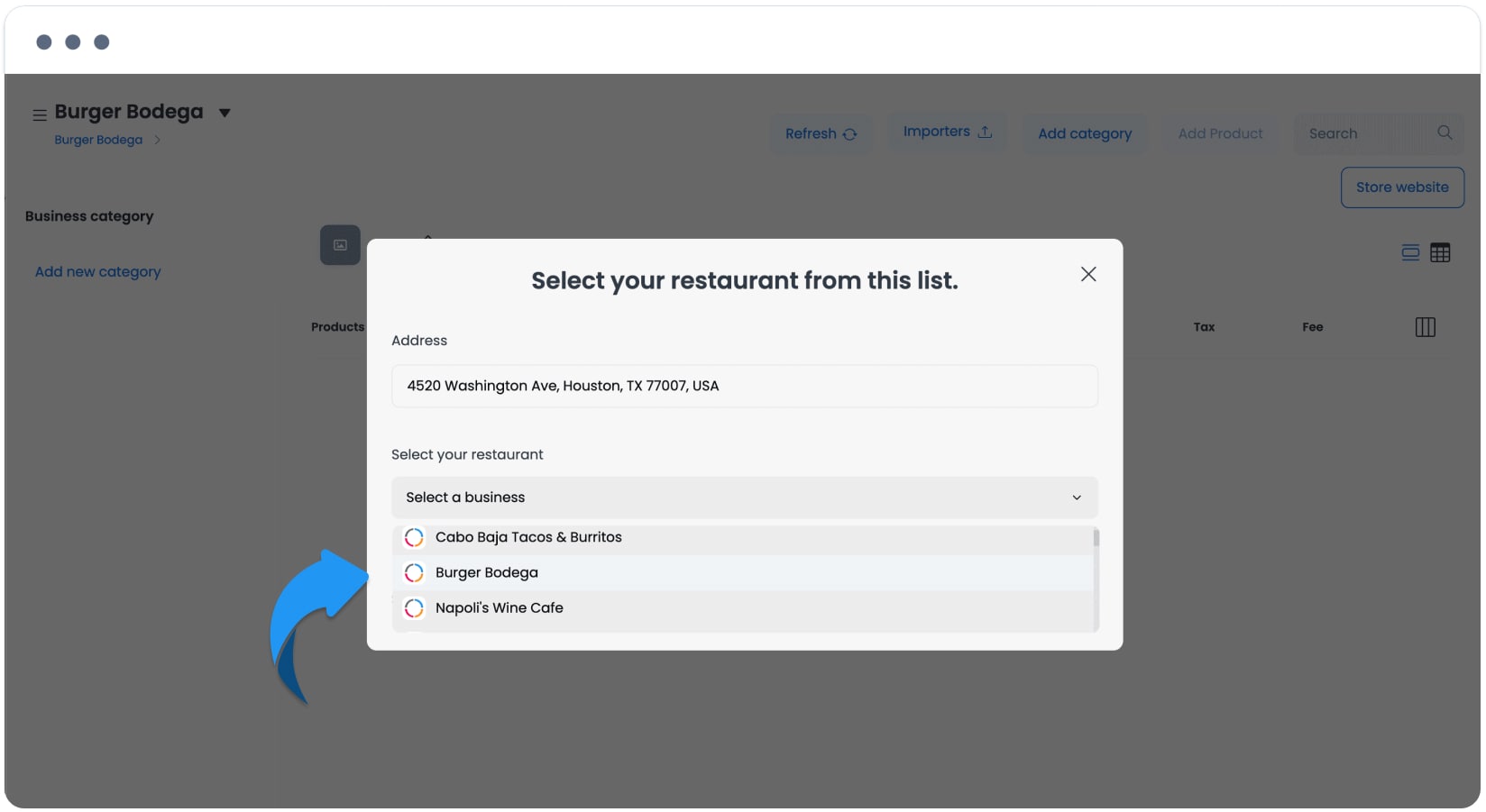
A Network response provides a candidate for the request. It does not prove that the candidate has a usable catalog, that a provider has accepted a request, or that any later change will synchronize back to the store.
Wait for the import result
After you select a Network business, the Dashboard can show an in-progress state while it handles the request. Wait for the in-product result instead of assuming a duration or resubmitting the request.
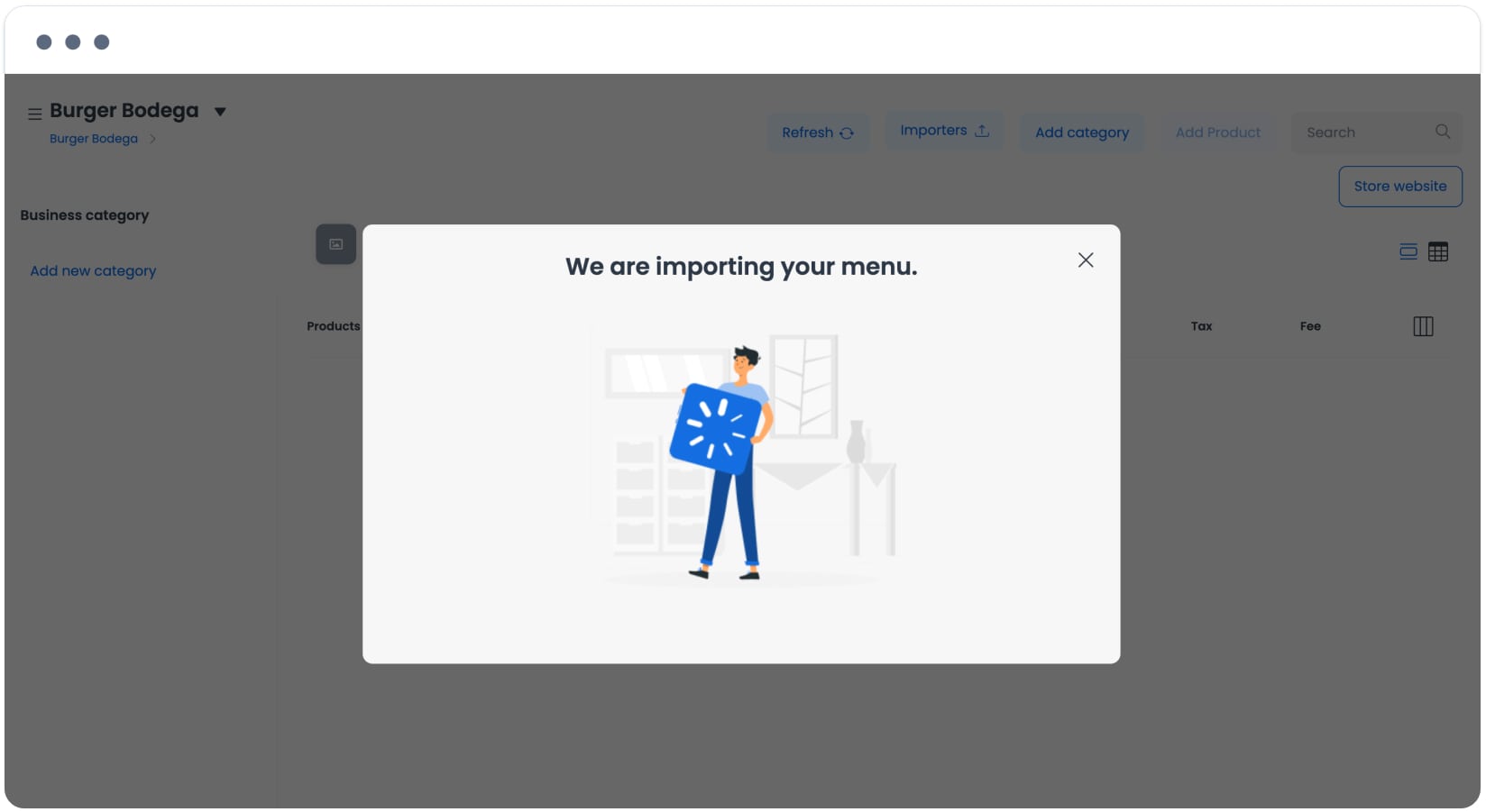
If the Dashboard reports that the menu is ready, open the menu review action and inspect the resulting catalog.
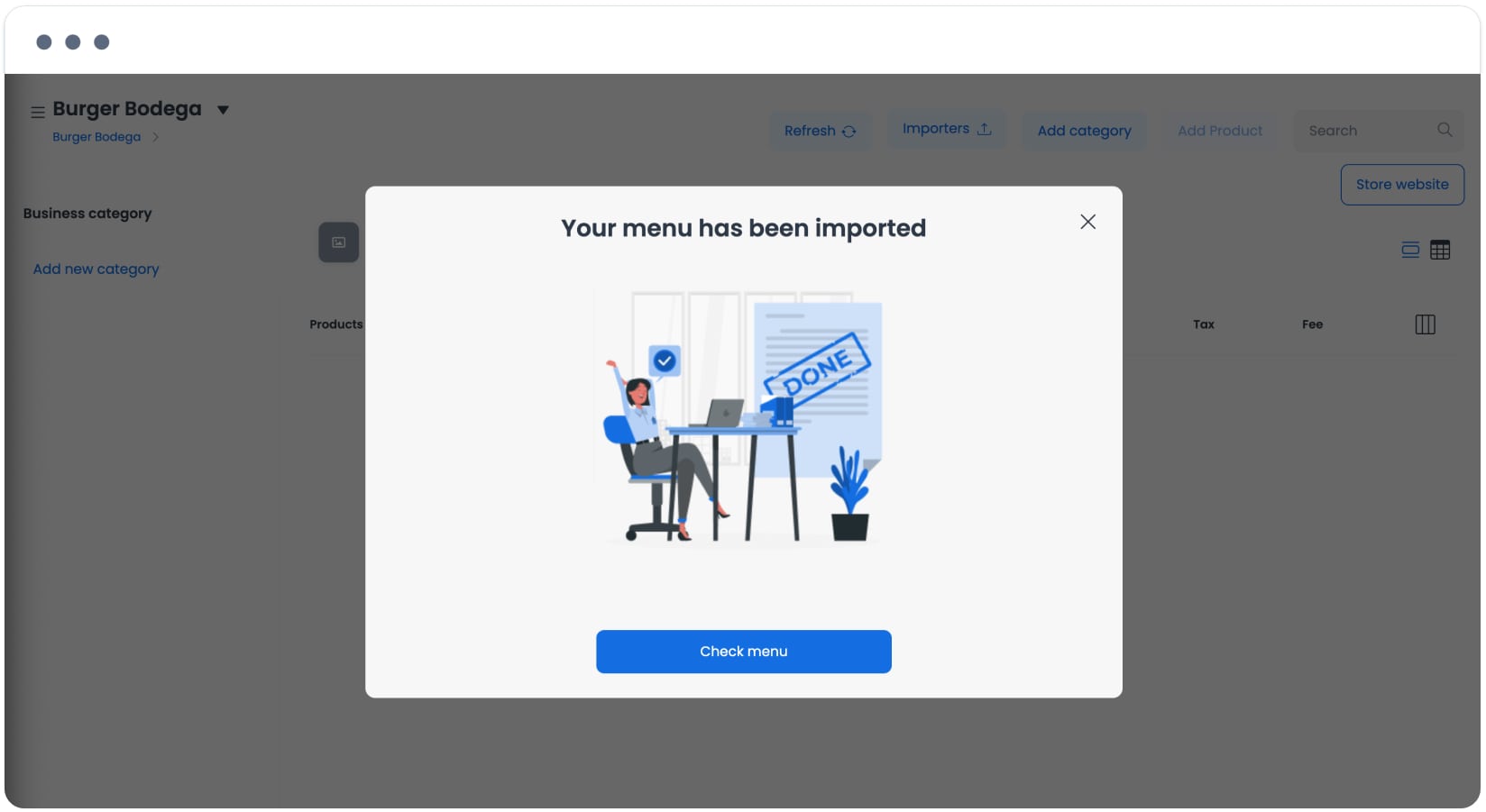
The in-product result confirms only the state displayed by the Dashboard. It is not independent confirmation of a provider response, a durable menu write, retry safety, or customer-facing availability.
Review the imported menu
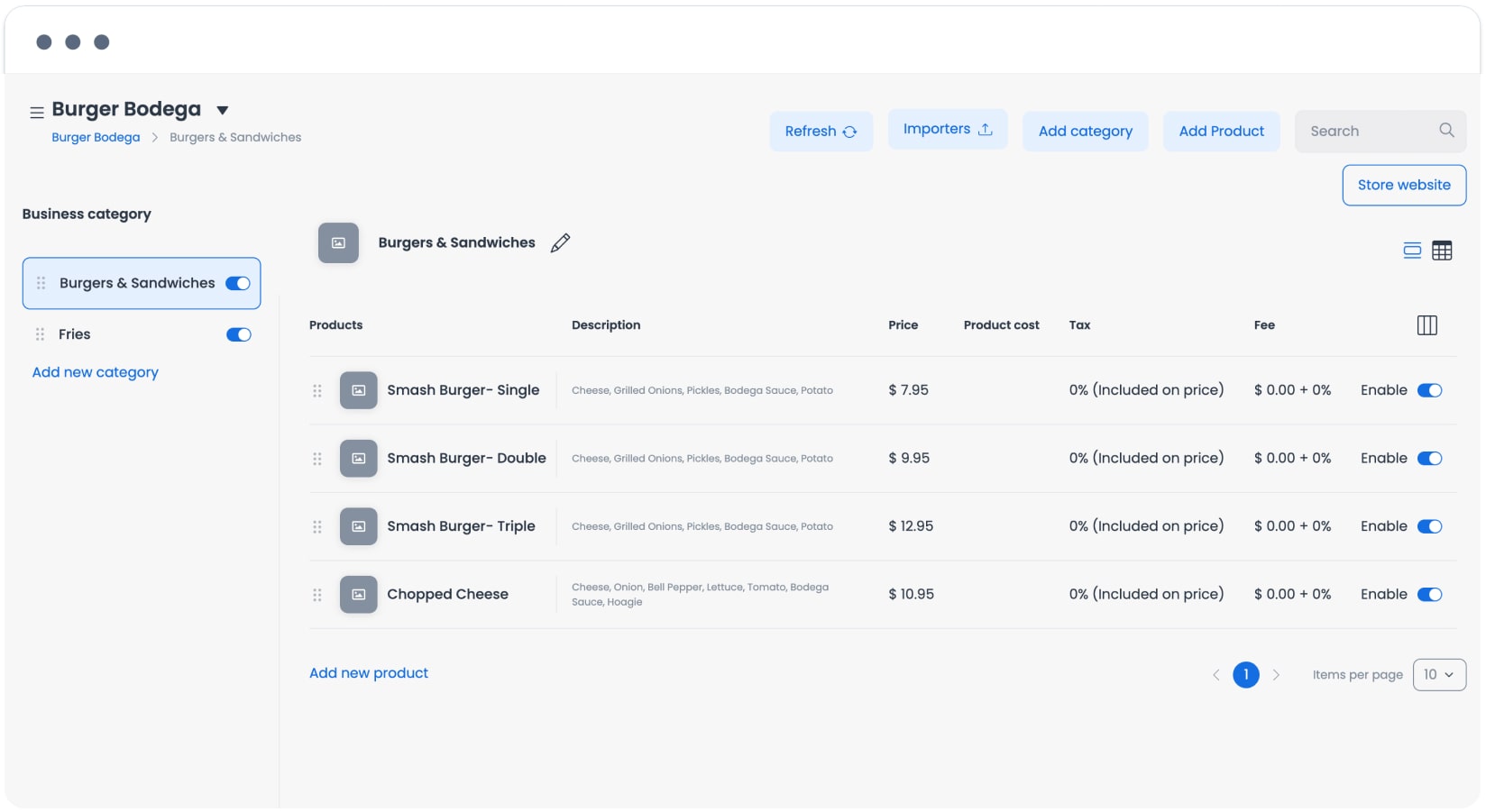
The flow is intended to bring in product entries, schedules, product options, prices, and product descriptions. Review each area after the result instead of assuming that every value transferred or is ready to use.
| Expected menu content | Review before using it |
|---|---|
| Products | Confirm that the expected categories and products are present in the intended store. |
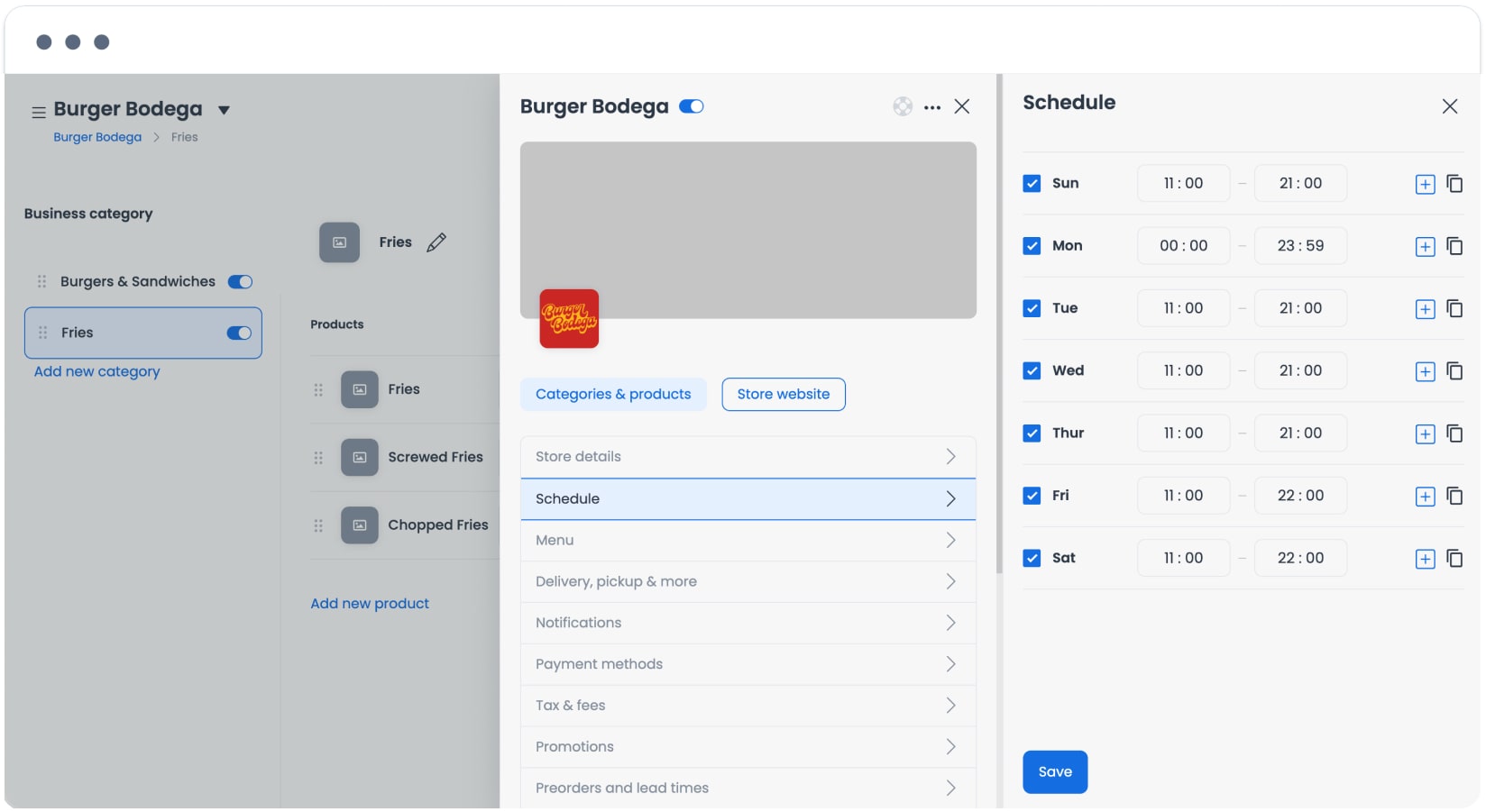
| Schedule | Confirm that the hours saved for the store are correct for the intended operation. |
| Product options | Review options and their associations with the relevant products. |
| Prices and descriptions | Review values and text before making the catalog available to customers. |
| Images and logo | Product images are not included in this import flow. A logo may be present; add and review product images separately. The Dashboard may convert uploaded images to WebP. |
Review product options
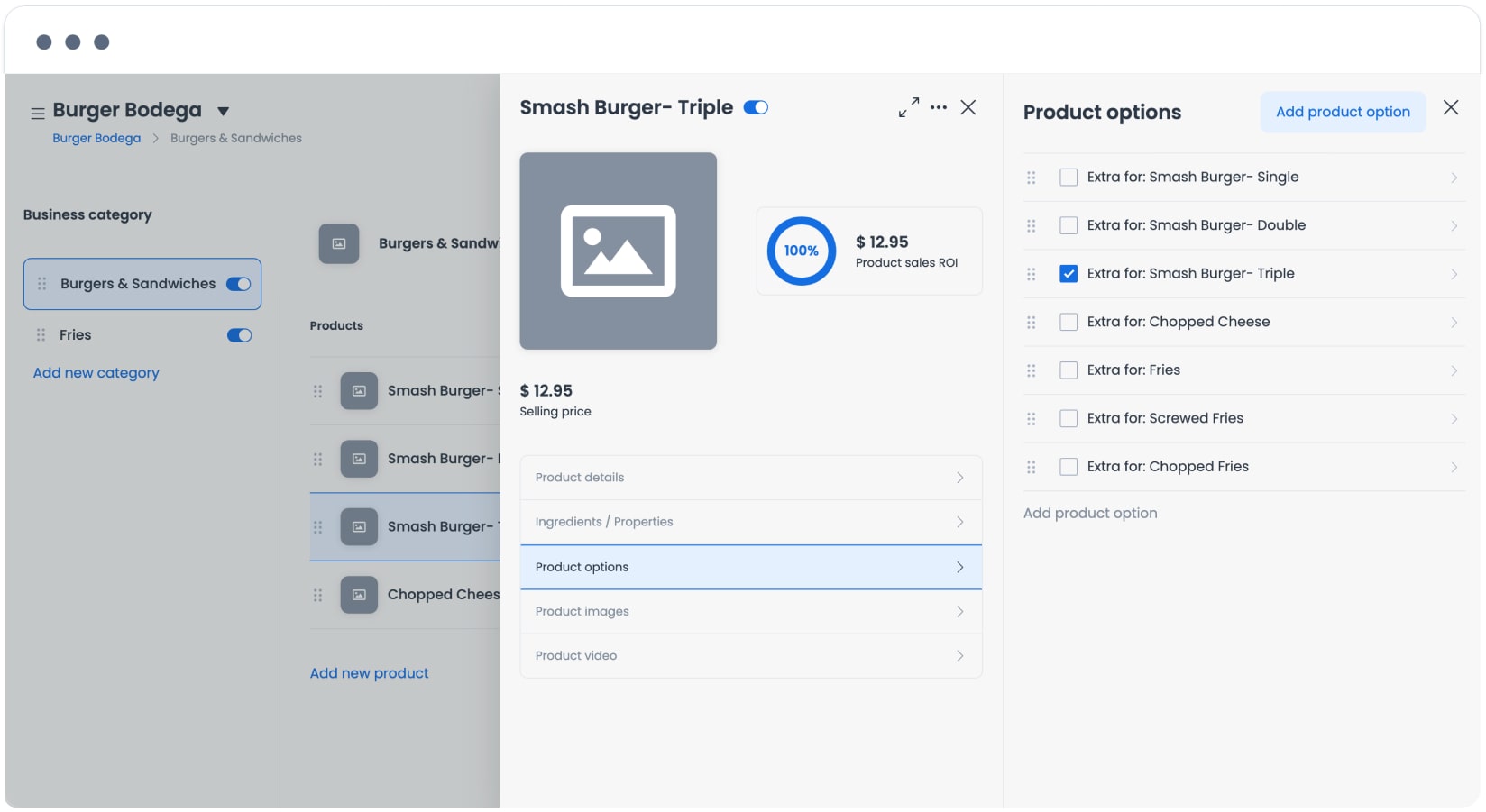
Review product details
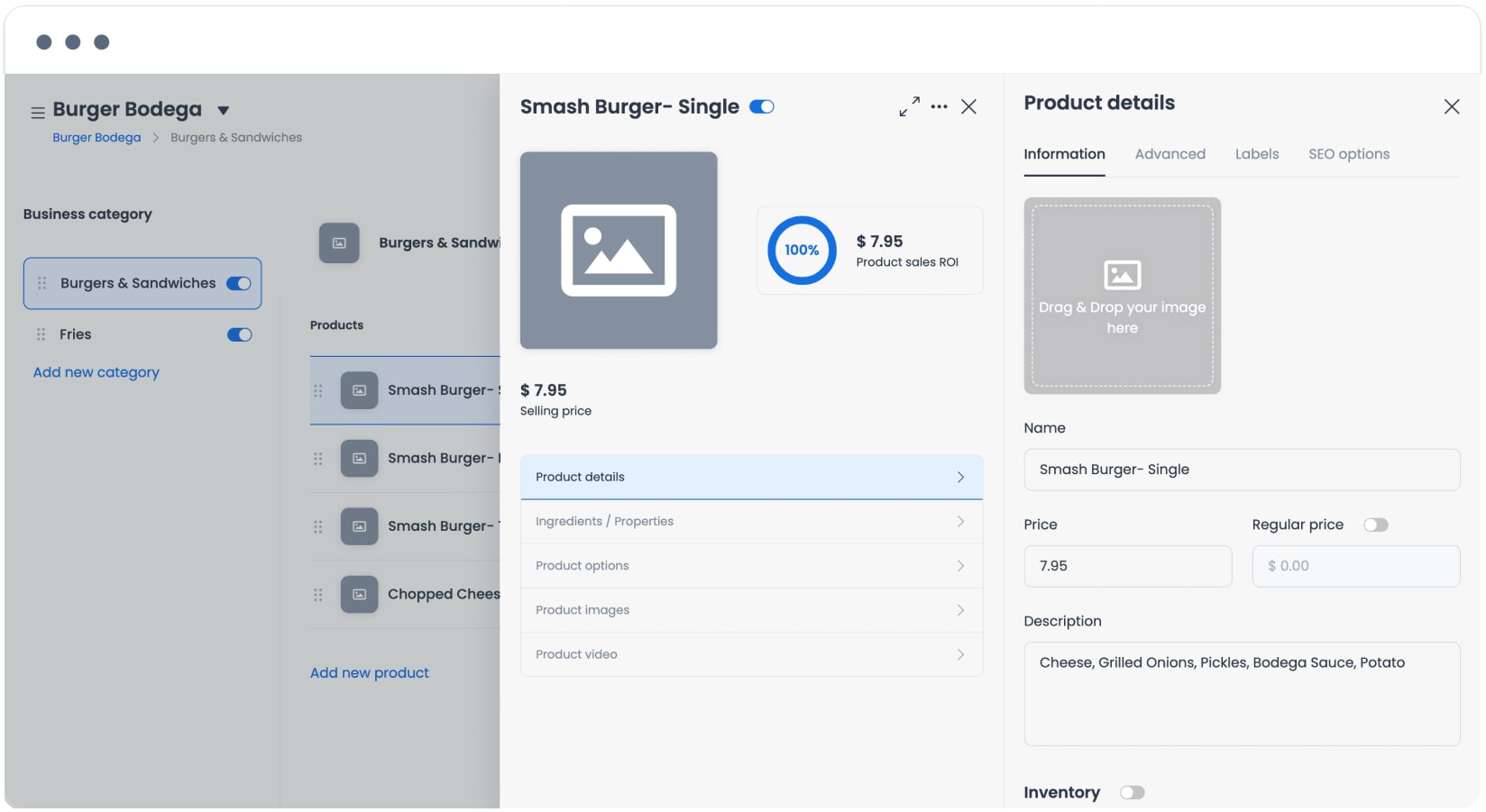
Review products and prices
Review the store schedule
Keep each outcome separate
- Visible option: Seeing Import Menu means the current interface offers that path. It does not prove a Network catalog is available.
- Network response: A returned business record is a candidate for selection. It does not establish catalog ownership, freshness, completeness, provider authorization, or provider completion.
- Import request: Selecting a result begins a request. It is not a continuing Network sync.
- Menu persistence: Review categories, products, options, prices, descriptions, and schedule in the intended store to confirm what was saved.
- Catalog availability: An imported or saved menu is not automatically active, published, or visible to customers. Confirm the applicable store, schedule, catalog, and product settings through an authorized operational workflow.
- Cart, order, and customer outcome: This import flow does not itself create a cart, place an order, or confirm that a customer can discover, purchase, or receive products.
Troubleshooting
Why is Import Menu missing?
The option can vary by the current store setup flow and project configuration. A screenshot or a different store does not establish that the option should appear for the store you are preparing.
Why can't I find the right business?
Check the business name and address you entered. If the correct result is not returned, do not select a similarly named record or infer that a provider catalog exists; use the approved manual setup path or ask the responsible operator to confirm the intended store identity.
Why are product images missing?
This import flow does not include product images. Add approved images through the product-management workflow, then review the saved presentation separately.
Why should I avoid retrying immediately?
The visible result does not establish whether an earlier request completed, partially completed, or is safe to repeat. Review the intended store's catalog and follow the approved support or operational process before taking another action.
Related guides: Stores overview · Add a store · Products overview