Create or edit a service
Use Stores → Products to manage an appointment service in the store catalog. Administrators and business owners can open the catalog for stores they can manage. Staff assignments require access to the professional’s record.
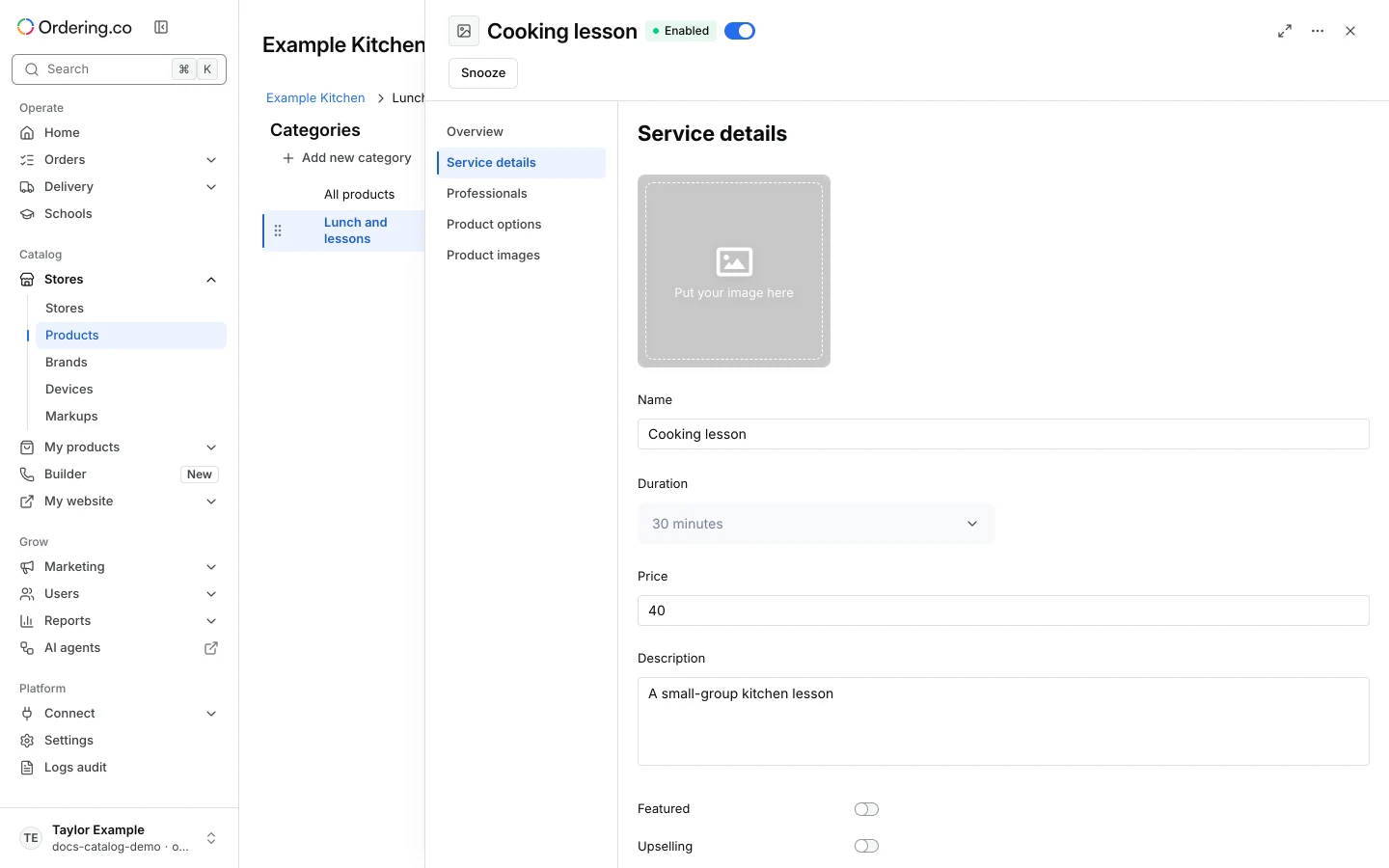
Open the service editor
- Select the store and category. For a new service, choose Add product, then Service as the type.
- Enter the name, duration, and price. Choose a preset duration or enter a custom duration when needed. Save, then open the service.
- For an existing service, select it in the catalog and open Service details. The editor also offers Professionals, Product options, and Product images.
Assign a professional to the service
Use the service’s Professionals section to find and open professional records. To manage the service assignment, go to Users → Professionals, select the professional, and open Business & Services. Choose the store and its services, then review the professional’s schedule.
Check the appointment workflow
Verify that the service, professional, and store correspond to the intended appointment. Use the Appointments guide to open the store calendar and find the order behind an event. Check bookable availability separately in the intended customer channel.